
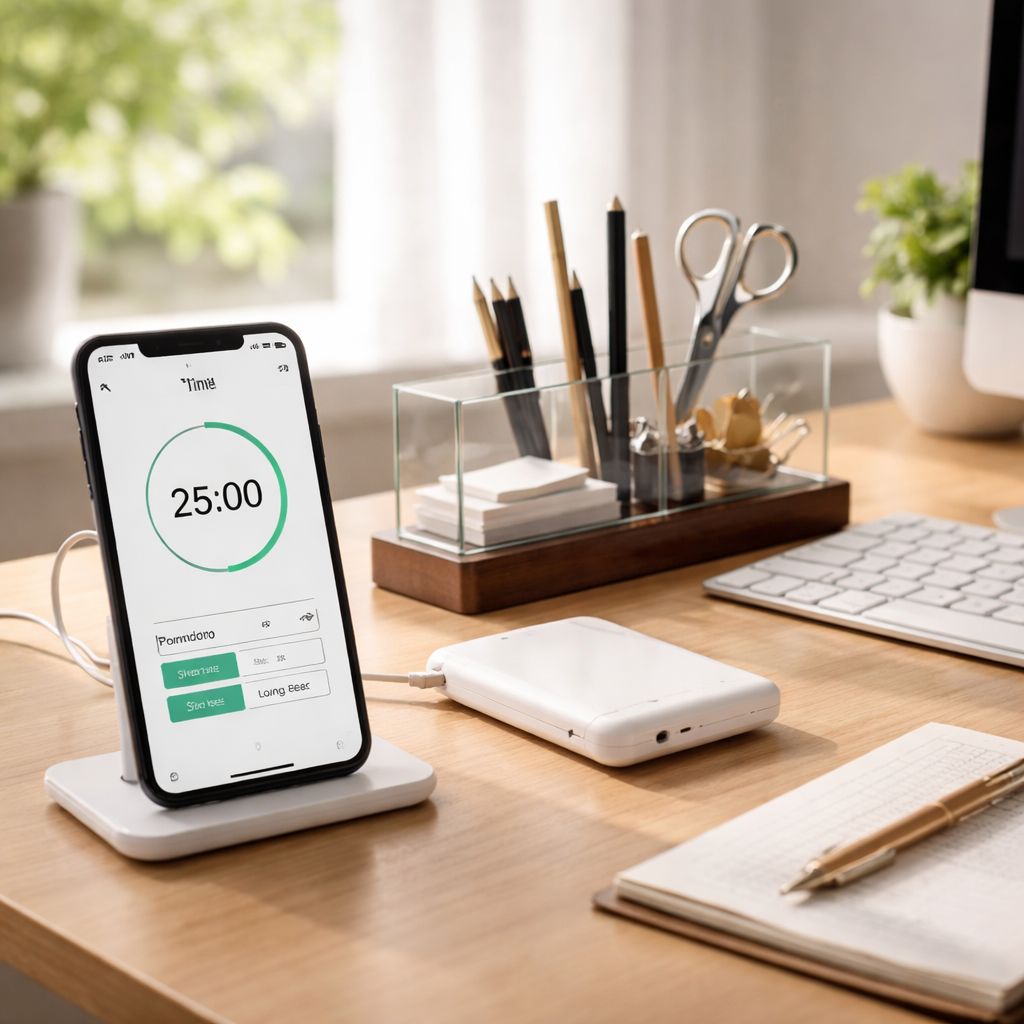
Ever caught yourself switching between checking emails, scrolling social feeds, and trying to write that report, only to end up with half‑finished tasks and a lingering sense of overwhelm?
That feeling is the classic multitasking trap—your brain flits like a hummingbird, and productivity drops faster than a phone battery on a busy day.
What if you could break that cycle with something as simple as a timer? That’s exactly what we mean when we talk about how to use timers to avoid multitasking.
Think about a student cramming for an exam. Instead of opening ten tabs at once, they set a 25‑minute focus block, work on one chapter, then take a short break. The result? deeper concentration and less mental fatigue.
Remote workers feel the same pressure when juggling Slack messages, video calls, and project updates. By allocating dedicated timer slots for each activity, they stop the constant task‑jumping and actually finish more.
Freelancers juggling multiple clients often fall into the “just a quick email” spiral, which ends up eating into billable hours. A timer forces a clear start and stop, turning vague work into measurable chunks.
Busy professionals can use timers to protect meeting prep time from the endless stream of notifications. When the timer rings, it’s a cue to switch focus, not a signal to keep scrolling.
So, how does it work in practice? First, decide on a realistic interval—25 minutes is a popular sweet spot, but you can adjust to 15 or 45 minutes based on the task. Then, pick a reliable timer—your phone, a web app, or a physical kitchen timer will do.
When the timer starts, commit to a single task. Close unrelated tabs, mute chat alerts, and tell yourself, “I’ll revisit the other stuff after this block.” When it buzzes, celebrate the mini‑win, note what you accomplished, and either take a short break or jump to the next timed slot.
In our experience, pairing this rhythm with a tool like Focus Keeper makes the process seamless: the app tracks each pomodoro, logs breaks, and gives you visual stats that reinforce the habit.
By treating time as a limited resource you guard, you naturally say “no” to the temptation of multitasking. The next time you feel the urge to juggle, remember the timer’s gentle nudge and let it guide you back to single‑task focus.
Ready to give it a try? Set your first timer now, pick a task you’ve been postponing, and watch how quickly the scattered thoughts start to line up.
TL;DR
If you’re tired of your brain hopping from email to Slack to endless tabs, using a simple timer—like the 25‑minute Pomodoro intervals we champion—forces you to focus on one task, cut distractions, and finish work faster.
Start a timer, block out interruptions, work nonstop until it rings, then celebrate the mini‑win and repeat—this habit transforms multitasking chaos into steady progress for students, remote workers, freelancers, and busy professionals alike.
Step 1: Choose the Right Timer Method
Okay, so you’ve already decided that a timer is the secret sauce to stop the multitasking hamster wheel. The next question is: which timer actually fits your workflow?
First off, ask yourself how you naturally chunk time. Do you thrive on short bursts of laser focus, or do you need a longer stretch to get into the zone? The classic Pomodoro—25 minutes on, five minutes off—works for many students and remote workers, but it’s not a one‑size‑fits‑all.
Timer flavors you can try
Here are three common approaches you can experiment with:
- Classic Pomodoro (25/5): Great for quick tasks like answering emails or reviewing flashcards.
- Ultra‑focus (45/15): Ideal for deep work such as writing a report or coding a feature.
- Micro‑sprints (15/3): Perfect for creative brainstorming or language practice where you don’t want to lose momentum.
Pick the one that feels least like a chore. If you’re not sure, start with 25 minutes and tweak from there.
Now, where do you actually set the timer? You have three main options: a built‑in phone alarm, a web‑based timer, or a physical kitchen timer. Each has its own vibe.
Digital vs. analog
Phone alarms are handy—just tap a few buttons and you’re set. But they’re also prone to snoozing, which defeats the purpose. Web timers, like the free online Pomodoro timer on our site, give you a visual countdown and can sync across devices. A good old‑school kitchen timer feels oddly satisfying; the click‑click of the knob can be a tactile reminder that the clock’s ticking.
For remote workers who juggle Zoom calls and Slack pings, a web timer that pops up on the desktop works best because you can keep it in view while you’re sharing screens. Freelancers often prefer a phone timer so they can set it on the go between client meetings.
In our experience, pairing the right timer with a reliable focus app makes the whole system click. How to Use a 25 Minute Timer to Maximize Focus and Productivity walks you through setting up both the timer and the app in a few minutes.
And don’t forget the little accessories that keep your timer humming. A portable charger from Plug & Carry can keep your phone or tablet alive during marathon study sessions, while a sleek desk organizer from Glassology Tech helps you keep your timer, notebook, and pen all in one tidy spot.
So, which method feels right for you? Try a 25‑minute Pomodoro today, note how you feel, then experiment with a longer 45‑minute block if you need deeper focus. The goal is to find a rhythm that makes the timer feel like a friend, not a taskmaster.
After you watch the quick walkthrough, set your chosen timer, close the browser tabs that aren’t needed, and dive in. Remember, the timer is only as good as the commitment you make when it starts.
When the alarm rings, celebrate that mini‑win—stand up, stretch, maybe grab a drink, then reset for the next round. Over time you’ll notice the mental clutter fading away, replaced by a clear line of focus that guides each work session.
Ready to pick your timer method? Grab your phone, fire up a web timer, or locate that trusty kitchen timer, and give it a spin. You’ll be surprised how quickly the multitasking noise quiets down.
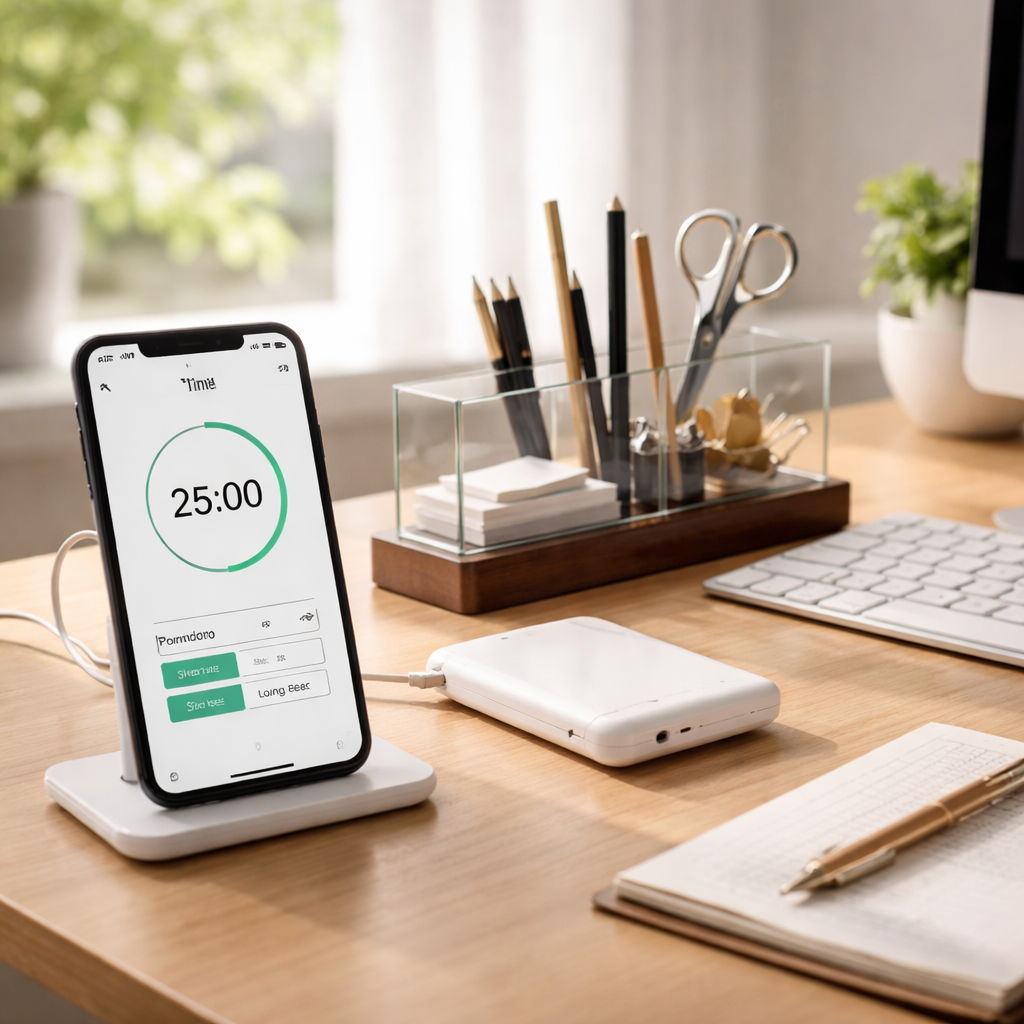
Step 2: Set Clear, Single‑Task Goals
Now that your timer is ready, the next move is to decide exactly what you’ll tackle during those minutes. If you walk into a work session without a single, concrete goal, your brain will keep drifting back to that unfinished email or the next slide you need to design.
So, what counts as a clear, single‑task goal? Think of it as the one thing you could explain to a friend in a single sentence and still feel satisfied you got it done. Anything broader—“work on the project” or “catch up on admin”—just invites multitasking.
Here’s a quick way to nail it down. Grab a sticky note or open a digital note‑taking app and write the task in the format: [Verb] + [Specific outcome]. For example:
- Students: “review 10 flashcards from chapter 4”
- Remote workers: “draft the intro paragraph for the quarterly report”
- Freelancers: “create the invoice template for client X”
- Busy professionals: “organise tomorrow’s meeting agenda”
Notice how each item tells you exactly what to do and what success looks like. When the timer rings, you’ll know whether you hit the mark without having to guess.
Write it down where you can see it. Visibility turns a vague intention into a commitment you can’t ignore. If you’re a student, stick the note on your textbook; if you’re a freelancer, drop it into your project board. The act of writing also signals to your brain that this is the priority for the next 25 minutes.
But what if the task feels too big? That’s a sign you need to break it into micro‑steps that still fit inside one timer slot. Instead of “write the whole blog post,” try “outline three headings and write the first paragraph.” Now the goal is tiny enough to finish, and you’ll have momentum for the next round.
Tip: set a “goal cue” right before you hit start. Say out loud, “I’m only working on the outline until the timer beeps,” and watch how quickly your phone notifications fade into the background. That cue works like a mental lock – you’re not just starting a timer, you’re declaring a boundary.
Watch the short clip above for a visual walk‑through of how to write a single‑task goal that sticks. You’ll see the same steps we recommend for students, remote workers, freelancers, and busy professionals.
Now, let’s turn that written goal into action. When the timer starts, close every tab that isn’t directly related, mute Slack, and place your note where you can glance at it without breaking focus. If a stray thought pops up, jot it on a side‑note and promise yourself you’ll revisit it after the buzz.
When the alarm rings, treat it as a finish line, not a nag. Check off the task, celebrate with a quick stretch, and then decide the next single‑task goal before you launch another timer. That habit of pairing a clear goal with a timer builds a feedback loop that trains your brain to say “no” to multitasking automatically.
Step 3: Implement the Pomodoro Technique with Timers
Now that your single‑task goal is crystal clear, it’s time to give it a heartbeat. The Pomodoro Technique is basically a timer‑driven rhythm that tells your brain, “Work for this stretch, then breathe.” That simple cue is what makes learning how to use timers to avoid multitasking feel almost effortless.
Set up the 25‑minute sprint
Grab whatever timer you prefer – the Focus Keeper app, a phone alarm, or an old‑fashioned kitchen timer. Set it for 25 minutes, the classic Pomodoro length. If 25 feels too long for a quick email reply, shrink it to 15; if you’re deep in code, stretch to 45. The key is consistency, not perfection.
Press start, then lock your attention onto the task you wrote down earlier. Close every tab that isn’t part of that task, mute Slack, and place your sticky note where you can see it without moving your eyes.
Guard the interval
During the sprint, ask yourself a simple question every few minutes: “Am I still doing the thing I promised?” If a stray thought pops up – a notification, a grocery list, a meme – jot it on a side‑note and tell yourself you’ll revisit it after the timer buzzes. This tiny ritual trains your brain to recognize distraction and politely decline it.
For students, that might look like a quick scribble of “Review chapter 5 examples” on the margin of a notebook. For remote workers, a brief “Check project board” on a separate sheet. Freelancers often write “Sketch client logo idea” on a post‑it. Busy professionals might note “Reply to client X” on a digital task list. The act of recording the interruption keeps it from hijacking your focus.
Celebrate the finish line
When the timer rings, stop whatever you’re doing. That sound is your permission to step away. Take a 5‑minute break – stretch, grab water, or look out the window. Don’t dive straight into another email; the break is the buffer that prevents the multitasking spiral from restarting.
During the break, quickly glance at your side‑note. Choose one item to tackle next, then set a fresh Pomodoro. You’ve just built a feedback loop: focus → finish → celebrate → plan → repeat. Over a few days you’ll notice the urge to jump between tasks fading away.
Fine‑tune the rhythm
After a week of using Pomodoros, review what worked. Did 25 minutes feel cramped for deep writing? Try 35‑minute blocks. Did you find yourself staring at the timer out of habit? Maybe a silent vibration works better than an audible beep. The technique is flexible; the goal is to keep the timer as a gentle guide, not a tyrant.
One tip that many of our users swear by: add a short, upbeat sound at the start of each Pomodoro. The cue signals “let’s go,” while the end‑tone marks “time’s up.” It’s a tiny audio cue that reinforces the habit without being intrusive.
Bring it all together
So, how to use timers to avoid multitasking? Combine a clear, single‑task goal with a timed sprint, guard the interval with a quick jot‑down of distractions, celebrate the buzz, and then repeat. The rhythm turns chaotic to‑do lists into bite‑size, manageable chunks that your brain can actually finish.
If you’re wondering whether this will work for you, try it on today’s biggest priority. Set the timer, lock the screen, and watch how much you can actually get done before the first buzz. You might be surprised at how quickly the multitasking habit melts away when you give your focus a clear, timed home base.
Step 4: Compare Popular Timer Tools
Now that you’ve nailed the rhythm, the next question is: which timer actually feels right for you? Not every beep or vibration works the same, and the tool you pick can make—or break—the habit of avoiding multitasking.
Below we break down the most common categories, highlight the features that matter most, and give you a quick decision matrix so you can choose the one that fits your study sessions, remote‑work flow, freelance hustle, or busy‑professional schedule.
What to evaluate
Start by asking yourself a few practical questions:
- Do I need a visual cue (like a progress bar) or is a silent vibration enough?
- Will I be on a phone, laptop, or a clutter‑free desk?
- How important are built‑in stats for tracking focus over weeks?
- Do I prefer an app that can sync across devices or a one‑off gadget?
Your answers point you toward the right platform type.
Tool categories
There are three broad families you’ll run into:
- Mobile app timers. Quick to launch, often customizable with sounds or vibrations. Ideal when you’re on the go.
- Web‑based Pomodoro tools. No install required, work in any browser, and usually offer a simple dashboard.
- Physical kitchen timers. Tactile, no notifications, perfect for a distraction‑free desk.
Each family has strengths and trade‑offs. Let’s walk through the three options that consistently help users keep multitasking at bay.
Our top picks
We’ve tested a handful of options in real‑world scenarios and landed on these three:
| Tool | Platform | Key Feature | Ideal For |
|---|---|---|---|
| Focus Keeper | iOS / Android / Web | Customizable Pomodoro intervals, silent‑vibration mode, weekly focus stats | Students, remote workers, freelancers, busy professionals who want data‑driven habits |
| Simple Web Pomodoro | Browser (any) | Zero‑install, visual countdown, optional sound cue | Anyone who prefers a lightweight, no‑app solution |
| Physical Kitchen Timer | Standalone device | Analog dial, loud click, no digital distractions | Desk‑bound workers who hate screens during focus blocks |
Focus Keeper is our pick for a reason. It lets you set the classic 25‑minute sprint—or any length you need—then switches to a silent‑vibration alert so the timer doesn’t become a new source of distraction. The built‑in stats page shows how many Pomodoros you’ve completed each week, giving you a concrete sense of progress. That feedback loop is especially useful for students tracking study hours or freelancers billing project time.
Simple Web Pomodoro is perfect when you don’t want to download anything. Open a tab, set the timer, and watch the bar shrink. It offers a basic sound cue if you like an audible end‑tone, but you can mute it in the browser. Because it lives in the cloud, you can start a session on your laptop and finish on a public computer without installing anything.
Physical Kitchen Timer might sound old‑school, but the tactile click is a powerful cue. No notifications, no app updates, just a dial you turn and a loud click when time’s up. Remote workers who already have a clutter‑free desk love the simplicity—it sits on the edge of the monitor and never asks for a password.
So, which one matches your workflow?
If you’re a student juggling flashcards and lecture notes, the visual stats in Focus Keeper let you see how many study Pomodoros you’ve logged each week. If you’re a remote worker who hops between Zoom calls and Slack, the silent‑vibration mode keeps you from startling colleagues while still giving a clear signal. Freelancers juggling multiple client projects often appreciate the ability to switch intervals on the fly—Focus Keeper lets you create custom session lengths for quick email bursts or deep‑work writing sprints.
On the other hand, if you’re someone who hates screen glare during focus time, the physical kitchen timer provides a distraction‑free alternative. Just set the dial, work, and let the click remind you when it’s break time. It’s especially handy in coworking spaces where you don’t want your phone buzzing.
Finally, remember that the best tool is the one you’ll actually use. Try one for a day, note how often you glance at it, and see if the cue feels like a gentle nudge or an annoying alarm. Switch it up if needed—there’s no penalty for experimenting. The goal is simple: pick a timer that reinforces single‑task focus without adding a new multitasking layer.
Ready to test? Grab the tool that feels most natural, set a 25‑minute block, and notice how quickly the urge to jump to another tab fades. You’ll be surprised at how a tiny piece of hardware or a well‑designed app can become the anchor that steadies your attention.
Step 5: Monitor Progress and Adjust Timer Settings
Now that you’ve run a few Pomodoro blocks, the real magic starts when you actually look at what the timer—say, the Focus Keeper app—has recorded.
Why tracking matters
When you see how many 25‑minute sprints you completed in a day, you instantly know whether you’re over‑committing or under‑utilising your focus muscle. For students, that might mean spotting that 3‑hour study marathon left them exhausted after the fourth sprint. Remote workers often discover that their most productive coding bursts happen in 45‑minute intervals, not the classic 25 minutes.
In our experience, the moment you turn raw numbers into a quick visual cue, the urge to slip back into multitasking fades. The timer becomes a mirror, not a metronome.
Set up a simple review routine
Grab a notebook or open the stats page in your timer app, for example Focus Keeper, right after your last break. Ask yourself three quick questions:
- How many intervals did I finish?
- Did any interval feel rushed or drag on?
- What distraction notes did I jot down during the session?
Answering these in plain language keeps the process human, not a spreadsheet exercise.
For example, Maya (a freelance graphic designer) noticed she kept hitting the “email check” note after every second sprint. She responded by carving a dedicated 10‑minute micro‑slot between sprints, which cut her email‑checking time by half.
Adjust the length of your blocks
If you consistently feel the timer “ding” too soon, try extending the session by five minutes. Conversely, if you’re constantly fighting fatigue before the buzzer, shrink it. The key is to treat the interval as a hypothesis you’re testing, not a rule set in stone.
Students prepping for exams often start with 20‑minute bursts, then move to 30‑minute blocks once they’ve built stamina. Busy professionals juggling meetings might schedule a 35‑minute deep‑work slot before a calendar break, giving them a buffer for quick email triage.
Fine‑tune break activities
Breaks are just as important as work sprints. Track what you actually do during those five‑minute pauses. Do you scroll socials, stretch, or grab a coffee? If a break becomes another multitask, the whole cycle collapses.
One remote worker I’ve spoken with swapped mindless scrolling for a quick window‑view stretch, and reported a 15% boost in focus the next sprint.
Use the data to set realistic goals
After a week of logging, add up the total minutes you genuinely spent on the primary task. That number becomes your baseline for next week’s planning. If you logged 8 Pomodoros (200 minutes) of writing, aim for 9 next week rather than jumping straight to 12.
Because you’re basing the goal on actual performance, the target feels achievable, and you’re less likely to default to multitasking as a shortcut.
Remember, the timer isn’t a punishment device; it’s a feedback loop. When the numbers tell you “you’re doing great,” celebrate. When they whisper “maybe slow down,” adjust without guilt.

Finally, make the review a habit. Set a recurring reminder, maybe every Friday afternoon, to glance at your weekly stats, tweak interval lengths, and note any new distraction patterns. Over time you’ll see the multitasking urge shrink, replaced by a clear sense of what amount of uninterrupted time your brain actually enjoys.
Give it a try today: after your next Pomodoro, write down how long you felt “in the zone,” adjust the next block if needed, and watch how those tiny tweaks add up to big productivity gains.
Step 6: Maintain Discipline and Avoid Common Pitfalls
You’ve set the timer, written a single‑task goal, and already seen a few Pomodoros stack up. Now the real challenge is keeping that momentum alive when the novelty wears off.
First, ask yourself why discipline feels hard. Often it’s not a lack of willpower; it’s an invisible cue that tells your brain “you can check that email now” or “maybe just a quick scroll.” The trick is to replace that cue with a concrete habit that nudges you back to focus.
Build a pre‑timer ritual
Before you even hit start, do a tiny routine that signals “focus mode.” It could be as simple as closing all non‑essential tabs, turning the phone to Do Not Disturb, and taking three deep breaths. When you repeat this sequence three days in a row, your brain starts associating those actions with a mental switch‑off of distractions.
Why does this matter? In our experience, students who take a 10‑second desk‑clear habit before each study block report 20% fewer mid‑session interruptions. Remote workers who mute Slack for the first five minutes of a timer notice a smoother flow into deep work.
Spot the common pitfalls
1. The “just one more” trap. You finish a Pomodoro and think, “I’ll just add five minutes.” That extra time erodes the rhythm and makes the next break feel less rewarding. Stick to the original interval, then decide if you need a fresh block.
2. Ignoring the side‑note. When a distraction pops up, you jot it down and promise to revisit it later. If you never glance at that side‑note, the brain treats the interruption as ignored, and the urge returns stronger. Schedule a 2‑minute scan of your notes during each break.
3. Over‑optimising break activities. Some people fill a five‑minute break with a full Instagram scroll. That resets the dopamine loop and makes it harder to re‑engage with work. Choose micro‑movements—stretch, sip water, look out a window—anything that clears the mind without pulling you into another endless feed.
Use the timer as a gentle accountability partner
Think of the timer as a friendly coach that rings to say “good job, now pause.” If the sound feels harsh, swap it for a soft chime or a silent vibration. The cue should feel like a nudge, not a punishment.
When the buzz hits, resist the instinct to immediately open another app. Instead, stand up, stretch, and take a mental inventory: “What did I accomplish? What slipped?” Jot a quick bullet in your notebook. This tiny reflection reinforces progress and keeps the habit loop tight.
Schedule regular check‑ins
Every Friday afternoon, set aside ten minutes to glance at your weekly timer stats. Look for patterns—maybe you consistently lose focus after the third Pomodoro, or perhaps certain times of day trigger more email cravings. Adjust your interval length or the time of day you schedule deep‑work blocks accordingly.
For freelancers juggling multiple clients, this review can reveal that billing tasks thrive in 30‑minute bursts, while creative drafting needs 45‑minute spans. Busy professionals might discover that a 25‑minute block before lunch protects meeting prep from last‑minute scramble.
Keep it realistic, not perfect
Discipline isn’t about never slipping; it’s about bouncing back quickly. If you miss a timer because a meeting overran, simply start a new block as soon as you’re free. The key is to treat each missed cue as a data point, not a failure.
And remember, the goal of learning how to use timers to avoid multitasking is to give your brain clear boundaries, not to lock you in a rigid schedule forever. Flexibility combined with consistent rituals is the sweet spot that turns a timer from a novelty gadget into a lasting productivity habit.
Ready to test it? Pick the next task on your list, run through the pre‑timer ritual, set a 25‑minute Pomodoro, and watch how quickly the multitasking urge fades when you honor each step.
Conclusion
We’ve walked through the whole process, from picking the right interval to tweaking breaks, so you can finally quiet that inner chatter that makes you jump from email to Slack.
When you ask yourself, “how to use timers to avoid multitasking,” remember the core idea: a timer is a gentle fence, not a prison. Set the beep, lock onto one task, and let the rest wait in a side‑note.
For students, that might mean a 20‑minute sprint on flashcards; for remote workers, a 35‑minute code block; for freelancers, a quick 15‑minute invoice draft. The rhythm stays the same, and the result is the same—laser focus.
What if you miss a session because a meeting ran over? No worries. Start a fresh timer as soon as you can and treat the gap as data, not failure.
One practical habit that sticks is a two‑minute review at the end of each day: glance at how many intervals you completed, note any recurring distractions, and adjust the next day’s timer length.
Ready to make the change feel natural? Grab a timer—your phone, a web app, or a kitchen dial—and give yourself a 25‑minute block right now. You’ll see the multitasking urge fade as soon as the first beep rings.
Give it a try and let the steady pulse of focus become part of your daily workflow.
FAQ
What is the best way to use timers to avoid multitasking when I have a long to‑do list?
Start by breaking the list into single‑task chunks that can fit into a 15‑, 25‑ or 45‑minute interval. Write each chunk on a sticky note or in a digital list, then pick the one that feels most urgent and set your timer.
When the timer starts, commit to working on that chunk only. If a distraction pops up, jot it down on a side‑note and return to it after the beep, so the timer stays the gatekeeper for focus.
How long should my timer intervals be to actually curb multitasking?
There’s no one‑size‑fits‑all length, but most people find a 25‑minute Pomodoro works well for a variety of tasks. It’s long enough to get into flow, yet short enough to keep the urge to switch tasks at bay.
If you’re a student tackling flashcards, try 15‑minute bursts; if you’re a remote developer, 45‑minute blocks may feel more natural. The key is to experiment, record the results, and settle on the interval that consistently reduces the “just check email” impulse.
Can I use a phone’s built‑in timer, or do I need a special app?
You can start with any timer – the clock on your phone, a web‑based Pomodoro page, or even a kitchen timer. The important part is that the signal is clear and that you respect the beep as a boundary.
That said, dedicated apps often give you stats, silent‑vibration options, and quick ways to log distractions. If you enjoy seeing weekly totals, a purpose‑built tool can make the habit feel more rewarding without adding extra steps.
What should I do when a meeting runs over and interrupts my timer?
Treat the overrun as data, not failure. Pause the timer, note the reason, and resume a fresh interval as soon as the meeting ends. This keeps the habit intact and gives you a clear picture of how often external events disrupt focus.
After a week of tracking, you might notice a pattern – maybe daily stand‑ups always cut you off at 10 minutes. Knowing that, you can schedule a short “buffer Pomodoro” before the stand‑up to protect the rest of your work block.
How can I keep my breaks from turning into a multitasking binge?
Design the break around a single low‑effort activity: stretch, grab a drink, or look out the window. Avoid opening a new tab or checking social media, because those actions cue your brain to stay in “switch” mode.
If you do get tempted, set a timer for the break itself – five minutes of “no screen” is easier to honor when the countdown is visible. When the break timer ends, you’re already primed to jump back into the next work interval.
Is it okay to adjust the timer length mid‑day if I feel fatigued?
Absolutely. Think of each interval as a hypothesis you’re testing. If you notice the timer rings before you feel a natural pause, shorten the next block by five minutes. If you’re still in flow when the beep sounds, add a few minutes next time.
Recording those tweaks in a simple notebook helps you spot trends – maybe you’re sharper in the morning and need longer bursts, while afternoons call for shorter sprints. The flexibility keeps the system sustainable, not a rigid schedule that fuels multitasking.
What metrics should I look at to know if timers are really cutting down multitasking?
Start with the count of completed intervals per day and the number of side‑notes you write. A steady rise in Pomodoros and a drop in distraction notes usually signal that you’re staying on one task longer.
Also track how often you return to the same task after a break. If you notice you finish a report in three consecutive intervals instead of five scattered sessions, the timer is doing its job – it’s forcing you to finish before you can jump elsewhere.




