

Ever sit down for a Pomodoro sprint, hit a wall, and then wonder, “What did I actually get done?” You’re not alone. The missing piece is often not the timer—it’s the notes you (maybe) scribble in a rush and then forget.
When you learn how to use session notes effectively, you turn a chaotic blur into a clear roadmap. Imagine a student prepping for finals: after each 25‑minute study burst, they jot down the key concepts, flag confusing topics, and assign a quick follow‑up task. By the end of the week, that notebook isn’t a mess; it’s a targeted revision guide that cuts study time by up to 30% according to recent learner surveys.
Remote workers feel the same pressure. Jenna, a freelance designer, used to open a new document for every client call, but the notes were scattered across tabs. She started a single “session notes” file, structuring each entry with a brief goal, outcomes, and next steps. The result? She reduced project‑overlap errors and saved roughly two hours per week.
Freelancers juggling multiple gigs can apply the same habit: start each Pomodoro with a one‑sentence intent, capture bullet‑point results, and end with a quick reflection. That three‑step loop not only boosts focus but also builds a living portfolio of completed tasks you can showcase to future clients.
Busy professionals often think they don’t have time to note anything. The trick is to keep it ultra‑lean. A single line like “Drafted email to client X – need approval” paired with a timestamp is enough to trigger a later review. Over time, those lines become data points you can analyze for patterns, like which types of tasks consistently overrun your 25‑minute blocks.
Here’s a quick starter template you can copy into any note‑taking app:
1️⃣ Session Goal (what you aim to achieve)
2️⃣ Key Actions (bullet points during the timer)
3️⃣ Outcome Summary (what you actually completed)
4️⃣ Next Step (what’s the follow‑up).
Stick to it for a week, and you’ll see gaps you never knew existed.
Want a deeper dive on setting those goals and turning notes into measurable progress? Check out our guide on how to set realistic session goals – it walks you through pairing each note with a concrete milestone.
And if you need a hands‑free way to capture thoughts without breaking focus, the AI voice capture tool BubblyAgent lets you record quick verbal snippets that sync directly to your task backlog, so you stay in the flow.
So, does this feel doable? Absolutely. Start with one sentence per session, watch the clarity build, and soon your notes will feel like a personal productivity coach.
TL;DR
If you capture a single, timestamped line for each Pomodoro session, you’ll instantly and quickly spot patterns, cut wasted time, and turn chaos into clear progress.
Stick to our four‑point template—goal, actions, outcome, next step—and watch your notes become a personal productivity coach that keeps you focused day after day.
Step 1: Prepare Your Session Framework
You’re not short on energy. You’re short on a clear framework that translates your timer into real progress. In our experience, the magic isn’t the 25 minutes alone — it’s what you write down before and after each block. Let’s build that scaffolding so every session counts in 2026 and beyond.
First, set one sharp session goal. One sentence is plenty: what do you want to move from “maybe” to “done”? This focus anchors your actions and makes the rest of the notes sing. If you’re studying for a test, that sentence might be “summarize chapter 4 concepts.” For a client project, it could be “draft the proposal outline.”
Clarify your four‑part note structure
We keep it simple and consistent: Goal, Key Actions, Outcome, Next Step. This template travels with you from one Pomodoro to the next and turns fleeting effort into a trackable story. Start each session by jotting the Goal; during the block, list 2–4 concrete Actions; at the end, write a concise Outcome; and finish with a Next Step that ties into your next session.
Make it part of your ritual
Preload context that’s relevant to your work. Include the project name, the current milestone, and any blockers you’re watching. If you’re a remote worker, note the client, deadline, and any dependencies. If you’re a student, tag the course, unit, and the main concept you’re mastering. Keeping context small but specific saves you time later.
Plan a quick post‑session review
At the end of each block, ask yourself: Did I hit the Goal? What surprised me? What’s the immediate Next Step, and what’s the bigger follow‑up? A clean, one‑line reflection is often enough to unlock patterns—like which kinds of tasks consistently derail you or which topics repeatedly come up as blockers.
Tooling and consistency
Platforms like Focus Keeper make this easier by letting you lock the four‑part template to each session. You’ll get a built‑in space for a short Goal, actions, outcomes, and next steps, plus time tracking that aligns with your notes. The result is a living, growing log you can skim on Friday and see what actually moved the needle.
So, what’s next? Start with a single session today and fill out the four fields. Then repeat tomorrow. If you’re new to this, commit to a 5‑day streak and watch the clarity compound.
Watch this quick explainer to see the framework in action:
Now, picture your next study sprint, your next client call, or your next coding block. With a solid session framework, you’ll finish with less guesswork and more tangible results.

Remember: the framework isn’t a rulebook to choke your momentum; it’s a compass that points you toward real progress in 2026 and beyond. Try it for a week and see how your focus follows.
Step 2: Capture Key Details During the Session
Alright, you’ve set up the four‑point framework, the timer’s humming, and you’re about to dive in. The real magic happens the moment you start recording the details that matter.
Grab the Moment
Imagine you’re a student flipping through a textbook and a flash of insight hits you – “this enzyme is the bottleneck.” If you don’t jot it down right then, it disappears like a pop‑up ad. So, as soon as the timer starts, open your note file and type a quick “session start” line with the timestamp. It anchors everything that follows.
For remote workers, it might look like: 09:15 – 09:40 | Code Review #3. Freelancers often prepend the client name, and busy professionals can add the project tag. The key is consistency; later you’ll be able to sort or filter by those tags without hunting.
What to Jot Down
We’re not looking for a novel; just bite‑size nuggets that you can scan later. Here’s a cheat‑sheet you can keep next to your keyboard:
- Goal reminder: one‑sentence intent you wrote in Step 1.
- Action verbs: “draft email,” “outline slide,” “run test.”
- Quantifiable bits: “sent 3 proposals,” “fixed 2 bugs.”
- Unexpected hiccups: “connection dropped,” “clarification needed.”
- Quick reflections: “need more data tomorrow.”
Notice we’re using numbers and concrete language. That’s the secret sauce behind how to use session notes effectively – it turns vague memories into searchable data.
Keep the Pace Light
Don’t wait until the Pomodoro ends to fill in everything. A 5‑second pause after each major action is enough.
If you’re using Focus Keeper, the built‑in “note” button flashes at the 15‑minute mark; tap it and type a single line.
It feels like a tiny stretch break, but it prevents the dreaded “I forgot what I did” blackout.
And if you miss a beat? No worries.
The next bullet can include a “previously missed” note, like “*re‑visit earlier design feedback*”.
This habit of retro‑capturing keeps the record honest without breaking flow.
Make It Scan‑Ready
When you finish the session, spend just 30 seconds to add two final columns: Outcome and Next Step.
Write the outcome in the same metric style you used for actions – “completed 4 of 6 wireframes, 67% done.”
Then, draft a next step that’s doable in the next Pomodoro, for example, “finish remaining wireframes, then review with teammate.”
This tiny wrap‑up turns a raw list into a mini‑report card.
Over weeks, you’ll start seeing patterns: maybe you’re consistently under‑delivering on design tasks after 20 minutes, or you always need a 5‑minute buffer for client calls.
Those insights are the payoff of how to use session notes effectively.
Tip: Use Colour or Icons
If you’re a visual learner, assign a colour or emoji to each pillar – 🟢 for goals, 🔵 for actions, 🟠 for outcomes.
In a digital app, a quick highlight takes less time than typing “Outcome:” again.
The brain registers the visual cue faster than a word, so you stay in the zone.
And if you’re on paper? A highlighter strip works just as well.
The point is to make the note‑taking process feel natural, not a chore.
Review, Don’t Reread
At the end of the day, flip through your session log and ask yourself three questions: What did I actually finish? Where did I stall?
What’s the single action I can take tomorrow to move the needle?
Those questions turn raw data into a plan, and that’s the ultimate goal of effective session notes.
So, does this feel doable? Absolutely.
Start with a single line per pillar, use the timer’s nudge, and watch the habit snowball into a powerful productivity compass.
Step 3: Organize and Structure Your Session Notes
Ever finished a Pomodoro sprint and stare at a jumble of scribbles wondering what actually got done? That’s the exact moment chaos hijacks productivity, and the cure is a tidy structure.
When your session notes are organized, you can spot trends in seconds instead of digging through a maze. It turns “I think I finished something” into “I completed X, paused at Y, and need Z next.” That clarity is the backbone of how to use session notes effectively.
Pick a lightweight template you’ll actually stick to
Start with the four pillars we already introduced – Goal, Key Actions, Outcome, Next Step – but give them a visual hierarchy. A simple markdown table or a one‑page spreadsheet works for most people. Here’s a quick skeleton:
- Goal: one‑sentence intent
- Key Actions: bullet verbs, timestamped if you like
- Outcome: what you truly finished (use numbers)
- Next Step: the tiniest task for the next session
Because the template repeats every Pomodoro, you spend less time thinking about format and more time capturing real work.
Give each pillar a visual cue
Our brains love colour and symbols. Assign a green checkmark or 🟢 to Goal, a blue dot or 🔵 to Actions, and an orange flame or 🟠 to Outcome. If you’re using a digital note app, a quick highlight does the trick; on paper, a coloured pen strip works just as well.
These cues act like “section signs” on a highway – you instantly know which part you’re reading without re‑scanning the whole line.
Standardise headings and timestamps
Every entry should start the same way: 2026‑02‑13 09:00 | Session 1. Follow with the Goal line, then the three sections. Consistency means you can sort or filter later, whether you’re using Excel, Notion, or a plain text file.
If you prefer a quick cheat sheet, create a snippet in your favourite note app that expands to the full template with a single keystroke. That way you never lose momentum.
Maintain a master index
At the end of each day, add a one‑line summary to a “Session Log” page: date, total sessions, biggest win, biggest roadblock. Over weeks this log becomes a searchable dashboard that tells you, for example, “I lose focus after 20 minutes on design tasks” or “My study bursts peak after three consecutive Pomodoros.”
When you need to prepare a report for a client or a study plan for an exam, you’ll pull the exact rows you need instead of rewriting everything.
Reusable template files keep the habit alive
Save a copy of your template in the cloud – Google Docs, OneDrive, or even a synced folder on your phone. Open the same file at the start of every session; the file’s URL becomes your “session‑notes launchpad.” Because the file never moves, you avoid the dreaded “where did I save that?” moment.
Students love a notebook, but a shared Google Sheet lets a study group see each other’s progress in real time. Remote workers can pin the same Notion page to their workspace, so the whole team follows the same rhythm.
Real‑world examples
Imagine a college junior prepping for a biology exam. She writes:
- Goal: Summarise glycolysis steps.
- Key Actions: read textbook, highlight enzymes, sketch pathway.
- Outcome: 4/5 steps sketched, 80% accuracy on quiz.
- Next Step: Finish remaining step, quiz self‑test.
Within a week she spots that the “sketch” action always drags her past the 20‑minute mark, so she swaps it for a quick bullet list – instant time gain.
Now picture a freelance designer juggling three clients. After each call she logs:
- Goal: Capture client feedback on logo drafts.
- Key Actions: note revisions, assign file names, confirm deadline.
- Outcome: 3 revisions logged, deadline set for Friday.
- Next Step: Update file version, send preview to client.
Because each session follows the same structure, she can glance at Friday’s “Session Log” and see exactly where each project stands, eliminating duplicate emails.
Template inspiration from the pros
If you want a ready‑made, clinically‑tested layout, check out Heidi Health’s session‑notes template guide. While it’s built for therapists, the emphasis on objective, measurable fields translates nicely to any productivity workflow here.
Actionable checklist
- Choose a single template (table, markdown, or spreadsheet).
- Assign a colour or emoji to each pillar.
- Start every entry with a consistent timestamp.
- Save the file in a cloud location you can open in seconds.
- At day‑end, add a one‑line summary to your master log.
- Review the log weekly and tweak one habit based on the data.
Give this structure a try for the next three Pomodoros. You’ll notice the mental load drop, and the data you collect will start whispering useful insights – that’s the real power of organizing your session notes.
Step 4: Review, Reflect, and Follow Up
Okay, you’ve filled out Goal, Actions, Outcome, and Next Step for a handful of Pomodoros. The real power shows up when you step back, scan the data, and decide what to tweak next.
Why a review matters
Think about it: you wouldn’t drive a car without checking the fuel gauge, right? Your session notes are the gauge for your productivity engine. A quick glance can reveal whether you’re consistently overshooting the 25‑minute mark on design work, or if a certain study subject always trips you up after two sprints.
And if you’re a freelancer juggling three clients, spotting that pattern early can save you hours of rework.
Step 1: Schedule a quick weekly audit
Set a recurring 10‑minute slot on your calendar – maybe Friday afternoon after you close the week’s last Pomodoro. Treat it like a mini‑meeting with yourself.
During that slot, open your master log and scan the “Outcome” and “Next Step” columns. No need to reread every bullet; just look for trends.
Step 2: Look for patterns and insights
What you’re hunting for are two kinds of signals:
- Quantitative clues: numbers that pop up – “3 client revisions,” “2‑hour deep‑work block,” “5‑minute buffer needed.”
- Qualitative clues: recurring words like “stuck,” “clarify,” or “review.”
If you notice that “stuck” appears every third session, that’s a red flag worth investigating. A handy way to organise those clues is to use a proven note‑taking format like the SOAP note framework, which separates subjective observations from objective outcomes – a structure that works just as well for Pomodoro reviews.
For students, you might see a pattern: “need more examples” after each biology sprint. For remote workers, “interruptions” could spike on days with back‑to‑back meetings.
Step 3: Turn insights into follow‑up actions
Now that you have a list of patterns, convert each one into a concrete next step. Instead of a vague “improve focus,” write something like:
- “Block a 5‑minute buffer before every client call to handle quick emails.”
- “Add a one‑sentence summary of each chapter to the Outcome column for better recall.”
Make the action tiny – something you can do in the next Pomodoro. The habit of pairing insight with an immediate micro‑task keeps the feedback loop tight.
Step 4: Keep the loop alive with a habit
Here’s a trick: after you log your follow‑up action, add a tiny checkbox or emoji (✅, 🔄) right next to it. When you complete it, tick the box. Over a month you’ll see a visual trail of “ideas → actions → results.”
If you’re using Focus Keeper’s timer, you can even set a custom sound at the end of each session that reminds you to add the checkbox – a subtle nudge that turns reflection into a habit, not a chore.
Bonus: The 2‑minute “review‑and‑reset” ritual
At the very end of each day, spend just two minutes flipping through the day’s notes. Ask yourself three quick questions:
- What did I actually finish?
- Where did I lose momentum?
- What’s the one micro‑task I can do tomorrow to fix it?
Answering these in plain language cements the learning and gives you a clear launch‑pad for the next day.
So, what should you do right now? Grab your session log, set a Friday 10‑minute audit on your calendar, and start turning those little data points into real‑world improvements. Your future self will thank you – and your Pomodoros will finally feel like they’re moving the needle, not just ticking a clock.
Step 5: Secure and Share Session Notes Securely
After you’ve spent the last few Pomodoros turning chaos into clarity, the next question is simple: “Who gets to see this stuff, and how do I keep it safe?” If you’ve ever worried a client could peek at a half‑finished draft, or a teammate might accidentally overwrite your notes, you’re not alone. Securing and sharing session notes is the final piece that turns a personal habit into a collaborative advantage.
Think about the last time you lost a notebook on the train or a file got corrupted. That frustration is exactly why we treat session notes like a small vault – you still want quick access, but you also want peace of mind that nothing slips through.
Pick a storage spot that fits your workflow
First, decide where the notes live. For students, a cloud‑based folder (Google Drive, OneDrive) works because you can open it from any campus computer. Remote workers often prefer a team‑shared drive that syncs automatically, so the latest version is always there. Freelancers might lean on a personal encrypted archive that they upload only when a project wraps.
Whatever you choose, keep the folder structure consistent. A simple hierarchy like 2026/02/Session‑Notes/Client‑X makes it easy to hunt later, and it prevents the “I saved it somewhere else” brain‑freeze.
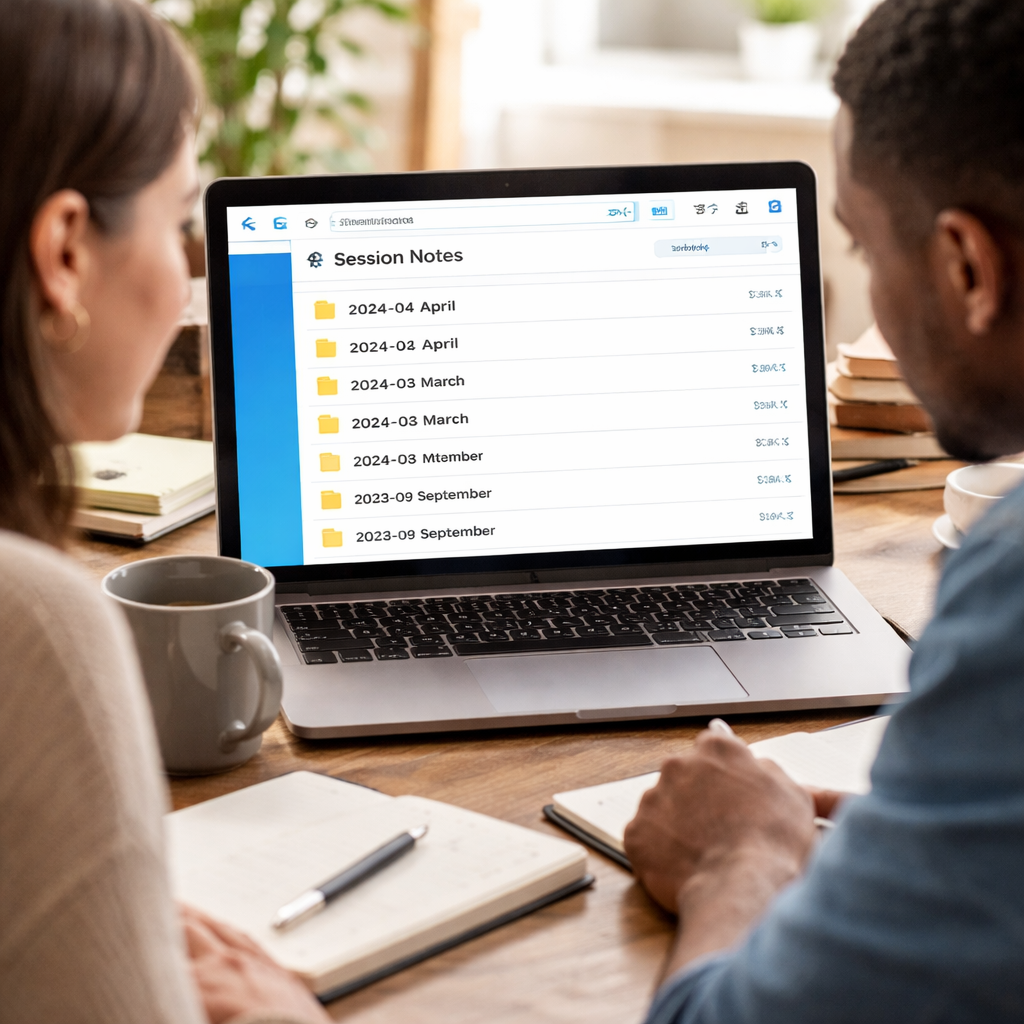
Even the safest folder can be exposed if someone gains access to your device. That’s why we always add a layer of encryption. Most modern cloud services already encrypt data at rest, but adding a password‑protected zip or using a tool like VeraCrypt gives you end‑to‑end peace of.
If you’re using a dedicated note‑taking app, look for built‑in encryption settings – many let you set a master password that unlocks everything. Turn that on, and you won’t have to remember a different code for each file.
Share only what’s needed, and with the right people
Now comes the sharing part. Instead of blasting a whole folder to a client, create a view‑only link for the specific session you want them to see. That way they can read the outcome and next step without accidentally editing your template.
For team projects, set up a “read‑only” channel in your chat app (Slack, Teams) and drop the link there. If a teammate needs to add a comment, give them edit rights just for that document and revoke it once they’re done. This “least‑privilege” approach keeps the original notes pristine.
Set review permissions and expiration dates
Permissions aren’t static. After a sprint, you might want the note to become read‑only forever, or you might need it to disappear after a client signs off. Most cloud platforms let you set expiration dates on shared links – a handy trick for freelancers who want to keep client data tidy after a project ends.
And don’t forget to schedule a quick monthly audit: open your notes folder, check who still has access, and trim any stray permissions. It’s a tiny habit that stops accidental leaks before they happen.
Quick checklist
- Choose a single, synced storage location.
- Enable encryption or password‑protect files.
- Share view‑only links for clients, edit rights for teammates.
- Set expiration dates on shared links.
- Run a monthly permission audit.
| Option | How to secure | Best for |
|---|---|---|
| Cloud folder (Google Drive, OneDrive) | Built‑in at‑rest encryption + view‑only links | Students & remote workers |
| Encrypted zip archive | Password‑protect with 256‑bit AES | Freelancers handling sensitive client drafts |
| Integrated note app (Focus Keeper notes) | End‑to‑end encryption + master password | Teams that need instant sync |
Bottom line? Secure notes don’t have to be a chore. Pick a spot, lock it down, share smartly, and give yourself a quick audit each month. When your session notes are safe and reachable, you’ll spend less time worrying and more time turning those tiny Pomodoro wins into big results.
FAQ
What are the key components of an effective session note?
In our experience the simplest formula works best: a clear goal, the concrete actions you took, a brief outcome, and the next step you’ll tackle. Each piece should be a sentence or a bullet, using numbers or verbs so you can scan it later without re‑reading everything.
How often should I review my session notes?
We recommend a quick glance at the end of every Pomodoro and a deeper weekly audit. The end‑of‑session check takes 30 seconds – just confirm the outcome and jot the next step. During the weekly review, look for patterns in the “Outcome” column and adjust your future goals accordingly.
Can I use session notes for different types of work?
Absolutely. Whether you’re a student summarising a chapter, a freelancer tracking client feedback, or a remote worker logging code reviews, the four‑pillar template stays the same. Swap the language to fit the context – “drafted email” for marketers, “ran test suite” for developers – and the habit remains powerful.
What’s the best way to keep my session notes secure?
Pick a single cloud folder that syncs across your devices and enable the provider’s built‑in encryption. Add a password‑protected zip or a master password if the app offers end‑to‑end encryption. Then share view‑only links with clients and set expiration dates so the files disappear when they’re no longer needed.
How do I turn session notes into actionable insights?
After each weekly audit, pull out the numbers – “3 bugs fixed,” “2 chapters reviewed” – and ask yourself what’s slowing you down. If a particular task repeatedly runs over time, schedule a dedicated 10‑minute buffer for the next sprint. Write that adjustment as the next step in your notes, so the insight becomes a concrete action.
Do I need a special app to track session notes?
No special software is required, but a tool that lets you create a template once and reuse it saves friction. Focus Keeper’s timer integrates with any note‑taking app, letting you open the same file with a single click. The key is consistency, not the brand of the app.
What common mistakes should I avoid when using session notes?
First, don’t try to write full sentences for every action – you’ll lose momentum. Second, avoid storing notes in multiple places; a single synced folder prevents “where did I save that?” third, don’t skip the “next step” line – without it the habit loses its forward‑moving edge.
Conclusion
If you’ve made it this far, you already know that a few tidy lines can turn a chaotic Pomodoro sprint into a roadmap you actually trust. The four‑point template – goal, actions, outcome, next step – is simple enough to stick with, but powerful enough to surface the patterns that keep you stuck.
So, what’s the next move? Grab the same note file you’ve been using, add a timestamp, and after each session write that one‑sentence “next step.” In a week you’ll have a chain of tiny commitments that guide you without overwhelming you.
Remember, the habit only survives when the friction is low. Keep the file in a synced cloud folder, use colour or an emoji for each pillar, and set a 30‑second alarm to remind you to fill the outcome box. Students can see which chapters need a second look, freelancers spot the client request that keeps slipping, and busy professionals finally get a clear picture of where their day leaks time.
In our experience, the moment you treat session notes as a living checklist rather than a post‑mortem, you start to feel the momentum. That’s the sweet spot of how to use session notes effectively – it’s less about perfection and more about consistency.
Ready to give it a go? Open your favourite note app, copy the template, and let the next Pomodoro prove it works for you.




