

Ever found yourself staring at a line of code, but the chat notification ping, a coworker walking by, or the neighbor’s lawn mower just drags your focus into the abyss? That’s the exact feeling many remote developers, freelancers, and even students hit when they try to power through a sprint.
What if you could seal off those distractions for just 25 minutes, work at full throttle, and then reward yourself with a short break? That’s the magic of a pomodoro timer for distraction‑free coding sprints. The idea is simple: set a timer, dive in, and let the timer be the only thing that tells you when to stop.
In practice, it looks like this: a front‑end engineer in London opens a Chrome extension, picks a 25‑minute session, and starts tackling a React component. During that window, the extension automatically mutes Slack, pauses music, and even blocks new tabs. When the timer rings, they stand up, stretch, and grab a coffee – a natural reset that keeps fatigue at bay.
We’ve seen remote workers on a tight deadline slice a massive feature into four pomodoros, each followed by a 5‑minute walk outside. The result? They finished the feature 30% faster than when they tried to work straight through. Freelancers juggling multiple clients use the same rhythm to hop between projects without the dreaded context‑switch cost.
Here’s a quick checklist to set up your own distraction‑free sprint:
- Choose a timer that can auto‑pause on tab switches – Top 5 Pomodoro Timer Chrome Extension Picks to Boost Your Focus is a solid place to start.
- Turn off non‑essential notifications (email, messaging apps) for the duration.
- Close unrelated browser tabs and keep only the IDE or code editor open.
- Set a physical cue – put on noise‑cancelling headphones or, if you’re in a noisy apartment, consider a pair of good earplugs. Our favourite guide on earplugs can help you pick the right pair: How we chose earplugs for a noisy bedroom UK.
- After each session, log what you accomplished; a short note is enough to track progress.
Notice how each step is tiny enough to implement right now? You don’t need a massive overhaul – just a timer, a quiet nook, and a habit of short breaks. By the end of the first day, you’ll likely feel sharper, less burnt out, and actually enjoy those coding sprints.
Ready to give it a try? Set your timer, close that extra tab, and watch your productivity lift.
TL;DR
A pomodoro timer for distraction‑free coding sprints lets you lock out chat pings, tabs, and noise, so you can code in focused 25‑minute bursts.
Set a timer, close extra tabs, work straight, then take a short break – repeat, and you’ll finish features faster with less burnout, gaining clear progress each day.
Step 1: Set Up Your Pomodoro Timer
Alright, let’s get your workspace ready for a distraction‑free coding sprint. First thing’s first – you need a timer that actually works for you, not just a ticking clock on your phone that you keep silencing.
Pick a Pomodoro timer that lets you set a 25‑minute work block and a 5‑minute break. If you’re on a Mac, the Focus Keeper app is a solid choice because it integrates with your menu bar and won’t steal focus from your IDE. Windows users can look for a timer that sits in the system tray and offers quick start/stop buttons.
Turn off the noise
Before you hit “Start,” shut down anything that might pull you away. Mute Slack, close email tabs, and pause any music playlists that have auto‑next. Even a tiny notification can break your flow, and you’ll spend the next few minutes trying to remember where you left off.
Got a pair of noise‑cancelling headphones? Pop them in. If you’re in a shared apartment, a simple set of earplugs can make a world of difference. The key is to create a physical cue that tells your brain: “It’s focus time.”
Set up your timer
Open your chosen Pomodoro app, type in 25 minutes for the work session and 5 minutes for the break. Some tools let you label the session – try naming it after the task, like “Refactor auth module.” That tiny habit helps you see progress when you glance at the log later.
Now, hit start. You’ll notice a subtle sound or visual cue when the timer begins. Let that be your only signal that work is happening. If you’re the type who gets nervous without a visual cue, keep the timer window open on a second monitor.
Does this feel a bit too rigid? Not at all. The Pomodoro technique is flexible – you can tweak the lengths after a few rounds if 25/5 isn’t your sweet spot. The point is to have a repeatable rhythm.
Watch the short video above for a visual walk‑through of setting up a timer in a popular Chrome extension. It shows where to find the auto‑pause feature that stops the clock if you accidentally switch tabs – a lifesaver for anyone who tends to wander between code and browser.
Quick checklist before you dive in
- Timer set to 25 min work, 5 min break.
- All non‑essential notifications silenced.
- Only essential apps (IDE, terminal) open.
- Physical cue in place – headphones, earplugs, or a “do not disturb” sign.
Take a moment to glance over the list. If anything feels missing, add it now. The idea is to eliminate the “I’ll just check that one thing” temptation before it even appears.
When the timer rings, stop typing, stretch, and give yourself a genuine break. Walk to the kitchen, grab a drink, or just stare out the window. Then reset the timer and repeat.
That’s it – you’ve just set up a Pomodoro timer for distraction‑free coding sprints. The next sections will show how to make the most of each sprint, track your progress, and tweak the rhythm for maximum output.

Step 2: Define Distraction‑Free Coding Sprint Goals
Let’s be real: you’ve got a timer, you’ve blocked notifications, and you want what actually matters—getting code done. In our experience at Focus Keeper, the most powerful trick isn’t the timer itself; it’s turning each 25-minute sprint into a clearly defined, testable goal that you can actually hit.
So, what should you do first when you define your sprint goal? Start by naming the outcome. Not “write better code” but something concrete like ‘implement user login flow with tokens’ or ‘resolve the race condition in the data fetch.’ The goal should feel like a mini-mission you can describe aloud in a single breath.
Clarify the mission for each sprint
Think of each sprint as a tiny project. Before you press start, write down the exact outcome you want. This gives you direction when the timer ticks and your brain starts wandering. If you’re a student, it could be ‘complete two unit tests for the module’ or ‘finish one study note with practical code examples.’ For remote workers and freelancers, anchor the goal to a deliverable that moves a larger feature forward.
Make goals observable
The goal should be observable, measurable, and time-bound. That means turning it into something you can verify in the codebase within 25 minutes. Examples: ‘merge a PR with no new lint errors,’ ‘add 80% test coverage for the auth module,’ or ‘refactor the API call to reduce nested callbacks.’ The key is to avoid vague outcomes like ‘improve performance’ and opt for ‘add a unit test and confirm it passes on CI.’
Balance ambition with reality
It’s tempting to cram too much into one sprint. Don’t. You want one or two tightly scoped goals per block, not a laundry list. If you’re debugging a stubborn issue, keep the goal tight: ‘reproduce the bug in a test, then patch and verify.’ If the goal is too easy, you’ll drift; if it’s too big, you’ll stall.
Turn goals into bite-sized tasks
Break each sprint goal into 1–3 tiny tasks that fit neatly into a 25-minute window. For example, ‘write a unit test for the login handler,’ ‘extract the auth logic to a separate module,’ or ‘update the README with an example usage.’ When you can describe a task as a single action, you’ll finish the block with momentum instead of burnout.
Plan across sprints
Put a simple plan in place for the next few sprints. Create a small card or note for each upcoming sprint with a target outcome. Then, at the end of each session, jot down what you achieved and how close you came to the goal. This routine builds a visible trail of progress and keeps motivation steady for students, remote workers, and freelancers alike.
So, what’s the practical move right now? Write one crisp sprint goal for your next block, break it into two tiny tasks, and set your timer. If you’re using Focus Keeper, you’ll find it natural to keep the focus anchored to those precise outcomes rather than drifting into vague busyness.
Remember, goals evolve. If you learn something from those early sprints, adjust the next goal to reflect that insight. The clock helps you stay consistent, but the real win is refining what you aim for so you actually land the outcome.
Step 3: Configure Pomodoro Intervals and Breaks
Now that you’ve got a timer and a clear sprint goal, it’s time to fine‑tune the intervals. This is where the pomodoro timer for distraction‑free coding sprints really starts to feel like a personal coach.
The classic recipe is 25 minutes of focused work followed by a 5‑minute breather, but you don’t have to stick to it rigidly.
If you’re a student cramming for an exam, a 45‑minute block with a 10‑minute pause might match your study rhythm.
Remote workers juggling video calls often find a 20‑minute sprint less disruptive – you can slip out of a call, knock out a task, then hop back in.
Freelancers wearing many hats usually appreciate a longer work slice when they’re deep in a client brief. Try 30 minutes on, 7 minutes off, and see if the momentum stays.
The key is to treat the break as a reset button, not a Netflix binge. Stand, stretch, grab a glass of water, or glance at a todo list.
And here’s a quick sanity check: if you feel a twinge of fatigue before the timer hits zero, shorten the work period by five minutes. If you finish a task early, extend the break a bit – the goal is to keep the cycle flowing, not to force you into a rigid box.
Pick the right work‑to‑break ratio
After four pomodoros, most people schedule a longer pause – anywhere from 15 to 30 minutes. Use that time to step away from the screen completely.
A busy professional might take a quick walk around the office, grab a coffee, or do a handful of push‑ups. The physical shift helps reset your nervous system, so the next set of sprints feels fresh.
Fine‑tune the timer settings for coding specifics
Some IDEs let you auto‑pause the timer when you switch files. If your tool doesn’t, manually hit pause whenever you need to jump to a reference doc.
Tip: map the timer’s note field to the exact function or bug you’re tackling. Seeing “fix pagination bug” right there reinforces the micro‑goal and cuts down on context‑switch noise.
If you’re on a Mac, the native Focus Keeper app can dim the menu bar during work blocks – a subtle visual cue that you’re in “do‑not‑disturb” mode.
Windows users can pair the timer with the OS’s Focus Assist feature, silencing notifications until the break ends. That way you stay in the zone without a single pop‑up stealing attention.
Remember, the numbers aren’t set in stone. If you notice your mind wandering after 20 minutes, shrink the work slice. If you breeze through a task in 15, give yourself a 10‑minute stretch before the next sprint.
Checklist: set up your intervals in a snap
- Choose work length (25 min, 30 min, or custom)
- Set short break (5 min is standard, adjust as needed)
- Schedule a longer break after 4 cycles (15‑30 min)
- Write the exact coding task in the timer note
- Enable auto‑pause or OS focus mode if available
Once you hit start, trust the rhythm. The timer does the heavy lifting; you just flow with the code, take the break, and repeat. In a few days you’ll notice the distraction‑free sprint becoming second nature.
Pro tip: align the start of a pomodoro block with a calendar slot labeled “focus time”. That visual block on your schedule reinforces the habit and signals to teammates that you’re in deep work mode.
Give it a try tomorrow. Set the timer, tweak the minutes, and notice how the simple structure keeps you cruising through code without the usual mental chatter.
Step 4: Choose the Right Pomodoro Timer Tools
Okay, you’ve got your intervals set and a clear sprint goal. The next piece of the puzzle is the timer itself – the little digital coach that keeps you honest.
Does it matter which timer you pick? Absolutely. A clunky app that bombards you with ads will pull you out of flow faster than a noisy coworker.
What to look for in a pomodoro timer for distraction‑free coding sprints
First, ask yourself: can the timer stay out of the way? The best tools run in the background, mute notifications, and let you focus on the code, not the UI.
Second, does it integrate with the apps you already use? If you’re a remote worker juggling Slack, VS Code, and a calendar, a timer that can auto‑pause when you switch tabs or sync with your calendar saves you a mental load.
Third, consider the data you want. Some people love a simple countdown; others crave streaks, average pomodoros per day, and charts that prove “hey, I’m actually getting stuff done.”
Finally, think about platform support. Are you on macOS, Windows, or a Linux distro? Do you sometimes hop to your phone during a break? A cross‑platform solution keeps the rhythm consistent.
Our quick‑pick table
| Feature | Tool example | Why it matters for coding sprints |
|---|---|---|
| Auto‑pause on tab switch | Reclaim’s Pomodoro add‑on | Keeps the timer honest when you need to glance at docs. |
| Cross‑platform sync | Focus Keeper (web & desktop) | Switch between laptop and phone without resetting cycles. |
| Minimal UI + stats | Be Focused (macOS) | Invisible in the menu bar, yet shows streaks you can brag about. |
Notice we’ve highlighted a few options that line up with the three criteria above. If you’re a student, the web‑only version of Focus Keeper is handy because you can launch it from any browser without installing anything.
Remote developers often gravitate toward Reclaim’s add‑on because it can block Slack and Google Calendar events while you’re in the zone. The blog post from Reclaim walks through how the integration works and why it’s a solid pick for distraction‑free coding sprints here.
Freelancers juggling multiple client projects love a timer that tags each pomodoro with a task name. That way, at the end of the day you can export a quick report for billing or just see which client ate up most of your focus time.
Busy professionals often need a longer break after four cycles. Look for a tool that lets you set a custom “long break” length – 15, 20, even 30 minutes – so you can actually step away from the screen, stretch, or grab a coffee without feeling guilty.
And here’s a tip you might not have thought of: pair your timer with a physical cue. A simple sticky note on your monitor that says “Pomodoro in progress” reinforces the mental boundary you’re building.
So, how do you actually pick?
Step‑by‑step decision guide
1. List the platforms you use daily (browser, desktop, phone).
2. Rank the three features above – auto‑pause, sync, and UI simplicity – by how much they’d help you stay focused.
3. Test two candidates for a single day each. Start a 25‑minute sprint, note any friction (did you have to click through menus? did notifications slip through?).
4. Choose the one that felt like “the timer disappears” rather than “the timer is a task itself.”
Remember, the timer is a tool, not a magic wand. The real power comes from the habit you build around it.
Give yourself a weekend experiment: pick a timer, run four pomodoros while you code a small feature, and then compare how many bugs you introduced versus a day you worked without a timer. The data will speak for itself.
Bottom line: the right pomodoro timer for distraction‑free coding sprints is the one that blends seamlessly into your workflow, silences the noise, and gives you just enough feedback to stay motivated without getting in the way.
Step 5: Integrate the Timer into Your Development Workflow
Integrating a timer into your day shouldn’t feel like a chore. It should become a natural rhythm that helps you get more done without fighting your own attention.
With distraction-free coding sprints, the timer becomes a quiet coach guiding your focus. The real question is how to make it work with real work, not just theory. So, what should you do next?
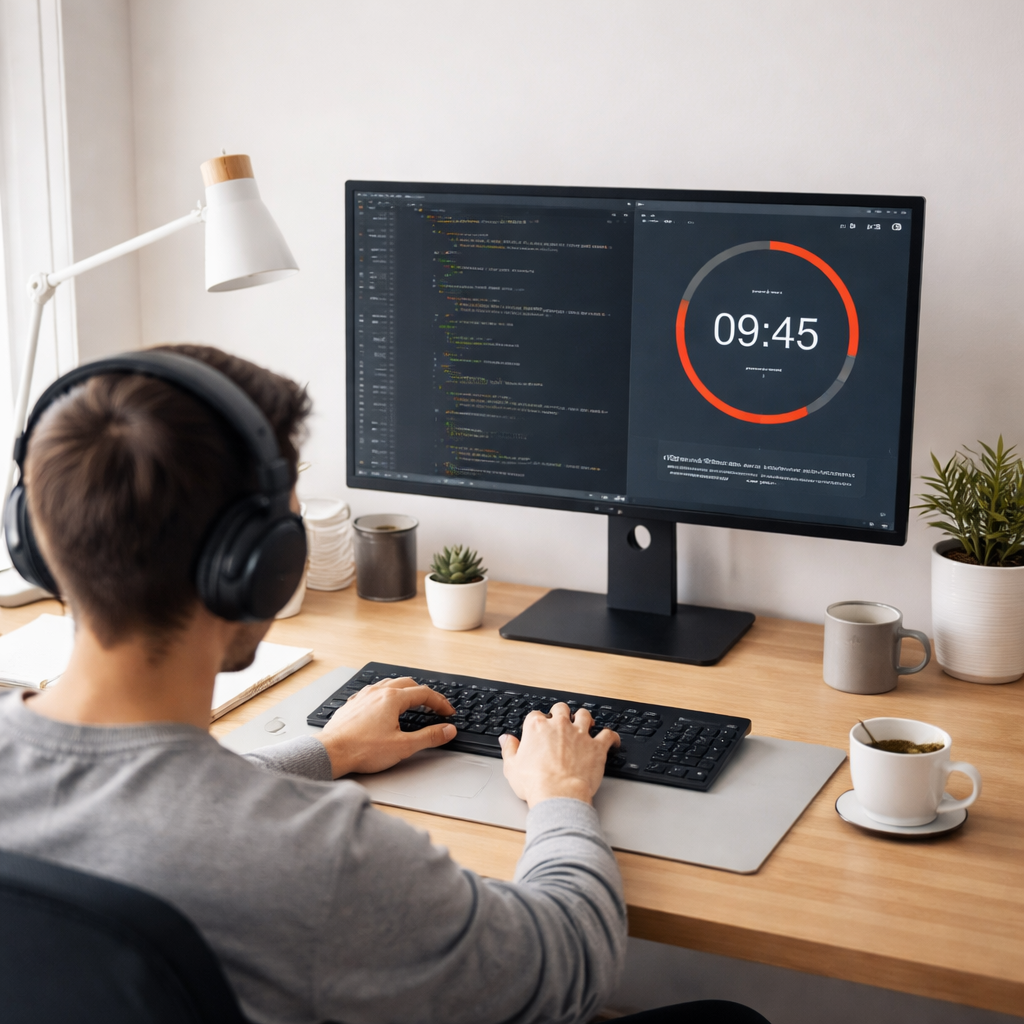
First, map your typical sprint flow. If you’re a student, that might mean finishing a study block with 2–3 concrete tasks; if you’re a remote worker, it could be coding a component end-to-end with tests. Write down one clear outcome per block, then lock in a 25-minute window for each. The goal is precision, not guesswork.
Second, tie each block to a deliverable on your calendar. This creates intrinsic motivation; you know you’re sprinting toward something visible. A student might aim to complete a practice problem set; a freelancer might finish a small feature with tests. This alignment makes the timer feel purposeful instead of punitive.
Sync your tools for seamless flow
Look for timer features that play nicely with your stack. Auto-pause on tab switch is a game changer if you jump into docs or a reference page mid-block. Do Not Disturb during a sprint helps silence the ping of emails and chat. If you’re using Focus Keeper, those nudges stay out of the way while you stay in the zone.
Need a quick practical example? A remote developer can start a sprint, keep Slack muted, and have the timer anchor attention to the code editor. You’ll notice fewer context switches and a steadier cadence.
End each sprint with a micro-ritual
When the timer rings, jot a one-liner in your notes: what you shipped, what remains, any blockers. That tiny record is your progress ledger and makes it easy to carry momentum into the next block.
Finally, review weekly and adjust. If 25 minutes feels too short or long, tweak the length, or insert a longer break after every four cycles. The aim is a rhythm you can sustain without burning out.
For a concrete example of a hands-on timer setup, check out this Pomodoro timer project on GitHub. It demonstrates how a timer can automate focus boundaries in a live app: Pomodoro timer project on GitHub.
Conclusion
We’ve walked through setting up a timer, defining bite‑sized sprint goals, tweaking intervals, picking the right tool, and weaving it all into your daily workflow. If you’ve ever felt that dreaded pull of a chat ping right when you’re about to nail a tricky function, you know how costly those seconds can be.
So, what’s the next move? Grab your pomodoro timer for distraction‑free coding sprints, mute the noise, and commit to a single 25‑minute block. When the timer dings, jot a quick one‑liner about what you shipped – even something as simple as “fixed login redirect”. That tiny habit turns a vague effort into a concrete win you can actually see.
For students, it means turning a mountain of lecture notes into manageable study sprints. Remote workers get a clear signal to teammates that you’re in deep work mode. Freelancers can tag each pomodoro to a client, making billing a breeze. Busy professionals end up with a rhythm that protects their energy instead of draining it.
Give it a try tomorrow: start a sprint, stick to the timer, and notice how the mental clutter fades. In a few days you’ll see fewer context switches, steadier progress, and a genuine sense of momentum. Ready to make focus your default setting?
FAQ
What exactly is a pomodoro timer for distraction‑free coding sprints?
At its core, a pomodoro timer for distraction‑free coding sprints is a simple countdown that splits your work into focused bursts—usually 25 minutes—followed by short breaks. The idea is to protect a block of time from emails, chat pings, and tab‑switching, so your brain can stay in flow. By treating each sprint as a mini‑mission, you turn vague effort into a concrete, measurable chunk of progress.
How do I choose the right interval length for my coding tasks?
Start with the classic 25‑minute work, 5‑minute break rhythm because it balances concentration and fatigue. If you notice your mind drifting before the timer hits zero, shave five minutes off the work period. Conversely, if you finish a task early, extend the break a bit or add a quick stretch. The sweet spot differs for students, remote workers, freelancers, and busy professionals—experiment until the interval feels natural, not forced.
Can I use a pomodoro timer on any device, or do I need a specific app?
You can run a pomodoro timer on a web page, a desktop client, or a mobile app—whichever fits your workflow. The key is that the tool stays out of the way and, if possible, offers an auto‑pause feature when you switch tabs or open a reference doc. A lightweight web timer works fine for a quick test, while a desktop app can mute system notifications for deeper focus.
What should I do during the five‑minute break to keep momentum?
Use the break to reset your body and mind, not to dive into another screen. Stand up, stretch, grab a glass of water, or step outside for fresh air. If you’re a freelancer, jot a quick note about what you just shipped—something like “fixed login redirect”. Those micro‑rituals reinforce progress and make it easier to jump back in when the next sprint starts.
How can I track my progress without getting distracted by metrics?
Keep it simple: after each pomodoro, write a one‑liner in a notebook or a digital note about the outcome—e.g., “added unit test for auth flow”. Over a day or a week you’ll see a trail of completed tasks that reads like a story of steady momentum. This low‑tech log is enough to spot patterns, celebrate wins, and adjust future sprint goals.
Is it okay to combine pomodoro sprints with pair programming or code reviews?
Absolutely. Treat the timer as a shared focus boundary. Start a pomodoro, agree on a single goal—like reviewing a pull request or solving a specific bug—and let the timer signal when it’s time to pause. When the timer rings, switch roles, take a short stretch, and then start a fresh sprint. This keeps collaboration structured while preserving the distraction‑free mindset.
What common pitfalls should I avoid when starting with pomodoro sprints?
Don’t treat the timer as a punishment; it’s a guide. Avoid setting unrealistic goals that force you to abandon a sprint early—keep the tasks bite‑sized. Skip the temptation to check emails or social feeds during a work block; mute them or use Do Not Disturb. Finally, don’t skip the break—those five minutes are crucial for mental recovery, otherwise fatigue will creep back in faster than you expect.




