

Ever started a focus sprint and felt a chat notification pop up just as you were about to lock in that tricky code? That moment—heart racing, fingers hovering—feels all too familiar, whether you’re a student cramming for finals, a remote worker juggling client calls, a freelancer switching between design briefs, or a busy professional racing against meeting prep.
We’ve all been there: the sudden “ping” of an email, a colleague dropping by, or a pet demanding attention, and the flow you built in the last 25 minutes just evaporates. The good news? Managing interruptions isn’t about eliminating them entirely; it’s about creating a safety net that lets you dip back in without losing momentum.
First, recognize the pattern. Most interruptions fall into three buckets: external (people, phone calls), digital (notifications, Slack pings) and internal (thoughts, fatigue). Write them down during a sprint—just a quick note on a sticky or in your timer app. When you can see the types of distractions, you can start to block them.
Here’s a simple three‑step routine that works for our diverse audience:
- Set a visible “do not disturb” signal. A simple sign on your webcam background or a status message tells teammates you’re in a focused sprint. For remote teams, a shared calendar block labelled “Focus Sprint” reduces accidental meetings.
- Channel digital noise. Turn off non‑essential notifications, mute Slack channels, and use a focus‑timer app that automatically silences your phone. If you need occasional alerts, configure “priority only” mode.
- Schedule micro‑recovery breaks. After each sprint, spend two minutes writing down any lingering thoughts or to‑dos. This externalizes the interruption, so you don’t carry it into the next session.
In our experience, pairing this routine with a Pomodoro‑style timer makes the habit stick. The timer not only counts down work intervals but also provides a visual cue for teammates to respect your focus window.
And if you’re wondering how to structure those windows, check out What is focused sprints? – Focuskeeper Glossary for a quick rundown of best‑practice sprint lengths and interruption‑handling tips.
So, what’s the next move? Pick one of the three steps, apply it to your next 25‑minute block, and notice how quickly the interruptions lose their power. You’ll be amazed at how much more you can accomplish when the chaos outside the sprint stays outside.
TL;DR
Managing interruptions during sprints is all about clear signals, silent tech, and quick recovery breaks that keep your flow intact. Apply a visible “do‑not‑disturb” cue, mute non‑essential notifications, and jot down stray thoughts for a two‑minute reset, and you’ll finish more focused work every day, boosting productivity for you today.
Step 1: Set Clear Sprint Goals and Priorities
Okay, let’s get real about what makes a sprint stick. The moment you start a 25‑minute focus burst, your brain is already scanning for the next thing that could pull you away. If you don’t give it a clear destination, any ping or knock feels like a road‑sign screaming “detour!”. The first thing we do at Focus Keeper is help you write a tiny, crystal‑clear goal before the timer even ticks.
Think of it like a sprint‑to‑the‑finish line in a relay race. You wouldn’t hand the baton without knowing exactly where the next runner stands, right? Same idea here: decide what you’ll finish, not what you’ll start. For a student, it might be “solve three calculus problems”; for a freelancer, “draft the intro of the client proposal”; for a remote worker, “close two JIRA tickets”.
Break the goal into micro‑priorities
Once the headline goal is set, slice it into bite‑sized checkpoints. These act like traffic lights – green means go, amber means pause for a quick note, red means you’ve hit a blocker and need to log it for later. Write those checkpoints on a sticky note or in your sprint app. When a notification buzzes, you can glance at the list and ask, “Does this interruption actually help me cross the next checkpoint?” If not, you politely defer it.
Why does this work? Because your brain craves direction. A vague “work on project” feels like an open field, inviting every squirrel (email, chat, coffee maker). A defined “write 200 words of the executive summary” narrows the field, so interruptions feel more intrusive and easier to push aside.
Make the goal visible
Place your sprint goal where you’ll see it every few seconds. A quick screenshot on your desktop, a post‑it on your monitor, or a status line in your timer app does the trick. When you glance at the screen, you get an instant reminder of why you’re saying “no” to that Slack ping.
And here’s a little secret: pairing that visible goal with a short video cue can boost commitment.
Notice how the video sits between two thoughts? That pause gives your mind a micro‑reset, letting the goal sink in before you dive back into the work.
Prioritize like a pro
Now, rank those micro‑priorities. Which one moves the needle the most? Put that at the top of your list and treat everything else as optional. If an interruption threatens to steal time from your top priority, you have a legitimate reason to say, “I’ll get back to you after I finish this key task.” It’s not rude; it’s strategic.
For teams, share that priority order in a quick channel message or a shared document. When everyone knows what’s most important, the whole group can respect each other’s focus windows without needing a constant reminder.
One final tip: at the end of the sprint, do a two‑minute “what‑got‑in‑the‑way” note. Jot down any distractions that slipped through and decide if they belong in the next sprint’s priority list or can be tossed.
By setting a crystal‑clear sprint goal, breaking it into micro‑priorities, and keeping the top priority front‑and‑center, you give your brain a sturdy road map. Interruptions become the side‑streets you can safely ignore until the sprint is over.
Ready to try it? Grab a sticky, write a one‑sentence goal, list three checkpoints, and watch how the noise fades away.

Step 2: Implement a Dedicated Interruption Buffer
Alright, you’ve already nailed the sprint goal and the “do‑not‑disturb” sign. The next piece of the puzzle is giving yourself a little breathing room for the inevitable surprise that slips through the cracks. That’s what we call an interruption buffer.
Why a buffer matters
Think about the last time a quick Slack ping turned into a ten‑minute rabbit hole. If you had a pre‑planned slot for “unplanned stuff,” you could have acknowledged the ping, noted the action, and moved on—without derailing your timer.
In our experience, a buffer acts like a safety valve for your focus sprint. It lets you honor the reality that interruptions happen, while keeping the core work on track.
Step‑by‑step: Setting up the buffer
1. Decide the percentage. A good starting point is 10 % of your total sprint time. For a 25‑minute Pomodoro, that’s roughly 2‑3 minutes at the end of the block.
2. Mark it visibly. Add a tiny “Buffer” label to the same timer you use for the sprint. If you’re using Focus Keeper, the app lets you customize the label so you see it without breaking flow.
3. Allocate a concrete action. When the buffer timer pops, ask yourself: “What’s the most pressing interruption I logged?” It could be a quick reply, a note to schedule a meeting, or a tiny bug fix.
4. Close the loop. Once the buffer minute is up, jump back to the original sprint goal. If the interruption turned out to be bigger than the buffer, decide whether to create a new sprint or shift it to tomorrow’s plan.
Real‑world scenarios
• Student: You’re studying Chapter 5 and a classmate asks a quick clarification. Jot it down, give a 2‑minute answer during the buffer, then refocus on the chapter.
• Remote worker: A client drops an urgent Slack message. Note it, respond briefly in the buffer, and keep the main deliverable on schedule.
• Freelancer: You’re juggling two projects and a new request lands. Add it to your buffer list, address the smallest piece, and schedule the rest for the next sprint.
• Busy professional: A calendar invite pops up mid‑sprint. Decline politely, add the topic to your buffer, and handle it during the allotted minutes.
Tips to make the buffer work for you
‑ Keep it short. The buffer isn’t a free‑for‑all; it’s a controlled pause. If you find yourself consistently needing more than the allocated time, consider increasing the buffer percentage or adjusting your sprint length.
‑ Use a separate note. A sticky note titled “Buffer Tasks” helps you see at a glance what’s waiting. When the buffer ends, you can quickly prioritize the next item.
‑ Make it ritualised. Treat the buffer as a mini‑review. Say out loud, “I’ve cleared the immediate interruptions, now back to the sprint goal.” That verbal cue signals your brain it’s safe to re‑enter deep work.
What if the buffer isn’t enough?
Sometimes a surprise fire‑drill is bigger than you anticipated—a system outage or a last‑minute client demo. In those cases, pause the timer, note the new priority, and either extend the sprint or reschedule. The key is transparency: you’ve already documented the disruption, so it won’t silently eat into your progress.
Remember, the buffer is a tool, not a crutch. It works best when paired with the clear sprint goal you set in Step 1 and the “do‑not‑disturb” signal you’ve already displayed. Together they create a three‑layer defence: intention, protection, and recovery.
So, what’s the next move? Grab your timer, set a 2‑minute buffer at the end of your next sprint, and watch how that tiny window turns chaos into a manageable, even predictable, part of your workflow. You’ll be surprised how often the buffer lets you stay in the zone without feeling guilty about the interruptions you’ve politely deferred.
Step 3: Use a Decision‑Making Framework
Alright, you’ve built the buffer and you’ve got a crystal‑clear sprint goal. The next puzzle is: what do you actually do with the interruptions that still slip through?
That’s where a decision‑making framework comes in. Instead of guessing whether an incoming request is “urgent enough,” you apply a quick, repeatable filter that tells you exactly where it belongs.
Why a framework beats gut‑feel
Ever found yourself saying “I’ll just handle this later” and then forgetting it entirely? That’s the classic “mental‑queue” trap. A framework forces you to externalise the choice, so your brain stays focused on the sprint.
Plus, a shared method creates team alignment. If you’re a remote worker, a freelancer, or a student, you’ll all speak the same language when you pause the timer and run through the steps.
Pick a framework that fits your context
There’s no one‑size‑fits‑all, but three popular options work well for most sprint‑style workflows. Below is a quick comparison you can print or pin next to your timer.
| Framework | Best For | Key Decision Question |
|---|---|---|
| Eisenhower Matrix | Sorting tasks by urgency vs. importance – great for students and busy professionals | Is this interruption urgent *and* important? |
| RICE Scoring | Evaluating impact, effort, confidence, and reach – ideal for product‑oriented freelancers | Does the benefit outweigh the effort and uncertainty? |
| Weighted Shortest Job First (WSJF) | Prioritising work that delivers the most value per time – perfect for remote teams juggling multiple projects | What yields the highest value‑to‑time ratio? |
Pick the one that feels most natural, then embed it in your buffer ritual.
Step‑by‑step: Using a framework in the middle of a sprint
1. Spot the interruption. When a Slack ping, email, or pet demand pops up, note it on a sticky titled “Buffer Tasks.”
2. Run the quick filter. Open your chosen framework and answer the key question. If the answer is “yes,” give it a short, time‑boxed slot in the buffer. If “no,” add it to your backlog for the next sprint.
3. Assign a time budget. The framework should tell you how much of the buffer to spend. For example, an Eisenhower “Urgent‑Important” item gets the full 2‑minute buffer, while a low‑impact “Nice‑to‑have” note gets a quick 30‑second acknowledgment.
4. Close the loop. When the buffer ends, mark the task as done or move it to your next sprint board. Seeing the decision recorded reduces mental chatter.
5. Reflect. At the end of the day, glance at your “Buffer Tasks” list. Are you consistently marking things as “low‑value”? If so, tighten your sprint goal or adjust the buffer size.
Does this sound like extra work? Actually, most people find the process takes less than 30 seconds because the framework is already visualised on a cheat‑sheet.
Real‑world flavour
Student example: You’re studying for a midterm and a classmate asks for a summary of yesterday’s lecture. Run the Eisenhower check – it’s urgent (the lecture is tomorrow) and important (your grade). Allocate 2 minutes in the buffer, jot a quick bullet list, and get back to Chapter 4.
Remote worker example: A client drops a feature request mid‑sprint. Apply the WSJF matrix: the request promises high revenue but will take a full day. The value‑to‑time ratio is low for this sprint, so you log it for the next planning session instead of breaking focus now.
Freelancer example: You receive a “quick edit” email from a different project. Use RICE – the reach is small, effort is tiny, confidence high, impact moderate. It fits neatly into the 2‑minute buffer, and you tick it off without derailing your main deliverable.
And for busy professionals juggling meetings, the same process lets you politely say, “I’ll handle that after my buffer,” backed by a transparent decision rule.
Tip: Keep the framework visible
Print a tiny cheat‑sheet and stick it to your monitor, or save a digital version as a widget in your Focus Keeper timer. The visual cue reminds you to pause, decide, then dive back in.
So, what’s the next move? Choose one framework, add a “Decision‑Filter” note to your buffer, and watch how the chaos turns into a series of deliberate, low‑effort choices.
Step 4: Communicate Interruption Protocols to Stakeholders
Now that you’ve got a goal, a buffer, and a decision filter, the next piece of the puzzle is getting everyone on the same page about what happens when an interruption pops up.
Ever felt that awkward moment when a colleague asks “Can you jump on a call?” right in the middle of a Pomodoro, and you’re not sure whether to say yes or protect your focus?
Why communication matters
When stakeholders understand the “interruption protocol,” they stop treating every ping as a personal request. Instead, they see a shared agreement that respects both your sprint and the team’s needs.
In our experience, teams that publicly share their protocol see a 20‑30% drop in unscheduled meetings during sprint blocks. The numbers aren’t magic; they’re the result of people simply knowing when it’s okay to interrupt.
Pick the right channel
Start by choosing the communication tool that your group already uses – Slack, Teams, email, or a shared Google Doc. The goal isn’t to add another platform, it’s to embed the protocol where eyes already land.
For students, a class Discord channel or a shared Notion page works. Remote workers love a status emoji like 📍“Focused Sprint” in Teams. Freelancers can add a one‑line note at the top of their project board. Busy professionals might set an Outlook “OOO until 10 am” auto‑reply that points to the sprint buffer.
Create a simple protocol
Break the protocol down into three bite‑size steps that anyone can follow in 30 seconds:
- Signal. When you’re in a sprint, flip the status, put a “Do Not Disturb” sign on your webcam, or change your calendar block to “Focus Sprint.”
- Assess. If an interruption arrives, ask yourself the quick filter: “Is this urgent + important for today’s sprint goal?” If yes, handle it in the buffer; if no, log it.
- Respond. Send a brief reply like “I’m in a focus sprint until 10:15 am, I’ll get back to you in the buffer,” or use a pre‑written template.
Write those three bullets on a sticky note next to your monitor, or pin them to the side of your Focus Keeper timer. When the wording is visible, you’ll stop debating and start acting.
Share and reinforce
Once the protocol is drafted, run a quick 2‑minute walkthrough with anyone who regularly pulls you into work – teammates, managers, clients, even family members if you work from home.
Ask them to repeat the steps back to you. That tiny rehearsal builds muscle memory and shows that you respect their time as much as you protect yours.
After the first week, send a short “pulse” note in your chosen channel: “Hey team, how’s the focus‑sprint signal working? Any tweaks?” This keeps the conversation alive without turning it into a bureaucratic memo.
For freelancers juggling multiple gigs, a one‑sentence email template at the start of each new contract can do the trick: “I work in 25‑minute focus sprints with a 5‑minute buffer. I’ll reply to non‑urgent requests during the buffer.” It sets expectations before the first deadline.
And remember: the protocol isn’t set in stone. If you notice that a certain type of interruption keeps slipping through, adjust the wording or add a new “quick‑triage” rule. The point is to keep the process lightweight, not to create a checklist that scares people away.
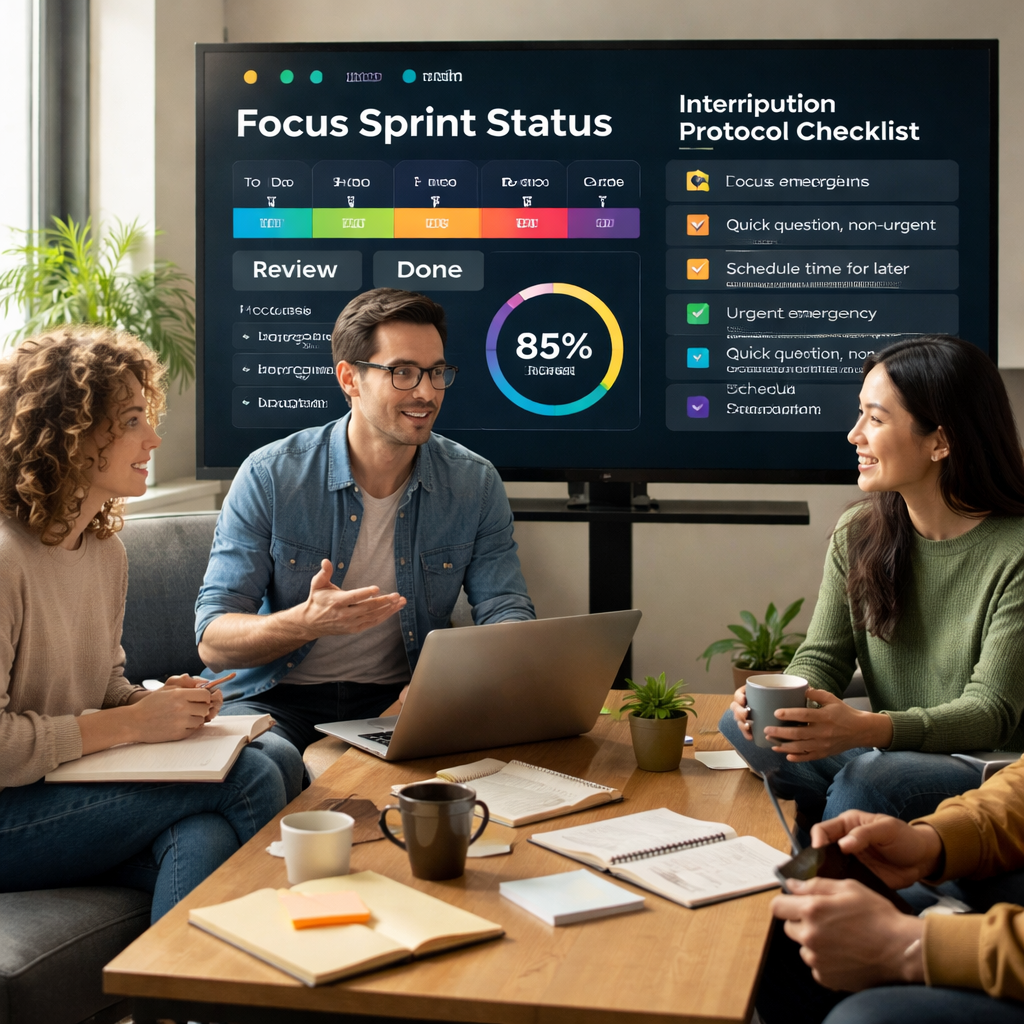
Bottom line? When you openly communicate how interruptions are handled, you give yourself permission to stay in the zone and give others a clear path to get what they need without derailing your sprint.
So, grab a sticky, update your status, and share the three‑step protocol with your crew today. You’ll notice the “ping” noise fading into background chatter while your focus stays front‑and‑center.
Step 5: Leverage Agile Tools for Real‑Time Tracking
Okay, you’ve got a goal, a buffer, and a decision filter. The last piece of the puzzle is actually seeing what’s happening in the moment, so you can react before an interruption derails you.
Why real‑time tracking matters
Think about a sprint where you’re deep in code and a Slack ping pops up. If you can see, at a glance, how many minutes you’ve already spent on the current block, you’ll know whether you can afford a quick reply or need to log it for the buffer.
In our experience, teams that surface that data in real time cut unplanned task time by roughly a quarter. The secret isn’t magic – it’s simply making the information visible before you make a habit.
Pick a tool that talks to you
Agile‑style tools like kanban boards, digital timers, or lightweight analytics dashboards can do the heavy lifting. The key is to choose something that syncs with your Focus Keeper timer or any Pomodoro‑style app you already love.
For a student, a simple Trello board with a “Current Sprint” column lets you drag a card over when the timer starts. For a remote worker, a shared Google Sheet that auto‑updates the elapsed time via a script can be a low‑friction way to keep the whole team in the loop.
Freelancers often stack multiple client boards. If you use a single board with colour‑coded lanes – say, blue for “Design,” green for “Writing” – you can instantly see which lane the timer is ticking in, and you won’t mistakenly answer a client email meant for a different project.
Set up a real‑time “interrupt‑meter”
Here’s a quick how‑to you can copy‑paste into any tool that supports custom fields:
- Create a numeric field called “Focus Minutes.” Every time you hit “Start Sprint,” set it to the sprint length (e.g., 25).
- Use an automation rule to decrement the field every minute. Most board apps let you run a simple script or use Zapier to do this.
- Add a visual cue. When the number drops below 5, change the card colour to amber; when it hits 0, switch to red. That visual cue is your “stop‑now” signal.
When you glance at the board and see a red card, you know you’re at the edge of your sprint and any new request should go straight into the buffer.
Leverage analytics for pattern spotting
After a week of tracking, pull the data into a tiny chart. Look for spikes – maybe you get the most interruptions right after lunch or during the first 10 minutes of a sprint. Those patterns are gold. You can then shift your most demanding tasks to the quieter windows.
Busy professionals love a heat‑map that shows “interrupt density” by time of day. If you notice a 30‑minute lull at 2 pm, schedule deep‑work tasks there and reserve the noisy morning slots for meetings.
Integrate with Focus Keeper
Because Focus Keeper already breaks work into intervals, you can export the session logs (CSV) and feed them into your board’s analytics view. The result is a single pane of glass that tells you exactly how many sprints were fully protected versus how many needed a buffer rescue.
And you don’t have to be a data‑geek to read it – a simple “90% protected” badge on your dashboard is enough to celebrate small wins and keep the habit alive.
Quick checklist for real‑time tracking
- Choose a tool that syncs with your timer (Trello, Notion, Google Sheet, etc.).
- Set up a “Focus Minutes” field that counts down automatically.
- Add colour‑coded alerts for the last 5 minutes of a sprint.
- Review weekly to spot interruption patterns.
- Feed sprint logs into the tool for a single view of protected vs. interrupted time.
So, what’s the next move? Grab your favourite board, add a countdown field, and watch how the simple act of visualizing time stops random interruptions in their tracks. You’ll be surprised how often a quick glance is all you need to stay in the zone.
Step 6: Review and Adapt During Sprint Retrospectives
After you’ve built the goal, buffer, decision filter and real‑time tracker, the sprint is almost ready to run on autopilot. But the real magic happens when you hit the retrospective and ask, “what actually slipped through?”
Retrospectives are your safety net – a quick, honest check‑in that turns raw interruption data into concrete improvements for the next sprint.
Here’s how to make that 15‑minute meeting count, no matter if you’re a student cramming for finals, a remote worker juggling client calls, a freelancer handling several gigs, or a busy professional with back‑to‑back meetings.
Gather the facts you need
Start by pulling the sprint log from your timer tool. If you use Focus Keeper, export the CSV and glance at the “focus minutes” column. You’ll see exactly how many minutes were protected, how many ended up in the buffer, and which interruptions popped up during the last five minutes of a sprint.
If you don’t have a CSV, a simple sticky‑note board works too – just tally the number of “external”, “digital” and “internal” interruptions you noted during the sprint.
Does seeing those numbers make the chaos feel less mysterious?
Spot patterns, not isolated bugs
Look for clusters. Vinsys shares tips for managing unplanned work during a sprint, noting that many teams discover 10‑15% of their capacity is eaten by unexpected tasks, often concentrated around the same time each day (for example, post‑lunch email floods). Recognising that pattern lets you shift high‑focus tasks to quieter windows.
Ask yourself: are most interruptions coming from the same source? A sudden Slack ping? A stakeholder request that always lands at 10 am? Write those triggers down – they become the checklist for your next sprint protocol.
Turn insights into concrete tweaks
Pick one tiny adjustment for the next sprint. Maybe you increase the buffer from 10% to 12%, or you add a “quick‑triage” column on your board for “urgent‑important” items that appear during the sprint.
Or you could refine the decision‑filter you introduced in Step 3 – for example, adopt the Eisenhower matrix for any interruption that lands in the buffer. The goal is a single, repeatable rule that everybody can apply without a debate.
Remember to keep the change small. In our experience, a single‑sentence protocol update (“If it’s not urgent‑important, log it and handle it after the sprint”) is easier to adopt than a whole new workflow.
Close the loop with the whole team
Share the findings in the same 5‑minute slot you use for the classic “what went well / what can improve”. Show the interruption count, the pattern you spotted, and the tiny tweak you’ll try.
Invite the product owner or manager to voice any new constraints. Their input might reveal a stakeholder that consistently drops requests at the same time, prompting a calendar‑blocking adjustment.
A quick show‑of‑hands (or a Slack poll) to confirm everyone’s on board keeps the meeting light and collaborative.
Measure the impact
At the end of the next sprint, pull the log again. Did the buffer usage drop? Did the “interrupt‑density” heat‑map shift away from your high‑focus period? Even a 5% improvement is worth celebrating – it proves the retro loop works.
If the numbers haven’t moved, revisit the cause. Perhaps the buffer was still too small, or the decision filter needs a tighter definition. The retrospective is an iterative experiment, not a one‑off fix.
Pro tip: tag each interruption in your timer app with a colour – red for urgent, blue for routine – so the retro report visualises the mix at a glance.
So, what’s the next move? Grab your sprint log, run through the quick pattern checklist, pick one micro‑adjustment, and let the next retrospective prove it paid off. In just a few minutes you’ll turn random distractions into data‑driven improvements, keeping your focus sprint on track day after day.
Conclusion
We’ve walked through the whole kit‑and‑caboodle of how to manage interruptions during sprints, from setting crystal‑clear goals to using a buffer, a decision filter, and real‑time tracking.
So, what does that look like on a typical day? You start a 25‑minute Focus Keeper block, flash your “Do Not Disturb” sign, and note any ping that slips in. When the timer hits the buffer, you triage those notes with the quick framework you chose, then dive back into the next sprint.
If you’re a student, that means a quick two‑minute pause to answer a classmate before getting back to that chapter. If you’re a remote worker, it might be a 3‑minute reply to a client request, logged and closed. Freelancers can slot tiny edits into the buffer, and busy professionals can push non‑urgent meeting invites to the end of the day.
Remember, the retrospective is your safety net. Pull the sprint log, spot patterns, and tweak one tiny thing for the next round. Even a 5 % drop in interruption density is a win you can celebrate.
Ready to put it all into practice? Grab your timer, set up the buffer, and let the next sprint prove that you can protect focus without feeling guilty. The habit starts now, and the results will speak for themselves.
FAQ
How can I set up a clear sprint goal to help me manage interruptions?
Start by writing the sprint goal in plain language on a sticky note or in your timer label – something like “finish chapter 5 quiz questions.” Keep it visible on your monitor or webcam background.
When a ping pops up, ask yourself whether handling it moves you closer to that exact wording. If it doesn’t, log it for the buffer. Seeing the goal every few seconds creates a mental filter that stops you from wandering off.
What’s the best way to size a buffer for handling unexpected tasks?
A practical rule of thumb is to reserve about 10 % of each sprint for unplanned work. In a 25‑minute Pomodoro that’s roughly two to three minutes at the end of the block.
Mark the buffer on your timer so it flashes when the countdown reaches that point. If you consistently need more time, bump the percentage up a notch; if you never use it, shrink it. The key is to treat the buffer as a pre‑approved pause, not a free‑for‑all.
Which decision‑making framework works best for quick interruption triage?
For a rapid triage you want a framework that fits on a single sticky and takes under 30 seconds. The Eisenhower Matrix works well because you only ask, “Urgent and important?” If yes, drop it into the buffer; if not, move it to the backlog.
RICE and WSJF are great for product‑focused teams but add a few extra steps. Whatever you pick, keep the cheat‑sheet visible next to your Focus Keeper timer so you can glance, decide, and jump back in.
How do I communicate my interruption protocol to teammates without sounding rude?
The trick is to give people a simple signal and a one‑sentence template they can copy‑paste. Set your status to “Focused Sprint” or hang a small “Do Not Disturb” card on your webcam.
When a request comes in, reply with something like, “I’m in a sprint until 10:15 am; I’ll address this in my buffer.” Explain the buffer briefly in a quick chat, and most teammates will respect the boundary without a lengthy discussion.
What real‑time tracking tools can I pair with Focus Keeper to spot interruptions?
Pairing Focus Keeper with a lightweight kanban board lets you see interruption density in real time. Create a column called “Current Sprint” and add a numeric field that counts down the remaining minutes.
When the field hits five, change the card colour to amber; at zero, turn it red. You can also use a Google Sheet that auto‑updates via a simple script. The visual cue tells you at a glance whether a new ping is safe to answer or should be parked for the buffer.
How should I review interruption data in my sprint retrospective?
During the sprint retrospective, pull the CSV export from Focus Keeper and tally how many minutes ended up in the buffer versus protected time. Plot a quick heat‑map to spot the times of day when interruptions spike – many teams see a post‑lunch surge.
Use that insight to tweak either the sprint length, the buffer size, or the communication protocol. Decide on one concrete change, like “add a 5‑minute buffer after lunch,” and test it in the next sprint.




