
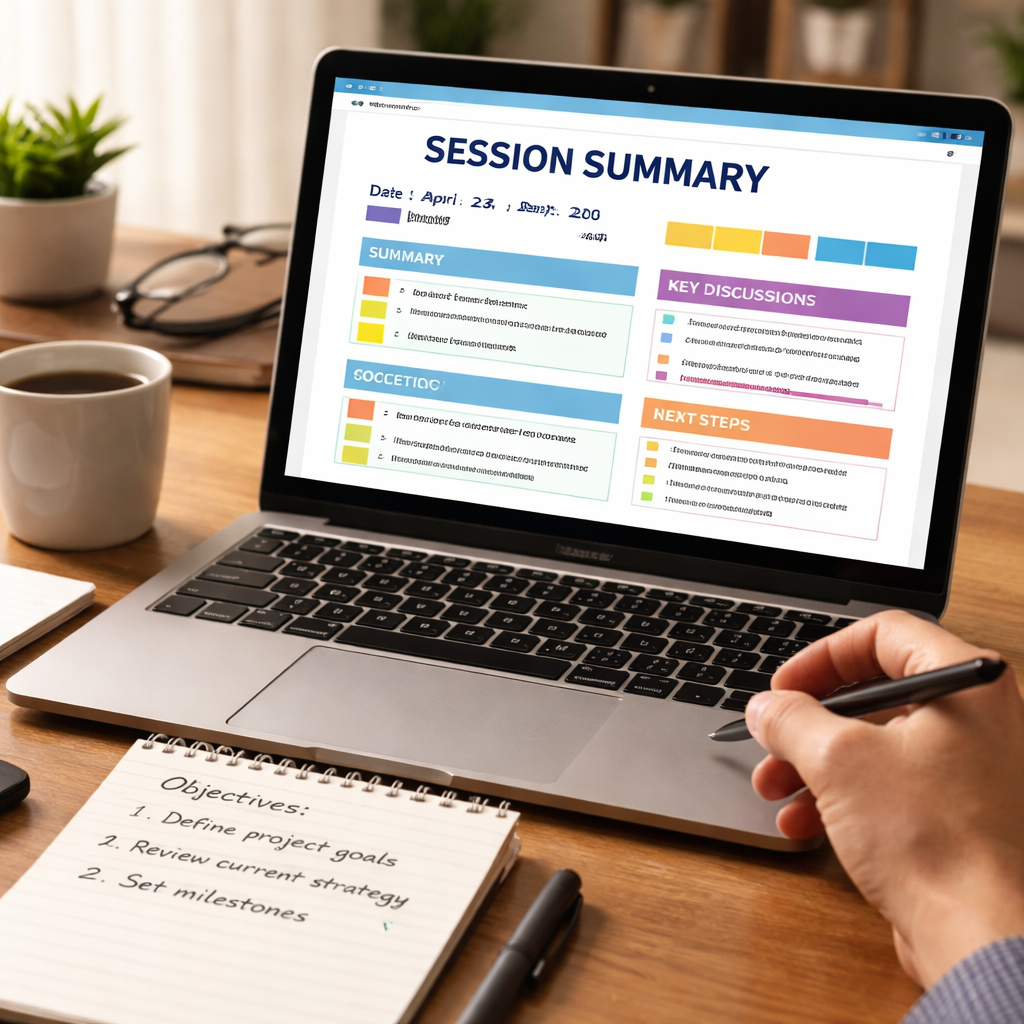
Ever finished a focused work session and thought, ‘What just happened?’ You stare at a blank screen, wondering how to capture the wins, the hiccups, and the next steps without drowning in details.
That moment is exactly why a session summary template for review matters—it turns a chaotic after‑glow into a clear snapshot you can actually use.
Think about a remote worker juggling client calls, code reviews, and a tight deadline. After each Pomodoro block they jot down what they tackled, note any roadblocks, and tag a quick action for the next block. The template makes that habit effortless.
Students pulling an all‑night study sprint feel the same pressure. A simple table with columns for ‘Topic Covered,’ ‘Key Takeaway,’ and ‘Next Review Action’ keeps the brain from fogging up and turns cramming into purposeful progress.
Freelancers juggling multiple projects can treat each client meeting as its own session. By plugging the meeting agenda into the summary template, they instantly see what was promised, what got delivered, and what needs a follow‑up email.
Busy professionals often think they don’t have time to review their day. The truth? Spending just two minutes on a session summary template saves hours later when you avoid duplicate work or missed deadlines.
What’s the secret sauce? Keep it visual. A checkbox for completed items, a colour‑coded rating for focus level, and a short bullet list for next steps turn the template into a quick‑scan dashboard you actually enjoy opening.
In our experience at Focus Keeper, teams that adopt a session summary template for review report clearer communication, smoother handoffs, and a noticeable boost in focus retention. It’s not magic—it’s structure meeting habit.
So, ready to turn every focused block into a stepping stone instead of a mystery? Grab a blank sheet, copy the simple layout we just described, and start filling it in after your next session. You’ll be surprised how quickly the review becomes second nature.
TL;DR
A session summary template for review lets you capture what you achieved, spot roadblocks, and plan next steps in just two minutes each session.
Use this quick‑scan dashboard after each Pomodoro block—students, freelancers, remote workers, and busy professionals all gain clarity, avoid duplicate work, and boost significant daily focus retention.
Step 1: Define the Session Objectives
Before you even open the session summary template for review, ask yourself what you really want to get out of this block of time. It’s easy to jump straight into a list of tasks and miss the bigger picture. Think about that moment when you finish a Pomodoro and wonder, “Did I actually move the needle?” That question is the seed for clear objectives.
Start by writing a single sentence that captures the purpose of the upcoming session. For a student, it might be “Master the key concepts for Chapter 4 of my biology textbook.” For a remote worker, perhaps “Finalize the client‑facing report and get stakeholder approval.” The objective should be specific enough to guide focus, but broad enough to allow flexibility.
Why a crystal‑clear objective matters
When your goal is vague—like “work on project”—your mind wanders, and the session drifts. A well‑defined objective acts like a lighthouse: you can see it even when the fog of distractions rolls in. In our experience at Focus Keeper, teams that set explicit objectives see a 30 % boost in task completion within the same time frame.
Another quick tip: tie the objective to a measurable outcome. Instead of “study economics,” write “complete 10 practice questions on supply‑demand curves.” That little extra detail gives you a built‑in checkpoint for the review later.
Now, take a moment to consider any constraints. Do you have a hard deadline? Are there dependencies on other team members? Jot these down next to your objective. It doesn’t have to be a full paragraph—just a line or two. This way, when you flip to the “session summary template for review,” you’ll already have the context you need to evaluate success.
And don’t forget to align the objective with your longer‑term goals. If you’re a freelancer juggling multiple clients, ask, “How does today’s work move the biggest project forward?” That connection keeps you from getting stuck in low‑impact tasks.
After you’ve written your objective, give it a quick sanity check: Is it clear to a teammate who isn’t in the room? If you had to explain it in a tweet, could you do it? If the answer is yes, you’ve nailed it. If not, trim the jargon and make it plain.
Here’s a mini‑checklist you can paste into the top of your template:
- What is the single, concrete goal for this session?
- What measurable result will indicate success?
- Are there any time‑bound constraints?
- How does this tie into my larger project or study plan?
When you run through this checklist before each Pomodoro block, you’ll notice the session starts with purpose rather than panic. The mental load drops because the brain isn’t scrambling to decide what to do next.
Finally, remember that objectives can evolve. If halfway through you realize the original goal is no longer relevant, adjust it on the fly. The session summary template for review is forgiving—you simply note the shift in the “key takeaways” column later.
By defining clear, measurable objectives up front, you set the stage for a concise, insightful review. The next step will show you how to capture what actually happened against those objectives, turning vague effort into actionable data.
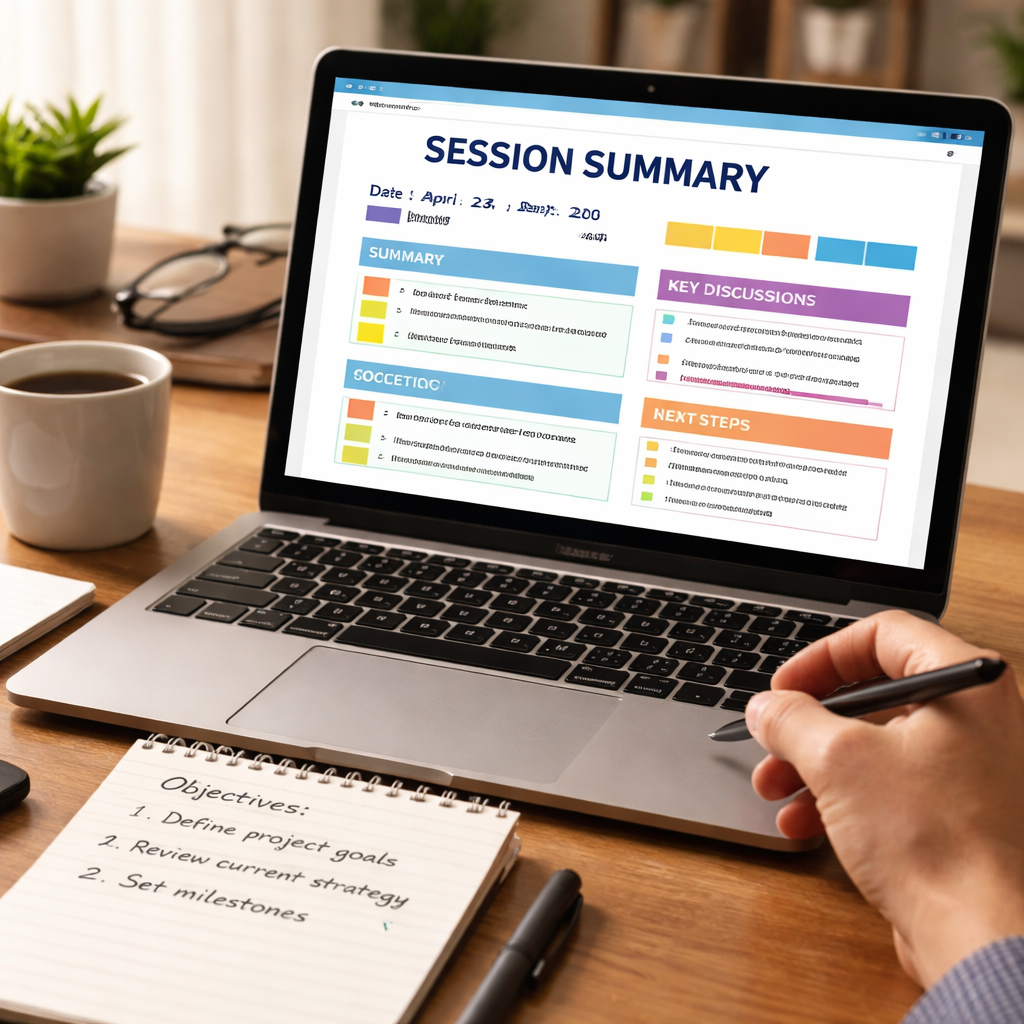
Step 2: Choose the Right Structure and Sections
Now that you’ve nailed the objective, the next puzzle is how to lay out the rest of the session summary template for review. The trick is to give yourself just enough columns to capture value without drowning in detail.
Start with the core blocks
Most of us find three sections work like a charm: what you did, what got in the way, and the next action. For a student cramming for an exam, that might look like “Solved 12 practice questions”, “Got stuck on question 8”, “Review concept X tomorrow”. A remote worker could write “Documented three client feedback points”, “Interruptions from Slack”, “Add a follow‑up email to the sprint board”.
Why three? Research on cognitive load shows that people retain information best when it’s broken into bite‑size chunks – roughly 4‑7 items per list (HeidiHealth notes that structured templates reduce admin time). Keeping the sections tight means you’ll actually fill them in.
Add visual cues
Checkboxes, colour‑coded priority flags, or a simple “👍” emoji can turn a plain line into a dopamine hit. When you tick the “Done” box next to the objective, your brain registers completion instantly. For freelancers juggling multiple contracts, a red flag on “Urgent invoice draft” warns you to prioritize it before the day ends.
Pro tip: if you use Focus Keeper’s built‑in tracker, you can sync those colour tags with the focus session tracker so the data rolls up into weekly reports automatically.
Tailor sections to your audience
Students often benefit from a “Key Takeaway” column – a one‑sentence lesson that sticks. Remote workers love a “Tool Used” column to note whether they were on Zoom, Notion, or a shared Google Doc. Busy professionals might add a “Time Spent (min)” field to keep an eye on billable hours.
Imagine a marketing freelancer who adds a “Client Approval” checkbox. At the end of the week they can glance at the template and instantly see which deliverables still need sign‑off, saving hours of chase‑ups.
Make it reusable
Design the template as a master sheet you can duplicate for every Pomodoro block. Save it as a Google Sheet, an Excel file, or even a printable PDF if you prefer pen‑and‑paper. If you like having a hard copy on your desk, sites like JiffyPrintOnline can print custom session summary sheets so you never miss a line.
And if your work revolves around client meetings, consider storing the completed summaries in a client management platform. That way you have a searchable history of every discussion, ready for the next call.
Step‑by‑step checklist
- Open your master template.
- Copy a new row for the upcoming session.
- Fill in the three core blocks (What, Roadblocks, Next Action).
- Add any audience‑specific columns (Key Takeaway, Tool Used, Time Spent).
- Apply visual cues – checkboxes, colour flags, emojis.
- Save or print the row immediately after the timer dings.
That’s it. A well‑structured template turns a chaotic 25‑minute sprint into a tidy, data‑rich snapshot you can reference tomorrow, next week, or next month.
Step 3: Populate Content and Assign Ownership
Now that your template is ready, the real magic begins the moment the Pomodoro timer dings and you start filling it in.
Think about the last time you jotted a quick note after a study sprint. Did you just scribble “did stuff” and move on? That vague line rarely helps anyone – least of all you.
Fill in the core blocks
Open the row you just duplicated and start with the three core columns we championed earlier: What you accomplished, any roadblocks, and the next action. Keep each entry to a single, punchy sentence. For a student, “Solved 8 algebra problems” is enough; a freelancer might write “Delivered mockup to client for feedback”.
Because the template lives in a spreadsheet, you can use checkboxes or colour‑coded cells to give yourself a tiny dopamine hit. When you tick “Done”, your brain registers a win without extra effort.
Assign clear owners
Ownership is the glue that stops a task from slipping into the abyss. Add a column called “Owner” next to the next‑action field and drop‑down the names of everyone involved – yourself, a teammate, a client contact.
Ask yourself: who will actually move this forward? If you’re a remote worker coordinating with a designer, put the designer’s name next to “Review UI mockup”. If you’re a busy professional juggling multiple stakeholders, you might assign “Executive Assistant” to schedule the follow‑up meeting.
When the owner sees their name highlighted, the responsibility is immediate and the chance of “I didn’t know about that” drops dramatically.
Automate and lock it down
In our experience, the moment you automate a step, you gain consistency. Set up a simple rule in Google Sheets or Excel that automatically timestamps the row when you hit the “Save” button. That way you always know which session produced which insight.
For freelancers who bill by the hour, a “Time Spent (min)” column linked to the session timer can feed directly into invoicing tools, cutting down on manual entry.
Does this feel like extra work? Not really – once the rule is in place, the template fills itself while you focus on the actual task.
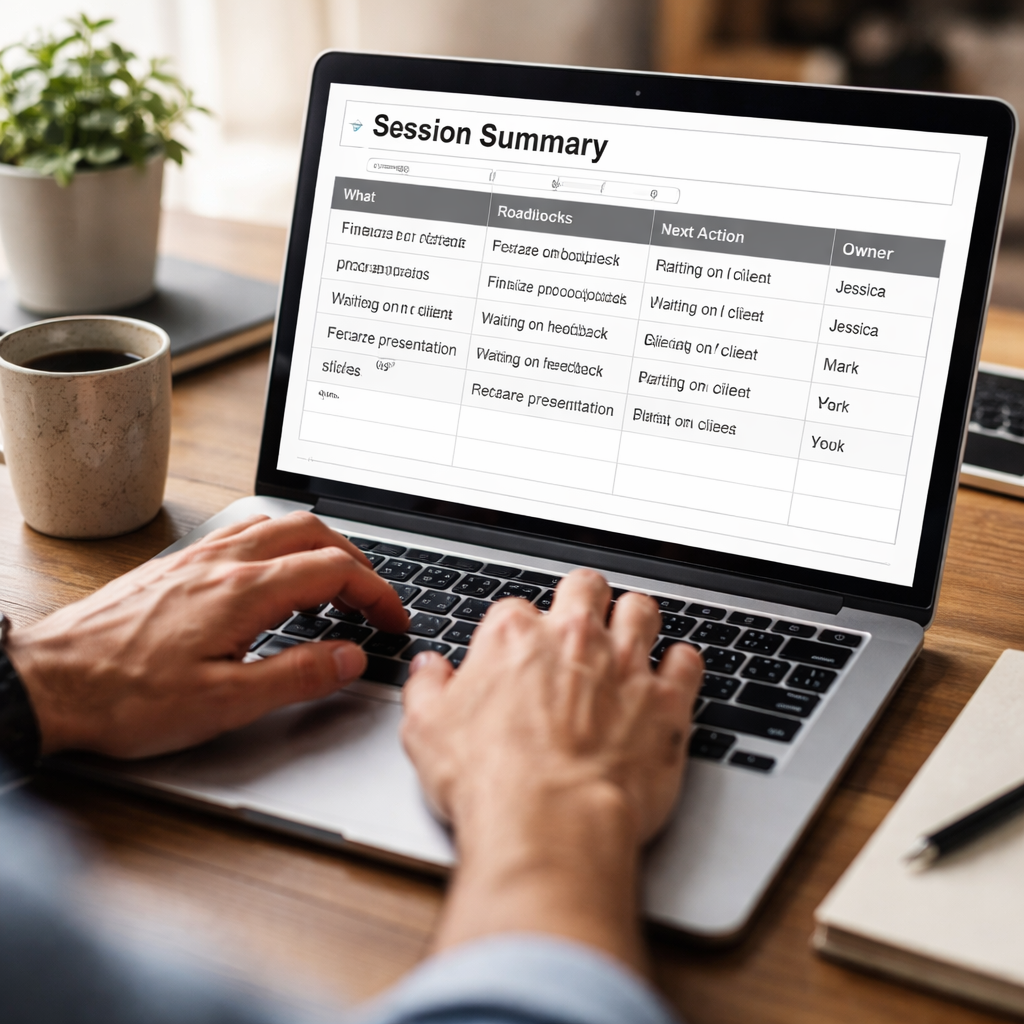
Now that the data is populated and owners are assigned, you have a living record you can review at any time. A quick glance on Friday shows you exactly which roadblocks kept recurring and who’s responsible for clearing them.
Want a fast way to decide which column to prioritize? Use the following cheat‑sheet.
| Content Block | Who Owns It | Quick Tip |
|---|---|---|
| What you did | You (or the session performer) | Use past‑tense verbs for clarity |
| Roadblocks | Team lead or project manager | Flag with a red cell if urgent |
| Next Action | Designated owner | Assign a due date in the same row |
Notice how each row tells a story: the action, the blocker, and the person who will fix it. That narrative is what turns a chaotic sprint into a coordinated effort.
So, what’s the next step for you? Grab your master template, duplicate a row, and fill in the three blocks while the Pomodoro timer ends. Then, drop the appropriate name into the Owner column and watch accountability rise.
Remember, the goal isn’t to create a perfect document – it’s to create a habit that surfaces the right info at the right time. Once you’ve built that habit, you’ll spend less time chasing emails and more time actually moving projects forward.
Step 4: Review, Approve, and Iterate
Okay, you’ve just filled out the session summary template for review. The hard part – the actual work – is done. Now comes the moment most people skip: actually looking at what you wrote.
Why does that matter? Because a summary that sits untouched is like a post‑it stuck to the fridge that nobody ever reads. It might hold a brilliant idea, but if it never gets reviewed, it never gets acted on.
Give it a quick once‑over
Set a timer for two minutes – the same length as a Pomodoro break – and scan each row. Ask yourself:
- Is the “What you did” line specific enough? (“Drafted the intro slide” beats “Worked on slides”.)
- Did I flag the roadblock with the right colour or emoji?
- Is the next action assigned to a single owner with a clear due date?
If anything feels vague, tweak it on the spot. Those few seconds save hours later when you’re hunting for that missing detail.
And here’s a little trick: copy the whole row into a sticky note app and read it out loud. Hearing the words forces you to notice awkward phrasing or missing pieces.
Get a second pair of eyes
In many teams, the reviewer is the project lead or a senior teammate. Share the sheet directly from Google Sheets or attach a PDF to your Slack channel. The goal isn’t a formal audit; it’s a friendly sanity check.
When you ask someone else to glance over your summary, you’re also building accountability. They’ll see their name next to the action item and know they’re expected to move it forward.
Does this feel like extra work? Think of it as a safety net. A quick comment like “Looks good, but can we add a deadline?” is worth the few seconds you spend now.
Approve and lock it down
Once the review is done, give the row a green check or a “👍” emoji. That little visual cue tells your brain, “Yep, this is solid.” If you’re using Focus Keeper’s Pomodoro timer, you can even set a habit reminder to approve your summary at the end of each day.
For freelancers juggling multiple clients, approving each summary means you end the day with a clean list of what still needs attention. No more wondering, “Did I forget to send that invoice?”
Iterate – make the template work for you
Every week, skim through the past week’s summaries. Look for patterns: Are the same roadblocks showing up? Are certain owners consistently missing deadlines? Use those insights to tweak the template.
Maybe you need an extra column for “Priority” or a drop‑down for “Status”. Maybe the colour‑coding needs a brighter red for truly urgent blockers. The template isn’t set in stone; it evolves with your workflow.
One simple way to iterate is to add a “Reflection” cell at the end of each row. Write one sentence like “Need better time‑boxing for research” and later group those reflections to spot trends.
And if you ever feel stuck, the meeting summary best practices article gives a solid checklist for what a good review should capture – from clear decisions to actionable items.
Bottom line: Review, approve, and iterate turn a static sheet into a living roadmap. It’s the habit that keeps your focus sessions from drifting into a black hole of forgotten tasks.
Ready to make it happen? Grab your session summary template for review, run through the quick scan, get a teammate’s nod, hit that green check, and note one tweak for next week. You’ll see the difference within a single sprint.
Step 5: Automate Distribution and Tracking
Alright, you’ve filled out your session summary template for review and it’s sitting in a spreadsheet, right? The next logical step is to make sure that snapshot doesn’t get lost in a sea of tabs.
Imagine you finish a sprint, hit “save”, and then—boom—an email lands in every teammate’s inbox with the exact same info, colour‑coded and ready to act on. That’s the power of automation.
Why bother with automation?
Because manually copying rows into Slack, Teams, or a project board eats the two‑minute benefit you just earned. When you automate, you keep the momentum flowing and you give yourself a tiny dopamine hit every time the system does the heavy lifting for you.
Does this feel like overkill for a single row? Not really. A single automated step can free up minutes every day, and those minutes add up to hours over a month.
Step 1: Choose a trigger
Most spreadsheet tools let you fire a rule when a new row is added. Set the trigger to fire when the “Status” column switches to “Done” or when a checkbox next to the summary is ticked.
In the rule, tell the platform to pull the key columns—what you did, the roadblock, the next action, and the owner—and format them into a short message.
Step 2: Pipe the message to your team’s hub
If you’re on Slack, use a webhook URL and map the fields into a neat block. For Teams or email, most services have a built‑in “send email” action. The message should look like:
✅ What: Drafted client proposal intro
⚠️ Roadblock: Waiting on design assets
🗒️ Next Action: Follow up with designer (Jane) by 3 PM
That one‑liner lands in the right channel, so no one has to hunt for the row.
Does the idea of webhooks sound intimidating? It’s really just a URL that your spreadsheet whispers to when the rule fires. A quick Google search will walk you through the exact steps for Google Sheets or Excel.
Step 3: Capture the summary automatically
If your session includes a live meeting, consider using an AI transcription service that can pull the key points straight into the template. Tactiq’s AI meeting assistant can automatically generate summaries and drop them into a Google Sheet, saving you the manual typing.
Once the transcription lands in the same row, the automation you set up in Step 2 will instantly push the fresh summary to the right place.
Step 4: Sync with a tracking dashboard
Now that the data is flowing, you probably want a visual overview. Most work‑management tools let you import a Google Sheet as a data source. The moment a new row appears, the dashboard updates—think colour‑coded bars for focus level, a pie chart of recurring roadblocks, or a burn‑down chart for next actions.
If you need a ready‑made solution, Smartsheet offers free templates that include built‑in automation. You can drop your session data into one of those templates and let the platform handle the rest.
Does a dashboard feel like over‑engineering? Not when you’re juggling multiple projects. A quick glance tells you whether the same roadblock is showing up for students, freelancers, or remote workers, and you can address the pattern before it becomes a bottleneck.
Step 5: Test, tweak, repeat
Run a couple of sessions and watch the automation in action. Did the email format look messy? Adjust the template string. Did the webhook fire twice? Add a “status” column check to prevent duplicate sends.
Remember, automation is a habit, not a set‑and‑forget miracle. The more you iterate, the smoother the flow.
Bottom line: By automating distribution and tracking, your session summary template for review becomes a living part of your workflow instead of a static after‑thought. You’ll spend those two minutes writing the summary, then let the system do the rest—leaving you free to actually move the work forward.
Conclusion
If you’ve made it this far, you already know that a session summary template for review is more than a checkbox—it’s a tiny habit that turns chaos into clarity.
Think about the last time you wrapped a Pomodoro and just stared at a blank page. By jotting down what you achieved, the roadblock you hit, and the next action, you give yourself a roadmap that even a busy professional can trust.
Students, remote workers, freelancers, and anyone juggling multiple projects can plug that three‑column row into the same sheet every day. The pattern is simple: capture, assign, automate. The result? Fewer missed deadlines, less mental overhead, and a clear line of sight for the whole team.
So, what’s the next step? Open your master template, duplicate a row, and spend two minutes after each focus block filling it out. Then, hit the “Done” checkbox and let the automation you set up push the summary where it belongs.
In our experience at Focus Keeper, users who treat the template as a daily ritual report a noticeable boost in focus retention and project flow. It isn’t magic; it’s consistency.
Give it a try this week. When the habit sticks, you’ll wonder how you ever managed without a session summary template for review.
FAQ
What exactly is a session summary template for review and why should I use it?
A session summary template for review is a tiny worksheet you fill out right after a Pomodoro or any focused work block. It captures three things – what you accomplished, any roadblock, and the next action. By writing it down, you turn a fuzzy feeling of “I did something” into a concrete record you can actually act on later. The habit cuts down on mental clutter and makes it easier to spot patterns, whether you’re a student cramming for finals or a freelancer juggling multiple clients.
How do I set up a session summary template for review in just two minutes?
Grab a blank sheet or a new Google Sheet tab. Add four columns: Objective, What I Did, Roadblock, Next Action. Throw in a checkbox next to each row so you can tick it when you’re done. Save the file as your master template, then duplicate a row before each focus session. When the timer dings, spend 120 seconds filling the three cells – you’ll be surprised how quickly it becomes second nature.
Can I customize the template for different roles like students or freelancers?
Absolutely. For students, add a “Key Takeaway” column so you can jot a one‑sentence lesson from each study sprint. Freelancers might prefer a “Client” dropdown and a “Billable Hours” field to keep invoicing tidy. Remote workers love a “Tool Used” column – Zoom, Notion, or Slack – to track context. The core three blocks stay the same; the extra fields just speak the language of your specific workflow.
What’s the best way to review the summaries without it feeling like a chore?
Treat the review like a quick sprint of its own. Set a two‑minute timer at the end of the day and scan each row. Ask yourself: Is the action clear? Is the owner assigned? If something looks vague, tweak it on the spot. Reading the rows out loud in a sticky‑note app forces you to notice missing details, and the visual checkmarks give you a tiny dopamine hit that says, “We’re on track.”
How does automation tie into the session summary template for review?
Automation is the bridge between a handwritten note and a team‑wide update. In Google Sheets you can add a rule that fires when the “Done” checkbox is checked – it pulls the three core columns into a formatted message and pushes it to Slack, Teams, or email via a webhook. The result? No one has to hunt for the row; the right people get the right info the moment you finish a session.
How often should I iterate on the template to keep it effective?
Give it a weekly pulse check. At the end of each week, glance at the past seven rows and look for recurring roadblocks or owners who consistently miss deadlines. If you notice the same column is always blank, consider adding a prompt or a colour‑code to make it more visible. Small tweaks – a new “Priority” dropdown or a one‑sentence “Reflection” cell – keep the template fresh and aligned with how you actually work.
Where can I find examples of meeting agenda templates that complement my session summary?
Our own blog walks through meeting agenda templates that break down previous minutes, decisions, and next steps. Those layouts translate nicely into a session‑level summary because they already emphasize clear actions and accountability. Flip through the examples, borrow the column titles you like, and drop them into your session summary template. It’s a quick way to make sure you’re capturing the right details without reinventing the wheel.




