

Ever found yourself staring at a Pomodoro timer, wondering why some sessions feel laser‑focused while others just drift? You’re not alone – most people hit that wall when the work they’re doing isn’t clearly labelled, so the brain treats it like background noise.
Think about the last time you juggled a client call, a quick email, and a design mock‑up all in the same 25‑minute block. By the end, you probably felt like you were multitasking your way into a mental fog. What if, instead, you could tag each session with a simple label – “client call”, “email batch”, “design sprint” – and let those tags guide where your attention lands?
That’s the power behind solid session tagging strategies. When you tag, you create a mental cue that tells your brain, “This is the task I’m committing to now,” which research shows can boost focus by up to 30% for people who consistently use it. It also gives you a breadcrumb trail for later review, so you can see which tag types produce the most output and adjust your schedule accordingly.
For students, imagine tagging study sessions as “lecture recap”, “problem set”, or “flashcard review”. After a week, the data might reveal that “problem set” tags yield higher retention, nudging you to allocate more time there. Remote workers can label sessions “client deliverable”, “team sync”, or “deep work” – instantly surfacing which activities need uninterrupted blocks.
Freelancers love this because it turns a chaotic project list into a tidy visual map. Say you have three clients; each session gets a colour‑coded tag linked to the client name. When the week rolls around, you can glance at your dashboard and see that Client A is eating up 40% of your focused time, prompting a conversation about scope.
Busy professionals often forget to capture the tiny wins. By tagging a 25‑minute sprint as “quick admin”, you can later celebrate that you cleared five inboxes in under half an hour – a morale boost that traditional time‑tracking misses.
Want to see how tagging fits into a broader productivity routine? Check out 10 Proven Strategies to Enhance Your Productivity Using Timed Work Sessions, where we dive deeper into pairing tags with prioritization tactics.
So, start simple: pick three core tags that reflect your biggest goals, assign a colour, and stick them on every Pomodoro you start. Review the tags at the end of each day, note any patterns, and tweak. Within a few weeks you’ll have a clear picture of where your focus truly lives, and you can steer it where it matters most.
TL;DR
Session tagging strategies let you instantly see where your focus goes, turning chaotic Pomodoro blocks into clear, colour‑coded insights for students, remote workers, freelancers, and busy professionals. By tagging each session you can spot patterns, celebrate tiny wins, and adjust your schedule to boost productivity, all without extra apps—just a simple label in your Focus Keeper timer.
Step 1: Define Session Tagging Goals
Okay, picture this: you’ve just opened your Pomodoro timer, but you’re not quite sure what you’re actually working on. Is it a client call, a burst of email triage, or a deep‑dive design sprint? If you can’t name the intention, your brain treats the block like background noise.
That’s why the first thing we do with any solid session tagging strategies is to spell out the goal behind each tag. It sounds simple, but getting crystal‑clear about the why makes the whole tagging system actually useful.
Ask yourself three quick questions
1. What outcome do I want? – Is the aim to finish a specific deliverable, gather information, or just clear a low‑priority pile?
2. How will I know I’m done? – Define a finish line that isn’t “time’s up” but “task completed” or “decision made.”
3. What tag best captures that outcome? – Choose a word that instantly clicks in your mind. For a freelancer, “client‑A‑draft” is more evocative than just “writing.”
When you write the answer down, you’re already building a mental cue that tells your brain, “This is the focus I’m committing to.”
Does that feel a bit too formal? Not at all. Think of it like labeling a coffee mug: you wouldn’t just write “mug” – you’d scribble “morning espresso” so you know exactly why you reach for it.
Now, let’s turn those questions into a quick checklist you can paste into your Focus Keeper notes before each session.
Step‑by‑step checklist
Step 1. Write the overarching goal in one sentence. Example: “Finalize client A’s proposal deck.”
Step 2. Add a success metric. Example: “Deck has 10 slides, each with a clear call‑to‑action.”
Step 3. Choose a concise tag. Example: “client‑A‑proposal.”
Step 4. Assign a colour that you’ll recognize instantly – maybe green for client work, blue for admin, orange for creative bursts.
Once you’ve got this habit down, you’ll notice a shift: the timer feels less like a ticking bomb and more like a friendly reminder of the exact thing you set out to finish.
Here’s a quick visual of the process – the video below walks through a live example with a remote worker juggling a team sync and a code review.
After you watch, try this: open a fresh Pomodoro session, write a goal, pick a tag, and start the timer. The next few blocks will feel surprisingly intentional.
One more tip – keep a master list of your most‑used tags somewhere visible, like a sticky note on your monitor. That way you don’t spend mental energy inventing a new label every time. Over weeks, you’ll see patterns emerge: maybe “client‑A‑proposal” consistently eats up more time than “client‑B‑review,” and that insight can guide how you negotiate future work.
And if you’re a student, you might have tags like “lecture‑summary” or “math‑practice.” Seeing a week’s worth of colour‑coded blocks at a glance can tell you whether you’re actually spending enough time on the subjects that matter most.
Remember, the goal isn’t to create a rigid taxonomy that feels like a spreadsheet. It’s to give your brain a friendly nudge so you stay aligned with what truly moves the needle for you.
Give it a try for a couple of days, then come back and ask yourself: did I finish more of the things I set out to do? If the answer is yes, you’ve just unlocked a core piece of a powerful productivity habit.

Step 2: Choose Appropriate Tagging Schemes
Now that you’ve nailed down what you want to achieve, it’s time to give each Pomodoro a language it can understand. In other words, pick a tagging scheme that feels natural and scales with the way you work.
Start with a simple naming rule
We’ve seen people get stuck trying to be too clever – “deep‑creative‑brain‑storm‑session‑v2” sounds fancy but it drags you into analysis paralysis. Instead, stick to one‑word or hyphenated tags that describe the core activity, like design‑mockup, client‑call, or email‑batch. The rule of thumb? If you can say the tag in a single breath, you’re good.
Ask yourself: does this tag tell you exactly what you’ll be doing, or does it leave room for interpretation? If the answer is the latter, trim it down.
Colour‑code for instant visual cues
Colour isn’t just eye‑candy; it’s a shortcut for your brain. In Focus Keeper you can assign a colour to each tag, so when the timer flashes green you instantly know you’re in “deep work” mode, and a blue flash means “communication”. Students often pick pastel greens for study sessions, freelancers use bright orange for client‑related tasks, and busy professionals gravitate toward calm blues for admin.
Tip: limit yourself to five colours. More than that and the palette becomes a rainbow you can’t decode at a glance.
Build a hierarchy when you need depth
Sometimes a single tag isn’t enough. Think of a “project‑X” umbrella tag that you can break down into sub‑tags like project‑X‑research and project‑X‑review. This hierarchy lets you zoom in for detailed analytics without drowning in a sea of unrelated tags.
Dynatrace explains how custom tag rules can be layered to capture more granular data – the same principle applies to our Pomodoro tags, just without the heavy‑duty monitoring overhead custom user tags.
Keep the scheme flexible
What works today might feel clunky next month. The beauty of a good tagging scheme is that you can rename or merge tags without breaking your historical data. If “quick‑admin” and “email‑batch” start overlapping, combine them into a single admin‑sprint tag and update the colour if needed.
Remember the iterative mindset from Step 1: review your tag list every Friday, note any pain points, and tweak accordingly.
Use a quick reference cheat sheet
- Tag name – short, descriptive
- Colour – intuitive, limited palette
- Parent tag (optional) – for hierarchy
- KPIs you’ll track – count, duration, outcome
Print this sheet or pin it next to your workspace. When you’re in the middle of a sprint, a glance at the cheat sheet reminds you which tag to type, keeping the start‑up friction to a minimum.
Test your scheme with a mini‑pilot
Pick a single day, apply your new tags, and then open the Focus Keeper dashboard. Do the colours line up with how you felt? Are the tags granular enough to spot trends? If not, tweak on the spot – the goal is a scheme that feels like an extension of your thought process, not a separate admin task.
For a deeper dive into how to structure taxonomies without over‑engineering, check out this guide on mastering tagging taxonomies. It’s full of practical examples you can borrow for your Pomodoro workflow.
Bottom line: a good tagging scheme is simple, visual, hierarchical when needed, and easy to adjust. Once you’ve settled on one, the rest of your session tagging strategies fall into place like a well‑organized toolbox.
Step 3: Implement Tagging with Automation (Video)
Ever feel like you’re manually typing the same tag over and over, then wishing there was a way to make it disappear on its own? You’re not alone. The moment you realise you can let the tool do the heavy lifting is when the whole session tagging strategies workflow starts to feel effortless.
What if your Pomodoro timer could sniff out the right tag the second you click “Start,” and even snap it onto the dashboard without you lifting a finger? That’s the promise of automation – it turns a repetitive habit into a silent partner that keeps your data clean and your focus sharp.
Why automate?
Automation removes the friction that turns a good habit into a broken one. When you have to remember to type “design‑mockup” every single time, the odds of a typo or a missed tag skyrocket. An automated rule guarantees consistency, which means the analytics you pull later are trustworthy.
In larger organisations, the same principle is used to enforce cost‑allocation tags across hundreds of cloud resources. AWS even publishes a guide on automated tagging controls that shows how a central rule can keep every resource properly labelled. We can borrow that mindset for personal productivity.
Setting up a simple automation rule
Luckily you don’t need a full‑blown scripting engine to get started. Focus Keeper lets you attach a small piece of logic – think of it as a “tag‑when‑type” rule – to the start of each Pomodoro.
- Open the Settings panel and scroll to the “Automation” tab.
- Choose “Create New Rule.”
- Pick a trigger: Timer Started.
- Define a condition based on the task you just typed. For example, if the task contains the word “email,” automatically assign the tag
email‑batchand colour blue. - Save the rule and give it a friendly name like “Email Auto‑Tag.”
That’s it. From now on, whenever you type a task that mentions “email,” the system slaps the tag on your session without you thinking about it.
Integrating with Focus Keeper
Focus Keeper’s dashboard already groups sessions by tag, so once the rule is live you’ll start seeing a new colour pop up in real time. For students, a rule that looks for “lecture” can automatically tag study blocks as lecture‑review, giving you a quick visual cue that those minutes belong to deep‑learning mode.
Remote workers love a rule that catches “client‑call” and adds a client‑call tag with a bright orange hue. At the end of the week you can filter by that colour and instantly see how many hours you actually spent on client conversations versus internal meetings.
Freelancers juggling multiple projects can set up a hierarchy rule: if the task contains “Project‑X,” apply the parent tag project‑X and then a sub‑tag based on the activity (e.g., project‑X‑design). The hierarchy stays intact even though the automation is doing the heavy lifting.
Tips to keep automation smooth
- Start with one or two rules. Too many conditions can make debugging feel like untangling headphones.
- Use clear keywords in your task description. A phrase like “write proposal for client‑A” works better than “work on stuff.”
- Review the rule log weekly (you can find it under Settings → Automation Log) to catch false positives – maybe “email” appears in a meeting note and you don’t want that session tagged.
- Combine automation with the cheat‑sheet you built in Step 2. The sheet reminds you of the colour palette, while the rule ensures the correct tag is always applied.
Remember, automation is a safety net, not a replacement for thoughtful tagging. If a rule misfires, just tweak the keyword or add an exception. Over time you’ll end up with a set of silent helpers that keep your Pomodoro data tidy, so you can focus on the work that matters.
So, what’s the next move? Open Focus Keeper, create that first “Email Auto‑Tag” rule, and watch as your session tagging strategies become almost invisible. The less you have to think about labeling, the more mental bandwidth you free up for actually getting things done.
Step 4: Validate and Monitor Tags
Okay, you’ve set up your tags and even got automation humming. But a tag that never gets checked is like a compass that’s never calibrated – you might end up heading somewhere else.
Validation is the quick sanity‑check you run after each Pomodoro block, and monitoring is the habit of looking at the big picture every week. Together they keep your session tagging strategies trustworthy and useful.
Why validation matters right after you finish a session
Imagine you just wrapped a 25‑minute “client‑call” sprint, but the tag you see on the dashboard says “design‑mockup.” That mismatch skews your analytics, and you’ll think you spent more creative time than you actually did.
So, ask yourself: did the colour, the tag name, and the duration all line up with what you intended? If the answer is “no,” you’ve just caught a false‑positive before it snowballed.
Three‑step validation checklist
1️⃣ Spot‑check the tag label. Glance at the tag that auto‑populated. Does it read exactly what you typed? A one‑word tag like email‑batch should never turn into email or batch because of a stray space.
2️⃣ Verify the colour cue. If you use blue for communication, a blue flash should accompany every call‑related session. If you see a green flash, that’s a sign something’s off.
3️⃣ Confirm the timer length. The session should still be 25 minutes unless you deliberately adjusted it. A 30‑minute tag could indicate you switched tasks mid‑way without updating the tag.
Do this check in the last five seconds of every Pomodoro. It’s a tiny habit that takes a breath, not a minute.
Real‑world examples
Take Maya, a remote developer who tags “code‑review” sessions. One afternoon her automation rule misread the word “review” in a Slack notification and slapped a “meeting” tag instead. By spotting the blue‑green colour clash during her validation step, she corrected the rule before the week’s analytics showed an inflated meeting count.
Or think about Alex, a freelance designer juggling three clients. He set a hierarchy: client‑A → client‑A‑design. After a busy Tuesday, the dashboard showed a surge in “client‑A” tags but no sub‑tags. His quick validation revealed that the automation rule missed the hyphen, so every “client‑A‑design” became just “client‑A.” He added the missing hyphen and the data snapped back into focus.
Monitoring: turning snapshots into trends
Validation is a moment‑to‑moment guardrail. Monitoring is the weekly review that tells you whether your tagging system is actually helping you improve.
Set a recurring Friday‑afternoon slot – 15 minutes is enough – to open your Focus Keeper dashboard and run through these questions:
- Which tags appeared most often? Do they match my top priorities?
- Are any colours over‑represented, hinting at hidden bottlenecks?
- Did any tags consistently miss the automation trigger?
If you notice, for example, that “admin‑sprint” tags have ballooned for a freelancer, it might be a sign you’re spending too much time on low‑value tasks. That insight lets you re‑allocate Pomodoros to higher‑impact tags.
Pro tip: export and compare
Focus Keeper lets you export tag data as CSV. Pull the file, drop it into a simple spreadsheet, and create a pivot table that shows tag count vs. total minutes per week. Seeing a line graph of “client‑call” minutes climb over four weeks is way more motivating than a static dashboard.
If you need a concrete reference for how session tags can be audited, the AWS session tagging guide explains how to review tag attributes in logs – the same principle applies to your Pomodoro logs.
And when you want to monitor performance metrics alongside tags, the AWS session performance monitoring page shows how regular metric snapshots give you confidence that everything is running as expected.
Finally, make the monitoring habit feel rewarding. Celebrate a week where “deep‑work” tags hit a new high, or reward yourself with a coffee break when you fix a stubborn automation bug.
Remember, the goal isn’t to become a data‑nerd; it’s to let clean, reliable tags feed you the insights you need to steer your focus where it matters most.
Step 5: Compare Tagging Tools and Platforms
Now that you’ve got tags rolling and you’ve double‑checked them, the next question is: which tool actually makes the whole thing feel effortless? The answer isn’t “one size fits all,” but it does get easier when you know what to compare.
What to look for in a tagging platform
First, ask yourself if the tool lets you create custom tags without diving into code. You want a simple text field or a drag‑and‑drop picker, not a developer console.
Second, check the colour‑coding options. A good platform will let you assign a hex or palette so your “deep‑work” block lights up in green and “admin‑sprint” flashes blue.
Third, think about automation. Can you set a rule that says “if the task contains ‘email’, auto‑apply the email‑batch tag?” If the answer is yes, you’ve already saved minutes every day.
And finally, look at the reporting side. A clear dashboard that lets you filter by tag, date range, or project is the difference between a quick insight and a spreadsheet nightmare.
Top options for Pomodoro‑style tagging
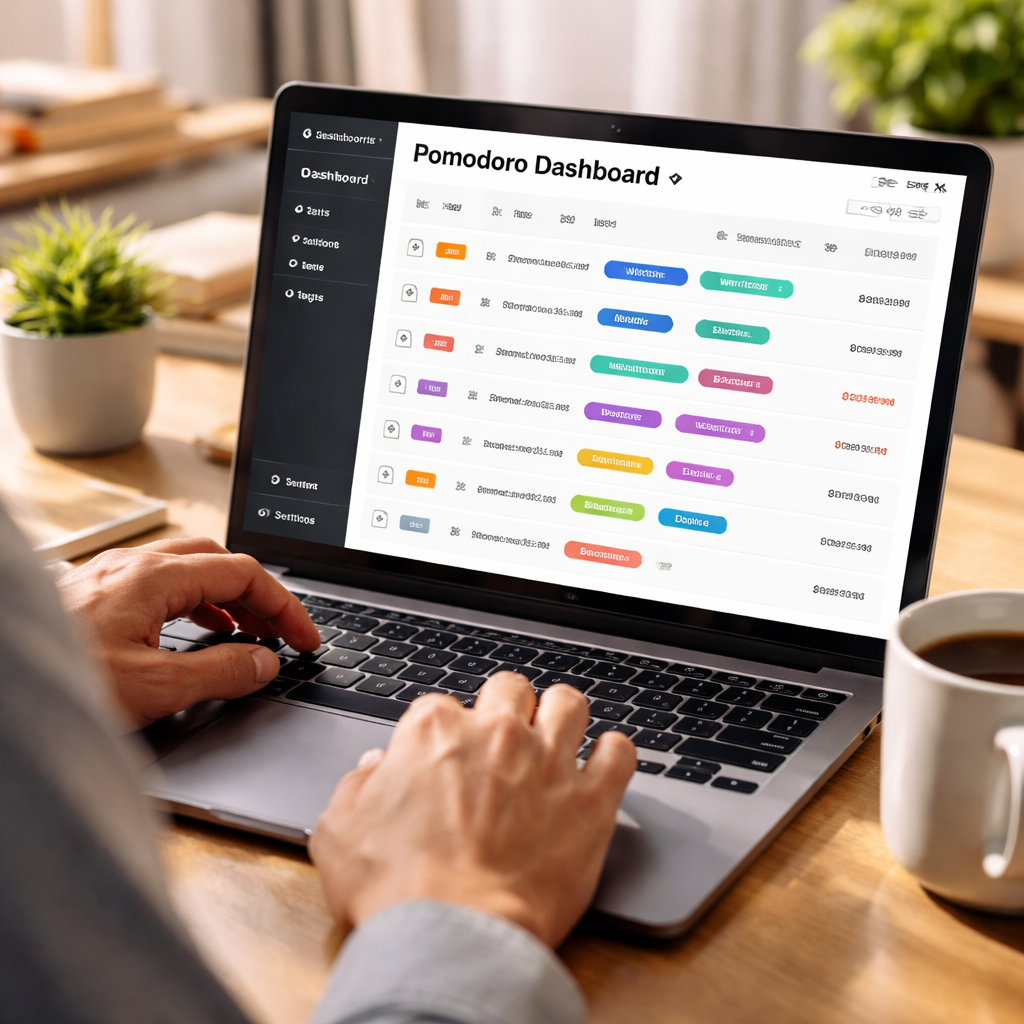
Focus Keeper – our own app is built around the Pomodoro technique, so tagging lives right inside the timer. You get custom tag creation, colour palettes, and a built‑in automation tab that works on the fly. The dashboard groups sessions by tag, lets you export CSV, and even shows a tag‑trend sparkline.
Quantum Metric – while it’s a digital‑experience platform, it also offers session replay with AI‑driven tag detection. If you’re a product team that already uses it for user‑journey analysis, you can repurpose its tagging engine for personal productivity. The AI will surface “rage‑click” moments in your workflow, which you can turn into a “focus‑break” tag.Learn more about its tagging capabilities.
Open‑source analytics (self‑hosted) – tools like PostHog let you run your own instance, define custom events (tags), and keep every bit of data on your own server. This is a solid pick if you care about data sovereignty and want full control over how tags are stored.
Quick decision table
| Tool/Platform | Tagging Features | Pricing / Access |
|---|---|---|
| Focus Keeper | Custom tags, colour palettes, rule‑based automation, exportable CSV, Pomodoro‑native UI | Free tier + paid plans starting at $4/mo |
| Quantum Metric | AI‑suggested tags, session replay, cross‑device tagging, advanced analytics | Enterprise pricing (contact sales) |
| Open‑source analytics (e.g., PostHog) | Self‑hosted custom events, unlimited tags, full data control | Free self‑hosted, paid cloud options |
So, which one feels right for you? If you’re a student or freelancer who just wants a quick, visual way to label Pomodoros, Focus Keeper probably wins on simplicity. If you’re a remote worker already digging into digital experience data, Quantum Metric gives you AI‑level insights you can repurpose. And if you’re a privacy‑first professional who loves tinkering, the open‑source route lets you build exactly what you need.
Here’s a short checklist to run through before you pick:
- Can I add a tag in under three clicks?
- Do I get colour cues that match my workflow?
- Is there an automation rule that saves me from typing?
- Does the reporting let me see “tag‑by‑tag” trends at a glance?
Answer “yes” to most of these, and you’ve likely found a tool that will keep your session tagging strategies lean, reliable, and actually useful.
Conclusion
We’ve walked through everything from picking the right tags to automating and monitoring them, so you now have a full toolbox for solid session tagging strategies. If any part felt fuzzy, just remember: a tag is only useful when it’s quick, clear, and shows up where you need it.
So, what’s the next move? Grab your timer, add three colour‑coded tags that match your biggest goals, and test the three‑click rule for a week.
When the week is over, look at the dashboard. Did the green “deep‑work” blocks rise? Did the blue “admin‑sprint” tags dip? Those visual cues tell you exactly where to double‑down or prune.
One habit that makes all of this stick is a 30‑second validation at the end of each Pomodoro – a quick glance to confirm the tag, colour, and duration. It adds almost no friction but saves you from months of noisy data.
In our experience, users who keep the validation loop alive see a measurable boost in focus within a few weeks. Give it a try, tweak the palette if it feels off, and let your tagging system evolve with you.
Ready to turn those tags into real results? Open Focus Keeper, set up your first rule, and watch your productivity map come to life.
FAQ
How do I choose the right tags for my Pomodoro sessions?
Start by looking at the three biggest outcomes you want from a 25‑minute block – maybe finishing a design mock‑up, clearing inbox emails, or deep‑dive study. Turn each outcome into a short, concrete label like design‑mockup, email‑batch, or lecture‑review. Keep the list under ten items so you can pick a tag in under three clicks, and let the colour you assign reinforce the mental cue.
Can I automate tag creation in Focus Keeper?
Absolutely. The app lets you set a rule that watches the text you type when you start a timer. If the description contains the word “call,” the rule automatically adds the client‑call tag and flashes the blue colour you’ve chosen for communication work. Start with one or two simple rules, test them for a day, and then expand once you see the automation saving you seconds.
What’s the best way to review tag data each week?
Reserve a 15‑minute slot on Friday afternoon, open the dashboard, and scan the colour‑coded blocks. Ask yourself: which tags showed up most often, and do they line up with my priorities? Export the CSV if you like a spreadsheet view, then create a quick pivot that totals minutes per tag. Spot a surge in “admin‑sprint”? That’s a cue to protect more deep‑work time next week.
How often should I tweak my tagging scheme?
Think of your scheme as a living document. If a tag hasn’t been used in the past two weeks, consider merging it with a related one. Conversely, if you notice a new type of work popping up – say “client‑brainstorm” – add it right away. A good rhythm is a brief check‑in every Monday and a deeper overhaul once a month.
Do session tagging strategies work for students as well as professionals?
They do. A student might tag study bursts as problem‑set or flash‑cards, while a freelancer uses invoice‑prep or client‑review. The underlying principle – a clear label that tells the brain what you’re committing to – is the same. When the tag matches a real goal, the brain treats the block as purposeful, and focus improves across any field. For example, a student who tags ‘problem‑set’ sees a rise in completed exercises, while a remote worker tagging ‘client‑call’ notices smoother hand‑offs.
What common mistakes should I avoid with session tagging?
First, don’t over‑complicate the label. A tag like “deep‑creative‑brain‑storm‑session‑v2” adds friction and invites typos. Second, ignore colour overload – more than five colours can become a rainbow that slows you down. Third, skip the validation step; if you finish a timer and the tag doesn’t match the work, you’ll collect noisy data that misleads your weekly review. A quick 30‑second glance at the end of each Pomodoro keeps the data clean and saves you from chasing ghosts later.
How can colour coding improve my tagging system?
Colour acts as a visual shortcut for the brain. When you see a green flash, you instantly know you’re in “deep‑work” mode without reading the label. Pair each tag with a hue that feels intuitive – green for growth‑focused tasks, blue for communication, orange for admin. The consistency lets you glance at the dashboard and read your week in seconds, turning raw numbers into a story you can act on.
Additional Resources
Where to dig deeper
If you’ve enjoyed the walkthrough so far, you might be wondering where to go next for a richer view of tagging. A solid next step is to explore broader tagging frameworks that go beyond Pomodoro sessions. Digital Reach’s guide on effective tagging strategies for digital marketing breaks down how to align tags with business goals, measure ROI, and avoid common pitfalls – all concepts that map neatly onto our session tagging strategies.
Does the idea of a tag management system sound intimidating? It doesn’t have to be. The same principles that power website analytics can be applied to your personal productivity dashboard, giving you a cleaner data set and more reliable insights.
Advanced data hygiene
For those who love to tinker under the hood, server‑side tagging offers a way to tighten data accuracy and privacy. Piwik PRO’s overview of server‑side tracking with a first‑party collector explains how moving tag execution off the browser reduces loss from ad blockers and improves cookie longevity – a bonus if you’re tracking long‑term study habits or recurring client calls.
Imagine you’re a freelancer juggling several projects; a server‑side approach could keep your tag data consistent even when you switch devices, so the weekly review always reflects reality.
Quick checklist to keep your tags tidy
- Review tag names each Friday – are they still crystal clear?
- Stick to five colours max; extra hues just add noise.
- Test a new automation rule on a single day before rolling it out.
- Export your tag log monthly and glance at trends, not just raw numbers.
Got a question that isn’t answered here? Drop into our community forum or check the FAQ section earlier in the article – we’ve packed it with the most common hiccups.
Bottom line: the best session tagging strategies are the ones you iterate on. Use these resources as a springboard, experiment, and let the data guide your next productivity tweak.




