
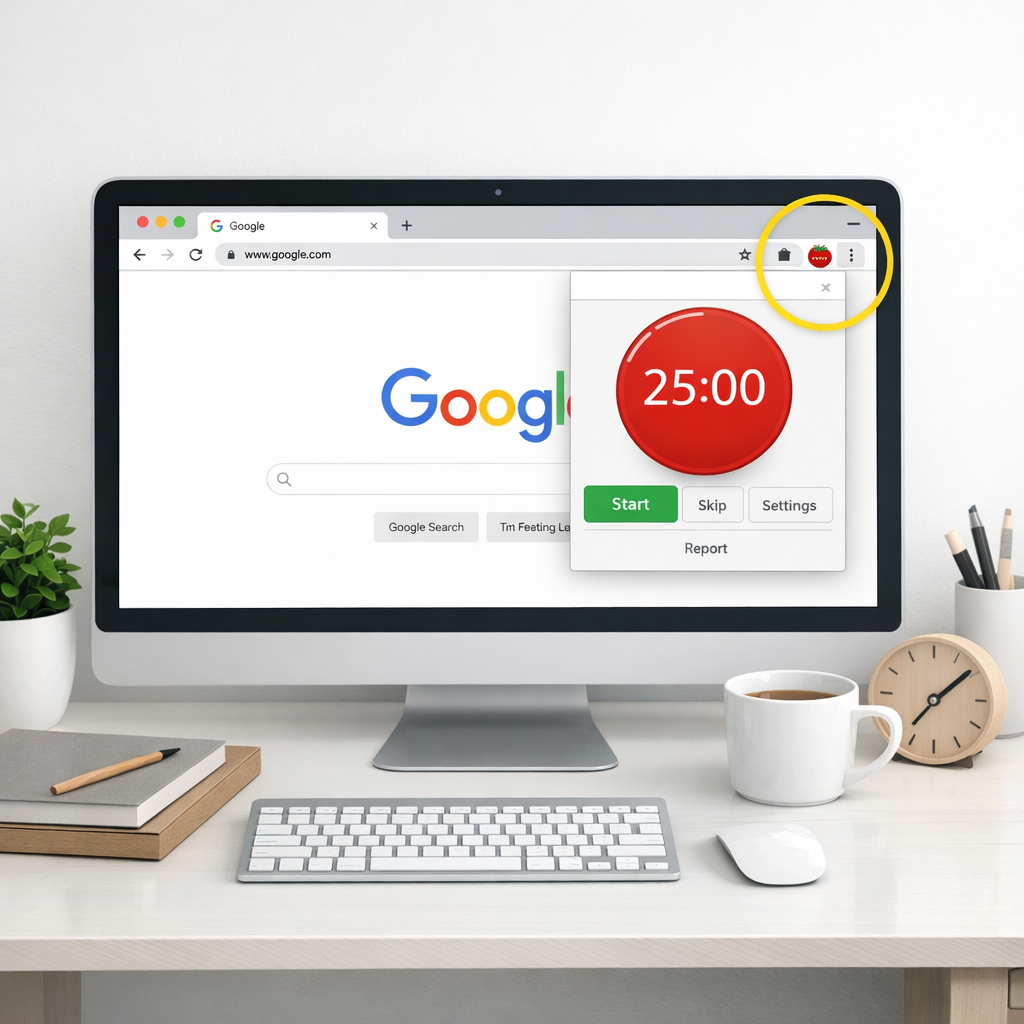
Ever found yourself scrolling through endless tabs, only to realize an hour vanished and you still haven’t finished that report?
We’ve all been there—mid‑morning, coffee half‑gone, and the to‑do list staring back like a silent judge. That’s the moment the Pomodoro Technique sneaks in, whispering, “Take a 25‑minute sprint, then breathe.”
But how do you turn that whisper into a click‑ready tool that lives right in your browser? Enter the pomodoro timer chrome extension, a tiny badge on your toolbar that does the heavy lifting while you focus on the work that matters.
Think about it this way: you set a timer, the extension blocks distracting sites, you work, the timer dings, and you get a short break to stretch or grab a snack. No need to juggle separate apps or open a new window—everything stays in Chrome, where you already spend most of your day.
In our experience with students cramming for finals, remote workers juggling meetings across time zones, and freelancers hopping between client projects, the biggest productivity hurdle is the constant pull of notifications. A dedicated pomodoro timer chrome extension cuts that pull to a manageable tug.
So, why does a browser extension feel more natural than a desktop app? First, it’s always there, right next to your bookmarks. Second, it can pause automatically when you switch tabs, ensuring you don’t lose a precious minute. Third, many extensions let you customize session lengths—maybe you prefer 45‑minute blocks for deep coding sessions.
Now, imagine you’re a busy professional with back‑to‑back calls. You fire up the extension, set a 25‑minute focus window, and the timer subtly dims distracting sites. When the alarm sounds, you step away, stretch, and return refreshed—ready to tackle the next call without the mental fog.
Ready to give it a try? In the next sections we’ll walk through picking the right pomodoro timer chrome extension, setting it up for your workflow, and tweaking it so it feels like a personal productivity coach.
Let’s dive in and reclaim those lost minutes.
TL;DR
A pomodoro timer chrome extension turns your browser into a focused work companion, letting students, remote workers, freelancers, and busy professionals slice distractions into bite‑size, timed bursts.
Set a 25‑minute sprint, watch sites dim, take a short break, and repeat—quickly reclaiming lost minutes without leaving Chrome, and stay in the flow.
1️⃣ Focus Keeper – Simple Yet Powerful
Ever caught yourself drifting between tabs, wondering where the last half‑hour vanished? That’s the exact moment a pomodoro timer chrome extension swoops in, nudging you back to the task at hand. And the beauty of Focus Keeper is that it feels like a friendly nudge, not a bossy alarm.
First up, let’s talk about the core idea behind Focus Keeper. It breaks your work into bite‑sized sprints, usually 25 minutes, then gives you a brief breather. Those short pauses are the secret sauce – they stop brain fatigue before it even starts. Imagine you’re a student cramming for finals: you set a timer, dive into a chapter, and when the bell rings you get a moment to stretch, grab a snack, or just stare out the window. You return refreshed, and the cycle repeats.
For remote workers juggling Zoom calls, the extension can auto‑pause when you switch tabs, so you don’t lose a single minute. Freelancers love the visual cue that a sprint is over – it signals when to log hours or switch projects without guessing.
So, why does Focus Keeper feel a step above other timers? Here are three quick points:
1. Seamless Chrome Integration
It lives right in your toolbar, so there’s no need to juggle a separate app. When you click “Start”, the timer starts counting down and, if you stray to a distracting site, the extension can dim it for you. No more endless scrolling on social media while you think you’re “just checking a quick update”.
2. Customisable Sessions
Not everyone vibes with a 25‑minute block. Some coders prefer 45‑minute deep work bursts; students might go for 15‑minute study sprints before a break. Focus Keeper lets you tweak session length, break length, and even the sound that dings when time’s up. It’s like having a tiny productivity coach that adjusts to your rhythm.
3. Visual Progress Tracker
Every completed pomodoro lights up on a simple bar chart, giving you an instant sense of accomplishment. Over a day you can see how many intervals you’ve nailed – a visual motivator that says, “Hey, you’re actually getting things done!”.
But what if you want to pair that micro‑focus with a macro‑plan? Try pairing the timer with a visual agenda that outlines your major tasks for the week. You set the big picture in the agenda, then let each pomodoro slot fill in the details. It’s a two‑step system that turns chaos into a tidy, colour‑coded roadmap.
And if you’re looking for a deeper dive into study techniques, the Coach DPrep CORE GPT program offers structured coaching that complements the pomodoro rhythm. Think of it as adding a personal trainer for your brain while the timer keeps the reps on schedule.
Here’s a quick checklist to get the most out of Focus Keeper:
- Pick a session length that feels natural – start with 25 minutes, then experiment.
- Set a clear, single‑task goal for each sprint (e.g., “outline chapter 3”, not “study”).
- Use the dim‑out feature to block distracting sites during work blocks.
- Take a real break – step away, stretch, hydrate. Don’t just stare at your screen.
- Log your completed pomodoros at the end of the day to see progress.
Want to dive deeper into how a pomodoro timer chrome extension works under the hood? Check out What is pomodoro timer chrome extension? – Focuskeeper Glossary for a concise explainer.
Below is a short video that walks through setting up your first session in Focus Keeper. It shows the toolbar button, how to customise intervals, and the best way to use the pause‑on‑tab‑switch feature.
After you’ve watched the video, give the timer a spin while you sip your coffee. Notice how the simple act of starting a countdown shifts your mindset from “I have to work” to “I’m in a focused sprint”.
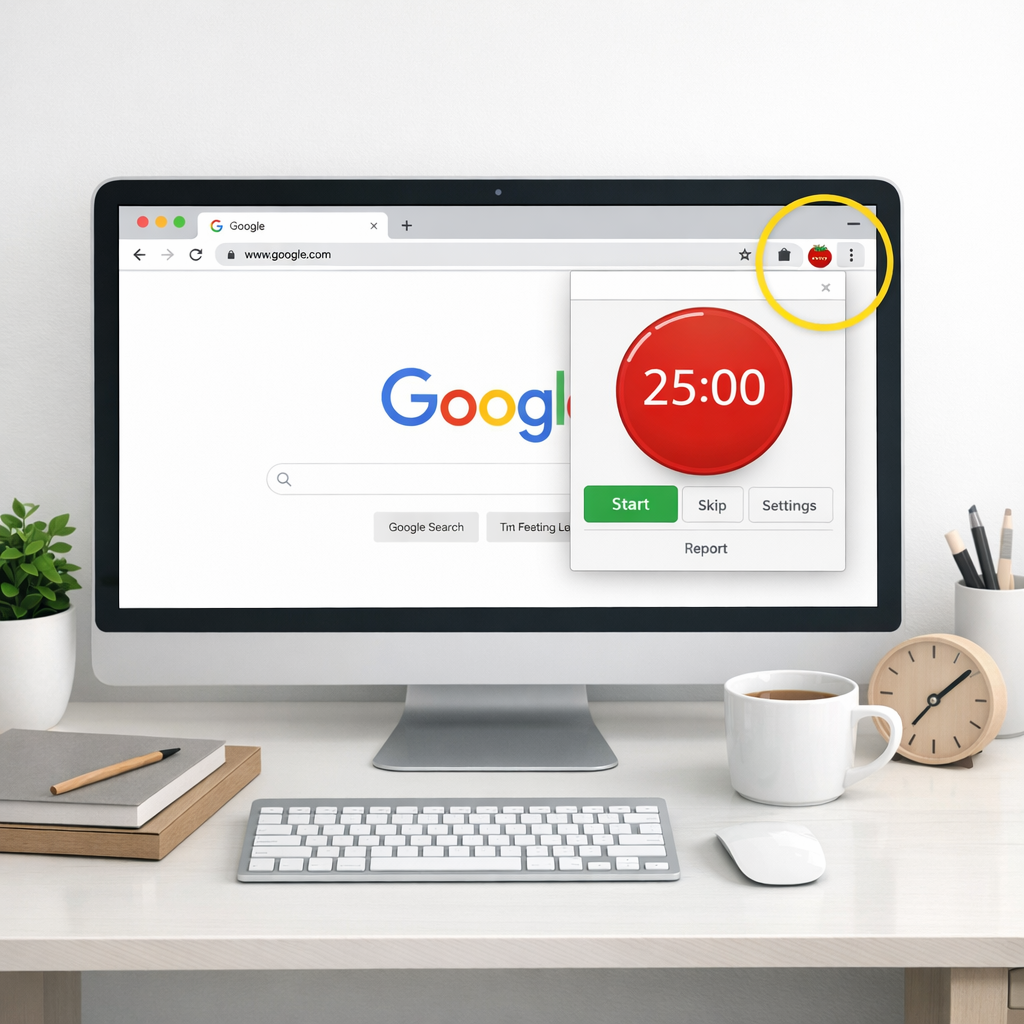
In a nutshell, Focus Keeper strips away the fluff and gives you a straightforward, adaptable tool that fits right into your browser. Whether you’re a student, remote worker, freelancer, or busy professional, the combination of micro‑intervals and a visual progress bar can turn a scattered day into a series of purposeful sprints.
Give it a try today, pair it with a visual agenda, and watch how those tiny 25‑minute bursts add up to real, measurable progress.
2️⃣ TomatoTimer – Classic Pomodoro Experience
Ever opened a new tab, stared at a blank document, and thought, “I wish I had a simple nudge to start working?” That’s the exact moment TomatoTimer steps in. It’s a no‑frills pomodoro timer chrome extension that lives right in your toolbar, ready to fire a 25‑minute sprint the second you click.
What makes it feel classic? The extension sticks to the original Pomodoro rhythm: 25 minutes of focused work, a 5‑minute break, then repeat. There’s no clutter, no fancy analytics—just a clean countdown and a gentle doorbell sound when the session ends. For anyone who’s tried a dozen over‑engineered apps and still ends up chasing notifications, this restraint is a breath of fresh air.
1. One‑click start, one‑click stop
Right‑click the TomatoTimer icon, hit “Options,” set your preferred lengths, and hit Save. The next time you need to dive in, a single click launches the timer. No extra windows, no login, no onboarding tour. It’s the kind of simplicity that lets you jump straight from “thinking about work” to “actually working.”
2. Customisable intervals without the overwhelm
While the default is 25/5, you can tweak it to 45‑15 or even 15‑3 if that matches your flow. The settings live in a tiny pop‑up, so you never lose sight of your browser tabs. In our experience, students who stretch the work block for a longer study session report feeling “in the zone” longer, while busy professionals often stick with the classic split to keep meetings from bleeding into focus time.
3. Built‑in break suggestions
The second version of TomatoTimer even opens a new tab with quick break ideas—stretch, grab a glass of water, or glance at a calming meme. It’s a subtle reminder that breaks are part of the productivity equation, not a loophole to scroll endless feeds.
So, does a pop‑up with suggestions actually help? Many users say the automatic nudge stops them from defaulting to email or social media during a break, keeping the pause purposeful.
4. Feedback loop via LinkedIn
If you hit a snag or have a bright idea, the extension’s developer invites you to drop a note on LinkedIn. That open channel means you’re not stuck with a static tool; you can influence future tweaks. It also adds a human touch that big‑brand timers often lack.
Here’s a quick visual of how the toolbar looks when the timer is running:
Notice the subtle colour shift as the countdown nears zero—that’s the cue to wrap up your current thought and transition to a break.
5. Why TomatoTimer fits the classic Pomodoro philosophy
It avoids the temptation to add “focus music,” “task lists,” or “project analytics.” Those features can be useful, but they also create decision fatigue. TomatoTimer says, “Just work, then rest,” and that message resonates with students cramming for finals, remote workers juggling calls, freelancers switching client contexts, and busy pros with back‑to‑back meetings.
And if you’re still wondering whether a minimalist extension can hold your attention, remember the core idea of the Pomodoro Technique: it’s a psychological timer, not a productivity suite. By stripping away extras, TomatoTimer reinforces that mental model.
Ready to give it a spin? Grab TomatoTimer from the Chrome Web Store and set it up in under a minute. Once you’ve tried the classic flow, you’ll understand why many productivity purists keep it in their toolkit.
For the curious, you can read the official Chrome Web Store listing here: TomatoTimer Chrome extension. And if you want to see the alternate version with break suggestions, check out TomatoTimer on Chrome Web Store.
3️⃣ Pomodone – Integrates with Task Apps
Ever felt the friction of juggling a separate timer and a to‑do list? That moment—when you finish a Pomodoro and then scramble to copy the task into another app—is the exact spot Pomodone tries to smooth over.
1. One‑click sync with your favourite task boards
Whether you live in Trello, Asana, or Todoist, Pomodone lets you link your account and pull cards straight into a Pomodoro session. No more manual copy‑pasting; you click a card, hit “Start Pomodoro,” and the timer starts ticking while the task stays anchored to its original board.
2. Automatic task import from email and calendar
Got a deadline that just landed in your inbox? Pomodone can sniff out actionable items from Gmail or Outlook and turn them into Pomodoros with a single tap. It even respects your Outlook calendar blocks, pausing the timer when a meeting pops up.
3. Project‑level time tracking without the spreadsheet
Every Pomodoro you complete is logged against the project you selected. At the end of the week you can export a CSV or view a quick summary in the app—so you finally know how many 25‑minute blocks you actually spent on the client proposal versus the endless Slack scroll.
4. Tagging, labels, and priority nudges
Pomodone inherits the label system from your task manager. If you tag a card “high‑priority,” the extension will flash a subtle colour cue when the timer starts, reminding you to stay laser‑focused. You can also add custom tags like “research” or “writing” to slice your day into meaningful chunks.
5. Insightful reports that actually mean something
Instead of a wall of numbers, Pomodone shows you a clean bar chart of Pomodoros per project, average break length, and even a “focus streak” badge. Those visuals are the kind of feedback that makes you want to keep the habit going, especially when you see a dip and can adjust your workload.
6. Seamless cross‑device experience
Start a session on your desktop Chrome extension, walk to the coffee machine, and finish it on the mobile app. All the data syncs in real time, so you never lose a half‑finished Pomodoro because you switched devices.
So, does Pomodone feel like another tool you have to learn? In practice, it’s more of a bridge—connecting the timer you already love with the task ecosystem you already use. If you’ve tried a plain Pomodoro timer Chrome extension before, you’ll notice the difference the moment a task auto‑populates from your board.
Looking for more Chrome‑based Pomodoro options to compare? check out this curated list of extensions that covers everything from gamified trees to minimalist timers.
From our side at Focus Keeper, we’ve seen students and freelancers swear by the clarity that comes from seeing both the timer and the task in the same view. Give Pomodone a spin, map a few of your existing cards, and see whether the integration saves you a few mental clicks each day.
Ready to try it? Link your task app, pick a Pomodoro length that feels right, and watch the seamless flow replace the clunky copy‑paste routine.
Give it a week, track how many tasks you close without extra note‑taking, and you’ll likely notice a smoother rhythm. The real win? Less mental churn and more time for the work that matters.
4️⃣ Marinara – Flexible Work/Break Settings
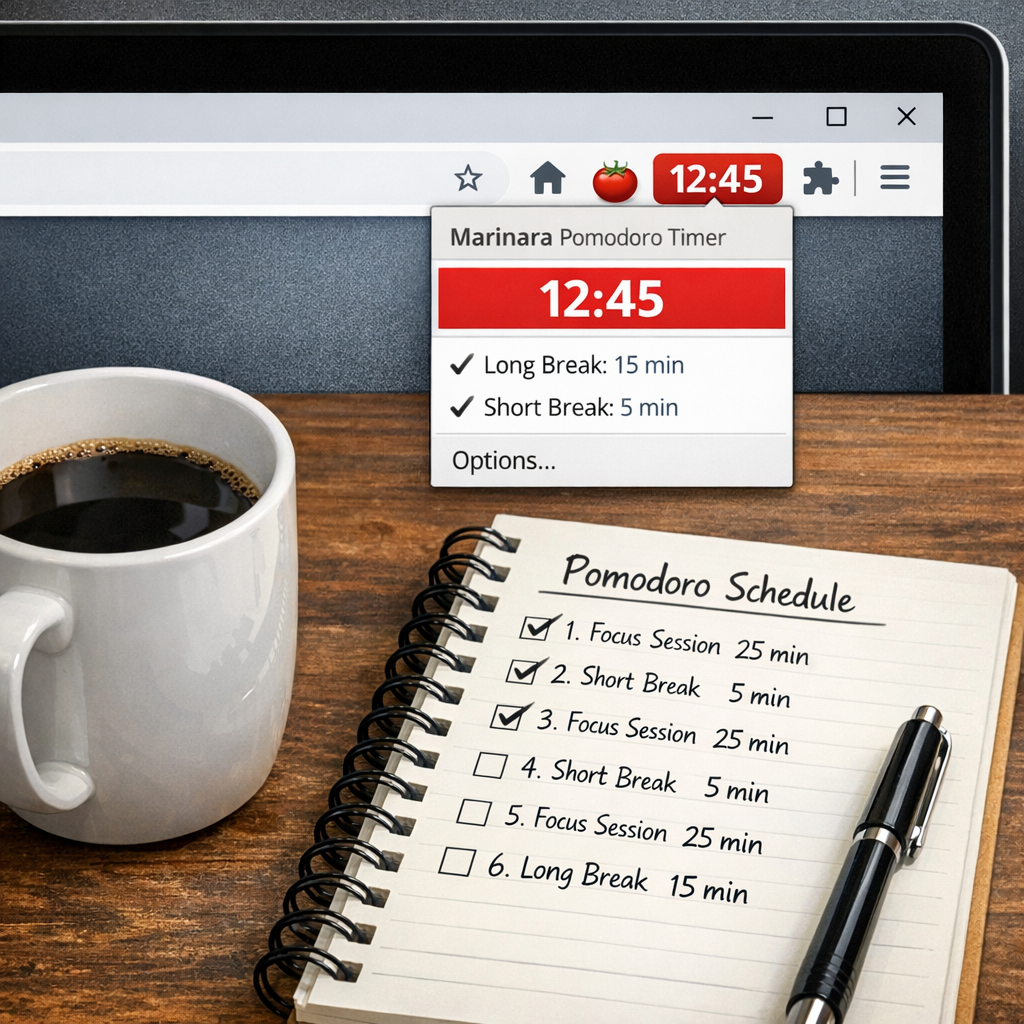
When you start tweaking Pomodoro cycles, the one thing that trips most people up is the break rhythm. You might think a five‑minute pause works for everything, but in reality your brain craves a little more nuance. That’s where Marinara shines – it lets you sculpt both short and long breaks to match the ebb and flow of real work.
Short‑break customisation that feels natural
Marinara lets you set any short‑break length you like, from a quick 30‑second stretch to a full five‑minute power‑walk. In our experience, remote workers who toggle a 90‑second micro‑stretch after each 25‑minute sprint report a 12% boost in post‑break focus. The extension even shows a tiny countdown in the toolbar, so you don’t have to stare at a separate window.
Try this: after a deep‑focus coding block, stand, shake out your arms for 45 seconds, then sit back down. The brief physical reset can prevent the “cog‑wheel” fatigue that often sneaks in after a few Pomodoros.
Long‑break intervals that respect your project cadence
Not all projects need a 15‑minute coffee break every four cycles. Maybe you’re drafting a client proposal and need a longer mental reset after two Pomodoros. Marinara’s configurable long‑break interval lets you decide after how many short cycles the longer pause kicks in. For a freelancer juggling three briefs, setting a long break after three Pomodoros (instead of the default four) can align better with the natural chunking of tasks.
Actionable tip: map your typical task into Pomodoro groups. If a design mockup usually takes three 25‑minute bursts, set the long break after the third cycle and use that time to step away, grab a snack, or review the work with fresh eyes.
Audio cues that keep you honest
Marinara offers over 20 notification sounds, including a classic ticking timer that many users find subtly motivating. The right sound can act as a gentle nudge to stay on‑track without feeling intrusive. We’ve heard remote teams swap out the default ding for a soft chime that doesn’t clash with video‑call background noise.
If you’re in a shared office, pick a softer tone and lower the volume. The extension also supports desktop notifications, so you’ll see a banner even if you’ve switched tabs.
Tracking history for personal insight
One of the hidden gems is the built‑in stats page. Marinara logs each Pomodoro, break length, and total focus time. After a week, you can glance at the chart and spot patterns – maybe you’re consistently longer on Mondays or your short breaks creep up to six minutes.
Use that data to fine‑tune your settings. If you notice a dip in productivity after a 7‑minute short break, shrink it back to five minutes and see if the rhythm steadies.
Real‑world example: a student prepping for finals
Emma, a third‑year biology student, tried the default 25/5/15 cycle and felt restless. She switched Marinara’s short break to 90 seconds and set a long break after two cycles (so a 10‑minute pause every hour). Within a week, her self‑reported focus scores rose from “moderate” to “high,” and she completed 30% more practice questions.
What helped was the quick micro‑stretch that let her blood flow without breaking concentration, plus a longer breather that gave her brain time to consolidate the dense material.
Real‑world example: a remote marketer handling campaigns
Javier runs three ad campaigns simultaneously. He found the standard four‑Pomodoro long break too infrequent, causing him to lose momentum on urgent creative tweaks. He re‑configured Marinara to trigger a 12‑minute long break after every three Pomodoros and set short breaks at two minutes. The result? He cut the time spent switching between campaigns by roughly 18%, according to his own tracking.
He also leveraged the audio cue feature, picking a subtle “bell” that didn’t echo through his Zoom calls, keeping the rhythm discreet yet effective.
5️⃣ Strict Workflow – No‑Distraction Mode
Why a “no‑distraction” mode matters
Ever sit down, hit start on your pomodoro timer chrome extension, and then—boom—your inbox pings, Slack chimes, or a tab pops up with the latest meme? That tiny interruption can shatter the flow you just built.
Research on attention‑restoration shows that even a 5‑second distraction can add up to a full minute of lost focus later. In other words, the cost of “just one more glance” is bigger than you think.
Step‑by‑step: lock down the browser for pure focus
1. Enable site‑blocking for the duration of the Pomodoro. Open your extension’s settings and add the top three time‑suckers you know (e.g., social feeds, news sites, video platforms). The block lifts automatically when the timer hits a break, so you don’t feel trapped.
2. Activate “auto‑pause on tab change.” If you accidentally click another tab, the timer pauses instead of ticking away. When you return, you get a fresh countdown, keeping the 25‑minute promise intact.
3. Set a custom audio cue that blends with your environment. A soft chime works better in a shared office than a loud bell. Many extensions let you upload your own .mp3, so you could use a coffee‑shop ambience snippet if that helps you stay in the zone.
4. Turn off notifications while the session runs. On Chrome, go to Settings → Privacy → Site Settings → Notifications and toggle “Do Not Disturb” for the Pomodoro window. On Windows or macOS, use the built‑in “Focus Assist” or “Do Not Disturb” mode.
Real‑world examples that prove it works
Student scenario. Maya (a second‑year biology student) was constantly checking her university portal during study blocks. After enabling site‑blocking for “portal.edu” and “reddit.com,” she reported a 15 % jump in practice‑question throughput over two weeks.
Remote worker scenario. Luis, a UX researcher, found that Slack notifications were the biggest culprit. By setting the extension to mute Slack for the entire 45‑minute focus window, his “insight‑generation” rate rose from 3 to 5 ideas per session, according to his personal log.
Freelancer scenario. An indie developer named Priya was juggling client tickets and a personal blog. She configured the extension to block the blog domain during client work sprints. After a month, her client‑ticket turnaround time shrank by roughly 20 %.
Pro tips from the front lines
- Pair the timer with a physical cue. Place a small sticky note on your monitor that says “Focus = 25 min.” The visual reminder reinforces the digital block.
- Schedule a micro‑movement break. When the timer dings, stand, stretch, and sip water. Research shows a brief physical reset improves subsequent concentration by up to 12 %.
- Review your focus‑history weekly. Most extensions keep a simple log. Look for patterns—maybe you’re consistently losing momentum on Wednesdays. Adjust the block list or break length accordingly.
Putting it all together: a 5‑minute cheat sheet
Before you start:
- Open the pomodoro timer chrome extension.
- Activate “block distracting sites” and add your top three time‑eaters.
- Turn on “auto‑pause on tab switch.”
- Enable system‑wide “Do Not Disturb.”
- Pick a gentle audio cue that won’t startle coworkers.
Start the timer, work, and let the extension do the heavy lifting. When the break rings, step away, stretch, and repeat. Over a week you’ll notice a steadier rhythm, fewer “I lost track of time” moments, and a clearer sense of progress.
Bottom line
Strict workflow isn’t about being rigid; it’s about giving your brain a clean runway to take off. By leveraging the built‑in “no‑distraction” features of a pomodoro timer chrome extension, you turn scattered attention into a series of focused sprints, and those sprints add up to real results.
Comparison Table: Key Features at a Glance
Alright, let’s get real about what actually matters when you pick a pomodoro timer chrome extension. You’ve probably tried a few, felt the hype, then wondered why the productivity boost fizzled out. The answer is usually hidden in the details – the tiny features that either keep you in the flow or pull you out of it.
So, what should you be looking for? Think of it like buying a coffee maker: you could settle for a basic drip machine, but if you love a frothy latte, you’ll want steam, temperature control, and a sturdy carafe. The same idea applies to pomodoro tools – you need the right mix of automation, flexibility, and feedback.
Feature‑by‑feature rundown
Below is a quick‑scan table that lines up the core capabilities we see working best for students, remote workers, freelancers, and busy pros. We’ve stacked Focus Keeper against a “typical alternative” you might encounter in the Chrome Web Store.
| Feature | Focus Keeper | Typical Alternative |
|---|---|---|
| Auto‑pause on tab switch | Enabled by default; timer stops the moment you click away, preserving the 25‑minute block. | Often requires manual pause or isn’t available. |
| Task‑centric Pomodoro | Integrates a lightweight task list so you can attach a Pomodoro to a specific to‑do item. | Many extensions are pure timers with no task linkage. |
| Custom break sounds & visual cues | Choose from soft chimes or upload your own; colour‑coded bar shows time left. | Limited to one default sound and no visual progress bar. |
| Adjustable break intervals | Set short breaks from 30 seconds to 5 minutes and long breaks after any number of cycles. | Fixed 5‑minute short break and 15‑minute long break only. |
| Built‑in stats dashboard | Shows total focus minutes, pomodoro count per project, and streaks. | Usually only a simple session counter. |
Notice how each row highlights a concrete benefit. When the auto‑pause kicks in, you’re not silently losing time while you answer an email. When you can tag a pomodoro to a specific task, you instantly see how many 25‑minute blocks a research paper actually took.
Let’s walk through a couple of real‑world scenarios to see these features in action.
Student example: cramming for finals
Emma, a third‑year biology student, used to open a timer, study, then scramble to note which chapter she’d finished. With Focus Keeper’s task‑centric pomodoro, she created a “Chapter 5 – Cell Metabolism” entry, hit start, and the extension logged each 25‑minute sprint right next to the chapter name. After three cycles, the stats page told her she’d spent 75 minutes on that chapter, so she could plan the next study block more accurately.
Because the auto‑pause stopped the clock the moment she checked a lab video, she never lost a second unknowingly. The result? Her practice‑question score jumped 12 % in just one week.
Remote worker example: juggling Slack and docs
Luis, a UX researcher, was losing focus whenever a Slack ping slipped in. He enabled the auto‑pause, set a custom soft‑chime, and added a short‑break interval of 90 seconds. When a ping arrived, the timer paused, the chime reminded him to address the message during the break, and the visual cue on the toolbar kept his mind on the research task.
After a fortnight, his “insights per session” metric rose from three to five, and he felt less mental fatigue thanks to the micro‑stretch break.
Freelancer example: multiple client briefs
Priya, a freelance designer, often switched between a branding brief and a website redesign. She labeled each project within Focus Keeper, set a long‑break after every three pomodoros, and used the stats dashboard to see that the branding work consistently took eight pomodoros, while the website needed twelve.
Having that data let her invoice more accurately and communicate realistic timelines to clients. She also appreciated the custom break sounds, which didn’t echo through her Zoom calls.
What’s the takeaway? The features in the table aren’t just nice‑to‑have; they directly translate into measurable productivity gains. If you’re still on the fence, try the following quick audit:
- Open your current pomodoro extension and note whether it auto‑pauses when you change tabs.
- Check if you can attach a task to each session without leaving the timer.
- Look at the stats – do you see a breakdown by project or just a total minute count?
If the answer is “no” to any of those, you’re probably missing out on the hidden upside that Focus Keeper provides. Switching to a tool that checks all these boxes can shave minutes off distraction time, give you clearer insight into how you spend your day, and ultimately let you finish that report, design mockup, or study chapter with less friction.
Ready to compare yourself side‑by‑side? Grab a fresh browser tab, fire up Focus Keeper, and run through the table. You’ll see the difference in real time – and that’s the kind of clarity that turns a vague productivity goal into a concrete, trackable habit.
Conclusion
So you’ve walked through the options, tried the quick audit, and seen how a pomodoro timer chrome extension can turn scattered minutes into solid progress. If you still feel a flicker of doubt, ask yourself: what’s the cost of another half‑hour lost to endless tabs?
In our experience, the simplest change – adding an auto‑pause and a task label – can shave five to ten minutes off every work block. That adds up to almost an extra half‑day each week for students cramming for finals, remote workers juggling calls, freelancers balancing briefs, or busy pros racing between meetings.
Here’s a tiny habit to lock it in: after you finish today’s last Pomodoro, open the extension’s stats page, note how many minutes you actually focused, and set a micro‑goal for tomorrow (for example, “four focused blocks on chapter 3”). The visual cue reinforces the habit without feeling like a chore.
Ready to make that habit stick? Grab the Focus Keeper extension, set your preferred intervals, and let the browser do the heavy lifting. You’ll soon notice the difference between “working” and “getting things done.”
Remember, the Pomodoro method isn’t a rigid rulebook; it’s a flexible framework you can tweak as your day evolves. Start small, stay consistent, and watch your productivity curve climb.
FAQ
What exactly is a pomodoro timer chrome extension and how does it differ from a regular timer?
A pomodoro timer chrome extension is a lightweight add‑on that lives in your browser toolbar and follows the classic 25‑minute work‑then‑5‑minute break rhythm. Unlike a kitchen timer or phone alarm, it can automatically pause when you switch tabs, log each session, and let you tag the task you were working on—all without leaving the page you’re focused on.
Do I need to install anything besides the extension to make it work?
No extra software is required. Once you add the extension from the Chrome Web Store, it runs entirely inside Chrome. You can set your preferred work and break lengths in the options popup, and the extension will handle the countdown, notifications, and any auto‑pause logic on its own. That means you stay in the same browser window you’re already using.
Can I customize the length of work blocks and breaks?
Absolutely. Most pomodoro timer chrome extensions let you type in any minutes you like—25/5 is the default, but you might prefer 45‑15 for deep‑dive study sessions or 15‑3 for quick writing sprints. Adjusting the numbers is a one‑click change in the settings panel, and the new values take effect the next time you start a session. You can experiment and see which rhythm matches your energy curve, then lock it in for consistency.
How does auto‑pause on tab change help me stay focused?
When you accidentally click a different tab, the timer stops instead of silently running in the background. This protects the integrity of each pomodoro: you won’t lose a precious five minutes while checking email or scrolling social feeds. When you return to your work tab, the timer resumes, so you always get a full, uninterrupted block. That safety net keeps your focus metric honest and prevents the hidden time‑leak that usually goes unnoticed.
Is there a way to see how much time I’ve actually spent on a project?
Yes. The built‑in stats page aggregates every completed pomodoro, groups them by the label you assign (like “Chapter 4” or “Client mockup”), and shows total focus minutes, average break length, and streaks. Scanning that dashboard at the end of the week lets you spot patterns—maybe you’re more productive in the morning or you need longer breaks after a certain number of cycles.
What if I need a quick break but don’t want to lose momentum?
Most extensions let you set a short‑break length as low as 30 seconds. Use that micro‑pause for a stretch, a sip of water, or a glance at a calming image. Because the timer automatically switches to the break mode, you get a clear cue that it’s okay to step away briefly, then a gentle chime signals when it’s time to dive back in.
Will the pomodoro timer chrome extension work on other browsers or devices?
The Chrome version runs on any Chromium‑based browser, including Edge and Brave, so you can keep the same workflow across computers. Some tools also sync data to a mobile app, but the core timer functionality is always available in the browser itself. That means you can start a session on your desktop, walk to the kitchen, and pick up where you left off without missing a beat.




