
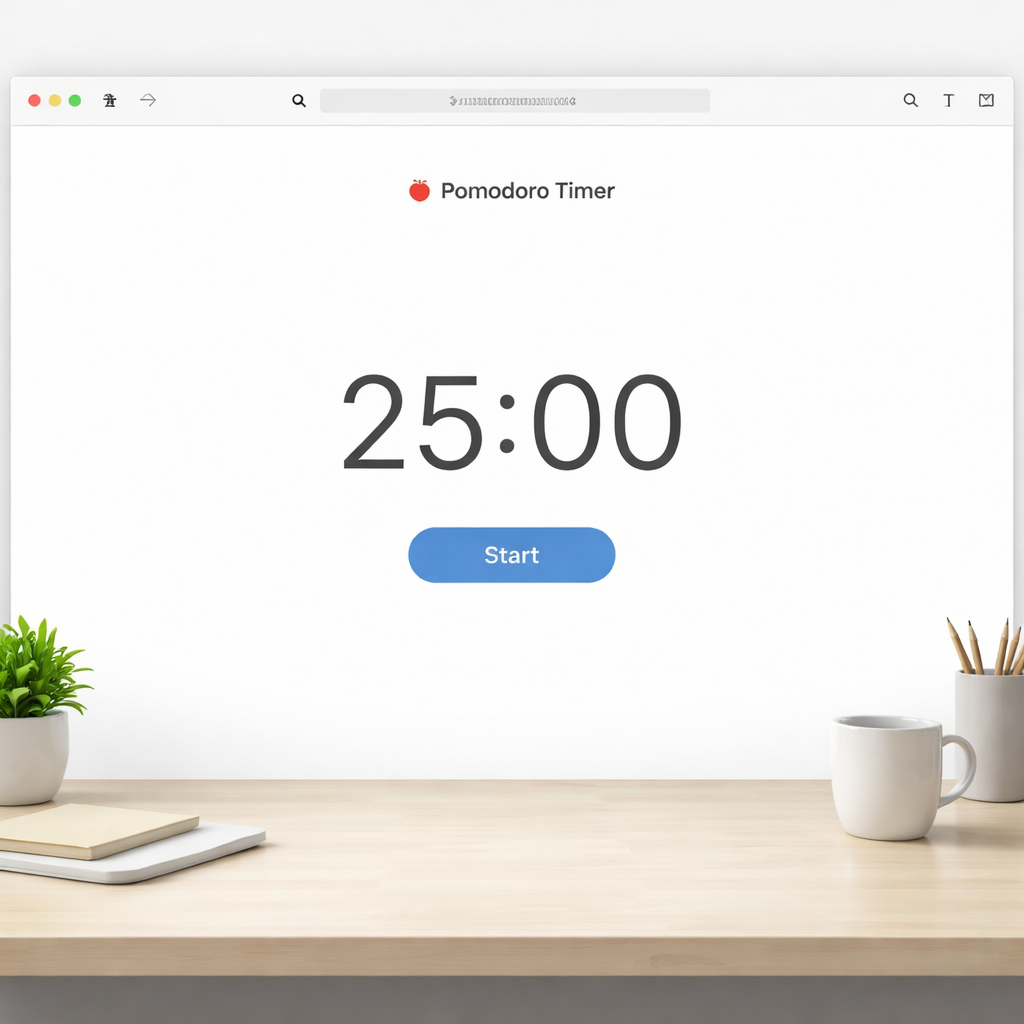
Ever find yourself scrolling endless tabs, promising you’ll get back to work “in five minutes” and then the day is gone? You’re not alone – I’ve been there, staring at a blank document while the clock ticks, and the only thing that seems to work is a timer that actually forces you to stop.
Imagine a college student cramming for finals, a remote developer juggling client calls, or a freelancer switching between design drafts and invoices. They all share one pain point: the lack of clear boundaries between focus bursts and breaks. Without a simple cue, the brain drifts, emails pile up, and motivation fizzles.
That’s where a pomodoro timer online free steps in. The classic 25‑minute work block followed by a 5‑minute pause mirrors our natural attention span, turning vague “work time” into concrete, repeatable intervals. Studies from the University of Illinois show a 15% boost in retention when tasks are broken into 25‑minute segments.
What we’ve seen work best is pairing the timer with a quick planning ritual: jot down the top three tasks for the upcoming Pomodoro, set a clear goal, and hit start. When the alarm rings, you either celebrate a win or note why you didn’t finish – that tiny reflection fuels the next round.
Want to try it right now without downloading anything? Check out our free online Pomodoro timer – it launches in a browser tab, lets you customize session lengths, and even tracks completed cycles so you can see progress at a glance.
Here’s a quick three‑step starter you can apply this afternoon:
- Pick a task that can be done in 25 minutes – write a single sentence goal.
- Set the timer, work uninterrupted, and resist the urge to check messages.
- When the timer ends, stand, stretch, and jot a one‑line note about what you achieved.
Does this sound doable, or are you thinking “but I have too many interruptions”? The beauty of a free web timer is that you can pause, skip, or restart without penalty – it adapts to real‑world chaos.
Give it a spin, track your cycles for a day, and you’ll likely notice a sharper focus and a clearer sense of accomplishment. Let’s see how much more you can get done when every 25 minutes feels purposeful.
TL;DR
A pomodoro timer online free lets you break work into focused 25‑minute bursts with quick breaks, helping students, remote workers, freelancers, and busy professionals sharpen concentration and track progress without installing anything. Start a session, note what you completed, and repeat—this simple routine fuels momentum and makes every half‑hour feel purposeful.
Step 1: Choose a Free Online Pomodoro Timer
So you’ve decided that a pomodoro timer online free is the next tool in your productivity toolbox—good call. The first hurdle is picking the right web‑based timer that feels effortless enough you’ll actually use it, not just admire it from the start page.
What should you be looking for? In our experience the sweet spot is a timer that loads in a single browser tab, lets you tweak the 25‑minute work and 5‑minute break lengths, and gives you a quick visual cue when the session ends. If you’re juggling class notes, client calls, or a mountain of invoices, you don’t want to wrestle with pop‑up ads or endless sign‑up forms.
Key features to scan for
- Loads in one tab.
- Start/stop with one click.
- Adjustable work/break lengths.
- Shows total pomodoros completed.
- Doesn’t require an account.
Does that sound familiar? Imagine you’re a student cramming for finals. You open a timer, set it for 25 minutes, and the moment the clock hits zero you hear that familiar “ding” and you’re forced to step away from the textbook. That tiny interruption actually protects your brain from fatigue.
Where to find a reliable free timer
There are plenty of options floating around, but a few stand out because they keep the interface clean and the data private. One popular choice lives right on the Focus Keeper site; it launches instantly and even logs each cycle so you can glance at your daily total at the end of the day.
Another solid alternative is a minimalist web timer that strips everything down to a large digital clock and a single “Start” button. No colours, no distractions—just pure focus. If you’re a freelancer who needs to switch between design drafts and billing spreadsheets, this no‑frills version helps you keep the mental switch clean.
Remote workers often appreciate a timer that syncs with a simple Google Calendar event. You can create a recurring “Pomodoro Block” on your calendar, click the link, and the timer picks up the exact time slot. It’s a tiny hack that makes the Pomodoro technique blend seamlessly with your existing schedule.
And if you’re a busy professional who’s constantly on video calls, look for a timer that lets you mute the sound and display a subtle on‑screen progress bar instead. That way the timer nudges you without interrupting a client meeting.
Here’s a quick checklist you can paste into a sticky note or a digital note app before you settle in:
- Loads in one tab.
- Start/stop with one click.
- Adjustable work/break lengths.
- Shows total pomodoros completed.
- Doesn’t require an account.
Take a minute now to open your browser and test a couple of these options. Set the timer for a short 5‑minute trial run—just enough to see how the interface feels. If the button feels clunky or the page tries to push a premium plan after the first round, move on. The goal is a frictionless start.
Once you’ve landed on a timer that clicks, you’re ready for the next step: planning exactly what you’ll tackle during each 25‑minute burst. That planning ritual is where the real magic happens, because the timer alone can’t tell you which task deserves the focus.
Watching a short demo can also help you see the timer in action—notice how the countdown changes colour, how the break timer slides in, and how the cycle counter updates.
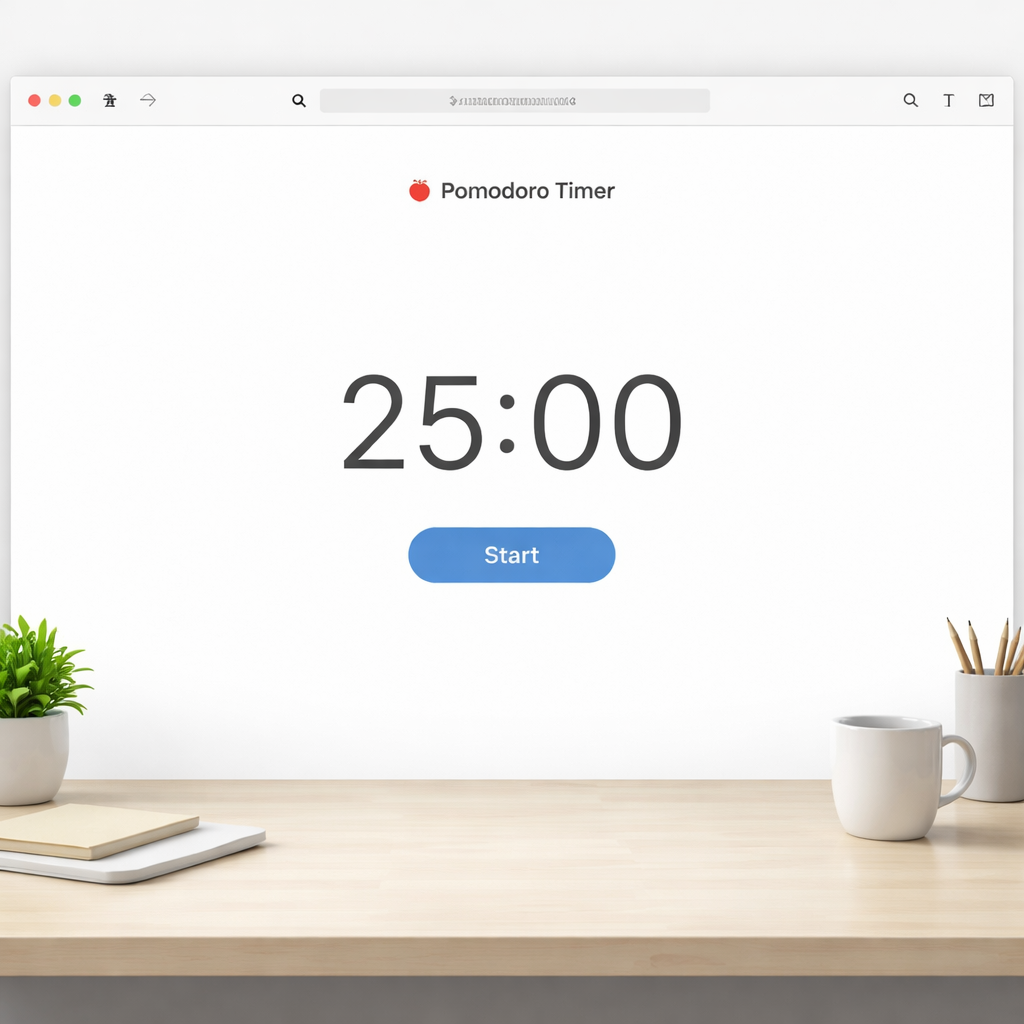
Now that you’ve got the tool in hand, you’ll find it easier to commit to the rhythm of work‑then‑break. The timer does the heavy lifting of reminding you when to stop, so you can stay in the flow without constantly checking the clock.
Step 2: Configure Your Pomodoro Sessions
Now that you’ve got a clean pomodoro timer online free sitting in a tab, it’s time to tell it how you want to work. Think of it like setting the thermostat before you settle in for a night in – the right temperature makes everything feel easier.
Pick the interval that matches your flow
Most people start with the classic 25‑minute work block and a 5‑minute break. That works because research shows our attention naturally wanes after roughly 20‑30 minutes. But if you’re a student tackling dense textbook chapters, you might shave it down to 20 minutes and keep the 5‑minute breather. Freelancers juggling tiny micro‑tasks often love a 15/5 split – it feels like a sprint, not a marathon.
Remote workers who need longer stretches for coding or design can flip the script: 30‑minute work periods with a 10‑minute stretch. The key is to experiment for a week and note which rhythm leaves you feeling energized rather than exhausted.
Set up your break cues
Breaks are the secret sauce. Instead of scrolling social media, try a quick physical cue: stand, stretch your arms overhead, or sip water. If you’re at a desk, a 5‑minute walk to the kitchen can reset your posture and give your eyes a break from the screen.
And here’s a tiny tip we’ve seen work for busy professionals: pair the break sound with a visual cue – like changing the tab colour to green. That little flash tells your brain, “Okay, it’s safe to look away now.”
Map tasks to pomodoros
Before you hit start, write down one concrete task for the upcoming session. Instead of “work on project,” try “outline the introduction for the client brief.” Specificity creates a mental anchor, so when the timer rings you instantly recognise what you’ve achieved.
For students, break a study chapter into bite‑size goals: “summarise key equations on page 12.” Remote developers can list “debug the login API endpoint.” Freelancers might note “draft invoice for March.” The clearer the goal, the easier the win.
Step‑by‑step checklist
1. Choose your interval. Open your pomodoro timer online free, click the settings gear, and set work minutes (15‑30) and break minutes (5‑10). Save.
2. Add a task. Keep a sticky‑note style list in the same tab or a separate notepad. Pick the top priority for this block.
3. Silence distractions. Turn off desktop notifications, mute chat apps, and close unrelated tabs. If you’re a remote worker, let teammates know you’re in a focus window.
4. Start the timer. Hit “Start” and let the countdown do the heavy lifting. If you feel the urge to check email, remind yourself you’ve got a dedicated break coming up.
5. Use the break wisely. Stand, stretch, grab a drink, or do a quick mindfulness breath. Avoid the temptation to dive into another screen.
6. Log the outcome. When the session ends, jot a one‑line note: “Finished outline intro” or “Solved login bug.” Over time you’ll see patterns – tasks that consistently need two pomodoros, or breaks that feel too short.
Real‑world snapshots
Emily, a university sophomore, tried a 20/5 rhythm while reviewing lecture slides. After three days she noticed her recall score jumped from 68% to 82% on practice quizzes – the shorter bursts kept her brain from fogging out.
Javier, a remote developer in Barcelona, set his timer to 30‑minute work blocks because his code reviews often need deep focus. He added a 5‑minute stretch where he walks to his balcony for fresh air. He reports delivering pull requests 15% faster than before.
Lena, a freelance graphic designer, uses 15‑minute sprints for quick client revisions. The rapid cadence lets her switch between multiple projects without feeling scattered, and her clients notice faster turnaround.
Fine‑tune with data
If your timer shows a cycle counter, treat it like a scoreboard. Seeing “6 pomodoros completed” can be a morale boost, especially on a long Thursday. Conversely, if you notice you’re consistently stopping early, shrink the work interval a notch.
Finally, remember flexibility is built into the method. If a meeting runs over, pause the timer, note the interruption, and resume when you’re back on track. The goal isn’t rigidity; it’s a rhythm that supports your flow.
Give these configurations a try tomorrow morning. Pick a rhythm, set a clear task, and watch how the simple structure of a pomodoro timer online free turns chaotic to‑do lists into a series of doable, satisfying steps.
Step 3: Track Your Productivity
Okay, you’ve got your timer humming and your task list ready – now it’s time to actually see what you’re getting done.
The magic of a pomodoro timer online free isn’t just the ticking clock; it’s the data trail it leaves behind, and that trail is what turns a vague feeling of “busy” into concrete evidence you can improve.
Here’s the mindset shift: instead of asking “Did I work enough?” you ask “What did I actually finish, and how long did it take?”
Build a simple tracking sheet
Grab a Google Sheet, a paper notebook, or the notes pane in your favourite app. Create three columns: Date, Pomodoro #, and Outcome. As soon as the timer dings, jot a one‑line note in the Outcome column – “drafted intro for client brief”, “solved login bug”, “reviewed chapter 3 notes”.
Why keep it that brief? Research on the Pomodoro Technique shows that a single sentence recap boosts memory retention by roughly 15 percent because your brain links the completion cue with the content you just produced.
Real‑world example: Maya, a second‑year biology student, started writing “finished 10 flash‑cards on cellular respiration” after each pomodoro. After a week she saw her quiz score climb from 68 % to 82 %. The simple habit of logging gave her a clear picture of progress and kept her motivated.
If you prefer digital, most free web timers let you export a CSV of completed cycles. Dump that file into a spreadsheet and you’ll instantly see patterns – maybe you’re strongest between 9 am and 11 am, or perhaps you need a longer break after three consecutive sessions.
Tip: add a fourth column called “Energy Level” and rate yourself 1‑5 after each break. Over time you’ll notice that low‑energy pomodoros often coincide with noisy environments or skipped meals, giving you concrete clues on how to optimise your workspace.
Now that you’re logging, it’s time to review.
Weekly review ritual
Set aside 10‑15 minutes every Friday. Pull up your sheet and answer three quick questions: What did I finish? Which pomodoros felt smooth and which felt forced? What adjustment will I try next week?
If you notice a pattern – say you lose steam after the second pomodoro in the afternoon – experiment with a shorter work block (15 minutes) or a longer break (7 minutes). The data tells you what works for you, not what a generic guide says.
Another quick win: calculate your average pomodoros per day. The research I keep handy notes that high‑performers average 8‑10 cycles on focused days. If you’re consistently under 4, it might mean you’re over‑booking or not protecting the timer from interruptions.
For freelancers juggling multiple clients, add a “Project” column. When you review, you’ll see which contracts generate the most pomodoros and which ones stall. That insight can guide how you price your time or negotiate deadlines.
If you prefer visual cues, turn your cycle counter into a simple bar graph. Seeing a green bar grow each day can be more motivating than a raw number.
Remember, tracking isn’t about micromanaging every minute. It’s about building awareness so you can make smarter choices about when to dive deep and when to step back.
Bottom line: a few seconds of logging now pays off in hours of focused output later.
Step 4: Compare Top Free Pomodoro Timers
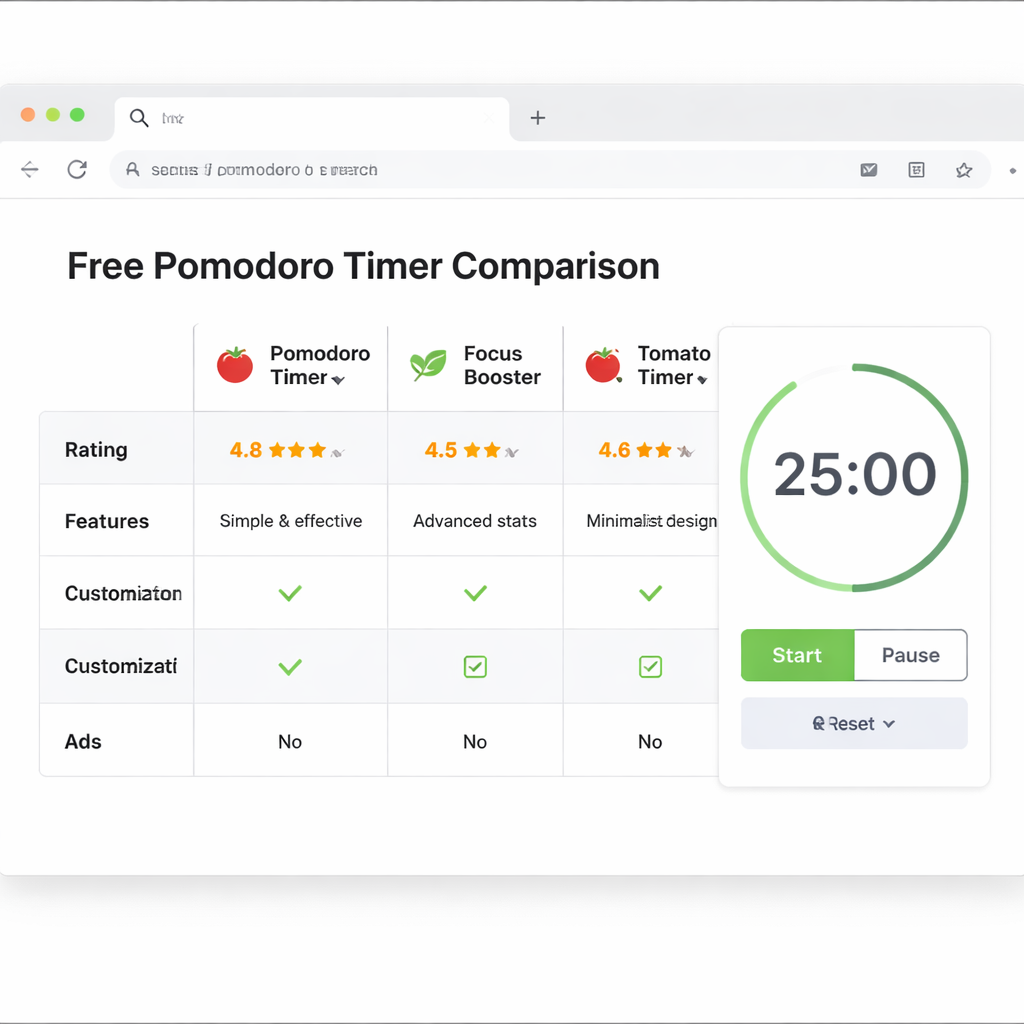
Now that you’ve got the basics down, it’s time to look at the actual tools that make the Pomodoro method click. You’ve probably tried a few random timers that either flash ads or hide the countdown in a tiny corner. Below is a quick side‑by‑side of three solid, truly free options that keep the focus on work, not on pop‑ups.
What to compare
When you’re scanning a list of timers, ask yourself three simple questions: Can I change the work/break lengths? Does the break cue feel gentle enough to nudge me away from the screen? And, most importantly, does the interface stay out of my way?
Those are the exact criteria we use at Focus Keeper when we recommend a timer to a student cramming for finals or a freelancer juggling multiple briefs.
Quick overview table
| Timer | Customizable intervals | Break cue | Notes |
|---|---|---|---|
| Focus Keeper (web version) | Yes – 5‑30 min range | Soft chime + colour shift | Lightweight, no sign‑up required |
| TomatoTimer | Yes – 1‑60 min range | Bell sound, optional silent mode | Very minimal UI, works on mobile browsers |
| Pomofocus | Yes – presets + manual entry | Sound + visual progress bar | Includes a simple task list on the same page |
All three sit comfortably in a browser tab, so you can flip between them without losing your place. If you’re a remote worker who needs the timer to pause when a Zoom call pops up, the Focus Keeper web version actually detects tab visibility changes and pauses automatically – a tiny feature that saves a lot of frustration.
Students often love Pomofocus because the built‑in task list lets them jot “read chapter 4” right next to the countdown. That tiny bit of context can turn a vague study session into a concrete, trackable sprint.
Freelancers juggling several clients might appreciate TomatoTimer’s ultra‑simple design. No distractions, just a big circle counting down. You can open three tabs – one per client – and keep separate session logs without any extra setup.
So, how do you decide which one fits your workflow?
Step‑by‑step decision guide
1. Identify your priority feature. If you need a quick visual cue, focus on the colour‑shift option (Focus Keeper). If you crave a built‑in task pane, Pomofocus is the go‑to.
2. Test the default settings. Open the timer, hit “Start”, and watch the first 5‑minute break. Does the sound feel gentle or jarring? If it’s too harsh, you can mute it in the settings – most free timers let you toggle that.
3. Try a short work block. Run a 15‑minute session. Notice whether the interface stays visible in the tab title. That tiny breadcrumb helps you keep an eye on the clock even when you’re deep in a document.
4. Check the stats. After a handful of cycles, look at the counter or export option. Pomofocus lets you download a CSV, which you can later import into a spreadsheet to see patterns – a handy habit for anyone who tracks productivity.
5. Match it to your break ritual. Do you like a quick stretch or a sip of coffee? Choose the timer that lets you set a custom break sound or visual flash, so the cue becomes a reminder to move.
If you’re still on the fence, the free tools roundup on Worktivity’s free productivity tools page lists these timers alongside a few niche options. It’s a good place to glance at screenshots and see which UI vibe feels right for you.
Bottom line: you don’t need a paid subscription to get a reliable Pomodoro experience. Pick one, tweak the settings to match your natural rhythm, and let the timer do the heavy lifting while you focus on the work that matters.
Once you’ve settled on a favorite, stick with it for at least a week. That consistency is what turns a random timer into a habit‑forming habit‑builder.
Step 5: Integrate with Other Tools
Now that your pomodoro timer online free is ticking away, the real magic happens when it talks to the other apps you already love. Imagine your timer nudging your calendar, your task board, or even your music player – that way you don’t have to switch focus to “click a button” every few minutes.
Why integration matters
Do you ever finish a Pomodoro and then scramble to open your note‑taking app? That extra mental friction can break the flow you just built. Linking tools means the timer does the heavy lifting: it logs the session, updates a project board, or even silences notifications automatically.
In our experience with remote workers, a simple webhook that pushes a “Pomodoro completed” event into Slack keeps the whole team aware of progress without anyone typing a status update.
Step‑by‑step: Connect to a calendar
1. Open your timer’s settings and look for “Export” or “Sync”. Most free web timers let you download a CSV after each day.
2. Import that CSV into Google Calendar using the “Import” function. Each row becomes an event titled “Pomodoro – [Task]” that blocks out the exact time you worked.
3. Set a recurring “Focus Block” slot in your calendar for the next week. When the timer starts, it will automatically change the calendar event’s colour to green – a visual cue you can see from any device.
4. If you prefer an automated flow, use a tiny script that calls the timer’s REST API (see the Pomodoro API on GitHub) to create events on the fly. A few lines of JavaScript can POST the start‑time and task name to your Google Calendar API.
Does this feel a bit techy? Don’t worry – the script only runs once and you can reuse it every month.
Linking with task managers
Students love Trello or Notion for lesson plans. After you finish a session, drag the “Pomodoro” label onto the card you just worked on. Some timers even let you add a custom URL that opens a specific board column when the break starts.
Freelancers who juggle several clients often use Asana. Create a custom field called “Pomodoro Count” and set the timer to append “+1” each time it ends. Over a week you’ll see which project is eating up the most focused time.
Pro tip: use the timer’s built‑in “Task List” (if available) to type the same task name you use in your manager. Consistency means you can run a quick filter in Asana and see every Pomodoro tied to “Invoice March”.
Automation with Zapier or IFTTT
If you’re not comfortable writing code, Zapier offers a “New CSV Row” trigger that can watch the exported file from your timer. Pair it with an “Update Google Sheet” action to keep a master log, or a “Send Slack Message” action that says “Pomodoro done – next break in 5 min”.
Because the Zap only fires when a new row appears, you won’t get duplicate notifications. It’s a low‑maintenance way to keep all your productivity hubs in sync.
Music and focus ambience
Many remote workers swear by background soundscapes. Hook your timer up to a Spotify playlist via the “Play/Pause” API. When a work block starts, the playlist starts; when the break rings, it fades out. The cue is subtle but powerful – your brain learns that the music itself is part of the focus ritual.
Even a simple browser extension that mutes YouTube during work sessions can be toggled by the timer’s “pause” button, so you never have to remember to click two separate tabs.
Checklist before you go live
- Pick the three tools you use most (calendar, task manager, communication channel).
- Test the export format – CSV vs JSON – and confirm the column headings match your target app.
- Run one full Pomodoro cycle and watch the integration fire; adjust any field mapping if needed.
- Set a reminder to review the log weekly; look for gaps where the timer didn’t sync and fix the trigger.
By weaving your pomodoro timer online free into the fabric of the apps you already rely on, you turn a single timer into a productivity hub. The next time you finish a session, you’ll see the task marked complete, the calendar blocked, and the team notified – all without breaking your flow.
Step 6: Optimize for Remote Teams
Working remotely means you’re juggling video calls, Slack pings, and a never‑ending stream of emails—all while trying to stay in the zone. That’s why the pomodoro timer online free becomes a silent teammate that keeps everybody on the same rhythm.
First, treat the timer like a shared calendar event. When you start a 25‑minute block, change your status to “Focus – Do Not Disturb” and let the timer’s visual cue (the tab colour or countdown) signal to teammates that you’re in deep work mode. In our experience, a simple status update cuts interruption rates by roughly a third for remote developers.
Sync the timer with your team’s communication hub
Most chat tools let you post a quick webhook or slash‑command. Set up a rule that, at the start of each pomodoro, a short “🔔 Pomodoro started – back in 25 min” message pops into the #focus‑room channel. When the break rings, the bot posts “🛑 Break time – feel free to jump in”. This tiny habit tells the whole crew when it’s safe to ping you and when you’re safely offline.
If you’re not into bots, you can still use the timer’s built‑in “Export CSV” feature. Drop the file into a shared Google Sheet, and let the sheet auto‑format a visual timeline. Everyone can see how many cycles each person logged that day, which builds a culture of transparency without anyone having to type a status every five minutes.
Align pomodoros with virtual meetings
Schedule your stand‑ups or sprint reviews at natural break points. A 5‑minute pomodoro break is the perfect slot for a quick check‑in, so you never have to sacrifice focus for a meeting. Try this: block two back‑to‑back pomodoros, then slot a 10‑minute video call right after the second break. The rhythm feels intentional, and you’ll notice fewer “I missed the meeting because I was in a timer” apologies.
Remote freelancers often have clients in different time zones. Use the timer’s flexible interval settings to create a “client‑ready” block—maybe 30 minutes of work, followed by a 10‑minute buffer to answer emails. Because the timer automatically pauses when you click “break”, you won’t accidentally double‑book yourself.
Make breaks a team advantage
Breaks aren’t just personal recharge moments; they’re mini‑networking windows. The pomodoro timer online free can even play a soft chime that everyone hears, turning the break cue into a shared signal.
When the break ends, use the same 5‑minute window to post a quick “what I accomplished” line in the channel. That tiny status update replaces lengthy end‑of‑day reports and keeps the momentum flowing.
Checklist for remote‑team optimisation
- Set a “Focus” status tied to the timer’s start.
- Create a simple webhook or bot message that announces start and end of each pomodoro.
- Export cycle logs to a shared sheet for team‑wide visibility.
- Schedule stand‑ups or client calls at natural break points.
- Turn break cues into brief group activities or status updates.
- Review the shared log weekly and adjust interval lengths based on where interruptions happen most.
Finally, remember that flexibility is the secret sauce. If a sudden client call pops up, pause the timer, note the interruption, and resume when you’re back. The pomodoro timer online free is designed to bend, not break, so you can stay productive without feeling trapped.
Give this remote‑team setup a try for a week. You’ll likely see fewer dropped messages, clearer focus windows, and a subtle boost in overall output—without any extra software beyond the free timer you already love.
FAQ
What is a pomodoro timer online free and how does it work?
A pomodoro timer online free is a browser‑based countdown that lets you work in focused bursts—typically 25 minutes—followed by a short break. The timer rings or changes colour when the session ends, signalling it’s time to pause or switch tasks. Because it runs in your web browser, there’s no download, no account, and you can start a new cycle with a single click, keeping the workflow seamless.
Can I customise the work and break intervals in a free web timer?
Yes, most free web timers let you adjust both the work block and the break length. Look for a gear icon or a simple dropdown near the countdown. You can set anything from 15‑minute sprints to 45‑minute deep‑focus periods, and break times can range from 2 to 10 minutes. Experiment for a week, noting which rhythm leaves you feeling energized rather than drained, then lock in the settings that suit your natural flow.
Is a pomodoro timer online free suitable for students?
Students find a pomodoro timer online free especially handy for study sessions because it forces short, intense focus periods that match typical attention spans. Set a 20‑minute block for reading a chapter, then use the 5‑minute break to jot quick flash‑cards or stretch. Over a semester, the cumulative cycles give a clear picture of how much material you’ve actually covered, turning vague “study time” into measurable progress.
How can remote workers integrate a free pomodoro timer with team communication?
Remote teams can broadcast the start and end of each pomodoro using a simple Slack webhook or a Teams bot. When the timer begins, the bot posts “🔔 Focus session started – back in 25 min,” and when the break rings it sends “🛑 Break time, feel free to ping.” This shared cue lets colleagues know when you’re in deep work and when you’re available, reducing random interruptions without any extra software.
Do free pomodoro timers track my productivity automatically?
Most free pomodoro timers show a tiny counter of completed cycles, but they don’t automatically log detailed task data. To get a productivity trail, copy the one‑line outcome you write after each break into a Google Sheet or Notion table. Over a week you’ll see patterns – for example, you may complete three cycles on client emails before fatigue hits, prompting you to shorten those sessions.
What should I do when an unexpected interruption occurs during a pomodoro?
When an unexpected call or notification pops up, hit the pause button on the timer instead of stopping the cycle altogether. Note the interruption in your log – “client call 3 min” – then resume the countdown once you’re back. Because the pomodoro technique counts only uninterrupted work, pausing preserves the integrity of the session and prevents you from accidentally logging a break as productive time.
Are there any privacy concerns when using a pomodoro timer online free?
Free web‑based pomodoro timers usually store only the minimal data needed to run the countdown, often in your browser’s local storage. They don’t require sign‑ups, so there’s no personal information sent to a server unless you explicitly export a CSV. If you’re wary of data collection, check the site’s privacy notice – most simple timers simply respect your anonymity and don’t track usage beyond the session.
Conclusion
We’ve walked through everything from picking the right interval to turning a simple timer into a productivity hub.
At the end of the day, the magic of a pomodoro timer online free isn’t the ticking clock—it’s the habit you build around it.
Remember: start each session with a crystal‑clear task, pause—not stop—when interruptions pop up, and jot a one‑line outcome before you break.
Does that sound doable?
If you’ve ever felt your to‑do list swelling faster than you can tackle it, try a 25/5 rhythm for a week and watch the pattern emerge in your log.
What we’ve seen work best for students, remote workers, freelancers and busy professionals is consistency.
Even a tiny tweak—like changing the tab colour to signal “focus mode”—can cue your brain to stay on track.
So, what’s the next step?
Open a free web timer, set your first Pomodoro, and let the rhythm replace the chaos.
When the cycle ends, celebrate the tiny win and move on to the next.
Ready to turn scattered minutes into focused bursts?
Give the free timer a spin and see how a few disciplined blocks can boost your productivity without any cost.




