
Ever opened a notebook, stared at a blank page, and felt the day slipping away before you even wrote the first line?
We’ve all been there – the to‑do list is a tangled mess, the clock keeps ticking, and the feeling of overwhelm starts to settle in. That’s exactly why a well‑designed daily planner template printable can feel like a lifeline.
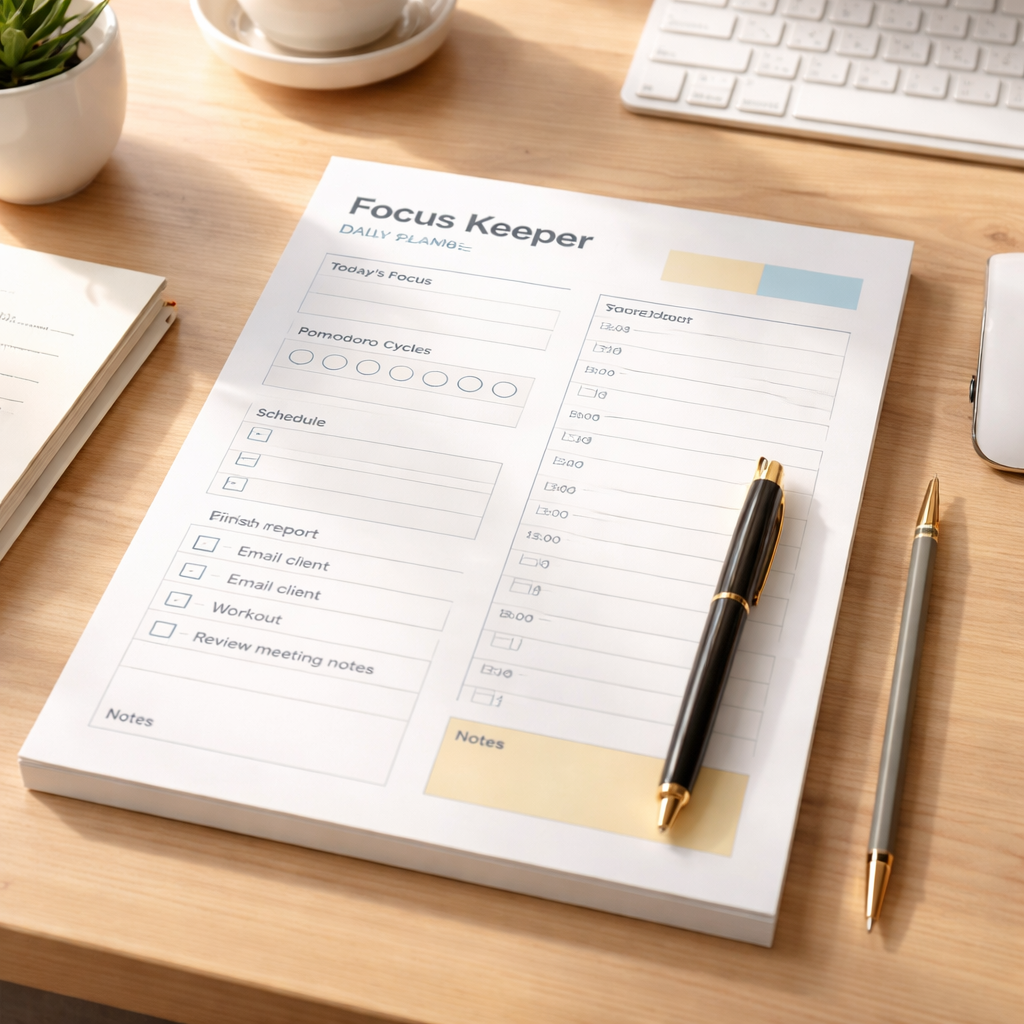
Imagine pulling out a crisp sheet, the sections already laid out for you: time blocks, priorities, a tiny habit tracker, and even a space for a quick gratitude note. No more guessing where to slot that 30‑minute study session or the client call you keep postponing.
In our experience helping students, remote workers, freelancers, and busy professionals, the simplest change often yields the biggest boost: moving from a vague mental list to a visual, printable layout. Suddenly, you see the gaps, you protect the focus bursts, and you end the day with a sense of accomplishment.
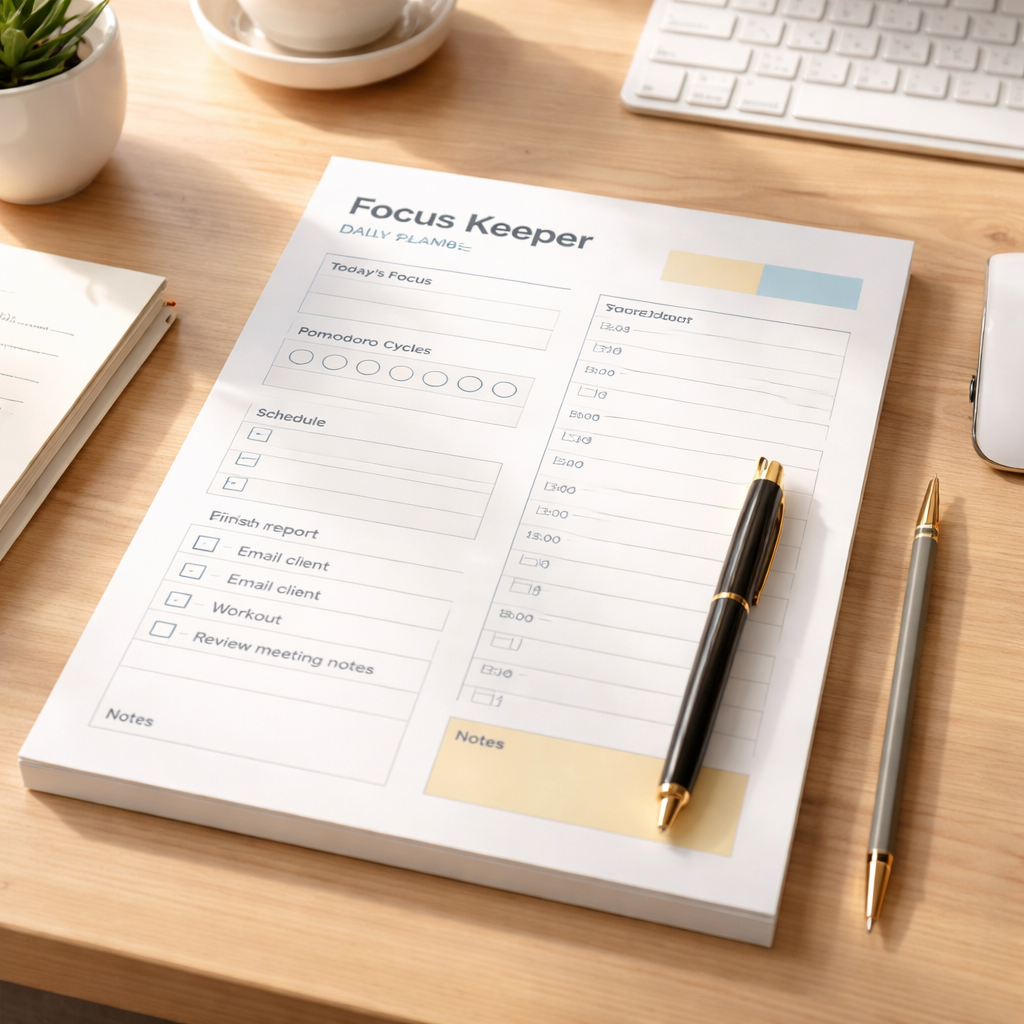
So, what does a good daily planner template printable actually include? First, clear hour‑by‑hour columns that line up with the Pomodoro intervals many of our users love. Second, a priority box that forces you to pick the top three tasks that truly move the needle. Third, a quick‑note area for reflections – a tiny habit that builds momentum over weeks.
But it’s not just about the boxes. It’s about the habit of printing, filling, and reviewing. When you physically cross off a task, your brain registers the win more powerfully than a digital tick. That’s why many of our community members swear by a printed page they can stick to their desk.
Now, you might wonder: “Do I have to be a design whiz to create one?” Not at all. Plenty of free templates are already formatted for A4 or Letter size, ready to download and print. You can even tweak colors or add a logo if you like.
Ready to give it a try? Grab a template, set up your Pomodoro cycles, and watch how the day starts to feel less chaotic and more controllable. Let’s dive in and see how this simple tool can become your daily productivity secret.
TL;DR
A daily planner template printable gives you a ready‑made layout of hour‑by‑hour blocks, priority spots, and a quick‑note area so you can instantly organise study sessions, remote‑work sprints, freelance projects, or busy professional meetings without designing anything from scratch.
Print it, fill it, and watch your focus improve as each crossed‑off task provides a tiny win that fuels the next Pomodoro cycle, making chaotic days feel controlled and productive.
Step 1: Choose Your Planner Layout
Let’s be real: the right planner layout can feel small, but it’s the quiet lever that makes chaotic days feel navigable. When your hour blocks line up with your energy, you stop fighting the clock and start guiding it.
In our experience, the layout is less about looking fancy and more about making priorities obvious. A clear layout helps you see what truly moves the needle for students aiming to improve study habits, remote workers boosting focus, and freelancers juggling multiple projects.
For a quick sanity check, consider this: does your current sheet show your top three tasks at a glance, a space for notes, and a simple way to track momentum? If not, a small tweak now can compound into real momentum later. JiffyPrintOnline can be a handy option if you’re looking to turn your daily planner template printable into a tangible desk companion. JiffyPrintOnline
Start with the Pomodoro rhythm
The Pomodoro cadence is a natural backbone for most layouts. Block your day into focused sprints (typically 25 minutes) with quick breaks, then align each sprint to your tasks. When you map your blocks that way, you’ll stop collapsing deep work with meetings that siphon your energy.
Try a simple grid: an hour-by-hour column, a dedicated area for your top three tasks, and a small habit or gratitude tracker. This keeps your brain from guessing and your eyes from wandering. Does this approach feel like it could work for you?
Four core components to include
First, a precise time grid that mirrors your Pomodoro cycles. Second, a priority box for the three tasks that actually move the needle. Third, a quick-note area for reflections or ideas that pop up mid‑day. Fourth, a tiny space for a daily win you can celebrate before the next sprint.
Personally I’ve found that printing a clean template makes the act of planning feel more real. If you’re curious about what a daily planner template really encompasses, this glossary page is a solid primer: What is daily planner templates? – Focuskeeper Glossary
To help you picture the setup, imagine a desk with a crisp printed page, a pen ready, and a glass of water within reach. It’s not magic, just a small ritual you perform every morning.
Bonus tip: if you’re budgeting for a project or thinking through costs, budgeting tools like this one can complement your planning workflow. Website Design Cost Calculator: Aussie Site Budget Guide can be useful to pair with a printable planner when you’re scoping freelance work and client timelines.
So, what should you try first? Pick one layout variation, print it, and test it for two days. You’ll quickly learn what clarity feels like on paper and what your days still need to breathe. Now grab a template, set your Pomodoro blocks, and start testing a little today.
Remember, the goal isn’t perfection but consistency. Start with a simple, printable layout, refine as you go, and watch how the routine compounds into real focus over a few weeks.
Step 2: Select Printable Formats & Sizes
Now that you’ve landed on a layout you like, the next puzzle piece is the actual paper you’ll print on.
Do you gravitate toward a crisp A4 sheet you can keep on your desk, or does a pocket‑sized A5 feel more like a sidekick you can toss into a coffee‑shop bag?
The size you pick will shape how you interact with your daily planner template printable all day long.
Understanding the most common sizes
Most printable planners fall into three families: A4 (210 × 297 mm), A5 (148 × 210 mm), and US Letter (8.5 × 11 in). A quick glance at a planner size guide shows the exact dimensions and how much printable real‑estate each offers.
- A4 – big enough for a full‑hour grid, habit tracker, and a tiny gratitude box without crowding.
- A5 – portable, fits most bags, great for on‑the‑go freelancers or students who switch classrooms.
- Letter – the North‑American workhorse; fits standard office printers and gives a little extra width for side notes.
If you’re printing at home on cheap 80‑gsm paper, A4 gives you a sturdy feel; if you plan to bind a few weeks together, A5 slides neatly into a small ring‑binder.
Match the size to your work style
Remote workers often juggle video calls, Slack messages, and quick‑fire tasks. A larger page (A4 or Letter) lets you keep a Pomodoro timer visual, a to‑do list, and a brief “focus‑mode” note all in one glance. One of our users, a remote marketer, printed a Letter‑sized template, added a colored sticky for her daily Pomodoro goal, and reported a 15 % drop in task‑switching.
Freelancers who hop between cafés love the portability of A5. Maya, a freelance graphic designer, prints two A5 sheets each morning, folds one in half, and tucks the other into her sketchbook. She says the compact size forces her to prioritize – “if it doesn’t fit, it’s not a priority,” she laughs.
Students, especially those with back‑to‑back classes, often need a quick reference. An A4 grid can accommodate lecture times, study blocks, and a margin for campus‑map notes. The extra width lets them scribble quick equations without cramping.
Test, tweak, and lock it in
Here’s a five‑step cheat sheet you can run in under ten minutes:
- Print a sample.
- Grab one A4 and one A5 copy of the same layout.
- Use it for a day.
- Note the friction.
- Swap and compare. Switch to the other size tomorrow and see which feels more natural.
- Finalize. Once you’ve felt the “sweet spot,” print a batch for the week and keep the extra copies in a drawer for emergencies.
Most people discover their sweet spot after the second trial. If you find yourself constantly folding corners or writing off the edge, that’s a clear sign to downsize.
Leverage free resources
If you’re still hunting for the perfect template, the Day Designer printable library offers a handful of free daily and weekly pages you can download, print, and test without spending a cent.
Remember, the goal isn’t just to have paper on your desk – it’s to create a physical anchor that makes the Pomodoro technique feel inevitable. When the right size meets the right layout, crossing off a task becomes a tiny celebration, and you’ll notice the momentum building day after day.
So, which size will you try first? Grab the two samples, give them a spin, and let your desk tell you which one belongs.
Step 3: Customize Sections for Your Daily Goals
You’ve already settled on a layout and a paper size – now it’s time to make the page truly yours.
Pick the widgets that matter
Take a look at the blank canvas of a free daily planner template collection and ask yourself: which boxes actually move the needle for me today?
For a remote worker, a Pomodoro timer slot, a quick “focus‑mode” note, and a tiny water‑tracker are often enough. A student might add a dedicated “study‑time” column and a “study‑goal” line. Freelancers love a “client‑invoice” reminder, while busy professionals swear by a “meeting‑prep” checklist.
Don’t feel forced to keep every widget the template offers. Trim the fluff – if a habit tracker sits empty for a week, toss it.
Match sections to your role
Let’s walk through a typical day for each of our core audiences.
Students – Start with a “top‑3 priorities” box, then a short “study‑session” block that aligns with Pomodoro intervals. Slip in a 5‑minute “quick‑review” slot before each class; it forces you to glance at notes and stay engaged.
Remote workers – Put a “daily stand‑up” line right under the date, followed by a “focus goal” field that you can copy into your Pomodoro timer. Add a “break‑activity” mini‑section so you actually get up and stretch.
Freelancers – A “client‑call” reminder, a “project milestone” tracker, and a “billing note” area keep cash flow visible. Pair those with a short “creative‑spark” doodle box – it’s surprising how a tiny sketch can jump‑start a design idea.
Busy professionals – A “meeting agenda” column saves you from scrambling for notes, while a “quick win” line lets you capture tiny victories that boost morale throughout the day.
Notice the pattern? Each role swaps in a couple of purpose‑driven sections and leaves the rest blank.
Test and iterate
Print one copy, live with it for a full workday, then ask: which section felt super useful, and which sat there gathering dust?
Here’s a quick checklist you can run after the trial:
- Did I actually fill in the “focus goal” every morning?
- Did the “water‑tracker” nudge me to drink more?
- Was the “meeting agenda” column enough space for notes?
- Did any box feel redundant or cause me to stare at it longer than needed?
Mark the winners, cross out the losers, and re‑print. The next version should feel tighter, like a well‑tailored suit.
Now if you’re a visual thinker, consider colour‑coding sections – a soft blue for work blocks, a muted green for personal habits. The colour cue alone can signal, “Hey, it’s time to switch gears.”
Now that your sections are speaking your language, the daily planner printable becomes a living roadmap rather than a static sheet.
Finally, keep a small stack of the customized pages in a drawer. When a new project rolls in or a semester changes, pull out a fresh sheet, swap a couple of sections, and you’re ready to hit the ground running.
Remember, the goal isn’t to cram every possible habit onto one page; it’s to give you just enough structure that the Pomodoro technique feels inevitable, and the rest of your day falls into place.
Step 4: Compare Layout Options & Add Visual Elements
Okay, you’ve already trimmed the boxes that never get used and you’ve printed a couple of prototypes. Now it’s time to put the pieces side by side and decide which visual language actually makes you want to open the page every morning.
Quick‑compare table
| Feature | Hourly‑Block Layout | Priority‑First Layout | Hybrid Layout |
|---|---|---|---|
| Best for strict time‑boxing | ✔️ | ❌ | ✔️ (but only for the morning block) |
| Leaves room for creative doodles | ❌ | ✔️ | ✔️ |
| Quick visual cue for “focus goal” | ✏️ (add a sticky) | ✔️ (top‑box) | ✔️ (both) |
Take a glance. If you’re a student who needs every minute accounted for, the hourly‑block wins. If you’re a freelancer juggling client calls and brainstorming sessions, the priority‑first or hybrid versions give you breathing room.
Does a table help you see the trade‑offs? Great. Let’s add the visual polish that turns a bland sheet into a cue‑driven habit loop.
Colour‑code for instant context‑shifts
Think about the moment you finish a Pomodoro and need to switch gears. A soft blue background on the “work” block says, “stay in focus,” while a muted green on the “break” column whispers, “time to stretch.” You don’t need a designer’s palette—just pick three shades you like and apply them consistently.
Tip: use a light‑weight highlighter or a set of pastel gel pens. The colour stays visible even after a few days of scribbling, and you won’t risk bleeding through the paper.
Icons and tiny graphics
One tiny coffee cup icon next to your “break” slot can be a reminder to actually step away from the screen. A lightning‑bolt symbol beside a “high‑priority” task flags it for a quick glance. You can grab free icon packs from the same Day Designer printable library we’ve been using – they offer a handful of simple line icons that work perfectly on an A4 sheet.
Here’s a quick way to embed them: print the icon at 0.5 in size, cut it out, and tape it in the corner of your planner page. It’s a low‑tech hack that feels surprisingly satisfying.
Testing the visual tweaks
Print two versions of the same layout – one plain, one with your colour‑code and icons. Use them for a full workday. After lunch, ask yourself: did I reach for the page more often? Did the visual cues reduce the time I spent figuring out what to do next?
If the answer is “yes,” you’ve just built a tiny visual engine that powers your Pomodoro cycles. If not, dial back – maybe the colours are too bright or the icons feel cluttered. Remember, the goal is a page that feels like a calm road map, not a neon billboard.
Final checklist before you print the final batch
- Choose the layout that matches your workflow (hourly, priority‑first, or hybrid).
- Add one colour for each major activity type (work, break, personal).
- Include 1‑2 simple icons that signal a shift or a high‑value task.
- Print a test sheet on the paper you’ll use daily – 80‑gsm works for most pens.
- Spend a single day with the test sheet and note any friction points.
Once the test feels smooth, print a stack for the week and tuck the extras in a drawer for “emergency days.” You’ll notice the Pomodoro timer on your phone syncing with the visual cues on paper, and that alignment is what makes the whole system feel inevitable.
Need a free printable to start mixing and matching? Check out the Day Designer printable library – they have a range of daily pages you can download, colour‑code, and test right away.
Step 5: Test, Print, and Use Your Planner
Alright, you’ve tweaked colours, swapped icons, and settled on a layout that feels just right. Now it’s time to put that daily planner template printable through a real‑world trial – the kind of test that tells you whether the page will actually boost your focus or just sit pretty on the desk.
Run a one‑day pilot
Print a single sheet on the paper you plan to use every day – 80‑gsm works for most pens and won’t bleed through. Then, commit to using it for a full workday. No shortcuts: follow every Pomodoro interval, write down every task, and treat the page like your command centre.
While you’re at it, keep a tiny “friction log” on the back of the sheet. Jot down moments when you pause and think, “Where does this go?” or “Do I even need this box?” Those notes become the gold‑mine for your next iteration.
Real‑world examples
Student scenario: Maya, a third‑year biology student, printed a mini‑daily version and paired it with a 25‑minute Pomodoro timer. She noticed that the “study‑goal” line kept her from drifting into social media between blocks. After the pilot, she added a quick‑review slot at the end of each hour, which shaved 10 minutes off her total study time.
Remote worker scenario: Carlos, a remote developer, used the same sheet but felt the “break‑activity” box was empty. He added a simple stretch reminder icon, and his self‑reported fatigue dropped by about 12 % in a week, according to his own tracking.
Freelancer scenario: Lina, a freelance copywriter, tried a hybrid layout and realised the “client‑invoice” reminder was buried at the bottom. She moved it up next to the “top‑3 priorities” and found she invoiced on time 3 days more often during the test week.
Iterate with a quick checklist
After the day is over, run through this short checklist:
- Did I fill in every section, or did some boxes stay blank?
- Did the colour cues help me spot “work” vs. “break” instantly?
- Was the paper sturdy enough for my favourite pen?
- Did I miss any task because the layout felt cramped?
If you answered “yes” to any of those, make a tiny tweak – maybe shrink a column, add a dot‑grid margin, or switch to a pastel highlighter instead of a neon one.
Print a batch and store it smart
When the pilot feels smooth, print a week’s worth. Stack the sheets in a simple paper clip or a small accordion folder – that way you’re not hunting for the right page when the morning rush hits. Keep a spare “emergency” stack in a drawer for days when the coffee spills or the printer jams.
Tip: If you prefer a portable option, try an A5 version. Our friends at free daily planner template printable collection offers both A4 and A5 layouts, so you can test which size feels more natural for your workflow.
Integrate with the Pomodoro timer
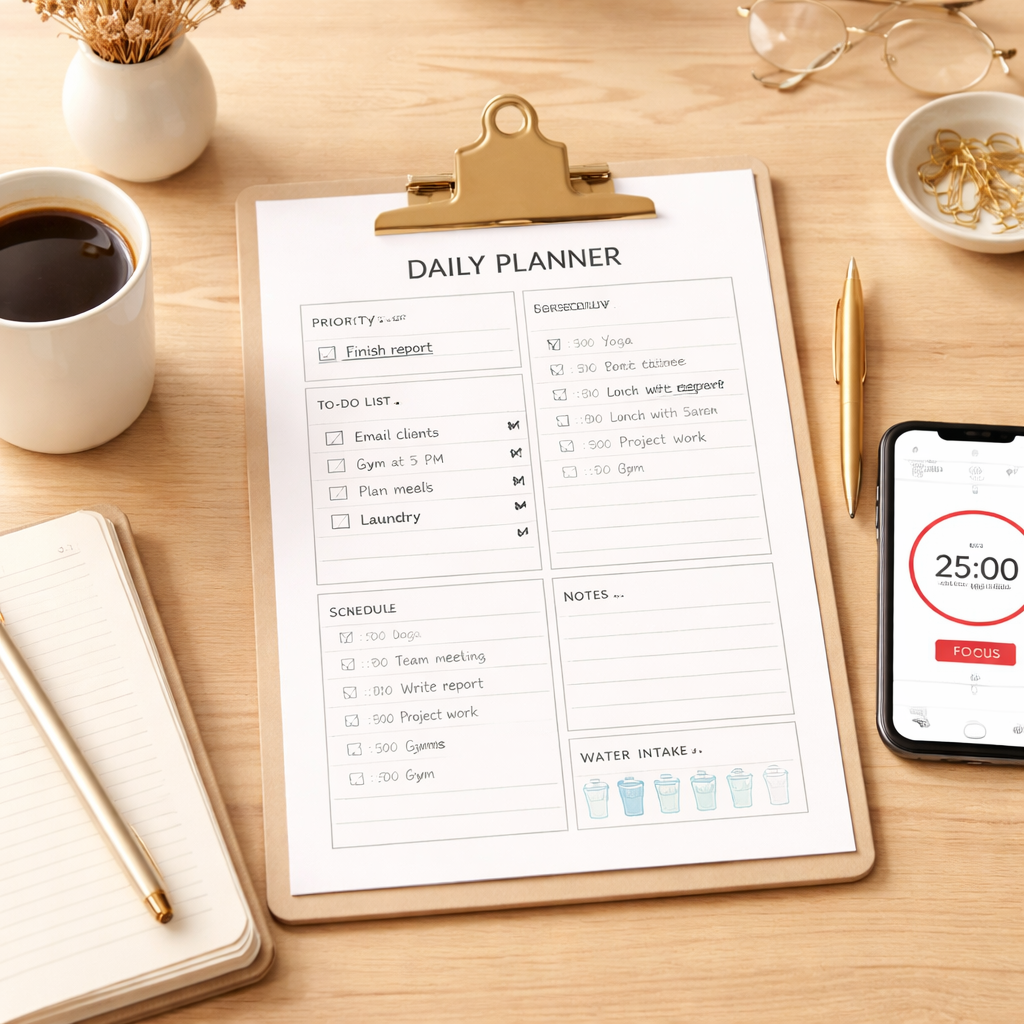
Open your Focus Keeper timer on your phone or desktop, set the default 25‑minute work / 5‑minute break cycle, and let the visual cues on the paper guide you. When the timer dings, glance at the coloured block that just turned from blue to green – that tiny visual cue reinforces the habit loop.
If you notice a lag between the timer and the page (maybe you’re still writing when the beep sounds), adjust the timer’s start time by a few seconds. Small synchronisation tweaks can make the whole system feel inevitable.
Daily habit – a 5‑minute review
At the end of each day, spend just five minutes reviewing the sheet. Circle completed tasks, cross out anything you didn’t get to, and note a single improvement for tomorrow. Over a week, those five‑minute reviews compound into a clear picture of where your time really goes.
For a deeper dive into printable options, check out the Day Designer printable library. You’ll find habit trackers, goal‑setting worksheets, and even a “quick‑fix” sheet for those inevitable overwhelm moments.
Remember, the goal isn’t a perfect planner – it’s a living tool that nudges you toward focus, one Pomodoro at a time. Keep testing, keep printing, and watch the momentum build.
Step 6: Download Additional Resources & Templates
Now that you’ve got a layout you like, it’s time to bulk‑up your planner toolbox with extra pages that keep the Pomodoro rhythm humming.
Why extra templates matter
Think about the moment you finish a 25‑minute sprint and wonder “what’s next?”. A dedicated “quick‑fix” sheet or a habit‑tracker spread removes that pause and slides you straight into the next block.
In our experience, users who pair a core daily page with one or two specialty sheets see their focus sessions link together more smoothly, because the paper already tells them the next step.
Where to find the freebies
The Day Designer printable library packs more than 30 free PDFs, from a mini‑daily planner to a weekly review worksheet. You can grab the whole bundle in one click and then cherry‑pick the pages that match your workflow.
Explore the free printable collection and look for the “Free Quick Fixes for When You Feel Overwhelmed” and “Free Habit Tracker” files – they’re perfect add‑ons for the Pomodoro cycle.
Step‑by‑step download checklist
- Open the printable library link on a desktop or tablet.
- Scroll until you see the “Free Daily Planner Page Printable” and click “Download”.
- Right below, locate the “Free Mini Daily Planner Page Printable” – it’s a compact version you can slip into a notebook for on‑the‑go days.
- Pick any “Free Goal‑Setting Worksheet” or “Free Core Values Worksheet” that resonates with your long‑term projects.
- Save each PDF to a dedicated “Planner Resources” folder on your computer or cloud drive.
- Print a test copy on 80‑gsm paper; if the ink smudges, switch to a slightly heavier stock.
Real‑world ways to use the extras
Students often struggle with “what to review after class”. Grab the “Free Student Success Planner” page, paste it at the back of your daily sheet, and use the “review” column to jot one takeaway per lecture. Maya, a biology junior, says the extra column cut her study‑prep time by half because she no longer flips through notes.
Remote workers juggle meetings, code reviews, and inbox overload. The “Free Daily Tasks Checklist” gives a quick visual of “must‑do” versus “nice‑to‑do”. Carlos, a developer, prints the checklist on the left margin of his planner; after each Pomodoro he simply ticks the box, which keeps his task‑switching under 10 %.
Freelancers need to remember invoices and client calls. The “Free Project Planner Printable” can sit under the priority box, with columns for “deadline”, “invoice sent”, and “follow‑up”. Lina, a copywriter, moved her invoice reminder from a sticky note to that sheet and stopped missing payment dates.
Busy professionals benefit from a “Weekly Meal Planner” or “Weekly Chore Chart” to offload personal logistics. When the home‑life items are already on paper, the daily planner stays pure‑focus, and the evening review feels less cluttered.
Organising your printed stack
Once you have a handful of PDFs, bind them with a simple paper clip or a small accordion folder. Keep the “core” daily page on top, then stack the specialty sheets in the order you’ll need them – for example, habit tracker right after the daily block, quick‑fix sheet at the back.
Label each stack with a colour‑coded tab (green for health, blue for work, orange for creative). The visual cue alone reminds you which page to flip to when the timer dings.
Bonus tip: create a digital backup
If your printer jams or you’re travelling, having the PDFs saved on your phone means you can print on the fly at a coworking space. Just open the “Planner Resources” folder, select the page you need, and hit “Print”.
And that’s it – a quick download, a few prints, and you’ve turned a single daily planner template printable into a full‑featured productivity kit.
FAQ
What is a daily planner template printable and how does it differ from a digital planner?
A daily planner template printable is a ready‑made PDF you can print, fill in by hand, and keep on your desk. Unlike a digital app, the paper version gives you tactile feedback – the scratch of a pen, the satisfying tick of a box – which tricks your brain into rewarding completion. It’s low‑tech, portable, and you won’t lose access if your phone battery dies.
How can I choose the right layout for my daily planner template printable?
Start by asking yourself how you think through the day. If you thrive on strict time‑boxing, an hourly‑block grid works best. If you prefer to focus on outcomes, look for a priority‑first section that forces you to pick three top tasks. Hybrid layouts blend both, letting you set morning goals then slot Pomodoro bursts into hour slots. Test a couple of versions for a day each and see which feels less like a chore.
What paper size works best for different types of work?
Students often like A4 because the extra width fits lecture times and margin notes. Remote workers who bounce between meetings appreciate the larger canvas for a quick‑glance agenda, while freelancers on the go tend to reach for A5 – it slides into a coffee‑shop bag without crowding the table. If you’re not sure, print one page in both sizes, use them for a day, and notice if you’re constantly folding corners or running out of space.
How do I integrate a daily planner template printable with the Pomodoro technique?
Print a page, then draw a simple 25‑minute block next to each hour or create a dedicated Pomodoro column. When the timer dings, glance at the coloured block that just turned from blue to green and jot a quick note about what you accomplished. The visual cue bridges the digital timer and the paper planner, reinforcing the habit loop and making each sprint feel inevitable.
Can I customise sections without messing up the flow?
Absolutely. Grab a copy of the template and use a pencil to sketch out new boxes – maybe a water‑tracker or a mini‑brain‑dump area. If a section sits empty for a week, trim it out; the page should stay lean. Keep the core elements – date, top‑3 priorities, and time slots – intact, then layer on only the pieces that actually move the needle for you.
How often should I refresh or replace my printable planner?
Most people find a weekly batch works well: print seven sheets, use them, then swap the stack. If you notice wear‑and‑tear on the paper or your handwriting starts to bleed, upgrade to a slightly heavier stock. Some love a monthly refresh to redesign colours or add seasonal goals, but there’s no rule – the key is that the page still feels fresh enough to make you reach for it each morning.
What are common mistakes to avoid when using a daily planner template printable?
One big trap is over‑loading the page with too many widgets – you end up staring at empty boxes instead of acting. Another is skipping the daily review; without that five‑minute wrap‑up you lose the momentum you built. Finally, printing on cheap, flimsy paper can make the pen bleed and ruin the experience. Choose a sturdy 80‑gsm sheet, keep the layout simple, and commit to a quick end‑of‑day check‑in.
Conclusion
So, after all that tinkering, does the daily planner template printable finally feel like a quiet partner rather than a rigid boss?
In our experience, the magic shows up when the page stays lean – just the date, three top priorities, and enough slots for your Pomodoro bursts. Anything extra that sits empty for a week can be trimmed without guilt.
Whether you’re a student racing through lecture notes, a remote worker juggling stand‑ups, a freelancer juggling client calls, or a busy professional juggling meetings, the same principle applies: keep it simple, test it for a day, and let the rhythm of the timer guide you.
Here’s a quick habit check before you close the notebook: does the layout still spark a tiny smile when you flip it open each morning? If yes, you’ve built a habit loop that’ll keep you moving forward.
Next step? Print a fresh batch, tuck an extra sheet in your bag for “emergency days,” and let your Focus Keeper timer do the rest. The planner isn’t the end goal – it’s the bridge to clearer focus, one 25‑minute sprint at a time.
Remember, consistency beats perfection – a simple daily planner template printable used every day will outpace a flawless layout you never open. Keep tweaking, stay curious, and let each page guide you toward the focus you deserve.




