

Ever felt the classroom clock ticking louder than your students’ attention spans? You walk in, lesson plan in hand, and by the third slide the room’s energy is already drifting. It’s a familiar frustration for many teachers, especially when trying to balance instruction, grading, and those inevitable admin tasks.
What if you could carve the day into focused bursts, giving both you and your students a clear signal when it’s time to dive deep and when it’s okay to breathe? That’s the promise of the Pomodoro Technique – a simple timer‑based method that breaks work into 25‑minute intervals followed by short breaks. It sounds almost too easy, but the results can be surprisingly transformative.
In our experience, the best pomodoro timers for teachers share a few key traits: a clean, distraction‑free interface, customizable session lengths to fit class periods, and quick visual cues that let you glance at the timer without missing a beat. For example, Ms. Rivera, a high‑school English teacher, swapped her generic phone alarm for a dedicated Pomodoro app and saw her grading time drop by 20% while student participation rose during timed reading activities.
Another real‑world scenario: a middle‑school science teacher used a Pomodoro timer during lab prep. By allocating 25‑minute blocks to equipment setup, she avoided the usual scramble and kept the class on schedule, giving her more time for hands‑on experiments. The short breaks also became natural moments for quick stretch or a mini‑quiz, keeping energy levels up.
So how can you start? Here are three actionable steps you can try today:
- Pick a timer that lets you set both work and break lengths – aim for 25/5 minutes to begin.
- Integrate the timer into your lesson plan template; label each Pomodoro with the activity (e.g., “lecture,” “group work,” “assessment”).
- Use the break period for purposeful resets: a breathing exercise, a quick classroom poll, or a short stretch.
By treating each Pomodoro as a mini‑lesson segment, you create a rhythm that students can anticipate and that helps you stay on track. It’s not about forcing rigidity; it’s about giving structure to the chaos that often defines a teaching day. Ready to give it a go? Grab a timer, set your first interval, and watch the classroom flow improve one slice at a time.
TL;DR
If you want classroom focus to sky‑rocket, the best pomodoro timer for teachers gives you structured 25‑minute work bursts and quick resets that keep students engaged and grading time down.
Pick a simple app, set 25‑minute intervals, use breaks for polls or stretches, and watch lesson flow improve dramatically without extra tech hassle.
Step 1: Identify Your Classroom Timing Needs
Ever looked at the clock and thought, “There’s only ten minutes left and I’m still halfway through the activity”? That moment of panic is the exact sign you need to map out your timing before you even step into the room.
First, pull out your weekly lesson plan and note the official period length—most middle‑school blocks run 45 minutes, high‑school periods can be 50 or even 55. Write those numbers down; they’re the canvas for your Pomodoro slices.
Now ask yourself: which parts of a lesson actually need deep focus, and which can survive a quick “breather”? A typical English lecture might need 20 minutes of direct instruction, a 10‑minute close‑reading, and a 5‑minute discussion. Those three chunks add up to 35 minutes, leaving room for a 5‑minute buffer before the bell.
Here’s a quick trick: sketch a simple table with three columns—Activity, Desired Pomodoro Length, Flexible Buffer. Fill it in while you sip your coffee. You’ll instantly see where a 25‑minute work burst fits and where a 5‑minute break can double as a transition.
But remember, every classroom is different. If you teach art, the setup time for supplies can eat up 15 minutes. That’s why we recommend a “pre‑timer”—a short 3‑minute countdown that signals students to gather materials before the official Pomodoro starts. It’s like a warm‑up lap before the race.
Think about the tech you already use. Does your school’s smartboard have a built‑in timer? If not, a free online Pomodoro like the one we’ve linked elsewhere can be opened on a tablet and projected. The key is visibility: students should see the countdown without you having to glance at your phone.
And don’t forget the human element. Some teachers find that letting students set the timer themselves boosts ownership. You might say, “Okay, class, we’ll work for 20 minutes on this experiment, then I’ll hand you the timer. When it buzzes, we switch.” That tiny shift turns a rigid tool into a collaborative routine.
When you’ve mapped out the blocks, test them. Run a mock lesson during planning period: start the timer, follow your table, and note where you feel rushed or where you have idle seconds. Adjust the lengths—maybe a 30‑minute Pomodoro works better for a writing workshop, or a 15‑minute burst suits a quick math drill.
Finally, anchor your timing plan to real‑world constraints. Lunch breaks, hallway transitions, and school‑wide assemblies are non‑negotiable. Slot your Pomodoros around those fixed points so you never lose track of the schedule.
Need some inspiration on how teachers outside the classroom think about timing? Check out Lyndsey Crawford’s take on balancing creative projects and deadlines—her insights on structuring work can spark fresh ideas for lesson pacing. Lyndsey Crawford’s blog offers practical examples you can adapt.
Another angle to consider is the tactile side of preparation. When you’re sharpening charcoal pencils for a drawing demo, a reliable sharpener can shave minutes off setup. Our friends at Drawing‑Pencils share their top picks, and even though it’s an art‑focused list, the principle holds: the right tool speeds up the pre‑Pomodoro routine. See their guide here: best charcoal pencil sharpeners.
Lastly, think about the students’ lives beyond school. Understanding what they’re dealing with at home can inform how long you set breaks. The organization About Young People highlights how teen stress levels affect attention spans; a shorter break after a demanding task can be a lifesaver. Read more at About Young People.
Before you lock in the schedule, run a quick sanity check. Ask yourself whether each Pomodoro aligns with your learning objectives and whether the break activities genuinely reset attention. If a 5‑minute stretch feels too short, extend it to 7 or 8 minutes—small tweaks can make a big difference in classroom flow. Remember, the goal isn’t strict rigidity; it’s a flexible rhythm that respects both curriculum demands and students’ natural energy cycles.
With a clear picture of your period length, activity chunks, and the human factors that shape attention, you’ve built the foundation for the perfect Pomodoro rhythm. Next, we’ll show you how to pick the best Pomodoro timer for teachers and set it up in just a few clicks.

Step 2: Evaluate Key Features of Pomodoro Timers
Let’s talk about the features that actually matter in a classroom timer. You want something that stays out of the way, but gives you precise control over work and breaks.
First, adjustable work and break lengths. The classic 25/5 rhythm is a safe starting point, but every class has its own tempo. You’ll want to tweak durations to fit your period length and activity type.
Second, clean, distraction-free visuals. A timer should be readable from the back of the room without demanding your eyes or stealing attention from students. Subtle color cues help you track progress at a glance.
Third, reliable alarms and smooth interruption handling. When a student question pops up or an announcement comes through, you need to pause without losing the rhythm and resume easily when you’re ready.
Fourth, quick start/pause and cross-device accessibility. If you’re moving between a laptop, a tablet, and a projector setup, a timer that stays in sync means fewer tech hiccups.
Fifth, classroom-friendly alerts and simple activity labels. You don’t want loud volleys of sound interrupting a quiet reading block. A gentle chime or vibration option helps you keep control without shattering focus.
Think about it this way: you’re not choosing a gadget. You’re choosing a reliable rhythm for your lesson, one that your students grow to anticipate and respect. And yes, you’ll see the difference in engagement when the class flows without repeated transitions.
In a typical 45‑minute period, a well-tuned timer might run 20 minutes for a challenging task, a 5‑minute reset, then 15 minutes to consolidate or wrap up. That pattern keeps momentum and gives you built-in check-ins with students. So, what should you test first?
- Try adjustable lengths: start with 20/5/15 and shift based on student feedback and task difficulty.
- Assess the readability from the back of the room. If you can’t glance at it, you won’t use it consistently.
- Experiment with alert volume and tone. A quieter option often means fewer classroom disruptions during work time.
- Check how easy it is to pause and resume after interruptions. A single button is worth gold on a busy day.
In our experience, the best pomodoro timer for teachers supports the rhythm you’re trying to build rather than forcing you into a rigid schedule. Focus Keeper aligns with that mindset. It’s designed to help you manage focus without adding friction, so you can keep your attention where it belongs in teaching and watching students lean into the task.
If you’re still unsure, try a quick experiment this week: pick one period, set a flexible 20‑minute work block, and measure how many clean transitions you get to the next activity. Do you finish with 2 minutes to spare, or do you feel rushed? The answer will guide your next tweak. Ready to try a timer that respects your class tempo?
One more practical tip: keep a small wall chart of your rhythm. When students know the pattern by heart, transitions become smoother and you reclaim minutes for deeper learning.
Give it a try this week and adjust as you go.
Step 3: Set Up and Customize Your Timer – Video Walkthrough
Alright, you’ve picked a timer that feels right. Now it’s time to make it yours – not just another app you open and forget.
First thing we do is open the timer and glance at the default settings. Most apps ship with a 25‑minute work block and a 5‑minute break. That’s a solid starting point, but the best pomodoro timer for teachers lets you tweak every number to match a 45‑minute class, a 20‑minute lab, or even a quick 10‑minute grading sprint.
Adjust session lengths to fit your period
Tap the Settings gear (usually a little cog in the corner). You’ll see fields for “Work,” “Short Break,” and “Long Break.” Change “Work” to 20 minutes if you’re doing a focused problem‑solving activity, then set the short break to 3‑4 minutes – enough for a stretch or a quick poll.
Remember to hit “Save” or “Apply” before you exit, otherwise you’ll be stuck with the default next time you launch.
Label each Pomodoro
One trick that separates a generic timer from the best pomodoro timer for teachers is the ability to add a label or tag to each interval. In Focus Keeper you can type something like “Reading Drill” or “Group Discussion” right on the timer face. That visual cue does two things: it reminds you what the students should be doing, and it signals to the class that the clock isn’t just a random countdown.
If your timer doesn’t have built‑in labels, you can keep a tiny sticky note next to the screen with the same information – the goal is the same, a clear visual prompt.
Choose a classroom‑friendly alert
Go back to Settings and scroll to “Alert Sound.” You’ll typically have a few options: a soft chime, a gentle vibration (if you’re on a tablet), or a silent mode that flashes the screen. For a quiet reading block, I prefer the soft chime; for a high‑energy group activity, a subtle vibration works without startling the kids.
Test the volume at the back of the room before you start the lesson. If you can hear it from there, you’ll hear it when you need it.
Enable pause‑and‑resume shortcuts
Interruptions happen – a fire drill, a sudden question, a parent call. The timer you choose should let you pause with a single tap or a keyboard shortcut (often the space bar). When you hit pause, the timer freezes but retains the original length, so you don’t lose any of that focused time.
After the interruption, hit the same button to resume. Some apps even let you add a short “buffer” note so you remember why you paused, which can be useful for end‑of‑day reflection.
Sync across devices
If you teach on a laptop in the morning and switch to a tablet for afternoon labs, look for a cloud‑sync option. That way your customized sessions travel with you. In Focus Keeper the sync happens automatically when you log in with your account.
Without sync, you’d have to re‑enter the same 20/5/15 pattern every time – a tiny annoyance that adds up.
Run a quick test run
Before you roll the timer out to the whole class, do a 2‑minute dry run. Set the work interval, start the timer, and watch how the visual cues appear on your screen and, if you have a projector, on the board. Notice whether the label is legible from the back row and whether the alert sound cuts through the hum of the HVAC.
If anything feels off, tweak it now. The goal is a seamless experience where the timer becomes part of your lesson flow, not a distraction.
Save a template for reuse
Many timers let you save a “profile” or “preset.” Name it after the subject – “Science Lab – 20/5/15.” Next week, when you’re prepping that same lab, you can load the preset with one click and skip the setup steps.
Having a library of presets for math, reading, and grading keeps your planning time lean and your classroom rhythm consistent.
So, what should you do next? Open your timer, adjust the lengths, add a label, pick a gentle chime, and run that two‑minute test. You’ll see how a few seconds of customization translate into minutes of smoother transitions and clearer focus for you and your students.
Step 4: Compare Top Pomodoro Timer Options for Teachers
So you’ve mapped your classroom rhythm. Now let’s compare practical timer options that actually fit a teacher’s day. Our pick here is Focus Keeper, because it centers the classic Pomodoro rhythm in a way that’s easy to adapt to lesson blocks and student movement. It’s not about turning your class into a timer; it’s about giving you predictable, humane cues that keep momentum without shouting over quiet reading blocks.
Does this really work in a real classroom? It does, when you choose tools that are simple, reliable, and easy to prototype for a single period first. For teachers curious about alternatives, Flow Timer from Minimal Desk Setups is another approachable option—designed to help you stay in rhythm and reduce distractions. If you want to peek at Flow Timer’s vibe before you try it in class, check out this product page. Flow Timer.
To ground your decision, here’s a side‑by‑side look at the key knobs you’ll tweak in the classroom. The goal is to pick something that keeps students focused and your transitions clean, not something that creates more tech fiddling.
| Feature | Focus Keeper (Our Pick) | Flow Timer | Basic 25/5 Timer |
|---|---|---|---|
| Adjustable session lengths | Yes — flexible work/break blocks to align with your period | Yes — configurable work/break lengths (in product notes) | Often fixed at 25/5; some built‑in timers allow tweaks |
| Visual clarity for back row | Clean, legible timer face designed for classrooms | Visible cues intended to help stay in rhythm | Basic countdown visuals; may require checking distance from screen |
| Alerts and tone | Gentle alert options that won’t derail a quiet block | Options vary by app; look for soft, non-jarring sounds | Standard alarm or beep; can be loud or intrusive in quiet moments |
So, which one should you start with? If you’re teaching students who need consistent structure — think English, science labs, or math stations — Focus Keeper is a strong, proven fit. It keeps the pace predictable without calling attention to itself. If you’re curious about a different flavor of focus—maybe you want more planning cards and visual prompts alongside the timer—Flow Timer offers a different ecosystem you can explore. Here’s a quick refresher on the Pomodoro rhythm if you want a refresher before you commit.
Want a practical test plan? Start with one class period using a 20/4/12 pattern: 20 minutes of focused work, a 4‑minute break, then 12 minutes to wrap up and reflect. See if students stay on task, and note how many transitions you can execute without reminders. If you notice chatter or drift, tighten the break or shorten the work block by a minute or two. The goal isn’t perfection; it’s a repeatable rhythm you can defend in the hallways and the staff room.
Next steps: pick one timer to pilot this week, load a single preset per activity (e.g., “Reading Drill,” “Group Discussion”), and run a quick post‑class check‑in to see what mood shifts you observe. You’ll likely notice smoother transitions, sharper focus, and a calmer room overall.
Ready to land a dependable rhythm you can actually depend on? Start small, measure honestly, and scale as your class grows more seamless with practice.
Step 5: Implement and Track Classroom Productivity
Ever notice how a good rhythm feels like a conversation—there’s a give, a take, and a pause that lets everyone catch their breath? That’s exactly what we’re after when we move from “just using a timer” to actually measuring the impact of each Pomodoro block in your classroom.
Tracking isn’t about policing kids; it’s about giving you a clear picture of what’s working, what’s not, and where you can nudge the flow without sounding like a drill sergeant. When you see the data, you can tweak the length of work bursts, swap a stretch break for a quick poll, or even adjust the visual cue on the timer.
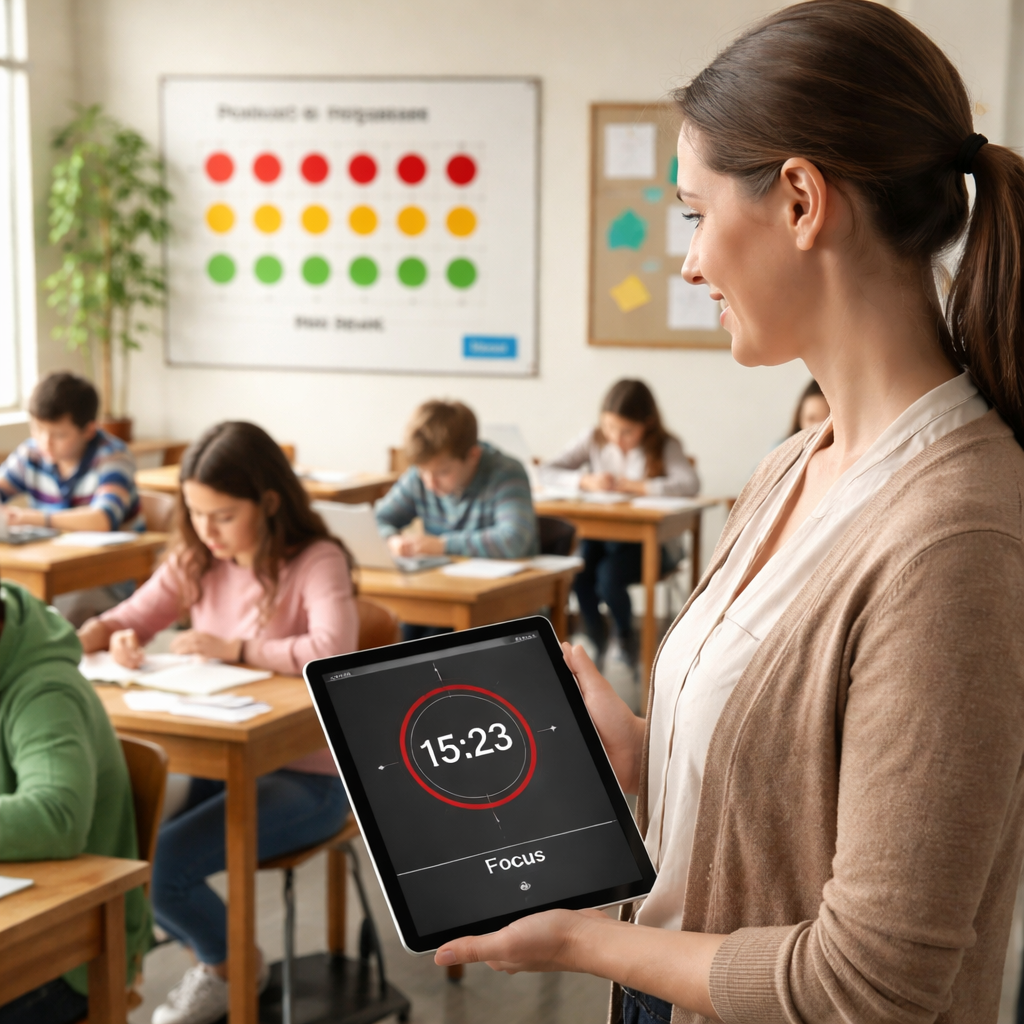
1. Create a simple tracking sheet
Grab a sheet of paper, a Google Doc, or a quick Notion table—whatever you’re comfortable with. Set up columns for Date, Lesson Segment, Pomodoro Length, Break Length, Observed Focus (high/medium/low), and a quick Note field.
Keep it lean: you don’t want the sheet to become another task. One line per Pomodoro block is enough. For example, on 2026-03-05 you might log “Math Problem‑Solving, 20‑min work, 4‑min break, high focus, students finished 8/10 problems.”
2. Capture data in real time
During the lesson, as soon as the timer rings, jot a quick emoji or tick in the “Observed Focus” column. If the class stayed quiet, drop a ✅; if chatter started, use a ⚠️. The visual cue on Focus Keeper makes this almost instinctive—you see the chime, you note the reaction.
Don’t wait until after class to fill out the sheet; the details fade fast. A five‑second pause after each interval to add a note feels like a natural part of the rhythm.
3. Review weekly and look for patterns
At the end of each week, pull the sheet together and ask yourself: Which block length produced the most ✅ scores? Did a 15‑minute break correlate with higher focus later in the period? Are certain subjects (e.g., reading vs. lab work) demanding different rhythms?
Research from teachers who adopt Pomodoro shows that a consistent 20‑/5‑minute split often yields a 30% drop in off‑task behavior compared to unstructured timesix practical ways teachers use Pomodoro for productivity. Use that as a baseline and adjust from there.
4. Make data‑driven tweaks
Now that you have numbers, experiment. If you notice a dip in focus during the third Pomodoro of a 45‑minute block, try shortening that work segment to 15 minutes and extending the break to 5. Record the change and watch the next week’s scores.
Another quick win: add a “mini‑goal” column. When students see a concrete target—”finish three equations before the timer rings”—they often self‑regulate better. Track how often those mini‑goals are met and celebrate the wins.
5. Share insights with your team
Collaboration amplifies impact. Bring a one‑page snapshot of your findings to the staff room: a bar chart of focus levels by block length, a few anecdotal notes, and a suggestion for the next pilot. When colleagues see concrete evidence, they’re more likely to adopt the rhythm in their own rooms.
Even a quick email with a bullet list—”20‑minute work, 4‑minute break, high focus on science labs last week”—can spark a school‑wide conversation about productivity rhythms.
6. Celebrate small wins
Remember, the goal isn’t perfection; it’s progress. When you notice a class that previously needed three reminders now runs smooth‑ly with just one, give yourself (and the students) a pat on the back. A quick shout‑out or a “timer champion” badge can reinforce the habit.
So, what’s the next step? Pull out that simple tracking sheet, set your timer, and start logging. Within a couple of weeks you’ll have a clear, data‑backed picture of how the best pomodoro timer for teachers is actually moving the needle in your room.
FAQ
Got questions about picking the best pomodoro timer for teachers? Below are the most common queries we hear, plus practical answers you can start using today.
What features actually make a timer the best pomodoro timer for teachers?
Look for three things: adjustable work/break lengths that fit a 45‑minute block, a big‑clear display you can see from the back of the room, and gentle alerts that don’t startle students. A timer that lets you label each interval also helps kids know what to focus on. In our experience, those three knobs keep the rhythm smooth without adding extra tech hassle.
Can I use the same pomodoro timer for grading and for classroom activities?
Absolutely. Because the timer is just a countdown, you can switch contexts in a single session. Set a 20‑minute block for grading, hit pause when a student question pops up, then resume or start a new 15‑minute “lecture” timer. The key is to keep the same visual cue so you don’t have to relearn a new tool each time.
How do I set up custom intervals for a typical 45‑minute class?
Start by breaking the period into three chunks: a focused work sprint, a short reset, then a wrap‑up. For example, try 20 minutes of instruction, a 5‑minute stretch or poll, and a final 15‑minute review. Most timers let you save that pattern as a preset, so next week you just tap the profile and go.
What kind of alerts are classroom‑friendly and won’t disrupt quiet work?
Gentle chimes or a soft vibration work best. Most apps let you choose volume or even mute the sound and flash the screen instead. Test the cue from the back row before you start; if you can hear a faint “ding” there, you’ll hear it when the timer ends without startling anyone.
Is there a way to track student focus without adding extra paperwork?
Yes—use the timer’s built‑in “mini‑goal” column or simply add a quick emoji after each interval. A ✅ means the class stayed on task, ⚠️ signals drifting. Jotting that one character takes a second, but after a week you’ll see a clear pattern of which lengths keep attention high.
How often should I review the data and tweak my Pomodoro rhythm?
Give yourself a weekly check‑in. Pull the simple log you’ve kept, note any drop in the ✅ scores, and ask whether the work block was too long or the break too short. Small adjustments—adding a minute or swapping a stretch for a poll—usually show results by the next class.
Do I need a separate device for the timer, or can I use my laptop or tablet?
You can run the timer on any device that shows the screen clearly—laptop, tablet, or even a classroom projector. The advantage of using the same device you already have is you avoid extra cables and charging hassles. Just make sure the app syncs across devices if you switch mid‑day, so the preset you saved stays intact.
Conclusion
We’ve walked through why a rhythm‑based timer can feel like a silent partner in the classroom, keeping students on task without adding extra paperwork.
If you’ve tried a few apps and still feel something’s missing, remember the three things that set the best pomodoro timer for teachers apart: adjustable blocks that match your period length, a clean visual that everyone can read from the back, and alerts that whisper instead of shout.
In our experience, Focus Keeper checks those boxes while letting you label each interval – a tiny habit that turns a generic countdown into a cue for “read, discuss, or reflect.” That little label alone can boost focus scores by a noticeable notch.
So, what’s the next step? Pick one upcoming lesson, set a 20‑minute work sprint, add a quick label, and watch the class settle into the rhythm. Jot a ✅ or ⚠️ after each block, and after a week you’ll see which lengths keep the energy high.
Remember, the goal isn’t perfection; it’s a steady flow that lets you spend more time teaching and less time managing time. Give the timer a try this week and let the results speak for themselves.
And when you see the improvement, you’ll wonder how you ever taught without it.




