
Trying to get more done but feeling like your day just slips away? You’re not alone. Many of us juggle a million things, and it’s easy to feel overwhelmed. This guide is all about using Apple Calendar to take back control of your time. We’ll walk through how to set it up and use it to block out time for specific tasks, making sure you actually get to the important stuff. It’s not about being rigid; it’s about being intentional with your hours so you can be more productive and less stressed.
Key Takeaways
- Time blocking is a method where you assign specific blocks of time in your calendar to particular tasks or activities, helping you focus and get more done.
- Setting up separate calendars for different life areas (like work, personal, hobbies) and using color-coding in Apple Calendar makes your schedule easier to read and manage.
- Recurring events in Apple Calendar are super useful for scheduling regular tasks, saving you time and helping you build routines.
- To make time blocking work, remember to schedule breaks and buffer times between tasks to avoid burnout and handle unexpected things.
- Regularly checking how your time blocking is going helps you adjust your plan and keep improving your productivity over time.
Understanding Apple Calendar Time Blocking
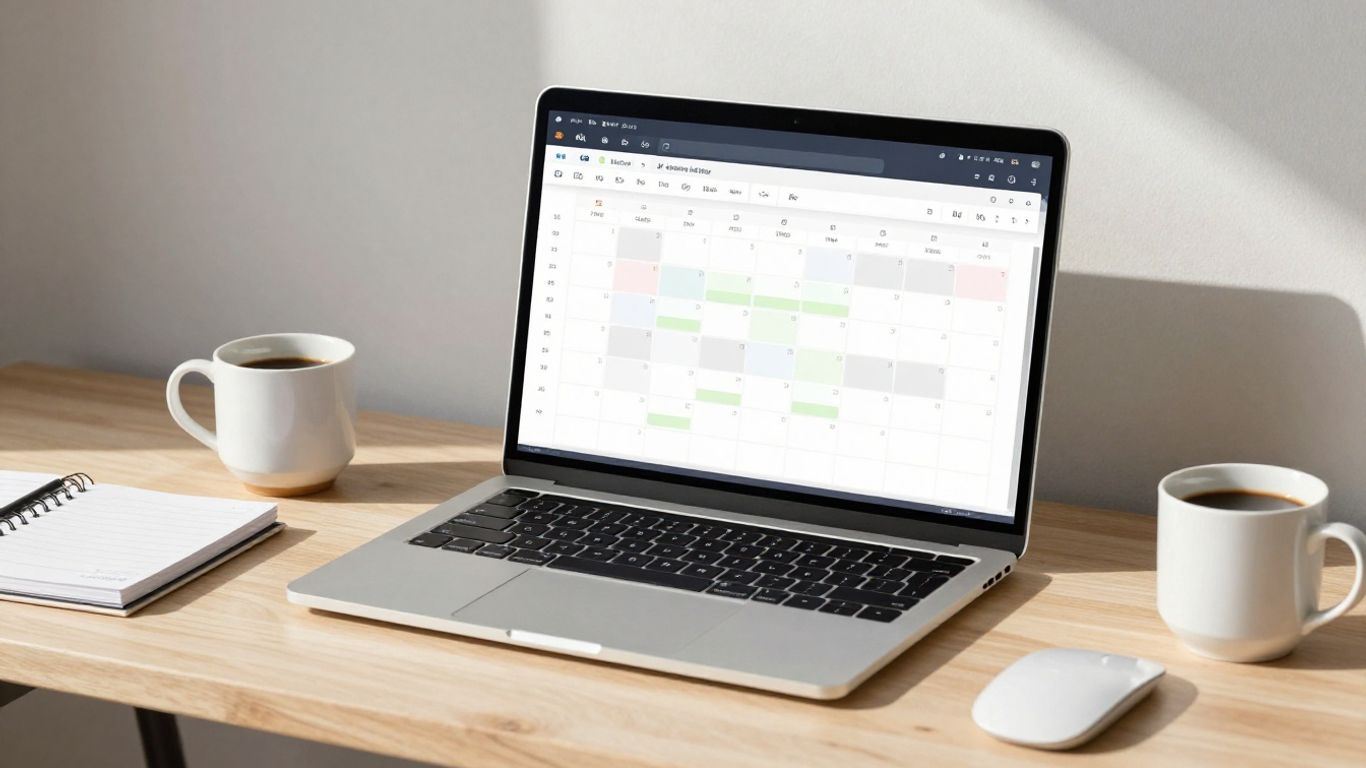
Time blocking is basically a way to take control of your day. Instead of just looking at a long list of things you should do, you actually assign specific chunks of time in your calendar to get them done. Think of it like scheduling appointments, but for everything on your plate – work tasks, personal errands, even breaks.
What is Time Blocking?
At its core, time blocking is about being intentional with your schedule. You divide your day into blocks, and each block has a purpose. So, instead of thinking, "I need to write that report," you’d block out "9:00 AM – 10:30 AM: Write Report Draft" in your Apple Calendar. It’s a proactive way to manage your time, making sure important things actually get the attention they deserve.
Benefits of Time Blocking for Productivity
Why bother with this? Well, it really helps you focus. When you know you only have a specific window to work on something, you tend to get more done. It cuts down on distractions because you’re not constantly switching gears. Plus, it gives you a clear picture of how your time is actually being spent, which can be pretty eye-opening. It helps you see where your time goes and if it aligns with what you want to be doing.
Here are a few key benefits:
- Improved Focus: Dedicated blocks mean fewer interruptions.
- Better Prioritization: You schedule what’s important first.
- Realistic Planning: You see how much you can actually fit into a day.
- Reduced Stress: Knowing what’s next takes away a lot of the guesswork.
Time blocking isn’t about filling every single minute of your day. It’s about making sure the time you do spend is purposeful and aligned with your goals, while also leaving room for the unexpected.
Time Blocking as an Alternative to To-Do Lists
To-do lists can be overwhelming. They just sit there, a constant reminder of everything you haven’t done. Time blocking takes that list and puts it into your actual schedule. Instead of a daunting list, you have a plan. It shifts the focus from just what needs to be done to when it will get done. This makes tasks feel more manageable and less like an endless chore. It’s a more active way to approach your responsibilities.
Setting Up Your Apple Calendar for Time Blocking
Alright, let’s get your Apple Calendar ready for some serious time blocking. This isn’t just about putting appointments in; it’s about structuring your entire day so you can actually get things done. Think of your calendar as your personal command center.
Creating Separate Calendars for Categories
First things first, let’s declutter. Instead of one giant list of everything, create different calendars for different areas of your life. This makes it way easier to see where your time is actually going. You could have one for "Work," another for "Personal," maybe one for "Fitness," and even "Family." It sounds like a lot, but it really helps.
- Work: All your professional tasks, meetings, and projects.
- Personal: Errands, appointments, social events.
- Health & Fitness: Gym sessions, runs, doctor’s visits.
- Learning/Hobbies: Time set aside for reading, courses, or practicing an instrument.
This separation is key to understanding your commitments and making sure you’re not over-scheduling one part of your life.
Utilizing Color-Coding for Visual Organization
Now that you have separate calendars, let’s make them pop. Apple Calendar lets you assign a color to each calendar. This is where the magic happens for visual organization. Assigning distinct colors to each category makes your schedule instantly scannable. For example, use blue for work, green for fitness, and orange for personal time. When you look at your calendar, you’ll see blocks of color, and you’ll know exactly what each block represents without even reading the text.
Here’s a quick way to think about it:
| Category | Suggested Color |
|---|---|
| Work | Blue |
| Personal | Orange |
| Fitness | Green |
| Family | Purple |
| Learning/Hobby | Yellow |
It might seem like a small detail, but seeing these colors helps your brain process your day much faster.
Leveraging Recurring Events for Routine Tasks
Some things you do every day or every week. Instead of manually adding them each time, use recurring events. This is a huge time-saver and helps build habits. Think about your morning routine, your daily workout, or even that weekly team meeting. Set them up once as recurring events, and Apple Calendar will handle the rest. This ensures that your routines are always accounted for in your schedule, making it easier to stick to them consistently.
Implementing Effective Time Blocking Strategies
Okay, so you’ve got your Apple Calendar set up, maybe with different colors for work and personal stuff. Now comes the part where you actually do the time blocking. It sounds simple, right? Just put stuff in the calendar. But there’s a bit more to it if you want it to actually work.
Manual Scheduling and Planning Your Day
This is where you become the architect of your own time. You’ll sit down, probably at the end of the day or first thing in the morning, and look at what needs to get done. Then, you’ll physically block out time in your Apple Calendar for each task. Think of it like drawing on a blank canvas. You’re not just listing tasks; you’re assigning them a specific spot on your timeline. This visual approach helps you see exactly where your day is going and if you’ve realistically allocated enough time for everything. It’s about being intentional with every hour.
Grouping Similar Tasks for Maximum Efficiency
Ever notice how switching between totally different tasks feels like your brain needs a reboot? That’s where grouping, or ‘task batching’ as some call it, comes in handy. Instead of jumping from answering emails to writing a report to making a phone call, you’d group all your email replies into one block, all your report writing into another, and so on. This way, your brain stays in a similar mode, which can really speed things up. It cuts down on that mental overhead and makes you feel more like you’re in a flow state. For example, you could dedicate an hour each morning to just clearing out your inbox, or set aside a block in the afternoon for all your calls. It’s a smart way to get more done without feeling like you’re constantly starting over.
Incorporating Buffer Times and Breaks
This is a big one, and honestly, something I used to skip all the time. You plan out your day perfectly, but then, surprise! A meeting runs over, a colleague needs urgent help, or your internet decides to take a nap. If you don’t have any wiggle room, your whole schedule can fall apart. That’s why buffer times are your best friend. These are short, unscheduled gaps you put between your time blocks. They’re not for doing more work; they’re for absorbing those unexpected delays. And don’t forget actual breaks! Stepping away from your screen, stretching, or grabbing a snack is vital. It prevents burnout and actually makes you more productive when you return to your work. Think of it as essential maintenance for your brain.
The key here is to treat your calendar not as a rigid prison, but as a flexible guide. Life happens, and your schedule should be able to bend a little without breaking. Building in these small pockets of time for the unexpected and for genuine rest is what makes time blocking sustainable in the long run.
Here’s a quick look at how you might structure a hypothetical afternoon:
| Time Block | Activity |
|---|---|
| 1:00 PM – 1:30 PM | Respond to urgent emails |
| 1:30 PM – 1:45 PM | Buffer / Quick break |
| 1:45 PM – 3:00 PM | Deep work: Project X report |
| 3:00 PM – 3:15 PM | Short walk / Hydrate |
| 3:15 PM – 4:00 PM | Client calls |
| 4:00 PM – 4:15 PM | Buffer / Prepare for next day |
| 4:15 PM – 4:45 PM | Review calendar and plan tomorrow’s blocks |
Advanced Apple Calendar Time Blocking Techniques
Alright, so you’ve got the basics of time blocking down with Apple Calendar. That’s awesome. But what if you want to take it up a notch? There are some neat tricks you can use to make your schedule even smarter and more efficient. It’s not just about putting blocks on your calendar; it’s about making those blocks work for you.
Integrating Apple Calendar with Reminders
This is a big one. Apple Calendar and Reminders are like best friends, and they can work together really well. You can actually have tasks from your Reminders app show up directly in your Calendar. This means you can see your to-dos right alongside your scheduled appointments, giving you a clearer picture of your whole day. To set this up, just go into your Calendar settings and make sure your Reminders lists are checked. This integration helps prevent tasks from falling through the cracks. It’s super handy for things you need to do but don’t necessarily need a specific hour for, like "pick up dry cleaning" or "reply to that email." You can even set due dates for your reminders, and they’ll pop up on the day they’re due in your calendar view.
Using Shortcuts for Streamlined Calendar Management
If you’re a bit tech-savvy, or even if you just like making things easier, the Shortcuts app is your new best friend. You can create custom shortcuts to automate repetitive calendar tasks. Think about things you do often, like scheduling a meeting with a specific group of people or adding a recurring workout. You can build a shortcut that does all of that with just a tap or a voice command. For example, you could make a shortcut called "Start My Workday" that automatically blocks out your focus time, adds your first meeting, and even sets a reminder to grab coffee. It really cuts down on the manual clicking and typing, saving you precious minutes throughout the week. It’s a great way to make your calendar work for you, not the other way around.
Exploring AI Scheduling Assistants
Now, for the really advanced stuff. AI scheduling assistants are starting to get pretty smart. While Apple Calendar doesn’t have a built-in AI scheduler like some other apps, you can integrate third-party tools. These assistants can look at your calendar, understand your preferences, and even suggest optimal times for meetings or tasks. Some can even handle the back-and-forth of finding a meeting time with other people. It’s like having a personal assistant who knows your schedule inside and out. While this might be overkill for some, if you have a packed schedule with lots of back-and-forth, it could be a game-changer. It takes the mental load off trying to find the perfect slot for everything.
Time blocking is more than just putting events on a calendar; it’s about intentionally designing your day to align with your priorities. By using these advanced techniques, you’re not just managing time, you’re mastering it, creating a more focused and productive existence.
Maximizing Productivity with Time Blocking
So, you’ve got your Apple Calendar set up, colors are assigned, and you’re ready to block out your time. That’s awesome! But how do you actually make this thing work to get more done without feeling totally overwhelmed? It’s all about being smart with how you use those blocks.
Achieving Deep Work Through Focused Time Blocks
This is where the magic happens. Deep work means focusing on one task without any distractions. Think of it like putting on blinders for a set period. When you block out an hour or two specifically for a complex project, you’re telling your brain, "Okay, this is it. No email, no social media, just this one thing." It’s tough at first, especially if you’re used to jumping between tasks. But the payoff is huge. You’ll get more done, and the quality of your work will probably be better too.
- Identify your most demanding tasks: What requires the most brainpower?
- Schedule these during your peak energy times: Are you a morning person or a night owl?
- Communicate your focus time: Let colleagues know you’re unavailable.
The key is to treat these deep work blocks like important appointments. You wouldn’t skip a meeting with your boss, right? Give your focused work that same respect.
Balancing Work and Personal Life with Time Blocking
Time blocking isn’t just for your job. It’s a fantastic tool for making sure you actually have a personal life. If you don’t schedule time for things like exercise, hobbies, or just relaxing, they tend to get pushed aside. By creating specific blocks for these activities, you’re giving them the same importance as a work meeting.
Here’s a simple way to think about it:
- Block out work hours first: This is your non-negotiable foundation.
- Schedule personal essentials: Gym, family dinner, reading time – put them in.
- Add buffer time: Life happens! Don’t pack every minute.
It might feel a bit weird at first, putting "Read a book" or "Go for a walk" into your calendar. But trust me, seeing those blocks there makes you more likely to actually do them. It helps you see where your time is going and ensures you’re not just living at work.
Preventing Burnout Through Structured Scheduling
Burnout is a real thing, and it sneaks up on you. One of the biggest reasons people burn out is feeling like they’re constantly on the go with no breaks. Time blocking can help prevent this by building in downtime. You need to schedule breaks just like you schedule tasks.
Consider these points:
- Short breaks between tasks: Even 5-10 minutes to stretch or grab water can make a difference.
- Longer breaks for meals: Don’t eat at your desk if you can help it. Step away.
- Scheduled downtime: This could be an evening off, a weekend trip, or just an hour to do nothing.
The goal is to create a sustainable rhythm, not a frantic sprint. If you’re constantly running on empty, your productivity will eventually tank, and you’ll feel miserable. Structured scheduling with built-in rest is the antidote.
Reviewing and Refining Your Time Blocking System
So, you’ve been blocking out your time in Apple Calendar for a bit now. That’s awesome! But here’s the thing: setting it up is just the first step. To really make it work for you, you’ve got to check in and tweak things now and then. It’s not a ‘set it and forget it’ kind of deal, you know?
Assessing Adherence to Your Time-Blocking Strategy
First off, let’s be real. How well have you actually stuck to the plan? It’s easy to look at your calendar and see all those blocks, but did you actually do the things you scheduled? Take a look back at your week. Were there a lot of blocks you skipped or moved around constantly? Don’t beat yourself up if it wasn’t perfect. Life happens! The goal here is to see where the friction points are.
- Track your completion rate: For a week, maybe jot down if you completed a block as planned. A simple checkmark or an ‘X’ will do.
- Note down deviations: When you didn’t stick to a block, why was that? Was it an unexpected meeting, a task that took way longer than you thought, or just a lack of focus?
- Identify patterns: Are you consistently skipping your morning focus block? Or maybe your afternoon ‘admin’ time always gets eaten up by urgent requests?
This isn’t about judgment; it’s about gathering data. Think of it like a scientist observing an experiment. You’re observing your own workflow to understand what’s really going on.
Identifying Areas for Improvement
Once you know where you’re falling short, you can start figuring out why. Maybe your blocks are too ambitious. For example, scheduling a two-hour deep work session when you know you can only focus for 45 minutes is just setting yourself up for disappointment. Or perhaps the tasks themselves are the issue. Are you dreading a particular type of work? That might be a sign you need to break it down further or find ways to make it more engaging.
Here are some common problem areas:
- Over-scheduling: Trying to cram too much into one day. This often leads to feeling rushed and incomplete.
- Underestimating task duration: Tasks consistently taking longer than planned. This throws off the rest of your day.
- Ignoring energy levels: Scheduling demanding tasks when you know you’re usually tired.
- Lack of buffer time: Not leaving space for unexpected interruptions or tasks that run over.
Continuously Enhancing Productivity
Now for the fun part: making it better! Based on your review, you can start making adjustments. This might mean:
- Adjusting block lengths: If a block is consistently too short, make it longer. If it’s too long and you’re always finishing early, shorten it to create more flexibility.
- Reordering blocks: Maybe your ‘deep work’ block would be better placed in the afternoon when you have more energy.
- Grouping tasks differently: Perhaps batching similar tasks isn’t working, and you need to intersperse them to keep things fresh.
- Adding more breaks: If you’re feeling drained, you might need more frequent, shorter breaks, or longer ones.
The key is to treat your Apple Calendar time blocks not as rigid rules, but as flexible guidelines. They should serve you, not the other way around. Regularly checking in, even just for 15 minutes at the end of each week, can make a huge difference in how effective your time blocking becomes over time.
Wrapping It Up
So, there you have it. We’ve gone through how to set up and use Apple Calendar for time blocking, turning that chaotic to-do list into a manageable plan. It’s not always going to be perfect, and that’s okay. Life happens, right? The main thing is to keep tweaking it, see what works for you, and don’t be afraid to adjust your blocks when needed. Give it a shot, and you might just find yourself feeling a lot more in control of your day. Happy scheduling!
Frequently Asked Questions
What exactly is time blocking?
Time blocking is like drawing a schedule for your day. Instead of just having a list of things to do, you actually set aside specific times for each task. Think of it as giving each activity its own little box on your calendar.
Why is time blocking better than a regular to-do list?
A to-do list can feel overwhelming, and it’s easy to jump between tasks. Time blocking helps you focus on one thing at a time by dedicating a specific chunk of your day to it. This makes it easier to actually finish what you start and get more done.
How can I make Apple Calendar work for time blocking?
You can use Apple Calendar by creating different calendars for different parts of your life, like school, chores, or fun activities. Then, use colors to make them easy to spot. You can even set up events that happen over and over, like homework time, to repeat automatically.
Should I schedule breaks when time blocking?
Absolutely! It’s super important to include breaks. Scheduling short breaks between your tasks helps you avoid getting tired and makes sure you can keep going without feeling burned out. It’s like giving yourself little rests to recharge.
What if I can’t stick to my schedule?
It’s okay if things don’t go exactly as planned! The goal is to get better over time. Look at your calendar at the end of the day or week and see what worked and what didn’t. Then, you can adjust your schedule to make it fit your life better.
Can time blocking help with schoolwork?
Yes, definitely! You can block out time for studying, working on projects, attending classes, and even for relaxing. This helps you manage your school tasks better, avoid last-minute cramming, and make sure you have time for everything.




