

Ever sit down to edit a manuscript and feel the words blur together, the clock ticking, and your brain screaming for a break? You’re not alone. Many of us—students polishing a thesis, freelancers revising a client’s ebook, remote workers juggling multiple drafts—hit that wall where focus fizzles just as the deadline looms.
What if you could slice that daunting editing marathon into bite‑size, laser‑focused bursts, then reward yourself with a short, refreshing pause? That’s the magic of the pomodoro timer for editing manuscripts efficiently. By committing to, say, 25‑minute sprints, you train your mind to stay on task, and the inevitable breaks keep fatigue at bay.
In our experience at Focus Keeper, writers who pair a pomodoro timer with a clear outline see a 30‑40% boost in words revised per hour. One freelance author told us they went from stumbling through a 20,000‑word novel to polishing three chapters in a single afternoon, simply by structuring their work into timed intervals.
Here’s a quick way to get started:
- Pick a manageable chunk—maybe a single scene or a set of footnotes.
- Set your timer for 25 minutes (adjust if you prefer longer or shorter bursts).
- Work nonstop until the timer dings. No email checks, no social media, just editing.
- Take a 5‑minute break: stretch, grab a drink, jot a quick note about what you’ll tackle next.
Repeat this cycle four times, then treat yourself to a longer 15‑minute break. The rhythm not only shields you from burnout but also creates a natural cadence for tracking progress. Over time, you’ll notice patterns—maybe you edit faster in the mornings or need a longer break after a particularly dense chapter.
Want a tool that does the counting for you and even logs how many pomodoros you spent on each manuscript section? Master Your Productivity: The Best Focus Timer App for 2026 breaks down your sessions, offers cross‑platform sync, and lets you review detailed reports so you can see exactly where your time went.
So, next time you open that manuscript, remember: the goal isn’t to power through endlessly, but to edit smarter, not harder. Grab a timer, set your intention, and watch the words fall into place—one focused pomodoro at a time.
TL;DR
If you’re drowning in endless edits, a pomodoro timer for editing manuscripts efficiently turns chaos into bite‑size sprints, letting you focus, pause, and keep momentum alive.
Try a 25‑minute work block, a short break, then repeat; you’ll see faster revisions, less fatigue, and steady progress on any manuscript today consistently.
Step 1: Set Up Your Workspace for Pomodoro Editing
Before you even hit start on the timer, take a moment to look around your desk. Is there a mug you actually enjoy drinking from, or is it a pile of mismatched cups that just adds visual noise? A tidy, pleasant surface does more than look nice—it signals to your brain that this is a dedicated zone for focused work.
First thing’s first: clear away anything that isn’t directly related to the manuscript you’re about to edit. That means closing unrelated browser tabs, muting non‑essential notifications, and putting your phone on “Do Not Disturb.” If you’re a student, that could be a quick swipe of Discord; if you’re a freelancer, maybe a brief pause on Slack. The goal is to create a minimal‑distraction sandbox where the pomodoro timer can do its magic.
Next, gather the tools you’ll need for the session. Grab a printed copy of the chapter (if you prefer annotating on paper), open your editing software, and keep a sticky note or digital task list handy. For remote workers, having a quick access link to your cloud storage (Google Drive, OneDrive) saved on the desktop saves a few precious seconds each cycle.
Now, set up the timer itself. If you’re using Focus Keeper’s web or mobile app, open it and choose a 25‑minute interval—adjust up or down if you know your attention span better. Many editors find that a slightly longer 30‑minute block works well for dense technical sections, while a 20‑minute sprint feels just right for creative prose.
Here’s a quick checklist you can paste into a note:
- Clear desk of unrelated items
- Close extra tabs and mute notifications
- Open manuscript file and any reference material
- Launch Focus Keeper timer (or any pomodoro app you trust)
Does that feel like a lot? It’s actually a tiny ritual that trains your brain to associate a clean space with deep work. Over time, you’ll notice the simple act of tidying up becomes a cue that you’re about to enter a high‑focus state.
And don’t forget ergonomics. Adjust your chair so your feet rest flat, screen at eye level, and lighting that’s bright enough to keep you alert but not harsh. A comfortable posture prevents the “I’m getting a backache” excuse that often derails a pomodoro cycle.
Once everything’s in place, take a breath. Look at the manuscript title, remind yourself of the specific goal for this sprint—maybe it’s “tighten dialogue in Chapter 3” or “fix footnote citations in Section 2.” A clear intention makes the timer feel less like a random alarm and more like a supportive coach.
Ready to start? Hit the start button and dive in. You’ll be surprised how quickly you slip into a flow state when the environment is primed for focus.
Need a visual reminder of how a well‑set‑up workspace looks? Check out this short video that walks through a typical editing station, from lighting to layout.
After the video, you might wonder what a real‑world example looks like. Imagine a freelance writer juggling a client’s e‑book and a personal novel. By arranging a dual‑monitor setup—one screen for the manuscript, the other for reference links—they can switch focus without breaking the pomodoro rhythm.
Finally, give yourself a tiny reward at the end of each block: a stretch, a sip of tea, or a quick glance at a favorite inspirational quote. Those micro‑breaks keep the momentum alive and make the next timer feel like a fresh start rather than a continuation of fatigue.
With your workspace primed, you’ve laid the foundation for a pomodoro timer for editing manuscripts efficiently. The next step is all about structuring the actual editing tasks—stay tuned.

Step 2: Choose the Right Pomodoro Timer App
Now that your desk is set, the next question is: which pomodoro timer for editing manuscripts efficiently actually fits your workflow?
There isn’t a one‑size‑fits‑all answer—students, remote workers, freelancers, and busy professionals each have a slightly different sweet spot. Think about the device you spend the most time on. Do you bounce between a laptop and a phone? Do you need a desktop widget, a Chrome extension, or a mobile app that syncs across platforms?
Start with the basics: timer flexibility
At the heart of any good pomodoro timer is the ability to tweak work‑session and break lengths. If you find 25 minutes too short for a dense chapter, you should be able to stretch it to 35 or 40 minutes without losing the short‑break rhythm. The same goes for longer breaks after four cycles—some writers love a 20‑minute stretch to sip coffee and reread notes.
Most free tools let you adjust these settings, but a few premium options add automatic logging, so you can glance at how many pomodoros you’ve spent on each manuscript section.
Feature set that matters for editors
When you’re polishing a manuscript, you want to see a quick snapshot of where you are. Look for apps that let you tag a session with a chapter name, a footnote batch, or a style‑check pass. Some timers even let you export a CSV of pomodoro counts, which can be useful when you need to report progress to a client or supervisor.
For example, the best pomodoro timer apps roundup highlights a few solutions that include built‑in task tagging and reporting. Those features save you from opening a separate spreadsheet during a break.
Cross‑platform sync for multitaskers
If you switch between a Mac at home, a Windows laptop at the office, and a phone on the go, you’ll appreciate a timer that lives in the cloud. Sync means you can start a pomodoro on your phone during a commute, pause it, then pick it up on your desktop without losing any data.
Many writers swear by apps that push notifications to every device, so the timer never slips through the cracks. A seamless sync also means your break‑music playlist stays consistent, no matter where you are.
Distraction‑blocking extras
Some pomodoro tools double as site blockers, greying out social media or email tabs while the timer runs. That can be a lifesaver when you’re editing a complex argument and a notification pops up. If you’re a freelancer juggling several client drafts, a blocker that lets you whitelist a reference site can keep the flow going without a full‑stop.
The CNET piece on “simple timer technique” notes that many users pair a pomodoro timer with browser extensions that mute distracting sites, turning the timer into a tiny focus shield (read more).
Ease of onboarding
Don’t let a fancy onboarding wizard scare you away. The best timer feels like a friendly sidekick—launch it, hit “Start,” and you’re good to go. A clean interface means you won’t waste precious editing minutes hunting for the right button.
If you’re a student pulling an all‑night study session, a minimalist design helps you stay in the zone. If you’re a remote worker with a long to‑do list, a quick‑setup dashboard lets you drop a new manuscript chapter into the queue in seconds.
Free vs. paid: where to draw the line
Most solid pomodoro timers offer a free tier that covers basic timing and simple task notes. You only need to upgrade if you crave advanced analytics, team sharing, or premium support. For a solo editor, the free version of a reputable app is usually enough.
That said, a modest annual subscription can be worth it if you track billable hours and need detailed reports for invoicing. Just make sure the cost aligns with the value you actually use.
Quick decision checklist
- Can you customize session lengths for longer editing sprints?
- Does the app let you tag or label pomodoros by manuscript section?
- Is there seamless sync across your Mac, Windows, and mobile devices?
- Does it include a built‑in distraction blocker or whitelist?
- Is the UI simple enough that you can start a timer in under 30 seconds?
Run through this list, pick the first app that ticks most boxes, and give it a test run of two full cycles. If it feels natural, you’ve found your match. If not, try the next candidate—there’s no penalty for experimenting, and the right timer can shave minutes off every editing sprint.
Remember, the timer is a tool, not a tyrant. Adjust the settings, experiment with tags, and let the app serve your manuscript‑editing rhythm. When the pomodoro timer for editing manuscripts efficiently becomes an extension of your workflow, you’ll notice the pages moving faster, the fatigue fading sooner, and the satisfaction of finishing a chapter feeling genuinely earned.
Step 3: Customize Pomodoro Intervals for Manuscript Editing
Now that your desk is primed and you’ve chosen a timer, the next puzzle is figuring out how long each sprint should be. Does a one‑size‑fits‑all 25‑minute block really work for every chapter, footnote, or style‑check?
In our experience at Focus Keeper, the sweet spot often shifts depending on the type of editing you’re doing. A dense academic chapter may need a 40‑minute focus burst, while a quick typo sweep can be wrapped up in 15 minutes.
Start with a baseline, then tweak
Begin with the classic 25‑minute work, 5‑minute break pattern. After a couple of cycles, ask yourself: “Did I feel rushed? Did I have mental wiggle room?” If the answer leans toward rushed, bump the work interval up by five minutes and keep the break the same.
Conversely, if you find yourself drifting halfway through, shave five minutes off the work slot and extend the break just a touch. The goal is to land on a rhythm where you finish a paragraph or a logical chunk just as the timer pings.
Tag each pomodoro by manuscript section
One of the hidden powers of a customizable pomodoro tool is the ability to label each interval. When you start a session, tag it “Intro Draft”, “Literature Review”, or “Reference Formatting”. Later you’ll see a clear map of how many minutes you spent on each part.
That visual ledger is a game‑changer for freelancers who need to bill hours or students who must prove progress to a supervisor. Even if you’re editing a novel, tags like “Dialogue Polish” or “Scene Transition” let you spot patterns – maybe you edit dialogue faster in the evenings.
Adjust break length for mental reset
Short breaks aren’t just a coffee excuse; they’re a neuro‑reset. If you’re tackling a particularly heavy chapter, try a 7‑minute stretch break instead of five. Use the extra two minutes to stand, stretch your back, and glance at your outline.
For lighter tasks, a 3‑minute micro‑break—maybe a quick glance at a sticky note—keeps momentum without pulling you out of flow. The key is to experiment and note how you feel after each break.
Does a longer break after four cycles help you recharge, or does it break your concentration? Some editors swear by a 20‑minute “big break” to sip tea and reread the last edited page. Others prefer a straight‑through sprint of six pomodoros before a longer pause. Try both and see which leaves you less fatigued.
Use the timer’s “auto‑adjust” feature (if you have it)
Focus Keeper lets you set a rule: after three consecutive pomodoros where you hit the “complete” checkbox, automatically extend the next work interval by five minutes. It’s a subtle way to let your brain dictate the pace.
If your app doesn’t have that automation, you can manually copy the previous interval length and add a few minutes. The habit of reflecting on each cycle builds a feedback loop that sharpens your self‑awareness.
And what about the dreaded “I’m stuck on this sentence” moment? When you notice the timer winding down but the sentence still feels unfinished, pause the pomodoro, jot a quick note, and switch to a 5‑minute “idea dump” timer. You’ll return to the original block with a fresh angle.
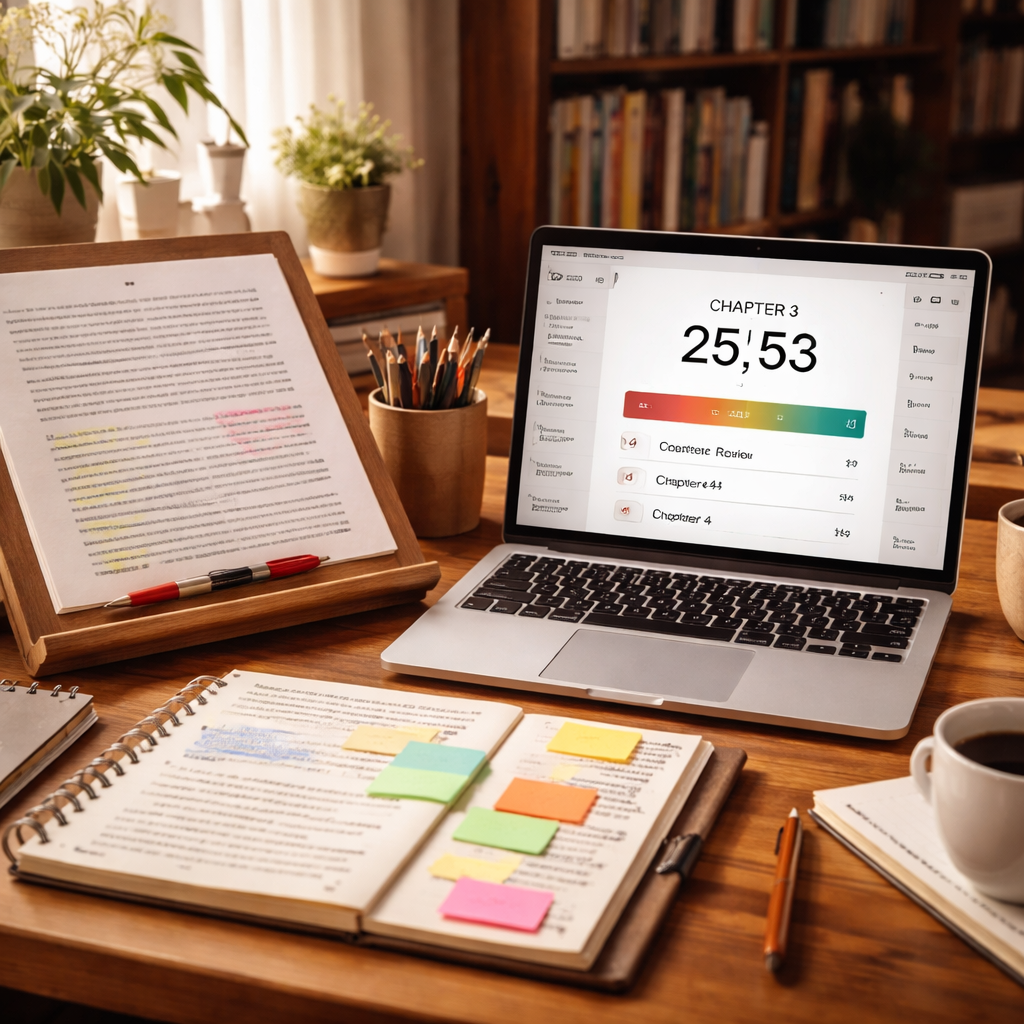
Finally, record your adjustments. A simple spreadsheet or the built‑in log in Focus Keeper can capture work length, break length, and tag. After a week, look for trends: maybe you consistently need 35‑minute sprints for research‑heavy sections, or you discover that 10‑minute breaks keep your eye strain at bay.
Seeing those numbers on screen turns guesswork into data‑driven editing. It also gives you concrete evidence to share with a supervisor or client: “I spent 4.5 hours on Chapter 5, broken into eight focused pomodoros.”
Step 4: Implement Break Strategies to Boost Creativity
Let’s be honest: breaks feel counterintuitive when you’re chasing momentum. But breaks done right are how you stay creative longer. With a pomodoro timer for editing manuscripts efficiently, you’re not pausing to waste time; you’re pausing to reset focus and catch fresh angles.
Why breaks matter? They give your brain a moment to consolidate what you’ve just edited, prevent fatigue from stealing your voice, and reduce errors that creep in when you push too hard.
Different break lengths for different editing tasks
Dense chapters and footnotes might benefit from longer resets. Try 15-minute breaks after four cycles; for lighter polishing, 5-minute micro-breaks can keep your eyes fresh.
Micro-breaks and idea dumps when you’re stuck
If you’re stuck on a sentence, pause, jot a quick note, and switch to a 5-minute idea dump timer. You’ll return to the block with a fresh angle.
Does that really work? It lets your mind wander just enough to spark a breakthrough without losing the editing thread.
Let automation do the heavy lifting
In Focus Keeper you can set a rule: after three consecutive pomodoros where you hit complete, automatically extend the next work interval by five minutes. It sounds small, but it changes the rhythm when you have a tough paragraph.
That extra minute or two can be the difference between grinding through a page and finding a better transition you wouldn’t have seen otherwise.
Tagging sessions by manuscript section
Label each session with the part you worked on, like Intro Draft or Reference Formatting. That adds a quick map of where your time went and helps with billing or supervision.
And yes, you can chain this with your break strategy. When you glance back at the log, you’ll notice which sections benefit from longer breaks and which ones squeeze out a clean paragraph in a short sprint.
Habit building and logging
Finally, record your adjustments. A simple spreadsheet or the built-in log in Focus Keeper can capture work length, break length, and tag. After a week, look for trends. Maybe you consistently need 35-minute sprints for research heavy sections, or you discover that 10-minute breaks keep eye strain at bay.
Start small, iterate, and trust the data. In 2026, more editors are adopting this flexible rhythm to protect stamina and keep voices strong.
Quick-start plan
- Begin with four cycles of 25 minutes on, 5 minutes off.
- After the fourth cycle, take a longer 15-minute break and revisit notes before the next block.
- If a paragraph stalls, switch to a 5-minute idea dump during the break to reset your thinking.
- Use tagging to map time by manuscript section and review the pattern at the end of the week.
| Feature | Option / Tool | Notes |
|---|---|---|
| Short breaks | 5 minutes | Maintain momentum for quick edits |
| Longer breaks | 15 minutes | After four cycles for dense material |
| Auto-adjust | Focus Keeper rule | Extend next work interval after three completed pomodoros |
| Idea dumps | 5-minute dumps | Unblock stuck sentences with fresh angles |
Step 5: Track Progress and Refine Your Workflow
Let’s get real: tracking progress isn’t glamorous, but it’s the engine behind steady improvement. If you want to edit smarter, you need data you can act on, not vibes. So, what should you actually track, and how do you turn it into a better rhythm?
Here’s the practical approach: log every pomodoro cycle, not just the final result. That means capturing what you worked on, for how long, and what changes you made. This isn’t about micromanaging your day—it’s about surfacing patterns you can lean into or adjust.
Want to know where to start? Start with the basics and then layer in nuance as you go. Think of this like a tiny diary for your editing sessions, with concrete clues about what speeds you up and what slows you down.
Capture the basics of each session
Record a few core fields: date, manuscript section, session length (the sprint), break length, and a quick note on what you accomplished (e.g., polished a paragraph, fixed a transition, reworked a citation). This isn’t a novel-length journal—just enough to reveal trends over time.
If you’re using Focus Keeper, you can keep these fields neatly in the built‑in log. Don’t overengineer it: simplicity helps you actually keep the habit.
Build a simple log you’ll actually keep
Start with a one-page weekly log. It can be a spreadsheet or your preferred note app. Suggested columns: Date, Chapter/Section, Sprint Length, Break Length, Key Takeaway, Next Target. Add a quick rating (e.g., difficulty: easy, moderate, hard) to flag challenges at a glance.
You’ll be surprised how quickly patterns appear. For example, maybe you consistently stall on transitional sentences after a dense section. Recognizing that gives you a targeted tweak, not a global overhaul.
Weekly review ritual that sticks
Set a fixed time—Friday afternoon or Sunday evening—just to skim the week’s entries. Look for two or three patterns: which sections take longer, which breaks felt restorative, when you hit a wall, and when you breezed through a chunk. And yes, you should ask yourself: did I drift into distractions, or did I hit a wall in thinking?
Ask yourself: what changes could I test next week that would move the needle? The goal isn’t perfection; it’s a few deliberate shifts that compound over time.
Turn insights into changes you can feel
Turn data into action with tiny, trackable experiments. Examples: lengthen the work interval by five minutes for a stubborn paragraph; shorten the break after a dense section; add a 5‑minute idea-dump mid‑block when stuck. Tag each session by manuscript part so you can see where adjustments pay off.
If your tool supports automation, consider rules like: after three consecutive pomodoros, subtly adjust the next interval length. Small nudges add up to bigger momentum without jolting your workflow.
A practical example you can actually use
Imagine you finish four cycles and notice a spike in fatigue during Chapter 6 transitions. You test a 30‑minute work sprint and a 10‑minute break for that chapter. The next week, you see smoother transitions and fewer stalled sentences. It’s not magic; it’s data-guided tweaking.
So, what’s your plan for the coming week? Pick one measurable change to test, start tracking, and compare the results to last week’s logs. The momentum you gain will surprise you.
Your action plan for this week
- Set aside a 20–30 minute block to design your simple weekly log (date, section, sprint, break, takeaway).
- Track at least four pomodoros this week and record a quick note after each one.
- Schedule a 15–20 minute weekly review to spot two patterns and one actionable change.
- Test one small adjustment in the next week and measure the impact on flow and accuracy.
Focus Keeper makes this easier by giving you a central place to log intervals and tags. Use it to underline patterns, then tune your rhythm accordingly. Small, deliberate steps, big gains over time.
Bonus: Common Pitfalls and How to Avoid Them
We’ve all been there – you set a pomodoro timer for editing manuscripts efficiently, the alarm rings, and you feel like you’ve barely scratched the surface. So, what usually trips us up?
1. Treating the timer as a magic wand
It’s easy to think the timer alone will solve burnout. In reality, if you push through a sprint while your brain is already foggy, the timer just marks another wasted minute. Before you start, do a quick check‑in: “Am I focused enough to dive in?” If not, grab a coffee or stretch, then hit start.
2. Skipping the break reset
Many editors treat the five‑minute break like a “quick scroll” on their phone. That micro‑distraction can bleed back into the next sprint, leaving you half‑in‑zone. Use the break to physically move – stand, look out a window, or jot a one‑line note. Your next pomodoro will feel fresher.
3. Forgetting to tag or log sessions
Without a tag, you’ll never know which chapter ate up three pomodoros versus a five‑minute polish. A simple label like “Chapter 2 – dialogue edit” lets you spot patterns in the weekly review. If you’re already using Focus Keeper, the built‑in log makes this a two‑click habit.
4. Setting the same interval for every task
Not every editing task is created equal. A dense research‑heavy section might need a 40‑minute burst, while a quick typo sweep is fine in 15 minutes. Experiment with lengths and note how your energy holds up. Adjust the timer, don’t force the task to fit the timer.
5. Multitasking inside a pomodoro
Checking email or scrolling a reference list mid‑sprint fragments attention. If you need a quick fact, pause the timer, capture the info, then resume. This keeps the “focus” part of the pomodoro truly focused.
Quick checklist to keep you on track:
- Do a 30‑second focus check before each start.
- Use a physical activity during breaks.
- Label every session with chapter or task.
- Match interval length to task complexity.
- Pause, don’t multitask, when a distraction pops up.
By watching out for these common slips, you’ll turn the pomodoro timer for editing manuscripts efficiently from a gimmick into a reliable ally. Ready to fine‑tune your rhythm?
Conclusion
We’ve covered the whole journey—from setting up a distraction‑free workspace to choosing the right timer, tweaking intervals, and logging every sprint.
The big takeaway? Treat the pomodoro timer for editing manuscripts efficiently as a flexible rhythm, not a rigid rule. Start with a 25‑minute burst, label the session, and notice how the break resets your brain.
If a chapter feels dense, extend the work slot by five minutes; if you’re breezing through a typo sweep, shrink it. The key is to match the interval to the task, not the other way around.
Tracking matters, too. A quick note of “Chapter 3 – dialogue polish, 30 min” lets you spot patterns weeks later and prove progress to clients or supervisors.
And remember, the timer is a tool, not a tyrant. Pause when a distraction pops, jot a quick idea, then jump back in.
In our experience at Focus Keeper, users who consistently tag and review their pomodoros see fewer fatigue spikes and a steadier word‑per‑hour rate.
So, what’s the next step? Fire up your pomodoro timer, set a clear label for the section you’ll tackle, and commit to one full cycle today.
When the alarm rings, celebrate the small win, stretch, and let the momentum carry you into the next sprint. You’ve got the rhythm—now edit with confidence.
FAQ
What is a pomodoro timer for editing manuscripts efficiently?
It’s a simple timer that breaks your editing work into focused bursts—usually 25 minutes—followed by short breaks. The idea is to give your brain a clear start‑stop cue so you stay in the zone without drifting to email or social media. When you label each burst with the chapter or task you’re tackling, you also get a quick log of where your time went, which helps you spot patterns later.
How long should each pomodoro be when I’m polishing a novel?
Start with the classic 25‑minute slot, then watch how you feel. If you’re deep in dialogue and the timer pings before you finish the scene, add five minutes to the next round. Conversely, if you’re just fixing typos, a 15‑minute sprint can be enough. The sweet spot often shifts by genre: dense academic sections may need 35‑minute bursts, while a light proofread fits into a shorter interval.
Can I use the pomodoro technique on a Mac, Windows, or phone?
Absolutely. The method isn’t tied to any one platform; you just need a timer that lets you tag each session. Many editors prefer a desktop app that sits on the taskbar, but a phone app works just as well when you’re on the go. The key is that the tool syncs your logs so you can review them later, no matter which device you used.
What’s the best way to tag my pomodoros so I can track progress?
Keep the label short and specific—think “Chapter 4 dialogue” or “Footnote cleanup.” When you finish the sprint, add a one‑line note about what you accomplished. Over a week you’ll see a pattern: maybe you edit faster in the mornings or need a longer break after a heavy research chapter. Those insights let you tweak intervals without guessing.
How do breaks actually help my editing stamina?
During a break you give your brain a chance to consolidate what you just edited, which reduces errors later. A good break is physical: stand, stretch, look away from the screen for a minute. Even a quick walk to the kitchen resets your focus. If you keep scrolling on your phone, the “break” becomes another distraction and the next pomodoro feels stale.
Should I log every single pomodoro or just the ones that feel important?
Log every sprint if you can—it only takes a second after the timer stops. The habit of capturing date, section, and a tiny outcome builds a reliable data set you can review weekly. If you skip entries, you lose the chance to see which chapters consistently take longer and where you might need to adjust interval lengths.
What if I get stuck on a sentence right before the timer ends?
Pause the timer, jot a quick “idea dump” note, and switch to a short 5‑minute brainstorm timer. That way you don’t force a forced finish, and you return to the original pomodoro with a fresh angle. After the break, restart the main timer and see if the new note helps you move forward without losing momentum.




