
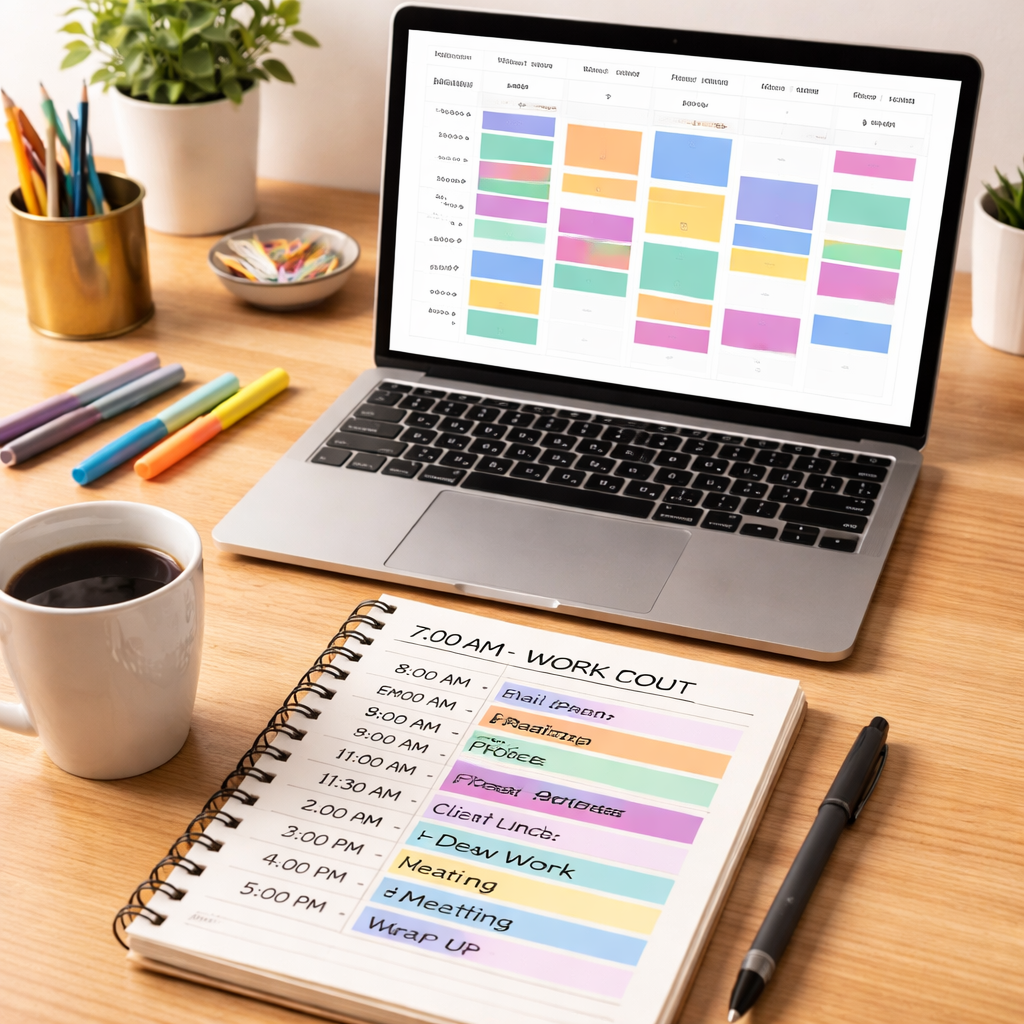
Ever stared at a blinking cursor, feeling the minutes melt away while your to‑do list keeps growing?
We’ve all been there – the coffee’s gone cold, the email ping keeps echoing, and the afternoon slump creeps in just when you need focus the most.
That uneasy feeling is what we call the productivity gap, and the good news is it isn’t set in stone. A handful of simple productivity hacks can shrink that gap and turn chaos into clear, steady progress.
Think about the last time you tried to power through a study session or a client call without any structure. Did you end up scrolling, rereading the same paragraph, or wondering where the hour disappeared? It’s a signal that your brain craves rhythm.
One of the most effective rhythms is the Pomodoro Technique – 25 minutes of deep work followed by a short break. In our experience, pairing that rhythm with a dedicated focus timer helps students lock in study blocks, remote workers keep meetings on track, freelancers juggle multiple projects, and busy professionals protect their calendar from endless interruptions.
But a timer alone isn’t a magic wand. Pair it with a few other hacks: set a single, specific goal for each interval, eliminate visual clutter by closing extra tabs, and use a quick “brain dump” at the start of the day to get all loose thoughts onto paper.
Here’s a quick mental checklist you can try right now: (1) Choose one priority task, (2) Set a 25‑minute timer, (3) Work until the timer dings, (4) Take a 5‑minute stretch or sip of water, (5) Note what you accomplished, then repeat.
Notice how the tiny break feels like a reset button? That micro‑reward fuels dopamine, making it easier to start the next round without the dreaded inertia.
If you’re wondering whether this works for a team setting, picture a remote squad each logging their Pomodoro sessions. The collective analytics reveal where bottlenecks happen, allowing you to tweak meeting times or reallocate resources.
So, what’s the next step? Grab a simple timer, pick a task, and give the 25‑minute sprint a try. You’ll be surprised how quickly the momentum builds, and the rest of the day will start to feel a lot more manageable.
TL;DR
These quick productivity hacks—like a 25‑minute focus timer, a single‑task sprint, and a micro‑break reset—turn scattered effort into steady progress for students, remote workers, freelancers, and busy pros.
Try it now: set a timer, pick one priority, work focused, then pause—watch momentum build and your day finally feel manageable.
Hack #1 – Time Blocking for Laser‑Focused Work Sessions
Ever feel like your day is a jumbled playlist of emails, meetings, and random tasks that never quite line up?
That uneasy feeling is the exact reason we love time blocking – it forces your calendar to work for you, not the other way around.
Think of it as carving out little islands of focus in an ocean of distraction. Each island has a clear purpose, so when you step onto it you know exactly what to do.
Here’s a quick way to start, no matter if you’re a student cramming for exams, a remote worker juggling Slack pings, a freelancer juggling clients, or a busy professional with back‑to‑back meetings.
Step 1: List, Prioritize, and Chunk
Grab a notebook or open your favorite task manager and write down everything you need to tackle this week. Then, use the Eisenhower Matrix – urgent vs. important – to spot the real priorities.
Once you have your top three goals, assign each a dedicated time block. For example, “Write research draft” from 9 am‑11 am, “Client invoicing” from 2‑3 pm, and “Deep‑work reading” from 4‑5 pm.
Notice how the tasks suddenly feel manageable? That’s the magic of turning an open‑ended to‑do list into concrete calendar slots.
Step 2: Guard Your Blocks
When the clock hits the start of a block, close extra tabs, mute notifications, and set a Pomodoro timer – the same 25‑minute rhythm we swear by at Focus Keeper.
Tell teammates, “I’m in a deep‑work block until 11 am, let’s catch up after.” A quick calendar note or a “Do Not Disturb” status does the trick.
And if something urgent pops up? Slip it into a pre‑planned “buffer” block later in the day. That way you stay flexible without derailing your focus.
Step 3: Review and Refine
At the end of each day, glance at what you actually completed. Did a 2‑hour block turn into a 3‑hour marathon? Maybe you need to pad future blocks a bit.
Adjust tomorrow’s schedule accordingly – time blocking is a living system, not a rigid contract.
So, does this sound like a lot of planning? Not really. It’s just a few minutes of upfront thinking that saves you hours of indecision later.
Need a visual walk‑through? The Todoist guide breaks down the whole process step‑by‑step, complete with screenshots of the calendar layout.
learn more about time blocking
Now picture this: you’ve just finished a 90‑minute writing block, the timer dings, and you feel a tiny rush of accomplishment. That little dopamine hit fuels the next block, creating a cascade of productivity hacks that keep your momentum rolling.
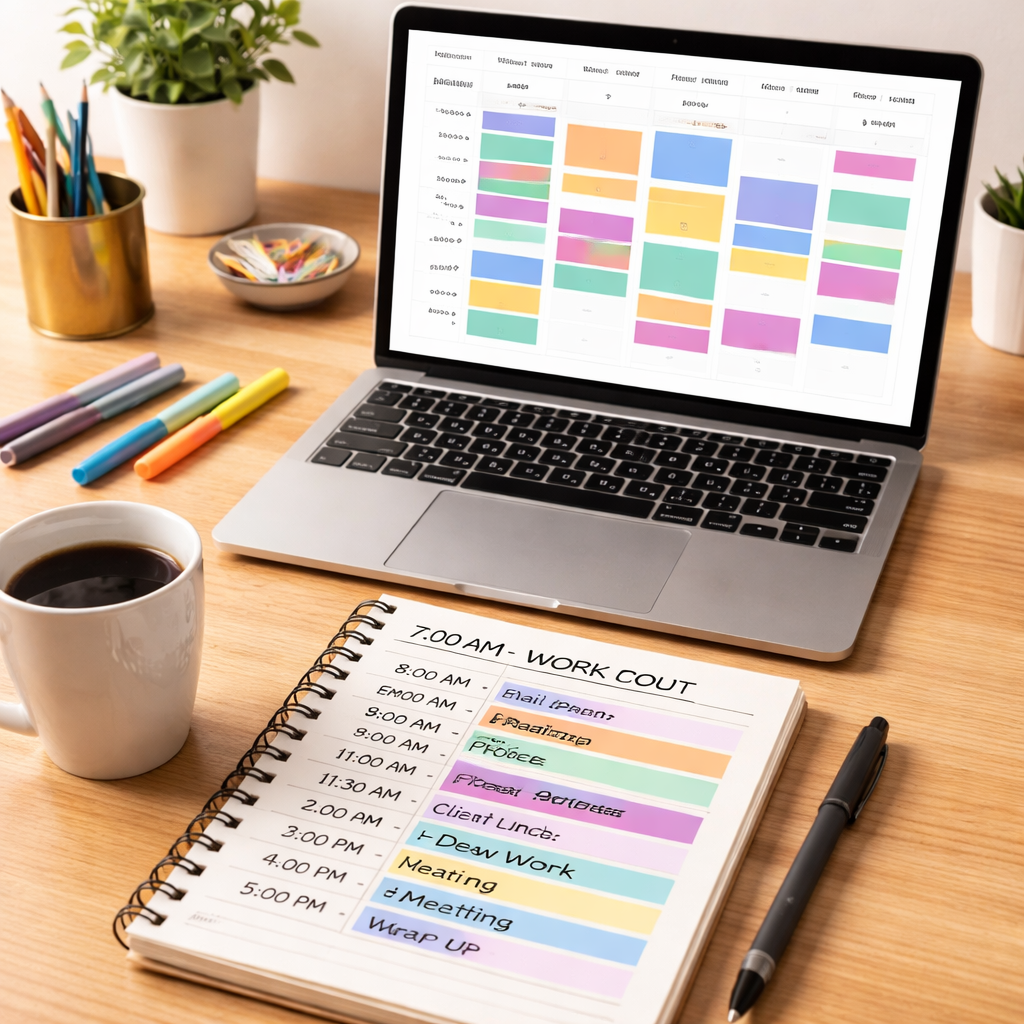
One final tip – align your blocks with your personal energy peaks. If you’re a morning person, reserve the first two hours for high‑cognitive work. If you hit a slump after lunch, use that window for admin or email batching instead.
Give it a try for a week. Block out three key tasks each day, protect those windows, and watch how the scattered chaos turns into a tidy, purposeful flow.
Hack #2 – Master the Pomodoro Technique
Ever feel like your brain is a hamster on a wheel, running fast but never getting anywhere?
That’s the exact spot where the Pomodoro Technique shines – a simple rhythm that tricks your mind into sprinting, then recharging.
We’ve seen students, remote workers, freelancers, and busy pros turn that 25‑minute sprint into a powerhouse of focus.
1️⃣ Set Up Your Pomodoro Cycle
First, grab any timer – even the kitchen timer will do. Set it for 25 minutes, then hit start.
Pick ONE clear task. It could be “outline chapter two,” “reply to client Slack messages,” or “draft invoice for Project X.”
When the timer dings, you’ve earned a tiny victory; that feeling fuels the next round.
2️⃣ Fine‑Tune the Timer to Your Flow
Not all brains tick the same. Some people love a 20‑minute burst, others need a full 30.
Experiment for a day: try 20, 25, and 30 minutes. Notice when you start to feel that mental drag – that’s your sweet spot.
Once you lock it in, stick to it for at least a week before tweaking again. Consistency beats constant tweaking.
3️⃣ Pair With Micro‑Break Rituals
After each Pomodoro, step away for five minutes. But don’t just stare at a screen.
Do something physical: stretch, grab a glass of water, or glance out the window. The goal is to reset dopamine, not to dive into another distraction.
For remote workers, a quick walk to the kitchen can also signal the brain that the work block is truly over.
4️⃣ Track & Iterate
Keep a simple log. Write the date, the task, and whether you completed the Pomodoro.
At the end of the week, scan the log. Which types of tasks consistently finish within one cycle? Which need two?
Adjust your future blocks: schedule “deep‑work writing” in 2‑Pomodoro chunks, and reserve “email triage” for single‑Pomodoro bursts.
Why does this work? Science tells us that short, intense focus periods boost norepinephrine, sharpening attention, while the brief breaks release built‑up stress hormones.
In our experience, the biggest breakthrough isn’t the timer itself, but the habit of pairing a clear goal with a built‑in reset.
Here’s a quick checklist you can paste on your desk:
- Choose ONE task.
- Set timer (20‑30 min).
- Work until it dings – no phone, no email.
- Take a 5‑minute stretch or snack.
- Log what you accomplished.
Students love using Pomodoro to slice study sessions into manageable bites, especially before a big exam.
Remote workers report fewer “Zoom fatigue” moments when they schedule focused sprints between meetings.
Freelancers often bundle client calls into a single Pomodoro, keeping the rest of the day open for creative work.
Busy professionals find that a lunchtime Pomodoro for “quick‑review of reports” frees up the afternoon for strategic thinking.
Still wondering if it’s worth the extra step of setting a timer?
Try it for three days. Notice how the first few cycles feel odd, then watch the momentum build – you’ll probably finish a task you’ve been putting off for weeks.
And if you need a digital sidekick, tools like Focus Keeper make the whole process click‑ready, with built‑in analytics that show where you’re most productive.
Bottom line: mastering the Pomodoro Technique is less about the clock and more about creating a repeatable rhythm that respects your brain’s need for focus and rest.
Once the rhythm settles, you’ll find that “productivity hacks” stop feeling like hacks and start feeling like second nature.
Hack #3 – Task Batching to Reduce Context Switching
Ever notice how checking a new email, then jumping to a design mock, then answering a Slack ping feels like you’re constantly hitting the refresh button on your brain?
That mental “switching tax” is the hidden thief behind many of our productivity hacks that never seem to stick.
Why task batching works
Task batching is simply grouping similar actions together so you can knock them out in one focused stretch. As Asana explains, the brain needs up to 23 minutes to fully refocus after a distraction, meaning every switch costs you precious time.
When you batch, you keep your attention on one kind of activity, and you sidestep that costly reset period.
Step‑by‑step batch‑building
1️⃣ Capture everything first. Spend five minutes jotting every task you need to do today – emails, calls, research, creative work. Don’t judge, just list.
2️⃣ Sort by similarity. Create buckets like “Inbox & Slack,” “Content creation,” “Admin & billing.” If a task feels like it belongs in more than one bucket, place it where you’ll naturally tackle it next.
3️⃣ Size your batches. Look at how long each bucket will take. If “Inbox & Slack” is about 30 minutes, block exactly that amount. For deeper work like “Content creation,” schedule a 60‑90 minute block.
4️⃣ Guard the time. Set your Focus Keeper timer, close unrelated apps, and put a “Do Not Disturb” status on Slack. Let your team know you’re in a batch – a quick status or calendar label does the trick.
5️⃣ Review and adjust. At the end of the day, glance at what you actually completed. Did a 30‑minute email batch spill into 45? Pad future blocks a bit, or split the batch if it’s too heavy.
Real‑world batch examples
Students. Jane, a sophomore, groups all her lecture‑note reviews, quiz‑making, and flash‑card updates into a single 45‑minute “Study batch” after her morning class. She reports finishing a whole chapter in one sitting instead of hopping between subjects.
Remote workers. Carlos, a UX designer, batches all client feedback emails and Slack threads into two 20‑minute windows: one before lunch and one before his afternoon stand‑up. The rest of his day stays clear for wire‑framing.
Freelancers. Maya, a copywriter, blocks an hour each morning for “Pitch research” – gathering briefs, competitor scans, and keyword lists. By the time the timer dings she has a solid foundation for three proposals, instead of scattering her focus across three separate mornings.
Busy professionals. Raj, a project manager, schedules a 90‑minute “Budget review” batch right after his first meeting. He turns off notifications, opens the spreadsheet, and stays in the zone until the numbers line up, freeing the rest of his afternoon for strategy talks.
Quick batch checklist (print‑and‑pin)
- List every task for the day.
- Group by type or tool.
- Assign a realistic time block.
- Set a Focus Keeper timer.
- Close unrelated apps and set DND.
- Log what you completed; tweak tomorrow.
Notice how the checklist feels like a tiny roadmap rather than a rigid schedule.
Does this sound like extra work? Actually, most people find that after a few days the mental load drops because they’re no longer asking themselves “What should I do next?” – the batch plan already answered that.
And if you’re curious about the science behind it, the same task batching guide points out that multitasking is a myth; our brains simply aren’t built for it.
Give it a try: pick one type of task you keep scattering throughout the day – maybe “client emails” – and batch it into three 20‑minute slots tomorrow. Watch how the “switching tax” shrinks and your sense of progress expands.
Hack #4 – Automation Tools Comparison Table
When you start mixing timers, batch blocks, and Pomodoro sprints, the next question is: which automation tool actually moves the needle? Below is a quick‑hit table that lets you compare the most talked‑about options without getting lost in feature bloat.
Why a side‑by‑side view matters
We’ve seen students, remote workers, freelancers, and busy pros waste hours trying to stitch together Zapier‑style workflows with a handful of clunky add‑ons. A visual comparison cuts that friction – you can spot the sweet spot for your workflow in a glance and skip the endless trial‑and‑error phase.
| Tool | Core Automation Feature | Ideal For | Pricing (USD) |
|---|---|---|---|
| Zapier | AI‑driven “Copilot” that drafts multi‑step Zaps from plain‑language prompts | Remote teams that need to connect 8,000+ apps without writing code | Free tier; paid plans start at $19/mo |
| Focus Keeper (built‑in automation) | Timer‑triggered actions (e.g., start a new Pomodoro, log a session to Google Sheets) | Students and freelancers who want a single‑pane focus tool with light automation | Free basic; Pro $9.99/mo |
| Notion AI + Zapier integration | Generate notes, then automatically push them to a task board or calendar | Busy professionals who already live in Notion and need a hand‑off to their calendar | Notion free; Zapier paid plan as above |
Notice the pattern? The most powerful combos usually pair a “trigger” (your timer) with a “action” (a task‑creation or data‑logging step). That’s the sweet spot we keep recommending in our own workshops.
Real‑world snapshots
Students. Maya studies biology and uses the Focus Keeper timer to mark 25‑minute study bursts. When the timer ends, a Zapier Zap automatically adds a row to a Google Sheet with the subject, duration, and a quick self‑rating. After a week she can spot which topics need more repeats.
Remote workers. Carlos, a UX designer, sets up a Zap that watches his Outlook calendar. When a “Design Review” block starts, Zapier fires a Slack reminder to mute notifications and opens the Figma file he’s been assigned. The whole thing happens without him lifting a finger.
Freelancers. Lena, a copywriter, runs a simple Focus Keeper automation that, at the end of each Pomodoro, sends a templated “status update” email to her client. The client sees steady progress, and Lena avoids the dreaded “no‑news‑is‑bad‑news” trap.
Busy professionals. Raj, the project manager we mentioned earlier, combines his 90‑minute budget batch with a Zap that logs every saved hour into a Power BI dashboard. The data‑driven view convinces his leadership that batching truly saves money.
All of those examples hinge on two things: a reliable timer and a platform that can listen and act. That’s why we often point readers to our Best Focus Timer Apps with Analytics for Teams guide – it walks you through setting up the timer side of the equation before you dive into Zapier’s AI Copilot.
Quick checklist before you pick
- Do you need a native integration (e.g., Google Calendar → Zapier) or can a simple webhook do?
- How many apps do you actually touch daily? If it’s under five, Focus Keeper’s built‑in actions might be enough.
- What’s your budget tolerance? Free tiers are great for trial, but expect a $20‑$30/mo spend once you scale.
- Do you want AI‑generated steps (Zapier Copilot) or are you comfortable writing the logic yourself?
Answering those questions narrows the field fast, and you can start building a “starter kit” of automations today rather than waiting for the perfect tool to appear.
Finally, a little data point to keep you motivated: according to Zapier’s research, teams that automate repetitive steps see a 30 % reduction in manual effort within the first month. That’s roughly three hours saved per week for a full‑time worker – a tangible ROI you can measure on any calendar.
So, grab your timer, pick a tool from the table, and set up one simple Zap tonight. You’ll be surprised how quickly the momentum builds, turning a vague productivity hack into a concrete habit.
Hack #5 – Email Management Hacks
Ever feel like your inbox is a never‑ending tide that pulls you away from real work? That flood of notifications is the hidden thief stealing focus from students, remote workers, freelancers, and busy pros alike. Let’s tame it with a handful of email‑management productivity hacks you can start using right now.
1️⃣ Batch your inbox into dedicated windows
Instead of keeping your mail client open all day, schedule two‑to‑three “email blocks” and treat them like any other focus session. During those windows you turn off notifications, set a Pomodoro timer in Focus Keeper, and clear only the messages that belong to that slot.
When the timer dings you know it’s time to stop, so the inbox never drags you back into the swirl. Students can batch class announcements in the morning, remote workers can sweep Slack‑linked messages after their stand‑up, and freelancers can clear client requests right before a project‑review call.
2️⃣ Apply the two‑minute rule for quick replies
If a message can be answered in under two minutes, do it immediately – then move on. Anything that needs more thought goes into a “Pending” folder or a task list, so you don’t waste mental bandwidth re‑reading it later.
This habit works especially for busy professionals who get dozens of brief confirmations daily. By the end of the day you’ll have cleared the low‑effort clutter and only the truly important threads remain.
3️⃣ Build reusable email templates
Most of us send the same “meeting confirmed”, “invoice attached”, or “resource request” lines over and over. Save a few minutes each time by creating templates in your email client and inserting them with a single click.
Freelancers love this when they need to send project briefs to multiple clients, and students can use a template for “assignment submission” confirmations. The key is to keep the placeholders simple – just replace the name, date, and any custom detail.
4️⃣ Turn email into actionable tasks, not a to‑do list
When an email requires an action, don’t leave it sitting in your inbox. Drag it into a task manager, add a due date, and close the message. In Focus Keeper you can even start a Pomodoro timer the moment you create the task, so the work flows straight from the email into focused time.
This trick stops the “inbox‑in‑the‑way” feeling and gives you a clear view of what really needs to get done today.
5️⃣ Use filters, labels, and auto‑archiving to silence the noise
Set up rules that automatically label newsletters, system alerts, and social updates, then route them to an “Read Later” folder that you only check during your designated email block. Anything that isn’t labeled as “Urgent” can be archived the moment it lands, keeping your primary view clean.
Remote workers often filter project‑related Slack‑to‑email notifications, while busy professionals archive promotional mail the instant it arrives. The result is a tidy inbox that only surfaces the messages that truly demand attention.
Bonus tip: mute push notifications on your phone during deep‑work periods so a stray email ping doesn’t yank you out of a Pomodoro. A quick “Do Not Disturb” toggle can save minutes that add up to hours over a week.
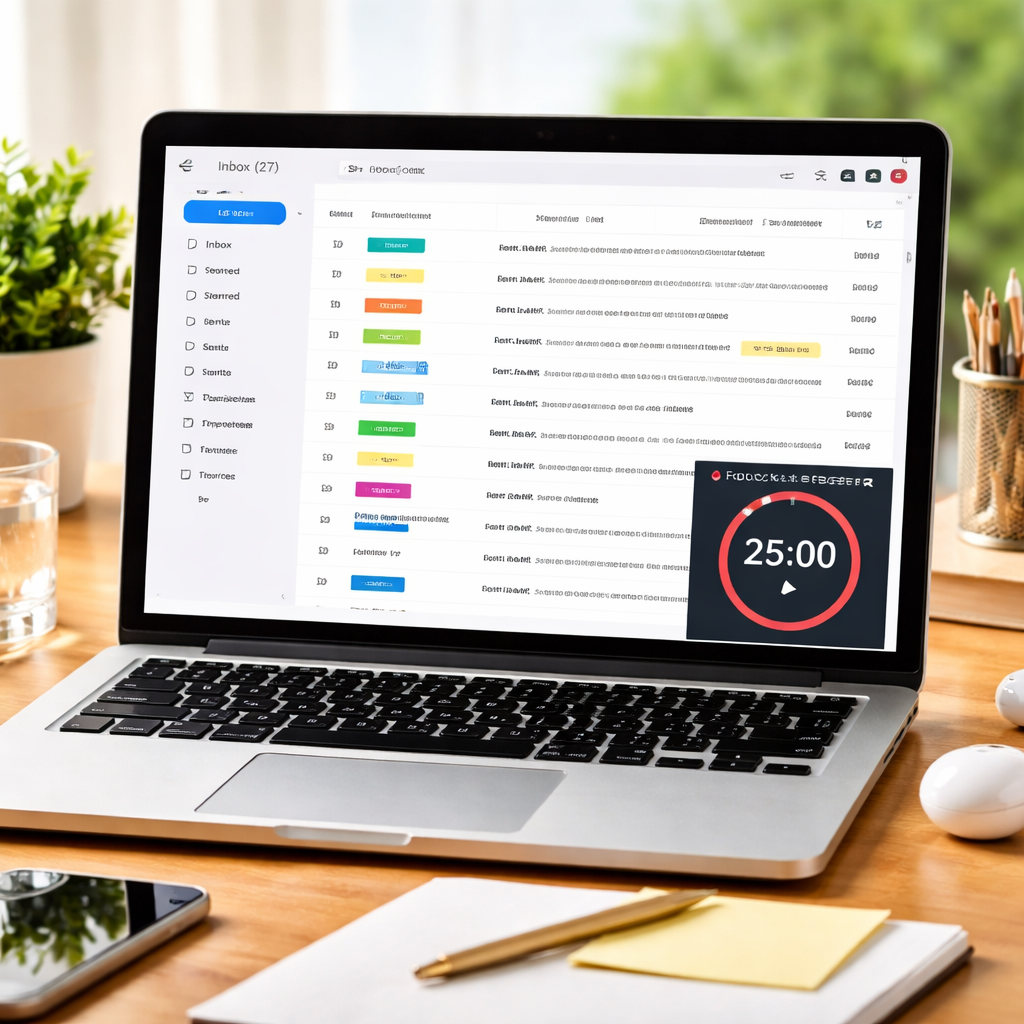
Pick two of these hacks, apply them this week, and watch your inbox go from chaotic to controllable – giving you the mental space to focus on the work that really moves the needle.
FAQ
How do I choose the right length for a Pomodoro session?
Start with the classic 25‑minute block because it’s a sweet spot for most brains. If you notice you’re sprinting out of steam before the timer dings, shave it down to 20 minutes. If you’re a deep‑work lover, stretch to 30 minutes and keep the 5‑minute break consistent. Test each length for a full day, note how often you feel mental drag, then settle on the cadence that leaves you refreshed, not frazzled.
What are the most effective ways to stay focused while working remotely?
First, create a dedicated “focus zone” – a corner of a room where only work happens. Second, mute non‑essential notifications and set a Focus Keeper timer to signal when you’re in deep‑work mode. Third, communicate your block schedule to teammates; a quick calendar note or Slack status saying “In focus sprint until 11 am” reduces interruptions. Finally, schedule a 5‑minute stretch or walk after each Pomodoro to reset your energy.
How can I batch similar tasks without feeling overwhelmed?
Begin by dumping every to‑do into a master list, then colour‑code by type – emails, design tweaks, admin, research. Group the colour‑coded items into 30‑ to 60‑minute batches that match your natural energy peaks. Use a timer to lock the batch in, and treat the block like a mini‑project: set a clear outcome (e.g., “clear all inbox threads”) before you start. The sense of completion at the end keeps overwhelm at bay.
Can I use a focus timer for studying without a smartphone?
Absolutely. A simple kitchen timer, an analog watch with a second hand, or even the built‑in timer on your laptop works fine. The key is consistency – start the timer, pick one study goal (like “read chapter 3”), work until it rings, then take a short stretch. In our experience, the ritual of resetting the timer reinforces the habit, even if the device is low‑tech.
How often should I take breaks to avoid burnout during long work sessions?
The Pomodoro rhythm recommends a 5‑minute break after each 25‑minute sprint and a longer 15‑30‑minute pause after four cycles. If you’re doing longer blocks, aim for a 5‑minute micro‑break every 45‑60 minutes. During breaks, step away from the screen, hydrate, or do a quick mobility stretch. Those tiny resets prevent mental fatigue and keep your focus sharp for the next interval.
What’s the biggest mistake people make when trying new productivity hacks?
Trying to adopt every hack at once. You end up with a checklist that feels more like a chore than a boost. Pick one or two techniques, give them a week to settle, then layer another on top. Track the results in a simple log – note what you accomplished and how you felt. When you see real progress, it’s easier to add the next hack without overloading yourself.
Conclusion
We’ve walked through a handful of simple productivity hacks, from time blocking to Pomodoro sprints, task batching, and email detox. Each one is designed to turn that chaotic to‑do list into a rhythm you can actually feel.
So, what does it all mean for you? If you’re a student, a quick 25‑minute timer can turn a mountain of notes into bite‑size wins. If you’re a remote worker, protecting blocks on your calendar keeps meetings from hijacking your focus. Freelancers get the freedom to juggle clients without drowning, and busy pros can finally see the day’s progress instead of a blur.
In our experience, the real breakthrough happens when you pair a clear goal with a timer—nothing fancy, just a cue that says, “Start now, stop when it dings.” The tiny dopamine hit after each cycle is the secret sauce that makes the next sprint feel easier.
Ready to give it a try? Pick one hack, set a timer, and watch the momentum build over the next week. When the habit sticks, you’ll notice the gap between intention and action shrinking dramatically.
Remember, productivity isn’t about cramming more work in; it’s about creating a rhythm that respects your brain’s need for focus and rest. Keep experimenting, stay consistent, and let the hacks work for you—not the other way around.




