
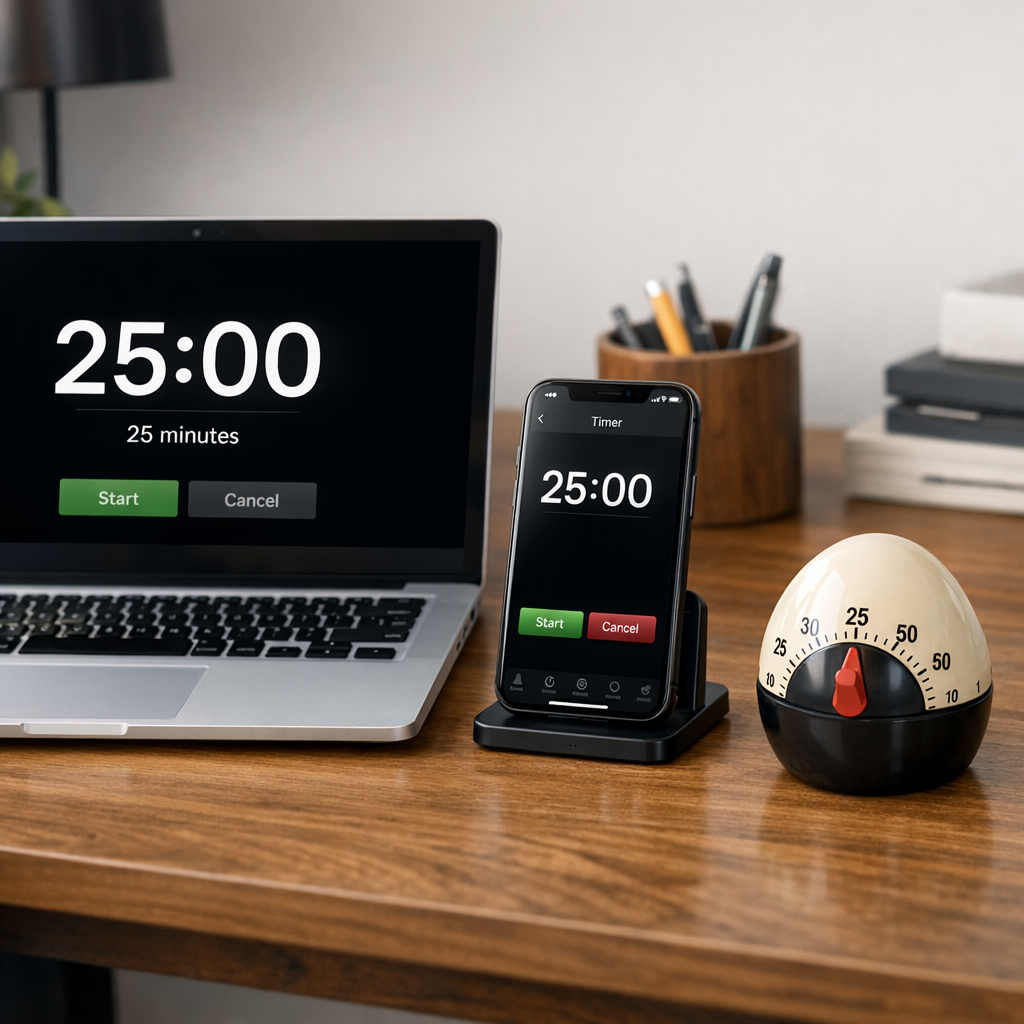
Ever found yourself mid‑task, eyes glazed, and the clock ticking louder than your thoughts?
You start a study session or a client call, promise yourself you’ll work for a solid block, but before you know it the minutes have slipped away and you’re left wondering where the focus went.
That’s the exact moment a 25 minute timer with alarm becomes more than a gimmick – it’s a gentle nudge that tells your brain, ‘Hey, it’s time to lock in.’
In our experience at Focus Keeper, we’ve watched students turn a scattered study night into a series of focused bursts, remote workers keep their Zoom calls sharp, and freelancers finally finish that proposal without the usual endless rabbit holes.
The magic isn’t in the timer itself – it’s the alarm that signals a clear endpoint, letting you celebrate a tiny win before you reset and dive back in.
Think about it this way: your brain loves patterns. When it knows that every 25 minutes will be capped by a pleasant chime, it starts to gear up for that rhythm, reducing the mental drag of ‘just starting.’
So, what does that look like in a real day? A college sophomore sets the timer before a tough calculus chapter, grabs a coffee, and when the alarm rings, they’ve actually completed a full set of problems instead of scrolling.
A freelance graphic designer, juggling three client revisions, uses the same 25‑minute alarm to slice the afternoon into bite‑size sprints – each chime marks a mini‑deadline, keeping the creative flow from fizzling out.
If you’re skeptical, try it for just one task today. Set the timer, let the alarm do its quiet work, and notice how much more you actually get done.
The alarm isn’t just a sound; it’s a cue that tells your mind, ‘Time to pause, reflect, maybe stretch, then jump back in.’ That tiny pause fuels the next round of focus.
TL;DR
A 25 minute timer with alarm turns vague work blocks into bite‑size sprints, giving you a clear cue to focus, finish, and celebrate each mini‑win.
Try it on a single task today, and you’ll see productivity jump as the chime signals pause, reflection, then fresh focus for the next round.
Step 1: Choose the Right Device for Your 25 Minute Timer with Alarm
Picture this: you’re about to dive into a dense research paper, but you can’t decide whether to grab your phone, laptop, or a trusty kitchen timer. That split‑second hesitation is the exact moment the right device can make—or break—your 25 minute timer with alarm.
First, think about where you’ll be working. If you’re at a desk with a laptop open, the simplest solution is a browser‑based timer. A quick tab, a bright visual countdown, and a soft chime at the end keep your focus razor‑sharp without adding extra hardware.
But what if you’re moving around? Maybe you’re a student hopping between the library and a coffee shop, or a freelancer juggling client calls in different rooms. In those cases, a mobile app on your phone is gold. You can set the timer, mute notifications for other apps, and let the alarm vibrate or play a sound that cuts through background chatter.
And then there’s the classic kitchen timer. It’s cheap, it’s loud, and it doesn’t drain your battery. For many remote workers, the tactile click of winding a dial feels surprisingly satisfying—like a physical cue that says, “Okay, let’s get serious for the next 25 minutes.”
So, how do you decide? Here’s a quick checklist:
- Portability: Do you need to carry it between rooms or locations?
- Distraction level: Will a phone’s notifications pull you away?
- Sound quality: Do you prefer a gentle chime, a beep, or a louder buzz?
- Battery life: Is the device always plugged in or on the move?
Once you’ve answered those, match your answers to a device type. For example, if portability and low distraction are top priorities, a dedicated desktop widget or a smartwatch timer might be your sweet spot.
Now, let’s talk about the alarm itself. The sound you choose can either boost your momentum or make you cringe. A short, pleasant tone works best for most people—just enough to say, “Time’s up!” without jolting you awake. If you’re in a shared space, consider a vibration mode or a visual flash on your screen.
Want to see a real‑world demo? Check out the quick walkthrough below. It shows how to set up a timer on a phone, customize the alarm, and even sync it with a desktop shortcut for seamless switching.
Notice how the video walks through the exact steps we just outlined—pick your device, set the interval, choose a sound, and you’re ready to roll.
One last tip: test the alarm before you start a big work block. A 5‑second test run ensures the volume is right and you won’t be startled mid‑sentence.
When you’ve nailed the right device and alarm combo, you’ll find that those 25‑minute sprints feel almost effortless. It’s the kind of low‑friction habit that sticks, because you’ve removed every excuse before they even appear.
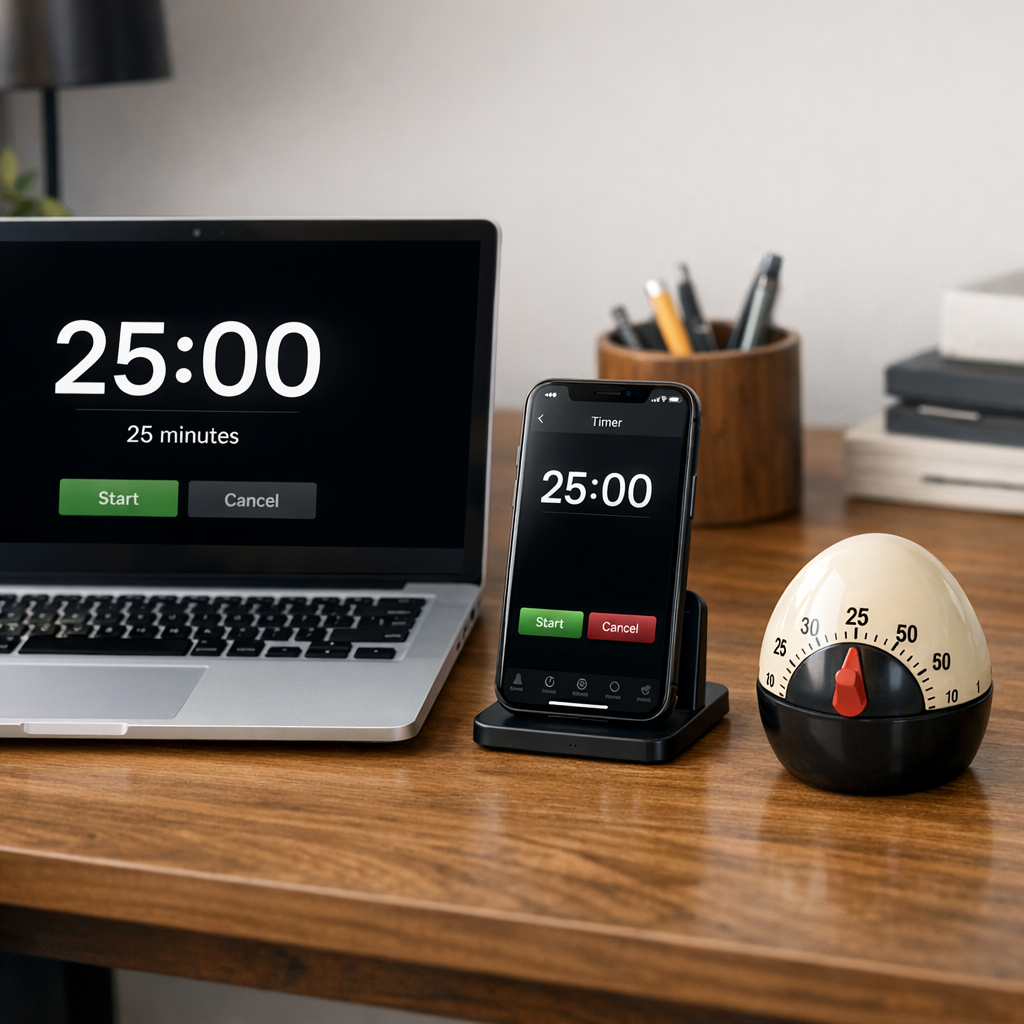
Step 2: Set Up the Timer on iOS
Alright, you’ve picked your device – now let’s get that 25 minute timer with alarm humming on your iPhone. It sounds simple, but a few tiny tweaks can turn a basic timer into a productivity sidekick.
Open the Clock app
Start by tapping the pre‑installed Clock app. At the bottom you’ll see a Timer tab – give it a tap. You’ll be greeted by a clean screen where you can dial in any duration you like.
Enter 25 minutes
Swipe up on the hour wheel until you hit 0, then scroll the minute wheel to 25. If you ever need a different interval, just hit Custom at the bottom and type in the exact time.
Pro tip: iOS remembers the last timer you set, so the next time you need a 25‑minute sprint, it appears under “Recent” for a single tap.
Choose the right alarm sound
Tap “When Timer Ends” and scroll through the list of built‑in tones. Pick something pleasant – a soft chime, a brief music clip, or even a nature sound. Avoid harsh buzzers; they can spike stress instead of signalling a calm break.
If you’re in a shared space, turn the volume down and enable Vibration so your wrist feels the tap without disrupting others.
Need inspiration on which sound works best for focused work? Check out our guide on How to Use a 25 Minute Timer with Sound for Focused Work and Study – it walks you through tone‑testing for different environments.
Label it for clarity
Give your timer a label like “Study Sprint” or “Design Burst”. The label shows up on the lock screen and in the notification centre, so you know exactly what you were working on when the chime rings.
Start the timer and let it run
Hit Start**. The timer flips to a full‑screen countdown that stays visible even if you switch apps. iOS keeps the countdown alive when the phone goes to sleep, so you won’t lose a second.
While the timer is ticking, you can add a second timer for a different task – iOS lets you run multiple timers side by side. This is handy for a quick email check after your first 25‑minute sprint.
Real‑world examples
Imagine a college sophomore tackling a dense reading. They set the 25‑minute timer, mute the speaker, and let the vibration remind them when it’s time to summarize what they just read. The gentle cue keeps the study session crisp and avoids the temptation to scroll.
A freelance graphic designer juggling three client revisions can use the same timer to allocate exactly 25 minutes per revision, then switch focus without the mental overhead of guessing how long they’ve been at it.
Quick checklist before you go
- Duration set to 25 minutes.
- Alarm sound chosen (soft chime or custom clip).
- Vibration on if you need silent alerts.
- Label added for context.
Got your timer ready? Great. Now, if you’re looking for a broader daily planning tool, the visual agenda guide from Agenda visiva helps you slot those 25‑minute blocks into a full‑day roadmap. And when you need to digest a lengthy article during a break, the YouTube Video Summarizer can condense the key points in minutes, keeping your momentum high.
Give it a try on your next work session. You’ll be surprised how much more you can accomplish when the timer does the reminding for you.
Step 3: Set Up the Timer on Android
Alright, you’ve got your device sorted – now let’s get that 25 minute timer with alarm humming on your Android phone. If you’ve ever fumbled with the clock app and ended up with a 30‑minute snooze instead, you know the frustration.
Open the Clock app
Tap the pre‑installed Clock icon. At the bottom you’ll see tabs for Alarm, World Clock, Stopwatch, and Timer. Hit Timer. You’re greeted by a clean screen with wheels for hours, minutes, and seconds.
Dial in 25 minutes
Spin the minute wheel until it lands on 25. If you ever need a different length, just swipe the hour wheel to 0 and adjust minutes again. Android remembers the last setting, so the next sprint is a single tap away.
Pick a gentle alarm sound
Below the wheels, tap “Alarm sound.” Scroll through the built‑in tones – you’ll find everything from a soft chime to a nature clip. Choose something pleasant; a harsh beep can spike stress instead of signalling a calm pause.
If you’re in a shared space, lower the volume and toggle the vibration switch. The subtle buzz on your wrist does the job without waking the person next to you.
Add a label (optional but handy)
Some Android versions let you name the timer. Type something like “Study Sprint” or “Design Burst.” The label shows up on the lock screen, so you know exactly what you were focusing on when the alarm goes off.
Start the countdown
Press the green Start button. The screen flips to a large countdown that stays visible even if you switch apps. Android keeps the timer alive when the screen sleeps, so you won’t lose a second.
While the timer runs, you can still answer a quick email or glance at a chat – the alarm will interrupt you the moment the 25 minutes are up.
What if you prefer a custom app?
Developers love the CountDownTimer class for building bespoke timers. The Android countdown timer guide walks you through a simple Java or Kotlin implementation, complete with pause, resume, and UI updates. You don’t need to code it yourself, but it’s good to know the tech behind the tool you’re using.
Quick checklist before you go
- Duration set to 25 minutes.
- Alarm sound selected – soft chime or nature tone.
- Vibration on for silent environments.
- Label added (if your Android version supports it).
Need a fallback when your phone battery dies? The web offers a reliable online timer you can open in a browser tab. It lets you set a 25 minute countdown with a custom alert sound, so you never miss a sprint.
Give it a try on your next study block, client call, or design sprint. You’ll notice how the simple alarm cue frees up mental space – you stop wondering “how long have I been at this?” and start focusing on what matters.
Step 4: Use a Web‑Based 25 Minute Timer with Alarm
So you’ve got your phone or watch set up, but what happens when the battery dies or you’re hopping between devices? A browser‑based timer gives you a safety net that works on any computer, tablet, or even a public library PC.
Pick a reliable online timer
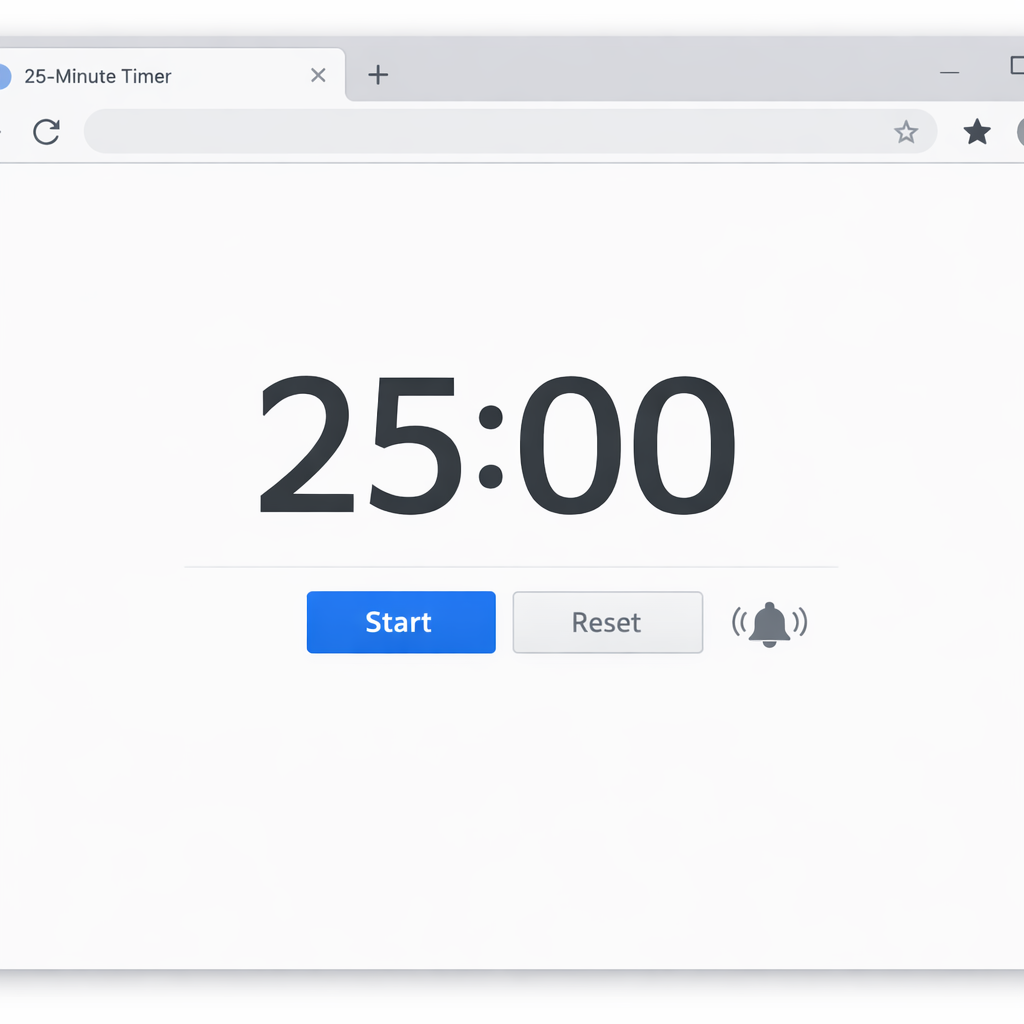
One of the simplest options is the free 25 minute timer on TimeCalculatorX. It shows a live countdown right in the tab, lets you choose a soft chime or a nature sound, and keeps ticking even if you switch windows. Try the 25 minute timer on TimeCalculatorX and see how the visual cue stays visible while you work.
Step‑by‑step setup
1. Open a new browser tab and navigate to the timer page.
2. Set the minutes wheel to 25 (hours stay at 0).
3. Choose an alarm tone that isn’t jarring – a gentle bell works well for a shared coworking space.
4. Click “Start” and let the countdown run. The page will automatically play the alarm even if you’re on a different tab, because the sound is tied to the browser window.
That’s it. No app downloads, no updates, just a URL you can bookmark for the next sprint.
Why it works for every audience
Students often study in cafés where power outlets are scarce. Pull up the web timer on a laptop, plug in the charger, and you’ll never miss the end of a 25‑minute study burst.
Remote workers can keep the timer open in a split‑screen view alongside Slack or Teams. The audible alert cuts through the chat noise without pulling you away from the screen.
Freelancers juggling multiple client tasks love the ability to open separate tabs for each project – each with its own 25‑minute countdown, so you can visually track which sprint belongs to which brief.
Busy professionals in an open‑plan office can set the alarm volume low and rely on the vibration option built into most laptops, or simply let the visual tab badge flash when time’s up.
Make the browser timer feel like a dedicated app
Pin the timer tab to the top of your browser (Chrome lets you drag it into a new window and keep it “always on top”). That way the countdown never gets lost under a spreadsheet.
Combine the timer with a simple task list in Google Docs or Notion. Write the task at the top, start the timer, and when the chime rings, check the box. The rhythm reinforces the habit.
Bonus: a Chrome extension for instant access
If you’d rather have one‑click start without opening a new page, the 25 Minute Timer Chrome extension does exactly that. After a quick install, a tiny icon appears next to the address bar – click it and your 25‑minute countdown begins with the pre‑selected alarm. Install the 25 Minute Timer extension for seamless desktop integration.
Remember to test the sound level before you dive in. A quick “preview” click lets you gauge whether the chime will be audible in a coffee shop or too loud for a quiet library. Adjust the volume in your system settings, not in the timer itself, for more precise control.
Finally, give yourself a tiny celebration when the alarm rings – stretch, sip water, or jot down a quick note about what you accomplished. That micro‑reward turns the timer from a mechanical beep into a positive feedback loop.
Step 5: Customize Alarm Sounds and Notifications
Now that you’ve got your 25 minute timer ticking, the real magic happens when the alarm sounds just the way you need it to.
First off, ask yourself: do you thrive on a gentle chime or does a short burst of music get you moving? The answer will shape the whole feel of each sprint.
Pick a sound that matches the task
If you’re a student cramming for a quiz, a soft bell often feels like a friendly nudge rather than a start‑less alarm. A freelance designer, on the other hand, might enjoy a quick 5‑second synth loop that feels like a tiny applause after each creative burst.
Most smartphones let you browse built‑in tones, but you can also upload a favorite clip. On Windows, the Clock app even lets you select any MP3 you’ve saved — just head to the Clock app’s alarm settings and hit “Add new sound.”
Adjust volume and vibration
Silent environments call for vibration. If you’re in a shared coworking space, turn the speaker down and enable the phone’s haptic feedback. On a laptop, keep the system volume moderate and pair the beep with a visual flash—many browsers support a “screen shake” extension that highlights the tab when time’s up.
Don’t forget to test the level before you dive in. A quick “preview” click lets you gauge whether the tone will cut through a coffee shop hum or drown out a quiet library.
Set up notifications for different devices
Because you probably switch between phone, desktop, and maybe a smartwatch, it helps to sync the same sound across all of them. On Android, go to Settings → Sound → Advanced → “Default alarm tone” and pick the same file you used on your phone. On iOS, you can create a custom ringtone in GarageBand and assign it to the timer.
If you use a web‑based timer, many services let you pick a built‑in sound and also push a desktop notification. The free online clock at Traditional Clock includes a simple alarm option that you can pair with a browser alert.
Make the alarm a cue, not a shock
After the chime, give yourself a micro‑ritual: stretch, sip water, or jot one takeaway. That tiny pause turns the beep into a positive feedback loop and tells your brain, “We just finished a focused block, now we reset.”
Here’s a quick checklist before you start each day:
- Choose a sound that fits the activity (soft bell for study, upbeat clip for creative work).
- Set volume low enough for shared spaces, high enough for solo focus.
- Enable vibration or visual alerts on secondary devices.
- Test the alarm with a 30‑second preview.
- Pair the sound with a micro‑celebration.
When you treat the alarm as a friendly reminder rather than an irritant, the 25 minute timer becomes a habit‑forming partner. Give your chosen tone a few days of use, tweak the level if it feels off, and watch how quickly you start looking forward to that little “ding” at the end of each sprint.
Step 6: Comparison of Top 25 Minute Timer Apps
Alright, you’ve tried a few timers on your phone, desktop, maybe even a kitchen gadget. But when you’re juggling a study session, a client call, or a design sprint, you start wondering which app actually respects the 25‑minute rhythm without adding extra noise.
We’ve lined up the most common choices that pop up in a quick Google search – the plain‑old timer built into iOS or Android, a generic Chrome extension, a dedicated web‑based timer, and the 25 Minute Timer Chrome extension that we’ve seen get high marks from students and remote workers alike.
What to look for
First, ask yourself three quick questions: Does the app let you set a 25 minute interval in one click? Does it give a gentle alarm that you can mute or vibrate? And finally, does it stay out of your way – no pop‑ups, no ads, no subscription pressure?
If you can answer “yes” to all three, you’ve probably found a winner.
Quick rundown of the top contenders
Native mobile timers (iOS/Android) – they’re always there, but the alarm is often tied to the system volume and you can’t customize the sound beyond the built‑in list. Great for on‑the‑go moments, not so great if you need a specific cue.
Web‑based timers – sites like TimeCalculatorX let you pin a tab and choose a tone. They work on any device, but you have to keep the browser open and the sound level depends on your computer’s settings.
25 Minute Timer Chrome extension – a lightweight add‑on that lives in your toolbar, offers a single‑click start, a soft “smart notification,” and a clean design that doesn’t distract. It also scores high on simplicity versus feature overload, according to a comparison page we’ve reviewed.See the full feature breakdown here.
Side‑by‑side comparison
| Feature | App / Tool | Notes |
|---|---|---|
| One‑click start | 25 Minute Timer Chrome extension | Launches from toolbar, no extra windows. |
| Custom alarm sound | Native iOS/Android timer | Limited to system tones; no file upload. |
| Cross‑device sync | Web‑based timer (e.g., TimeCalculatorX) | Works wherever you have a browser, but no native sync. |
Notice how the Chrome extension checks the “one‑click” box while still giving you a gentle alert. The native timers win on always‑available status, but they fall short when you want a consistent cue across laptop and phone.
What about price? All three options are free, but the extension avoids hidden subscription tiers that some “feature‑heavy” apps push. You get exactly what you need – a 25 minute countdown and a soft alarm – without paying for analytics dashboards you’ll never use.
So, which one should you try first?
If you spend most of your day at a desk, install the 25 Minute Timer extension and let it sit in your Chrome bar. If you hop between meetings on your phone, the native timer is a reliable backup. And if you often work from public computers, bookmark a web‑based timer as a last‑resort safety net.
Bottom line: the best 25 minute timer with alarm is the one that disappears when you need focus and pops up just enough to signal the end of a sprint. Test each option for a day, note how the alarm feels, and stick with the one that makes the “ding” feel like a friendly high‑five rather than a jarring alarm.
FAQ
What exactly is a 25 minute timer with alarm and why does it matter?
It’s a simple countdown set for 25 minutes that ends with an audible cue. The magic isn’t the timer itself but the alarm – it tells your brain the sprint is over, so you can pause, reflect, and jump back in fresh. By giving your mind a predictable pattern, you cut down on decision fatigue and keep focus razor‑sharp, whether you’re cramming for an exam or polishing a client mock‑up.
How do I choose the right alarm sound for my workflow?
Start by asking what mood you want when the timer ends. A soft chime works well in a library because it’s gentle enough not to disturb others, while a short music clip can feel like a mini‑celebration for a creative freelancer. Test a 30‑second preview at the volume you’ll use, then pair the cue with a micro‑ritual – stretch, sip water, or jot a quick note – so the alarm becomes a positive habit trigger.
Can I use a 25 minute timer with alarm on multiple devices without losing sync?
Yes, but you’ll need a tool that works anywhere – a web‑based timer or a browser extension is the easiest. Open the same URL on your laptop and phone, start the countdown, and the alarm will fire on whichever device you’re looking at. Just remember to keep the browser tab open or enable notifications, otherwise the sound might stay silent when you switch screens.
Is it okay to pause or reset the timer mid‑sprint?
Occasionally it’s fine, especially if you’re interrupted by an urgent call. The key is to treat the pause as a true break, not a way to dodge focus. Reset the timer after the interruption so you still get a full 25‑minute block. Over time you’ll notice that fewer interruptions happen because you’re signalling to coworkers that you’re in a dedicated focus window.
How often should I take a longer break after several 25 minute cycles?
Most people find a 5‑minute breather after each sprint works, then a 15‑30 minute rest after four cycles. Use the alarm to cue the short break – stand, stretch, glance at an email – and after the fourth “ding” schedule a deeper recharge: a quick walk, a snack, or a mental reset. This rhythm keeps energy steady and prevents the burnout that comes from marathon‑style work sessions.
What if I’m in a noisy environment and can’t hear the alarm?
Switch to vibration or a visual cue. On a smartphone, turn on the haptic alert; on a laptop, enable a flashing tab or desktop notification. Some web timers let you set a screen flash when time’s up. If you’re really in a loud coffee shop, consider a smartwatch that taps your wrist – you’ll feel the nudge without needing to hear a beep.
Do I need a special app, or will the built‑in clock be enough?
The built‑in clock on iOS or Android does the job for most users, but it’s limited to system tones and can be muted unintentionally. If you want a custom sound, one‑click start, or a persistent visual countdown, a lightweight browser extension or an online timer gives you more control. Try a free web timer first; if you crave deeper customization, explore a dedicated extension that lets you pick your own audio file and keep the timer on top of your workspace.
Conclusion
You’ve seen how a simple 25 minute timer with alarm can turn a chaotic workday into a series of focused sprints.
Think about that last time you lost track of time scrolling through a feed – now picture the same task ending with a gentle chime that tells you, “Okay, pause, breathe, and move on.”
For students, that ding becomes a study checkpoint; for remote workers, it marks a meeting wrap‑up; freelancers get a built‑in progress report; busy professionals snag a micro‑break without a calendar scramble.
What we’ve learned is that the alarm does the heavy mental lifting. You set it, you work, and when it sounds you already know what to do next – stretch, jot a quick note, or switch gears.
So, what’s the next step? Grab the device you trust most, set a 25 minute timer with alarm, and treat each ring as a tiny celebration of focus.
Give it a try today, and you’ll notice the difference between working *hard* and working *smart*.
Remember, the power of the 25 minute timer with alarm isn’t in the tech itself but in the rhythm it creates. When you consistently pair the countdown with a brief reflection, you train your brain to switch into deep‑work mode faster each time. Over weeks, those tiny rings add up to hours of pure productivity you never thought possible.




