
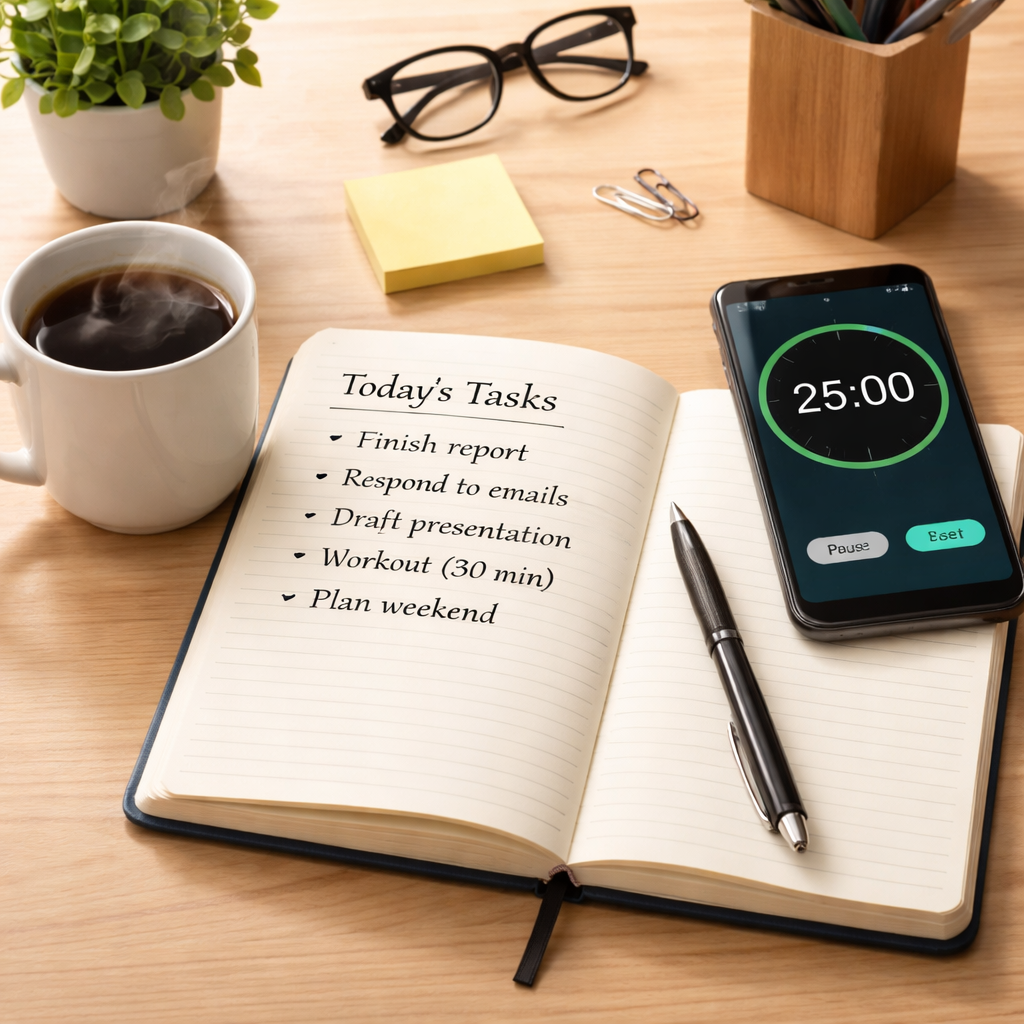
Ever felt like your to‑do list is a never‑ending river, pulling you downstream while you’re just trying to stay afloat?
We’ve been there – staring at a blank screen, knowing you have three essays, a client deadline, and a meeting that could have been an email, all screaming for attention.
That’s the exact moment timeboxing steps in like a friendly traffic cop, telling you exactly how long you can spend on each lane of work before the light turns green.
Imagine you’re a student cramming for finals: you set a 25‑minute box, focus on one chapter, then reward yourself with a quick stretch. The same box can be a remote worker tackling a tricky spreadsheet, a freelancer juggling design drafts, or a busy professional carving out uninterrupted time for strategic planning.
Why does it work? Because our brains love clear start‑and‑stop cues. When the timer ticks down, the urgency spikes, and distraction‑draining habits fade into the background.
In our experience, pairing a simple timebox with a visual timer – like the one built into Focus Keeper – turns abstract minutes into something you can actually see moving, which tricks the mind into treating each segment like a mini‑deadline.
So, what’s the first step? Grab a task that’s been nagging you – maybe that research paper outline, a client email draft, or the report you keep postponing – and set a 20‑minute box. When the alarm rings, note how you felt: energized? Relieved? That feedback loop is the secret sauce.
Give it a try today and watch how those scattered minutes start to line up like dominoes, each one pushing the next forward with purpose.
Whether you’re juggling lecture notes, sprint planning, client revisions, or a mountain of meetings, a single timebox can give you the momentum to break the inertia and actually finish something, not just plan it.
TL;DR
Timeboxing lets you carve fixed, focused intervals for any task, turning vague to‑do items into concrete, deadline‑driven blocks that boost momentum for students, remote workers, freelancers and busy professionals. Start with a 20‑minute box, watch the timer tick, and use the post‑alarm feeling of relief as instant feedback that keeps you moving forward, every day.
Step 1: Define Your Tasks for Timeboxing
Before you even set a timer, you need a clear picture of what you’re about to tackle. It sounds simple, but most of us start a timebox with a vague idea like “work on project” and end up chasing our own tail. The trick is to break that big, fuzzy chunk into a bite‑size task that can actually fit inside a single box.
Grab a notebook, a digital note app, or even the whiteboard in your office. Write down every single thing that’s tugging at your mind right now. You might see a mix of urgent deadlines, recurring chores, and those sneaky “I’ll get to it later” items.
Ask yourself three quick questions
1. Is this actionable? If the line reads “research marketing trends,” that’s still too broad. Refine it to “outline three key trends for the upcoming blog post.”
2. Can it be done in 15‑30 minutes? If not, slice it further. Maybe you only need to draft the intro paragraph now and save the rest for the next box.
3. Does it align with my current goal? A student prepping for finals will prioritize study chunks, while a freelancer might focus on client feedback loops.
Answering these questions turns a nebulous to‑do item into a concrete, time‑boxed target.
So, what does a well‑defined task look like? Picture this: instead of “edit video,” you write “trim the first 30 seconds of the client testimonial and add background music.” It’s specific, it’s measurable, and you can see the finish line before the timer even starts.
Once you have that precise statement, jot down any tiny prep steps you need—like opening the file or pulling up a reference link. Those prep actions belong outside the box; the box itself is pure execution.
Now, let’s bring the timer into play. Set your Focus Keeper app (or any timer) for the duration you chose—say, 20 minutes. When the countdown begins, you’ve already eliminated decision fatigue because the task is already crystal clear.
Notice how the video walks through the exact moment you write that task definition, then hit start. The visual cue reinforces the habit: define, then box.
Here’s a quick checklist you can copy‑paste into your notes:
- ✅ Write the task as a single, actionable sentence.
- ✅ Ensure it can be completed in one timebox (15‑30 min).
- ✅ Verify it supports your larger goal for the day/week.
- ✅ List any prep steps separately, outside the box.
When you’re done, you’ll feel a tiny surge of confidence even before the timer ticks down. That’s the first domino falling, and the rest of your day starts to line up.
And remember, you don’t have to get it perfect the first time. If a task feels too big, shrink it. If it feels too small, bundle a couple of micro‑tasks together. The key is the rhythm: define, box, execute, repeat.
By the end of this step, you’ll have a stack of sharply defined tasks ready to be slotted into timeboxes, whether you’re a student cramming for finals, a remote worker juggling meetings, a freelancer handling multiple client revisions, or a busy professional carving out strategic planning time.
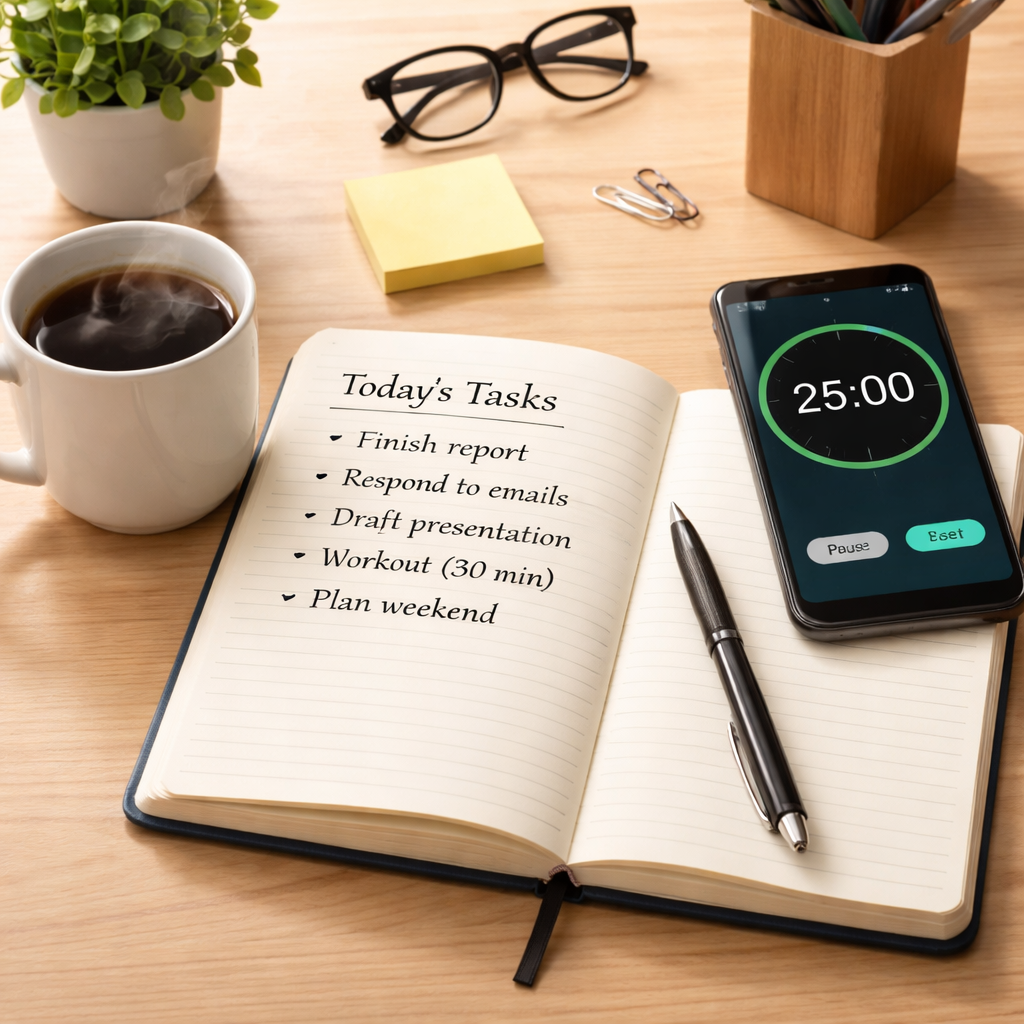
Take a moment now: open your task list, pick the most pressing item, rewrite it into a single actionable sentence, and set a 20‑minute box. You’ll notice the mental load lift almost instantly—because you’ve turned “something to do” into “something I can do right now.”
Step 2: Allocate Fixed Time Slots
Now that you’ve turned a vague to‑do into bite‑size tasks, it’s time to give those tasks a concrete place on your clock.
Why fixed slots matter
When a task lives only on a list, it’s easy to let it drift. Giving it a fixed slot turns “maybe later” into “I’m meeting myself at 2 pm,” and that tiny appointment triggers a mental cue that says, “Okay, it’s go‑time.”
Ever notice how a calendar reminder feels more binding than a sticky note? That’s the power of a scheduled slot – it creates a tiny deadline that nudges your brain into focus mode.
So, how do you actually put those slots on the page without over‑complicating things?
How to build your schedule
First, pick the tool you already use – Google Calendar, Outlook, or even a paper planner. The goal isn’t to learn a new app, it’s to make the slot visible where you already look for appointments.
Next, decide on the length of each slot. For a student polishing a study outline, 25‑30 minutes works wonders. Remote workers tackling a batch of support tickets often thrive on 45‑minute blocks, giving enough wiggle room to enter flow but not so long that fatigue creeps in. Freelancers juggling client revisions might split a two‑hour window into two 50‑minute boxes with a short break in between. Busy professionals planning a strategy meeting can reserve a crisp 60‑minute slot to draft the agenda and pull together data.
Does it feel like you’re “micro‑managing” your day? Not at all – think of it as giving each piece of work a dedicated runway for take‑off.
Once you know the length, create a visual block in your calendar. Label it with the verb‑noun phrase you wrote earlier, followed by the duration. For example, “Write 300 words — 30 min” or “Tag support tickets — 45 min.” If you’re a visual learner, colour‑code by project or by audience – blue for student work, green for client tasks, orange for internal meetings.
Remember to sandwich each slot with a tiny buffer. A five‑minute transition period lets you close the current task, note any quick thoughts, and set up the next timer without feeling rushed. It’s the equivalent of a short runway clearance before the next take‑off.
What about interruptions? That’s where the “appointment with yourself” mindset shines.
When a chat ping pops up, ask yourself: “Is this urgent enough to break my slot, or can it wait until the buffer?” If you’re a freelancer fielding client emails, schedule a specific “email hour” later in the day so you don’t constantly pull away from deep work.
When the clock hits the start of a slot, fire up Focus Keeper’s Pomodoro timer. The visual countdown reinforces the fixed‑time promise you just made to yourself. If you finish early, use the remaining minutes for a quick review or a micro‑stretch; if you run over, note why and adjust the next slot accordingly.
At the end of the day, glance at your calendar. Which slots hit the target? Which needed more time? Jot a one‑line note next to each entry – “needed 10 extra mins for research” – and use that data to fine‑tune tomorrow’s allocations.
In our experience, treating those slots as non‑negotiable appointments dramatically reduces the “I’ll get to it later” habit and turns scattered effort into steady progress.
Give it a try: pick three tasks for tomorrow, allocate fixed slots using the steps above, and watch how the day suddenly feels more organized, less chaotic, and surprisingly productive.
Step 3: Use a Timer & Stick to It
Alright, you’ve defined the tasks and pencilled the slots. The next question is: how do you keep yourself from drifting off mid‑flight? The answer is surprisingly simple – a timer.
When the minute hand starts ticking, your brain gets a subtle nudge: “Hey, you’ve got a deadline right here.” That tiny pressure spike is exactly why the Pomodoro technique feels so satisfying – the countdown turns an abstract block of time into a visible, urgent goal.
Pick the right timer for your style
If you’re a student cramming a chapter, a 25‑minute Pomodoro often hits the sweet spot. Remote workers who need a deeper focus window might stretch to 45 minutes, while freelancers juggling multiple client drafts may prefer 30‑minute bursts with a 5‑minute buffer.
Don’t overthink it – the built‑in timer in Focus Keeper works great, but any reliable countdown does the trick. The key is consistency: start the timer the second you sit down, and stop it the second you stand up.
Actionable steps to lock in the habit
- Set a launch cue. Place your phone, laptop, or a physical kitchen timer right beside your workspace. When you see it, you know it’s go‑time.
- Define a micro‑goal. Before you hit “start,” write a one‑sentence outcome – “draft 200 words of the intro” or “categorise 15 support tickets.” This keeps the timer from becoming a mindless beep.
- Use the “pause‑and‑note” trick. If you get interrupted, pause the timer and jot a quick note about the interruption (“client chat – 3 min”). When you resume, you’ll have a real picture of how much focused work you actually got.
- Reward the finish. When the alarm rings, stand, stretch, or grab a sip of water. The brief physical reset signals to your brain that the block is done, making it easier to start the next one.
Sounds easy, right? But there’s a common pitfall: treating the timer like another to‑do list item. A recent LinkedIn post points out that the biggest mistake is “treating it like a to‑do list with deadlines” and then feeling discouraged when you don’t finish exactly on time read more. Instead, focus on the input – the minutes you actually spent concentrating – and adjust future boxes based on that data.
Real‑world examples
Student scenario. Maria, a second‑year biology student, struggled to finish lab reports. She set a 30‑minute timer, wrote a single paragraph, then stopped. After three rounds she’d completed the whole section without burnout. The timer gave her a clear endpoint, so she didn’t feel the urge to keep scrolling through social media.
Remote worker scenario. Jamal, a customer‑support specialist, used a 45‑minute timer to batch ticket tagging. By the end of the day his “tickets per hour” metric jumped 22 % because the timer blocked out chat pings and email alerts.
Freelance designer scenario. Lina booked two 50‑minute boxes for a client mock‑up, each followed by a 10‑minute buffer. The first box got her the wireframe done; the second polished the visual assets. The buffers let her jot quick client feedback without spilling into the next day’s work.
Data‑backed boost
According to a Toggl study, workers who consistently use timeboxing apps report a 15 % increase in perceived focus and a 12 % reduction in overtime hours see the study. The timer isn’t just a gimmick; it creates a measurable rhythm that your brain learns to anticipate.
One more tip: at the end of each day, glance at your timer logs. Highlight any boxes where you paused more than twice – those are the tasks that need better breaking down or a longer slot next time.
So, what should you do next? Grab that timer, set a micro‑goal, and give yourself permission to stop when the alarm rings. The habit may feel “messy” at first, but with each beep you’ll train your mind to respect the boundaries you set. And that’s the real power of timeboxing – turning vague intention into concrete, repeatable action.
Step 4: Review, Reflect, and Adjust
Okay, you’ve run a few boxes, felt the buzz of the timer, and maybe even celebrated a tiny win. Now comes the part most people skip – looking back at what actually happened.
Why does this matter? Because a timebox isn’t a one‑off magic trick; it’s a feedback loop. Without a quick check‑in, you’ll never know whether 30 minutes was too tight for a design mock‑up or if 45 minutes left you drifting.
1️⃣ Pull the data together
Open your timer app or whatever log you keep and scan the day’s boxes. Highlight any slot where you:
- Paused more than twice
- Finished early and felt restless
- Needed extra minutes to wrap up
Those are the sweet spots for tweaking.
In our own experience, freelancers who flag “buffer‑overrun” boxes end up extending future slots by about 10 % – a small shift that cuts overtime dramatically.
2️⃣ Ask yourself the right questions
Instead of “Did I finish?”, try “What stopped me?” and “What helped me stay focused?” For example, Maria the student might realise she kept checking her phone during the first 10 minutes, so she moves her phone to airplane mode next round.
Jamal the remote worker could notice that his 45‑minute ticket batch always hit a snag at the 30‑minute mark because a colleague’s chat ping stole his focus. The fix? Move the chat‑check‑in to the 5‑minute buffer instead.
3️⃣ Tweak the duration
If a box consistently overruns, add 5‑10 minutes next time. If you finish early and feel an energy dip, shave a few minutes off. The goal is to find that “just‑right” sweet spot where you’re challenged but not exhausted.
Research from Harvard Business Review notes that adjusting timeboxes based on real‑world performance can boost perceived productivity by up to 20 % (Zao‑Sanders, 2018). It’s not magic; it’s the power of iteration.
4️⃣ Refine the micro‑goal
Sometimes the problem isn’t the length, but the goal itself. A vague target like “work on design” invites wandering. Replace it with a concrete outcome: “Create three high‑fidelity screens for the landing page.” When you compare the result to the goal, the gap is crystal clear.
Pro tip: write the micro‑goal on a sticky note and tape it to your monitor. The visual cue works better than a mental reminder.
5️⃣ Adjust the buffer
Buffers are the safety net that keep your schedule honest. If you notice you’re using the same 10‑minute buffer to answer emails, consider carving a dedicated email block elsewhere. If the buffer sits untouched, shrink it – you’re wasting potential focus time.
Spica’s timeboxing guide highlights that well‑placed buffers can reduce over‑processing by up to 30 % because they force you to stop, note, and move on.
6️⃣ Document the insight
After each review, jot a one‑sentence note next to the box in your calendar: “Needed extra 5 min for research” or “Phone‑free worked – keep it.” Over weeks, those notes become a personal playbook.
When you look back at a month’s worth of notes, patterns emerge. Maybe you’re most productive in the late morning, or perhaps creative tasks need a longer warm‑up.
7️⃣ Iterate weekly
Set aside 15 minutes every Friday for a “timebox retro.” Scan the week, update any recurring adjustments, and plan the next week’s slots with those tweaks baked in.
It’s the same principle as sprint retros in agile – a quick, focused debrief that keeps momentum alive.
Need a refresher on the fundamentals while you’re fine‑tuning? Check out our timeboxing basics page – it breaks down the core concepts in a bite‑size format.
Remember, the whole point of timeboxing isn’t to lock yourself into a rigid schedule forever. It’s a living system that adapts as you learn more about how you work. So grab your logs, ask the tough questions, and make those tiny adjustments. In no time you’ll notice a smoother flow, fewer overruns, and a clearer sense of what your day really looks like.
Comparison: Timeboxing vs. Pomodoro vs. Traditional Scheduling
When you’re staring at a packed calendar, you might wonder whether you should carve out a fixed block, tick off a series of 25‑minute sprints, or just wing it with a vague “do‑it‑later” plan.
That’s the moment the three approaches—timeboxing, the Pomodoro Technique, and traditional scheduling—meet head‑to‑head. Below we break down how each works, when it shines, and how you can blend them for real‑world results.
Core idea vs. rhythm vs. habit
Timeboxing is simple: you decide in advance, “I’ll spend 90 minutes on this essay draft,” and you let the clock run. The box defines a maximum, not a forced stop; you can keep going if you’re in flow, but you’ll stop once the slot ends.
Pomodoro, on the other hand, builds a rhythm. You work for 25 minutes, then force a 5‑minute break, repeat four times, and finally take a longer pause. The break is non‑negotiable, which trains your brain to start and stop on cue.
Traditional scheduling is the old‑school “put a meeting at 2 pm” or “reserve 3 pm for admin.” It tells you when to start, but it rarely tells you when to stop, leaving the duration up to your judgment.
So, which method matches your current challenge?
When timeboxing wins
Imagine you’re a remote worker drafting a client proposal that needs deep focus. You block 2 hours on your calendar, turn off Slack, and let the timer run. Because the box is long enough for the brain’s “deep‑work” sweet spot (45‑90 min, according to cognitive research), you can stay in the zone without a forced break.
In a study of university students, researchers found that tasks requiring sustained reasoning performed better when participants used longer timeboxes rather than 25‑minute Pomodoros — the extra minutes allowed the mental “engine” to fully spin up (source: academiquirk’s comparison of timeboxing and Pomodoro).
Actionable step: pick your most demanding task of the day, estimate a realistic 60‑90‑minute window, and create a single calendar entry labeled “Deep‑work: proposal draft — 90 min.” When the timer dings, decide whether to extend or move on; the choice stays with you.
When Pomodoro shines
Now picture a freelancer polishing a series of UI mock‑ups. The work is creative but also repetitive—lots of tiny decisions that can drag on. A 25‑minute sprint forces you to finish a specific component before the break, and the short pause prevents fatigue.
Pomodoro’s built‑in breaks also boost memory consolidation. National Institutes of Health research shows that brief, purposeful rests improve skill acquisition (the same study cited by academiquirk). That’s why many language learners and coders swear by the method.
Actionable step: set your timer for 25 minutes, write a micro‑goal (“complete wireframe for login screen”), then reward yourself with a 5‑minute stretch. After four rounds, take a 20‑minute walk to reset.
Traditional scheduling for the big picture
Traditional scheduling still has its place—especially for meetings, deadlines, and multi‑day projects. It gives you a visual roadmap of the day or week, which is crucial for busy professionals juggling client calls, team stand‑ups, and personal errands.
However, without a built‑in stop signal, it’s easy to let a “2 hour block” stretch into three. That’s where the “buffer” habit helps: after every major appointment, slot a 5‑minute buffer to assess progress and decide the next move.
Actionable step: after you schedule a meeting, immediately add a “review & plan” 5‑minute buffer. Use that time to note what you achieved and whether you need to shift any upcoming timeboxes.
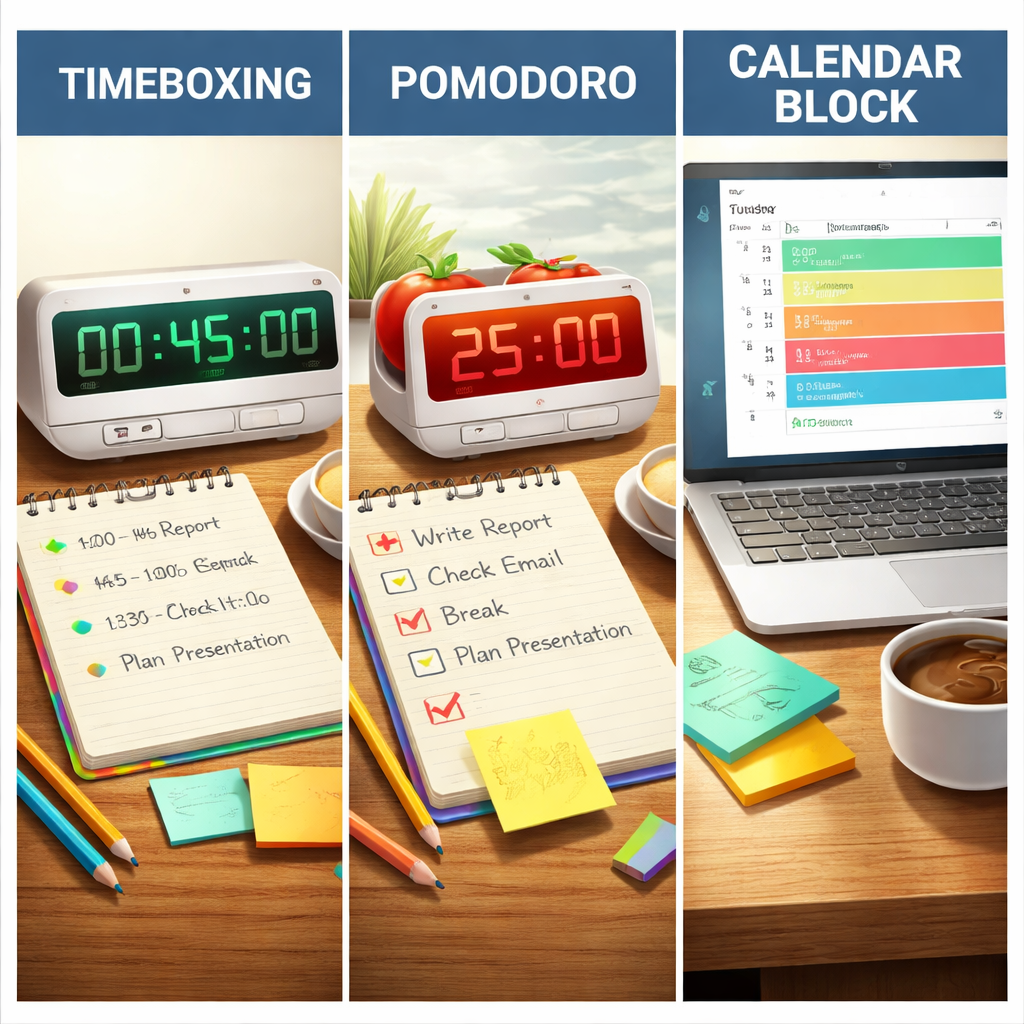
Side‑by‑side comparison
| Feature | Timeboxing | Pomodoro | Traditional Scheduling |
|---|---|---|---|
| Flexibility within slot | High – you can adjust tasks as long as you stay inside the box | Low – work stops exactly at 25 min | Medium – start time fixed, end time optional |
| Built‑in breaks | Optional – you add them yourself | Mandatory – 5 min after each sprint | None unless you schedule them |
| Best for | Deep‑work, research, writing | Skill practice, coding, repetitive tasks | Meetings, deadlines, multi‑day projects |
Notice how each column plays to a different need. The trick is not to pick a single champion but to match the method to the task.
Akiflow points out that allocating a fixed period helps combat Parkinson’s Law, which states work expands to fill the time available — a principle that underlies many timeboxing successes.
Hybrid workflow you can try today
Step 1: Identify today’s “big‑brain” work (e.g., a thesis chapter). Create a 90‑minute timebox in your calendar.
Step 2: Inside that box, break the work into two 40‑minute Pomodoros with a 5‑minute stretch in between. The Pomodoro rhythm keeps you from drifting, while the overarching timebox protects the deep‑work window.
Step 3: After the 90‑minute block, schedule a 15‑minute traditional buffer to review what you’ve completed and adjust tomorrow’s plan.
If you need a tool that makes juggling these layers painless, platforms like Focus Keeper let you fire a Pomodoro timer while still tracking larger timeboxes — a small but handy integration for anyone who likes visual cues.
Give this hybrid recipe a spin tomorrow. Notice whether you finish the chapter faster, feel less burnt out, or simply enjoy a clearer sense of progress. The data you collect in your own notes will become the compass for future tweaks.
FAQ
What is timeboxing and how does it differ from a regular to‑do list?
Timeboxing is a scheduling method where you carve a fixed chunk of calendar time for a specific task and commit to working only within that window. Unlike a plain to‑do list, which just tells you what needs to be done, a timebox tells you exactly when you’ll start and when you’ll stop, turning an intention into a concrete appointment with yourself. It also creates a natural deadline, which triggers the brain’s urgency response and helps you avoid the endless drift that often plagues open‑ended tasks. You’ll see progress faster.
How long should a timebox be for a student studying for an exam?
For most students, a 25‑ to 35‑minute block works well for a single study sprint. It’s long enough to get into a light flow state but short enough to keep mental fatigue at bay. Start by picking a concrete micro‑goal – for example, “outline three key arguments for the history essay” – then set a timer for 30 minutes. If you finish early, use the extra minutes for a quick review or a short stretch.
Can I combine timeboxing with the Pomodoro technique without losing focus?
Yes, you can nest Pomodoro cycles inside a larger timebox and get the best of both worlds. The outer box acts as a “big‑brain” session – for example, 90 minutes – and you fill it with two or three 25‑minute Pomodoros separated by 5‑minute breaks. The Pomodoro rhythm keeps you from drifting, while the timebox shields the deep‑work window from meetings. If you’re still in flow when the box ends, note the overrun and consider a slightly longer slot next time.
What should I do when a timebox overruns its limit?
If a timebox consistently spills over, it’s a signal that the chunk is either too ambitious or the task isn’t broken down enough. First, pause and note why you ran out of minutes – was it a tricky research step or an unexpected email? Then either shrink the goal for the next round or add a 5‑minute buffer at the end of the box. Over time you’ll fine‑tune the sweet spot.
How can remote workers protect their timeboxes from constant chat interruptions?
Remote workers often battle constant chat pings, and those interruptions can eat into a timebox in seconds. The trick is to create a visual cue – for example, switch your status to “focus mode” and turn off desktop notifications for the duration of the box. Schedule a dedicated 5‑minute “inbox check” after each block so you can address urgent messages without breaking the flow. Communicating the pattern to your team also reduces surprise interruptions.
Are there any tools that make tracking multiple timeboxes easier?
While a simple phone timer works, dedicated apps let you visualise several overlapping boxes at once. Look for a tool that lets you label each slot, colour‑code by project, and automatically adds a short buffer after the timer ends. In our experience, seeing the whole day laid out as colored blocks makes it easier to spot gaps, avoid double‑booking, and stay honest about how much focused work you actually completed.
How often should I review and adjust my timeboxes for maximum productivity?
Regular retrospectives keep your timeboxing system from becoming stale. Set aside 10‑15 minutes at the end of each workday to glance over the boxes you completed, note any overruns, and ask yourself which part of the process caused friction. Then, once a week, consolidate those notes and adjust the default durations or break‑points for similar tasks. By treating the schedule as a living experiment, you’ll steadily increase the amount of real‑output you get from each block.
Conclusion
So you’ve walked through defining tasks, carving slots, timing yourself, and tweaking the system – what does it all mean for your day-to‑day?
In short, timeboxing turns vague intentions into concrete appointments with yourself. That tiny commitment is why students can finally finish a study chunk, remote workers stop juggling endless tickets, freelancers keep projects from bleeding into each other, and busy professionals reclaim that half‑hour they thought was lost forever.
Notice how each step felt a bit messy at first? That’s normal. The magic happens when you treat every box as a quick experiment: set a goal, let the timer speak, note the friction, and adjust. Over a week you’ll see patterns – maybe you hit your stride late morning, or perhaps 45‑minute boxes suit creative work better than 30‑minute sprints.
Ready to put it into motion? Grab your favourite timer – even the Focus Keeper app if you have it – label the first box “Write intro paragraph — 25 min,” and walk away. When the alarm rings, celebrate the finish, then schedule a 5‑minute buffer to reflect.
Remember, the system only works if you keep feeding it data. A quick end‑of‑day note, a weekly retro, and you’ll keep sharpening those boxes until they feel like second nature. Give it a try today and watch your productivity stack up, one box at a time.




