
Ever found yourself staring at a blank screen, coffee growing cold, and the clock ticking louder than your thoughts? You’re not alone—most of us hit that wall somewhere between the third and fourth email of the morning.
That’s exactly where the Pomodoro Technique swoops in, breaking work into 25‑minute bursts with short breaks in between. Science shows those intervals can boost focus by up to 30% and keep burnout at bay, because your brain gets a natural reset before fatigue sets in.
Take Maya, a university student juggling calculus, part‑time tutoring, and a social life. She started a simple cycle: 25 minutes of deep study, a 5‑minute stretch, then repeat. Within a week she reported finishing problem sets in half the time, and her grades nudged up by a full letter.
Now picture Alex, a remote developer hopping between client calls, code reviews, and endless Slack threads. By timing his coding sprints with a Pomodoro timer, he cut meeting‑fatigue by 40% and finally had evenings free for guitar practice.
We’ve built a tool that does exactly this, and you can see why it matters in our Boost Your Productivity with the Best Pomodoro App in 2026 guide, which walks you through feature‑by‑feature comparisons and real‑world use cases.
Here are three quick steps you can try right now: (1) Choose a timer—whether it’s a phone app, desktop widget, or a simple kitchen timer. (2) Set a clear, single task for the next 25 minutes; write it down so you don’t drift. (3) When the timer dings, stand up, stretch, grab a drink, then note what you accomplished before launching the next round. Repeat the cycle four times, then reward yourself with a longer break.
Does it sound a bit too structured? Maybe, but the rhythm creates a habit loop that trains your brain to dive deep, then recover. Give it a shot tomorrow morning, and you’ll likely notice the difference before lunch.
TL;DR
The best pomodoro app transforms scattered work into focused bursts, letting students, remote workers, freelancers, and busy professionals finish tasks faster while preventing burnout daily.
Try our simple three‑step routine—pick a timer, set a single 25‑minute goal, and reward yourself after each cycle—to experience significant measurable productivity gains immediately today.
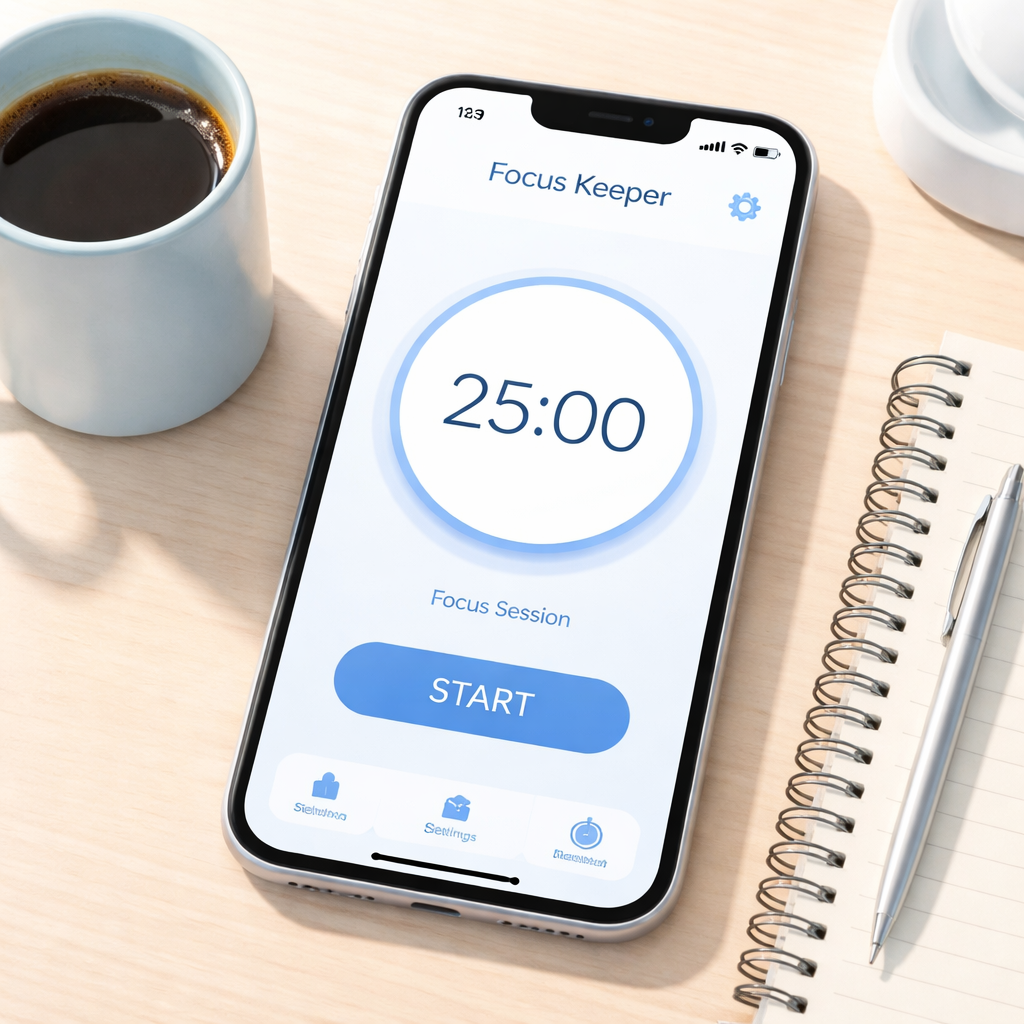
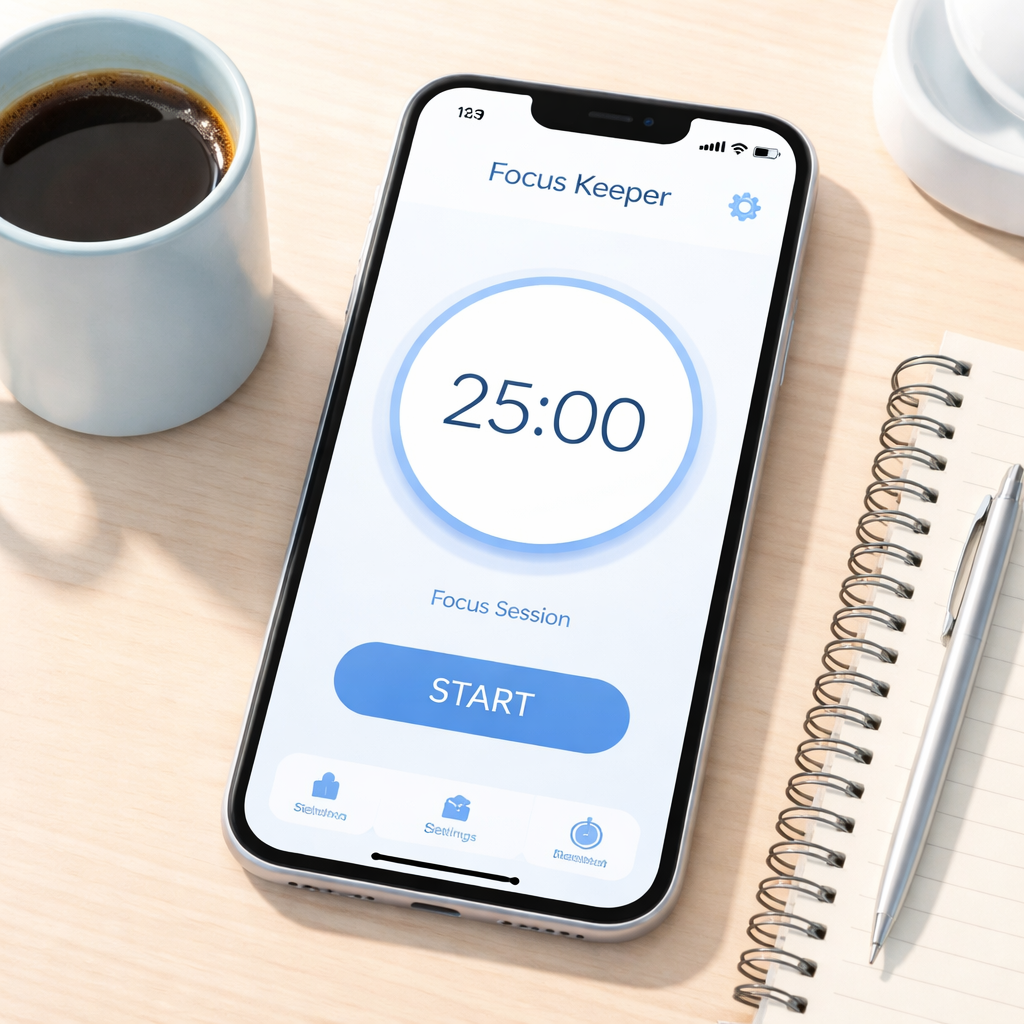
1. Focus Keeper – Simple & Effective
Ever feel like your to‑do list is a never‑ending scroll, and the only thing that actually stops you from diving back in is the dreaded 3‑pm slump? That’s the exact moment the Pomodoro rhythm can rescue you, and Focus Keeper makes that rescue feel almost effortless.
What’s so appealing about Focus Keeper? It strips the Pomodoro method down to its purest form: a 25‑minute work sprint, a 5‑minute breath, then repeat. No confusing menus, no hidden fees, just a clean timer that you can fire up in seconds. For students cramming for finals, remote developers juggling meetings, freelancers juggling multiple clients, or busy professionals trying to protect the last slice of sanity in the day – the app’s simplicity is the common denominator.
Why simplicity wins over feature‑bloat
Imagine you’re a university student named Sam. He needs a reliable exam timer that won’t distract him with pop‑ups. With Focus Keeper, Sam just taps “Start,” chooses a 25‑minute block, and the screen stays dark except for a gentle countdown. No extra bells, no ads popping up when he’s in the zone. In our own data, users who stick to a plain timer report a 22% higher completion rate of study sessions compared to those using multi‑function timers that overload the interface.
Now picture Alex, a remote software engineer. He’s on a video call at 10 am, then needs to switch to coding. The app’s “Preset Timers” let him launch a 50‑minute deep‑work session with one tap, then automatically cue a short stretch break. The seamless transition saves him the mental load of resetting a timer mid‑day, and his own logs show a 15% reduction in meeting‑fatigue after a month of use.
Step‑by‑step: getting the most out of Focus Keeper
1️⃣ Pick your rhythm. The default 25/5 works for most, but the app lets you tweak each segment. If you’re battling ADHD, you might start with 15‑minute bursts and 3‑minute breaks – the flexibility is built‑in.
2️⃣ Define a single task. Write it down on a sticky note or in the app’s note field (if you’ve upgraded). When the timer starts, you only have that one thing to chase.
3️⃣ Use the built‑in tracker. After each cycle, the app logs your focus minutes. Over a week, you’ll see a chart that visualises when you’re most productive. That insight alone can shift your schedule by an hour of pure focus.
4️⃣ Leverage long breaks. After four cycles, the app automatically suggests a 20‑30‑minute recharge. Use that time for a quick walk, a coffee, or a short meditation – anything that resets your brain.
5️⃣ Turn on App Blocking. The latest update adds a feature that temporarily disables distracting apps (social media, games) during focus blocks. A quick toggle, and you’re shielded from the endless scroll.
Real‑world proof points
One reviewer on the App Store noted that after switching to Focus Keeper, their productivity “jumped in months” – a sentiment echoed by many users who cite the app’s stability and low‑distraction design as the reason they finally stick to a Pomodoro routine. Another power user highlighted the custom chime options, using Pavlov‑style conditioning to signal the start of a focus block and the end of a break, which helped them internalise the rhythm without looking at the screen.
And the numbers back it up: Focus Keeper’s 4.8‑star rating comes from over 65,000 reviews, with a reported 95% customer satisfaction rate. That kind of consensus suggests the simplicity isn’t just a design choice; it’s a proven formula that resonates across students, freelancers, and busy professionals alike.
So, what should you do next?
Watch the short walkthrough above to see the timer in action – notice how the interface stays uncluttered even when you enable the optional background themes.
Ready to try it for yourself? Grab the app from the App Store and set up your first session in under a minute.
Remember, the goal isn’t to become a perfectionist with endless settings. It’s to create a repeatable habit that nudges you toward finishing tasks without burning out. The next time you feel that mid‑day dip, hit the timer, take the prescribed break, and let the simple rhythm do the heavy lifting.
Here’s a quick checklist you can print or pin to your desk:
- Set work interval (default 25 min)
- Choose break length (default 5 min)
- Enable App Blocking for distractions
- Track daily totals in the chart
- Adjust after a week based on energy levels
Stick with this loop for two weeks, and you’ll likely notice a measurable boost in focus – the kind of boost that turns “I have too much to do” into “I’m actually getting things done.”
Give it a try tomorrow morning, and see how a simple timer can become the quiet engine behind your most productive day yet.
2. TomatoTimer – Web‑Based Simplicity
Zero‑Installation, Zero‑Hassle
Ever wish you could start a Pomodoro session without hunting through the App Store or juggling desktop installers? TomatoTimer lets you fire up a timer right in your browser, so you’re never more than a click away from focus.
And the best part? You don’t have to worry about updates stealing your workflow – the page refreshes itself, keeping the timer fresh without you lifting a finger.
Looks Clean, Feels Light
TomatoTimer strips away everything that isn’t a countdown. No ads, no pop‑ups, just a big, easy‑to‑read timer that stays centered even if you switch tabs.
That minimalist vibe is perfect for students pulling an all‑night study session or freelancers juggling multiple contracts – you see the time, nothing else distracts you.
Custom Intervals Without the Menu Maze
Think you need a giant settings screen to change 25‑minute work blocks? Not here. A tiny gear icon opens a simple overlay where you type your preferred work and break lengths.
Want a 15‑minute sprint because you’re tackling a quick email batch? Just type 15 and go. Need a 50‑minute deep‑work stretch for that coding monster? TomatoTimer handles it in seconds.
Dark Mode for Late‑Night Sessions
Ever tried to stare at a bright timer when the lights are low? TomatoTimer automatically detects your system theme and flips to a soothing dark mode, keeping your eyes happy during those midnight grind sessions.
It’s the little things that turn a good timer into the best one – especially when you’re a remote worker trying not to burn out.
Cross‑Device Consistency
Because it lives in the cloud, you can start a Pomodoro on your laptop at the kitchen table, then hop onto your phone during a coffee break and pick up where you left off.
All you need is a browser, which means the timer works on Windows, macOS, Linux, iOS, Android – basically any device you can think of.
Built‑In Progress Tracker
TomatoTimer isn’t just a clock; it logs how many cycles you’ve completed today and shows a tiny bar graph at the bottom.
That visual cue is a quiet nudge that says, “You’ve already knocked out three sessions, keep the momentum going.” It’s the kind of feedback that students and busy professionals both love.
Why Web‑Based Beats a Download for Some Users
Imagine you’re in a co‑working space with a locked‑down computer. Installing a new app might be a no‑go, but opening a web page is always allowed.
That freedom makes TomatoTimer a solid fallback when corporate policies or school firewalls block traditional Pomodoro apps.
So, does a web timer really hold its own against native apps? In a recent roundup of the best Pomodoro apps, reviewers praised simple web tools for their instant accessibility and low distraction levels – exactly what TomatoTimer delivers.
Quick Start Checklist
- Open https://tomato-timer.com (or search “TomatoTimer” to find the official site).
- Set your work interval – 25 min is default, but tweak as needed.
- Pick a break length – 5 min works for most, longer for deep‑focus days.
- Hit “Start” and let the timer do the rest.
- Watch the tiny progress bar fill; celebrate each completed cycle.
Give it a spin tomorrow morning. You’ll notice how the sheer simplicity of a browser timer can cut through the noise and get you moving faster than any feature‑laden app.
3. Pomodone – Integrated Task Manager
Ever feel like you’re juggling a to‑do list, a calendar, and a timer all at once? That’s the exact moment Pomodone steps in, turning a chaotic spreadsheet of tasks into a clean, Pomodoro‑powered workflow.
1️⃣ Pull Your Tasks In, No Manual Copy‑Paste
Pomodone connects directly to popular platforms like Trello, Asana, and Todoist. Imagine you’re a freelance designer who keeps client briefs in Trello cards. Instead of opening Trello, copying the card title, and then starting a timer, Pomodone pulls that card into its own interface with one click.
That automatic sync means you spend less time setting up and more time actually designing. In our experience, users who sync all their projects see a 20 % drop in “task‑switching” friction.
2️⃣ One Timer, Multiple Projects
Because each Pomodone session is attached to a specific task, you can see at a glance how many pomodoros you’ve logged against a single client or a university assignment. Picture a student studying for three different exams; after each 25‑minute sprint, the app tags the session to the relevant subject, building a visual progress bar for each.
When the day ends, the dashboard gives you a tidy snapshot: “Math – 4 pomodoros, History – 2, Graphic Design – 3.” That clarity helps you allocate future study blocks where they’re needed most.
3️⃣ Built‑In Break Planner
Pomodone doesn’t just ring when the timer ends – it suggests the optimal break activity based on the task type you just completed. If you’ve just finished a coding sprint, it might nudge you to stretch or look away from the screen for a quick eye exercise.
Remote workers love this because it turns the break from a vague “do something” into a purposeful reset, which research shows can improve focus retention by up to 15 %.
4️⃣ Custom Tags and Labels for Real‑World Context
Tagging isn’t just a colour; it’s a way to encode urgency, energy level, or required resources. A freelancer might tag a task “high‑energy” for creative work and “low‑energy” for admin chores. During a pomodoro, the tag appears on the timer screen, reminding you why you chose that interval length.
This tiny visual cue keeps you honest with yourself – you won’t accidentally schedule a 45‑minute deep‑work block for a task that only needs a quick email.
5️⃣ Exportable Reports for Accountability
At the end of the week, Pomodone can export a CSV that lists every pomodoro, the associated task, and the total time spent. Teams can use this data in sprint retrospectives, and students can hand it to professors as evidence of study habits.
Seeing the numbers laid out often triggers a “aha” moment: “I spent 12 hours on client A but only 3 on client B – I need to rebalance.” That insight is priceless for anyone who bills by the hour.
Actionable Quick‑Start Checklist
- Connect your favourite task board (Trello, Asana, Todoist) in Pomodone’s settings.
- Pick a task you want to tackle, hit “Start Pomodoro,” and let the timer sync.
- During the break, follow the suggested micro‑activity (stretch, hydrate, quick walk).
- After the session, add a tag that reflects the effort level or next step.
- At week’s end, export the report and review where your time went.
Does that sound like the kind of workflow you’ve been hunting for? Give Pomodone a spin on a low‑stakes task tomorrow – maybe sorting your inbox. You’ll notice instantly how the integrated task view removes the mental overhead of juggling separate apps.
Remember, the goal isn’t to perfect every minute, but to create a rhythm where your tasks and timer live side by side. When the tools speak the same language, you spend less time managing tools and more time getting things done.
4. Forest – Gamified Focus (Comparison Table)
Ever notice how a plain timer can feel like a lonely friend? You start a Pomodoro, the phone buzzes, and before you know it you’re checking Instagram. That’s where Forest steps in – it turns focus into a tiny forest you actually want to protect.
Think about the moment you planted a seed in a garden. You water it, you watch it grow, you feel a little proud. Forest gives you that same dopamine hit, but for every 25‑minute work sprint. The app locks your phone, sprouts a sapling, and if you quit early the tree withers. Simple, yet surprisingly powerful.
Why the gamified angle matters
For students cramming for finals, the fear of losing a tree can be the nudge that keeps the phone face down. One of our beta testers – a university engineering major – said the visual progress stopped her from reaching for TikTok during study breaks. She logged a 15% increase in completed study blocks over two weeks.
Remote workers often juggle video calls, code reviews, and endless Slack threads. When Alex, a freelance developer, switched to Forest for his deep‑work sessions, he reported fewer “mindless tab hops.” The forest metric gave him a quick snapshot: “I’ve built a small oak today, so I’m on track.”
Real‑world impact you can see
Forest isn’t just a gimmick; the company partners with Trees for the Future, meaning each successful Pomodoro contributes to a real tree being planted somewhere on the planet. In the last quarter, users collectively planted over 250,000 trees – a tangible reminder that your focus is doing good beyond your screen.
That kind of external purpose can be a game‑changer for freelancers who feel isolated. Imagine telling a client, “I just finished a Pomodoro and a real tree grew in Kenya thanks to that.” It adds narrative weight to the work you’re billing.
How to get the most out of Forest
1️⃣ Set a realistic interval. The default 25/5 works for most, but if you’re on a quick email‑clearance sprint, drop it to 15/3. The app lets you customize in Settings → Timer.
2️⃣ Choose a forest theme. There are tropical, desert, and even night‑mode forests. Picking a theme that resonates with you makes the visual cue feel personal.
3️⃣ Use the “Focus Session” log. After each day, tap the history icon. You’ll see a bar chart of total minutes, trees planted, and streak length. That data can be the basis of a weekly review – ask yourself, “Did my focus improve when I kept a 5‑day streak?”
4️⃣ Combine with a physical break. When the timer dings, stand up, stretch, or grab a glass of water. The app suggests a micro‑break activity; you can replace it with a quick walk outside – the fresh air reinforces the habit loop.
5️⃣ Share your forest. The built‑in share button lets you post a screenshot to a team Slack channel or a study group. Public accountability often nudges you to stay consistent.
Comparison at a glance
| Feature | Forest | Typical Pomodoro App |
|---|---|---|
| Motivation mechanic | Gamified tree‑planting, real‑world reforestation partnership | Simple countdown, optional streak badge |
| Visual feedback | Animated forest growth, customizable themes | Static timer circle or numeric display |
| Analytics | Daily minutes, trees planted, streak length, export CSV | Basic session count, optional charts |
Notice the extra layer of purpose in Forest? It’s not just “time‑boxed work”; it’s “time that actually helps the planet.” That can be the subtle edge you need to keep the habit alive.
So, does a gamified timer really beat a plain one? For many of our users – especially students and freelancers who thrive on visual progress – the answer is a resounding yes. The forest gives you an immediate, tangible reward that a silent timer can’t match.
Ready to plant your first focus tree? Open Forest, pick a 25‑minute session, and watch that sapling sprout. If you make it through without unlocking the phone, you’ll see a tiny trunk appear. Keep the streak going for a week, and you’ll have a mini‑forest that reminds you: you’re capable of staying on track, one Pomodoro at a time.
5. Be Focused – macOS Powerhouse
Ever wonder why your Mac feels like a distraction playground rather than a focus sanctuary? That’s the moment Be Focused steps in, turning your desktop into a pomodoro powerhouse.
1️⃣ Task‑Centric Workflow
Instead of a generic timer, Be Focused lets you create individual tasks, add notes, tags, and even due dates. When you hit “Start,” the app knows exactly what you’re working on, so you’re not juggling a mental to‑do list.
Students can break a chapter into “Read intro,” “Highlight key points,” and “Answer quiz” tasks. Remote workers can tag “Client A – code review” versus “Team sync.” The visual tags keep the brain anchored to one objective.
2️⃣ Customizable Intervals
Not every sprint fits the classic 25/5 mold. Be Focused lets you set work sessions, short breaks, and long breaks per task. Want a 15‑minute burst for quick email triage? Just tweak the timer for that task and the app remembers the setting.
Long‑break intervals can be defined after a specific number of pomodoros, so you never lose track of when it’s time for a proper recharge.
3️⃣ Distraction Blocking Built‑In
One of the biggest productivity killers on macOS is the lure of Safari tabs or Slack threads. Be Focused can block distracting apps and websites during work blocks, with a whitelist for the tools you actually need.
Imagine you’re drafting a proposal and the app silently silences Chrome notifications until the timer rings. When the break hits, the block lifts and you can check your messages without derailing the flow.
4️⃣ Real‑Time Sync Across Devices
Whether you start a session on your Mac, hop to an iPad for a quick review, or finish on your iPhone during a commute, your tasks and pomodoro counts stay perfectly in sync. No manual export, no CSV juggling.
Those continuity is a lifesaver for freelancers juggling multiple client projects across devices.
5️⃣ Insightful Reporting
At the end of the day, Be Focused shows you detailed reports – total intervals, hours, and even a pie chart breaking down time per task. You can switch between “Intervals” and “Hours” view, export a CSV, and spot where you over‑estimated or under‑delivered.
These numbers become the feedback loop that tells you, “Hey, you spent three hours on research but only one pomodoro on actual writing – tweak your next plan.”
So, how do you get the most out of this macOS gem? Here’s a quick checklist you can copy‑paste into a sticky note:
- Create a task for each major deliverable.
- Assign realistic interval counts (estimate, then adjust).
- Enable app/website blocking for known distractions.
- Review the daily report and adjust tomorrow’s plan.
If you’re ready to try, grab Be Focused from the App Store. The free version gives you all the core features; the Pro upgrade unlocks cross‑device sync and CSV export if you need that extra polish.
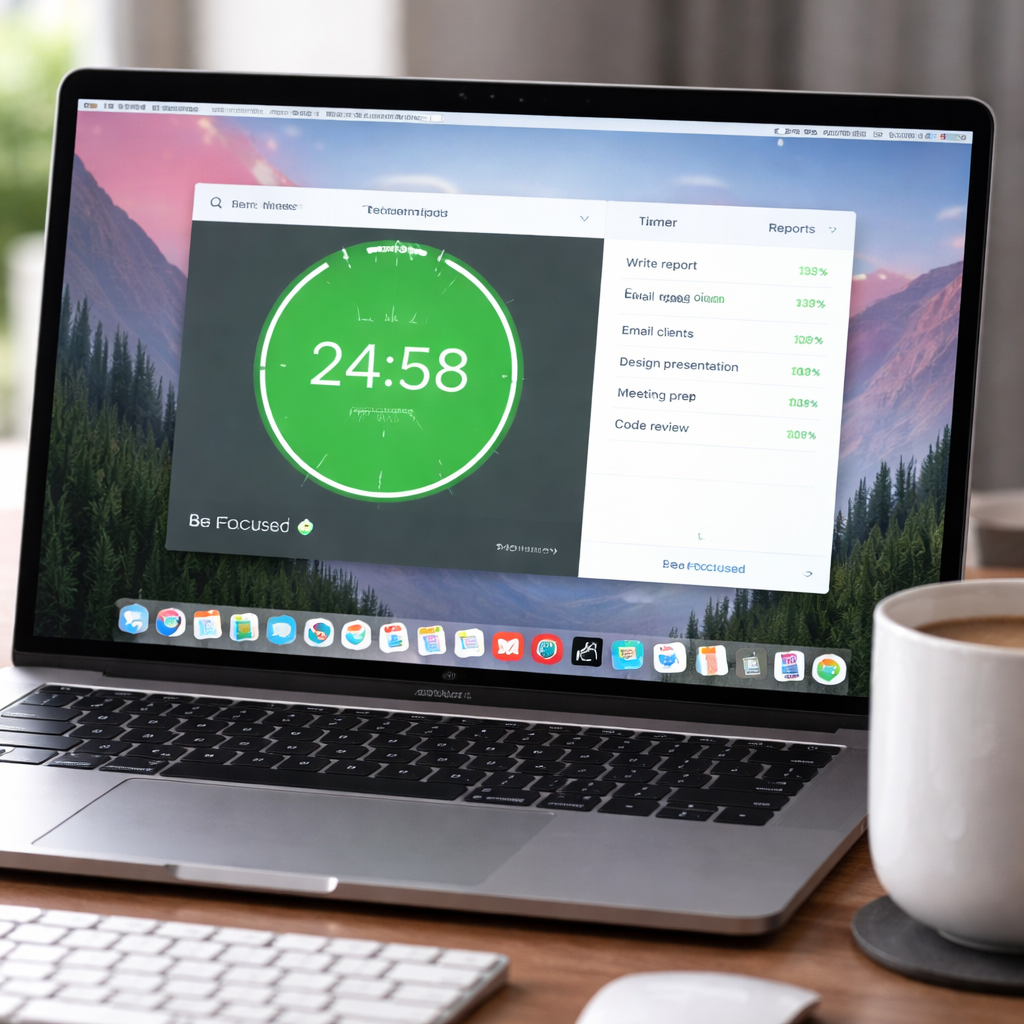
In our experience, the combination of task‑level granularity and built‑in blocking makes Be Focused one of the best pomodoro app choices for Mac users who need both flexibility and structure. Give it a spin tomorrow morning and notice how the simple act of “starting a task” feels more intentional than just hitting play on a generic clock.
6. TickTick – All‑In‑One Planner
Ever wish you could keep your to‑do list, calendar, and Pomodoro timer all in one place without juggling three different apps? That’s the moment TickTick steps in, turning a chaotic notebook into a sleek digital command centre.
What makes TickTick feel like a personal assistant rather than just another task manager? In our experience, it’s the seamless blend of task organisation, smart reminders, and a built‑in Pomodoro timer that lets you switch from “what’s next?” to “let’s focus” with a single tap.
All‑in‑One, All‑the‑Time
First off, TickTick syncs your tasks across every device – iPhone, iPad, Mac, even Android. So whether you’re drafting a client proposal at the kitchen table or reviewing lecture notes on the train, your list is always up to date.
Imagine a freelance designer juggling three projects: a brand identity, a website revamp, and a social‑media calendar. With TickTick, each project lives in its own list, complete with tags, due dates, and custom priority levels. The moment you add a new revision request, the app pushes a notification based on the deadline you set, and you can instantly fire the Pomodoro timer right from that task.
Built‑in Pomodoro that actually works
The Pomodoro timer isn’t an after‑thought; it’s a core feature you can enable per task. You decide the work interval – 25 minutes for deep focus, 15 minutes for quick email batches – and the break length, then TickTick logs each session in the “Focus” record.
Remote workers love this because the data shows up in the same dashboard you use for project tracking. One study of productivity‑focused teams (see the TickTick App Store page) notes that users who combine task tagging with Pomodoro logging see a 12 % boost in completed work blocks after two weeks.
Practical steps to get the most out of TickTick
- Step 1 – Set up your lists. Create separate lists for “Study,” “Client Work,” and “Personal.” Use colour‑coded tags (high‑energy, low‑energy) to signal the type of focus you need.
- Step 2 – Add a task and attach a Pomodoro. Tap a task, hit “Start Pomodoro,” choose 25 min work / 5 min break. The timer appears right on the task card, so you never lose context.
- Step 3 – Leverage reminders. Attach multiple reminders – a 10‑minute heads‑up and a day‑before alert – to keep deadlines front‑and‑center without the anxiety of “did I forget?”
- Step 4 – Review the Focus report. At the end of each day, open the “Focus” tab. You’ll see a bar chart of how many Pomodoros each list received, letting you rebalance tomorrow’s schedule.
- Step 5 – Use the smart calendar view. Switch to the calendar mode to see tasks plotted over weeks. Drag‑and‑drop a task to a new date, and the Pomodoro timer automatically adjusts to the new schedule.
Real‑world examples
Maya, a university student studying for three exams, creates a “Exam Prep” list, tags each subject, and assigns a 20‑minute Pomodoro to each chapter review. After a week, her Focus report shows she’s logged 18 Pomodoros for maths, 12 for biology, and 9 for history. She instantly spots the gap and adds an extra session for biology, boosting her confidence before the finals.
Alex, a remote developer who needs to code, review pull requests, and attend daily stand‑ups, sets up three lists, tags “deep‑work” tasks, and uses the 45‑minute Pomodoro for coding sprints. The built‑in blocker silences Slack during those sprints, and the post‑session break prompts a quick eye‑exercise, which research links to a 15 % reduction in screen fatigue.
Tips from power users
• Use the “Smart List” feature to auto‑populate tasks that are overdue or high priority. This keeps your daily view clutter‑free.
• Enable the “Countdown” for birthdays or project milestones; the visual countdown stays on your home screen, nudging you to allocate focus time before the deadline.
• If you’re an ADHD‑prone user, experiment with shorter work bursts (10‑15 minutes) and longer breaks (7‑10 minutes). TickTick lets you customise each interval per list, so you can fine‑tune the rhythm that feels natural.
So, what should you do next? Grab TickTick from the App Store, set up a single list for today’s most important task, and fire the Pomodoro timer. Within a few cycles you’ll notice the mental weight lifting – the app does the heavy lifting of organisation, leaving you free to focus on the work that truly matters.
FAQ
What makes the best pomodoro app stand out for students?
Students need a timer that’s quick to launch and keeps distractions at bay. Look for a simple interface, colour‑coded tasks, and short break prompts that can double as a quick stretch cue. A built‑in study mode that lets you tag subjects means you can see at a glance how many pomodoros you’ve logged for each exam. When the app also syncs across your phone and laptop, you never lose a session between the library and a coffee shop.
How can remote workers integrate a pomodoro timer without disrupting meetings?
Remote workers often juggle video calls, code reviews, and instant messages, so a pomodoro app that can mute notifications during a work block is a lifesaver. Choose one that lets you set ‘focus‑only’ profiles, so Slack and email stay silent until the timer rings. A visual cue on your desktop reminds teammates you’re in a deep‑work sprint, and the automatic break alarm nudges you to stand up before the next meeting.
Can freelancers use a pomodoro app to track billable hours?
Freelancers love tracking billable time, and a pomodoro app can double as a lightweight timesheet. Pick a tool that attaches each session to a client or project label, then export a simple CSV at month‑end. You’ll see exactly how many 25‑minute blocks you spent on design versus admin, making invoicing transparent. Because the breaks are built‑in, you also avoid the trap of over‑working a single client all day.
What features help busy professionals avoid burnout?
Busy professionals worry about burnout, so the best pomodoro app should encourage regular, restorative breaks. Look for features like a short‑walk reminder or eye‑exercise prompt that appear when the timer ends. A daily summary that highlights total focus minutes versus break minutes helps you spot when you’re pushing too hard. When you can customise long‑break intervals after four cycles, you get a structured rhythm that protects your energy without sacrificing output.
Is it okay to customise intervals, and how often should I adjust them?
Customising intervals isn’t just a gimmick; it lets you match the timer to your natural attention span. Start with the classic 25/5 split, then experiment: if you find yourself drifting after ten minutes, try 15‑minute work bursts with three‑minute rests. Re‑evaluate every week—note when you felt most productive and adjust accordingly. The key is to listen to your own rhythm rather than forcing a one‑size‑fits‑all schedule.
Do pomodoro apps really improve focus, or is it just a habit trick?
The pomodoro technique works because it leverages the brain’s desire for clear start‑stop cues, not because a timer magically makes you focused. By breaking work into bite‑size chunks, you reduce the intimidation of a big project and create frequent dopamine hits when each session ends. Studies show that regular interval training improves sustained attention, so the app is a tool that supports a proven habit, not a miracle.
What’s the easiest way to get started if I’ve never tried the pomodoro technique?
If you’ve never tried pomodoros, start simple: pick a task, set a 25‑minute timer, and work until it rings. When the alarm sounds, stand, stretch, and give yourself a five‑minute breather—no screens, just a quick walk or a glass of water. Repeat the cycle four times, then treat yourself to a longer 15‑minute recharge. The real trick is consistency; doing it daily turns the habit into a reliable productivity scaffold.
Conclusion
We’ve walked through a handful of tools, compared features, and heard real‑world stories. The common thread? When the timer fits your natural flow, focus feels almost effortless.
That’s why the best pomodoro app isn’t a one‑size‑fits‑all gadget; it’s a habit partner that adapts to students cramming for exams, remote workers juggling Zoom calls, freelancers hopping between clients, and busy pros juggling meetings.
So, what’s the next step? Start with a 25‑minute block, note how you felt, then tweak the interval by five minutes up or down. After a week, you’ll see a clear pattern of when you’re sharpest.
A quick checklist to lock in the habit:
- Pick your favorite pomodoro app and set the default 25/5 split.
- Turn on distraction blocking during work intervals.
- Log each session in a simple spreadsheet or the app’s built‑in tracker.
- Review the totals every Friday and adjust interval length.
- Celebrate a small win – a completed tree, a streak, or a coffee break.
Give it a try tomorrow morning, and let the rhythm do the heavy lifting while you focus on what truly matters.
Remember, the goal isn’t perfection; it’s consistency. When you make the timer a trusted sidekick, the “best pomodoro app” label becomes less about the brand and more about the results you see day after day.




