
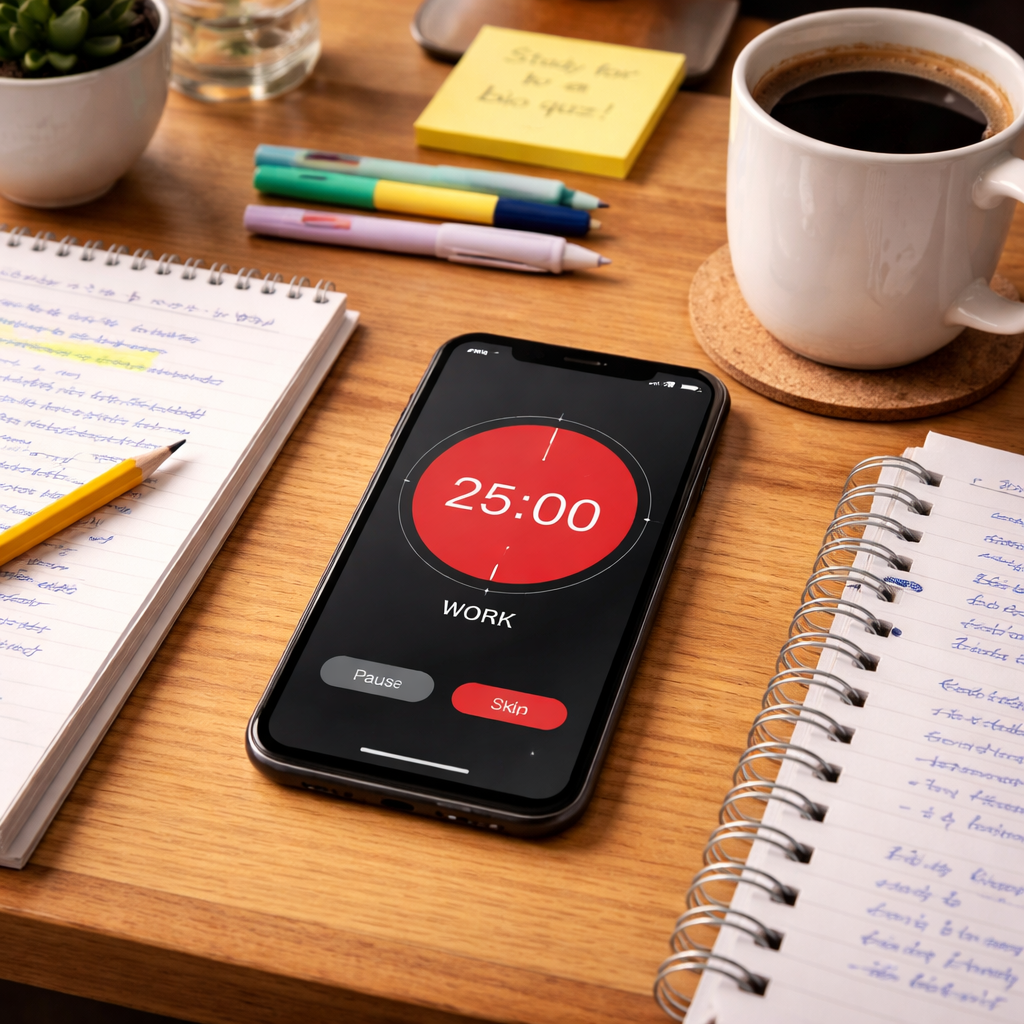
Studying can feel like a marathon that never ends. The pomodoro timer for students turns that marathon into short, focused sprints that keep your brain fresh.
In this guide you’ll learn how to set up a timer, plan each session, pick the right app, manage breaks, and track progress so your grades improve.
Researchers looked at 9 student‑focused Pomodoro timer apps across 3 sources. They found that 7 of 11 apps (64%) provide no session‑customization, while only one app offers a completely unrestricted free tier.
| Name | Platforms | Session Customization | Built-in Study Features | Integrations | Free Tier | Best For | Source |
|---|---|---|---|---|---|---|---|
| Focus To-Do | Android, iOS, macOS | Set an execution time for the task | task list, reminders, recurring tasks | Android widgets, calendar modes | Free with ads. Premium removes ads and unlocks additional features. | Best for task organization | routinery.app |
| Focus Keeper | web, iOS, Android | lots of customization abilities | visual timer wheel, streaks | iOS ScreenTime (app blocking), focus sound libraries, calendar sync | Free with limits | Best for customization | routinery.app |
| PomoFocus | iOS, Apple Watch | customizable features, task templates, estimates | gamification, calendar sync, home screen widgets, lock screen widgets, Standby mode | Apple Watch, calendar sync | Free with limited features | Best for Apple Watch integration | toolfinder.com |
| Otto | Chrome | — | website blocking, task management, Autoblock, Workflows | Chrome extension, website blocking APIs | Free with unlimited pomodoro timers and website blocking | Best for web blocking | toolfinder.com |
| Session | iOS, macOS | — | analytics, calendar view, mood tracking, micro-journal, breathing exercise | iCloud sync (premium only), calendar projection | Free plan gives unlimited pomodoro timers but only 2 days of analytics | Best for study analytics | toolfinder.com |
| Not Boring Timer | iOS | — | full-screen visual timer, sound effects, stopwatch | Not Boring Weather, Not Boring Calculator, Not Boring Habits | Free plan is extremely limited – basically a demo | Best for immersive visual timer | toolfinder.com |
| Flow | macOS, iOS, Apple Watch | — | mindfulness, chart-based insights, app blocking (premium), calendar connections (premium) | calendar connections (premium) | Free to use with basic features | Best for mindfulness | toolfinder.com |
| Pomodor | Web | customizable cycles | — | Chrome notifications | Completely free with no limits, no ads, no premium tier | Best for unlimited free use | toolfinder.com |
| Focus Booster | Web, iOS, Android | No | time tracking, reports, CSV export | — | — | Best for reporting/export | paymoapp.com |
The study scraped 11 app listings on April 6, 2026. It kept items that had at least three filled fields. That left 9 apps for the final comparison.
Step 1: Set Up Your Pomodoro Timer
First, pick a timer that you trust. You can use a kitchen timer, your phone clock, or a dedicated app. A good timer will ring loudly so you know when time is up.
If you like a digital tool, the Pomodoro apps listed in the table give you extra features. Focus Keeper, for example, lets you change work and break lengths. That matches the finding that only Focus Keeper and a few others let you adjust timings.
Here’s a quick set‑up checklist:
- Download the app or place the kitchen timer on your desk.
- Open the settings and set work time to 25 minutes.
- Set break time to 5 minutes.
- Save the preset as “Study Sprint”.
Test the timer before you start a real study session. Run a short 2‑minute test to hear the sound.
When the timer works, you can move on to planning. A reliable timer removes the guesswork about when to stop.
Some students prefer a web‑based timer because it stays open on the laptop. Zapier’s roundup of Pomodoro apps notes that a web timer can auto‑switch between work and break periods, saving clicks.
Another source, Todoist, explains that the Pomodoro method works best when the timer is visible. A visible timer reminds you to stay on task.
Now you have a timer ready. The next step is to plan what you will do during each sprint.
Step 2: Plan Study Sessions with the Pomodoro Technique
Planning makes each pomodoro count. Start with a to‑do list. Write each task that you need to finish today.
Next, break big tasks into smaller pieces that fit in a 25‑minute slot. The Oregon State guide says that a pomodoro is a short sprint that feels doable.
Here is a simple table you can copy into a spreadsheet:
| Pomodoro # | Task | Goal for the slot | Notes |
|---|---|---|---|
| 1 | Read Chapter 3 | Summarize pages 10‑15 | Focus on key concepts |
| 2 | Solve equations | Complete 10 problems | Check work after each |
| 3 | Flashcards | Review 30 cards | Mark unknown cards |
| 4 | Write outline | Draft intro paragraph | Keep it brief |
Use the table to see how many pomodoros you need for each subject. If you have a 2‑hour block, you can fit four pomodoros and three short breaks.
When you plan, also think about energy peaks. Many students feel sharp in the morning. Slot harder subjects then.
Miro’s template page suggests adding a column for “energy level” so you can match tasks to your focus.
After you fill the table, keep it visible. A sticky note on your monitor works well.
Tip: Review the table at the start of each day. Move unfinished tasks to the next day’s plan.
- Prioritize tasks by deadline.
- Group similar subjects together to reduce context switching.
- Allow a buffer pomodoro for unexpected interruptions.
Step 3: Choose the Right Pomodoro App for Students
Now pick an app that fits your study style. Look at the research table. Focus Keeper offers lots of customization, which matches the key finding that only a few apps let you change timers.
If you want a completely free tool, Pomodor is the only app with unlimited free use. It lets you set any work‑break cycle you like.
For Chrome users, Otto gives unlimited timers plus website blocking. That can stop you from opening distracting sites.
Here’s a quick comparison:
- Focus Keeper: great for custom cycles, visual wheel, iOS ScreenTime integration.
- Pomodor: simple web app, no ads, fully free.
- Otto: Chrome extension, blocks sites, good for distraction‑heavy environments.
Watch this short video that shows how to set up a Pomodoro app on a phone. It walks through the steps in under two minutes.
PCMag’s review of Pomodoro apps notes that many tools add extra features like task lists or focus music. Those can help you stay on track.
PCMag also says that a simple timer often works best because it adds no extra friction. That aligns with the finding that a clutter‑free timer helps students keep focus.
Once you install the app, set your default work and break lengths. Save them as a profile called “Student Mode”.
Test the app for a day. If the sound is too harsh, lower the volume or change the tone.
Step 4: Manage Breaks Effectively to Boost Retention
Breaks are as important as work blocks. A short 5‑minute break lets your brain rest.
During a break, move away from the screen. Stretch, walk, or get a drink. That helps blood flow to the brain.
Research from CIS‑Spain says that regular breaks keep the mind fresh and act like a quick espresso for the brain.
Avoid scrolling social media during breaks. That can pull you back into distraction.
Instead, try one of these micro‑activities:
- Do a few neck rolls.
- Look out a window for 30 seconds.
- Do a quick breathing exercise.
After four pomodoros, take a longer break of 15‑30 minutes. Use that time to eat, walk, or do a short meditation.
The longer pause helps you keep the study rhythm for the next set of pomodoros.
Here’s a pros/cons list for break activities:
- Pros: physical movement, mental reset, reduced eye strain.
- Cons: watching TV can extend the break unintentionally.
One student tried a 5‑minute doodling break. He found that drawing simple shapes kept his mind active without pulling him back into work.
Another tried a quick snack. A piece of fruit gave a steady sugar boost without the crash of candy.
Remember to set a timer for the break too. When the break timer rings, jump back to the next pomodoro.
For more ideas, see the Pomodoro Timer for College Students: A Step‑by‑Step Guide to Boost Study Efficiency. It gives extra tips on healthy break habits.
Step 5: Track Progress and Adjust Your Schedule
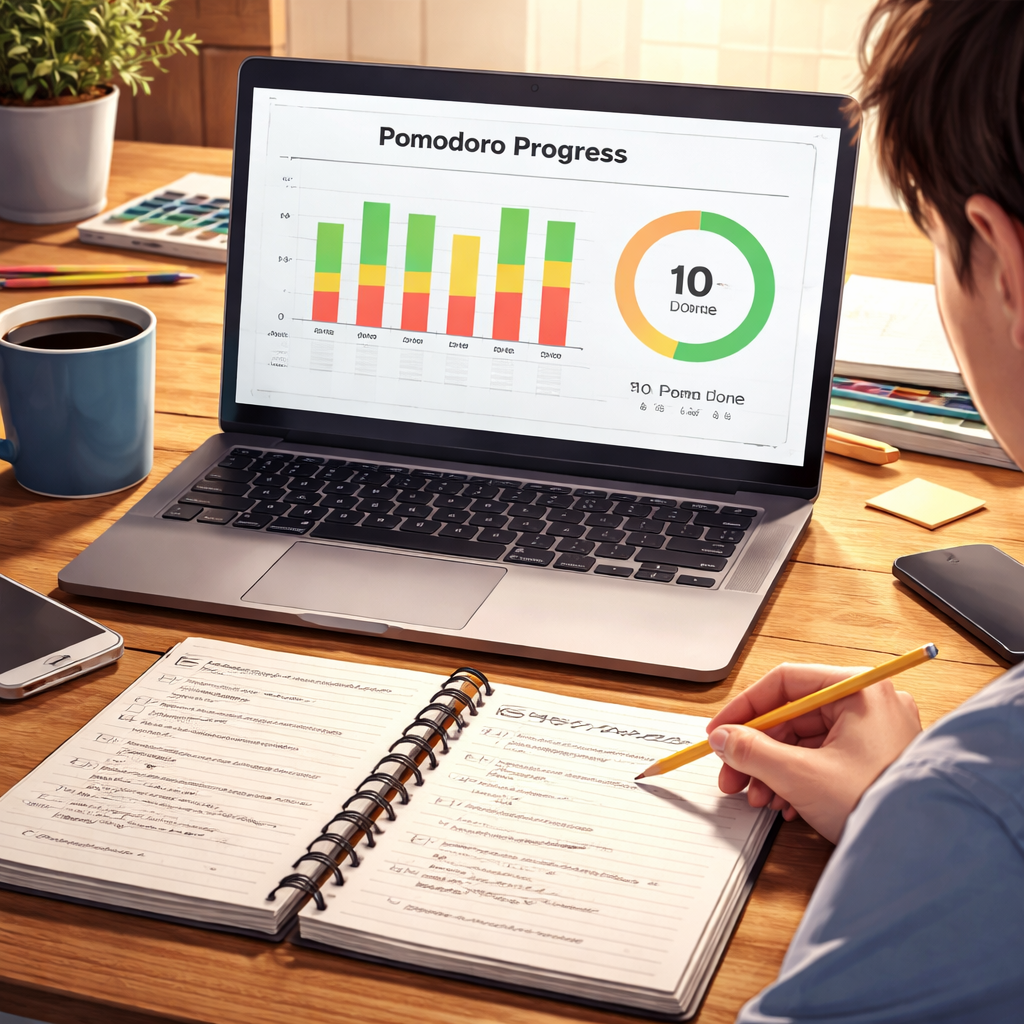
Tracking lets you see how many pomodoros you finish each week. Most apps show a simple count.
Focus Keeper, for example, shows a wheel that fills up with each completed pomodoro. That visual cue can motivate you.
Pomodoro‑tracker.com lets you add tasks to a form and see a list of completed intervals. You can export the data for deeper analysis.
After each study day, look at your log. Ask yourself:
- Did I hit my goal for each subject?
- Which pomodoros felt hardest?
- Did I need more or fewer breaks?
Answering these questions helps you tweak the schedule. Maybe you need 30‑minute work blocks for reading heavy chapters.
CIS‑Spain’s article says that the Pomodoro method helps you estimate how long a task takes. Over weeks you get better at guessing the number of pomodoros needed.
Use the data to adjust:
- Identify tasks that consistently need more than one pomodoro.
- Lengthen the work interval for those tasks by 5 minutes.
- Shorten breaks for high‑energy subjects.
Keep a simple spreadsheet with columns: Date, Subject, Pomodoros Completed, Notes. Review it every Sunday.
When you see a pattern, change your plan for the next week. That feedback loop is the secret to steady improvement.
FAQ
What is a pomodoro timer for students and how does it work?
A pomodoro timer for students is a countdown that splits study time into short, focused bursts, usually 25 minutes, followed by a 5‑minute break. You pick a single task, start the timer, and work until it rings. Then you rest. After four cycles you take a longer break. This rhythm helps you stay sharp and avoid burnout.
How long should my pomodoro intervals be for different subjects?
Stick with the classic 25‑minute work slot for dense reading or problem‑solving. If you need more flow, try 30‑minute intervals. For light tasks like flashcards, 15‑minute bursts keep momentum high. Test a few lengths and pick the one that feels natural for each subject.
Can I use a physical kitchen timer instead of an app?
Yes. A simple kitchen timer works fine. The key is that it makes a clear sound when the time is up. Some students like the tactile click of a mechanical timer. Just make sure the timer is visible and loud enough to hear over background noise.
What are the best practices for tracking progress with a pomodoro timer for students?
Label each session with a concrete task, like “read chapter 4 notes.” At the end of the day, tally how many pomodoros you completed per subject. Look for patterns, maybe biology needs longer work blocks. Adjust future schedules based on those insights. A visual log in an app or a spreadsheet works well.
How do I stay motivated when the pomodoro timer rings?
Treat each ring as a win. Celebrate by checking off the task on your list. Seeing a growing list of completed pomodoros builds momentum. If you finish early, use the extra minutes to review notes or do a quick recap. That keeps the habit positive.
What should I do if I get distracted during a pomodoro?
Write the distraction on a piece of paper and return to it after the timer ends. This way you acknowledge the thought without breaking focus. Over time you’ll notice fewer interruptions because your brain learns to hold off until the break.
Conclusion
Using a pomodoro timer for students can turn chaotic study sessions into organized sprints. By setting up a reliable timer, planning each sprint, picking the right app, managing breaks, and tracking results, you give your brain the rhythm it needs to stay sharp.
The research shows that most apps lack customization, so choose one that lets you tweak work and break lengths. Pomodor gives a completely free option, while Focus Keeper adds visual wheels and iOS integration.
Start with a single pomodoro tomorrow. Record what you did, take a short break, and repeat. After a week, look at your log and fine‑tune the intervals. You’ll likely see better focus, less fatigue, and higher grades.
Ready to give it a try? Grab a timer, plan your first session, and watch your study habit improve one pomodoro at a time.




