
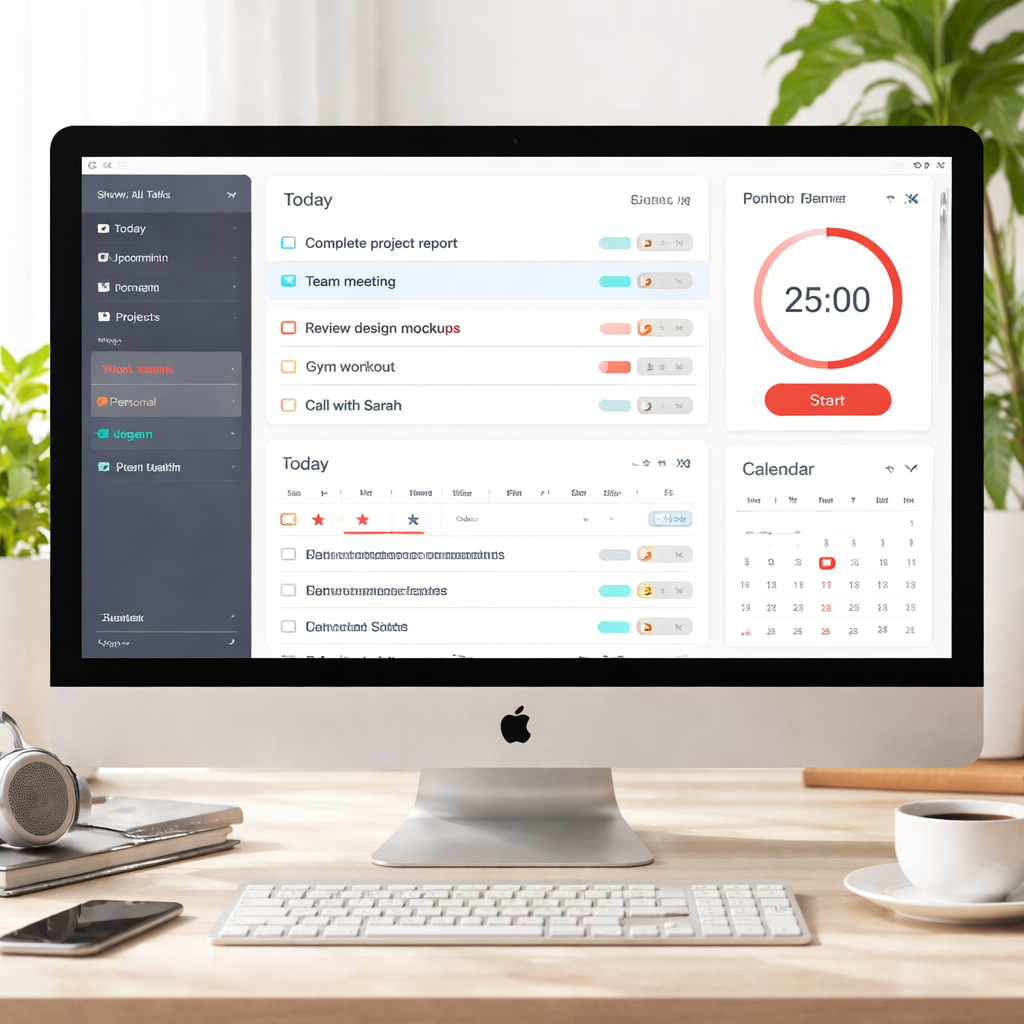
Ever felt like your to‑do list is a never‑ending scroll that just mocks you every time you open it?
You’re not alone—most of us wrestle with that same frantic feeling, especially when deadlines loom and distractions scream.
So, what if there was a way to turn that chaos into a series of bite‑sized, doable chunks?
In our experience working with students cramming for finals, remote workers juggling Zoom calls, freelancers hopping between client projects, and busy professionals trying to carve out a little “me time,” we’ve seen a simple tool make all the difference.
Enter productivity apps: tiny digital assistants that remind you when to focus, when to breathe, and when to celebrate a win.
Some apps count down the minutes, others block noisy websites, and a few even gamify the whole process so you feel like you’re leveling up instead of slogging through work.
Think about the last time you sat down to study and, within five minutes, checked your phone for memes—only to lose the thread of your notes. A well‑designed app can gently nudge you back on track without feeling like a nag.
And it’s not just about staying glued to the screen. Good productivity apps help you see patterns: when you’re most alert, how long you can stay in the zone, and where you tend to drift.
That insight is gold for anyone trying to master their own rhythm, whether you’re drafting a research paper, delivering a client pitch, or simply trying to finish the grocery list before dinner.
We’ve watched countless users swap endless scrolling for focused bursts, and the shift is almost always palpable—energy rises, stress drops, and that dreaded feeling of “never getting anything done” starts to fade.
Stick with us, and we’ll walk you through the key features to look for, the common pitfalls to avoid, and how to pick a productivity app that actually fits your life, not the other way around.
TL;DR
Productivity apps transform chaotic to‑do lists into focused bursts, letting students, remote workers, freelancers, and busy professionals actually finish tasks without endless scrolling. By tracking work intervals, visualizing peak focus times, and gently nudging you back on track, these tools boost energy, cut stress, and help you achieve measurable progress every day.
1. Task Management Apps
Ever opened a to‑do list and felt the list itself was breathing down your neck? That moment of panic is exactly why task‑management apps exist – they turn that chaotic wall of tasks into a tidy, doable roadmap.
But not every app fits every brain. A student juggling lectures, a freelancer juggling clients, a remote worker juggling Zoom calls, and a busy professional juggling meetings all need slightly different flavors of organization.
Here’s a quick rundown of the most common app types, why they matter, and how you can start using them today.
1️⃣ Simple List‑Based Apps
If you just need a clean list you can tap into on your phone, look for apps that let you add tasks in a couple of seconds. Natural‑language input (type “buy coffee tomorrow 9 am”) speeds up capture, so you don’t waste mental energy on formatting.
In our experience, apps that sync instantly across iOS, Android, and web browsers prevent the dreaded “I wrote it on my phone, but it’s not on my laptop” moment.
Action step: Pick one list‑based app, add three tasks right now, and set a due date using natural language. If it feels clunky, move on – the right fit should feel effortless.
2️⃣ Calendar‑Integrated Task Managers
When your to‑do list collides with a packed calendar, you need an app that shows both side‑by‑side. This helps you spot when you have a free 25‑minute window for a quick write‑up or a 2‑hour block for deep work.
For remote workers, seeing tasks overlayed on Google Calendar or Outlook can reveal hidden gaps that would otherwise be lost in endless email threads.
Action step: Link your chosen task manager to your primary calendar, then drag a task into a time slot. Notice how the visual cue reduces the “when do I actually have time?” anxiety.
3️⃣ Pomodoro‑Enabled Apps
Pomodoro timers turn a task into bite‑sized intervals, which is especially helpful for students who get distracted after a short burst of focus. Look for apps that embed a timer directly inside the task view, so you never have to switch contexts.
We’ve seen freelancers finish proposals faster when they set a 25‑minute Pomodoro, take a five‑minute break, and repeat. The rhythm builds momentum.
Action step: Choose an app with a built‑in Pomodoro (or use a simple timer) and commit to three Pomodoros on a single task today. Track how many interruptions you actually have – the numbers are usually surprising.
4️⃣ Tag‑Heavy, Project‑Oriented Tools
When you’re managing multiple projects – say, a client redesign, a personal blog, and a study schedule – you need tags, labels, or folders to keep everything separate yet searchable.
Projects that let you filter by tag (e.g., #client‑A, #exam‑prep) let you switch contexts without scrolling through unrelated items.
Action step: Create a tag hierarchy that mirrors your major life areas. Assign each new task a tag right away; you’ll thank yourself when the week ends and you can quickly pull up “all client‑related tasks”.
5️⃣ Automation‑Ready Platforms
Automation can save you minutes (or hours) every day. If your task app talks to Zapier, you can automatically turn an email into a task, or move a completed task into a spreadsheet for reporting.
Even a tiny automation like “when I star an email, add it as a task” can keep your inbox from becoming a silent to‑do list.
Action step: Set up one Zapier automation that creates a task from a specific trigger you already use (e.g., a starred Gmail message). Test it for a day and note the reduction in manual entry.
All of these categories have pros and cons, but the sweet spot is often a hybrid approach: a simple list for quick capture, a calendar view for scheduling, and a Pomodoro timer for focus bursts. If you’re curious about how to choose the right mix, our productivity app guide walks you through the decision matrix step by step.
Remember, the best app is the one you actually open every day. Start small, iterate, and let the data you collect (how many tasks you complete, how long you stay in focus) guide you toward the perfect setup.
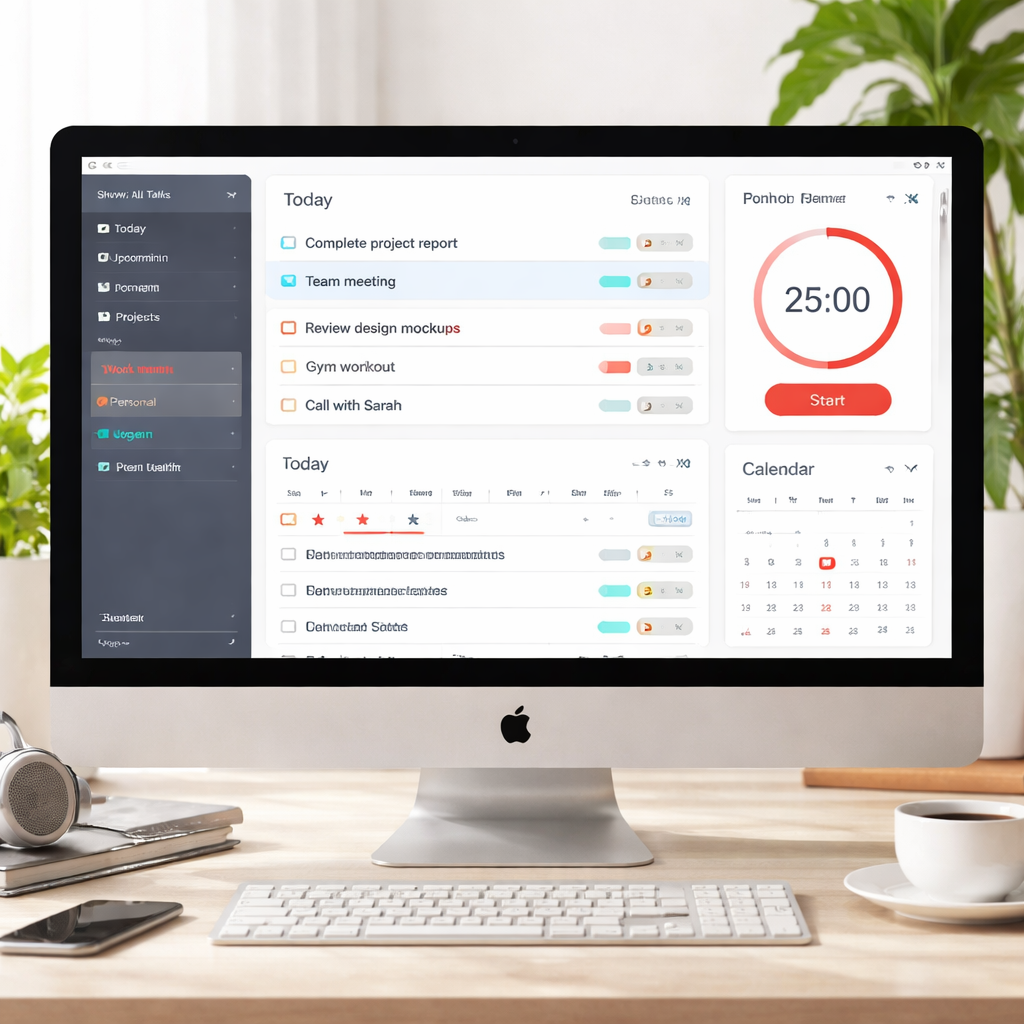
2. Time Tracking Apps
Ever wonder why the clock seems to run faster when you’re juggling a client deadline, a class assignment, and a Zoom call? That feeling usually means you’re missing a clear way to see where every minute goes. That’s where dedicated time‑tracking apps step in – they turn “I’m busy” into real data you can act on.
1️⃣ My Hours – Simple & Affordable
My Hours keeps the interface stripped down to the basics: start a timer, add a project, and you’re done. It even lets you set hourly rates and spit out invoices without hopping into a spreadsheet. In our experience with freelancers, the “no‑frills” vibe means they actually open the app every day instead of hiding it.
Action tip: Create a client‑specific project in My Hours, log a single Pomodoro‑style 25‑minute block, then glance at the automatically generated billable amount. You’ll see instantly how much that focused burst is worth.
2️⃣ Timely – AI‑Powered Auto‑Capture
Timely uses AI to fill in the blanks for you. As you switch between browser tabs or design tools, the app learns your patterns and suggests time entries, so you spend less time typing and more time doing. Remote workers love that it reduces the mental overhead of “remembering to log” every task.
Try this: enable the auto‑track feature, work on a client proposal for an hour, then at day‑end accept the suggested entries with a single click. You’ll get a clean timesheet without the dreaded “what did I actually do?” moment.
3️⃣ Harvest – Tracking Meets Invoicing
Harvest pairs time tracking with built‑in invoicing, PayPal/Stripe integrations, and reminders for timesheet submissions. For busy professionals who need to bill multiple clients, the seamless flow from logged minutes to a polished invoice saves hours of admin work.
Quick win: set up a default expense rate for each client, track your hours on the mobile app during a coffee shop sprint, and at week’s end hit “Generate Invoice” – the numbers line up automatically.
And if you’re wondering whether these tools play nice with other software, both My Hours and Harvest list dozens of integrations, from Slack to QuickBooks, so you won’t have to rebuild your whole workflow.
Students can use a timer to see exactly how many Pomodoro cycles they need for a chapter, freelancers get a clear picture of billable versus non‑billable time, remote workers finally have proof of effort for managers, and busy professionals can spot hidden meetings that eat up their day. The common thread? All of them gain confidence when the numbers back them up.
So, which app feels like it could slide into your day without adding friction?
Watch the short video above for a quick walkthrough of setting up a timer, tagging a project, and exporting a report – all in under two minutes. It’s the kind of visual aid that turns “maybe I’ll try this later” into “let’s do it now.”
Bottom line: a solid time‑tracking app gives you the data you need to spot wasted minutes, justify billable hours, and keep your schedule honest. Pick one that matches your workflow style, test it for a week, and let the numbers guide your next productivity tweak. If you want a deeper dive, check out this time tracking software guide for more side‑by‑side comparisons.
3. Focus & Distraction‑Blocking Apps
Ever catch yourself scrolling through memes right after you promised yourself a solid work block? Yeah, we’ve all been there.
That tug‑of‑war is exactly why focus‑and‑distraction‑blocking apps exist. They act like a gentle bouncer at the door of your screen, letting the right stuff in and keeping the noise out.
1️⃣ Freedom – block everywhere, not just the browser
Freedom lets you set up blocklists that sync across your laptop, phone, and tablet. So if you shut Instagram on your Mac, it won’t magically reappear on your Android during a coffee break.
Students love the “Focus” preset that only lets educational sites stay up, while freelancers can create client‑specific lists that disappear once the billable hour ends. The only downside? No forever‑free tier, but there’s a trial that’s enough to see if the friction feels right.
2️⃣ Cold Turkey Blocker – the heavyweight option
If you need a no‑excuses lockdown, Cold Turkey’s “Frozen Turkey” mode locks you out of the whole computer until the timer runs out. Perfect for remote workers who keep sneaking a quick TikTok between Zoom calls.
It’s a one‑time purchase, so you won’t get surprise subscription hikes. Just remember: set it up before you start, because once it’s on, even a reboot won’t free you.
3️⃣ LeechBlock NG – free and browser‑centric
LeechBlock lives in Chrome, Firefox, Edge – any major browser. You can craft multiple blocklists, schedule them, and even set a “20‑minute YouTube” allowance if you need a quick brain‑reset.
Because it’s a browser extension, the trick is to stay in the same browser. If you’re a student who does most research online, this lightweight tool is a painless way to stay in the zone.
4️⃣ Session – Pomodoro timer meets blocker
Session blends a Pomodoro clock with site‑blocking, so when the 25‑minute timer starts, the distracting sites automatically go dark. When the break rings, they pop back in – no manual toggling required.
It’s free to start, but the Pro plan adds deeper analytics and Apple‑ecosystem sync. If you already love the Pomodoro rhythm, this feels like an all‑in‑one “focus‑as‑a‑service” app.
5️⃣ one sec – add friction, not a wall
One sec delays a site for a few seconds and shows a tiny prompt: “Are you sure you want to leave?” It forces a brief pause, enough for you to reconsider that impulse click.
For busy professionals juggling back‑to‑back meetings, that extra second can be the difference between mindlessly opening Slack and finishing a report.
So, how do you choose?
Start by asking yourself what level of friction feels right. If you’re the type who can “just one more video” and then lose the day, Freedom or Cold Turkey’s hard lock might be your best friend. If you prefer a softer nudge, LeechBlock or one sec give you control without feeling like a prison.
Try one app for a week, track how many interruptions you actually have, and then decide if you need to crank up the block or dial it back. The data will tell you whether you’re finally mastering your focus or still slipping.
Need a deeper dive into the psychology behind these tools? Zapier’s guide on staying focused walks you through why blocking works and which features matter most.
And if you’re curious about the best Pomodoro‑style focus timers that also double as blockers, Zapier’s roundup of top Pomodoro apps is worth a skim.
4. Automation & Integration Apps
Ever wish your productivity apps could talk to each other without you lifting a finger? That’s the magic of automation & integration – they turn a handful of tools into a single, humming workflow.
1️⃣ Zapier: the glue that holds everything together
Zapier lets you connect over 8,000 apps, so a new email can instantly become a task, a calendar event can fire a reminder, or a chat message can log a note. For students juggling assignments, a Zap that copies a Google Form submission into a Notion study board saves minutes you’d otherwise spend copying‑and‑pasting.
Remote workers love the “Zapier Copilot” feature: type a plain‑language command like “when I finish a Pomodoro in Focus Keeper, add a ‘break complete’ tag in Trello” and Zapier builds the workflow for you.
2️⃣ AI‑enhanced triggers – let the computer do the thinking
Instead of setting static time‑based triggers, you can use AI models to decide when something should happen. Imagine an AI that watches your screen time and only sends a “focus‑break” notification when it detects you’ve been staring at a document for 45 minutes straight. That level of smart gating keeps freelancers from over‑working while still nudging them toward regular rest.
3️⃣ Automated data tables – your own mini‑database
Zapier’s “Tables” act like a lightweight spreadsheet that lives in the cloud. Every time you finish a study session, a row is added with the subject, duration, and self‑rated focus score. Over weeks you can pull a simple chart to see which subjects give you the best ROI on your attention.
4️⃣ Cross‑app notifications – stay in the loop without switching
Set up a Zap that posts a Slack message every time a high‑priority client email lands in Gmail, or that sends a push notification to your phone when a teammate moves a task to “Ready for Review.” Busy professionals can keep their inboxes quiet while still catching the moments that truly matter.
5️⃣ Seamless AI chat & bot integration
Zapier also hosts custom chatbots that can pull data from any connected app. A student could ask, “What’s my study load for next week?” and the bot replies with a summary drawn from the Tables you’ve been populating. It’s like having a personal assistant who never sleeps.
All of these pieces sound fancy, but you don’t have to build them all at once. Pick one friction point – maybe turning meeting notes into tasks – and automate that first. Then, as you see the time saved, add another Zap and watch the compounding effect.
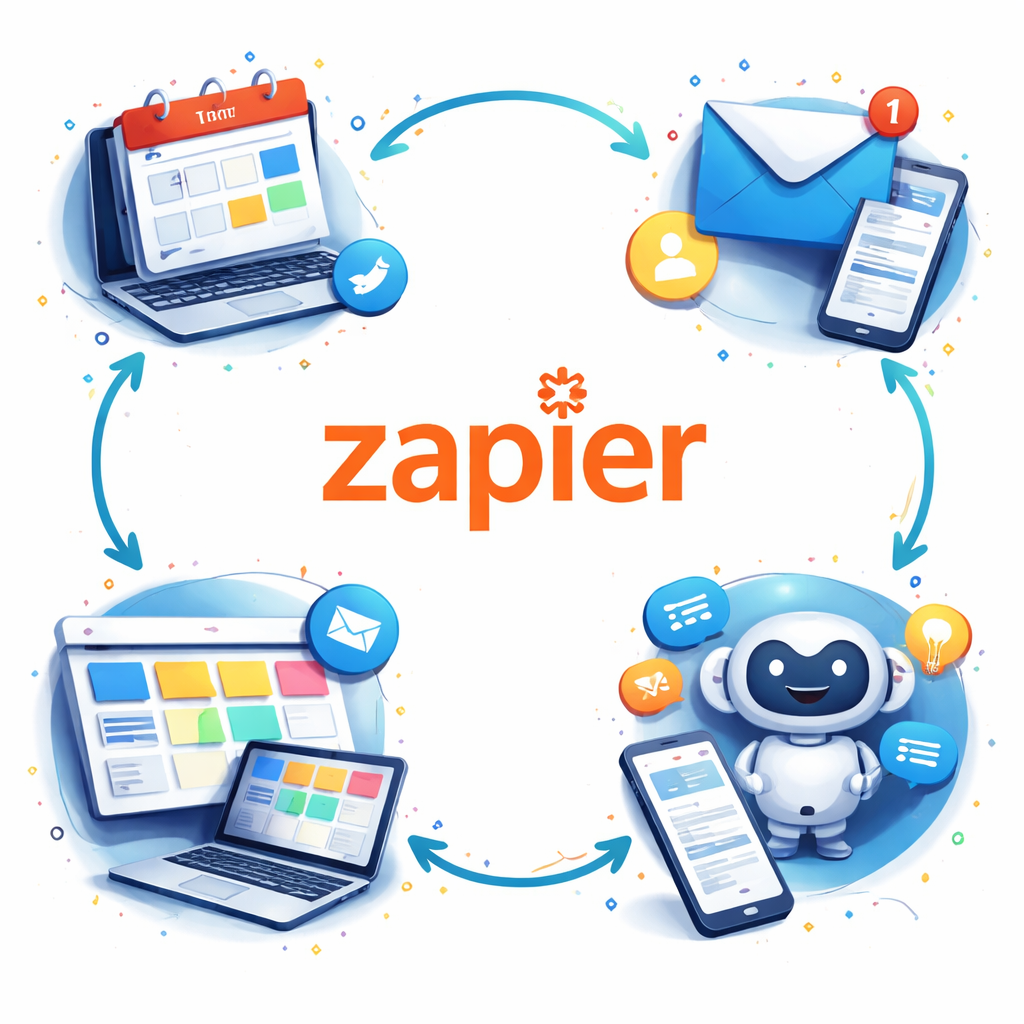
Here’s a quick comparison to help you decide which automation angle to try first.
| Automation Focus | Tool/Feature | Best For |
|---|---|---|
| App‑to‑app connections | Zapier “Zaps” | Students, freelancers |
| Smart triggers with AI | AI‑driven conditions (Copilot) | Remote workers |
| Live data logging | Zapier Tables | Busy professionals |
If you’re curious about the broader landscape of AI‑powered productivity tools, Zapier’s AI productivity guide walks through dozens of options and shows how they can be stitched together.
Bottom line: automation turns “I wish this app could do X” into “It already does, just hidden behind a Zap.” Start small, test the flow for a week, and you’ll quickly see where the biggest time‑savings hide.
Give it a try and watch your day unclutter.
5. Cross‑Platform Collaboration Apps
1️⃣ Slack – Chat that feels like a coffee break
When you need a quick “hey, did you see that?” without opening a full‑blown email thread, Slack does the trick. It works on Windows, macOS, iOS and Android, so a student can ping a study buddy from the library, a freelancer can confirm a file with a client on the go, and a busy professional can drop a note to the marketing team while on a train.
What we love is the ability to create dedicated channels for each project – no more scrolling through unrelated messages. And the searchable history means you won’t lose that golden idea you scribbled in a channel at 2 am.
Tip: Turn on the “Do Not Disturb” schedule that matches your Pomodoro breaks. You stay focused, but still get a nudge when a high‑priority ping lands.
2️⃣ Microsoft Teams – All‑in‑one hub for remote squads
Teams bundles chat, video calls, file storage and task lists under one roof. That’s handy for remote workers who juggle Zoom meetings, Google Docs and a growing list of to‑dos. Because it lives on desktop, web and mobile, you can switch from a laptop in a coworking space to a phone in a coffee shop without missing a beat.
What makes it a true collaboration engine is the integration with Microsoft 365. You can edit a Word doc together while a teammate shares a screen, then drop the finished file into a Teams channel for instant feedback.
Pro tip: Use the “Together Mode” for brainstorming sessions – it makes a grid of faces feel like a single room, which oddly boosts participation.
3️⃣ Zoom – Video that doesn’t feel like a chore
Zoom’s been the go‑to for virtual meetings, but it also doubles as a collaboration space. Breakout rooms let a freelancer run a client workshop while the rest of the team continues a sprint planning session. The built‑in whiteboard is perfect for a quick mind‑map when you’re stuck on a design problem.
Students appreciate the “share screen” feature for study groups, and busy professionals love the ability to record a meeting and have it auto‑saved to the cloud for later reference.
Quick win: Enable the “waiting room” and pre‑set a password for any client‑facing calls – you keep security tight without adding friction.
4️⃣ Google Workspace – Collaboration that lives in the cloud
If you already use Gmail, Calendar or Docs, Google Workspace feels like an extension of your brain. Docs, Sheets and Slides let multiple people type, comment and suggest changes in real time. The magic is that everything syncs instantly across phones, tablets and browsers.
Remote workers can drop a meeting agenda into a shared Google Doc, then tick off items in real time while the video call runs in Google Meet. Freelancers love the “comment” feature for client feedback because it keeps the conversation attached to the exact paragraph you’re revising.
Hack: Use the “Explore” sidebar in Docs to pull in research links without leaving the page – it saves those extra tab switches that break focus.
5️⃣ Miro – Visual collaboration for the whole crew
Miro is a digital whiteboard that works on any platform, so a study group can sketch a mind map on a laptop, then a teammate can add sticky notes from a phone across the world. For project managers, the Kanban template turns a brainstorming session into a live task board without leaving the meeting.
What’s cool is the ability to embed videos, PDFs or even live Google Docs directly onto the board. That means you can watch a tutorial while you’re mapping out a process – no need to toggle windows.
Pro tip: Turn on the timer widget during a group sprint. It adds a gentle sense of urgency, similar to a Pomodoro, but for the whole team.
All these cross‑platform tools share a common thread: they let you work together without forcing everyone onto the same device or OS. The result? Less time wrestling with file formats, more time actually getting things done. And if you ever wonder which of these apps truly earns a spot in your workflow, PCMag’s roundup of the best productivity apps gives a solid, unbiased comparison.
Conclusion
We’ve walked through task lists, timers, focus blockers, and collaboration hubs, all under the umbrella of productivity apps.
So, what does it all mean for you? It means you now have a toolbox you can mix‑and‑match to fit your study sessions, remote‑work sprints, freelance bursts, or busy‑professional juggling.
Pick one app that feels effortless, set a 25‑minute focus block, and watch the first distraction melt away.
Then add a quick tag or calendar view to keep the bigger picture in sight – no more endless tab‑switching.
In our experience, the habit of pairing a Pomodoro timer with a simple task list is the fastest route to consistent progress.
Remember, the goal isn’t to collect every shiny tool; it’s to create a rhythm that sticks.
Try this tonight: open your favorite list‑based app, add three tasks, and start the first Pomodoro.
When the timer dings, celebrate the small win, then move on to the next item.
If you hit a snag, revisit the automation tip – a single Zap can turn a completed task into a calendar event, saving you minutes each day.
Ultimately, productivity apps are only as good as the habit you build around them.
Take one step, iterate, and let the data you collect guide your next tweak.
Ready to level up? Give the Focus Keeper timer a spin and see how a simple interval can reshape your day.
FAQ
What exactly are productivity apps and why should I care?
Productivity apps are digital helpers that turn vague to‑do lists into clear, doable steps. They remind you when to focus, block the noise that pulls you away, and often give you a quick snapshot of how your time is spent. When you see that you actually spent 30 minutes on a single task instead of drifting, the motivation boost is real – especially for students, remote workers, freelancers, and busy professionals who need every minute to count.
How do I pick the right productivity app for my study sessions?
Start by matching the app’s core strength to the way you study. If you thrive on short bursts, look for built‑in Pomodoro timers; if you juggle many subjects, a tag‑friendly list app helps you keep each course separate. Test a single feature for a week – set a 25‑minute timer, add a tag, and see if the workflow feels natural. Drop it if it feels clunky; the perfect fit should disappear into the background.
Can I combine a Pomodoro timer with a task list, and how?
Absolutely. Open your favorite list‑based app, create a task, then start a Pomodoro timer right next to it (or use an app that embeds the timer). When the timer dings, mark the task as “in progress” or “completed” and let the next Pomodoro pull the next item from the list. This tiny loop keeps you from switching screens and gives you a visual record of how many intervals each project consumes.
What’s the best way to use these apps to block distractions?
Choose a level of friction that matches your habit. For heavy distractors, enable a site‑blocking mode that automatically disables social media during work blocks. If you only need a gentle nudge, activate a one‑second delay that asks, “Are you sure you want to leave?” The key is to set the rule before you start a session – once it’s live, the app does the heavy lifting so you stay in the zone.
How can automation make my workflow smoother?
Automation bridges the gaps between apps. For example, set a rule that when you finish a Pomodoro, the completed task is added to a calendar event or a spreadsheet. This removes the manual step of copying data and gives you a running log of focus time. Even a simple email‑to‑task trigger saves you from opening two windows, letting you stay laser‑focused on the work at hand.
Are productivity apps useful for freelancers handling multiple clients?
Yes, especially when you tag each task by client or project. A quick glance at the tag filter shows you exactly what’s due for each contract, and you can drag a high‑priority item into a 25‑minute slot. Pairing this with a timer creates a rhythm that prevents one client from silently stealing all your attention, while the built‑in stats let you bill accurately based on actual focus time.
How do I track my progress and keep motivation high over weeks?
Use the app’s built‑in analytics or export a simple CSV of completed Pomodoros and tasks. Look for patterns – maybe you’re most productive mid‑morning or after a short walk. Celebrate small wins, like hitting 10 focused intervals in a day, and adjust your schedule to match the peaks. Seeing concrete numbers turn vague effort into measurable progress is a proven morale booster.




