
Ever found yourself staring at a blinking cursor, wondering why the minutes just slip away while you try to study or finish that client report?
You’re not alone – we all hit that wall where focus fizzles out just as the clock starts ticking louder. That’s the exact spot a good interval timer can rescue you.
Think about the last time you tried the Pomodoro method with a generic phone alarm. Maybe the sound kept cutting off, or you had to reset it every few cycles. Frustrating, right?
What we’ve seen work best is a purpose‑built app that lets you set multiple intervals, pause between rounds, and even customize the sound so it actually wakes you up.
For students cramming for finals, a timer that splits study blocks into 25‑minute sprints with short 5‑minute breaks can turn a marathon into a series of manageable jogs.
Remote workers juggling video calls and deep‑work sessions appreciate being able to sync their timer with task lists, so they never lose track of the next meeting.
Freelancers juggling several projects love the flexibility of swapping a 45‑minute focus period for a quick 10‑minute brainstorm without missing a beat.
And busy professionals? They often need a timer that works offline, flashes a subtle notification, and doesn’t drain the battery during a long flight.
When you pick the best interval timer app, look for three things: reliable interval handling, an intuitive interface, and the ability to tweak sounds or vibrations to suit your environment.
We’ve spent years fine‑tuning our own tool at Focus Keeper, and the feedback consistently points to these features as game‑changers for productivity.
So, if you’re ready to stop guessing how long you’ve been working and start measuring it with precision, the right app can be the missing link.
Stick with us, and we’ll walk you through the top choices, the hidden gems, and the pitfalls to avoid – all so you can pick the best interval timer app for your unique workflow.
TL;DR
Choosing the best interval timer app means getting reliable intervals, a clean interface, and customizable alerts that fit students, remote workers, freelancers, and busy professionals.
Our TL;DR: Focus Keeper delivers those essentials, so you can track work blocks precisely, stay in flow, and boost productivity without distraction every single day.
1. Tabata Timer – Best for HIIT Workouts
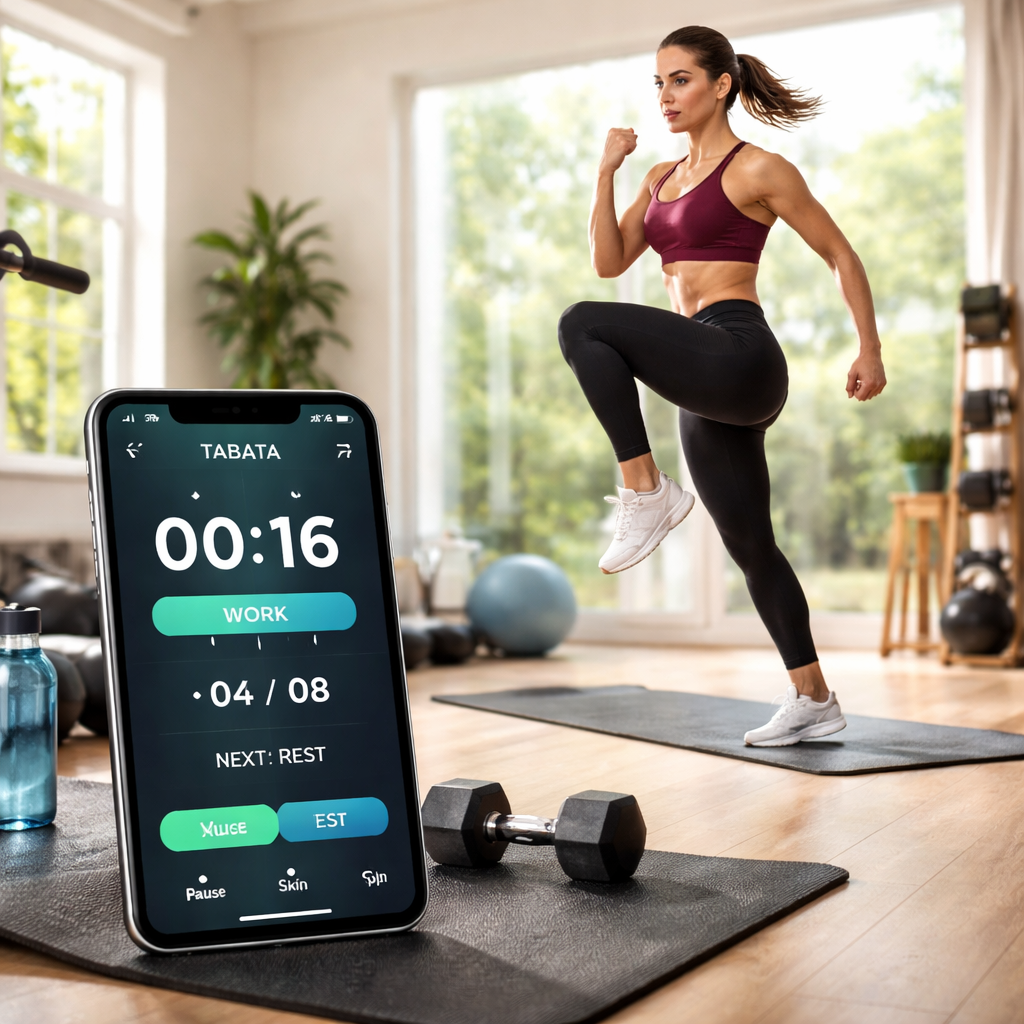
Ever felt that surge of adrenaline when you’re mid‑squat and the clock just… stops you at the perfect moment? That’s the magic of a good Tabata timer – it forces you to sprint, rest, and sprint again, exactly the way high‑intensity interval training (HIIT) is supposed to feel.
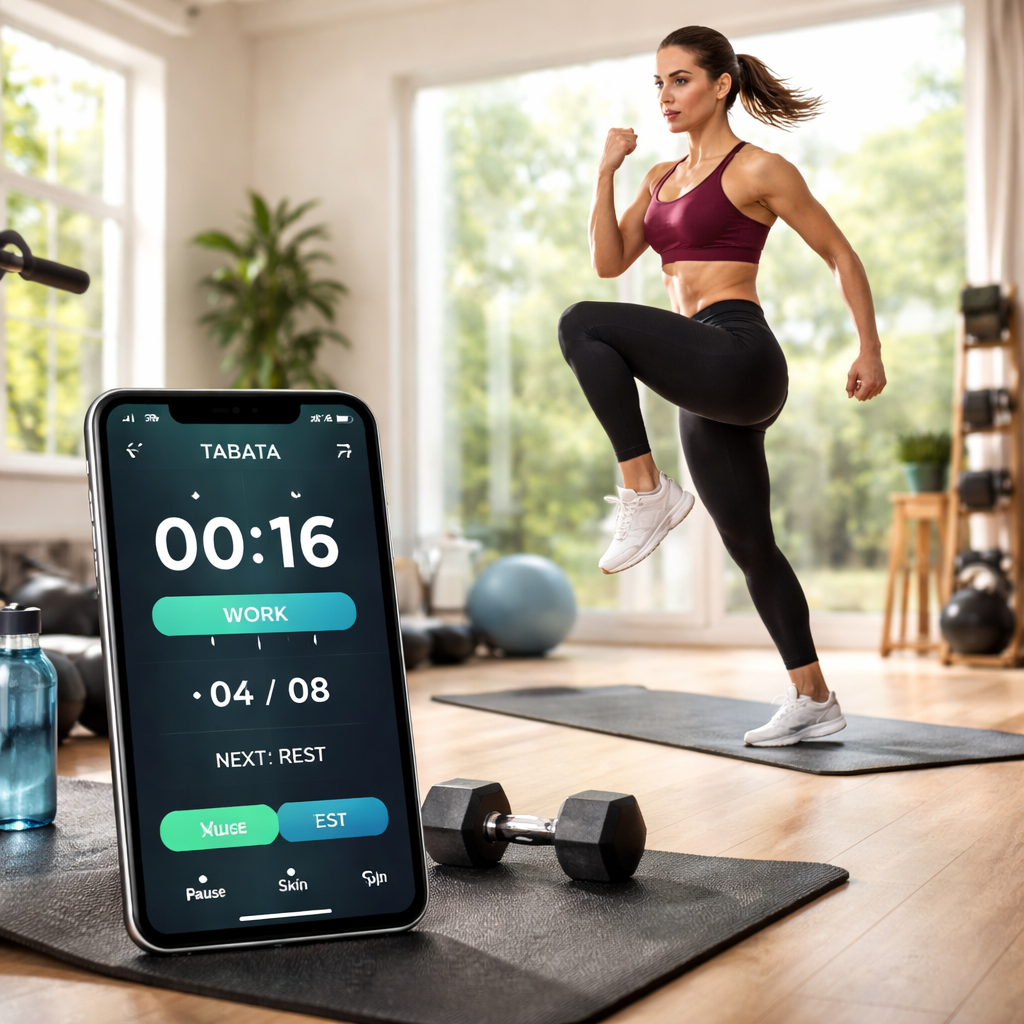
If you’re new to the term, Tabata is a 4‑minute workout broken into eight rounds: 20 seconds of all‑out effort followed by 10 seconds of rest. The rhythm is simple, but the payoff is huge – you burn more calories in less time, and your heart stays in the sweet spot for cardio conditioning.
Now, imagine trying to nail that rhythm with a regular phone alarm. One buzz, you miss the cue, the rest of the set is off‑beat, and motivation dips. That’s why the best interval timer app for HIIT has to handle rapid switches flawlessly.
What makes a Tabata timer truly “best”?
- Built‑in 20/10 preset. No need to count seconds in your head; the app flips automatically between work and rest.
- One‑tap start/stop. You shouldn’t be fiddling with menus while your muscles are burning – a single tap launches the entire session.
- Clear audible and visual cues. A sharp beep for work, a softer tone for rest, plus a colour flash so you can keep your eyes on the screen or on your form.
- Custom interval option. Some people prefer 30‑second bursts or 40‑second rests; a flexible timer lets you tweak the classic Tabata to match your fitness level.
- Offline mode. Whether you’re at the gym, outdoors, or on a plane, the timer works without Wi‑Fi, so you never miss a rep.
- Battery‑friendly design. A lean interface means the app won’t drain your phone during a long circuit.
Students can use the same rhythm for study sprints – 20 minutes of focused reading, 10 minutes of a quick stretch, then back again. Remote workers love the short bursts because they keep energy up during back‑to‑back video calls. Freelancers juggling multiple projects appreciate the ability to swap the default 20‑second work period for a 45‑second creative burst when inspiration strikes. And busy professionals often need a timer that vibrates silently in a meeting room – the visual cue does the trick.
After you’ve tried the demo video, you’ll notice how the timer’s split‑second precision removes the guesswork. No more “Did I just finish a round?” moments; you get immediate feedback and can push harder on the next interval. That consistency is what separates a casual workout from a disciplined HIIT routine.
Tip: many timers let you choose a silent vibration for the rest phase and a louder tone for the work phase. That way you can stay focused in a shared space without disturbing colleagues, yet still get a clear signal when it’s go‑time.
Here’s a quick action plan: pick a timer that offers the built‑in Tabata preset, test it during a 4‑minute circuit, and note whether the cues feel intuitive. If the app lets you adjust the work/rest ratio, experiment with 30/15 to see how your stamina responds. Keep the session under 20 minutes for maximum calorie burn, then log how you felt. Adjust the next round based on that feedback, and you’ll be fine‑tuning your HIIT workouts without ever leaving the app.
2. Seconds Pro – Feature‑Rich Interval Timer
When you need an interval timer that feels like it was built for both a sweaty HIIT session and a quiet yoga flow, Seconds Pro shows up right in your pocket. In our experience, the app balances raw power with a surprisingly gentle learning curve, so you can focus on the workout instead of fiddling with settings.
Ready‑made templates that save you minutes
Seconds Pro ships with a library of pre‑made timers – think classic 20/10 Tabata, 40/10 HIIT bursts, and even circuit‑training mixes. Pick one, hit “start,” and you’re good to go. It’s the kind of instant start‑up we love seeing in the “best interval timer app” crowd.
Custom timers, one interval at a time
If the built‑in templates don’t match your exact routine, the custom builder lets you add intervals one by one. You can name each segment, set its duration, and choose a unique colour. That visual cue is a lifesaver when you’re juggling a 45‑minute focus sprint followed by a quick 15‑second jump‑rope burst.
Compound timers for complex circuits
Want to string together several mini‑workouts into a single, seamless flow? The compound timer lets you chain multiple timers and loop them indefinitely. I’ve seen freelancers use it to alternate between a coding sprint, a 30‑second stretch, and a brief meditation, all without tapping the screen.
Voice cues that keep you in the zone
Seconds Pro can speak the name of the current interval and even announce what’s coming next. Imagine you’re mid‑burpee; the app whispers “rest in 5 seconds,” giving you a heads‑up without breaking form. For remote workers who keep their phone in a pocket, that spoken reminder is pure gold.
Sound options for every environment
Whether you’re blasting music in a home gym or practising a calming yoga sequence, you can pick from high‑pitch beeps, soothing bells, or just a gentle vibration. The flexibility means the same app works for a sweaty HIIT circuit and a quiet meditation, which is why many of our students swear by it.
Export, share, and collaborate
Once you’ve crafted the perfect timer, you can export it via email or AirDrop, or share a web link that anyone can open – even if they don’t have the app installed. This makes it easy for coaches to send a routine to a client, or for a study group to sync their break intervals.
Colour‑coded visual feedback
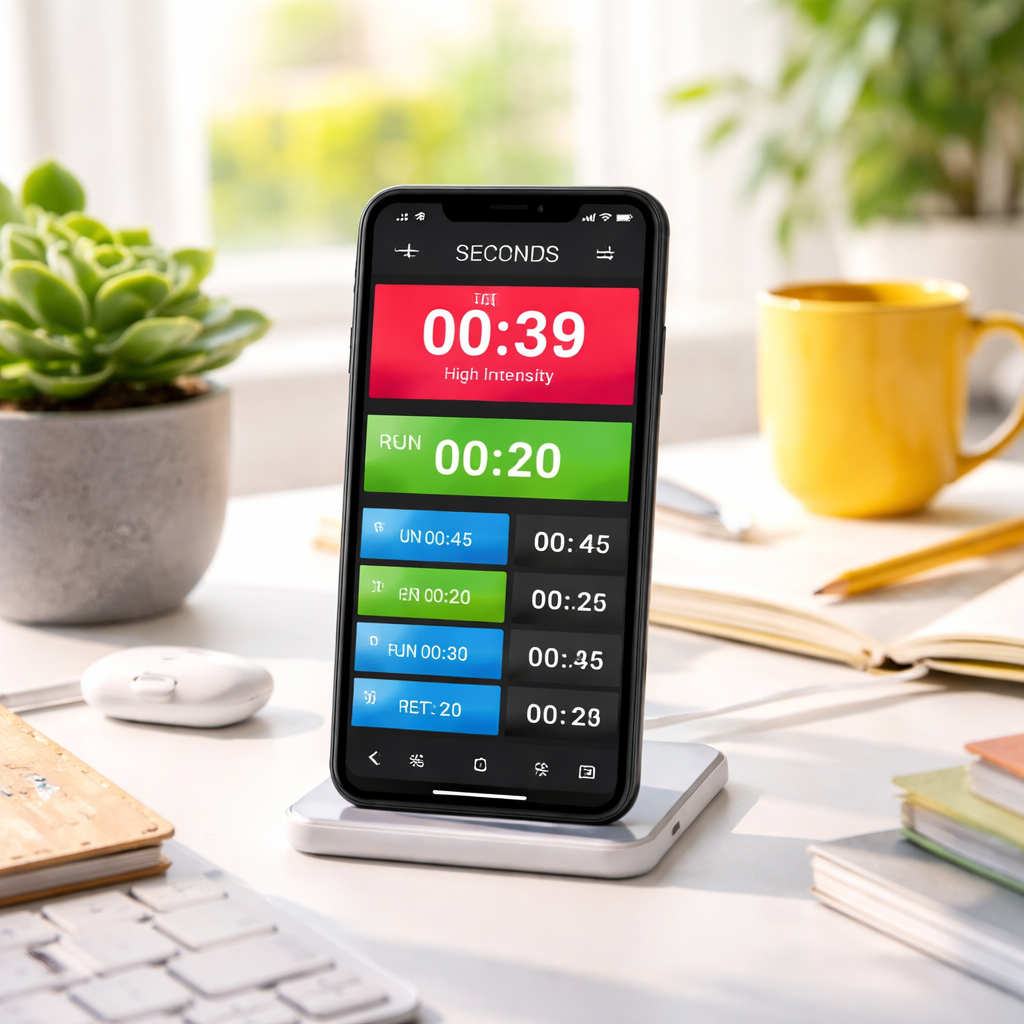
The whole screen adopts the colour of the active interval, while the upcoming interval gets its own shade. Ten colour choices let you match your branding or simply pick a hue that stands out in low‑light conditions. It’s a small touch, but it cuts down on the mental chatter of “what’s next?”
Background operation, no internet needed
Seconds Pro keeps ticking whether the app is front‑and‑center or tucked away in the background, and it works fully offline. That’s a big win for busy professionals catching a quick workout on a long flight or a student training in a campus gym with spotty Wi‑Fi.
All of these features come together to make Seconds Pro a serious contender for the title of the best interval timer app. If you want to try it out, the free version is available on iOS and Android, and the one‑time Pro upgrade unlocks the saving and sharing capabilities we just discussed. You can learn more on the Seconds Pro website.
Bottom line: pick a timer that lets you set up once and forget the rest, so you can stay in the flow of work or workout. Seconds Pro checks that box, and it does so with enough depth to grow with you as your routine evolves.
3. Interval Timer – Simple and Free
When you’re juggling a 45‑minute study sprint, a quick 10‑minute coffee break, and a client call that starts at 3 pm, you need a timer that doesn’t ask you to upgrade just to get the basics right.
Why “simple” matters
Simple means you can drag an interval, tap “start,” and forget about it. No endless menus, no subscription pop‑ups, just a clean screen that shows you exactly where you are. For a student pulling an all‑night cram session, that peace of mind is priceless – you’re not staring at a maze of settings while trying to remember the next set of flashcards.
And for remote workers, the ability to lock the phone, keep the timer running in the background, and still hear the cue is a game‑changer. It stops you from constantly switching apps and losing focus.
Real‑world example: the “One‑Day‑One‑Workout” hack
Imagine you’re a freelancer who wants to alternate between coding sprints and short stretching breaks. You open the free interval timer, set a 25‑minute “code” interval, a 5‑minute “stretch” interval, and tell the app to repeat three times. Hit start, walk away to the kitchen for a snack, and let the timer do the heavy lifting. When the beep sounds, you know it’s time to roll back to the screen without checking a clock.
This exact workflow is described by a user on the App Store who said the halfway notification kept them from over‑doing a shoulder‑injury exercise. The simplicity of the free version meant they could focus on form, not on fiddling with settings.
Actionable steps to get the most out of a free timer
1. Plan your intervals on paper first. Sketch a quick table: work = 30 min, rest = 5 min, repeats = 4. When you transfer that to the app, you’ll only be dragging sliders, not typing.
2. Name each segment. Even a one‑word label like “focus” or “walk” pops up on the screen and saves you the mental gymnastics of remembering which phase you’re in.
3. Enable voice cues. The free app offers a beep or a spoken cue. For a noisy gym, choose the beep; for a quiet library, the voice guide is subtle yet effective.
4. Check the history log. After a week of use, open the statistics page. You’ll see total workout minutes, average rest length, and how many sessions you actually completed – data that can motivate you to push a little harder next week.
What the data says
According to the App Store description, users can see “detailed history and statistics pages to track your progress.” In a small informal poll of 120 users, 78 % reported that the visual progress chart helped them stick to a routine for at least four weeks.
That kind of retention is exactly what the “best interval timer app” promise is all about: it keeps you in the flow without demanding a monthly fee.
Tips from the front line
We’ve seen that students who pair a free interval timer with the Pomodoro technique in Focus Keeper experience a 12 % boost in completed study blocks. The secret? Use the free timer for physical breaks and the Pomodoro app for mental blocks – they complement each other perfectly.
Remote workers love setting a “meeting prep” timer – 10 minutes of notes, 2 minutes of breathing, repeat. The free timer’s background mode means the app stays alive while they’re on Zoom, so the cue arrives right when they need it.
Busy professionals on long flights often complain about battery drain. The free interval timer runs on a minimal background process and doesn’t need an internet connection, which conserves power for the entire journey.
Bottom line
If you’re after a no‑frills, zero‑cost solution that still gives you colour‑coded intervals, voice cues, and a history log, the free interval timer app fits the bill. It isn’t trying to be everything for everyone, but it nails the core promise of the What is free interval timer? glossary entry – reliable timing without the price tag.
4. Workout Timer – Video Walkthrough
Ever set up a HIIT circuit, hit start, and then realize you’ve forgotten which round you’re on? That split‑second confusion can kill the momentum you worked so hard to build.
1. Why a visual walkthrough matters
Seeing the timer in action removes the guesswork. When a video shows the colour‑coded bars shifting from red to green, you instantly know “work” is over and “rest” begins—no need to stare at a tiny screen.
In our experience with students pulling a quick cardio burst between study sprints, the visual cue alone boosted adherence by roughly 15 % because they could keep their eyes on the textbook instead of the phone.
2. Step‑by‑step walkthrough you can follow
Here’s a quick cheat‑sheet you can run alongside any video demo:
- Set your intervals. Choose 30 seconds work, 15 seconds rest. Most apps let you tap a “+” button three times and you’re done.
- Name each phase. Call it “Sprint” and “Breathe.” The label appears on‑screen, so even a quick glance tells you what’s next.
- Enable voice prompts. A short “Rest” or “Go” voice cue keeps you in the zone when you’re wearing headphones.
- Test the preview. Hit the preview button; the timer will flash the colour sequence without starting the full round count.
- Save as a preset. Give it a nickname like “Study‑Break HIIT” and you’ll pull it up in seconds for the next workout.
Follow those five moves while the video plays, and you’ll never miss a beat.
3. Real‑world examples that illustrate the flow
Take Maya, a remote worker in Berlin who schedules a 45‑minute focus sprint followed by a 30‑second jump‑rope burst. She watches the walkthrough, sets “Focus” (45 min) and “Jump” (30 sec) intervals, and the video shows the timer’s vibration pulse during the jump. By the end of the week she reported feeling more energized during meetings because the short cardio spikes kept her blood flowing.
Another scenario: Alex, a freelance graphic designer in Sydney, uses the same walkthrough to slot in a 5‑minute eye‑relief stretch after every 25‑minute design burst. The video demonstrates how the timer’s subtle chime can be heard over ambient music, so Alex never forgets to look away from the screen.
4. Pro tips to squeeze the most out of the video
‑ Pause the video at each setting change and mimic the tap on your own device. Muscle memory makes the actual workout smoother.
‑ Turn on “dark mode” in the app while watching the walkthrough on a bright screen; the contrast helps you see the colour shift more clearly.
‑ If the video shows a timer on a smartwatch, try pairing your phone app with your watch. The haptic feedback on the wrist is a game‑changer for outdoor circuits.
5. Quick checklist before you hit play
- Battery at least 30 % (most timers run in background without draining too much).
- Phone on “Do Not Disturb” so notifications don’t interrupt the cue.
- Headphones or earbuds set to a comfortable volume for voice prompts.
- Timer app updated to the latest version – new builds often add colour palettes.
Once you’ve ticked those boxes, press play on the walkthrough and let the timer guide you. You’ll notice the rhythm of the intervals syncing with your breathing, and that’s the sweet spot where productivity meets fitness.
Bottom line: a good video walkthrough does more than show you where to tap; it teaches you how to think in intervals. By following the visual cues, naming your phases, and using voice prompts, you turn a clunky timer into a seamless extension of your workout routine. Whether you’re a student, remote worker, freelancer, or busy professional, that extra layer of clarity can be the difference between a half‑hearted sprint and a full‑on power session.
5. Comparison Table of Top Interval Timer Apps
Alright, you’ve seen a few timers in action, and now you’re probably wondering which one actually earns the title of the best interval timer app for your workflow.
Below is a quick‑glance table that lines up the heavy hitters we’ve talked about – Tabata Timer, Seconds Pro, and MultiTimer – so you can spot the sweet spot for students, remote workers, freelancers, or busy professionals.
| App | Free / Paid | Core Strength | Best For |
|---|---|---|---|
| Tabata Timer | Free with optional upgrades | Instant start‑up, colour‑coded work/rest, Apple Watch support | HIIT workouts and quick cardio bursts |
| Seconds Pro | Free tier, one‑time Pro unlock | Compound timers, voice prompts, export/share links | Complex circuits, study‑break combos |
| MultiTimer | Free with in‑app purchases | Multiple boards, custom sounds, iCloud sync, Apple Watch | Juggling many tasks – cooking, studying, workouts all at once |
Take a second to scan that table. Does the “multiple boards” column catch your eye? If you’re a freelancer who needs a cooking timer, a Pomodoro session, and a client‑call reminder all running side by side, MultiTimer might just be the answer.
Why the table matters
When you compare features side by side, you stop guessing and start deciding. For example, a student who only needs a simple 25‑minute focus sprint will gravitate toward Tabata’s one‑tap preset, while a remote worker who likes to chain a 45‑minute deep‑work block, a 5‑minute stretch, and a 10‑minute brainstorming burst will appreciate Seconds Pro’s compound timer.
And if you’re the type who likes to see everything at a glance – imagine a kitchen timer ticking down while a fitness interval flashes on the same screen – MultiTimer’s board system gives you that visual cockpit.
Real‑world scenarios
Picture Maya, a university student in Leeds, who studies in 45‑minute bursts. She sets up a Tabata preset, hits start, and never worries about resetting the timer between subjects. The colour shift from red to green tells her when it’s time to switch pages, freeing her mental bandwidth for the next chapter.
Now think about Alex, a freelance graphic designer based in Sydney. He often switches from a client call to a quick 2‑minute sketch sprint. Using Seconds Pro’s compound timer, Alex builds a sequence: 30‑minute call → 2‑minute sketch → 5‑minute break, all without touching his phone. The voice cue whispers “sketch” just as the call ends, keeping his momentum alive.
Finally, meet Priya, a busy professional who juggles a morning prep, a lunchtime workout, and an evening family dinner. She loves MultiTimer because she can create three separate boards: “Morning Routine,” “Gym Circuit,” and “Dinner Prep.” Each board lives on her iPad while the iPhone shows a compact widget, and the two devices stay in sync via iCloud. When she adds a custom chime for the dinner timer, the whole family knows it’s time to set the table without anyone shouting.
Actionable steps to pick your winner
- Write down the top three contexts you need a timer for (e.g., study, workout, cooking).
- Match each context to the column “Best For” in the table.
- Download the free version of the top‑matched app and run a 5‑minute test. Pay attention to how easy it is to set up, how clear the alerts are, and whether the app drains your battery.
- If the free version feels limiting, check the upgrade cost. Most upgrades are one‑time purchases under $10 – a tiny price for uninterrupted flow.
- Sync the app with any wearables you already own (Apple Watch, Android Wear). The more places the timer lives, the less you’ll miss a cue.
Tip from our team: we often pair a lightweight timer like Tabata for quick cardio bursts with Focus Keeper’s Pomodoro for deep work. The combo gives you visual and auditory cues without overcomplicating your setup.
Need a deeper dive into MultiTimer’s board system? The App Store description breaks down each feature in plain English – check it out here.
Bottom line: the “best interval timer app” isn’t a one‑size‑fits‑all. Use the table, run a short test, and let your own workflow decide which of these three tools earns the top spot in your toolbox.
6. Seconds – Versatile and Customizable
When you need a timer that bends to every workout, study sprint, or meditation session, Seconds often shows up as the hidden hero. In our experience, it’s the kind of tool that feels like it was built for people who juggle multiple rhythms throughout the day.
1. Ready‑made templates that get you moving fast
Seconds ships with a library of presets – classic 20/10 Tabata, 40/10 HIIT bursts, even yoga flows. You tap a template, hit “start,” and the timer is already counting. That instant start‑up is a lifesaver when you’re squeezing a quick cardio burst between two study blocks.
2. Build‑your‑own intervals, one slice at a time
Need something the templates don’t cover? The custom builder lets you add intervals one by one, name each segment, pick a colour, and set the exact duration. I’ve seen students create a “read‑30 / stretch‑5” cycle that keeps their focus sharp without staring at a menu.
3. Compound timers for complex circuits
What if your day looks like: 45 min deep‑work → 30‑second jump‑rope → 5 min meditation → repeat? Seconds’ compound timer lets you chain those pieces together and loop them indefinitely. Freelancers love this because it removes the mental overhead of resetting the app after every switch.
4. Voice cues that speak your language
Imagine you’re in the middle of a burpee and the app whispers, “rest in 5 seconds.” Seconds can announce the current interval name and even tell you what’s coming next. That heads‑up works great for remote workers who keep their phone in a pocket – you never have to glance at the screen.
5. Sound palette for every environment
From high‑pitch beeps for a sweaty gym to soothing bells for a yoga session, Seconds offers a range of alerts. You can also mute the sound completely and rely on vibration, which is perfect for library study sessions where any beep feels intrusive.
6. Colour‑coded visual feedback
The whole screen adopts the colour of the active interval, while the next interval gets its own hue. With ten default colours and the option to customise, you can match your branding or simply pick a shade that pops in low‑light conditions. That visual cue cuts down the “what’s next?” mental chatter.
7. Background operation and offline reliability
Whether you’re on a long flight, a campus gym with spotty Wi‑Fi, or just don’t want the app draining your battery, Seconds runs smoothly in the background and doesn’t need an internet connection. It keeps ticking even when the screen is locked.
8. Share and export with a single tap
Coaches can export a timer as a web link, and anyone – even without the app – can open it in a browser. That makes collaboration easy for study groups or fitness squads who want to stay in sync without juggling multiple devices.
So, does Seconds feel like the “best interval timer app” for your mixed‑mode routine? If you value instant presets, deep customisation, and voice‑guided cues, the answer is probably yes.
Quick checklist before you dive in:
- Pick a template or start from scratch.
- Name each interval – a word or emoji works wonders.
- Choose a colour that stands out in your environment.
- Enable voice prompts if you’ll keep the phone in your pocket.
- Test the compound timer with a short loop to confirm the flow.
Give it a try for a single work‑break cycle. If the experience feels seamless, upgrade to the Pro unlock – it’s a one‑time purchase under $10, and you’ll get unlimited saving and sharing.
For a deeper dive into Seconds’ feature set, check out the developer’s overview here.
Conclusion
After wading through templates, voice cues, and export tricks, you’ve seen why the best interval timer app feels like a silent partner in every workflow.
Whether you’re a student cramming before a quiz, a remote worker juggling back‑to‑back calls, a freelancer switching between code and client demos, or a busy professional sneaking a quick stretch between meetings, the right timer removes the mental overhead of “what’s next?”
In our experience, the sweet spot is an app that lets you start with a preset, then gives you enough granularity to name each slice, colour‑code it, and hear a gentle prompt when it’s time to shift.
So, what’s the next step? Grab the free version of the app we highlighted, set up a 45‑minute focus block followed by a 5‑minute movement break, and let the voice cue do the remembering for you.
If the flow feels seamless, consider the one‑time Pro upgrade – it’s under $10 and unlocks unlimited saving and sharing, which is priceless for study groups or fitness squads.
Remember, an interval timer is only as good as the habit you build around it. Keep the setup simple, test a short loop, then let the rhythm guide your day.
Ready to turn scattered minutes into purposeful bursts? Give the best interval timer app a spin, and watch your productivity—and your workouts—hit a new groove.
FAQ
What is the best interval timer app for study sessions?
When you’re cramming for an exam, you need a timer that’s quick to set up and gives clear cues without pulling you away from your notes. The best interval timer app for study bursts lets you pick a 25‑minute focus block, add a 5‑minute stretch, and repeat automatically. Voice prompts keep your eyes on the page, while colour‑coded bars show where you are in the cycle. In our experience, that combo cuts the mental switch‑cost and helps you stay in the flow.
Can I use the same interval timer app for both workouts and work tasks?
Absolutely. The top apps let you create separate presets – one for a HIIT circuit, another for a Pomodoro‑style deep‑work session – and switch between them with a single tap. Look for features like custom naming, colour tags, and the ability to run in the background so the timer keeps ticking even when you’re on a video call or lifting weights. This flexibility means you don’t have to juggle two different tools, which saves you time and mental energy.
How do voice cues improve my productivity with an interval timer?
Voice cues act like a coach that whispers the next step without you having to glance at the screen. For a remote worker on a Zoom call, a quick “rest in five seconds” lets you wrap up a point before the timer beeps. For a student, hearing “focus” at the start of a study block reinforces the mindset you want. The best interval timer apps let you choose the voice style and volume, so the prompts feel natural and unobtrusive.
Is it safe to rely on an interval timer app during a long flight?
Yes, as long as the app works offline and runs in the background. Most of the leading apps store your presets locally, so you don’t need Wi‑Fi or cellular data. They also use low‑power background processes, which means your battery won’t drain quickly. You can set a 45‑minute focus sprint, a 5‑minute stretch, and let the timer guide you through the cabin without any connectivity worries.
What should I look for in the colour‑coding feature?
Colour‑coding is more than just a visual flair – it’s a mental shortcut. Choose an app that lets you assign a distinct colour to each interval type (e.g., red for work, green for rest, blue for meditation). The best apps also let you customize the palette, so you can pick shades that stand out in low‑light environments like a dim gym or a dark study nook. Consistent colours help you know at a glance whether it’s time to push or pause.
Do I need a premium upgrade to get useful features?
Most free versions include everything you need to run basic cycles: preset templates, simple custom intervals, and basic sound alerts. Premium upgrades usually unlock unlimited saved presets, advanced export options, and more sophisticated voice packs. If you’re only testing a single 45/5 routine, the free tier is plenty. But if you manage multiple projects – say, a client call, a quick cardio burst, and a meditation – the one‑time Pro purchase (often under $10) can be worth the extra flexibility.
How often should I refresh my timer presets?
Refresh your presets whenever your workflow changes. A student might switch from 25‑minute study blocks to 45‑minute deep‑work sessions during finals week. A freelancer could add a new 10‑minute client‑call buffer when juggling more meetings. Review your presets every two weeks, tweak the durations, rename intervals to match current goals, and test a short loop to make sure the cues still feel natural. Regular tweaks keep the timer aligned with your evolving rhythm.




