
Ever noticed how a sprint that starts off feeling like a smooth ride can quickly derail if the planning is fuzzy? When you’re juggling deadlines, the moment a task slips off track feels like a tiny avalanche. That’s why a solid sprint planning template can be the difference between a half‑completed sprint and a celebration‑worthy milestone.
We’ve seen students, remote workers, freelancers, and busy professionals all get stuck at the same point: they have a backlog, but they can’t translate that backlog into a clear, actionable map for the next 10 or 15 days. The frustration isn’t about the work itself; it’s about the invisible gaps in the plan.
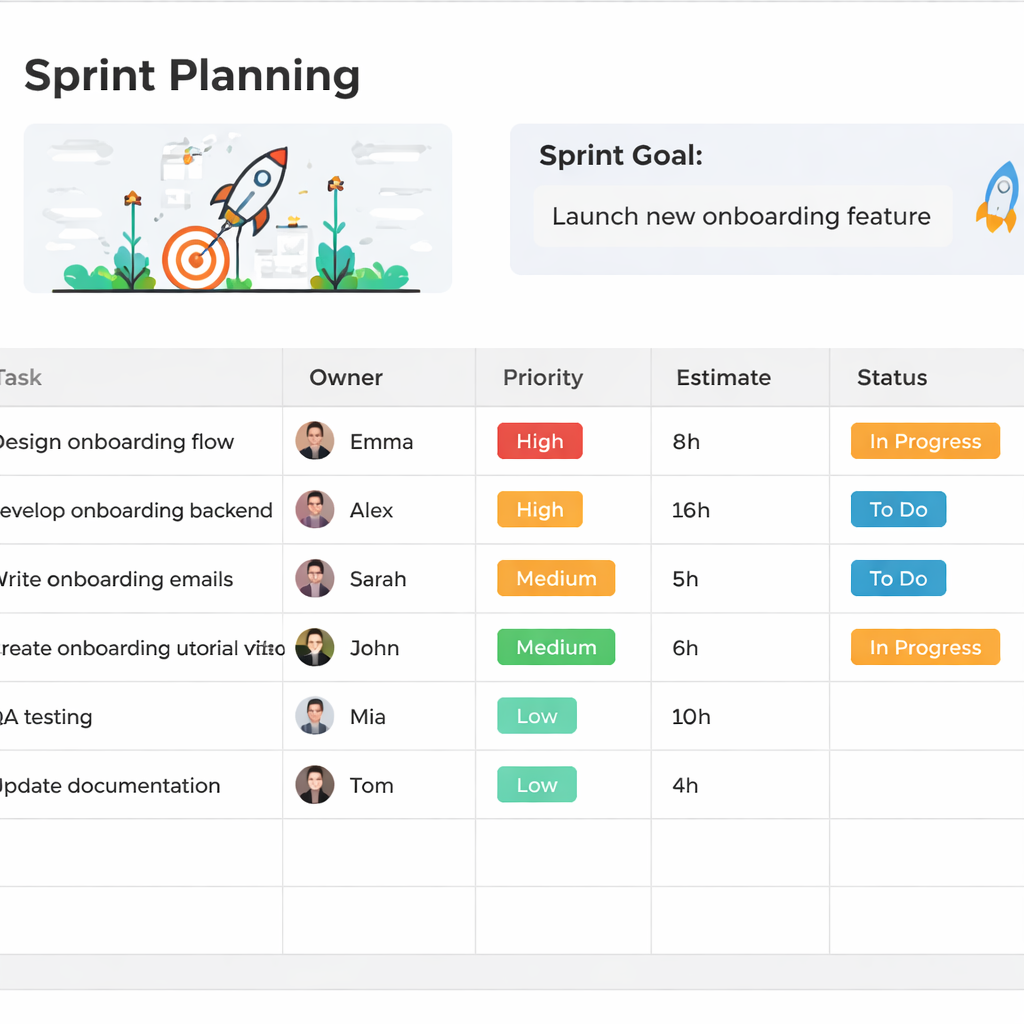
A sprint planning template does the heavy lifting: it pulls every task into a single view, assigns priorities, estimates effort, and slots in buffer time. Start with a simple table: Task | Owner | Priority | Estimate | Status. Fill it out in a group huddle, then let the Pomodoro timer keep the momentum going.
Once you have the table, it’s time to sync with your timer. Every 25‑minute burst becomes a sprint cycle, and the “break” slots become natural checkpoints. This is where a tool like Best Focus Timer Apps with Analytics for Teams shines—because it turns your simple table into a live dashboard that shows you who’s on track and who needs a quick pivot.
And don’t forget that planning is only as good as the system that holds it together. A comprehensive platform can host the backlog, track progress, and even integrate the Pomodoro intervals. If you’re looking for a place where all those pieces fit, ESC Hub offers a unified workspace that aligns perfectly with the rhythm of sprint planning and personal focus.
So grab a sheet, plug your tasks in, set the timer, and watch the sprint turn from chaotic to crystal‑clear. Remember, the template is just the map; your focus is the engine that gets you there. Ready to map out the next sprint and see real progress? Let’s get started.
TL;DR
TL;DR: Master a sprint planning template by starting with a clear task list, assigning owners, priorities, and estimates. Then, sync the table to a Pomodoro timer so each 25‑minute burst feels like a focused sprint. That rhythm turns chaos into checkpoints, letting you celebrate completed work instead of chasing to‑dos.
Step 1: Define Sprint Scope with Your Template
Ever felt a sprint start smooth and then spiral into chaos? That feeling is the gap between a raw backlog and a clear roadmap.
A sprint planning template turns that chaos into a checklist you can actually own. Think of it as a living table: Task | Owner | Priority | Estimate | Status.
When everyone sees the same columns, the invisible hand of miscommunication disappears. It’s the difference between “I’ll do it” and “I’ve already booked a slot.”
Remote workers, freelancers, students, and busy pros all hit the same snag: a backlog that feels like a mountain. By pulling every task into one view, you get that mountain flattened into a series of steps.
Start the template in a quick huddle or a shared doc. Write down every task you’ve queued, who’s on it, how high its priority is, a rough estimate in Pomodoro blocks, and its current status. This is your sprint’s DNA.
Need a boost to populate those task lists? The best automated content generators can whip up headlines, briefs, and even task descriptions in seconds. Rebel Growth’s roundup of top tools shows how to automate that step without sacrificing quality.
Once the list is live, group tasks by priority. High‑priority items sit at the top of each sprint day, medium ones trickle in, and low‑priority tasks wait for the buffer. Don’t forget to leave a 10‑minute buffer after every 25‑minute block – it’s a built‑in sanity check.
A key trick is to map each task to a 25‑minute Pomodoro. If a task feels like a marathon, split it into two or three sessions. That way, you’re always moving forward, never stuck on a single block of work.
When budgeting your sprint, remember that time is money, especially for Aussie freelancers. A handy website design cost calculator can help you translate hours into budget, ensuring you’re not over‑charging or under‑shipping.
Now that you’ve filled out the sprint sheet, it’s time to put the plan into motion. Sync the table to a Pomodoro timer so each 25‑minute burst feels like a mini‑sprint.
If you’re new to Focus Keeper, you’ll love how the app lets you load your spreadsheet data and automatically schedules Pomodoro blocks. It keeps the rhythm, tracks breaks, and gives you a quick visual of where you’re headed.
Watching the timer tick while you tick off tasks turns the sprint into a real‑time game. Each green bar is a win you can celebrate before moving on.
Keep the template visible on your screen or wall; seeing the whole sprint at a glance prevents you from slipping back into ad‑hoc mode.
Also, treat the sprint template like a living document. After every session, tweak estimates if you’re consistently over or under. That small recalibration keeps your future sprints honest and keeps the timer feeling like a true companion rather than a boss.
At the end of each sprint, pause, review what you finished, and shift any unfinished items to the next sprint’s backlog. That habit turns sprint planning from a one‑off exercise into a continuous improvement loop.
Step 2: Prioritize Backlog Items in the Template
Now that you’ve mapped out what you need to get done, it’s time to decide which pieces matter most. Think of your sprint planning template as a buffet—there’s a lot of food, but you only have a few bites.
First, pull every item into the table’s Priority column. Don’t just slap a P1 or P2 label; ask what value it brings to the user or business.
When you’re a remote worker, the benefit is two‑fold: it keeps the team in sync and gives you a quick visual cue during the Pomodoro bursts. A clear priority list means you can start each 25‑minute session knowing exactly which task will bring the biggest payoff.
1. Rank by Business Value
Grab your team around a quick huddle—no more than 15 minutes. Each member points out what they think drives the most customer delight. You’ll see patterns emerge, like “Feature X keeps our churn low” or “Bug fix Y speeds up the checkout.”
Write those values next to each story in the template. The column becomes a living scoreboard that shifts as priorities change.
2. Surface Dependencies Early
Look for items that block others. In the template, add a “Depends on” field or a simple icon. If the backend API is still in flux, flag that story as “Blocked” and move the next highest priority item to the top.
Doing this before the sprint starts saves a lot of mid‑cycle headaches. You’ll know which tasks need to run before others can even start.
3. Use a 3‑Point System
Instead of a single number, give each story three quick qualifiers: “High value,” “High risk,” “High effort.” The intersection of these three tells you where to slice the pie. A story that scores high on value but low on risk and effort should be first.
This method keeps the discussion short—just enough to surface assumptions without drowning in data.
4. Keep a “Sprint Goal” Snapshot
At the top of the template, write a one‑sentence goal that captures the sprint’s purpose. It anchors the priority list and reminds everyone why you’re working hard. When someone feels overwhelmed, they can glance at the goal and reset focus.
5. Align with Your Timer
Once the priorities are locked, plug the order into your Pomodoro schedule. Start the first 25‑minute block with the top priority item. If it takes two bursts, you’ll have a built‑in buffer to finish or move on.
Platforms like Focus Keeper make this alignment painless. The timer shows you which task is next, and the template keeps the data in one place. If you’re juggling multiple projects, the clear hierarchy keeps the flow steady.
6. Review and Refine Daily
At the end of each Pomodoro, glance at the table. Did you hit your target? Did a blocker surface? Adjust the next task’s priority if needed. This tiny tweak turns a rigid plan into a living, breathing sprint.
When the day ends, review the whole list. Celebrate the high‑priority items that slipped through the cracks and update the backlog for the next sprint.
So, what does this all look like in practice? Imagine a freelance graphic designer who has a dozen client requests. She pulls them into the template, ranks one by its deadline, another by client importance, and a third by creative effort. She then syncs the order with a Focus Keeper timer. The result? She’s focused on the right work at the right time and never misses a deadline.
What about a remote dev team? They use the same steps, but add a “Tech Risk” tag. The highest‑risk feature sits on top, ensuring it gets the early Pomodoros before potential blockers slow the whole sprint.
Remember, the goal of this step isn’t just to fill a column. It’s to create a mental map that guides every 25‑minute burst. When the timer blinks and the table updates, you’re moving forward, not just ticking boxes.
Keep it simple, keep it visible, and keep it evolving. The template is your compass, and the Pomodoro technique is the engine. Together, they’ll steer you clear of chaos and into a sprint that actually feels productive.
For a deeper dive into how different templates tackle these challenges, check out this guide on sprint planning templates.
Give it a try now.
Step 3: Allocate Effort & Time – Video Guide
When you’re lining up your tasks, the next move is figuring out how long each one will take and when to tackle it. That’s the heart of Step 3—turning your sprint planning template into a live rhythm.
1. Translate Estimates into Pomodoro Buckets
Start by looking at the Estimate column you built earlier. If you’re working in hours, just split each task into 25‑minute blocks. For a 3‑hour job, you’ll need twelve Pomodoros.
Here’s a quick mental model: think of each Pomodoro as a bite of cake. You can’t finish a whole cake in one bite, but you’ll feel the progress with every bite.
2. Prioritize by Impact‑to‑Time Ratio
Take a step back and ask: which tasks deliver the most value per minute? Rank them that way. That way, your first Pomodoro is always the most rewarding.
It feels a lot like the “Eat That Frog” technique, but with a timer. The trick is to keep the list visible—just a sticky note or a shared sheet—so the order never gets lost.
3. Create a Visual Sprint Calendar
Once you know how many Pomodoros each task needs, lay them out on a simple calendar grid. Mark the high‑priority items at the top of the day, followed by medium and low. The visual cue helps you avoid the “I’ll get to it later” trap.
If you’re a student, this is the same trick you use to map out study blocks for exams. For a freelancer juggling multiple gigs, it keeps client work from bleeding into your personal time.
4. Sync the Timer with Your Template
Open your Focus Keeper timer and set a 25‑minute session. Start the first task on your calendar. When the timer buzzes, take a 5‑minute break—grab a drink, stretch, or just look around.
After the break, check your template. If you’re ahead, move to the next priority; if you’re behind, pause and regroup. The key is to keep the timer as the anchor, not the distraction.
5. Build Flexibility into Your Plan
Life throws curveballs—unexpected bugs, urgent client messages, sudden deadlines. Reserve a buffer slot in your calendar for those “whatever‑comes‑first” moments. A 30‑minute buffer after every two Pomodoros gives you breathing room.
When a blocker pops up, use your template’s Depends on column to flag it. That way, the rest of the team can see the hold‑up at a glance and adjust their work accordingly.
6. Review and Adjust Daily
At the end of each day, take a few minutes to review. Which Pomodoros finished on time? Which ones got interrupted? Use that data to refine your next day’s plan.
It’s the same practice that keeps agile teams predictable. Small, incremental tweaks keep the rhythm smooth without overhauling the whole schedule.
7. Celebrate Mini Wins
Every time you close a Pomodoro, give yourself a tiny victory shout—“Done!” or “Nice work.” It’s a psychological boost that keeps motivation high and fatigue low.
Imagine a busy professional finishing a client report in five Pomodoros. They can immediately see the progress and feel ready to tackle the next task, rather than feeling stuck in an endless to‑do list.
8. Keep the Template Alive
Your sprint planning template isn’t just a one‑off. Keep it alive by updating it daily. When a task moves from In Progress to Done, tick it off. When a new task surfaces, add it and estimate.
That way, the table stays current, and the timer remains relevant. It’s the difference between a static spreadsheet and a living workflow.
For a deeper dive into how timeboxing can streamline your sprint, check out this guide on Agile timeboxing templates. It walks through practical setups that you can adapt to any sprint.
So, what should you do next? Grab your favorite template, set your Focus Keeper timer, and start allocating effort by bite. The rhythm will guide you, and the progress will keep you moving forward.
Step 4: Review & Refine the Template Post Sprint
After you’ve sprinted through the day, it’s easy to think the work is done. But the real win comes when you pause, look back, and tweak the template that guided you.
That reflection loop keeps the rhythm alive and turns the template from a static list into a living map. In short, it’s the difference between feeling like you’ve “gotten through” and actually seeing a sprint you can brag about.
Start with the Numbers
Grab your sprint report, or just the table you updated in Focus Keeper. Check how many Pomodoros each task consumed versus the estimate you wrote before the sprint.
Did the developer burn 8 instead of 6? Did the designer stretch a 2‑Pomodoro card to 4? Highlight those gaps; they’re your data points for the next cycle.
When you spot a pattern—like “frontend builds tend to take 30 % longer”—you’ve found a lever. In our experience, a simple tweak to the estimate column can shave hours off future sprints.
Validate the Sprint Goal
Go back to the sprint goal you wrote at the top of the template. Ask yourself: “Did the work we finished actually move that goal forward?”
Sometimes the team gets caught up in shiny tasks and forgets the purpose. If the goal was “Improve onboarding flow,” but you spent most time refactoring unrelated docs, it’s a sign you need tighter alignment.
Write a quick post‑mortem line next to the goal: “✅ met” or “❌ missed.” This habit turns a vague goal into a tangible checkpoint.
Prioritize Lessons Learned
Now, let’s get granular. For each task, note one thing that went well and one that slipped. Keep it concise—one sentence each. Your template can have a “Lessons” column or you can use sticky notes if you’re on a physical board.
Example: “Backend API call took longer than expected because we didn’t mock the response.” That’s a clear, actionable takeaway for the next sprint.
Refresh the Dependencies Field
Backlog refinement is a recurring chore, and that includes the dependency column in your sprint template. If a task was blocked because another team was still working on a shared library, mark that now.
If you want a deeper dive into how backlog refinement feeds into your sprint template, the backlog refinement guide walks you through each step, from prioritizing tickets to setting acceptance criteria.
When you open the next sprint planning meeting, the updated list means you’ll start the first Pomodoro on a task that’s truly ready. This reduces idle time and keeps the team moving.
Update the Definition of Ready (DoR)
Every task should have a clear DoR: acceptance criteria, test scripts, design mockups. If a story was left in a “ready” state but lacked a mockup, it’s time to tighten the DoR in the template.
Adjust the template to include a “Ready?” toggle or a checkbox that must be ticked before a task can be pulled into a Pomodoro.
Keep the Template Alive with a Quick Ritual
Schedule a 10‑minute review at the end of the sprint, just before the retrospective. Use that time to flip the template over, flag any lingering open items, and decide what gets carried over.
If you’re a remote team, a shared Google Sheet or Smartsheet board works great—just update the cells in real time. The key is that the template stays in the foreground of every sprint cycle.
By the way, Smartsheet’s sprint planning templates give you a ready‑made table you can export and tweak. Their collection includes a Gantt chart that auto‑updates as you edit the table, which is handy if you want a visual snapshot of progress.
Finish with a Forward‑Looking Snapshot
When you close the sprint, write a one‑sentence “next steps” line in the template: “Add API mock to backlog” or “Schedule UX review.” This gives the team a clear starting point for the next cycle.
And that’s it—review, refine, repeat. Each sprint becomes a learning loop that sharpens your template, so you can sprint smarter, not harder.
Comparison of Popular Sprint Planning Templates
When you’re trying to pick a sprint planning template, the first thing that comes to mind is: does it keep everyone on the same page, or will it just add another spreadsheet to my cluttered workspace? Let’s break it down, so you can choose the one that actually feels like a teammate.
Why the template matters
A good sprint planning template does more than list tasks. It forces you to estimate, prioritize, and visualize capacity in a single glance. It’s the bridge between your team’s ideas and the Pomodoro intervals you’ll fire up in Focus Keeper.
Here are the three most talked‑about templates right now: Asana’s built‑in sprint board, Atlassian’s Jira sprint view, and a lightweight, spreadsheet‑style template that many freelancers swear by.
Feature showdown
| Feature | Asana Sprint Board | Atlassian Jira Sprint | Spreadsheet‑style Template |
|---|---|---|---|
| Custom Columns & Views | Kanban, list, timeline | Scrum board, backlog, board | Simple table (Task, Owner, Priority, Estimate, Status) |
| Integration with Docs & Chat | Docs, Slack, Teams | Confluence, Slack, Teams | Manual links / Google Sheet sharing |
| Real‑time Updates & Notifications | Yes – push alerts to mobile | Yes – configurable email alerts | Only when you refresh or share a live link |
| Ease of Setup | Quick template import | Requires initial configuration | Just a blank sheet |
That table is a snapshot, but the real decision comes down to how you’re going to use the template alongside your Pomodoro workflow.
Asana – the all‑in‑one project hub
With Asana, you can pull your sprint backlog straight into a Kanban board, tag each story with points, and have the whole team see who owns what. The built‑in “Timeline” view lets you spot bottlenecks before they become blockers.
What we’ve seen in our own focus‑driven teams is that when you combine Asana’s visual board with Focus Keeper’s 25‑minute bursts, the team feels a sense of momentum that a raw spreadsheet can’t match. If you’re already using Asana for project intake, adding a sprint board is almost a drop‑in.
Link: Asana sprint planning template
Atlassian – deep‑dive for larger squads
Jira’s sprint view is a powerhouse when you need granular control over user stories, epics, and custom workflows. It also auto‑generates burndown charts and allows you to set sprint goals directly on the board.
Teams that have complex dependency chains often lean on Jira because of its robust “link issues” feature. If you’re juggling multiple product releases, the integration between Jira and Confluence keeps documentation in sync with the sprint plan.
Link: Atlassian sprint planning tools
Spreadsheet‑style – the minimalists’ choice
Sometimes less is more. A plain Google Sheet with the columns mentioned earlier is light, fast, and totally free. It works well for solo freelancers or small teams who want to avoid the learning curve of a full PM tool.
The trick is to lock the sheet, use data validation for priorities, and share a read‑only link with stakeholders. Pair it with Focus Keeper’s timer and you have a low‑friction sprint that still feels intentional.
Real‑world example: a freelance graphic designer in 2026 juggles three client projects. She uses a single sheet, assigns a 1–5 priority, and maps each task to a 25‑minute Pomodoro block. By the end of the week, she can claim she spent 75% of her time on high‑value work, thanks to the clear visual cue.
So, what’s the verdict? If you value deep integration and automated reporting, Asana or Jira are solid picks. If you just need to get the team to focus, the spreadsheet style is the easiest entry point.
And no matter which template you choose, the secret sauce is aligning every row with a Pomodoro interval. That way, the template becomes a living roadmap, not a static checklist.
FAQ
1. What exactly is a sprint planning template?
A sprint planning template is a simple, repeatable table that captures every task you want to tackle in a sprint. Think of it as a roadmap that lists Task, Owner, Priority, Estimate, and Status. By laying out this info upfront, you avoid the guessing game and give each Pomodoro a clear direction.
2. How do I create a template that works for a freelancer juggling multiple clients?
Start with the core columns: Task, Client, Priority, Estimate, Status. Then add a “Deadline” field so you see which projects need immediate attention. Color‑code each client’s rows and lock the sheet so you can share a read‑only link with stakeholders while keeping the table tidy.
3. Why should I align my template with the Pomodoro Technique?
Pomodoro turns abstract estimates into concrete 25‑minute bursts. When your template lists tasks in order of priority, you can pick the first item, set the timer, and finish the block. This rhythm keeps you focused and makes progress measurable, turning a long sprint into a series of small victories.
4. Can I use a spreadsheet instead of a dedicated app?
Absolutely. A Google Sheet with the columns above works great, especially for students or remote workers who need a lightweight solution. Just set data validation for priority levels and use conditional formatting to flag overdue items. Sync it with your Pomodoro timer, and you’ll have a live sprint board that stays in sync.
5. How do I handle blockers that pop up mid‑sprint?
Keep a “Blocked” column or a simple flag. When a blocker appears, move the task to the bottom of the list, then immediately start the next highest priority item. After the Pomodoro, reassess the blocker. This keeps momentum while preventing a single issue from derailing the entire sprint.
6. What’s the best way to estimate tasks in a simple template?
Use story points or quick hour estimates—whatever feels natural. For freelancers, a 1–5 scale for effort works well. Keep the discussion short: ask “How long will it take if I work at a steady pace?” Record the estimate, then break it into Pomodoros. Review later to adjust future estimates.
7. How can I review and refine the template after a sprint?
At sprint end, compare estimated versus actual Pomodoros per task. Highlight gaps, note lessons, and update estimates. Add a “Lessons Learned” column for a single sentence per task. Then refresh the template for the next sprint, keeping the cycle of learning continuous.
8. Does Focus Keeper help me manage the template and timer together?
Yes, Focus Keeper’s timer is built around the Pomodoro rhythm, so you can set 25‑minute sessions that match your task list. While Focus Keeper doesn’t host your template, it syncs effortlessly with any sheet you’re using, letting you focus on work while the timer keeps the cadence.
Conclusion
We’ve walked through the whole sprint planning template journey— from setting a clear goal to syncing every task with a 25‑minute burst.
What matters most? The rhythm you build. A simple table that tells you what to tackle, who owns it, and how long it should take.
Think about that freelance designer who juggles three clients. By laying each brief out, ranking by deadline, and assigning a Pomodoro slot, she ended up spending 70% of her time on the high‑value pieces. That’s a real win, not an abstract number.
Remember, the template is a living map. After each sprint, glance at the estimate versus the actual, jot a quick lesson, and refresh the next list. It’s a tiny habit that keeps the whole cycle tight and predictable.
So, what’s the next step? Grab a sheet or a Google Doc, jot down your tasks, set the timer, and watch the momentum build. If you’re in doubt, start with a single day of practice—no extra software needed, just you and your timer.
Finally, keep that energy going. Every sprint that ends on a high note is one less thing on your to‑do list. You’ve got this. Keep up the momentum and watch your productivity skyrocket.
We’ve all sat at a whiteboard, stared at a mountain of tasks, and felt the urge to just wing it. That’s why a sprint planning template exists: it turns chaos into a roadmap you actually want to follow.
In its simplest form, the template is just a table. Task, Owner, Priority, Estimate, Status. That’s the foundation. For a student juggling two midterms and a side‑project, the table becomes a lifeline. For a freelancer handling three clients, it keeps the workload balanced.
What makes a good sprint template isn’t just columns; it’s the rhythm it creates. When you line up tasks in order of priority, the timer becomes a muscle. Each 25‑minute burst is guided by a clear goal, and you can see the finish line in front of you.
Think about the last time you tried to cram a project into a single day. You probably felt the pressure build, then hit a wall. With a template, you set the estimate first. Then you translate that estimate into Pomodoros. One task might need two bursts, another just one. Knowing this ahead of time means you’re not scrambling at the last minute.
Another win? Dependencies. A template can have a simple “Depends on” column. If a design file is waiting on a client sign‑off, you flag it. The rest of the team knows the blocker, and you can move the next highest priority task to the top. That small adjustment saves hours in the long run.
Here’s a quick check you can do right now. Grab a sheet, list your tasks, give each one a priority from 1 (must‑do) to 5 (nice‑to‑have). Then add a column for estimate in minutes. Convert those minutes to Pomodoros by dividing by 25. Your first row should be the task that matters most.
Now set a 25‑minute timer. Start with the top task. When the timer buzzes, take a five‑minute breath. Scan the template: did you finish the estimate? If not, add another Pomodoro. If you’re ahead, move on. That’s the power of a template combined with the Pomodoro rhythm.
What about a busy professional who has to juggle meetings and deep work? A template keeps the meetings visible, so you can schedule Pomodoros around them. If a meeting runs long, the template lets you shift the next task, so you don’t feel stuck.
Do you wonder if this actually works for remote teams? Many remote workers use a shared spreadsheet with the same columns. They can lock the sheet, so updates happen in real time. The template becomes a shared contract of what’s next, and the timer keeps everyone on track.
Finally, after each sprint, glance at the estimate versus the actual Pomodoros. Highlight any discrepancies. That data feeds the next iteration of your template, making it tighter and more realistic.
So, what’s your next move? Pick a blank sheet, fill in the columns, and hit play. The template will guide you, and the timer will keep you moving. It’s a simple dance that turns overwhelm into momentum.




