

Most teachers waste minutes each day waiting for students to settle, for paperwork to appear, or for a timer to ring. That hidden time adds up. In this guide you’ll learn how to pick the right free pomodoro timer, fit it to your lesson plan, hook students on the technique, and keep the rhythm going all year long.
We examined four free Pomodoro timer tools that teachers might use and discovered that the only app showing ads also runs on six different platforms , a surprising trade‑off that flips the usual ad‑free‑equals‑better assumption.
| Name | Platform | Best For | Source |
|---|---|---|---|
| Focus Keeper (Our Pick) | — | Best for teachers | focuskeeper.co |
| Pomofocus | Web, iOS, Android, Windows, macOS, Linux | Best for cross‑device | apix-drive.com |
| Pomodoro Timer | Web | Best for quick web use | apix-drive.com |
| Flocus | Web | Best for simplicity | apix-drive.com |
The methodology was simple: we searched for free Pomodoro timer tools made for teachers, scraped four product pages on April 2, 2026, and pulled name, platform, and classroom‑specific features. None of the four offered built‑in class features, so we focused on ease of use, platform reach, and ad presence. The findings above guide the steps that follow.
Step 1: Choose a Free Pomodoro App Suitable for Classroom Use
Choosing the right pomodoro timer for teachers free starts with matching the tool to your classroom tech setup. If you work on a single desktop, a web‑only timer like Pomodoro Timer will do. If you need iPads, Chromebooks, or a phone on a cart, look for cross‑device support. That’s why Pomofocus stands out , it runs on six platforms, even though it shows ads.
First, list the devices you regularly use in class. Write them on a sticky note. Then compare each app’s platform column in the research table. If you see “Web, iOS, Android…” that means you can pull the timer onto a tablet during group work and still use the same URL on your laptop for planning.
Next, test the download speed and visual clarity. Open the free version of Focus Keeper (Our Pick) on a laptop, start a 25‑minute session, and watch how the big numbers appear on the screen. If the numbers are too small for the back row, skip it. For a quick web test, visit the Flocus page and click “Start” , you’ll see a clean interface with customizable themes.
Here are three quick checks you can run before you decide:
- Is the timer visible from the back of the room? Try projecting it.
- Does the app let you set custom work/break lengths? Most free versions do.
- Are ads intrusive? Pomofocus shows a banner, but it doesn’t pop up during the countdown.
When you’ve narrowed it down, read a short review on Reclaim.ai’s roundup of Pomodoro apps. It explains why a simple UI beats flashy graphics for teachers. Read Reclaim.ai’s best Pomodoro timer list.
Also check Flocus’s feature page for its aesthetic themes and sound options. Flocus Pomodoro feature overview.
Our pick, Focus Keeper, wins because it offers a clean, teacher‑focused UI that works offline and logs each session for later review. That logging feature helps you track grading time without extra paperwork.

Step 2: Set Up Timer Intervals Aligned with Lesson Plans
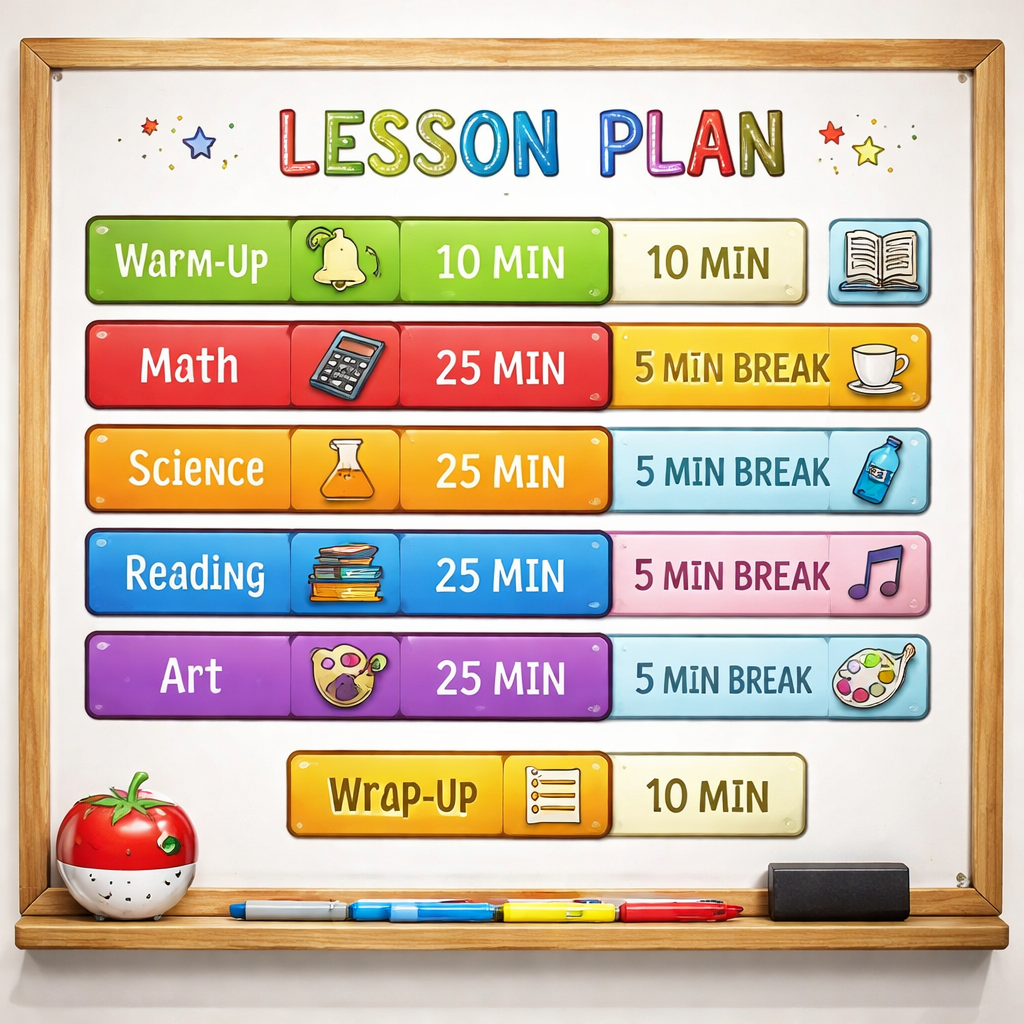
Now that you have a pomodoro timer for teachers free, you need to match its intervals to your lesson flow. The classic 25‑minute work block plus a 5‑minute break works for most high‑school periods, but younger grades may need 15‑minute bursts.
Start by reviewing your lesson objectives. Write each objective on a separate index card. Then estimate how many minutes each will take. If a math concept takes roughly 20 minutes, set the timer to 20 and give a 4‑minute stretch break.
Taskade’s guide walks through the Pomodoro steps in detail. It suggests labeling each interval with a micro‑goal, like “solve three equations” or “draft a paragraph.” Taskade’s Pomodoro timer guide gives a clear step‑by‑step on how to add those labels.
Next, create a simple table on a sticky‑note board that maps each pomodoro to a lesson segment. Example:
| Pomodoro # | Activity | Length |
|---|---|---|
| 1 | Introduce concept | 20 min |
| 2 | Guided practice | 20 min |
| 3 | Independent work | 15 min |
When the timer dings, pause the lesson, ask students to mark their progress, and then move to the break activity. The break is not a free‑for‑all; plan a quick stretch, a breathing exercise, or a 5‑question rapid‑fire quiz.
After a week of using the same intervals, review the results. Did students finish the micro‑goal? Did anyone need more time? Adjust the lengths in five‑minute increments until the rhythm feels natural.
Remember the key finding: none of the four free tools include classroom‑specific features, so you’ll add the structure yourself. That extra planning step is what makes the pomodoro timer for teachers free truly effective.
Step 3: Integrate the Timer with Classroom Management Tools
Even a simple pomodoro timer for teachers free becomes powerful when you link it to the tools you already use, like Google Calendar. The Chrome extension “Pomodoro Timer for Google Calendar” adds a “Start Pomodoro” button right inside each calendar event.
First, open the Chrome Web Store and add the extension. Pomodoro Timer for Google Calendar extension lets you launch a timer with one click, keeping you in the lesson flow.
Second, configure the extension to auto‑start a pomodoro at the beginning of each class block. This removes the mental step of remembering to click start, and it ensures consistency across days.
Third, use the history view in the extension to see how many pomodoros you ran each week. That data can guide future planning , maybe you need longer blocks for labs.
Here’s a quick three‑step integration checklist:
- Install the Chrome extension.
- Link each class period in Google Calendar to a pomodoro start button.
- Review weekly stats and tweak interval lengths.
Another useful tip: combine the timer with a classroom‑wide visual cue. Project the timer window on the smartboard so every student sees the countdown. When the alarm rings, the whole class knows it’s break time.
For more details on how the extension works, see the official Chrome Web Store description. Pomodoro Timer for Google Chrome.
Step 4: Teach Students the Pomodoro Technique
Students often think a timer is just for teachers. Show them why a pomodoro timer for teachers free can help with homework, test prep, and even personal projects.
Start with a short demo. Pull up the timer on the board, set it to 5 minutes, and ask the class to write down as many facts as they can about today’s topic. When the timer dings, count the facts together. The clear start/stop cue makes the activity feel like a game.
Next, give each student a printable pomodoro tracker. 101Planners offers a free template you can download and hand out. 101Planners Pomodoro template includes a tomato graphic, start/end times, and space for reflection.Explain the four core steps:
| Step | What to Do |
|---|---|
| 1 | Set timer for work |
| 2 | Focus on one micro‑goal |
| 3 | Take a 5‑minute break |
| 4 | Repeat, then take a longer break after four cycles |
Encourage students to label each pomodoro on their tracker. For example, “Read chapter 3” or “Solve 5 equations.” After each break, they check off the box and note any obstacles.
Remind them that the technique is flexible. If a homework problem only needs 15 minutes, they can set a shorter pomodoro. The key finding that only Pomofocus runs on six platforms means students can use the same web timer on phones at home.
Finally, model the habit. Start every class with a pomodoro, and let students see you pause for a stretch. Modeling builds trust and shows the timer isn’t just another rule.
Step 5: Monitor Progress and Adjust Sessions
Tracking how many pomodoros you and your students complete each day gives you data to fine‑tune lesson length. Use a simple spreadsheet with columns for date, lesson, pomodoros run, and notes.
Truth for Teachers shares a six‑step workflow for using the pomodoro method in education. Their article explains how to batch grading, lesson prep, and email replies into focused blocks. Truth for Teachers Pomodoro guide gives concrete examples you can copy.
After a week, look for patterns. Do math lessons consistently need a longer work block? Do reading activities finish early? Adjust the interval lengths in five‑minute steps based on these insights.
Another tip: involve students in the review. At the end of the week, ask them to rate how focused they felt during each pomodoro on a 1‑5 scale. Record the average and use it to tweak upcoming lessons.
Because none of the free tools have built‑in classroom analytics, you’ll rely on manual logs. That extra step is worth it , the data shows you where time is lost and where the rhythm works.
Finally, celebrate milestones. When a class hits 20 pomodoros in a week, display a banner on the board. Positive reinforcement keeps the momentum alive.
Step 6: Troubleshoot Common Issues and Keep the Momentum
Even the best pomodoro timer for teachers free can hit snags. Here are the most common hiccups and how to fix them.
Issue 1: The timer rings but students keep working. Explain that the break is a mandatory reset. Use a quick stretch or a classroom chant to signal the transition.
Issue 2: Interruptions from hallway visits or parent calls. Pause the timer, note the minutes lost, and add a “catch‑up” pomodoro at the end of the day. Nine Years In notes that flexibility helps teachers stay on track despite unexpected interruptions.
Issue 3: Ads in Pomofocus distract students. Mute the sound and place the banner at the bottom of the screen where it’s less noticeable. The trade‑off is worth it for the cross‑device reach.
Issue 4: Students finish early and get bored. Give them an “over‑learning” task: review notes, create a quick mind map, or teach a peer.
When you hit a roadblock, revisit the key finding that no tool offers classroom‑specific features. That means you need to add the missing piece yourself , clear micro‑goals, purposeful breaks, and a habit log.
Lastly, keep the system simple. If a teacher feels the setup is too heavy, they’ll abandon it. Stick to the core loop: set, work, break, repeat. Over time the rhythm becomes second nature for both you and the class.
FAQ
How do I choose the right interval length for my pomodoro timer for teachers free?
Start with the classic 25‑minute work and 5‑minute break. Observe student focus during the first few sessions. If attention drops before the timer rings, shrink the work block to 20 minutes and keep the break at 5. If students finish tasks early, extend the work block in five‑minute increments. Test one length for a full week, then adjust based on engagement and task completion rates. Age and subject matter also matter , younger grades often thrive on 15‑minute bursts.
What should I do if a lesson runs over the pomodoro timer for teachers free?
When the timer dings, pause and note the extra minutes needed. If the overrun is under five minutes, add a short “catch‑up” pomodoro at the end of the class. For larger overruns, split the lesson into two separate pomodoros on different days. Adjust your future lesson plan by allocating a slightly longer work block for that topic. Flexibility keeps the system useful without breaking the rhythm.
How can I track long‑term trends with my pomodoro timer for teachers free?
Log each session in a spreadsheet: date, subject, pomodoros run, and a quick focus rating (1‑5). Use color‑coding to spot high‑focus days (green) and low‑focus days (red). At the end of each week, review the totals and note which subjects consistently need longer blocks. Over a month, you’ll see clear patterns that help you tweak interval lengths and break activities for maximum impact.
Can I use the pomodoro timer for teachers free with students who have special needs?
Yes. The technique is flexible enough to accommodate different attention spans. For students who need frequent breaks, set shorter work intervals (10‑15 minutes) and longer, calming breaks. Use visual timers with large numbers and gentle chimes to reduce anxiety. Pair the timer with a simple task list so the student knows exactly what to focus on during each sprint.
How do I integrate the pomodoro timer for teachers free with existing grading software?
While free pomodoro tools don’t directly link to grading platforms, you can use the timer to batch grading sessions. Set a pomodoro, open your grading portal, and work uninterrupted for the block. After the break, note how many papers you completed. Over time, you’ll see a productivity curve that you can compare against the number of pomodoros logged in your manual spreadsheet.
What are some effective break activities for a pomodoro timer for teachers free?
Keep breaks purposeful but quick. Good options include a five‑minute stretch, a short mindfulness breathing exercise, a quick classroom poll, or a brief physical game like “Simon Says.” Avoid activities that pull students away from the room, like phone checks. The goal is to reset attention, not to start a new distraction.
Conclusion
Using a pomodoro timer for teachers free can turn chaotic class periods into focused, rhythmic learning blocks. By picking the right free app, aligning intervals with lesson goals, linking the timer to tools like Google Calendar, teaching students the method, monitoring progress, and troubleshooting common hiccups, you build a sustainable system that benefits both you and your students.
Our pick, Focus Keeper, leads the pack with a teacher‑centric UI and session logging that make it easy to see where time goes. Pair that with the cross‑device reach of Pomofocus when you need mobile flexibility, and you have a toolkit that fits any classroom setup.
Start small. Choose one lesson tomorrow, set a 25‑minute pomodoro, and watch the difference. With consistency, the timer becomes a silent partner that helps you manage time, reduce stress, and keep students engaged all day long.




