
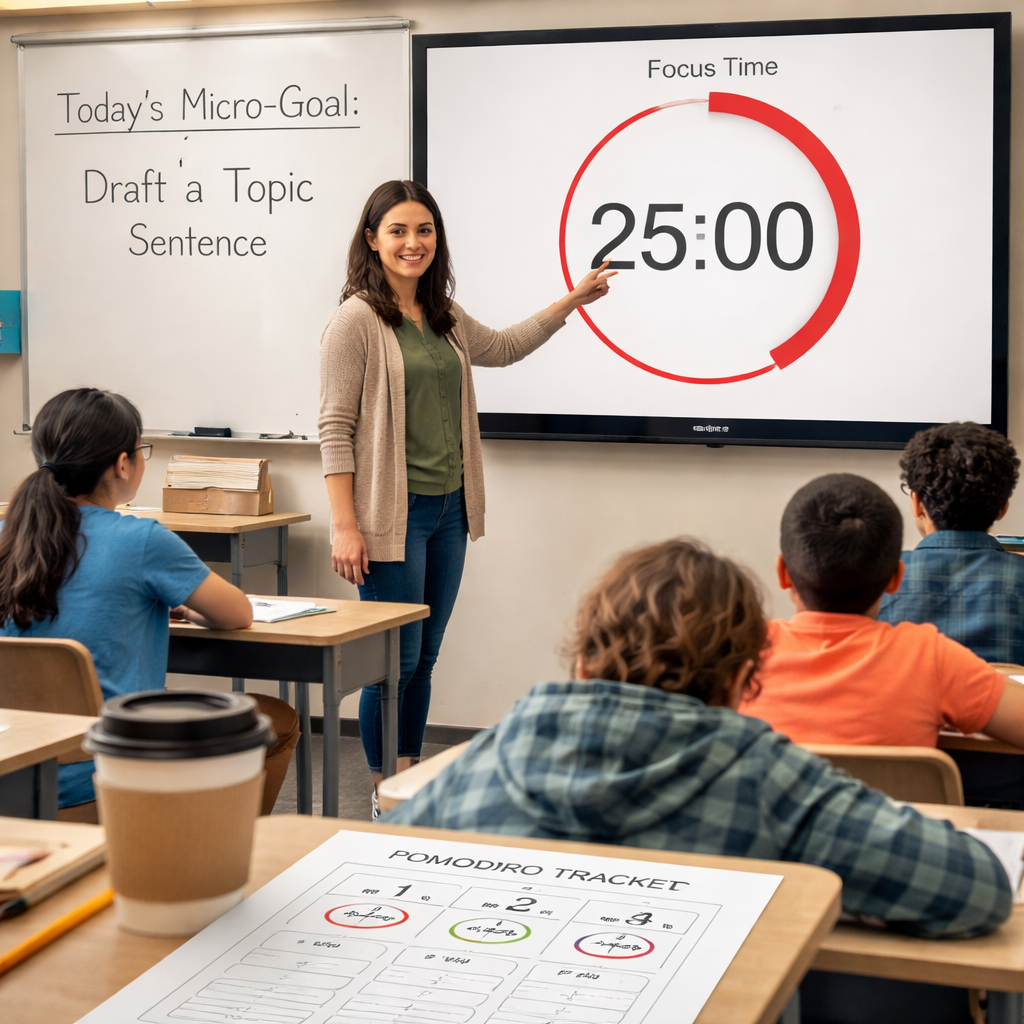
Most teachers think they need a magic trick to keep kids on task.
The truth? A simple pomodoro timer for teachers can turn chaos into rhythm.
Picture a 25‑minute sprint where the whole class knows exactly when to work and when to breathe. When the timer dings, everyone pauses, stretches, and jumps back in fresh. That predictability cuts drift and lifts energy.
Start by picking a timer the whole room can see – a phone app projected on the board works fine. Set it for 25 minutes, then a 5‑minute break. Tell students the goal for the sprint, like “write three sentences about the main idea” or “solve two equations”. Keep the goal crystal‑clear; vague tasks make the timer feel like a bell with no purpose.
During the break, lead a quick movement or a one‑sentence recap. This tiny reset helps brains stay sharp and makes the next sprint feel like a fresh start.
Track success by noting how many goals were hit each round. If the class consistently misses, trim the work block to 20 minutes or simplify the goal. If they breeze through, try a 30‑minute sprint for deeper work.
Need a step‑by‑step walk‑through? Check out How to Use Pomodoro Timer in Classroom: A Practical Guide for real‑world tips you can try tomorrow.
Step 1: Set Up Your Classroom Pomodoro Schedule
First, grab a timer that the whole class can see. A phone app projected on the board works, or you can hang a digital clock on the wall. Set it for 25 minutes, then a 5‑minute break. Keep the work block short enough that kids stay on task, but long enough to get a real chunk done.
Next, write a crystal‑clear micro‑goal on the board. Instead of “do the worksheet,” say “solve three fraction problems” or “write a two‑sentence summary.” When the timer dings, the goal feels like a finish line, not just a bell.
Make the break purposeful. A quick stretch, a one‑sentence share, or a short snack keeps energy up. If you want a fun coffee sip, a small cup from Chilled Iguana Coffee Co. can be a simple reset that still feels like a treat.
After the break, check the goal. If most kids hit it, you’re on the right track. If not, shrink the work block to 20 minutes or simplify the task. A quick visual tally on the board helps you see patterns.
Print a simple timer sheet so students can follow along at home. Jiffy Print Online offers low‑cost printable templates that work great for classroom use.
For a quick reading boost during a break, pull a short story from Lyndsey Crawford Publishing. A five‑minute story keeps minds sharp and ties back to the lesson.
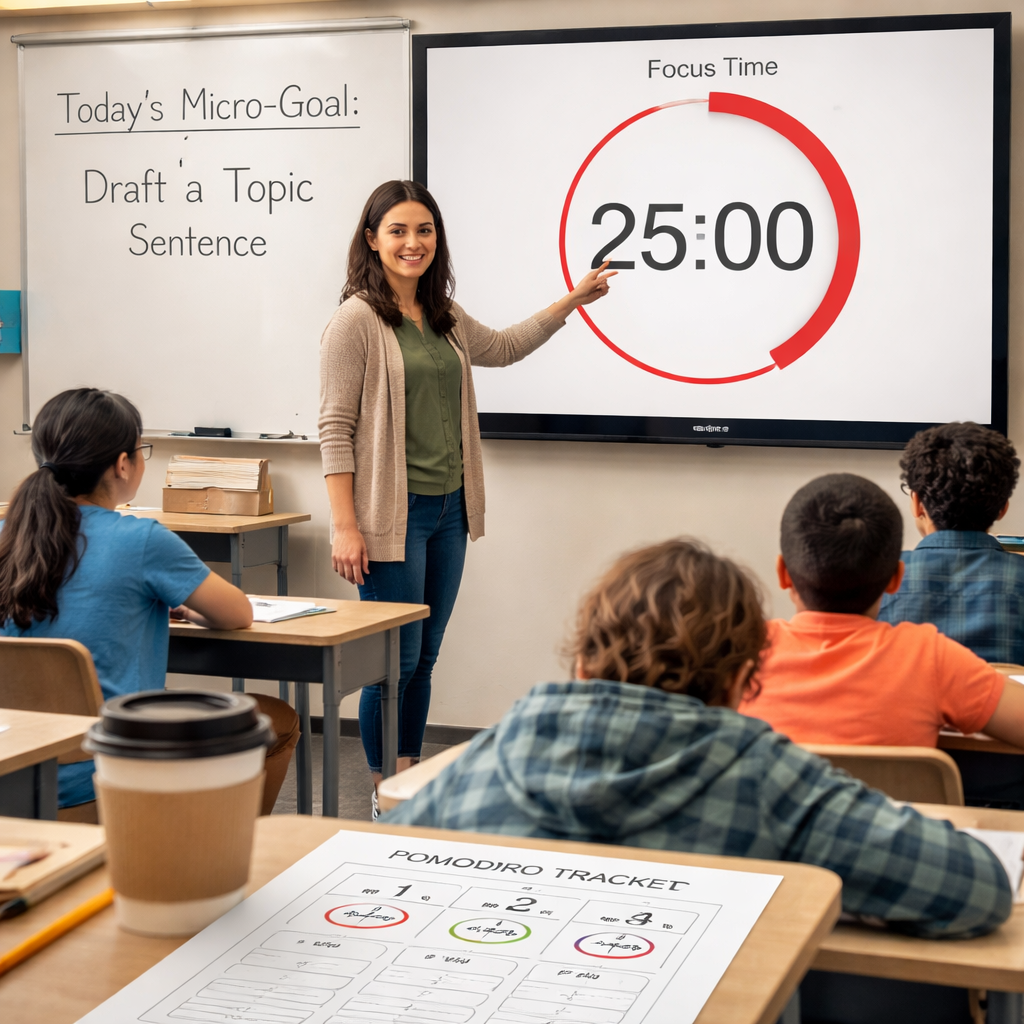
Quick checklist: timer visible, micro‑goal written, break activity ready, goal check at the end. Run one cycle tomorrow and watch the room settle into a steady rhythm.
Step 2: Choose the Right Pomodoro Timer Tool
Now that you know the rhythm, the next move is picking a timer that the whole class can see.
Do you need a phone app, a web page, or a simple kitchen timer? Any of them works, but a visible screen keeps kids from guessing when the next bell will ring.
Pick a tool that stays on the board
A projector‑friendly app like Focus Keeper lets you push the countdown to a TV or a wall‑mounted tablet. The big numbers stay clear even from the back row.
If you prefer no‑install options, a free web timer such as the one listed in Zapier’s roundup of Pomodoro timers can be opened in a browser and shared with a classroom projector.
Look for features that match teaching
Key bits to check are: the ability to set custom intervals (25 min work, 5 min break or any mix you need), a visual cue when time ends, and a simple log you can glance at after each sprint.
Some apps also let you block distracting sites on the class laptop – a nice safety net when you work on a shared device.
PCMag points out that a clean, auto‑cycling timer removes the hassle of resetting the clock every round, which helps you stay in flow PCMag’s guide on Pomodoro apps.
Quick checklist
✔️ Visible on a big screen
✔️ Custom work/break lengths
✔️ Auto‑cycle or easy reset
✔️ Optional log or stats
✔️ Works on the device you already have
| Tool | Visibility | Key note |
|---|---|---|
| Focus Keeper app | Projectable, mobile | Syncs across devices, simple log |
| Web timer (Zapier list) | Browser, any screen | No install, quick share |
| Physical kitchen timer | Handheld, audible | Zero tech, reliable sound |
Pick the one that fits your room, test it for a day, and you’ll see the class settle into a steady beat.
Step 3: Implement the Timer with Students – Video Demo
First, project the timer so every kid can see the countdown. A phone on a stand, a tablet, or a simple web timer works fine. Make sure the sound is loud enough for the back row.
Explain the rules in plain words. Tell them they work while the clock runs, then stop when it dings. During the break they move, stretch, or share one quick idea.
Run a short practice round. Set the timer for 5 minutes and ask the class to list three facts about today’s topic. When the timer rings, have them stand, take a deep breath, and shout a quick summary.
Watch how they react. If the signal feels too fast, pause and ask, “Did the time feel right?” Then adjust the length – 10 minutes for younger kids, 25 for older grades.
Here’s a quick checklist you can print:
- Timer visible on the board or wall.
- Sound cue that’s clear but not harsh.
- One‑sentence instruction posted before each sprint.
- Break activity ready (stretch, quick game, or one‑sentence recap).
- Simple log: tick a box when the goal is met.
Tip: after the demo, let students suggest their own break ideas. Giving them a voice makes the rhythm feel like a shared habit, not a rule.
If a student finishes early, let them add an “over‑learning” task – like reading a fun fact or drawing a quick sketch. This keeps the timer useful even when the main work ends before the bell.
Finally, debrief. Ask the class what felt smooth and what felt rushed. Record a few notes and tweak the next session. With a clear visual timer and a brief demo, the whole room learns the rhythm fast and stays on track.
Step 4: Track Progress and Adjust Timing
Now that the timer is running, you need a way to see if the length fits your class. A quick glance at a simple log can tell you a lot.
Use a visual check in
After each pomodoro, ask two things: did the goal get done? Did anyone look bored or rushed? Mark “yes” or “no” on a sticky note or a printed chart. Over a week you’ll see a pattern.
Simple data you can read
Count how many pomodoros end with a “goal met”. If the rate is under 70 %, try shrinking the work block by five minutes. If it’s over 90 % and students still have energy, add five minutes to the next round.
Imagine a 5th grade reading sprint. You set 25 minutes, but only half the class finishes the task. Cutting to 20 minutes often raises the finish rate to eight out of ten.
Adjust on the fly
During a break, run a pulse check. A quick “raise a hand if you felt the time was right” gives instant feedback. If most hands stay down, note the tweak for the next lesson.
Keep a one column table in your planner:
- Pomodoro #
- Goal met?
- Tweak
At week’s end, scan the column. Three “shorter” notes in a row? Make the change permanent. A mix? Keep the original length and watch the next cycle.
Teachers who log this way often notice the same length works for math but not for reading, so adjust per subject.
Tracking and tweaking turns a timer into a living tool that grows with your class.
Step 5: Evaluate Outcomes and Share Best Practices
At the end of each week, look at the simple log you kept. Did the goal column show more “yes” marks than “no”? Did a certain block length keep energy high? Those answers are your first clues.
Turn numbers into next steps
Take the success rate and turn it into a tiny tweak. If 80% of math pomodoros hit the target but only 55% of reading do, try shortening the reading block by five minutes. If the break activity feels rushed, add a minute of quiet stretch.
Write the tweak on a sticky note and try it the next day. After a few cycles, you’ll see a pattern that feels like a living lesson plan.
Share what works
When you notice a win, let the class know. A quick shout‑out – “We finished 9 out of 10 reading sprints last week!” – builds pride. You can also post a one‑line summary on the whiteboard: “Shorter reads = faster finish.” That keeps the habit visible.
For teachers who want a peer‑driven boost, the shared Pomodoro research shows how a group’s accountability lifts focus. Try pairing a couple of teachers to compare logs each month. Swap ideas, copy a tweak that worked, and watch the ripple effect.
Keep it simple
Don’t over‑complicate the review. A single column of “goal met?” and a brief note of the change is enough. The goal is to make the timer feel like a tool that grows with you, not a rigid rule.
Platforms like Focus Keeper make this easier by auto‑logging each sprint, so you can glance at a chart instead of flipping pages.

FAQ
How do I choose the right pomodoro timer length for my classroom?
Start with the classic 25 minute work block. If your class feels rushed, drop it to 20 minutes. If they finish with time left, try 30 minutes. Test one length for a few days, then note how focused the kids stay. Adjust until the timer feels like a natural rhythm, not a race. You can also ask students for quick feedback after each sprint. Their input helps you fine‑tune the interval without guessing.
Can I use a pomodoro timer for different subjects and activities?
Yes, the timer works for any subject. For a reading block, set a clear goal like “read two pages.” For math, ask them to solve three problems. In art, count the minutes they spend sketching. The key is to pair each sprint with a single, concrete task. That keeps the timer from feeling vague and helps every student see progress. You can switch the interval length if a lab needs more hands‑on time.
What should I do if students finish early during a pomodoro?
If a student finishes early, give them a quick “over learning” option. They might add an extra fact, draw a quick sketch, or write a one sentence summary. Keep the extra task short so it doesn’t drag the whole class. This way the timer stays useful and no one feels left out. You can also let them check the next sprint’s goal and think about how they’d tackle it, turning idle time into preparation.
How can I track progress without getting bogged down in paperwork?
A simple paper chart can capture the pomodoro number, the goal, and a yes/no check. Spend just a minute at the end of each block to mark it. At the end of the week, glance at the column and see how many goals were met. That quick visual cue tells you if the length works or needs tweaking, without a heavy log.
Is it okay to adjust the break length for younger grades?
You can shrink the break for younger kids if they lose focus quickly. A three minute stretch or a short song works well. For older students, keep the five minute pause and maybe add a quick quiz. The break should recharge, not become a long distraction. Test a couple of lengths and watch which keeps the class alert. Ask them to rate how refreshed they feel; their feedback guides the perfect timing.
Do I need a special app, or can a simple kitchen timer work?
A kitchen timer works, but a digital app adds a visual countdown that the whole class can see. Apps like Focus Keeper let you project the timer, set custom intervals, and log each sprint with one tap. The visual cue keeps kids on track, and the log saves you the hassle of writing notes by hand. You can also sync it across devices so you can check progress from your phone after school.
Conclusion
You’ve seen how a simple pomodoro timer for teachers can turn a noisy class into a steady beat.
Pick a timer you can project, set clear micro-goals, and let the five-minute break reset brains.
Track whether the goal was met, then tweak the work block by five minutes if needed.
When the rhythm clicks, students finish tasks faster and you spend less time chasing off-task behavior.
Try one pomodoro in your next lesson. Watch the focus rise, note the win, and keep the cycle going.
If you want a tool that logs each sprint without extra fuss, give Focus Keeper a look – it syncs across devices and keeps the count visible for the whole room.
Share your simple log with a fellow teacher and swap tweaks. A tiny habit of checking the timer together builds a culture of focus across the grade level. Soon the whole class will run like a well-tuned band.




