
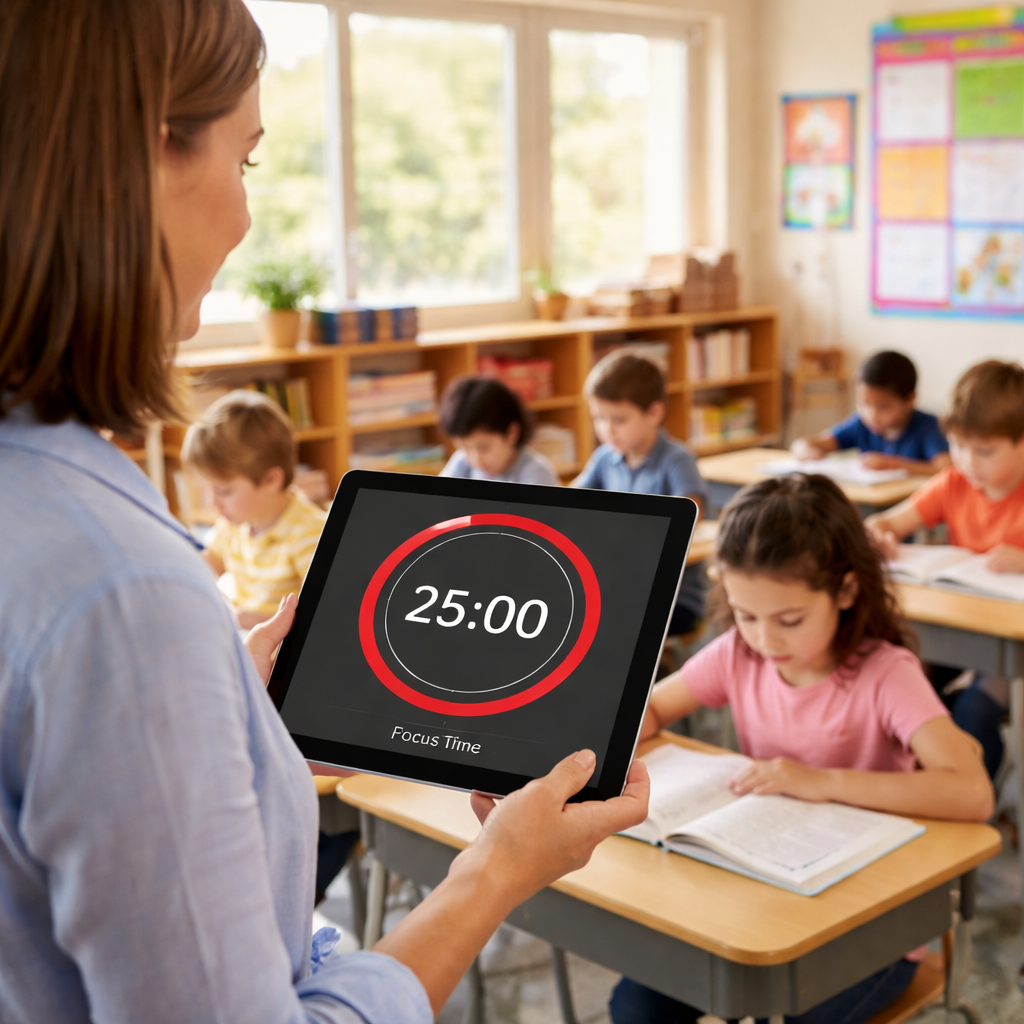
Most teachers think they need endless lesson plans to keep kids on track.
What if you could slice a busy day into bite‑size bursts and watch focus rise?
Using a pomodoro timer for teachers classroom productivity does exactly that. Set a 25‑minute timer, work on a single activity, then give a short move‑around break. The rhythm tricks the brain into staying sharp, and students know when it’s work time and when it’s play time.
Try this in a reading block: announce “We have one pomodoro to finish the first two pages, then a five‑minute dance break.” After the timer dings, students stretch, then jump back in. The clear cue reduces off‑task chatter and gives you a natural transition. To start, pick a subject, decide how many pomodoros you need, and write the plan on the board.
Pair the timed activity with engaging material, like a picture book from Lyndsey Crawford Publishing. The story fills the interval, while the timer keeps the pace steady. Keep a simple log of how many pomodoros each class completes, and tweak the length if kids need a bit more or less time.
Choose the Right Pomodoro Timer for Your Classroom
Pick the right timer and the whole class feels tighter. A clear start‑stop cue cuts chatter and keeps kids on track.
First, look for a timer that shows a big visual countdown. Kids read a number and know exactly how long they have. An audible beep helps when the room gets noisy. You also want to change the work‑break length without fuss – some lessons need 20 minutes, others 30.
Second, check if the timer works on the device you already use. A web timer runs on any laptop or tablet, while a phone app may need an extra download. If you plan to print paper timers, a simple spreadsheet works too.
Many teachers trust Focus Keeper as a top pick. It follows the pomodoro timer for teachers classroom productivity model, offers a clean screen, and lets you set custom intervals in just a tap.
If you prefer paper cues, you can order printable timer cards from JiffyPrintOnline. A quick sheet with bright colors and a big number helps visual learners stay aware of the clock without looking at a screen.
For an online option that already matches lesson plans, the free timer on Chickytutor works well. It loads fast, has a big start button, and lets you add a short message for the break activity.
Once you’ve chosen a tool, set it up in three steps: 1) decide the work and break minutes, 2) tell the class what to do in each block, 3) hit start and let the timer do the rest.
Watch the short video above for a live demo of a classroom timer in action.
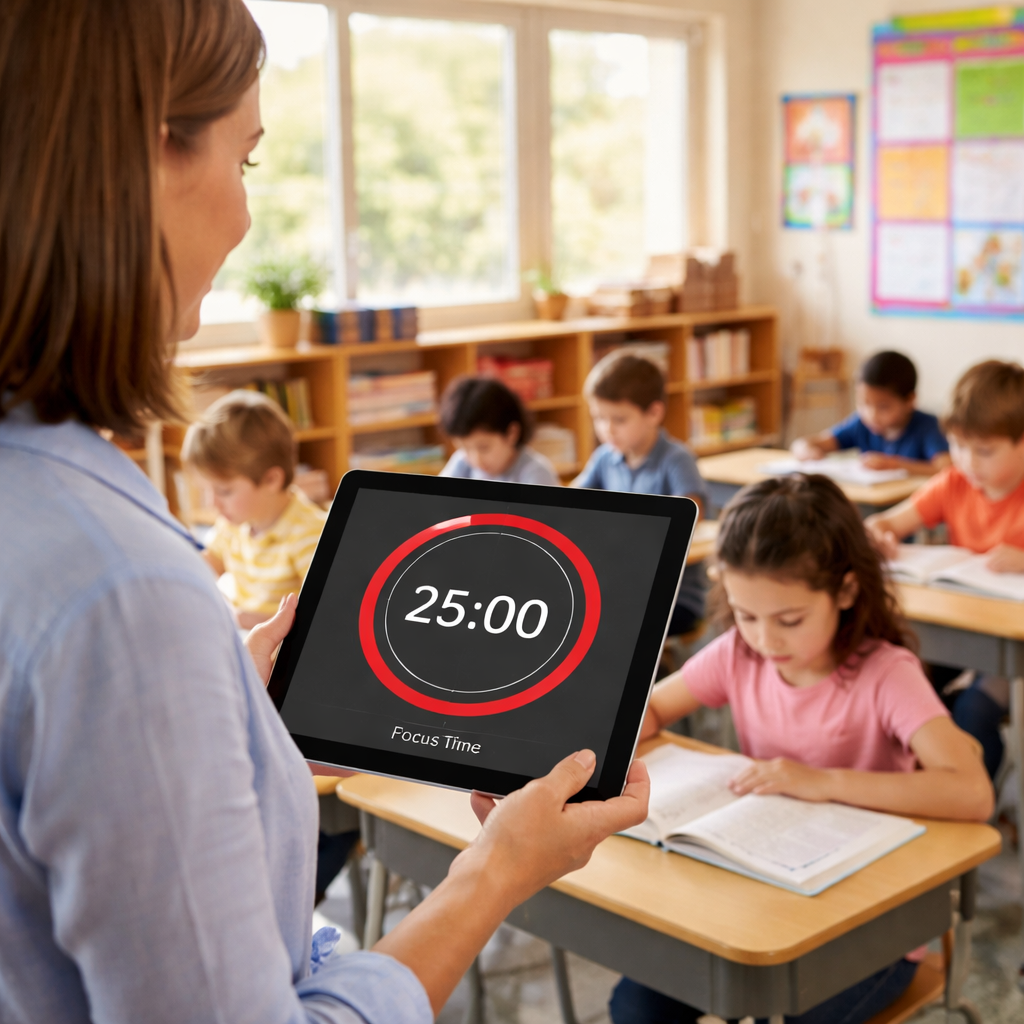
Design Pomodoro Session Structures for Teaching
Start by mapping the day into clear work bursts and breaks.
Pick a length that fits the age group – 15‑minute blocks work well for younger kids, while 25‑minute slots suit older students or a remote‑learning session.
What if you could see the whole rhythm on the board before the bell rings?
Write the sequence in three columns: activity, timer length, break type. Example: “Read chapter (15 min) → stretch (5 min) → math quiz (15 min).” This visual cue tells students exactly what’s next.
Next, match the task to the interval. For a quick vocab drill, use a short pomodoro; for a science experiment, stretch it to 30 minutes and add a longer 10‑minute cool‑down.
How do you keep the flow when a lesson runs over?
Build in a buffer pomodoro at the end of the block. If the experiment needs extra time, the extra slot slips in without breaking the rhythm.
Choose a timer that lets you set custom lengths and gives a gentle cue. Platforms like Focus Keeper let you preload the day’s schedule so you only tap “start.”
Finally, review the plan with the class. Ask them to call out “time’s up!” or raise a hand when the break starts. This turns the timer into a shared signal, not a teacher‑only tool.
For a quick refresher on the core method, check out Pomodoro technique guide.
Monitor Student Engagement with Pomodoro Data
Once the timer is running, the real magic shows up when you start looking at the numbers behind the buzz.
A quick way to monitor engagement is to log each pomodoro the class finishes. Write the date, subject, and whether the kids stayed on task.
What if you could spot a slump before it turns into a whole class drift?
Step 1: Use the timer’s built‑in history (if it has one) or a simple spreadsheet. Record the total blocks per lesson and note any unfinished slots.
Step 2: Pair that data with a quick pulse check. After each break, ask for a one‑word vibe – focused, bored, confused – and jot it next to the count.
Step 3: At week’s end, glance at the chart. If math lessons consistently drop below the target pomodoros, it may mean the tasks are too hard or the interval is too long.
Research shows the brain’s focus spikes in 20‑45‑minute bursts, then dips, which is why tracking these cycles matters. The science behind the Pomodoro method explains this pattern.

When the data tells you a pattern, tweak the length or the break type. Shorten a stubborn vocab drill to 10 minutes and add a movement break, or stretch a science demo to 30 minutes with a longer cool‑down.
Let the class see the simple chart. When they notice their own focus trends, they often take ownership and signal when they need a pause.
Platforms like Focus Keeper make logging effortless by auto‑saving each session, so you can export a CSV and spot trends without manual entry.
| Metric | What to Track | Why it matters |
|---|---|---|
| Pomodoros completed | Total blocks per lesson | Shows whether the planned rhythm holds |
| Break compliance | Students who actually stop work | Helps gauge if breaks are refreshing |
| Student vibe | One‑word feeling after each break | Links mood to focus length |
Blend Pomodoro Breaks into Lesson Plans Seamlessly
You can fit focused work and fun breaks into any lesson without extra planning.
First, write the lesson outline on the board. List the activity, the timer length, and the break type. Keep it short: “Read story (15 min) stretch (5 min) math quiz (15 min).” The visual cue tells kids exactly what’s next.
Next, set the pomodoro timer for teachers classroom productivity. A 25 minute block works for older grades; 15 minutes feels right for younger kids. When the timer dings, cue a quick move around break – a jump jacks set, a GoNoodle clip, or a simple water break.
After the break, let the class signal they’re ready to start. A raised hand or a shout of “time’s up!” keeps the rhythm alive and makes the timer feel like a shared tool, not a teacher rule.
Tip: If a task runs long, add a buffer pomodoro at the end of the block. That extra slot slides in without breaking the flow.
Finally, log each block in a quick sheet or the app. Seeing the count helps you spot patterns and tweak future plans.
For more ideas on how teachers use the Pomodoro technique to stay on track, see this guide on using the Pomodoro technique.
Video Guide: Setting Up a Classroom Pomodoro System
A short video can turn a hectic lesson into a smooth rhythm in seconds.
When kids see the same visual cue every day, they know when to work and when to move. That predictability boosts the pomodoro timer for teachers classroom productivity without extra chatter.
Step 1: Pick a timer that lets you set custom intervals. A free web timer or an app like Focus Keeper works well because you can change the length with a tap.
Step 2: Write a simple script on a sticky note. Keep it to three lines: 1) announce the task and time, 2) start the timer, 3) cue the break activity.
Step 3: Record yourself walking through the script. Use your phone’s portrait mode, hold the tablet so the timer is visible, and speak in a calm voice. A 30-second clip is enough.
Step 4: Play the video at the start of the block. Hit play, follow the steps, and let the timer do the rest. Kids will copy the rhythm and you’ll spend less time repeating instructions.
And a quick tip: add subtitles that show the minutes left. Even if the sound cuts out, the visual countdown keeps the class on track.
Now you have a reusable guide that fits any subject: reading, math, or science. Just hit play, watch the kids jump into focus, and enjoy the smoother flow.
Conclusion
You’ve seen how a pomodoro timer for teachers classroom productivity can turn a noisy lesson into a smooth rhythm. By picking a flexible timer, writing a short script, and letting the countdown do the work, you free up voice time for real teaching.
Remember the three steps that matter: set the interval that fits your grade, cue a quick break that gets kids moving, and log the blocks so you can spot patterns. When the timer signals, the whole class knows what’s next without extra chatter.
If you want a tool that makes those steps easy, give Focus Keeper a look. Its clean screen and simple tap controls keep the focus on learning, not on fiddling with settings.
Start with one subject tomorrow. Set the timer, run the cycle, and watch the classroom settle into a steady beat. The habit will stick, and you’ll save minutes every day.
FAQ
How do I set up a pomodoro timer for teachers classroom productivity?
Start by picking a timer that lets you change work and break periods. Open the app, set the work slot to 15‑20 minutes for younger kids or 25‑30 minutes for older grades, then choose a 5‑minute break. Write the plan on the board, hit start, and let the countdown do the talking. The simple tap lets you focus on teaching instead of watching the clock.
What interval lengths work best for different grade levels?
The sweet spot changes as kids grow. For kindergarten through second grade, 10‑ to 15‑minute bursts keep attention high and give frequent movement breaks. Third to fifth graders handle 20‑minute blocks well, while middle school students often thrive on the classic 25‑minute work slot followed by a 5‑minute stretch. Test a length for a week, note how many tasks finish, then adjust by a few minutes.
How can I keep students engaged while the timer runs?
Kids stay on track when the timer feels like a game. Give a quick cue before you start – “We’ve got 15 minutes to finish the story.” When the timer dings, have a fun break like a stretch or a short chant. Let the class announce the next activity; that small voice role keeps them invested. The clear start‑stop rhythm also reduces off‑task chatter.
How do I track progress without adding extra work?
You don’t need a fancy spreadsheet. Most pomodoro apps, including the one we recommend, write each session to a history log. At the end of the day, glance at the total blocks and note any unfinished slots. A quick tally on a sticky note can show trends – more blocks mean steady focus, fewer blocks signal a need to tweak length or content.
What are common pitfalls and how can I avoid them?
A common slip is letting the timer run while the class wanders off. To avoid that, pair the countdown with a visible cue – a colored screen or a gentle chime that everyone hears. Also, keep break activities short and purposeful; long free‑time periods let focus drift. Finally, review the log weekly and shift any persistently short blocks to a shorter work slot.
Can I use the pomodoro method for remote or hybrid classes?
Yes – the same timer works for remote or hybrid lessons. Share your screen or send a link to the timer at the start of a virtual class. Students see the countdown just like in a physical room, and the break cue can be a quick stretch on camera. Keep a shared log in a Google Sheet so everyone can see the total pomodoros completed.




