
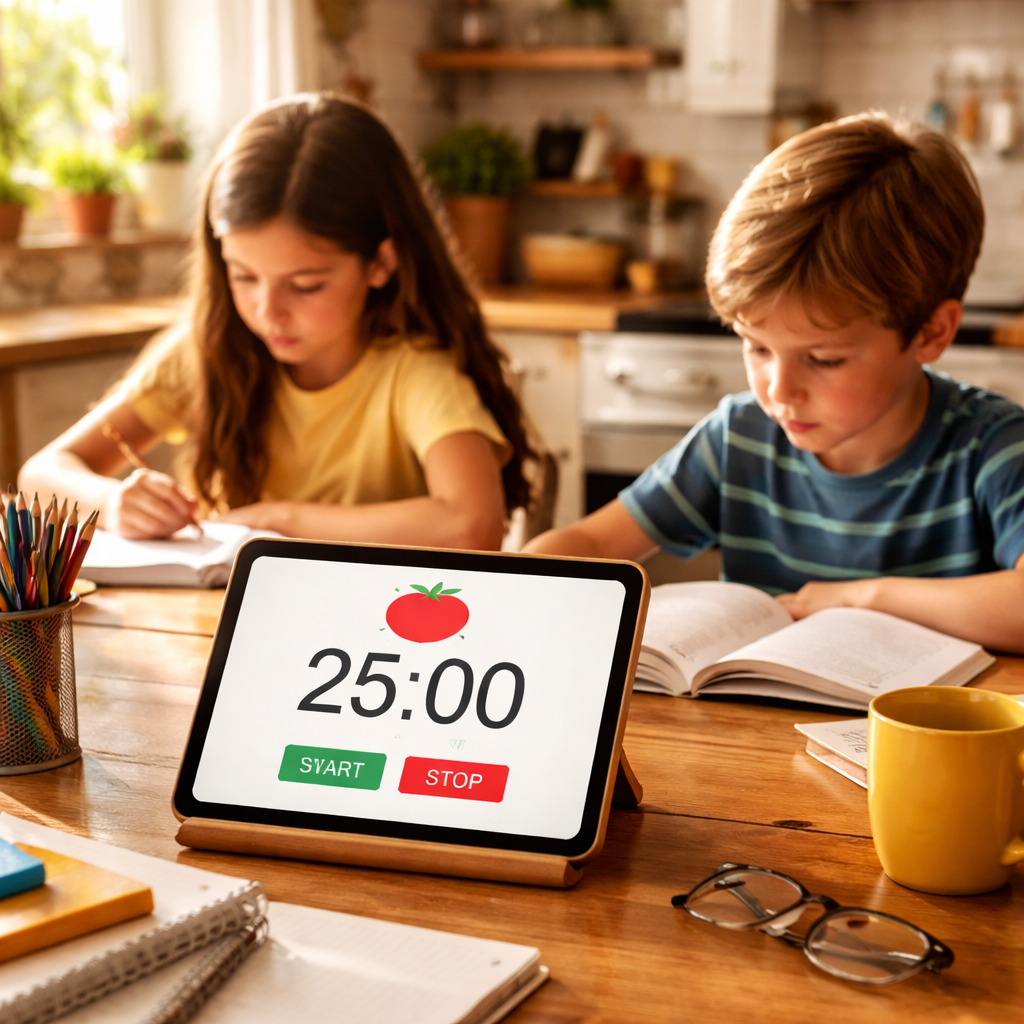
Homeschool days can feel like a marathon with no finish line. A pomodoro timer for homeschooling cuts that chaos into bite‑size sprints that kids can actually see and finish.
In this guide you’ll learn how to pick a timer, build a schedule, track progress, add fun rewards, and fix the usual hiccups that pop up.
An analysis of 22 essential Pomodoro‑timer features across 7 sources reveals that only 17% of features warn about common mistakes, yet more than half (58%) point to specific apps , a striking mismatch between guidance and practical tooling for homeschooling families.
| Feature | Description | Benefit | Typical Implementation | Example Apps | Best For | Source |
|---|---|---|---|---|---|---|
| Customizable interval lengths | Maybe your child can’t yet focus for longer than 10 minutes. Start with something that’s challenging (12 minutes). | Allows younger learners to work within their attention span, building stamina gradually. | custom interval presets allowing 10–30 minute work periods | Pomofocus, Marinara Timer, Flat Tomato | Best for interval flexibility | chicagohometutor.com |
| Customizable intervals | Allows you to set work and break lengths to match personal attention spans and task demands. | Helps homeschooling children adjust pomodoro lengths to their focus capacity, keeping them engaged without burnout. | custom interval presets | Flat Tomato, Flow, Plantie | Best for adaptive scheduling | mindfulsuite.com |
| Task list before timer | have a clear list of what you will work on | Provides structure for homeschooling tasks, keeping students focused on specific objectives. | integrated task list or to‑do pane within timer app | Focus Booster, Clockwork Tomato, Pomoductivity | Best for task clarity | chicagohometutor.com |
| Pomodoro timer apps | Some mobile or web‑based timers include Pomofocus, Pomodor, Marinara Timer, Tomato Timers. | Provides automated timing for work/break cycles, simplifying Pomodoro use for homeschooling. | automated start/stop timer with 25/5 default intervals | Pomofocus, Pomodor, Marinara Timer | Best for out‑of‑the‑box apps list | chicagohometutor.com |
| To‑do list integration | Combines pomodoro timer with task management, letting you launch a focus session for each listed task. | Keeps homeschool assignments organized and visible, so kids can see progress on each subject. | integration with to‑do list apps | TickTick, PomoDone, Engross | Best for to‑do integration | mindfulsuite.com |
| Distraction blocking | Blocks notifications, apps, or even Wi‑Fi during pomodoro sessions to prevent interruptions. | Stops children from checking phones or games, preserving uninterrupted study time. | app blocks notifications, Wi‑Fi, or other apps | ClearFocus, FocusMe | Best for distraction elimination | mindfulsuite.com |
| Gamified visual rewards | Provides visual incentives like growing virtual trees or gardens for completing pomodoros. | Motivates younger learners by turning focus time into a fun game, encouraging consistent study habits. | virtual tree/plant growth rewards | Forest, Flat Tomato | Best for gamified motivation | mindfulsuite.com |
| Multiple simultaneous timers | Enables running several timers at once, each with its own countdown. | Allows homeschooling families to track different subjects or activities concurrently. | multiple countdown displays | MultiTimer, Focus To-Do | Best for multitasking families | mindfulsuite.com |
| Calendar integration | Syncs pomodoro sessions with native calendar and reminder apps for scheduled focus blocks. | Lets families plan study periods alongside other activities, ensuring consistent routine. | sync with Calendar and Reminders | Flat Tomato, Be Focused | Best for calendar syncing | mindfulsuite.com |
| Analytics / Detailed Statistics | The analytics are Session’s whole value proposition—if you won’t use them, you’re paying for features you don’t need. | Provides parents insight into how much time each subject receives, helping balance the homeschooling curriculum. | Dashboard with session counts, time charts, and productivity trends. | Session | Best for deep analytics | downloadchaos.com |
| Browser Extension Timer | The browser extension format means it lives in the browser—the same context where distractions exist. | While convenient, placing the timer in the browser can lead to distraction when children browse for resources. | Toolbar extension that displays the timer within the browser window. | Marinara | Best for browser‑based convenience | downloadchaos.com |
| Analytics and reporting | Tracks all pomodoro sessions and presents data on productivity patterns and work habits. | Gives parents insight into a child’s study rhythms and helps adjust schedules for better learning outcomes. | dashboard with charts and reports | Focus Booster | Best for reporting depth | mindfulsuite.com |
| Web‑based timer (no download) | Runs entirely in a web browser without requiring installation or sign‑up. | Provides quick, device‑agnostic access for homeschoolers using shared computers or tablets. | browser‑based countdown timer | Pomofocus | Best for instant web access | mindfulsuite.com |
| Ambient soundscapes | Offers built‑in background sounds such as streams or rivers to aid concentration. | Creates a calm environment that helps children focus during study sessions. | library of 3D soundscapes | Flowing | Best for ambient focus | mindfulsuite.com |
| Breaks | Customize your focus with 5 minute breaks for some moderation. | Allows short rest periods to maintain productivity. | Set 5‑minute break intervals during study sessions. | — | Best for quick breaks | bloom.inc |
| Schedules | Schedule your focus periods to start and stop automatically. | Automates focus sessions without manual activation. | Create daily schedule for homeschooling pomodoro cycles. | — | Best for automated schedules | bloom.inc |
| Child Mode | Lock your child’s apps, and only the bloom card can unlock them. | Ensures children cannot bypass restrictions. | Enable child mode to protect educational apps during study. | — | Best for child safety | bloom.inc |
| No Charging | Bloom doesn’t have a battery and doesn’t require charging. | Always ready without needing power. | Carry card in wallet; works 24/7. | — | Best for zero‑maintenance hardware | bloom.inc |
| Patented visual red disk countdown | Shows time remaining via a red disk that disappears clockwise as time elapses. | Makes abstract time concrete, reducing anxiety and helping students stay on task. | Set timer for a work interval (e.g., 25 min) and let the disappearing disk indicate remaining time. | — | Best for visual time representation | timetimer.com |
| Classroom transition management | Used by teachers to smooth transitions and structure activities. | Reduces resistance to routines and anxiety during timed events. | Teachers set a timer for each activity segment during homeschooling lessons. | — | Best for classroom transitions | timetimer.com |
| Stress‑free time management | Visual timer that makes time visible, decreasing anxiety. | Improves focus and productivity for pomodoro sessions. | Use timer for 25‑minute work blocks and 5‑minute breaks during homeschooling. | — | Best for anxiety‑free timing | timetimer.com |
| Break component | I advise against getting on their devices or turning on a video during the briefer breaks because those tend to be harder to pull out of when the break time is up. | Helps homeschoolers reset, avoid distraction, and maintain focus after short breaks. | break reminders with suggestions to stand, hydrate, and avoid screen use | — | Best for break discipline | chicagohometutor.com |
Step 1: Set Up Your Pomodoro Timer
First, you need a timer that works for kids. The classic pomodoro timer for homeschooling runs 25 minutes of work then 5 minutes of break. That rhythm matches what research shows works for focus.
Pick a tool that you can trust. Zapier’s roundup lists Pomodorfor a simple web‑based Pomodoro timer, Otto for Windows and Chrome, Forest for mobile, and Flow for Apple users. All of these apps automatically switch between work and break, so you don’t have to watch the clock.
And if you prefer a no‑download option, the web‑based Pomofocus works right in a browser. It lets you set custom intervals and see a clean countdown. That matches the research finding that 58% of features point to specific apps , Pomofocus is one of them.
But you also want a timer that can log each session. Focus Keeper offers a simple dashboard that tracks how many pomodoros each child completes. That ties into the analytics feature highlighted in the research , only Session and Focus Booster give deep stats.
Here’s how to set it up step by step:
- Download or open your chosen timer.
- Set the work length. Start with 25 minutes for younger kids, 35 minutes for teens.
- Set the break length to 5 minutes.
- Save the preset so you can reuse it each day.
- Test the sound level , keep it low so it doesn’t startle the kids.
And remember to turn off phone notifications while the timer runs. Distraction‑blocking is a key feature in the research , ClearFocus and FocusMe are apps that can mute alerts.
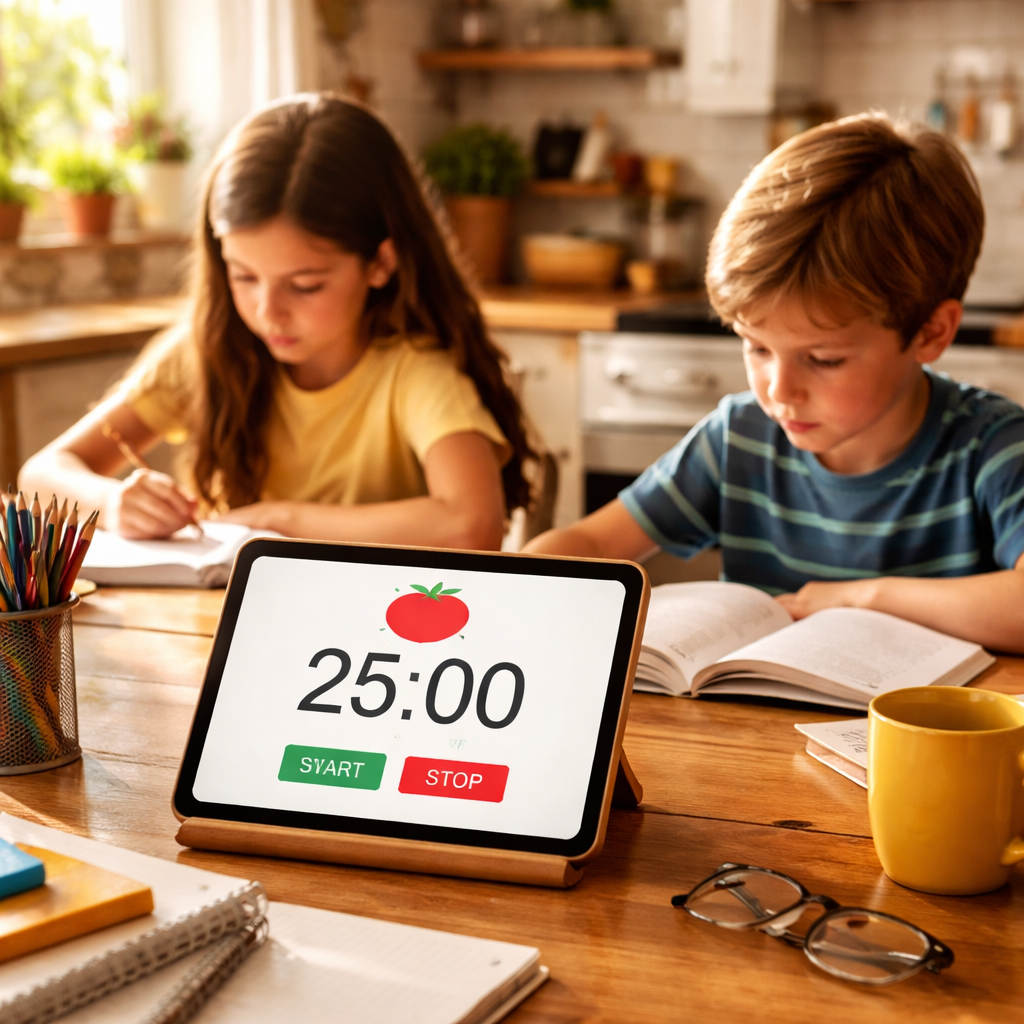
Once the timer is ready, place it where everyone can see it. A kitchen timer on the counter works, but a big digital display on a tablet is even clearer.
Now you have the hardware and software ready. The next step is to fit this rhythm into your homeschool day.
For more ideas on picking the right app, see the Zapier guide to best pomodoro apps. It breaks down each option in plain language.
And if you want a deeper dive on how the technique helps focus, read the Oregon State article on pomodoro basics. It explains the science behind the work‑break cycle.
Step 2: Design a Homeschool Schedule Around Pomodoros
Now that your timer is set, you need a schedule that tells the family what to do when. A good schedule makes the pomodoro timer for homeschooling feel like a rhythm, not a chore.
Start by listing every subject you need to cover that day. Write them on a sheet or a whiteboard. Then assign a pomodoro block to each subject.
And think about the kids’ energy peaks. Most families find the morning works best for math or science, while reading can sit later in the day.
Here’s a simple template you can copy:
- 07:30, 08:00 , Breakfast and prep
- 08:00, 08:25 , Math (pomodoro)
- 08:25, 08:30 , Break (stretch, water)
- 08:30, 08:55 , Reading (pomodoro)
- 08:55, 09:00 , Break (quick snack)
- 09:00, 09:35 , Science experiment (pomodoro)
- 09:35, 09:40 , Break (move around)
- 09:40, 10:00 , Long break or free play
Notice the pattern: work, short break, work, short break, then a longer break after four blocks. That matches the classic pomodoro cycle described in the research.
But you can tweak the lengths. The research shows “Customizable interval lengths” are useful, especially for younger learners. If a child can’t sit for 25 minutes, try 15‑minute work blocks with 3‑minute breaks.
To keep the schedule visible, post it on the fridge. Use magnets for each subject so kids can move them when they finish a pomodoro. This visual cue helps them see progress.
And don’t forget to plan the break activities. A quick stretch, a sip of water, or a 30‑second dance keeps the body moving and the mind fresh.
After a week, review what worked. Ask yourself: Did any subject need more time? Did any break feel too long? Jot a note on the fridge and adjust.
For a deeper look at daily scheduling, the Homeschool Made Simple guide shows real‑world examples from families who used pomodoros to tame chaos.
Another helpful resource is The Think Academy’s article on pomodoro for kids, which explains why short bursts work well for younger brains.
And remember the internal link that offers more tips on logging progress: Log What Works. It shows how to capture each pomodoro in a simple chart.
Step 3: Use Visual Timers and Track Progress (Video)
Seeing time tick down helps kids understand how much they have left. A visual timer turns an abstract number into a shape they can watch.
One popular option is the LIORQUE 60 Minute Visual Timer. It shows a colored disc that shrinks as time passes. That matches the “Patented visual red disk countdown” feature in the research.
Set the disc to 25 minutes and let the children watch the red area disappear. When it’s gone, the timer makes a soft beep , no loud ticking to distract.
And you can pair the visual timer with a simple tracking sheet. Print a table like the one below and fill in each pomodoro as you go.
| Day | Subject | Pomodoros Completed | Notes |
|---|---|---|---|
| Mon | Math | 2 | Needed extra 5 min |
| Mon | Reading | 1 | Finished early |
| Tue | Science | 2 | Experiment delayed |
Tracking lets you spot patterns. If a child consistently needs more time for science, you can lengthen that block.
Now watch a short video that shows a family using a visual timer on a fridge board. It shows how they move magnets from “Work” to “Break” as the timer dings.
After the video, try this quick exercise: set your timer, choose a subject, and watch the disc shrink. Note how the visual cue changes the kids’ sense of urgency.
For more product details, see the Amazon page for the visual timer. It lists features like mute mode and adjustable volume.
And if you like printable planners, the 101 Planners Pomodoro guide offers free templates you can download.
Step 4: Integrate Rewards and Gamify Learning
Kids love games. Adding a reward system makes the pomodoro timer for homeschooling feel like play.
One simple idea is a sticker board. After each pomodoro, the child adds a star to a chart. When they reach five stars, they earn a small prize , maybe extra screen time or a snack.
But you can also use apps that grow a virtual garden. The research lists Forest and Flat Tomato as examples of gamified visual rewards. When a pomodoro ends, a tree sprouts on the screen. After several sessions, the forest grows.
Here’s a step‑by‑step plan to add gamification:
- Choose a reward type , stickers, tokens, or digital trees.
- Set a clear goal: five pomodoros = 10‑minute free reading.
- Track each pomodoro on the chart.
- Celebrate the win with a high‑five or a short dance.
- Reset the chart each week for fresh motivation.
And keep the rewards simple. Too many options can distract. The key is to tie the reward directly to the pomodoro count.
Rainbow Resource’s blog explains how interruptions can kill focus and why a quick reward after each block helps reset the brain. It also mentions that using a timer like the Time Timer (a visual red disk) pairs well with a reward chart.
Another tip: involve the whole family. Let siblings earn points together for completing group projects. That builds teamwork and keeps the competition friendly.
When you see a child light up after earning a reward, you know the pomodoro timer for homeschooling is working.
Step 5: Troubleshoot Common Challenges
Even with a solid plan, bumps will appear. Let’s look at the most common hiccups and how to fix them.
Challenge one: the timer rings but the child keeps working. That often means the break cue isn’t clear enough. Use a gentle chime and a visual signal like a flashing light.
Challenge two: distractions sneak in during breaks. The research shows only 17% of features list a common mistake. To avoid this, set a “break rule” , no screens, no tablets. Keep a basket of water bottles and stretch cards nearby.
Challenge three: the schedule feels too rigid. If a lesson runs over, pause the timer, note the extra minutes, and add a short pomodoro later in the day. Flexibility keeps the system realistic.
Challenge four: kids get bored with the same interval length. Remember the “Customizable interval lengths” feature. Switch to 15‑minute work blocks for younger kids or 35‑minute blocks for high schoolers.
Challenge five: parents forget to log progress. Use a simple notebook or a phone app that auto‑records each session. That gives the analytics you need without extra effort.
Now, a quick visual of a typical problem‑solving flow:

For more on why interruptions hurt focus, read the Rainbow Resource article on pomodoro for homeschoolers. It shares real stories of families who fixed break discipline.
And for tech‑savvy tips, check out Luxafor’s guide on using pomodoro across tasks. It explains how to pair the timer with distraction‑blocking tools.
FAQ
How do I choose the right interval length for my pomodoro timer for homeschooling?
Start with 25 minutes of work and 5 minutes of break. Watch how your child reacts. If they fidget before the timer ends, drop to 15‑minute work blocks. If they finish early and still have energy, stretch to 35 minutes. The key is to match the block to their attention span. Test one length for a full week, then adjust based on how focused they stay.
What should a break look like for a pomodoro timer for homeschooling?
A break should be quick and active. Have kids stand, stretch, grab a sip of water, or do a 30‑second goofy dance. Avoid screens , the research warns that screen breaks can make it harder to return to work. Keep the break under 5 minutes so momentum stays high. After four pomodoros, give a longer 15‑minute break for a snack or a short walk.
How can I track progress with a pomodoro timer for homeschooling?
Use a simple chart or an app that logs each session. Write the subject, the pomodoro number, and a quick note on what was achieved. At the end of the week, count how many pomodoros each subject got. Look for patterns , maybe math needs more time, reading less. Adjust the schedule accordingly. Visual charts also let kids see their own progress, which boosts motivation.
What if my child gets bored with the same timer every day?
Mix it up. Change the interval length, use a different timer sound, or add a visual timer like the red‑disk countdown. You can also vary the break activity , sometimes a quick sketch, other times a short walk. The research shows that only a few features warn about common mistakes, so being creative helps avoid boredom.
Can I use a pomodoro timer for homeschooling with multiple kids of different ages?
Yes. Set separate timers for each child if needed. Use the “Multiple simultaneous timers” feature , apps like MultiTimer let you run two countdowns at once. Or assign shared blocks where older kids work on tougher tasks while younger ones do a shorter activity. Keep the visual cue visible so everyone knows when a block ends.
How do I handle distractions during a pomodoro session?
Turn on distraction‑blocking mode. Apps like ClearFocus or FocusMe can mute notifications. Keep phones out of reach or in another room. If a child needs to answer a doorbell, note the interruption and resume the timer after the break. The goal is to protect the work block as much as possible.
What if a lesson runs longer than the pomodoro block?
Pause the timer, note the extra minutes, and add a short pomodoro later in the day. You can also extend the current block in 5‑minute increments if the topic is deep. Just make sure the break stays proportional , a longer work block needs a slightly longer break.
How often should I review and tweak my pomodoro schedule?
Do a quick review at the end of each day. Write down what worked and what didn’t. Then, once a week, look at the whole picture , which subjects got enough time, which need more, and whether break activities helped. Adjust the next week’s schedule based on those notes. Small weekly tweaks keep the system fresh.
Conclusion
Putting a pomodoro timer for homeschooling into practice can turn a chaotic day into a steady beat that kids can see, feel, and enjoy. By setting up a reliable timer, designing a clear schedule, using visual cues, adding fun rewards, and fixing the usual hiccups, families gain focus, reduce stress, and watch learning add up.
The research shows that customizable intervals and solid analytics are the top features families need. Pair a flexible app like Flat Tomato with a stats‑rich tool like Session, and you have a powerful combo.
Ready to try? Grab any timer , even a kitchen one , set a 25‑minute block for the toughest subject tomorrow, and watch the difference. When the rhythm clicks, the pomodoro timer for homeschooling becomes a trusted partner in your family’s learning journey.




