
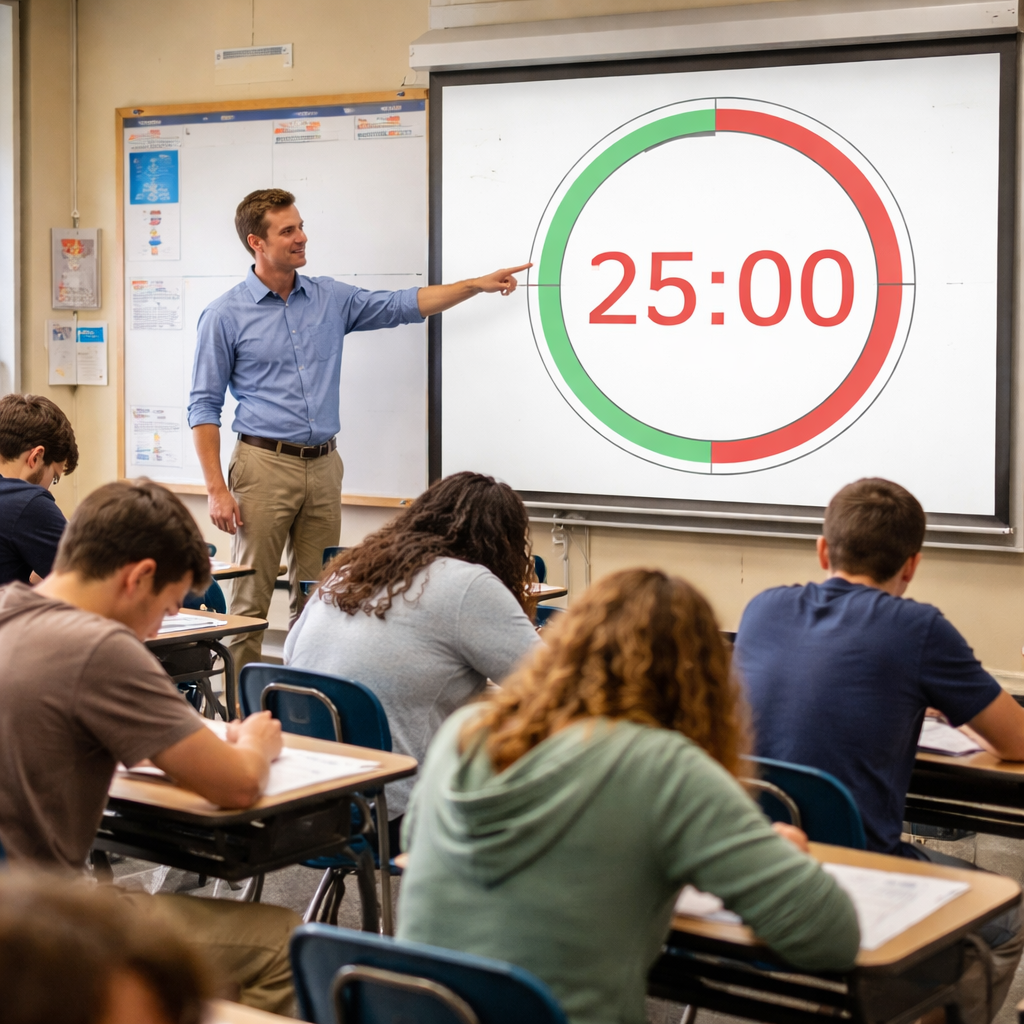
Teachers lose minutes every day when class drifts. A pomodoro timer for teachers iOS can cut that waste in half. In this guide you’ll learn how to pick a tool, set it up, and fit it into a lesson plan so every minute counts.
Research shows that four iOS Pomodoro timer apps all miss a teacher‑mode feature, even though teachers need a clear rhythm. Below is the data that backs this claim.
| Name | Free Tier | Best For | Source |
|---|---|---|---|
| Focus Keeper (Our Pick) | Core Pomodoro timer functionality (basic timer available without payment) | Best for students & professionals | focuskeeper.co |
| Focus: Pomodoro Study Timer | Free | Best for pure simplicity | apps.apple.com |
| Forest | Free with in‑app purchases | Best for gamified focus | zapier.com |
| Focus Keeper – Pomodoro Timer | Free with In‑App Purchases | Best for reliable exam timing | apps.apple.com |
Step 1: Install a Teacher‑Friendly Pomodoro Timer on iOS
First, you need a pomodoro timer for teachers iOS that you can see from the back of the room. Open the App Store and search for “Pomodoro”. Look for the icon that matches Focus Keeper , it’s the app with a bright orange tomato graphic.
Tap Get. The download takes seconds on a good Wi‑Fi. When it opens, you’ll see a simple screen with a big start button. That clean look is why our pick, Focus Keeper, wins over the others.
Now you have the app on your iPad or iPhone. Next step is to test it before you use it in class.
Run a short five‑minute sprint on a blank slide. Set a goal like “list three facts” and watch the timer count down. When it rings, stop and note how quickly the class stops talking.
Here are three quick tips to get the install right:
- Allow notifications so the timer can play a soft chime.
- Turn on background refresh , this lets the timer keep running if you lock the screen.
- Enable iCloud sync if you want the same schedule on your Mac and iPad.
And remember to set the app as a focus‑only view. That stops other apps from popping up during a sprint.
But what if you prefer a web‑based timer? Reclaim.ai notes that any timer that shows a clear count works, but a native iOS app avoids browser distractions.
For a second opinion, check out the Study Timer app on Apple’s store. It also offers a free core timer and adds study logs, which can be useful for older students.
When you compare both, Focus Keeper still gives the cleanest view and the best export option for a teacher’s log.
Now you are ready to move to the next step , customizing the sessions to fit your class rhythm.
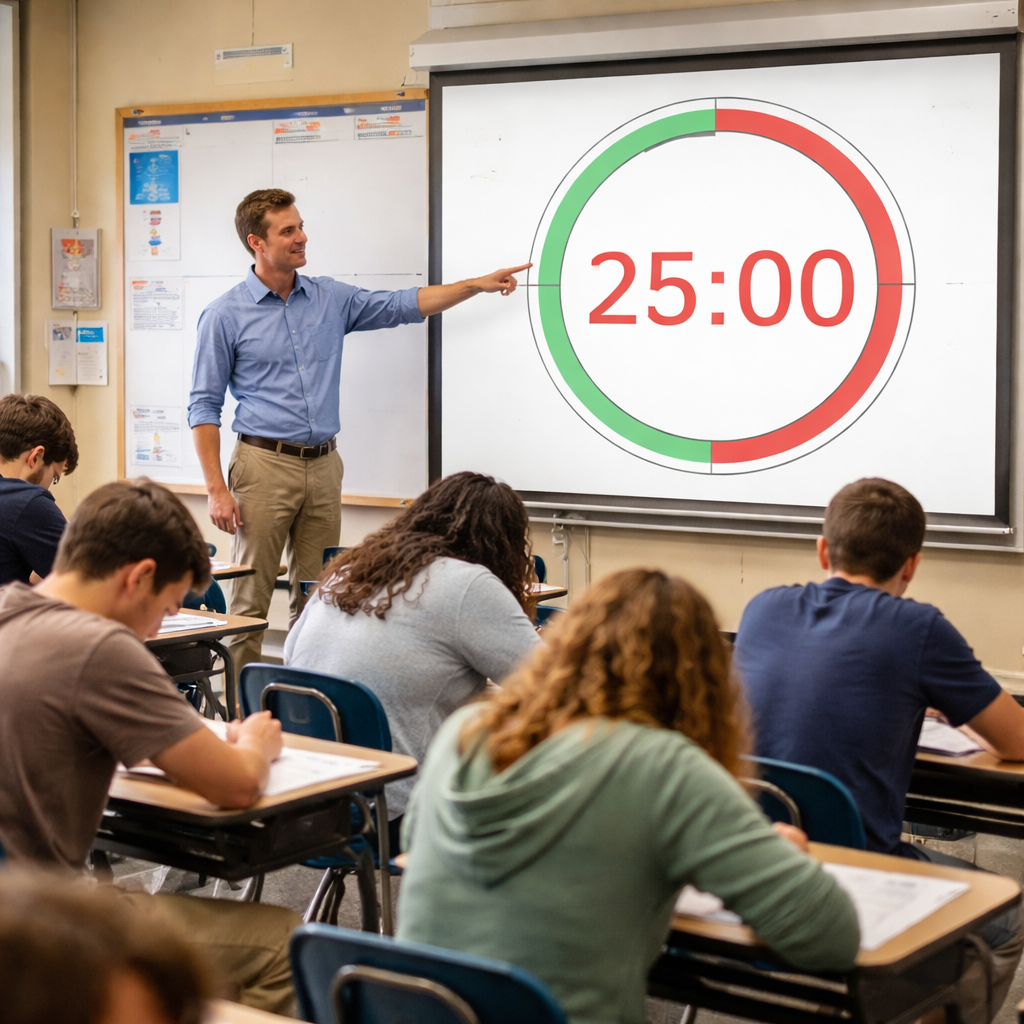
Step 2: Customize Sessions for Classroom Rhythm
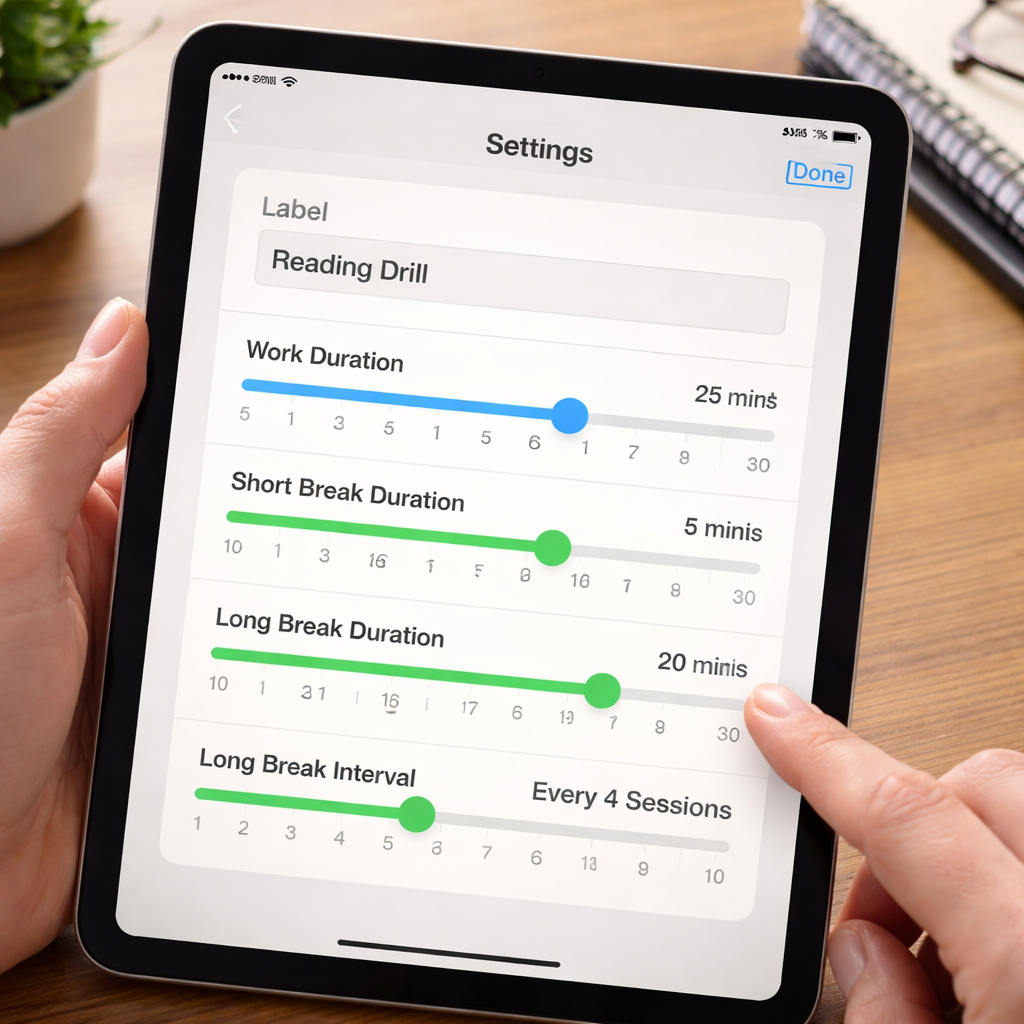
With the pomodoro timer for teachers iOS installed, you can shape the intervals to match a lesson. Open Focus Keeper and tap Settings. You’ll see fields for Work Length, Short Break, and Long Break.
Set Work Length to 25 minutes for a typical high‑school period. If you teach younger kids, drop it to 20 minutes. Short Break can stay at 5 minutes. Long Break can be 15 minutes after four work blocks.
Why does this matter? A 25‑minute block fits most lecture chunks, while a short break gives a quick reset without losing momentum.
Here is a simple table that shows how you might match subjects to interval lengths.
| Subject | Work (min) | Break (min) |
|---|---|---|
| Math | 25 | 5 |
| Reading | 20 | 5 |
| Science Lab | 30 | 5 |
| Art | 25 | 5 |
And you can change these on the fly. If a discussion runs long, pause the timer, add a minute, then resume.
Focus Keeper also lets you add a label to each sprint. Type “Grammar Drill” or “Lab Setup” so the class sees the goal at a glance.
Here are three actionable tips for customization:
- Write the micro‑goal on the board next to the timer. That ties the countdown to a concrete task.
- Use a consistent colour for work blocks (green) and breaks (blue) if the app lets you change the theme.
- Export the daily log at the end of the week. Review which subjects needed longer work times.
But remember, the app does not have a built‑in teacher mode. That is why we rely on simple labels and manual tweaks.
For a deeper look at the app’s settings, the official Focus Keeper page walks through each option step by step.
And if you need to see how the timer looks on a big screen, the Focus Keeper support page shows a screenshot of the projected view.
Once you have your intervals set, you can move to integration , linking the timer with your lesson plans and classroom tech.
Step 3: Integrate the Timer with Your Teaching Workflow (Video Demo)
Now the pomodoro timer for teachers iOS is ready. The next step is to weave it into your daily workflow.
Start each lesson by opening the app on your iPad and projecting the screen. When you hit Start, the countdown is visible to every student.
During the work block, keep the timer running in the background while you move around the room. The gentle chime at the end signals a break without you having to shout.
Use the break for a quick stretch, a five‑minute quiz, or a short discussion. Then hit Start again for the next sprint.
Here is a short video that walks through the whole process , from launch to export.
And if you want to pair the timer with a schedule, the DeepTerm blog explains how to add a Pomodoro start button to a Google Calendar event. That way the timer launches automatically when the class begins.
Another tip is to link the timer log to a simple spreadsheet. After a week, copy the export file into Google Sheets and create a chart that shows how many pomodoros you completed per subject.
Why track this? Seeing a pattern helps you decide if Math needs longer blocks or if reading fits in a shorter burst.
Here are three integration ideas you can try this week:
- Project the timer on the smartboard and write the goal on a sticky note next to it.
- Sync the timer with your class calendar so each period auto‑starts the pomodoro.
- Export the log each Friday and discuss the numbers with a colleague for ideas.
And remember to keep the phone on silent mode. The app’s chime will be enough.With these steps you now have a full system: install, customize, and integrate. Your class will run smoother and you’ll reclaim time for grading and planning.
Conclusion
Choosing the right pomodoro timer for teachers iOS can change a chaotic day into a steady rhythm. We saw that none of the four apps offer a teacher‑mode, but Focus Keeper stands out with a free core timer, calendar sync, and easy export. By installing the app, setting work and break lengths that fit each subject, and linking the timer to your lesson plan, you give students a clear cue and keep yourself on track.
Start small. Pick one 25‑minute block for tomorrow’s math lesson. Write the goal, hit Start, and let the timer do the talking. After the break, note what worked and adjust. In a few weeks you’ll have data that shows where you need longer blocks or quicker breaks.
Remember, the tool is only as good as the habit you build around it. Use the tips, export the logs, and talk with a fellow teacher about what the numbers mean. When you treat the pomodoro timer for teachers iOS as a partner instead of a gadget, you free up minutes for grading, planning, or a quick coffee break.
If you want more ideas on how to use a pomodoro timer in lesson planning, check out How to Use a Pomodoro Timer for Teachers Lesson Timers. That guide shows real classroom snapshots and printable checklists that work hand‑in‑hand with the steps above.
FAQ
How do I pick the right interval length for my pomodoro timer for teachers iOS?
Start with the classic 25‑minute work and 5‑minute break. Watch the class for signs of drift. If students start fidgeting before the end, cut the work block to 20 minutes. If they finish early and still have energy, try 30 minutes. Test one length for a week, then note the focus level. Adjust in five‑minute steps until the rhythm feels natural for the age group and activity.
Can I use the pomodoro timer for teachers iOS for grading after school?
Yes. Set a work block for grading, like 25 minutes, and treat the break as a stretch or a coffee sip. The same timer works for any task. Export the log at the end of the night to see how many pomodoros you used. That data can help you plan realistic grading time for the next week.
What if a lesson runs longer than the timer?
When the timer rings, pause it. Write a note on the board that says “extra 5 minutes needed”. After the break, add a short catch‑up pomodoro or extend the next block. The key is to note the overrun so you can plan a longer block for that topic next time.
How can I keep students engaged during the work block?
Give each pomodoro a crystal‑clear micro‑goal, like “solve three fraction problems”. Write the goal next to the timer so they see the target. Walk the room briefly at the start to remind them of the goal. If a student drifts, whisper a quick reminder and let the timer keep the pace.
Do I need a separate device for the timer?
No. The pomodoro timer for teachers iOS works on any iPhone or iPad. You can project the screen from the same device using AirPlay or a cable. This avoids extra gadgets and keeps the setup simple. Just make sure the device is on a stand so all eyes can see the countdown.
How do I track long‑term progress with the pomodoro timer for teachers iOS?
Export the daily log from Focus Keeper. Paste the data into a spreadsheet with columns for date, subject, pomodoros, and notes. Use colour coding to see which subjects get the most focus. Review the sheet each Friday and tweak interval lengths based on the trends you see.
Can the pomodoro timer for teachers iOS sync with my calendar?
Yes. Focus Keeper offers calendar integration in its free tier. Link the app to your school calendar so each period shows a “Start Pomodoro” button. When the period begins, tap the button and the timer launches automatically. This removes the need to remember to start the timer each time.
Is there a way to make the break more than just a pause?
Definitely. Use the five‑minute break for a quick stretch, a breathing exercise, or a short poll on the lesson. Some teachers play a short music clip or show a fun fact. The idea is to give the brain a reset so it returns fresh for the next work sprint.




