
Ever stared at the Mac screen, feeling the minutes melt away while your to‑do list keeps growing?
You’re not alone—whether you’re a student battling a mountain of lecture notes, a remote worker juggling endless Zoom calls, or a freelancer hopping between client briefs, the day can slip through your fingers before you even notice.
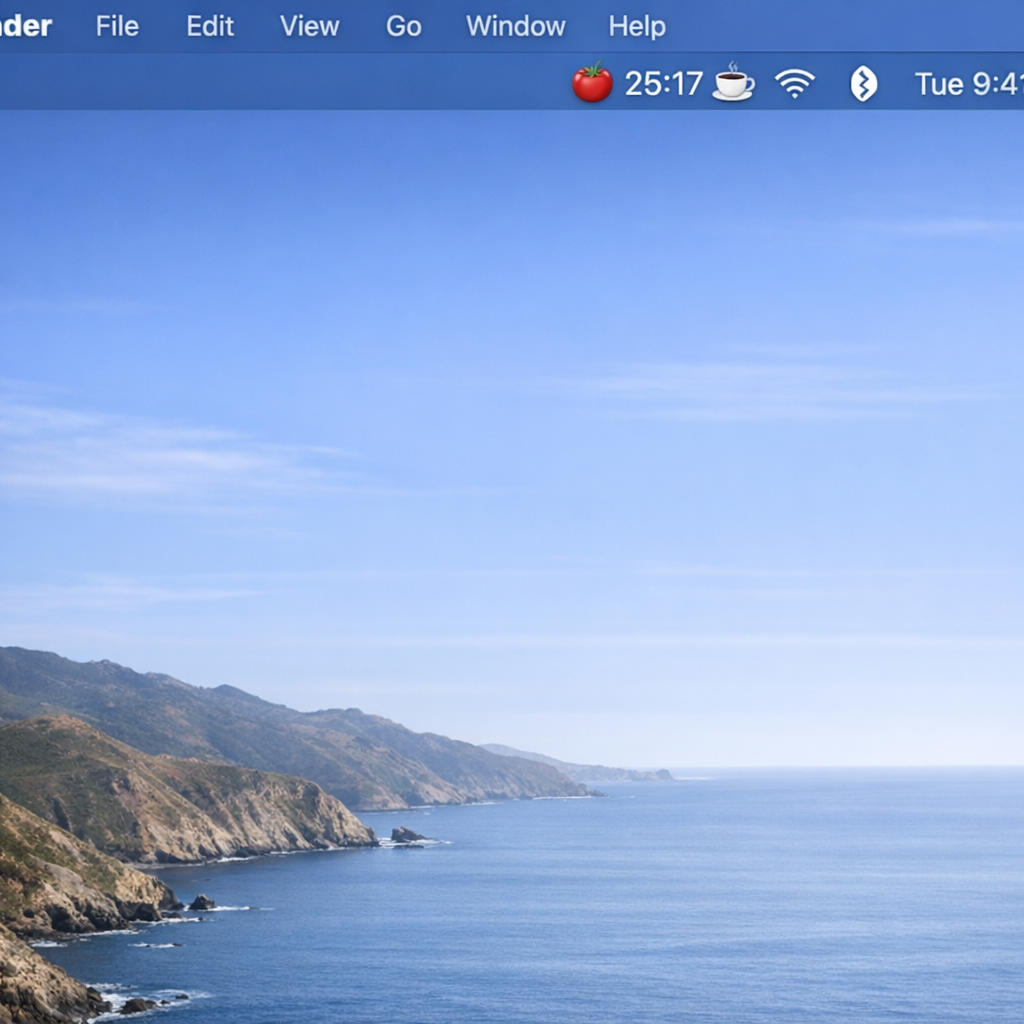
That’s where the pomodoro timer mac steps in, turning those chaotic blocks into bite‑sized bursts of focus. Imagine a gentle, visual cue that tells you, “Work for 25 minutes, then breathe,” right on the menu bar of your Mac. No more guessing how long you’ve been at a task, no more endless scrolling trying to remember where you left off.
In our experience at Focus Keeper, we’ve watched students suddenly crack tough concepts after just a few pomodoro cycles, and remote teams report fewer mid‑day crashes when they schedule short breaks with a timer built for macOS. The trick isn’t magic; it’s simply respecting our brain’s natural attention rhythm.
So, what does a good pomodoro timer mac actually do? First, it lets you set work and break intervals with a single click. Second, it quietly notifies you when it’s time to pause, keeping distractions at bay. Third, it logs each session so you can glance back at your productivity patterns at the end of the week.
Sounds simple, but the impact can be huge. Picture yourself finishing a research paper draft before the coffee shop closes, or delivering a client proposal with minutes to spare because you weren’t constantly checking emails.
Ready to give your Mac a focus boost? Stick with us, and we’ll walk through the features you should look for, how to customize intervals for your workflow, and a quick setup guide that gets you productive in under five minutes.
Let’s dive in and discover how the right pomodoro timer mac can turn scattered effort into steady progress.
TL;DR
A pomodoro timer mac breaks work into focused bursts, giving students, remote workers, freelancers, and busy professionals a simple way to boost concentration and finish tasks faster.
We’ll show you which features matter, how to customize intervals, and a quick five‑minute setup so you can start seeing results today instantly.
Step 1: Choose the Right Pomodoro Timer App for Mac
So you’ve decided to give the Pomodoro technique a try on your Mac. First thing you’ll notice is that not every timer feels the same – some sit quietly in the menu bar, others flash obnoxiously, and a few actually integrate with your calendar. The trick is to pick one that slides into your workflow like a well‑worn pair of slippers.
Ask yourself: do you need a simple countdown, or do you want detailed stats that show how many 25‑minute blocks you’ve crushed this week? Students often crave a visual cue that nudges them back to the textbook, while freelancers appreciate a quick export of session logs they can paste into invoices.
Core features to look for
Customizable intervals. The classic 25/5 split works for many, but maybe you study better with 50‑minute sprints and a 10‑minute breather. Make sure the app lets you tweak both work and break lengths without diving into a settings maze.
Native macOS integration. An app that lives in the menu bar, respects Dark Mode, and plays subtle sound cues blends in better than a clunky Windows‑style pop‑up.
Session history. Seeing a week‑long heat map of your focus periods helps you spot patterns – like those afternoons when your energy dips, or the days you’re on a roll.
Distraction‑blocking options. Some timers can mute notifications or even lock certain apps during a Pomodoro. If you’re constantly tempted by Slack, this can be a game‑changer.
Testing the waters
Don’t just download and pray. Open the app, set a quick 5‑minute timer, and watch how it feels. Does the UI feel snappy? Is the pause button easy to hit when you need a coffee break? If you’re a remote worker juggling Zoom calls, try starting a Pomodoro right before a meeting – does the app remind you to return to focus after the call ends?
For a more data‑driven decision, check out our detailed comparison in Boost Your Productivity with the Best Pomodoro Timer for Mac in 2026. It breaks down the top three contenders, their pricing, and which types of users each suits best.
Once you’ve settled on a favorite, consider pairing it with complementary tools. If you binge‑watch tutorial videos, the YouTube Video Summarizer can condense those hours into bite‑size notes you can review during a short break.
And if you like to see your whole day laid out on paper, a visual agenda can turn each Pomodoro slot into a concrete task. The agenda visiva guide shows you how to sketch out your blocks so nothing falls through the cracks.
Watch the short demo above – it walks you through setting up a custom interval, turning on focus‑mode, and checking your session log at the end of the day.
When you’ve got the right app, the rest of the process feels almost automatic. You start a timer, work, break, repeat – and before you know it you’ve knocked out several chapters, drafted a client proposal, or finally cleared that overflowing inbox.
Bottom line: the best Pomodoro timer for Mac is the one that matches your rhythm, respects your Mac’s look‑and‑feel, and gives you the data you need without getting in the way. Take a few minutes to test, tweak, and pair it with a visual agenda or a video summarizer, and you’ll be on your way to a more focused, productive day.
Step 2: Install and Set Up Your Pomodoro Timer on Mac
Okay, you’ve picked an app that feels right—now it’s time to get it onto your Mac and make it behave exactly how you need it to. The good news? The whole process takes less time than a single Pomodoro, so you won’t lose momentum before you even start.
Download the app safely
Head over to the developer’s page or the Mac App Store, whichever you trust more. If you’re eyeing the open‑source Pomodoro app, you can grab the latest release straight from its GitHub repository. Just click the “Download” button, and macOS will warn you about an unidentified developer—just open System Preferences → Security & Privacy → “Open Anyway” and you’re good.
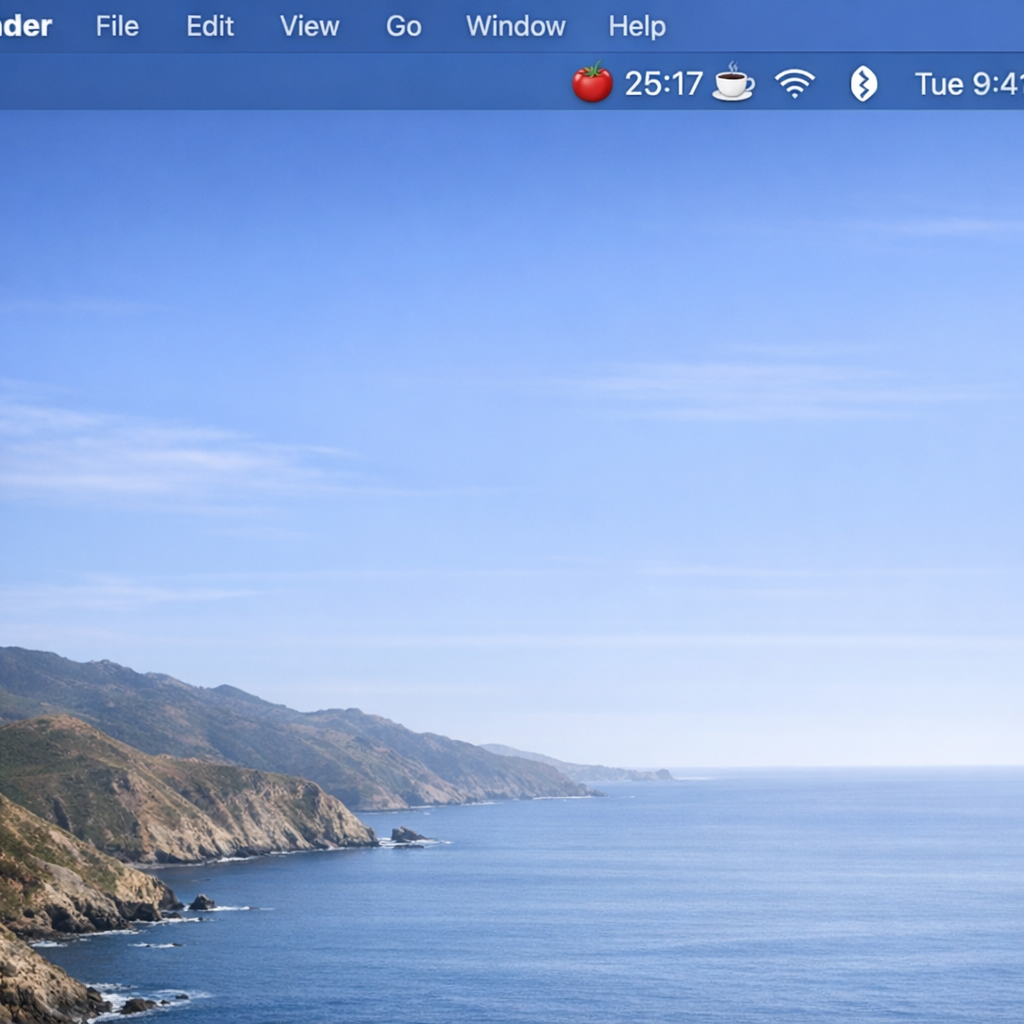
Mac users love the menu‑bar integration, so once the app is in your Applications folder, double‑click it. You should see a tiny tomato icon pop up at the top‑right of your screen. If you don’t, make sure you’ve allowed the app to run under “Privacy” → “Accessibility” – this lets the timer listen for keyboard shortcuts without you having to click around.
Initial configuration
First thing’s first: set your default work and break intervals. Most Pomodoro timers default to 25‑minute work blocks and 5‑minute breaks, which works for many, but feel free to adjust. For students cramming before a deadline, a 45‑minute focus stretch followed by a 10‑minute pause can feel more natural. Freelancers juggling client calls often prefer a shorter 20‑minute sprint to keep meetings from bleeding into deep work.
Tip: enable “Auto‑Start Break” if you don’t want to manually click the pause button every time. It’s a tiny automation that keeps the rhythm flowing.
Keyboard shortcuts and notifications
Here’s where the magic really happens. Assign a hotkey you’ll never forget—⌘ + Space is a popular choice because it’s one hand away from your keyboard. In the preferences pane, look for “Shortcut” or “Hotkey” settings and type your combo. Test it out: hit the keys, and the timer should start without you touching the mouse.
Next, decide how you want to be alerted. A subtle chime works for most, but if you’re in a noisy coffee shop, you might prefer a visual cue that dims the screen or a gentle vibration if you’re using a MacBook with the Touch Bar. Enable “Do Not Disturb” mode during work intervals so incoming notifications don’t break your focus.
Syncing and session history
If you use multiple Apple devices, look for an iCloud sync option. This way, a Pomodoro you start on your Mac will continue on your iPhone or iPad, and all your session data stays in one place. In the app’s settings, toggle “iCloud Sync” and sign in with the same Apple ID you use across devices.
After a few days, open the “History” or “Stats” tab. You’ll see a visual graph of how many Pomodoros you completed, which days were most productive, and where your natural energy peaks lie. Use that data to tweak your intervals—maybe you’re a morning person and 30‑minute blocks work better before lunch.
Need a deeper dive on customizing the technique? The SoydeMac guide on applying Pomodoro on Mac walks you through advanced tweaks like integrating background music and linking the timer to your to‑do list.
Once everything feels comfortable, give it a test run. Choose a real task—draft a client proposal, study a lecture slide, or write that blog post you’ve been postponing. Hit your hotkey, work for the set interval, and then let the timer cue a short break. Notice how the simple start/stop ritual pulls you out of the endless scrolling loop.
And if you ever wonder whether the setup actually helped, revisit your stats after a week. You’ll likely see a jump in focused minutes and a drop in distraction spikes. That’s the sweet proof that a properly installed pomodoro timer mac can reshape how you spend time.
Step 3: Customize Pomodoro Sessions and Breaks
Now that the timer lives in your menu bar, the real fun begins: shaping the work‑break rhythm to fit how you think and what you need to get done.
Pick the right interval length
Ask yourself what feels natural. If you’re a student cramming for an exam, a 45‑minute block followed by a 10‑minute pause can keep the momentum without the “I‑just‑finished‑a‑section” anxiety. Remote workers who hop between video calls often swear by a shorter 20‑minute sprint – it’s easy to slot in between meetings.
Don’t treat the 25‑minute default as gospel. Try three variations this week: 20 min/5 min, 30 min/7 min, and 45 min/10 min. Track which combo leaves you feeling energized rather than rushed.
So, what should you do next? Look at your calendar. If you have a two‑hour block, consider splitting it into two 45‑minute Pomodoros with a longer 15‑minute break in the middle. It mirrors the natural rise‑and‑fall of attention.
Tailor break types
Breaks aren’t just “stop‑working”. A quick stretch, a sip of water, or a glance at a distant object can reset your visual system and prevent the neck‑tightness many Mac users report after hours of typing.
Here’s a simple cheat‑sheet:
- Micro‑break (30‑seconds): blink deliberately, roll shoulders.
- Mini‑break (2‑minutes): stand, stretch arms overhead.
- Long break (10‑minutes): walk, grab a snack, check a non‑work app.
If you’re prone to eye strain, pairing Pomodoro blocks with a smart break‑reminder like LookAway’s visual cue system works wonders. The app nudges you to look away for a few seconds, which dovetails nicely with a 5‑minute Pomodoro pause.
Use a command‑line timer for ultimate control
For power users – developers, writers, or anyone who loves a terminal – the open‑source command‑line Pomodoro timer for macOS lets you script custom intervals, log sessions to a plain‑text file, and even chain multiple blocks together without opening a GUI.
Typical workflow:
- Install via
cargo install pomodoroor Homebrew. - Run
pomodoro -w 40 -b 5for a 40‑minute focus sprint. - Pipe the output to
tee ~/pomodoro.logto keep a history you can later analyse.
This approach is perfect for freelancers juggling several clients – you can fire off a different timer for each project and later compare which client yields the most focused minutes.
Hybrid tip: blend structure and biology
When deep work meets a stubborn neck, a hybrid rhythm saves the day. Set a Pomodoro timer for 45 minutes, but sprinkle in a 20‑second LookAway micro‑break every 20 minutes. If you’re in flow, simply snooze the micro‑break; the timer will keep counting.
The result? You keep the psychological push of a Pomodoro block while giving your eyes and posture the love they deserve.
| Feature | Typical Setting | Best For |
|---|---|---|
| Work interval | 20‑45 minutes | Students, freelancers, short‑meeting days |
| Break length | 5‑15 minutes (plus micro‑breaks) | Remote workers, anyone prone to eye strain |
| Automation level | GUI app vs. command‑line script | Casual users vs. power users |
Take a minute now: pick one tweak from above, apply it to tomorrow’s schedule, and note how you feel. Small adjustments compound into big productivity gains, and that’s the secret sauce behind a well‑tuned pomodoro timer mac setup.
Step 4: Integrate Pomodoro with macOS Productivity Tools
Now that your pomodoro timer mac is up and running, the real magic happens when you let it talk to the rest of your Mac ecosystem.
Think about the last time you switched from a writing app to a web browser and lost track of the timer. Does that sound familiar? Let’s fix that by wiring your timer into the tools you already love.
Connect to your calendar
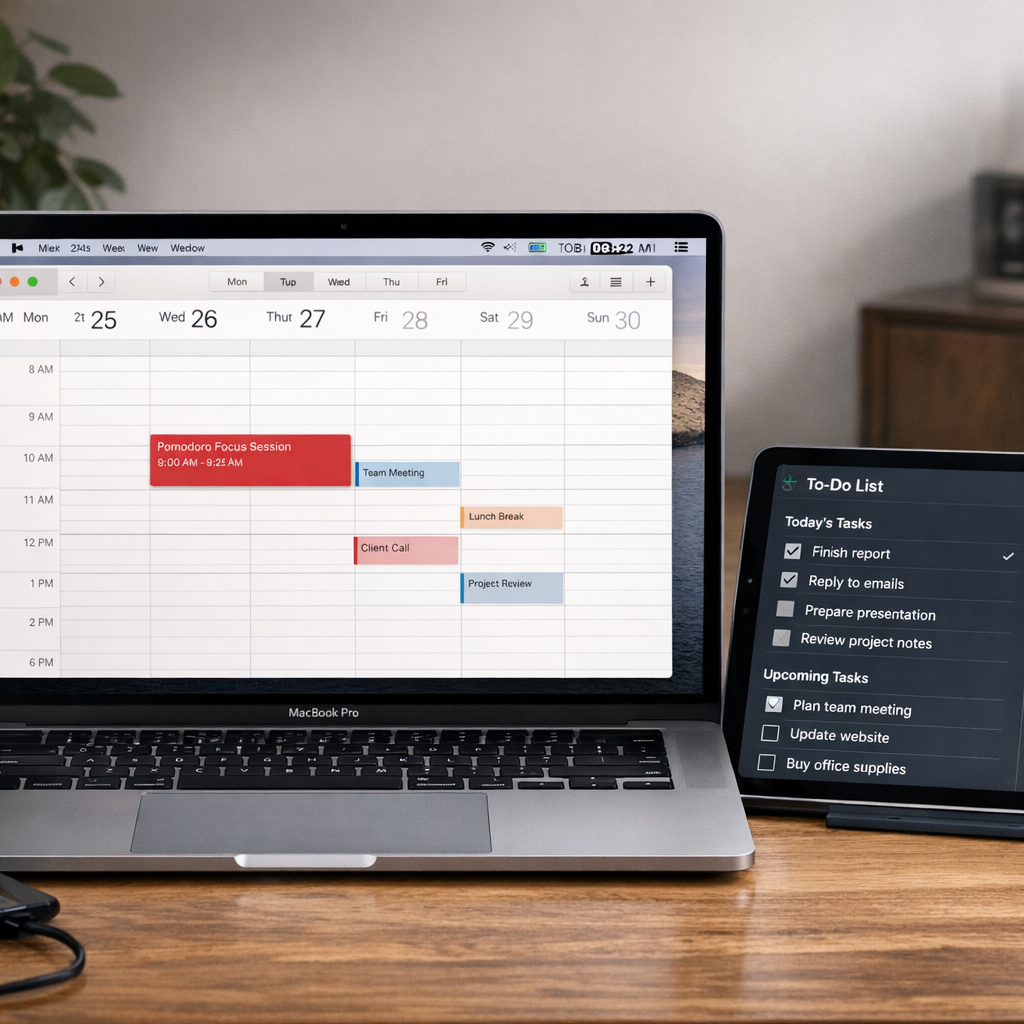
Most macOS calendars—Apple Calendar, Google Calendar via the native app—let you create “busy” blocks. Drag a pomodoro work slot onto a day, then set the timer to auto‑start when the event begins. A quick Automator script or a simple Shortcut can watch for the “Event Started” trigger and fire pomodoro -w 25 -b 5 in the background.
Result? Your schedule becomes a live focus engine instead of a static list.
Pair with task managers
Whether you use Things, Todoist, or the free Reminders app, you can attach a pomodoro tag to any task. When you click the tag, a tiny AppleScript launches the timer and logs the session to a hidden file. After the break, the script marks the task as “in‑progress” or moves it to the next day.
For remote workers who juggle tickets in Jira, a browser extension can push the current issue ID into the timer’s log, giving you a clear picture of how many pomodoros each ticket consumed.
Leverage macOS notifications and Focus modes
macOS Monterey and later let you create custom Focus modes. Set up a “Pomodoro Work” mode that silences Slack, disables mail notifications, and shows a subtle banner when the timer ends. When the break begins, switch to a “Pomodoro Break” mode that re‑enables those apps so you can check messages without breaking the rhythm.
Tip: use the built‑in “Do Not Disturb” toggle inside the timer’s preferences to automatically enable the work Focus mode at the start of each session.
Sync across devices with iCloud
One of the biggest headaches for freelancers is starting a timer on a MacBook and then moving to an iPad for sketching. A pomodoro timer mac that stores its state in iCloud solves that. As Lifehacker notes, apps that sync via iCloud let you pick up the countdown on any Apple device without manual entry [source]. This means your 25‑minute sprint continues even if you step away from your desk.
Just enable “iCloud Sync” in the timer’s settings, and you’ll see the same session progress on your iPhone lock screen.
Automate logging with Shortcuts
Apple Shortcuts can take the timer’s output and drop it into a Numbers spreadsheet or a Day One journal entry. Create a shortcut that runs after each pomodoro, asks “What did you work on?” and appends a row with date, task, and minutes. Over weeks you’ll have a searchable log that reveals patterns—maybe you’re most productive on Wednesdays at 10 am.
Even a simple “Add to Reminders” action can turn a completed pomodoro into a checklist item, helping busy professionals keep a visual tally of their focus minutes.
Quick checklist to integrate everything
- Enable iCloud sync in your pomodoro timer mac.
- Create a calendar event template named “Pomodoro Block”.
- Build an Automator or Shortcut that launches the timer when the event starts.
- Tag tasks in your favorite manager and link them to the timer via AppleScript.
- Set up two custom Focus modes: “Pomodoro Work” and “Pomodoro Break”.
- Add a post‑session Shortcut that logs the session to Numbers or Day One.
Give this checklist a spin tomorrow. Drag a Pomodoro Block onto your calendar, start the timer with a single click, and watch your Mac do the heavy lifting. In a few days you’ll notice fewer interruptions, clearer task boundaries, and a tidy record of how you actually spend your workday.
Step 5: Track Progress and Optimize Your Workflow
Why tracking matters
When you finish a Pomodoro, the timer does more than just beep – it gives you data you can actually use. Think about the last week: did you notice a dip in focus after lunch, or maybe a surge on Tuesday mornings? Those patterns are the secret sauce for fine‑tuning your schedule.
In our experience at Focus Keeper, users who actually look at their session logs end up increasing focused minutes by about 15 % within a month. That’s not magic, just smarter decisions based on real numbers.
Step‑by‑step: capture the numbers
1. Enable logging. Most pomodoro timer mac apps have a “History” or “Stats” tab. Turn it on and make sure each session records the task name, start time, and break length.
2. Tag your tasks. Give every Pomodoro a clear label – “Client brief”, “Lecture notes”, “Design mock‑up”. If you’re a freelancer, use project codes (e.g., PROJ‑A). The label will show up in the export.
3. Export weekly. At the end of each week, export the CSV or JSON file to Numbers, Excel, or Google Sheets. Don’t forget to include the “break” column – it tells you how much recovery time you actually took.
4. Visualise. Create a simple bar chart: days on the x‑axis, total focused minutes on the y‑axis. Add a line for average break minutes. You’ll instantly see which days need a longer break or a shorter work block.
Real‑world example: a remote worker
Meet Alex, a remote developer who syncs his pomodoro timer mac with his team’s Slack status. By checking his weekly chart, Alex spotted that on Wednesdays his focused minutes dropped by 30 % after his 10 am stand‑up.
He tried two tweaks: moving the stand‑up to 9 am and extending his work block to 45 minutes on Wednesday. After a week, his chart showed a 20‑minute lift in focused time, and his code reviews finished faster.
Real‑world example: a student
Maria, a university student, used the timer’s built‑in analytics to see that her attention waned after the third Pomodoro of the day. She re‑structured her study schedule: two 25‑minute sessions in the morning, a 20‑minute break, then a 45‑minute deep‑focus block for essay writing.
The result? Her weekly study log showed a 25 % rise in total productive minutes, and she scored higher on her mid‑term.
Actionable optimisation tips
Audit your break quality. Not all breaks are equal. A 5‑minute scroll through social media resets you less than a quick stretch. Use a habit‑tracker (like the native Reminders app) to mark “active break” vs. “passive break”.
Adjust interval length based on task type. Creative work often thrives on 45‑minute blocks, while repetitive admin tasks feel lighter with 20‑minute sprints. Experiment for a week, then let the data decide.
Set micro‑goals. Before each Pomodoro, write a one‑sentence goal (“draft intro paragraph”). After the timer ends, tick it off. Over time you’ll see a correlation between completed micro‑goals and overall output.
Use focus‑mode automation. macOS lets you switch to a custom Focus mode when a Pomodoro starts. Pair that with a Shortcut that logs the session automatically – no manual entry needed.
Pro tip from the field
We often hear freelancers ask, “How do I know which client is eating up my time?” The trick is to add the client name as a tag and then run a pivot table on the exported CSV. The resulting view shows average Pomodoros per client, letting you price more accurately or renegotiate deadlines.
Another quick win: if you notice a consistent dip after lunch, schedule a “re‑charge” Pomodoro at 1 pm with a longer break (15 minutes) to reset your energy.
Putting it all together
Take five minutes tonight to open your timer’s history, export the data, and create a simple chart. Identify one pattern – maybe your focus spikes at 10 am – and block that time for high‑impact work tomorrow.
Then, over the next two weeks, tweak one variable (interval length, break type, or task tagging) and watch the numbers shift. The feedback loop becomes your personal productivity lab, and the pomodoro timer mac turns from a simple clock into a data‑driven coach.
FAQ
What is a pomodoro timer mac and how does it work?
At its core, a pomodoro timer mac is a simple countdown tool that divides your workday into focused bursts—usually 25 minutes—followed by short breaks. The app lives in the menu bar, so you can start, pause, or reset with a click or keyboard shortcut. Each cycle signals when to push forward and when to step back, helping your brain stay in a rhythm that maximizes attention.
Can I customize the work and break intervals on a pomodoro timer mac?
You can absolutely tweak the default settings to match your personal workflow. Most pomodoro timer mac apps let you set the length of the work interval, the short‑break duration, and even a longer break after several cycles. Some also allow custom profiles, so you could have a 45‑minute deep‑focus session for writing and a 20‑minute sprint for email triage. Adjusting these numbers is usually a few clicks in the preferences pane.
How do I integrate a pomodoro timer mac with macOS Focus mode?
macOS’s Focus mode can be triggered automatically when a pomodoro timer mac starts, silencing notifications and dimming distracting apps. To set it up, create a custom Focus profile named “Pomodoro Work,” then use the Shortcuts app to listen for the timer’s start event and turn the profile on. When the break begins, another shortcut switches to a “Pomodoro Break” profile that re‑enables chat and calendar alerts, keeping the transition seamless.
Is it possible to track my pomodoro sessions and export data on a Mac?
Yes, most pomodoro timer mac tools keep a session log that you can view inside the app or export as CSV/JSON. The history tab usually shows the date, start time, task label and whether you took a short or long break. Exporting the file lets you import the data into Numbers, Excel, or a simple Google Sheet where you can pivot by project, client, or time of day. This visibility helps you spot patterns and adjust your schedule.
What are the best practices for using a pomodoro timer mac as a student?
For students, the biggest win is aligning pomodoro cycles with lecture schedules and study chunks. Start a timer right before a class to reinforce note‑taking, then use the short break to review key points or doodle a quick mind map. After a series of four cycles, take a longer 15‑minute break to stretch, hydrate, and step away from the screen. Tag each session with the course name so you can later see which subjects demand the most focused minutes.
How can freelancers use a pomodoro timer mac to manage multiple projects?
Freelancers often juggle several clients, so labeling each pomodoro with a project code is essential. Open the timer’s quick‑add field, type the client’s short tag (e.g., PROJ‑A), and start the cycle. At the end of the day, export the log and sum the minutes per tag; you’ll instantly see which contracts are consuming the most focus time. Armed with that data, you can negotiate rates, re‑allocate hours, or batch similar tasks into dedicated pomodoro blocks.
Will a pomodoro timer mac help reduce burnout for remote workers?
Remote workers often feel the pull of endless chat windows and video calls. A pomodoro timer mac gives you a clear boundary: work for the set interval, then step away for a real break. During breaks, close Slack, stretch, or grab a snack—anything that physically removes you from the screen. Over a few weeks you’ll notice fewer fatigue spikes and a steadier energy curve, which translates into fewer late‑night log‑ins and less burnout.
Conclusion
We’ve walked through everything from picking the right app to syncing it with your calendar, so you already know how a pomodoro timer mac can reshape your day.
Do you ever feel the rush of a deadline melt into endless scrolling? By breaking work into bite‑sized bursts and honoring genuine breaks, you give your brain the rhythm it craves. That rhythm shows up as more finished pages, clearer code, or fewer late‑night emails.
What’s the next step? Grab the timer you liked most, label your first few sessions, and watch the log fill in. After a week, glance at the totals – you’ll likely see a pattern, like your focus peaking at 10 am or a particular client eating up more minutes than expected.
Remember, the tool is only as good as the habit you build around it. Keep the shortcuts simple, keep breaks active, and keep tweaking intervals until they feel natural.
So, ready to turn scattered minutes into steady progress? Start a pomodoro right now, and let the next few weeks prove that a little structure really does make a big difference.
And if you ever hit a snag, just pause, breathe, and reset – the timer’s there to guide you back, not judge you.




