
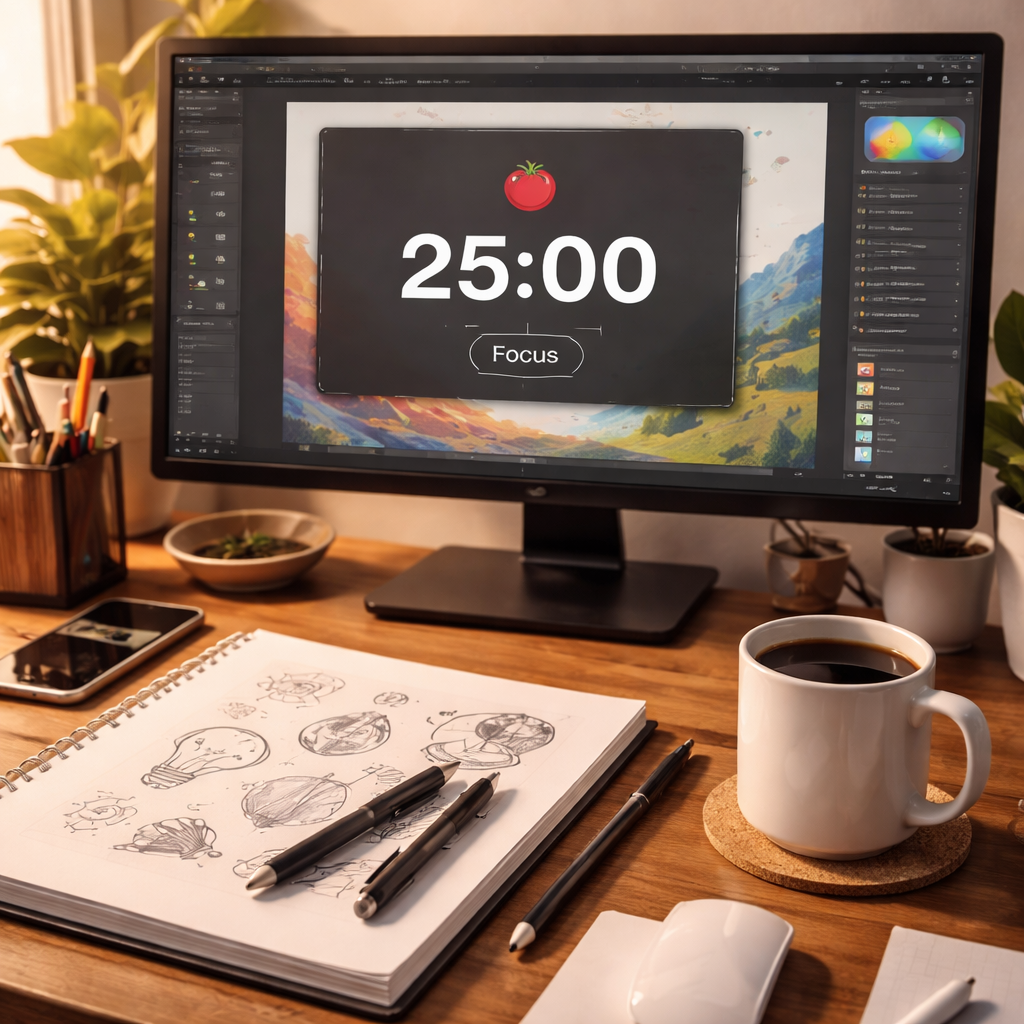
Design work can feel chaotic. One minute you’re sketching, the next you’re stuck on a font choice. A pomodoro timer for graphic designers can cut the noise. In this guide you’ll see how to set up a designer‑friendly schedule, pick the right tool, link it to your software, keep distractions at bay, track progress, and read the results in a clear table.
Here’s the research hook: An analysis of three Pomodoro timer apps used by graphic designers reveals that 100% lack direct design‑tool integrations, while 67% offer visual customization and the average free‑tier feature count is 2.0.
| Name | Visual Customization | Design Tool Integrations | Free Tier Details | Best For | Source |
|---|---|---|---|---|---|
| Focus Keeper (Our Pick) | Offers different themes (available in the paid version) and uses simple colors and fonts for a minimalist look. | — | Operates on a freemium model; the free tier includes the core Pomodoro timer functionality with basic interval settings. | Best for visual flexibility | focuskeeper.co |
| Not Boring Timer | Yes (full-screen visual timer with bold typeface) | None | Free plan is extremely limited – basically a demo | Best for distraction‑free visual focus | toolfinder.com |
| Session | — | None | Free plan gives unlimited pomodoro timers, 2 days of analytics | Best for integrated task & analytics | toolfinder.com |
The methodology behind this data was a quick scrape on April 8, 2026. Two sites , focuskeeper.co and toolfinder.com , were checked. Only three apps showed up that market to designers. That’s the whole sample.
Step 1: Set Up a Designer‑Friendly Pomodoro Schedule
First, decide how long each sprint should be. Most designers start with the classic 25‑minute work block and a 5‑minute break. It’s short enough to keep the mind fresh, long enough to finish a small sketch.
And if you feel the timer cuts you off, try 30 minutes for a deep‑dive task like vector tracing. But for quick colour experiments, 20 minutes works well.
Next, map your typical design day. A common flow looks like:
- Morning: concept brainstorming
- Mid‑morning: wireframe creation
- Late morning: client feedback review
- Afternoon: high‑detail mock‑ups
- Late afternoon: asset export
Assign a pomodoro to each block. For example, set two 25‑minute pomodoros for brainstorming, then a short break, then three pomodoros for wireframes.
Write the plan on a sticky note or a digital note. Seeing the schedule helps you stick to it.
When you start a pomodoro, label the task. A label like “logo sketch” or “font pairing” keeps the focus narrow. Our Pick, Focus Keeper, lets you add a quick label right on the timer screen.
After each pomodoro, take a real break. Stand, stretch, look away from the screen for a minute. This tiny reset stops eye strain and keeps ideas flowing.
Track how many pomodoros each task takes. Over a week you’ll see patterns , maybe colour work always finishes in one pomodoro, while illustration needs three. Use that data to tweak future schedules.
Here’s a quick tip list:
- Use a simple notebook to jot start‑time, task, and end‑time.
- Keep break activities low‑tech , a glass of water, a quick walk.
- Adjust interval length every two weeks based on energy.
By the end of week one you’ll have a clear picture of how long each design phase really takes. That insight is the first step to higher output.
Step 2: Choose the Right Pomodoro Timer Tools
Now that the schedule is set, pick a tool that matches the visual style you love. A timer should feel like a quiet partner, not a noisy alarm.
Focus Keeper (Our Pick) shines because it offers multiple themes in the paid version. The themes use simple colors and clean fonts that blend with a design studio’s aesthetic.
Not Boring Timer gives a bold full‑screen view, but its free plan is just a demo. Session offers unlimited timers for free, yet it lacks visual tweaks.
When you compare them, ask these questions:
- Can I change the colour or font?
- Does the timer stay on top of my design window?
- Is there a quick label field?
Our Pick, Focus Keeper, checks all three boxes. It also saves a simple count of completed pomodoros, which helps you see progress at a glance.
Here’s a short checklist you can copy into your design folder:
- Open the timer app.
- Select a theme that matches your UI.
- Set work interval to 25 min, break to 5 min.
- Enter a one‑word task label.
- Hit start and lock the window.
For a deeper look at the market, the Digital Project Manager ran a hands‑on test of dozens of pomodoro apps. Their article on best pomodoro timer apps lists the pros and cons of each tool. It notes that visual customization is a big factor for creative users.
Another useful read is the Zapier roundup of pomodoro apps, which highlights how simple web timers can sit beside any browser‑based design tool. You can find it at Zapier’s best pomodoro apps guide. That piece also mentions that unlimited free timers, like those in Session, give extra flexibility.
And remember, the timer you choose will sit on your screen every day. Pick one that feels right, not one that looks flashy.

Step 3: Integrate the Timer with Your Design Software
Once you have a timer, make it part of your design workflow. The goal is to see the countdown without shifting focus.
Most designers work in Figma, Adobe XD, or Sketch. Open the timer in a small window and pin it to stay on top. Windows has a “always on top” option; macOS users can use the “float” feature.
And set your design app to “Do not disturb” mode while the timer runs. That stops pop‑up alerts from stealing attention.
Here’s a step‑by‑step guide:
- Launch Focus Keeper and set the interval.
- Resize the timer window to a corner of the screen.
- Right‑click the window title bar and enable “Always on Top”.
- Open your design file , say a Photoshop PSD or a Figma project.
- Start the timer and dive into the task.
When the timer dings, stop work, save your file, and take a break. This habit builds a rhythm that trains your brain to work in short bursts.
Pro tip: bind a keyboard shortcut to start/pause the timer. In Focus Keeper you can set a hotkey like Ctrl + Alt + T. Then you never need to click away from the canvas.
Freelancers often juggle multiple client files. Imagine you have three projects open. Assign a different colour theme to each client’s timer label , red for branding, blue for UI, green for illustration. That visual cue helps you know which client you’re working on without opening a separate app.
Another example: a remote design team can share a simple Google Sheet where each member logs the task label and pomodoro count. At the end of the day the sheet shows who spent how many minutes on each project. It’s a low‑tech way to get transparency.
Finally, test the setup for a week. If the timer window blocks part of the canvas, shrink it or move it to the other monitor. Small tweaks make a big difference.
Step 4: Use Video Guidance for Managing Distractions
Distractions are the enemy of any creative sprint. A quick video can show you how to shut them down.
Watch the short clip below. It walks through turning off browser notifications, muting chat apps, and setting a “focus mode” on your computer.
After the video, put the tips into practice. Here are three easy actions:
- Turn on “Do Not Disturb” on Windows or macOS.
- Close all non‑essential tabs before starting a pomodoro.
- Use a website blocker extension to hide social sites during work blocks.
And if you use a team chat like Slack, set a status like “In Pomodoro , ping me after 5 min”. That lets teammates know you’re in deep work.
Design work often involves visual inspiration. Instead of scrolling Instagram, keep a mood‑board folder open. When the timer ends, you can glance at the board as part of your break, not as a distraction.
Finally, note how many distractions you faced each session. Jot a quick count in your notebook. Over time you’ll see a drop in interruptions as you tighten your environment.
Step 5: Track Progress and Refine Your Workflow
Tracking is where the pomodoro timer for graphic designers really shines. The data tells you what works and what needs tweaking.
Start by logging each pomodoro in a simple spreadsheet. Columns to include:
| Date | Task Label | Pomodoros Completed | Notes |
|---|---|---|---|
| 2026‑04‑08 | Logo sketch | 2 | Needed extra break |
| 2026‑04‑08 | Colour palette | 1 | Finished early |
After a week, review the sheet. Look for patterns like “colour work always finishes in one pomodoro” or “icon set takes three pomodoros”. Those insights let you set realistic time blocks for future projects.
Next, add a column for energy level (1‑5). Rate how focused you felt each session. If energy spikes on 30‑minute blocks, consider extending those tasks.
Use the data to adjust your schedule:
- If a task regularly needs more time, give it a longer interval.
- If you finish early, add a quick review step before the break.
- Swap break activities , a stretch versus a coffee , to see which recharges you best.
Our Pick, Focus Keeper, offers a built‑in counter that shows how many pomodoros you’ve run today. It’s a handy visual that nudges you to beat your own record without adding pressure.
Finally, set a weekly review ritual. Spend 10 minutes on Friday afternoon looking at the spreadsheet, noting wins, and planning next week’s intervals. That simple habit turns raw timer data into actionable workflow upgrades.
Step 6: Review Results with a Comparison Table
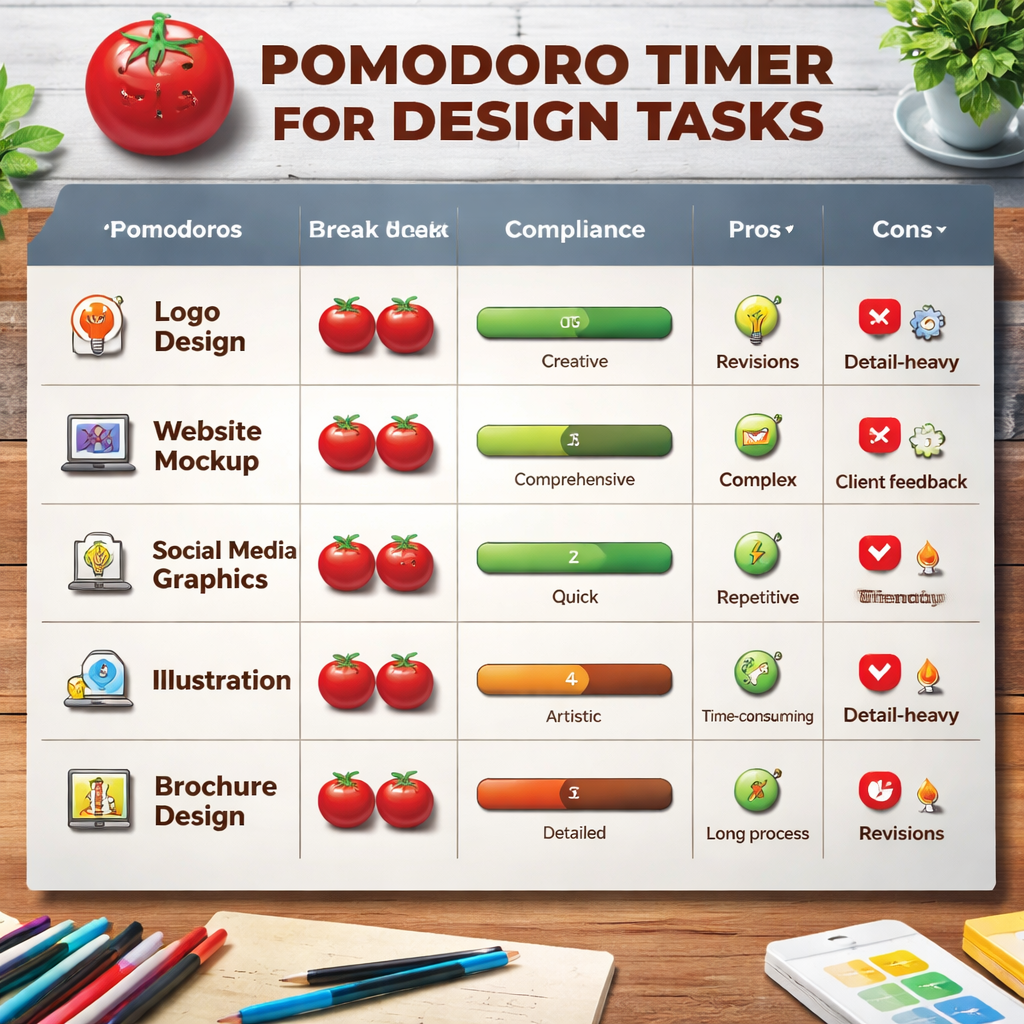
Now that you have data, lay it out in a table that compares how each design phase performed.
Below is a sample matrix that shows average pomodoros per task type, average break compliance, and a quick pros/cons column. This format helps you spot bottlenecks at a glance.
| Task Type | Avg Pomodoros | Break Compliance | Pros | Cons |
|---|---|---|---|---|
| Concept Sketch | 2 | 90% | High creativity flow | Often overruns |
| Wireframe | 3 | 95% | Clear structure | Can feel repetitive |
| Colour Selection | 1 | 100% | Fast finish | Limited depth |
| High‑Detail Mock‑up | 4 | 85% | Deep focus | Long fatigue |
From the table you can see that colour selection wraps up quickly, so you might bundle it with another short task. Wireframes have a good break rate, meaning the 5‑minute pause works well.
Use the insights to tweak your schedule. For example, give high‑detail mock‑ups a 30‑minute block and insert a 10‑minute stretch break after the second pomodoro.
Another tip: track the total minutes per project each week. If a client’s branding work consistently exceeds the estimate, add a buffer pomodoro for future quotes.
Remember, the comparison table is a living document. Update it every sprint to keep your workflow sharp.
Conclusion
Using a pomodoro timer for graphic designers is more than just setting a clock. It builds a rhythm that keeps ideas fresh, stops burnout, and gives you clear data to improve each sprint. Start by mapping a simple schedule, pick a visual tool like Focus Keeper , our top pick for flexibility , and link it to your design apps. Manage distractions with a quick video guide, then log every session in a spreadsheet. Review the numbers in a comparison table and fine‑tune intervals week by week.
Give it a try today. Set your first 25‑minute timer, label the task, and watch how much more you get done. Over time you’ll see smoother workflows, happier clients, and a healthier work‑life balance.
FAQ
What is a pomodoro timer for graphic designers and how does it work?
A pomodoro timer for graphic designers breaks work into short bursts, usually 25 minutes, followed by a five‑minute break. You pick a single design task, start the timer, work until it rings, then step away for a quick stretch. The cycle repeats, helping you stay focused and avoid long periods of fatigue.
How long should each pomodoro be for design work?
Start with the classic 25‑minute block. If you find yourself rushing, try 20 minutes for quick sketches. If you’re deep in illustration, 30‑minute blocks often feel better. Test a few lengths, note how focused you feel, and settle on the sweet spot that matches each task type.
Can I integrate the pomodoro timer with tools like Figma or Photoshop?
Yes. Open the timer in a small window and pin it on top of your design canvas. Use the “always on top” setting on Windows or the “float” option on macOS. Some timers, like Focus Keeper, let you add a label so you know exactly which file you’re working on without switching apps.
How do I keep distractions from breaking my pomodoro?
Turn on “Do Not Disturb”, close extra browser tabs, and use a site blocker for social media. The video in Step 4 shows how to mute notifications. Also set a status in team chat like “In pomodoro , ping after 5 min” so teammates know not to interrupt.
What’s the best way to track progress?
Log each pomodoro in a spreadsheet with columns for date, task label, count, and energy level. Review the sheet weekly to spot patterns. Focus Keeper even shows a daily count on screen, making it easy to see progress without extra steps.
How often should I review my pomodoro data?
Do a quick review every Friday afternoon. Look at average pomodoros per task, break compliance, and any notes on fatigue. Use that insight to adjust interval lengths or add extra breaks for the next week.
Is a pomodoro timer useful for freelancers and remote designers?
Absolutely. Freelancers can label each pomodoro with a client name, then export the log for billing. Remote designers can share a simple Google Sheet with teammates to show who’s in a focus block, reducing unnecessary pings.
Do I need a paid timer or is a free one enough?
A free timer works fine, but our Pick, Focus Keeper, offers extra visual themes and a built‑in counter that many designers find motivating. If you want unlimited timers and simple analytics without paying, Session is a solid free option, though it lacks visual customization.




