
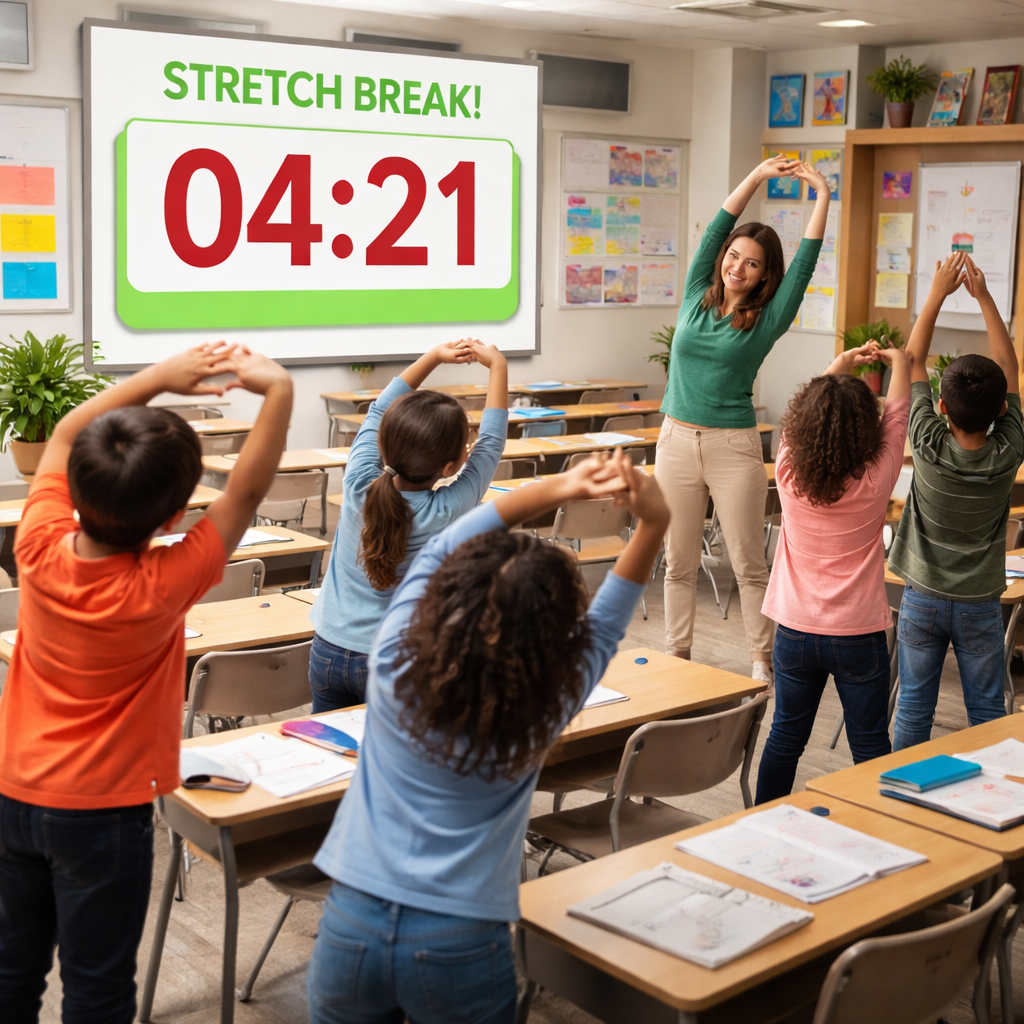
Most teachers feel the class drifts after a short time. A pomodoro timer for teachers use case can fix that.
In this guide you’ll see step‑by‑step how to pick a timer, match it to lesson plans, add break activities, track focus, and share results.
| Name | Teacher Mode | LMS Integration | Free Tier | Best For | Source |
|---|---|---|---|---|---|
| Focus Keeper (Our Pick) | No | No | Yes | Best overall (client) | focuskeeper.co |
| StudyFoc.us | No | No | Yes. The core app is free. | Best for student tracking | focuskeeper.co |
| Pomofocus | No | No | Yes | Best for free tier (web) | focuskeeper.co |
| Pomodoro Timer | No | No | Yes | Best for free tier (desktop) | focuskeeper.co |
| Flocus | No | No | Yes | Best for free tier (mobile) | focuskeeper.co |
Step 1: Choose the Right Pomodoro Timer Tool
A pomodoro timer for teachers use case works only if the tool fits the classroom vibe. Here’s what to look for.
First, check if the app lets you set custom work and break lengths. The classic 25‑minute work block and 5‑minute break is a good start, but you may need 20‑minute blocks for younger grades.
Second, look for a clear visual display. A big screen countdown helps every student see the timer without turning around.
Third, consider whether the app logs each session. Logging lets you see how many pomodoros you completed and which subjects need more time.
Our pick, Focus Keeper, checks all three boxes. It lets you adjust intervals, projects a clean big‑digit countdown, and automatically records each pomodoro in a simple dashboard.
Other options like Pomofocus offer a free web timer, but they lack the built‑in logging that Focus Keeper provides.
When you compare tools, use a quick checklist:
- Adjustable intervals (yes/no)
- Large visible countdown (yes/no)
- Automatic session logging (yes/no)
- Free tier availability (yes/no)
Take a look at the digital project manager’s roundup for more details on popular pomodoro apps. Digital Project Manager guide breaks down features and pricing.
Another solid source is Truth for Teachers, which explains why a visible timer is key for classroom focus. Truth for Teachers article also gives tips on batching tasks with pomodoros.
Now that you know what to look for, pick a tool and set it up. You’ll need a device that can be projected or placed where every student can see it. A phone on a stand works, or a wall‑mounted tablet.
Once the timer is visible, write the work interval on the board so students know the exact minutes they have. For example, write “25‑minute work, 5‑minute break.” That simple cue sets the rhythm for the whole class.
Step 2: Align Timer Blocks with Lesson Plans
Now that you have a pomodoro timer for teachers use case, match each block to a clear micro‑goal in your lesson plan.
Start by breaking the main objective into bite‑size pieces that fit inside a pomodoro. If you’re teaching a 45‑minute science lesson, you might plan:
- Pomodoro 1 , watch a short video (10 min) and take notes (15 min)
- Break 1 , 5 min stretch
- Pomodoro 2 , hands‑on experiment (25 min)
- Break 2 , 5 min quick quiz
Write each micro‑goal on the board next to the timer. Clear wording like “record two observations” or “solve three fraction problems” gives the timer purpose.
If a task feels too long, split it across two pomodoros. If it’s short, add a buffer pomodoro at the end for review.
Remember the key findings from the research: none of the six apps include a Teacher Mode, and only StudyFoc.us offers student‑tracking. That means the timer itself won’t manage groups for you, so you must plan the micro‑goals yourself.
Here’s a step‑by‑step way to align blocks:
- List the lesson objective.
- Estimate how many minutes each activity needs.
- Round each estimate to the nearest 5‑minute increment.
- Assign each rounded chunk to a pomodoro slot.
- Write the micro‑goal on the board.
- Start the timer and let the class work.
Check out the Digital Project Manager guide again for a deeper dive on matching pomodoros to tasks. DPM tool comparison shows how to set custom intervals.
The Truth for Teachers article also offers a great example of using pomodoros for grading. Read the grading tip and adapt it to your own lesson.
When you finish a block, ask students to self‑assess: Did they meet the micro‑goal? This quick check keeps them honest and gives you data to tweak future plans.
Step 3: Integrate Structured Break Activities
Breaks are the secret sauce of a pomodoro timer for teachers use case. A five‑minute reset can stop drifting and boost energy.
Pick activities that are quick, low‑stress, and get the brain ready for the next sprint. Here are some ideas:
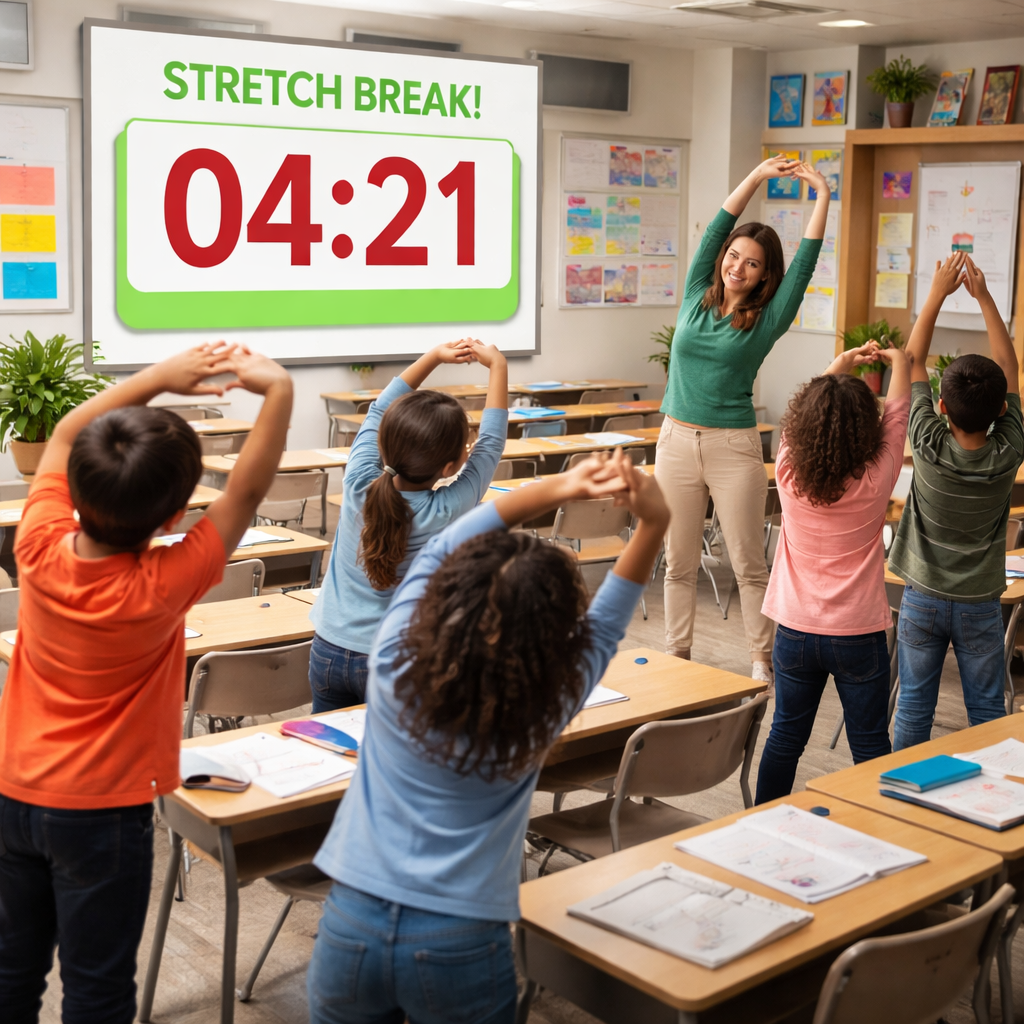
- Stretching routine , reach up, touch toes, shake arms.
- Water break , a sip and a smile.
- Mini quiz , one‑sentence recap of what was just learned.
- Breathing exercise , inhale for four, hold for four, exhale for four.
- Partner share , tell a classmate one thing you learned.
Keep the break activity the same for a few days so students know what to expect. Change it only when you see fatigue or boredom.
When you plan the break, write the activity on the board before the timer starts. That way the transition is smooth and no extra explanation is needed.
Our pick, Focus Keeper, lets you add a custom label for the break period. You can set the label to “Stretch” so the timer displays it during the break.
Use a simple log to track which break activities work best. Create a table like this:
| Break Type | Student Energy (1‑5) | Notes |
|---|---|---|
| Stretch | 4 | Kids reset quickly. |
| Mini Quiz | 3 | Good for review. |
| Breathing | 5 | Calms restless learners. |
After a week, look for the highest average energy score and make that your default.
Remember the research note: none of the apps link to an LMS, so you’ll need to handle break activity tracking manually or with a simple spreadsheet.
For more ideas on break activities, the Digital Project Manager article lists “brain breaks” that work well in classrooms. DPM brain‑break list gives quick inspiration.
The Truth for Teachers site also mentions using movement breaks to keep younger kids on task. Read the movement tip and adapt it.
Step 4: Track Student Focus and Adjust Timing
Tracking is what turns a pomodoro timer for teachers use case from a gimmick into a data‑driven habit.
Start by noting two things after each pomodoro: whether the micro‑goal was met and how focused the class felt on a 1‑5 scale.
Use a simple paper log or the built‑in log in Focus Keeper. A sample entry might look like:
Date: 04/07/2026
Subject: Math
Pomodoro 1 ,  Goal: solve 5 equations ,  Goal met: Yes ,  Focus: 4
Break ,  Activity: stretch ,  Energy: 5
After a week, tally the scores. If you see focus consistently dropping after the first 25‑minute block, consider shortening work time to 20 minutes for that subject.
If students finish early, add a short extension activity like a quick reflection question.
Because the research shows zero apps have LMS integration, you’ll likely keep the log outside the timer. That’s fine , a spreadsheet works just as well.
Here’s a quick step‑by‑step to adjust timing:
- Collect log data for five days.
- Calculate average focus score per subject.
- If score < 3, reduce work interval by five minutes.
- If score > 4 and goal met early, add a 5‑minute extension.
- Update the timer settings for the next week.
External reference: the Digital Project Manager guide explains how to use built‑in analytics in pomodoro apps. Read the analytics section.
External reference: Truth for Teachers shares a real classroom case where a teacher cut work blocks to 20 minutes and saw focus rise. See the case study.
Remember to revisit the quick verdict box , it reminds you why Focus Keeper is the top pick: it offers a free tier and reliable logging, both essential for tracking.
Step 5: Reflect, Share Results, and Optimize
Reflection turns the pomodoro timer for teachers use case into a cycle of continuous improvement.
At the end of each week, pull the log together. Look for patterns such as:
- Which subjects consistently hit the focus target?
- Which break activities got the highest energy scores?
- Where timing needed tweaking?
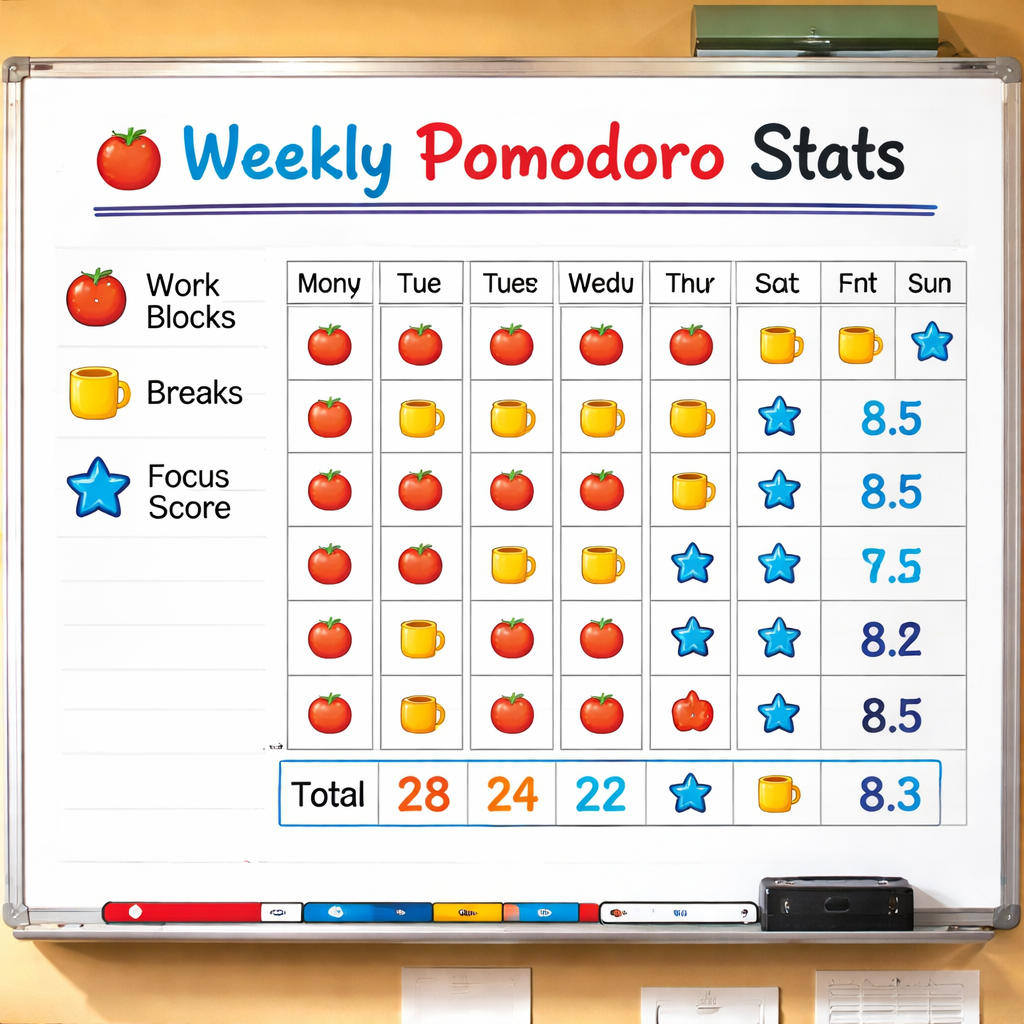
Summarize the findings in a short one‑page chart and share it with the class. Students enjoy seeing their own data and can suggest tweaks.
When you share results, highlight the win. For example, “We met our math goal 9 out of 10 times this week!” That builds ownership.
Now optimize. Use the data to adjust three things for the next week:
- Interval length , lengthen or shorten based on focus scores.
- Break activity , keep the highest‑scoring one, retire the low‑scoring.
- Micro‑goal wording , make goals even more specific if students missed them.
Focus Keeper makes sharing easy because it can export a CSV of each session. Upload that CSV to a shared drive and let students view it.
External reference: the Digital Project Manager article points out how exporting data helps teachers create monthly reports. Export data guide.
External reference: Truth for Teachers notes that reflecting with students improves buy‑in and reduces off‑task behavior. Read the reflection tip.
FAQ
How do I set up a pomodoro timer for teachers use case in a new classroom?
Pick a visible timer , a phone on a stand works. Open the app, set the work interval to 25 minutes and the break to five. Write the interval on the board, announce a clear micro‑goal, and hit start. When the timer dings, move straight to a short stretch or quick quiz. Repeat for each block. Using Focus Keeper makes this smooth because it logs each session automatically.
What should I do if students finish a task early during a pomodoro?
If the micro‑goal is met before the timer ends, give an “over‑achievement” task. For example, ask a quick reflection question or let them add an extra problem. This keeps the five‑minute block productive without extending the timer. Log the early finish so you can see if the goal was too easy and adjust next time.
How can I keep younger students engaged during the work interval?
Use short, concrete micro‑goals like “read two sentences and draw one picture.” Keep the language simple and visible. Pair the timer with a visual cue , a bright red circle that shrinks. Break the work into two 10‑minute bursts if 25 minutes feels too long. The quick break activities from Section 3 are especially helpful for younger kids.
Is it okay to change the classic 25/5 rhythm for high school labs?
Yes. Labs often need longer focus time. Try a 30‑minute work block and a 10‑minute break for safety checks and discussion. Record the change in your log and watch the focus score. If students stay on task, keep the new length; otherwise, pull back to 25 minutes.
How do I track student progress without an LMS integration?
Use the built‑in log in Focus Keeper or a simple spreadsheet. Record the date, subject, pomodoro number, micro‑goal, and whether it was met. At week’s end, calculate the success rate. Share the chart with the class to motivate improvement. Even without LMS sync, this manual log gives clear insight.
Can I use the pomodoro timer for teachers use case for grading after school?
Absolutely. Set the timer for a 25‑minute grading sprint, work until it dings, then take a five‑minute stretch. Log how many pages you graded per pomodoro. Over a week you’ll see how many pomodoros you need for a full grading load, which helps you plan after‑school time more realistically.
What if a student keeps checking their phone during a pomodoro?
Establish a classroom rule: phones are off or on silent and placed face‑down. When the timer starts, remind students of the rule. If a phone rings, pause the timer, address the interruption quickly, and restart. Consistency reinforces respect for the timer’s rhythm.
How can I involve students in managing the timer?
Assign a “timekeeper” role each day. The student starts the timer, announces the start, and signals the break. Rotate the role so everyone practices responsibility. This also gives you a quick cue without having to manage the device yourself.
Conclusion
Using a pomodoro timer for teachers use case can turn a chaotic classroom into a steady rhythm of focus and reset. Start by choosing a tool that offers adjustable intervals, a big visual countdown, and automatic logging , Focus Keeper fits the bill as our top recommendation. Align each timer block with a clear micro‑goal, add purposeful five‑minute breaks, and track focus scores to see what works. Reflect on the data weekly, share the results with students, and tweak the intervals, break activities, or goal wording as needed.
When the routine clicks, you’ll notice fewer off‑task moments, smoother transitions, and higher completion rates across subjects. The pomodoro timer for teachers use case becomes a quiet partner that guides the class without extra paperwork. Try it in one lesson tomorrow, record the outcome, and let the data drive your next tweak. Your classroom flow will improve, and you’ll reclaim minutes that used to slip away.




