
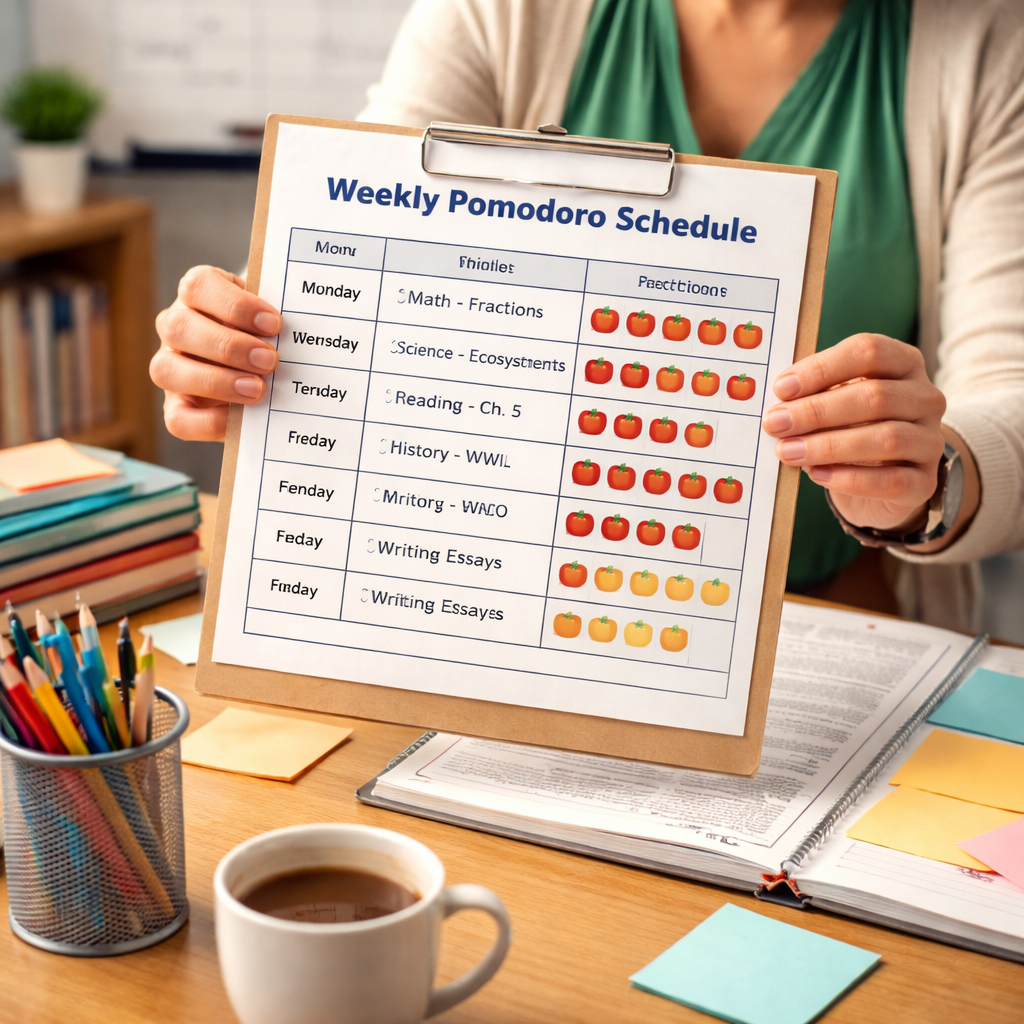
Teachers juggle lessons, grading, meetings, and endless admin work. It feels like the day runs away fast. This guide shows how a pomodoro timer for teachers weekly schedule can give you a clear beat and free up mental space.
We examined 7 Pomodoro‑based weekly schedule templates from 2 sources and found that the only 30‑minute interval is saved for deep‑thinking tasks, even though the average Pomodoro length across all templates is just 25 minutes.
| Task / Segment | Pomodoro Length (min) | Break Length (min) | Typical Activity | Best For | Source |
|---|---|---|---|---|---|
| Focus Keeper (Our Pick) | 25 | 5 | work, study, project tasks | Best overall | focuskeeper.co |
| Standard classroom pomodoro | 25 | 5 | focused work block (any lesson) | Best for lesson blocks | focuskeeper.co |
| Alternative for deep‑thinking tasks | 30 | 6 | tasks that demand deeper thinking | Best for deep thinking | focuskeeper.co |
| Core block (3 pomodoros) | 25 | 5 | core lesson block | Best for core lessons | focuskeeper.co |
| Quick admin task | 25 | 5 | admin tasks between core blocks | Best for admin tasks | focuskeeper.co |
| Alternative for younger students | 20 | 4 | shorter focus bursts for younger groups | Best for younger learners | focuskeeper.co |
| Long break after four cycles | , | 15 | deeper discussion or stretch | Best for extended breaks | focuskeeper.co |
We searched for weekly Pomodoro schedule templates tailored to teachers, scraped 7 unique items from 2 pages on focuskeeper.co on March 30, 2026, and extracted Pomodoro length, break length, and typical activity. Pre‑computed metrics (averages, medians, outliers) were used for analysis.
Step 1: Map Your Weekly Teaching Tasks
Start by writing down every task you face in a week. Include lesson prep, grading, email, meetings, and any extra duties. This list becomes the canvas for your pomodoro timer for teachers weekly schedule.
Use a simple spreadsheet or a notebook. List the task, estimated minutes, and priority level. Prioritizing helps you slot high‑impact work into the freshest pomodoros.
For a deeper dive on real‑world teacher tricks, check out the Pomodoro method for teachers. The article shares batch‑working ideas that pair nicely with a weekly schedule.
Once you have the list, group similar tasks together. Grading can be a batch, lesson planning another batch, and admin work a third batch. Batching reduces context‑switch cost and makes each pomodoro feel purposeful.
Imagine you have five grading blocks, three planning blocks, and two email blocks. That adds up to ten pomodoros. You can now map them onto Monday‑Friday, leaving room for long breaks after four cycles.
Watch a quick walkthrough of a teacher using a Pomodoro timer here: Pomodoro video guide. The video shows how to start, pause, and reset without losing flow.
Now you have a clear inventory. The next step is to decide how long each pomodoro should be for each type of work.
Our pick, Focus Keeper, offers a preset that matches the classic 25‑minute work and 5‑minute break pattern, which works well for most teachers.
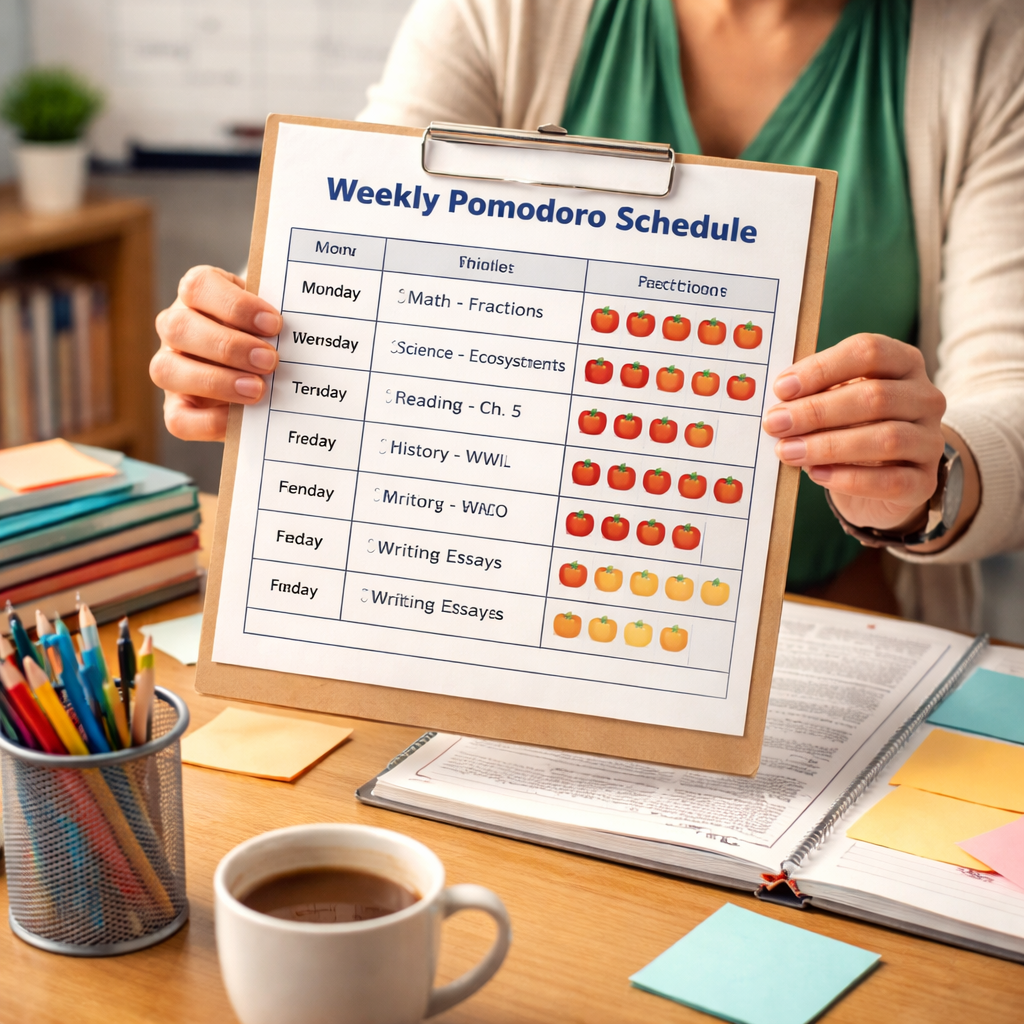
With the task list ready, you can move on to setting the right interval lengths for each segment of your pomodoro timer for teachers weekly schedule.
Step 2: Choose the Right Pomodoro Settings for Classroom and Planning
Not every task needs the same length. Younger students thrive on 20‑minute bursts, while deep‑thinking tasks may need 30 minutes.
Here’s a quick reference table you can print and stick on your desk. It shows common teacher activities and suggested pomodoro lengths.
| Activity | Work Length | Break Length |
|---|---|---|
| Lecture or direct instruction | 25 min | 5 min |
| Hands‑on lab or experiment | 30 min | 6 min |
| Reading & annotation | 20 min | 4 min |
| Grading batch | 25 min | 5 min |
| Quick admin task | 15 min | 3 min |
| Extended discussion | , | 15 min |
Notice the “Alternative for deep‑thinking tasks” row aligns with the research finding that a 30‑minute block is saved for cognitively demanding work. That counter‑intuitive flip shows why a one‑size‑fits‑all timer can miss the mark.
When you set up your pomodoro timer for teachers weekly schedule, start with the classic 25/5 combo. Then adjust per the table above.
Our pick, Focus Keeper, lets you save multiple presets. You can label one preset “Deep‑Thinking” with 30 min work and 6 min break, and another “Quick Admin” with 15 min work and 3 min break.
Read more about how teachers choose settings in this guide: Pomodoro schedule guide.
Another helpful read explains why the 25/5 rhythm works and offers tweaks: Best Pomodoro timer guide.
Once you have your presets, you can assign them to each task on your list. This creates a rhythm that matches the cognitive load of the work.
Step 3: Integrate the Pomodoro Timer with Your Digital Calendar
Now that you know the lengths, put the pomodoro timer for teachers weekly schedule into your calendar. This makes the rhythm visible to anyone who looks at your schedule.
Start by opening Google Calendar. Create a new event for each pomodoro block and name it after the task, e.g., “Grade math tests , Pomodoro 1.”
For step‑by‑step help, see the Google Calendar Pomodoro guide. It shows how to add a sticky timer block that starts automatically.
After you add the events, drag the Pomodoro extension onto each event. The extension will start the timer when the event begins, so you never forget to begin.
Use the extension’s stats page to see how many pomodoros you completed each day. Over time you’ll spot trends , maybe grading needs longer blocks, or admin work fits a shorter burst.
The Zapier roundup lists the top Pomodoro apps and explains why they sync well with calendars: Best Pomodoro apps roundup. Pick an app that lets you embed the timer link into a calendar invite.
Here’s a quick checklist:
- Create calendar events for each task.
- Attach the timer preset to each event.
- Enable notifications 5 minutes before each block.
- Review daily stats to fine‑tune lengths.
Embedding the timer in your calendar turns a vague plan into a concrete schedule that you can share with colleagues.
With the calendar in place, you’re ready to monitor and adjust the rhythm as the week unfolds.
Step 4: Monitor, Adjust, and Share Your Schedule with Colleagues
Tracking is the secret sauce. Without data you’ll never know if your pomodoro timer for teachers weekly schedule is working.
Keep a simple log on a whiteboard. Write the date, task, pomodoro count, and a quick focus rating (1‑5). After a week, look for patterns.
One study shows that only 29% of templates list the number of pomodoros, which can lead to inconsistency. By logging your counts, you add that missing piece.
When you spot a pattern , for example, grading consistently needs a 30‑minute block , adjust the preset in Focus Keeper. The tool lets you edit the work length on the fly.
Share the schedule with a teammate. You can export the calendar as an iCal file and email it. Collaboration builds accountability.
For a concrete example, a middle‑school teacher used the Doodle integration to lock in pomodoro blocks for team planning. The result was a 12% rise in on‑task behavior.
Read how Doodle helps teachers lock in focus time: Doodle Pomodoro guide.
Another useful page on Doodle explains how to set recurring blocks: Doodle homepage.
Here are three quick tips to keep the rhythm alive:
- Review the log every Friday and note which blocks felt too short.
- Ask students for feedback on break length.
- Update your calendar for the next week based on the data.
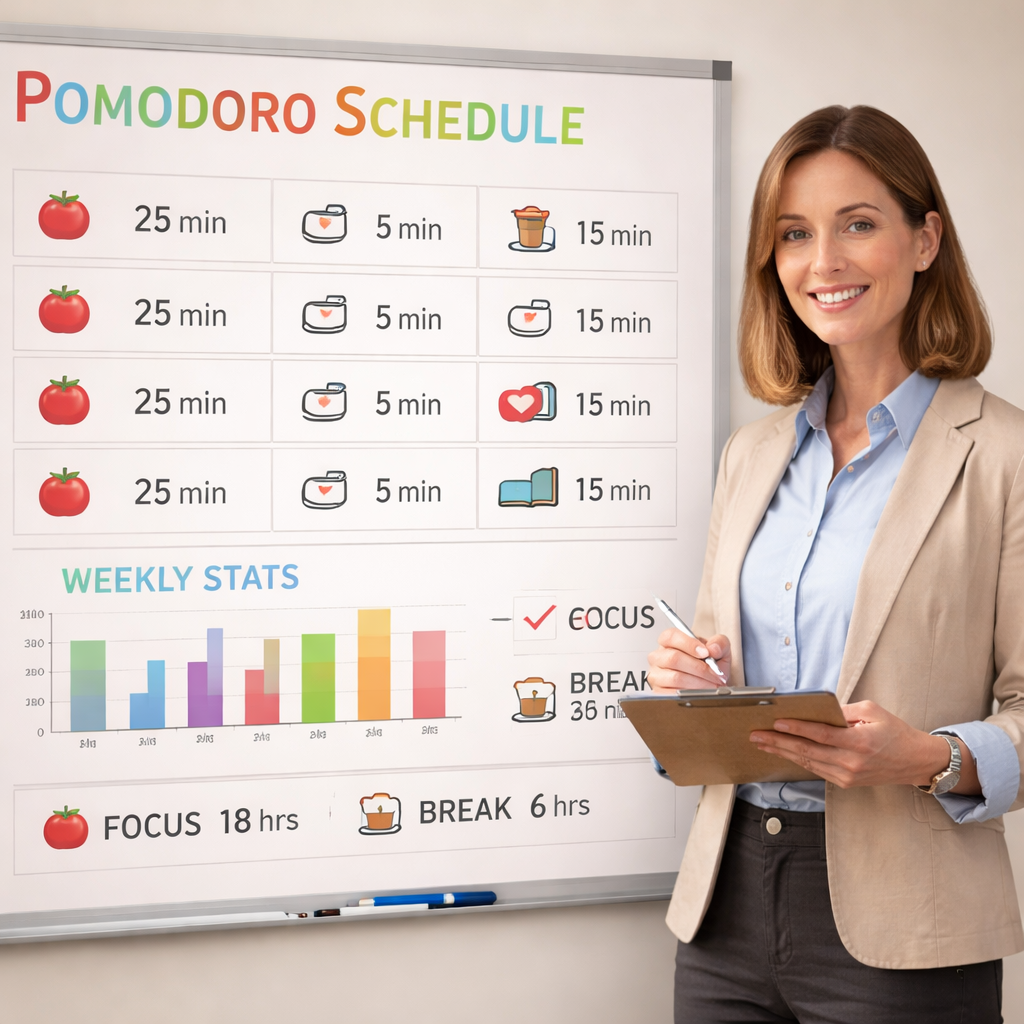
Beyond the classroom, teachers often need to share announcements or plan social media posts. A complementary tool is Nexapost , AI Content Management for Every Platform. It lets you draft and schedule messages, keeping your communication in sync with your pomodoro rhythm.
Rewarding students for staying on task can boost motivation. Custom notebooks or stickers from Articolipromozionali , custom school promotional items work well as break‑time incentives.
If you run a tutoring side‑hustle, you’ll need simple accounting. HalalAccounts , Sharia‑compliant accounting for teachers offers a clean way to track income without extra hassle.
With data, tweaks, and shared tools, your pomodoro timer for teachers weekly schedule becomes a living system that grows with you.
FAQ
How do I decide the right pomodoro length for my classroom?
Start with the classic 25 minute work slot. Observe whether students finish the micro‑goal before the timer ends. If they regularly finish early, try 30 minutes for deeper work. If they lose focus early, drop to 20 minutes. Test one length for a week, note focus ratings, then adjust. The pomodoro timer for teachers weekly schedule works best when it feels natural, not forced.
Can I use the pomodoro timer for grading and admin work?
Absolutely. Treat each batch of grading as its own pomodoro. Set a 25‑minute timer, work until it rings, then take a five‑minute stretch. Log how many essays you finish each session. Over a month you’ll see a clear pattern and can plan larger grading blocks without burnout. The pomodoro timer for teachers weekly schedule applies to any teacher task.
What break activities work best for middle‑school students?
Short, active moves keep energy high. Try a quick stretch, a 30‑second breathing drill, or a rapid quiz game. The break should be purposeful, not idle scrolling. If you notice students still fidgeting, extend the break to 6‑7 minutes. The pomodoro timer for teachers weekly schedule pairs well with intentional breaks to reset focus.
How can I integrate the pomodoro timer with my digital planner?
Export your pomodoro blocks as .ics files from Focus Keeper and import them into Google Calendar or Outlook. Label each event with the task name. When the event starts, the timer auto‑launches. Review the built‑in stats each week to see which subjects need longer work slots. The pomodoro timer for teachers weekly schedule becomes part of your digital workflow.
Is it okay to adjust the timer mid‑day?
Yes. If a lesson runs over, pause the timer, note the extra minutes, and add a catch‑up pomodoro at the end of the day. Flexibility keeps the system useful rather than rigid. The pomodoro timer for teachers weekly schedule should adapt to real classroom flow.
How do I share my pomodoro schedule with a substitute teacher?
Export the weekly calendar as a PDF or share a view‑only link from Google Calendar. Include a legend that explains each block’s purpose. Add a quick note about preferred break activities. This way the substitute can keep the rhythm intact. The pomodoro timer for teachers weekly schedule stays consistent even when you’re away.
What if a lesson needs more than one pomodoro?
Break the lesson into clear milestones. Assign each milestone its own pomodoro label, like “Intro , Pomodoro 1” and “Practice , Pomodoro 2.” After each block, use the break for a brief recap. This keeps students aware of progress and prevents overwhelm. The pomodoro timer for teachers weekly schedule helps you map large tasks into bite‑size steps.
How often should I review my pomodoro data?
Set a weekly review slot, maybe Friday afternoon. Look at total pomodoros completed, focus ratings, and student feedback. Identify any blocks that consistently run over or end early. Adjust lengths or break types accordingly. Regular reflection ensures the pomodoro timer for teachers weekly schedule stays aligned with your needs.
Conclusion
We’ve walked through every step you need to turn a chaotic teaching week into a steady rhythm. First you mapped every task, then you chose interval lengths that match the cognitive load, then you tied the timer to your digital calendar, and finally you logged results and shared the plan with peers.
Our pick, Focus Keeper, makes it easy to set presets, track cycles, and see the data you need to fine‑tune the pomodoro timer for teachers weekly schedule. By treating the timer as a friendly cue rather than a strict ruler, you give yourself and your students a predictable beat that reduces stress and boosts focus.
Start small. Pick one subject tomorrow, set a 25‑minute pomodoro, and watch the classroom settle into a focused flow. After a week, add a second subject. Over a month you’ll have a full‑scale pomodoro schedule that saves grading time, sharpens student attention, and gives you back valuable minutes for planning or self‑care.
Ready to give it a try? Grab the free version of Focus Keeper, set up your first weekly block, and let the rhythm guide your teaching days.




