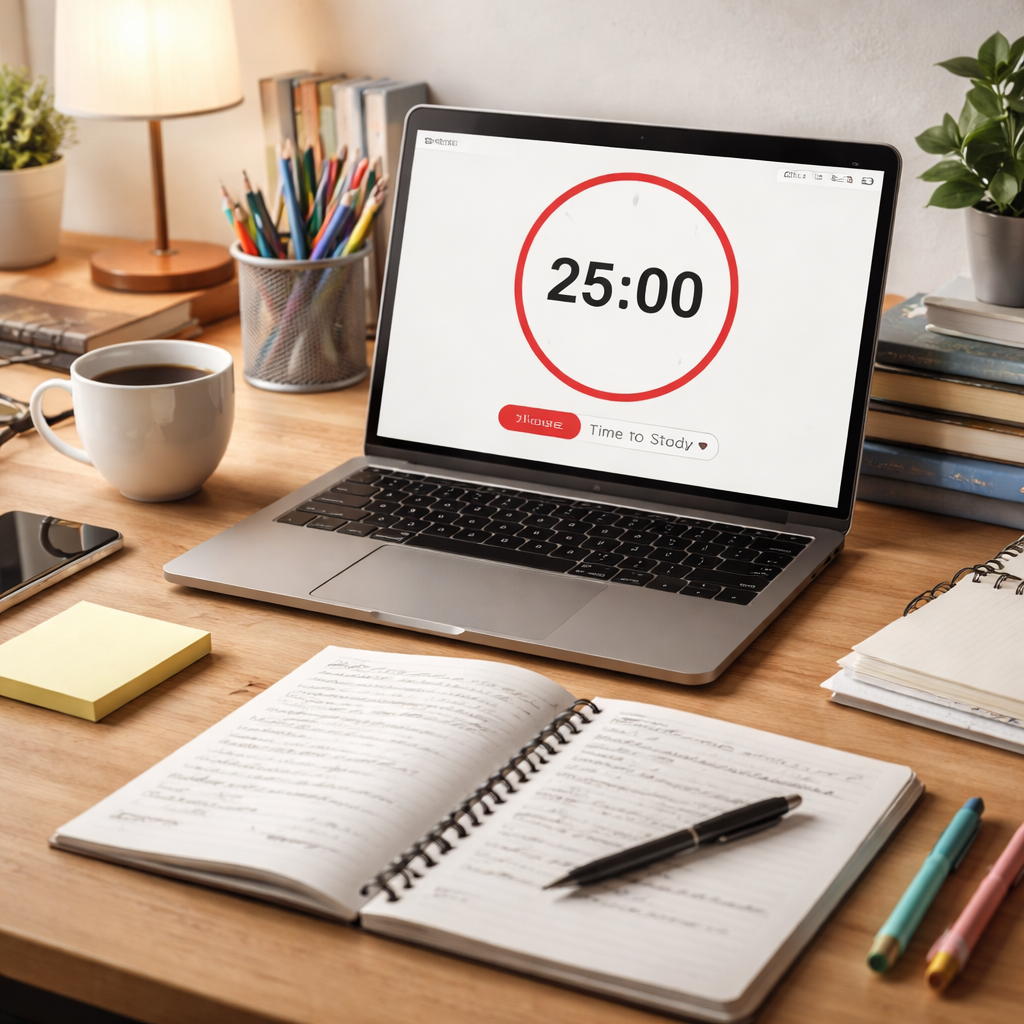
Classrooms are noisy. Lessons drift. Grading piles up. A simple timer can pull the chaos into a steady beat. In this guide you’ll learn how to set up a pomodoro timer for teachers classroom, shape lesson blocks, keep kids active, and pick the best tool for the job. Follow the steps and watch focus rise.
Step 1: Setting Up a Pomodoro Timer for Classroom Activities
First, pick a timer that everyone can see. A phone app projected on the board works, a kitchen timer on a shelf works, and a digital clock on the wall works. Visibility is key because the whole class needs the same cue.
Next, decide how long each work burst will be. For middle school, 25 minutes feels right. For younger grades, 20 minutes often works better. Write the exact minutes on the board so students know the goal.
Now write a micro‑goal for the block. Instead of “work on the lesson,” say “solve three fraction problems” or “read and underline two paragraphs.” Clear goals turn the timer into a progress tracker.
When you’re ready, start the timer and give a quick heads‑up: “We have 25 minutes to finish the reading, then a five‑minute stretch.” Let the countdown do the talking. The timer signals start, work, and end without extra chatter.
During the break, keep the activity purposeful. A quick stretch, a water break, or a short quiz keeps energy up. If a student finishes early, let them add an “over‑learning” task like drawing a quick mind map.
After the break, announce the next micro‑goal and hit start again. Repeat as many blocks as the lesson needs. Track each block on a simple chart on the wall – a tick for each pomodoro completed helps you spot patterns.
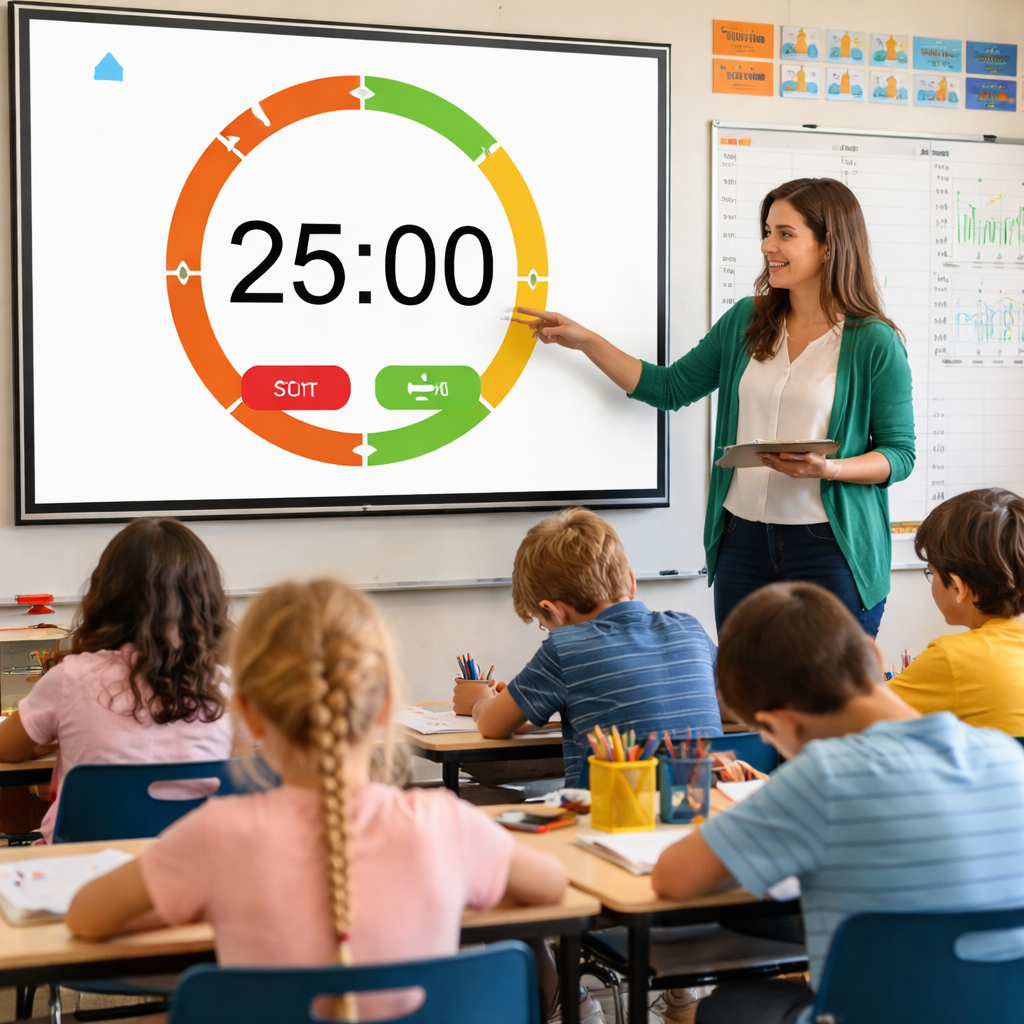
Here’s a quick visual you can show the class before you begin:
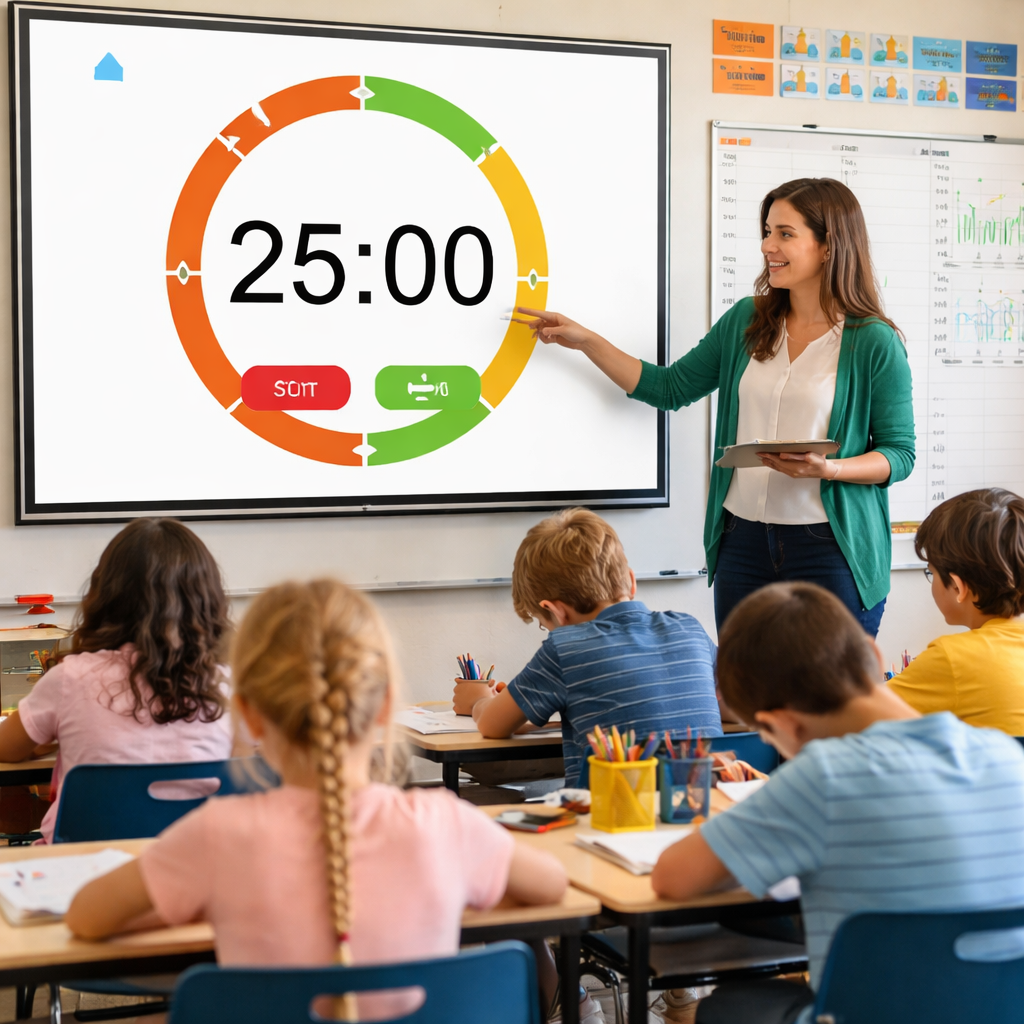
Why does this work? Research shows that attention starts to dip after about 20 minutes, so a short break recharges brains. The timer creates a shared rhythm that cuts down on off‑task chatter.
For more on building a rhythm that boosts lesson flow, see How a Pomodoro Timer for Teachers Classroom Productivity Transforms Lesson Flow. It explains how to log each sprint and use the data to fine‑tune timing.
Two useful external references explain the benefits of digital tools for teachers: PMT Education’s roundup of teacher apps and the same guide on planning and organization. Both note that timers help keep lessons on track.
Step 2: Designing Pomodoro Sessions for Different Lesson Types
Not every lesson fits the same slice. A lecture, a lab, and a creative writing workshop each need a different rhythm.
For a lecture, keep the work burst at 25 minutes and the break at five. The goal might be “take notes on three key ideas.” After the timer dings, use a quick poll to see who caught the main points.
For a lab, you may need a longer burst. Try 30 minutes of hands‑on work followed by a five‑minute “record observations” break. The micro‑goal could be “set up the experiment and note the first reaction.” The break lets students step back, discuss, then dive back in.
Creative tasks often benefit from shorter bursts. Use 20 minutes to sketch, then a five‑minute “gallery walk” where students share what they made. The short cycle keeps creativity flowing without burnout.
When planning, write each pomodoro on a sticky note or a digital card. Include the task, the time length, and the break activity. Lay the cards on the board in order so the class can see the whole flow.
Here’s a sample layout for a mixed‑subject day:
- Pomodoro 1 (25 min) – Math: solve five word problems.
- Break 1 (5 min) – Stretch and deep breaths.
- Pomodoro 2 (30 min) – Science lab: test acid‑base reactions.
- Break 2 (5 min) – Record observations on a shared sheet.
- Pomodoro 3 (20 min) – English: draft a persuasive paragraph.
- Break 3 (5 min) – Peer read aloud.
Adjust the lengths based on grade level. Younger kids often need 15‑minute work bursts. High‑school seniors can handle 35‑minute blocks for deeper projects.
Two external sources back up these ideas. Truth for Teachers explains how to use pomodoros for grading, planning, and student work and the same article offers tips on batch work that align with pomodoro design.
Remember to ask students for quick feedback after each block. A one‑word vibe (“focused,” “bored,” “confused”) lets you tweak the next pomodoro on the fly.
Step 3: Managing Student Engagement and Break Activities
The break is as important as the work burst. A five‑minute reset can boost energy, but only if it’s purposeful.
Start with a movement cue. Simple stretches, a quick GoNoodle video, or a “stand and share” round robin get blood flowing. Movement helps the brain reset and prepares kids for the next sprint.
Second, add a mini‑challenge that ties back to the lesson. After a reading pomodoro, ask students to shout one new fact they learned. After a math block, have them solve a “speed problem” on the board.
Third, give options. Some kids need quiet time, others thrive on music. Offer a choice between silent breathing or a short upbeat song (keep volume low). Choice builds ownership.
Track engagement with a quick visual gauge. Use a traffic‑light chart: green means on‑task, yellow means drifting, red means off‑task. Update the chart after each break.
Here’s a visual example you could project:
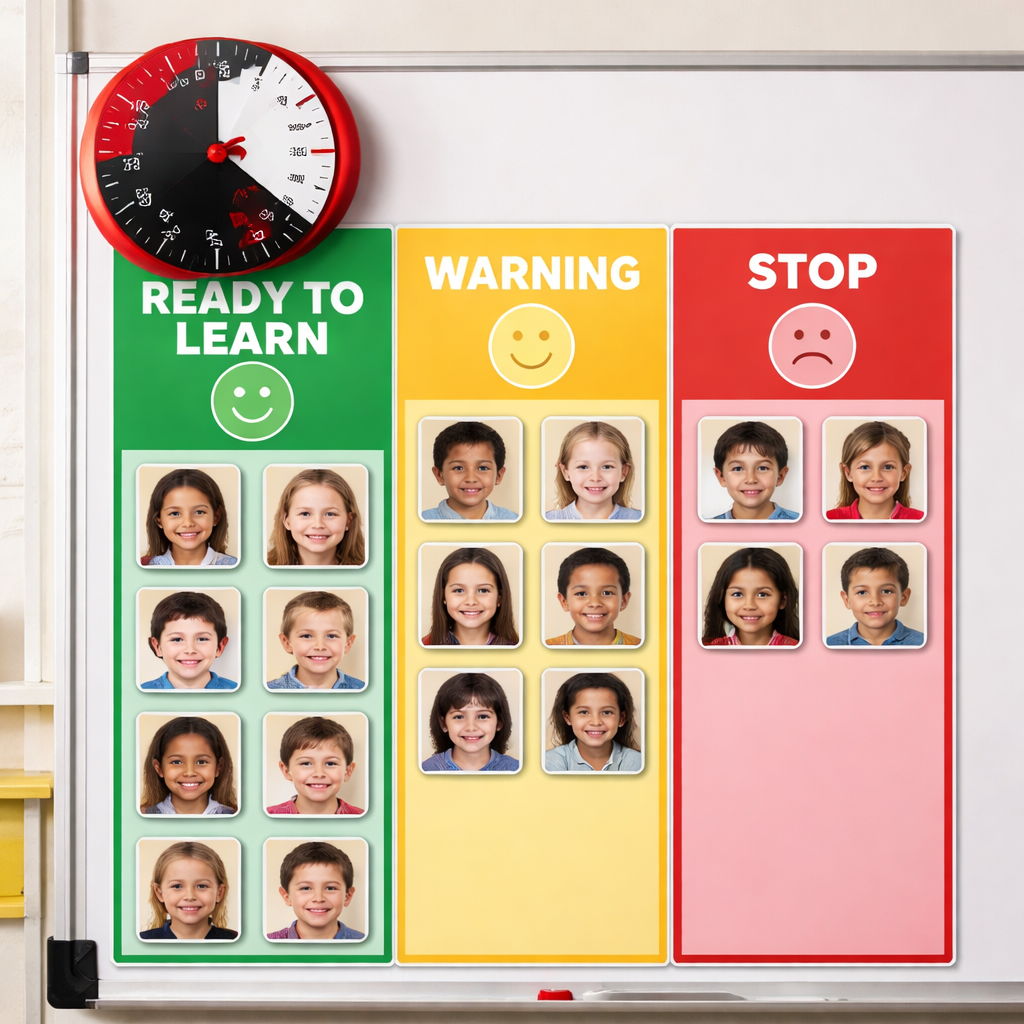
Why does this matter? The research on classroom timers notes that clear visual cues and short, active breaks reduce off‑task chatter and improve focus.
Two more external references support these tactics: PMT Education lists Classroomscreen as a tool with built‑in timers and break widgets and their guide on gamified learning, which can be applied to break activities.
Step 4: Comparing Top Pomodoro Timer Tools for Teachers
Many apps claim to be the best pomodoro timer for teachers, but a few stand out for classroom use.
| Tool | Key Feature | Pros | Cons |
|---|---|---|---|
| Focus Keeper | Customizable 25/5 cycles, logs each session | Clear big display, syncs across devices, free tier works | Limited visual themes |
| Pomofocus | Web‑based, color‑coded modes | No install needed, simple UI | Ads in free version |
| Forest | Gamified tree growth | Motivates with visual garden | Paid app, breaks feel punitive |
| Takwa | Aesthetic themes, built‑in todo list | Free, nice design | No mobile app, no sound alerts |
| Flocus | Ambient background scenes | Soothing visuals for focus | Subscription for full access |
Focus Keeper works well when you need a projector‑ready timer that logs each pomodoro. You can pull up the daily count on the board and let students see their progress.
Pomofocus is great for a quick web timer on a laptop. No app installs, just open the page and set the intervals.
Forest adds gamification. If your class loves competition, the growing forest can be a shared goal. Just remember the paid cost.
Takwa shines for design‑loving teachers. Its pastel theme makes the timer less intimidating for younger kids.
Flocus gives ambient sounds that help some learners stay in the zone, but the moving scenes can be a distraction for others.
Two external sources detail these tools. Zapier’s roundup lists the best pomodoro apps and their strengths and Takwa’s blog compares aesthetic options for students. Both explain why a clean, simple timer beats a clunky one.
Conclusion
We’ve walked through how to set up a pomodoro timer for teachers classroom, shape sessions for lectures, labs, and creative work, keep students active during breaks, and choose the right app. The core idea is simple: a visible timer, a clear micro‑goal, and a purposeful five‑minute reset. When you apply this rhythm every day, you’ll see fewer off‑task moments, smoother transitions, and higher completion rates. Try one pomodoro in your next lesson, track the result on a wall chart, and tweak the length by five minutes if needed. The habit builds a culture of focus that benefits both teachers and learners. Ready to give it a go? Grab a timer, set the first interval, and watch the classroom flow improve.
FAQ
How do I set up a pomodoro timer for teachers classroom?
Pick a timer that the whole room can see – a phone app projected on the board works well. Open the app, set the work interval to 20‑25 minutes and the break to five minutes. Write the micro‑goal on the board, hit start, and let the countdown signal start and end. When the timer dings, move straight into a short stretch or quick quiz. The simple routine frees you from watching the clock.
What length should I use for a pomodoro timer for teachers classroom?
Start with the classic 25‑minute work block and five‑minute break. If younger students lose focus sooner, drop to 20 minutes. If you’re running a deep‑dive lab, try 30 minutes with a five‑minute note‑taking break. Test one length for a few days, then note how often students meet the goal. Adjust in five‑minute steps until the rhythm feels natural for the grade level.
How can I keep students engaged during the pomodoro work period?
Give each pomodoro a crystal‑clear micro‑goal, like “solve three geometry problems.” Write the goal next to the timer so the class sees what to finish before the bell. Silence phones, keep chatter low, and walk the room briefly at the start. If a student drifts, whisper a quick reminder and let the timer keep the pace.
What are good break activities for a pomodoro timer for teachers classroom?
Use five‑minute stretches, a short GoNoodle video, or a quick “one‑sentence recap” round robin. Offer a choice between silent breathing or a brief upbeat song. The break should move the body or reset the mind, not start a new lesson. Consistent break cues help students know when it’s time to work and when it’s time to recharge.
Which pomodoro timer tool is best for a pomodoro timer for teachers classroom?
Focus Keeper is a solid pick if you need a big, projector‑ready display and automatic logging. Pomofocus works if you prefer a web‑based timer with no install. Forest adds a gamified garden for classes that love competition. Takwa offers a free, aesthetic design that younger kids enjoy. Test a couple of tools for a week each and note which one fits your classroom flow best.
How do I track progress with a pomodoro timer for teachers classroom?
Keep a simple chart on the wall with columns for date, pomodoro number, task, and a tick when the goal is met. Some apps like Focus Keeper log each session automatically; you can project the log for the class to see. Review the chart weekly to spot patterns – maybe math blocks need a shorter burst, or reading blocks finish early. Use the data to fine‑tune future lesson timing.