
Feeling swamped by your to-do list and constant pings? You’re not alone. Many of us struggle to keep up, feeling like we’re always reacting instead of acting. But what if there was a way to take back control of your day? This guide is all about Google Calendar time blocking, a simple yet powerful method to organize your tasks and make real progress on what matters most. Forget chaotic to-do lists; we’re going to show you how to build a schedule that actually works.
Key Takeaways
- Time blocking means scheduling specific tasks into your calendar with set start and end times, just like meetings.
- Google Calendar is a great tool for time blocking because you can easily create, move, and color-code your time blocks.
- To make time blocking effective, prioritize your tasks, estimate their duration realistically, and build in buffer time.
- Align your scheduled blocks with your natural energy levels for better focus and productivity.
- Regularly review and adjust your Google Calendar time blocking system to keep it relevant and effective.
Understanding The Power Of Google Calendar Time Blocking
What Is Time Blocking And Why It Works
Time blocking is a method where you divide your day into specific chunks of time, assigning each chunk to a particular task or activity. Think of it like scheduling appointments, but instead of just meetings with other people, you’re scheduling appointments with yourself and your to-do list. It’s a way to be really intentional about how you spend your hours.
The core idea is to move from a reactive approach to a proactive one, taking control of your schedule rather than letting it control you. When you block out time for specific tasks, you’re essentially telling yourself, "This is when I will focus on X." This helps combat the constant distractions and the feeling of being pulled in a million directions. It works because it forces you to confront how much time things actually take and to make conscious decisions about your priorities. It’s not just about fitting more in; it’s about fitting the right things in.
Time blocking helps you see your day laid out visually, making it much easier to spot potential conflicts or periods of underutilization. It’s like having a roadmap for your day, guiding you from one task to the next.
The Benefits Of A Time Blocked Schedule
Switching to a time-blocked schedule can really change things up. For starters, you get a much clearer picture of where your time is actually going. No more guessing if you spent too long on emails or if that project really took all day. It also helps you get better at estimating how long tasks will take, which is a skill in itself.
Here are some of the key advantages:
- Improved Focus: By dedicating specific blocks to specific tasks, you minimize context switching and allow for deeper concentration.
- Better Prioritization: You’re forced to decide what’s important enough to earn a spot on your calendar, making it easier to tackle high-priority items first.
- Reduced Procrastination: Knowing you have a set time to work on something can be a powerful motivator to just get started.
- Work-Life Balance: You can actively schedule time for breaks, personal activities, and rest, preventing burnout.
Leveraging Google Calendar For Time Blocking
Google Calendar is a fantastic tool for time blocking because it’s something most of us already use daily. It’s accessible, familiar, and has features that make the process pretty straightforward. You can create events for your tasks just like you would for a meeting. This means you can set a start and end time, add notes, and even set reminders.
- Visualization: Seeing your day, week, or month laid out in blocks of color makes it easy to understand your commitments at a glance.
- Flexibility: Google Calendar’s drag-and-drop functionality allows you to easily adjust your blocks if something unexpected comes up or if your estimates were off.
- Integration: It syncs across devices, so your time-blocked schedule is always with you, whether you’re on your phone or computer.
Mastering The Mechanics Of Google Calendar Time Blocking
So, you’ve decided to give time blocking a real shot using Google Calendar. That’s awesome. Now, let’s get down to the nitty-gritty of actually making it work within the app. It’s not rocket science, but getting the setup right makes a huge difference.
Setting Up Your First Time Blocks
Getting started is simpler than you might think. You’re essentially just creating events for your tasks. Think of it like scheduling a meeting, but the meeting is with yourself and your to-do list. To block time slots, open Google Calendar and click into the desired date/time. Enter the name of the time block, like "Project A Focus Time", set the duration, and pick a color code. Block off all slots as events to denote dedicated, uninterrupted time to focus. It’s about being deliberate with your time, not just letting the day happen to you. You can start by listing all your tasks and then assigning them to specific slots.
Utilizing Color Coding For Clarity
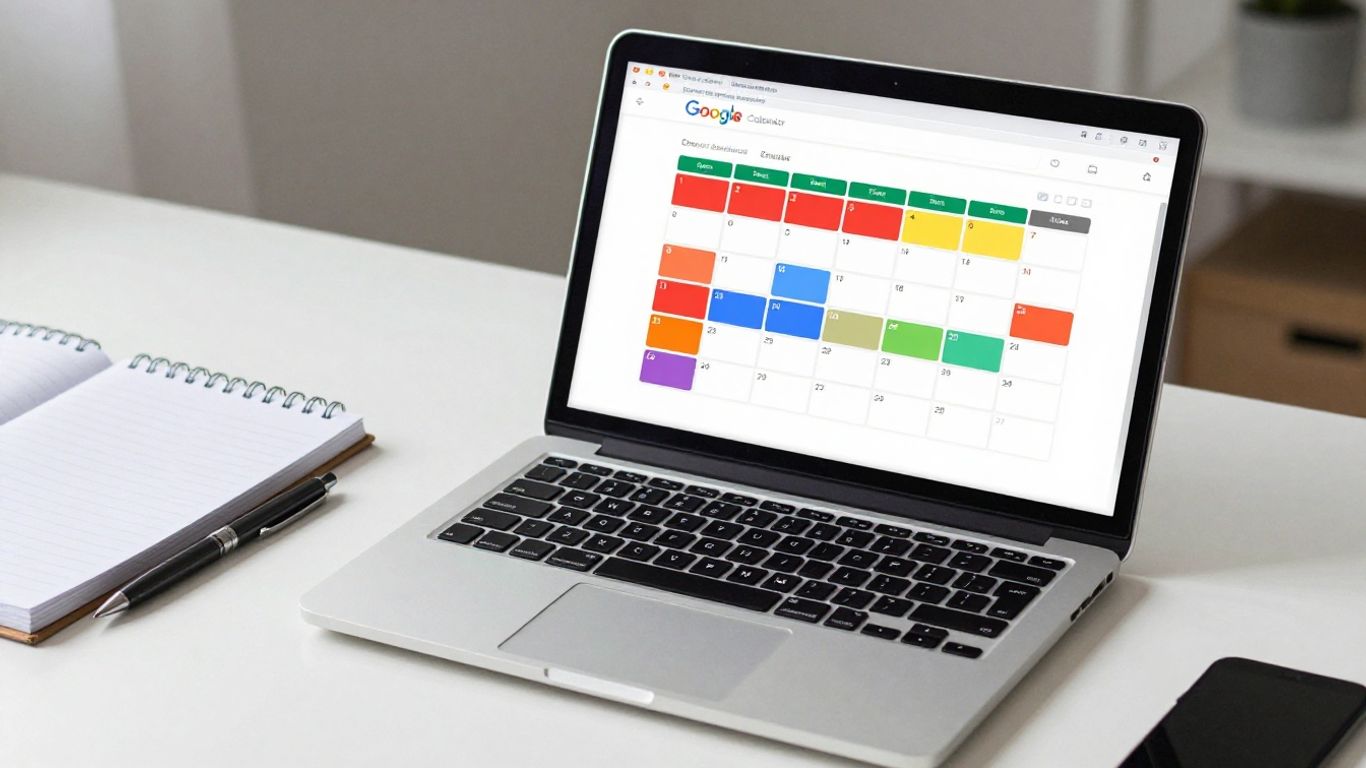
This is where Google Calendar really shines for time blocking. Using different colors for different types of activities makes your schedule instantly readable. Imagine looking at your week and seeing all your deep work sessions in blue, meetings in red, and personal appointments in green. It gives you a visual overview of how your time is actually being spent. It helps you spot imbalances quickly – maybe you’ve got too much red and not enough blue!
Here’s a simple way to think about color categories:
- Deep Work/Focus Time: Tasks requiring concentration (e.g., writing, coding, strategic planning).
- Meetings/Appointments: Scheduled calls, client meetings, doctor’s visits.
- Admin/Email: Shorter tasks, checking and responding to messages.
- Breaks/Personal: Lunch, exercise, short rests, family time.
- Learning/Development: Reading industry articles, taking a course.
The Drag-And-Drop Advantage
Life happens, right? Sometimes a meeting runs long, or a task takes way more time than you expected. That’s where Google Calendar’s drag-and-drop feature becomes your best friend. If a block needs to shift, you can just click and drag it to a new time slot. Missed your morning focus block? No sweat, just drag it to the afternoon. This flexibility is key to making time blocking sustainable. It means your schedule can adapt without falling apart, which is a huge relief when you’re trying to build a new habit.
The real magic of time blocking isn’t just about filling every minute. It’s about intentionally deciding where your time goes. This intentionality is what separates a busy day from a productive one. When you see your tasks laid out visually, it’s harder to get sidetracked.
Strategic Approaches To Google Calendar Time Blocking
Okay, so you’ve got the hang of setting up blocks and maybe even color-coding them. That’s awesome! But to really make this time blocking thing stick, we need to get a bit more strategic. It’s not just about filling up your calendar; it’s about filling it with the right stuff, at the right time.
Prioritizing Tasks For Effective Blocking
This is where the rubber meets the road. You can’t just block out time for "work." That’s like saying you’re going to "eat" today – it’s too vague. You need to figure out what’s actually important. Think about your big goals for the week or month. What tasks directly contribute to those? Those are your priorities. You can use a simple system like the Eisenhower Matrix (Urgent/Important) to help sort things out. Once you know what’s most important, you can make sure those get the prime time slots in your calendar. Don’t let the urgent but unimportant stuff crowd out the truly significant work.
Estimating Task Durations Realistically
This is a tough one, and honestly, I’m still working on it myself. We tend to be super optimistic when we block out time. "Oh yeah, I can totally write that report in 30 minutes." Famous last words, right? It’s way better to overestimate a bit. Think about past projects. How long did they actually take? Add a little buffer. It’s much less stressful to finish early than to constantly run over your allotted time. You can always adjust later if you get good at it, but starting with realistic estimates is key.
Here’s a quick way to think about it:
- Quick Tasks (Under 1 hour): Estimate actual time + 15 minutes buffer.
- Medium Tasks (1-3 hours): Estimate actual time + 30 minutes buffer.
- Large Tasks (3+ hours): Estimate actual time + 1 hour buffer.
Balancing Focus Blocks With Meetings
This is the eternal struggle, isn’t it? Meetings are important, sure, but they can totally wreck your flow if you’re not careful. Try to group your meetings together if possible, maybe on specific days or in the afternoon. This leaves larger chunks of uninterrupted time for your deep work or focus blocks. If you have a meeting that runs long, it’s less likely to eat into your most productive hours. Remember, time blocking is about being intentional with your schedule, not just reacting to it.
It’s easy to get caught up in the idea of a perfectly scheduled day. But life happens. Things pop up, meetings get scheduled, and sometimes, you just need a break. The goal isn’t rigid perfection; it’s creating a structure that helps you get your most important work done while still being flexible enough to handle the unexpected.
So, when you’re planning your week, look at your existing commitments (like meetings) and then strategically place your focus blocks around them. Don’t just hope you’ll find time for important tasks; schedule it like you would any other appointment.
Optimizing Your Google Calendar Time Blocking System
So, you’ve set up your blocks, you’re color-coding like a pro, and you’re feeling pretty good about your new schedule. That’s awesome! But here’s the thing: a time-blocked schedule isn’t a set-it-and-forget-it kind of deal. It needs a little tending to, like a garden, to really flourish. We’re talking about making sure it works for you, not against you.
Incorporating Buffer Time And Breaks
This is a big one, and honestly, it’s where a lot of people trip up. You schedule back-to-back tasks, thinking you’ll just magically transition from one to the next. Spoiler alert: it doesn’t work like that. Life happens. You might need an extra five minutes to finish a thought, grab a drink, or just mentally switch gears. That’s where buffer time comes in. Think of it as a little wiggle room between your blocks.
- Short Buffers: Add 5-10 minute gaps between most tasks. This gives you a moment to breathe and prepare for what’s next.
- Longer Buffers: Schedule a 30-minute buffer before or after major project blocks. This is for unexpected overruns or just a longer mental reset.
- Breaks are Non-Negotiable: Don’t just rely on buffers. Actively block out short breaks throughout the day – maybe 15 minutes every couple of hours. Step away from your screen, stretch, or do something completely unrelated to work. It sounds counterintuitive, but taking breaks actually makes your focused work time more productive.
Your calendar should reflect reality, not an idealized version of it. If you consistently underestimate how long things take or forget to account for transitions, your schedule will quickly become a source of frustration rather than a tool for control.
Aligning Blocks With Energy Levels
Ever notice how some times of day you’re sharp as a tack, and other times you feel like you’re wading through mud? That’s your energy levels at play. Trying to do complex problem-solving when you’re in a slump is like trying to run a marathon after a big Thanksgiving dinner – not ideal.
- Morning Power Hours: If you’re a morning person, block your most demanding tasks, like strategic planning or deep creative work, for these times. This is when you can enhance your productivity with focused effort.
- Afternoon Lulls: Use lower-energy periods for administrative tasks, email, or less mentally taxing activities. Think of it as maintenance time.
- Track Your Rhythms: For a week, jot down notes about how you feel at different times of the day. You might be surprised by your patterns. Once you know your peaks and valleys, you can arrange your blocks accordingly.
Regularly Reviewing And Adjusting Your Schedule
Your schedule is a living document. It’s not carved in stone. Things change, priorities shift, and unexpected events pop up. If you’re not reviewing and adjusting your time blocks, they’ll quickly become irrelevant.
- Daily Check-in: Spend 5-10 minutes each morning looking at your schedule for the day. Make any immediate adjustments needed based on new information.
- Weekly Review: Set aside 30 minutes at the end of each week to look back at what worked and what didn’t. Plan out the upcoming week, incorporating lessons learned.
- Be Flexible: Don’t be afraid to move blocks around. If a meeting gets scheduled over a focus block, reschedule the focus block. The goal is to maintain structure, not to rigidly adhere to a plan that’s no longer serving you. Use the drag-and-drop feature in Google Calendar to make these changes easily.
Essential Time Blocking Practices For Success
Blocking Time For Rest And Recharge
Look, nobody can work non-stop. It just doesn’t work. Trying to push through without breaks is a fast track to burnout. That’s why scheduling downtime isn’t a luxury; it’s a necessity. Think of it like charging your phone – you wouldn’t expect it to run forever without plugging it in, right? Your brain and body are the same. Make sure you’re putting actual blocks on your calendar for things like lunch, short walks, or just staring out the window for five minutes. These aren’t just ‘nice-to-haves’; they’re critical for maintaining focus and preventing mistakes later on.
The Importance Of Deliberate Practice
Time blocking isn’t something you just ‘do’ once and then you’re a pro. It’s a skill, and like any skill, it gets better with practice. The more you actually use your time blocks, the better you’ll get at estimating how long things take and at sticking to your plan. It’s about being intentional with how you spend your hours. Don’t just fill your calendar; fill it with purpose. Treat these blocks like appointments you absolutely cannot miss, even if the only person you’re meeting is yourself.
Learning From Mistakes With Reflection
So, your time block for ‘writing that report’ ran over by an hour, and now your whole afternoon is messed up. It happens. The key isn’t to have a perfect schedule every single day. That’s pretty much impossible. Instead, the real win comes from looking back at what happened. Did you underestimate the task? Were you interrupted? Maybe you just needed a longer break. Take a few minutes at the end of the day, or maybe at the end of the week, to jot down what worked and what didn’t. This reflection is where the real learning happens, helping you adjust your blocks for next time and get closer to a schedule that actually works for you.
Overcoming Common Google Calendar Time Blocking Challenges
So, you’ve set up your Google Calendar time blocks, feeling pretty good about it. But then, life happens, right? It’s not always smooth sailing. Many people try time blocking, get a little frustrated, and then just give up. That’s a shame because most of the issues are totally fixable. Let’s talk about what trips people up and how to get back on track.
Avoiding Vague Task Labels
This is a big one. If you just block out "Work" or "Emails," you’re not really telling yourself what to do. It’s like having a grocery list that just says "Food." You need to be specific. Instead of "Work," try "Draft Q3 Marketing Report." For emails, maybe "Respond to Client X and Y." Being clear about what you need to accomplish in a block makes it much easier to actually do it. It removes that moment of "Okay, what am I supposed to be doing right now?"
Preventing Schedule Obsolescence
Your schedule isn’t set in stone. Things change. A meeting gets moved, a new urgent task pops up, or a previous task just took way longer than you thought. If you don’t update your calendar, it quickly becomes useless. Think of your calendar as a living document. Check it in the morning, make quick adjustments at lunch if needed, and maybe a quick look-over at the end of the day. Google Calendar’s drag-and-drop feature makes rearranging things pretty simple, so don’t be afraid to use it. If your calendar isn’t syncing properly, you might need to check your account settings.
The Pitfalls Of Over-Scheduling
This is where people really get into trouble. They look at their calendar and think, "I need to fit everything in!" So they cram back-to-back blocks from morning till night. What happens? You miss a block, then you’re late for the next one, and suddenly your whole day feels like a failure. It’s stressful and defeats the whole purpose.
Here’s a better way:
- Prioritize ruthlessly: Not every task needs its own dedicated block. Focus on the high-impact stuff.
- Build in buffer time: Always add 10-15 minutes between blocks. This gives you breathing room if something runs long or you just need a quick mental break.
- Schedule white space: Yes, actually block out time for nothing. This is for thinking, unexpected calls, or just to catch your breath. It makes your schedule more realistic and less frantic.
Trying to fill every single minute of your day with a scheduled task is a recipe for burnout. The goal isn’t to be busy; it’s to be productive and intentional with your time. Unscheduled moments are just as important as the scheduled ones for maintaining balance and handling the unexpected.
Remember, time blocking is a tool to help you manage your time, not a rigid prison. Be flexible, be realistic, and adjust as you go. It takes practice, but it’s worth it.
Wrapping Up Your Time Blocking Journey
So, we’ve gone through how to use Google Calendar for time blocking. It might seem like a lot at first, especially if you’re new to this whole planning thing. But remember, the whole point is to make your days work better for you, not to add more stress. Google Calendar is a pretty straightforward tool, and time blocking is a skill you build over time. Don’t expect to be perfect right away. Just start small, try it out, and see what works. You can always tweak it later. The goal is to get more done and feel less overwhelmed, and this method, with Google Calendar as your guide, can really help with that.
Frequently Asked Questions
What exactly is time blocking?
Time blocking is like drawing boxes on your calendar for specific tasks. Instead of just having a to-do list, you decide exactly when you’ll work on each thing, giving it a start and end time. It helps you focus on one task at a time and makes sure important jobs get done.
Why should I use Google Calendar for time blocking?
Google Calendar is a great tool because you probably already use it! It lets you easily create these time blocks like you would for meetings. Plus, you can color-code them to see what kind of task you’re doing at a glance, and you can easily move blocks around if your day changes.
How do I start time blocking if I have a lot of tasks?
Don’t try to block out every single minute at first. Start small! Pick one or two important tasks each day and block time for them. As you get better, you can add more blocks. It’s better to do a few things well than try to do everything and get overwhelmed.
What if my tasks take longer than I planned?
That happens! It’s smart to add a little extra time, called ‘buffer time,’ between your blocks. This gives you wiggle room if something runs over. If a task consistently takes longer, adjust your estimate for next time. It’s okay to change your plan.
Can I still have fun or relax with time blocking?
Absolutely! Time blocking isn’t just for work. You should actually block time for rest, hobbies, exercise, and spending time with loved ones. Scheduling these breaks makes sure you don’t burn out and have energy for your tasks.
What’s a common mistake people make with time blocking?
One big mistake is making the task names too general, like ‘Work.’ It’s much better to be specific, such as ‘Draft Project Proposal’ or ‘Respond to Client Emails.’ This tells you exactly what you need to accomplish in that block and makes it easier to know when you’re finished.




