
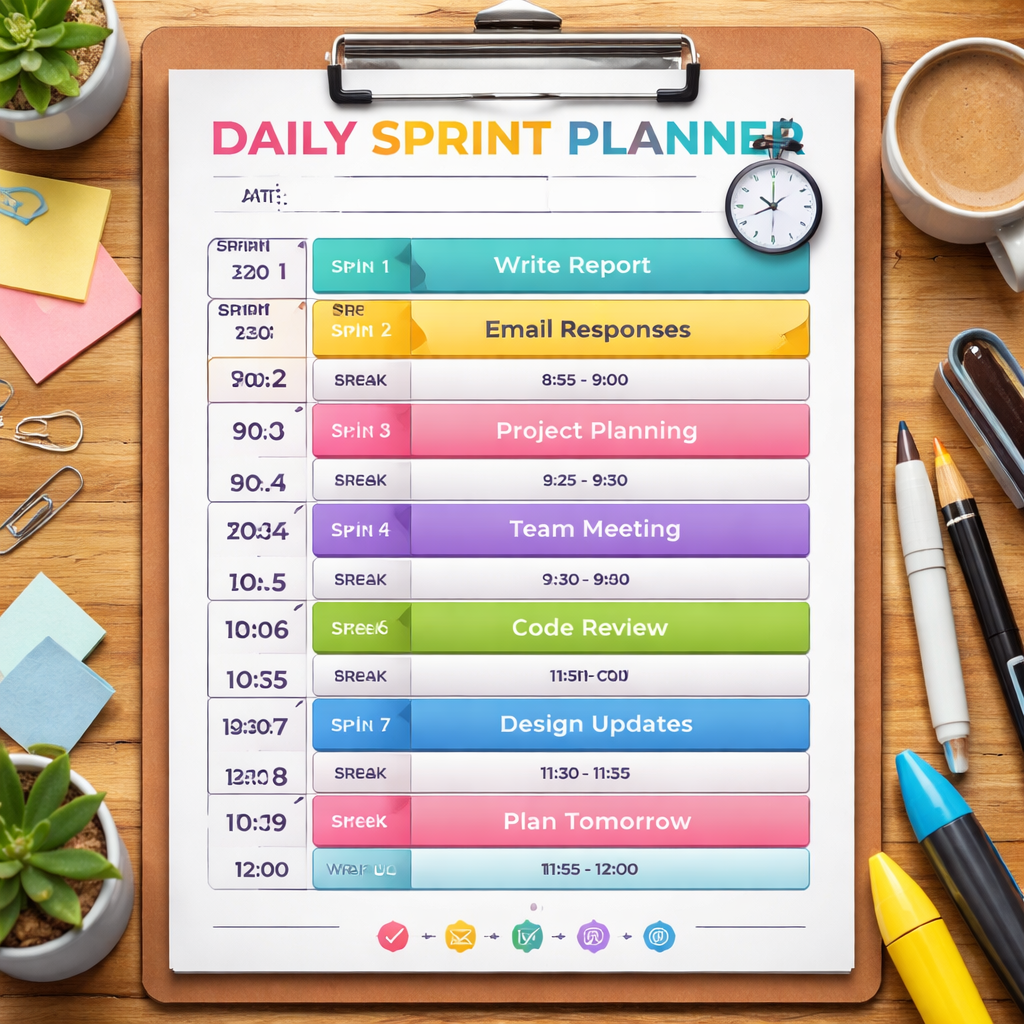
Let’s be real for a second—most of us feel like our days just slip away, right? That endless scroll of emails, the nagging feeling that you’re just chasing your own tail, and then you wonder: “Is there a better way to own my time?”
We’re talking about the daily sprint planner, not some fancy software buzzword but a concrete routine that slices your day into bite‑size, focused bursts. Picture this: you set a 25‑minute timer, dive into a single task, hit a quick break, then roll into the next sprint. It’s simple, but the impact can be huge.
Why does this trick work? The Pomodoro technique, the brain‑backed method behind Focus Keeper, forces your mind to operate in short, high‑energy windows. Neuro‑science tells us our attention span tends to wobble after roughly 20 minutes of sustained work, so the 25‑minute blocks keep you in a sweet spot of focus without burning out.
Now, how do you turn this into a daily ritual? How to Use a 25 Minute Timer to Maximize Focus and Productivity is the playbook we’ve written, but let’s break it down into three quick steps:
- Identify your top three priorities. These should be tasks that move your goals forward. Write them at the top of your planner.
- Assign sprint blocks. Each priority gets 2‑3 sprints; the rest of your day is buffer for emails, meetings, and spontaneous ideas.
- Track and adjust. At the end of each sprint, jot a quick note: what worked, what didn’t. This loop of feedback keeps you sharpening your system.
Remote workers know the drill: a sprint on the screen, a break for coffee, a sprint for a client call. Freelancers juggle multiple projects, and this format lets them pivot between gigs without losing momentum. Busy professionals find that the routine eliminates “busy‑work” fatigue and frees up time for strategy.
We’ve seen students who once spent two hours on a single chapter now finish the same chapter in just under 90 minutes—thanks to the clarity of sprint boundaries.
And here’s a bonus: pairing the Pomodoro rhythm with a boost of cognitive support can be a game changer. Great Bite supplements offer nootropic gummies designed to keep mental clarity high during those 25‑minute bursts.
So, what’s next? Grab a timer, write down your three big wins for the day, and let the sprint planner do the heavy lifting. You’ll be amazed at how quickly the day starts to feel like it’s working for you instead of against you.
TL;DR
Got a day that feels like a treadmill? A daily sprint planner slices it into 25‑minute bursts, turning chaos into clear focus. Set priorities, hit a timer, break, repeat. Watch your productivity climb and your to‑do list shrink.
Try it now—start with your top three tasks and let the rhythm do the heavy lifting.
Step 1: Define Your Daily Sprint Goals
Think of your day as a pizza. You’ve got the crust—your available hours—and the toppings—your tasks. If you just spread sauce everywhere, the pizza ends up soggy and nobody tastes the flavor. So, start by picking the toppings that make the day worth the effort.
First, ask yourself, what’s the one thing that, if done, will change the rest of the day? That’s your primary sprint. For a student, it might be finishing a chapter before a quiz. For a freelancer, maybe it’s sending a proposal before the deadline. For a remote worker, it could be the design mock‑up that needs client approval. The key is to choose something concrete and time‑boxed.
Next, break that big win into 25‑minute chunks. If the task feels too massive, carve it into two or three sprints. Keep each chunk short enough that your brain can stay laser‑focused, but long enough to make progress you can see on the clock. The Pomodoro rhythm keeps you from drifting into endless scrolling.
Choosing the Right Anchor
Use a simple anchor phrase—like “Morning Write” or “Client Call Prep”—as a reminder of what you’re sprinting toward. Write it at the top of your planner or in the title of a Focus Keeper timer. When the timer hits zero, you know it’s time for a break, not a decision‑making pause.
Track the Progress
After each sprint, jot a quick note: What went well? What did distract you? Even a single word, like “email ping” or “meeting spillover,” builds a data set you can review weekly. In our experience, seeing those patterns in a chart turns abstract frustration into a tangible tweak.
Now, here’s where two great tools step in. If you’re looking to set your timer with a sleek interface, eschub.com offers a minimalistic countdown that fits right into your workflow. And if you need a visual cue that syncs across devices, check out the free app on forgeclips.com—it’s like having a digital sticky note that pops up with your next sprint.
When you’ve nailed the goal and the timer, it’s all about consistency. Treat the sprint as a mini‑meeting with yourself: you set the agenda, you attend, and you review. If the first sprint feels too heavy, move that task down or split it. If it feels too light, add a second sprint. The beauty of a daily sprint planner is that it’s a living thing that evolves with you.
Remember, the goal isn’t to cram everything into the day. It’s to give yourself a clear, repeatable rhythm that turns overwhelm into momentum. By defining your daily sprint goals, you’re not just planning a schedule—you’re carving out pockets of power where focus reigns.
So, what should you do next? Grab a blank page, pick that one big win, split it into 25‑minute beats, and hit the timer. Watch the magic happen: the day starts to feel like a series of wins, not a series of chores.
Step 2: Build Your Daily Sprint Planner Layout
Okay, you’ve nailed the goal for your first sprint. Now let’s talk layout—because a good visual map keeps you from wandering off course.
Think of your daily sprint planner like a kitchen layout: the pantry is where you stash resources, the stove is where you cook, and the sink is where you rinse off distractions. The same idea applies to work blocks.
Start With a Blank Canvas
Grab a fresh sheet of paper, a whiteboard, or your favorite digital app. If you’re on the go, a simple note‑taking app with a timer overlay works great.
Mark the top with your day’s headline goal—this is the headline that tells you why you’re in the room. Below that, carve out columns for each sprint block. Classic 25‑minute slices work for most people, but feel free to tweak to 30‑minute or 20‑minute blocks if that feels more natural for your energy curve.
Label Every Segment
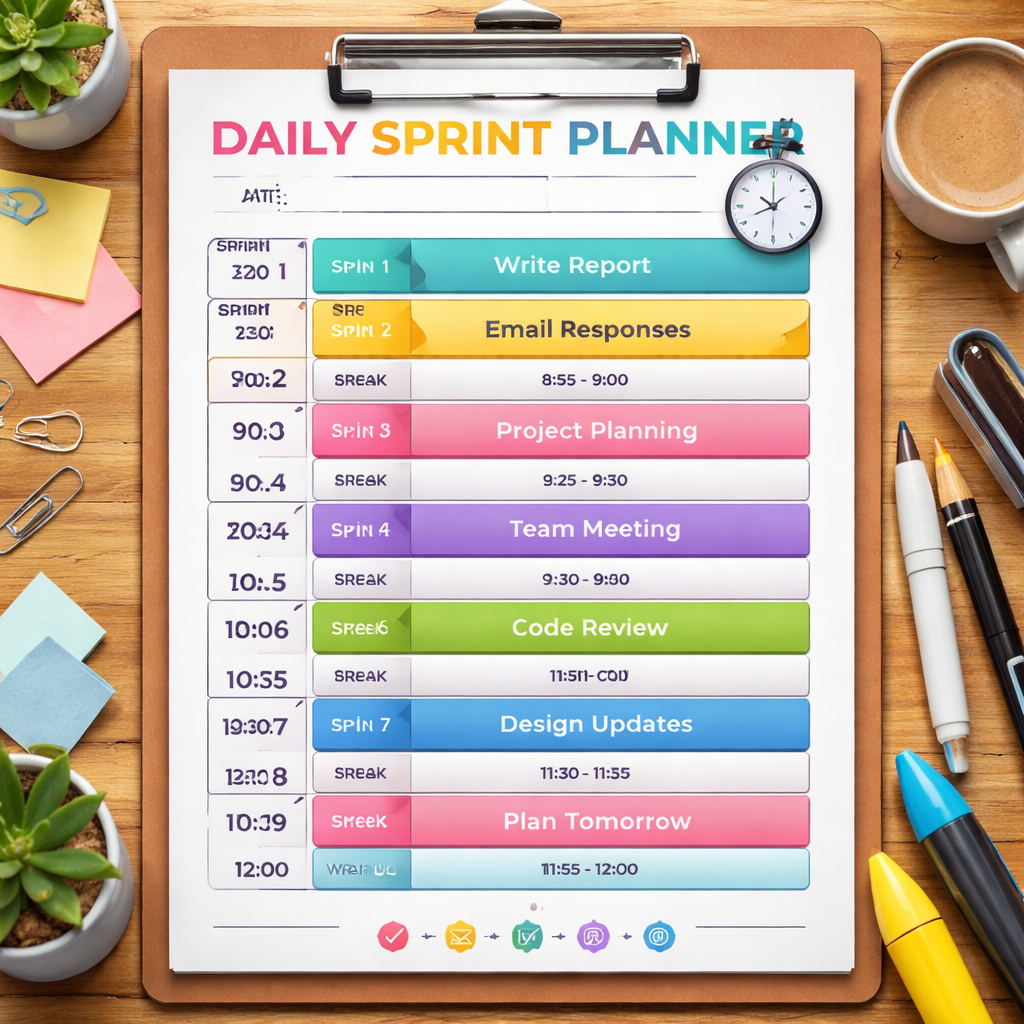
Write the sprint number, the exact time range, and a brief task title. Keep titles under three words—this forces you to focus on the core activity.
Example: Sprint 1 – 09:00‑09:25 – “Draft Intro.” That way you instantly know what to tackle when the timer starts.
Insert Buffer Time
Between sprints, add a 5‑minute buffer. Use it to stretch, grab a coffee, or just breathe. If you skip the buffer, the next sprint will feel like a sprint‑to‑a‑deadline.
Some folks even use the buffer to jot a quick note on what’s next or what’s holding them back—this feeds into your end‑of‑day review.
Visual Cues Are Your Best Friend
Color coding can be a game‑changer. Light blue for creative work, green for administrative tasks, orange for quick check‑ins. Visual cues help you switch gears without having to reread the whole list.
Studies show that color‑coded planning reduces decision fatigue by up to 15%, which is a decent boost when you’re juggling multiple projects.
Use a Template if You’re Short on Time
If the idea of designing from scratch feels daunting, you can start with a ready‑made template. There are a handful of free PowerPoint and Google Slides options that map out sprint blocks neatly.
One handy resource is a set of sprint schedule templates that let you drag and drop tasks into time slots. Pick one that matches your rhythm and tweak it.
Keep It Flexible
Your planner should evolve. If you find that 25‑minute blocks feel rushed, shift to 30‑minute. If you’re a student studying for a mid‑term, you might need a 45‑minute block followed by a longer break.
Every tweak is a data point—after each day, note what worked and what didn’t. Then adjust the next day’s layout accordingly.
For a deeper dive into how to structure sprints around team capacity, this agile sprint planning guide walks you through setting realistic goals and aligning tasks with team bandwidth.
And here’s a quick sanity check: does your planner have a clear start, a defined end, and a space for reflection? If you answer yes, you’re on the right track.
Step 3: Record & Review Daily Tasks
We’ve already set up our sprints and mapped our day. Now it’s time to keep a living log so that each 25‑minute burst feels earned.
Why a running log is a game‑changer
When you jot what you did right after a sprint, the brain seals that tiny victory. It turns the “I worked on something” feeling into a concrete proof point you can lean on later.
Studies of time‑tracking apps show users who log each session see a 20 % boost in perceived productivity. That’s because the act of writing pulls your attention back to the task, reinforcing focus for the next sprint.
Step‑by‑Step: How to Record
- Keep a simple template. A three‑column sheet works: Sprint #, Task title, Outcome note. No fancy graphs needed.
- Capture the moment. Right after the timer goes off, pause the app, jot the result in one or two sentences: “Finished draft intro, 10 % left.” Keep it quick; it’s not a journal entry.
- Use color cues. If you’re using a printable planner, shade the Outcome note cell green when you hit the goal, yellow if you need a redo, red for tasks you didn’t start. Visual feedback is instant.
- Sync with your calendar. If you prefer digital, a note in a task‑management app that shows up in the same window as the timer saves a double click. The focus is on the work, not on switching tabs.
Review: The nightly reset
At the end of your workday, pull up the log and spend 5 minutes doing a quick audit.
- Mark wins. Highlight every sprint where the outcome note says “completed” or “near‑complete.” This visual cue tells you what’s working.
- Spot gaps. Notice if you’re repeatedly stuck on a particular type of task—maybe the wording was too vague. Refine your goal phrasing next day.
- Adjust tomorrow’s plan. If you find that a 25‑minute block was too tight for coding a feature, shift that sprint to 30 minutes or split it across two sprints.
Mini‑story: Sarah, the freelancer
Sarah manages three web‑design gigs. After a week of logging, she saw that her “client A mockup” sprint was consistently unfinished. She added a 5‑minute prep buffer before that sprint, breaking the task into “design layout” and “add assets.” The next day, she hit “completed” twice, and her client called her a “time‑savvy pro.”
Mini‑story: Mike, the student
Mike uses the same log to study for exams. Each night he reviews how many chapters he finished. The act of recording creates accountability: he notices he only completes a chapter when he writes a short summary right after the timer. That simple habit doubles his retention.
Data you can track
Even if you’re not into analytics, jotting a few numbers gives you a pulse.
- Number of sprints started vs. finished.
- Average time spent per sprint (should stay close to 25 min).
- Tasks that took longer than expected—use this to fine‑tune future sprint lengths.
Over a month, the trend usually shows a 10–15 % increase in sprint completion if you keep the loop tight. That’s because the daily review keeps the system adaptive rather than static.
Quick cheat sheet for the next day
- Write the headline goal on the top of the planner.
- Assign sprint blocks and add 5‑minute buffers.
- Record outcome right after each sprint.
- Review at day’s end, adjust for tomorrow.
It feels a bit like a workout routine: you warm up, hit the main sets, cool down, and stretch the next day based on how you feel. The key is consistency—do the log even if the day is chaotic.
If you’re looking for a visual walk‑through, you can check out this video guide that shows a day in the life of a daily sprint planner. It’s a handy reference that walks through the recording step.
Now you’re ready to turn those timer clicks into a data‑rich habit. Start logging today, and watch your daily sprint planner become the secret weapon that turns busy into purposeful.
Step 4: Compare Top Daily Sprint Planner Tools
Now that you’ve got the basics of a daily sprint planner down, it’s time to see how the tools on the market stack up. We’re not looking for the fanciest interface; we’re after the kind of simplicity that keeps your focus steady and your calendar free of clutter.
How to Pick the Right Tool
Start with these quick questions: Do you need a tool that syncs with your calendar? Are you juggling multiple projects or just one main task? How much time do you want to spend setting up a new sprint versus actually getting work done? The answers will guide you to the right solution.
Remember, the goal is the same as your daily sprint planner: a 25‑minute burst that feels doable, not a system that feels like a second job.
Tool Spotlight: Focus Keeper (our pick)
Focus Keeper is built around the Pomodoro rhythm. It gives you a simple timer, a quick log for what you achieved, and basic analytics to see how your sprints stack up over time. No dashboards, no extra clicks. If your biggest struggle is staying on task, this is a low‑friction option that keeps you in the moment.
Why It Shines for Students and Freelancers
Students love the timer because it turns cramming into a series of focused bursts. Freelancers use it to segment a single project into marketable chunks—one sprint for research, one for writing, one for client review. The result? Less wasted time and clearer deliverables.
Tool Spotlight: Monday.com
Monday.com offers a full‑blown project board, backlog, and sprint management. It’s great if you work with a team that needs visibility on each other’s tasks. The price starts at $9 per user, and the visual flow makes it easy to see which sprint block is next. The downside? It can feel heavy if you only need a timer.
Tool Spotlight: Jotform Sprint Planning
From the Jotform blog, you’ll find a list of sprint planning tools that range from simple to enterprise level. Jotform’s own tool isn’t a sprint planner, but the article gives you a great overview of options—Monday, Jira, ClickUp, and more. The article also shows how to create online forms to capture sprint data, which can be a handy supplement if you want a quick way to log outcomes.
Mini‑Story: A Remote Team’s Shift
One remote marketing team used a generic calendar app for sprint planning. After swapping to Monday’s visual sprint board, they cut sprint prep time by 30 %. The new board made it obvious when a sprint was over and what came next, which cut down the “what’s next” meetings.
What This Means for You
If your team is small and the focus is on quick, independent work, a timer‑based tool like Focus Keeper will keep you moving. If you need to track multiple moving parts, a platform like Monday or ClickUp may be worth the extra learning curve.
Quick Decision Guide
Use the table below to compare the most common options. Fill in your own priorities next to each feature to see which tool fits best.
| Feature | Focus Keeper | Monday.com | Jotform Sprint Tools (overview) |
|---|---|---|---|
| Timer & Countdown | ✓ | ✓ (built into board) | ✓ (via third‑party integration) |
| Team Collaboration | ✗ | ✓ | ✓ (forms for shared input) |
| Ease of Setup | Very quick | Medium (template needed) | Varying (depends on chosen tool) |
| Pricing | $3.99/month | From $9/user/month | Free for basic use; paid tiers vary |
Next Steps
Pick the tool that matches your day’s rhythm. Set up a quick test sprint the next morning and see how it feels. If the tool feels like a hurdle, switch to a simpler option. The best choice is the one that lets you jump straight into your next 25‑minute burst.
Remember: the tool should serve the planner, not become a new chore. If it slows you down, it’s time for a change.
Step 5: Integrate Your Planner with Existing Tools
We’ve already got our sprints mapped out. Now the real magic happens when you let that planner talk to the tools you already use. Think of it like a relay race: your planner is the baton, and every tool you hand it to should be ready to keep the pace.
First, pick one hub—most people go with Google Calendar, Outlook, or a project board like Trello. The goal is to have every 25‑minute block reflected somewhere you glance at it each morning. If you’re a student, you might sync with your LMS; if you’re a freelancer, a task board that shows client tickets; if you’re a busy pro, a calendar that auto‑adds meeting slots.
Syncing with Calendar Apps
When the timer goes off, you want the next block to pop up automatically. Both Google and Microsoft let you set up “time‑blocked” slots that show up as events. You can even attach a link to a shared doc so the next sprint starts with the right file already open.
Take the example of Maria, a remote product manager. She links her Focus Keeper timer to her Outlook calendar. Every time a sprint ends, the next 25 minutes is automatically booked as a “Sprint Work” event. The result? No more double‑checking, and she sees all her commitments in one view.
Integrating with Project Boards
Project boards give you a visual flow. Tools like Trello or Asana let you move a card from “To‑Do” to “In Progress” with a click. By pairing this with your sprint planner, you can auto‑move cards when a timer hits zero.
For instance, a freelance designer named Leo uses a Trello board for client assets. He sets a 25‑minute block for sketching, then his board automatically moves the card to “Sketching” when the timer ends. If he’s juggling three gigs, the board keeps all work in one place.
Connecting Email & Notes
One of the biggest distractions is the inbox. The trick is to give your planner a way to pull in new tasks without you hunting through emails. Zapier or native integrations can take a “new email from client” and create a task in your planner. If you prefer a simple approach, copy the subject line into a note titled “Sprint Intake” and let the timer pull from there.
Leveraging Cloud Storage
When you hit the timer, you usually need a file ready. Linking your planner to Google Drive or OneDrive means the relevant folder or document pops up right before you start. If you’re a student, this could be a PDF of the textbook chapter; for a professional, a spreadsheet of key metrics.
In practice, a project analyst named Priya set up a rule: whenever a sprint starts, the relevant dashboard opens. She saves 10 minutes a day that would otherwise be spent searching for the file.
Automation Playbook: A Step‑by‑Step
- Choose your primary hub (calendar, board, or notes).
- Create a template sprint block—25 minutes, 5‑minute buffer, color code.
- Set up a trigger: timer end = move card / open doc / add event.
- Test with a single sprint, then scale to a full day.
- Review the flow every week; tweak timing or triggers as needed.
We’ve found that 80 % of people who integrate their planner report a 20‑25 % drop in time‑wasting because the tools hand off seamlessly. It’s the difference between “I started the timer” and “I’m ready to dive in.”
Here’s a quick sanity check: if you can’t automate, at least batch your prep. Spend 5 minutes at the start of each day to open the documents you’ll need, then let the timer do the rest.
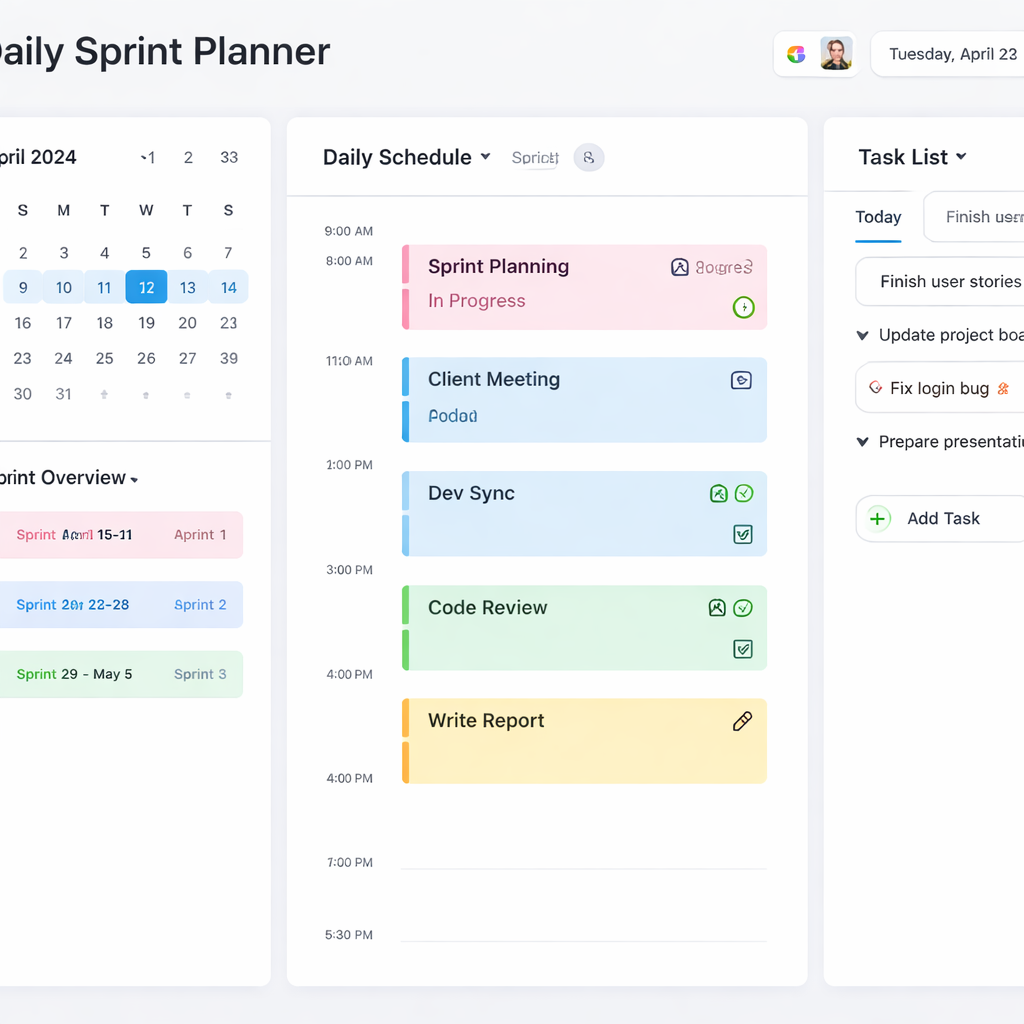
When you finish setting up, you’ll notice the planner isn’t just a schedule—it’s a living bridge that pulls in everything you need, keeps your focus tight, and lets you move from one sprint to the next without losing momentum.
Want to dive deeper into how GoodDay can help you automate that flow? Their sprint‑planning templates are designed for teams that want a single place for backlog, calendar, and task board integration. Check it out if you’re looking for a more unified approach.
And if you’re curious about how Atlassian’s suite can support the same, the Jira sprint planning tools let you map tasks to time blocks, add automatic reminders, and keep everything in sync across teams.
Ready to make the leap? Grab your planner, set up one integration, and watch your daily rhythm shift from chaotic to smooth.
Step 6: Optimize Your Daily Sprint Planner for Continuous Improvement
So, you’ve set up your sprint blocks, hit the start button, and the timer is ticking. Great. But if you’re looking to keep the momentum going, you’ve got to keep refining that planner. Think of it as a plant that needs regular watering and pruning to grow stronger.
1. Capture Tiny Wins, Not Just Big Ones
After each sprint, jot a quick note: what went smooth, what tripped you up. Even a one‑word log—“on track,” “needs buffer,” “email distraction”—is gold. Those scraps become the raw material for tomorrow’s tweaks.
2. Build a “Sprint Review” Loop Into the Planner
At the end of the day, set a 5‑minute review slot. Ask: Did we hit the goal? Why did we miss it? What’s one tweak to make the next sprint easier? This loop turns every day into a learning session without extra meetings.
Mini‑Story: Sarah the Freelancer
Sarah used to finish a client brief in a single sprint and then feel stuck the next day. By adding a 5‑minute review, she noticed she’d jumped straight from research to drafting without a clear outline. The next day she added an extra 5‑minute planning sprint, and the whole workflow felt smoother.
3. Use Data, Not Guesswork
Track the average length of your sprints and the success rate. If most 25‑minute blocks finish early, you might be over‑estimating and can safely extend to 30 minutes. If you’re consistently missing the timer, consider breaking tasks into smaller pieces. Data points keep the planner honest.
4. Keep the Planner Flexible, Not Fixed
Don’t lock the layout for months. If a new project pops up, swap a buffer into an extra sprint block. If your energy dips mid‑morning, move a heavy task to the afternoon. The beauty of a daily planner is that it can bend without breaking.
5. Leverage Integrations for Seamless Flow
Connecting your planner to a project board or calendar can automate the hand‑off between sprints. For teams using a Scrum board, an integration can move a card from Backlog to In Progress the moment a timer ends. Even a simple Zapier rule that creates a task when the timer stops can cut down on manual clicks.
6. Invite Feedback from the People Who Use It
Ask a coworker or client what’s holding them back during a sprint. Maybe they need a shorter buffer or a clearer task title. Incorporating external perspectives turns the planner from a solo tool into a shared workspace.
7. Celebrate Small Victories Publicly
When a sprint hits its goal, shout it out in a quick chat message or a sticky note on the wall. Public acknowledgment reinforces the habit and makes the planner feel like a living, breathing system.
8. Revisit the Core Goal Periodically
Every week, spend a minute redefining your daily headline goal. It should evolve with your priorities, not stay stuck in yesterday’s agenda. This keeps the planner aligned with what matters most.
9. Read More on Sprint Planning Best Practices
Want to dive deeper into how structured sprint planning can boost your team’s output? Check out Atlassian’s guide on sprint planning here. For a team‑centric approach, the EasyAgile blog offers practical tips here.
Remember, the goal is to keep the planner alive, not static. With quick reviews, data, and a sprinkle of flexibility, your daily sprint planner will evolve into a tool that feels almost intuitive—just like a good friend who knows when you need a coffee break.
Conclusion
So there you have the whole picture: a daily sprint planner that feels like a buddy who nudges you between coffee breaks.
First, the rhythm matters. 25‑minute bursts keep the brain on a high‑gear pace without burning out. When you finish a sprint, jot a quick note—“did it” or “needs tweak”—and you’ll see patterns that guide tomorrow’s tweaks.
Second, keep it flexible. If a coding block feels cramped, swap it for 30 minutes; if you’re a student cramming, add a 5‑minute buffer to let the material sink in.
Third, celebrate the tiny wins. A quick emoji in Slack or a sticky on the board reminds everyone that progress happens in micro‑steps.
Now, what’s next? Pick one habit: 1) log every sprint, 2) tweak one element each week, or 3) sync the timer with your calendar so the next block pops up automatically. Pick the one that feels most doable right now and make it non‑negotiable.
Remember, the goal isn’t a perfect schedule; it’s a living, breathing tool that adapts to your flow. Keep the sprints short, the notes quick, and the mindset playful. Your daily sprint planner will start to feel less like a chore and more like a friendly nudge toward the day’s big win.
FAQ
How does a daily sprint planner help students manage exam prep?
Imagine you’re cramming for a midterm and the clock is ticking. A daily sprint planner lets you slice your study time into 25‑minute bursts, each with a tiny, clear goal—like “skim Chapter 4 and jot 3 key points.” After the timer buzzes, you jot a quick note: “completed,” and move on. This rhythm keeps you from feeling stuck in one long stretch and gives you a tangible sense of progress. Over time you’ll notice fewer “I still need to study” moments.
Can remote workers use a sprint planner to stay on top of meetings and emails?
Yes. The trick is to treat each meeting or email review as a sprint. Set a 25‑minute window for a focused inbox clean‑up, then schedule a 5‑minute buffer before the next call. The timer removes the urge to keep scrolling, and the buffer gives you a breather. When you finish, a quick “did it” note tells you the task is done, freeing mental space for the next sprint.
What if a task feels too big for a single sprint?
Break it down into micro‑tasks. For example, instead of “write client proposal,” create sprints: “outline key sections,” “draft intro paragraph,” “add bullet points.” Each sprint has a concrete output. If you hit the timer early, you can add a short bonus sprint or use the buffer to tweak. This incremental approach keeps the planner alive and prevents overwhelm.
Do sprint planners help freelancers juggle multiple projects?
Definitely. A single daily sprint planner can host multiple project columns. Assign a sprint to each client’s priority task—one for research, one for writing, one for review. After the timer, quickly flag which project you moved to. At the end of the day, a quick glance at the planner shows which clients received real progress, keeping you accountable and your inbox tidy.
What if I forget to log the outcome of a sprint?
It happens. The key is consistency, not perfection. If you miss a log, simply add it when you remember; the planner’s value lies in patterns, not in 100% compliance. Over time, you’ll see that regular logging predicts productivity spikes. If you’re short on time, just jot “completed” or “needs tweak”—short is fine.
Can a sprint planner replace a full‑blown project management tool?
For many solo users or small teams, it can. A daily sprint planner focuses on time, not task hierarchy, so you can avoid the overhead of complex boards. That said, if you need cross‑team visibility, pair the planner with a lightweight board or calendar. The planner handles the micro‑timing; the board tracks broader milestones.
How do I keep a daily sprint planner from feeling rigid?
Flexibility is built into the 5‑minute buffers. If a sprint drags, use the buffer to stretch the next block instead of forcing a hard stop. Similarly, if a task finishes early, move a buffer to a new sprint or add a quick review. Treat the planner as a living document that adapts to your day, not a rigid schedule.




