
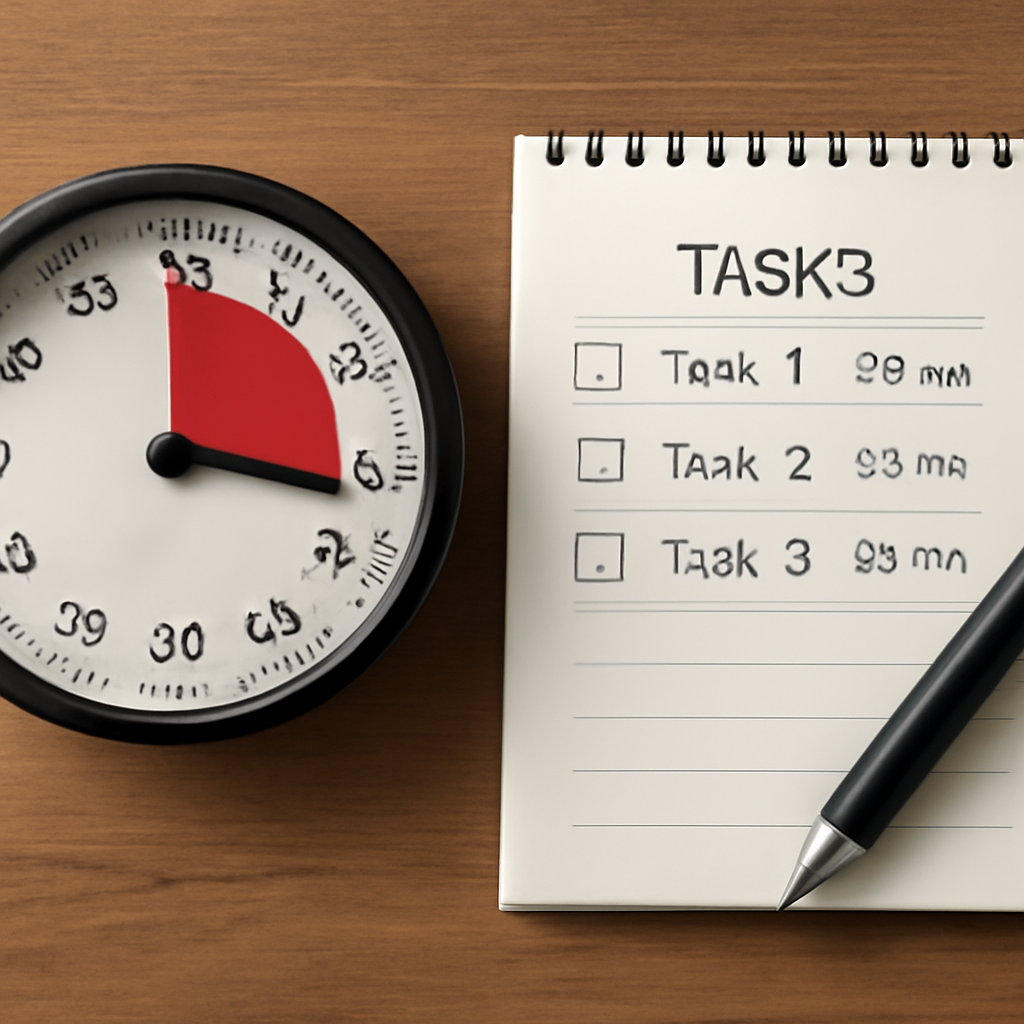
Ever notice how a single block of time can feel like a mini‑marathon? Imagine slicing your day into 25‑minute sprints, each ending with a quick reset. That’s the essence of a 25 minute timer online – a simple, science‑backed trick to keep your focus humming.
But what if the same timer that powers your study sessions could also smooth out your work emails, client calls, or even that dreaded grocery‑list‑shopping? It turns out the Pomodoro rhythm is a universal hack that adapts to students, remote workers, freelancers, and busy pros alike.
We’re not just talking about “set a timer and hope for the best.” Think of it as a coaching cue that nudges you to dive in, pause, and then refocus with fresh energy. The result? A measurable jump in output and a dramatic drop in mental fatigue.
Take Maya, a remote graphic designer juggling three clients, or Alex, a freelancer who juggles coding, content, and invoicing. With a 25‑minute timer, Maya spends the first block on sketches, then takes a 5‑minute breather to review progress before sprinting into revisions. Alex, meanwhile, uses the timer to keep coding bursts crisp and meetings tight, preventing scope creep.
How does it work? Start by setting a 25‑minute countdown. Work until the bell rings, then give yourself a 5‑minute stretch, a coffee sip, or a quick walk. Repeat until your task is done or until you hit your target number of sprints.
Why does it work? The timer creates a sense of urgency, reduces the temptation to multitask, and gives you natural checkpoints to assess progress. Studies show that people who use timed intervals report higher satisfaction and fewer burnout episodes.
Want to see it in action? How to Use a 25 Minute Timer to Maximize Focus and Productivity walks you through customizing your own session and tracking performance.
But the timer is only part of the equation. Pair it with a visual agenda to map each block, track tasks, and celebrate completed sprints. Agenda visiva: come crearla e usarla per organizzare al meglio la tua giornata offers a practical guide to building this visual companion.
Ready to test it? Grab a blank sheet or a digital planner, jot down three tasks, and set your timer for 25 minutes. After each burst, tick off the task, jot a quick note on what worked, and reset the timer. You’ll be surprised how quickly that rhythm becomes second nature.
TL;DR
TL;DR: A 25‑minute timer online lets you slice work into focused bursts, cutting distraction and boosting output. Pair it with a quick break, track progress, and you’ll notice clearer focus, higher satisfaction, and a rhythm that turns any task into a win and keeps momentum flowing for freelancers and teams.
Understanding the 25‑Minute Timer
Ever feel like the 25‑minute burst feels like a mini‑marathon? That’s the heartbeat of the Pomodoro rhythm— a tight, focused interval followed by a quick reset that keeps your brain fresh.
When you set a 25‑minute timer online, you’re giving your mind a deadline. It’s the same trick that turns a pile of emails into a single sprint of high‑quality responses or a design mock‑up into a clean, polished draft.
Why does that deadline work? Think of it as a gentle nudge: “Hey, you’ve got 25 minutes, let’s get something done.” It cuts the urge to drift into social media, to scroll through a news feed, or to juggle tasks that aren’t urgent. The result? A burst of clarity and a measurable jump in output.
Now, let’s bring this into the real world. Picture a freelance writer, say, Emma. She starts a 25‑minute block on the first draft, then a five‑minute break to stretch. The next block? Editing the paragraph she just wrote. By the time she hits the end of the day, Emma has a polished piece that feels cohesive—no half‑finished thoughts.
And the beauty? The timer is versatile. Remote workers, students, and busy pros all get the same benefit: a clear structure for any task. It’s a universal hack that keeps energy high and burnout low.
So, what’s the trick to make a 25‑minute timer work for you? Start simple. Set the timer, focus on the single task, let the countdown tick. When the bell rings, grab a quick 5‑minute stretch—maybe a quick walk or a deep‑breathing routine. Then reset and go again.
If you’re curious about how to customize the timer, dive into How to Use a 25 Minute Timer to Maximize Focus and Productivity for step‑by‑step guidance and tweaks that suit your workflow.
Beyond just setting a timer, pairing it with a visual agenda amplifies the impact. A visual agenda lets you map each 25‑minute block, track tasks, and celebrate completed sprints. For a quick guide on creating a visual agenda, check out Agenda visiva: come crearla e usarla per organizzare al meglio la tua giornata—it’s a perfect companion for the timer.
And for those days when focus feels like a distant dream, a holistic wellness approach can be a game‑changer. Explore XLR8well for quick strategies to boost energy and reduce stress—because a clear mind is a powerful tool.
Now, let’s see the timer in action. Watch how the cycle feels in real life.
After the video, here’s a visual reminder of how the timer fits into a day.
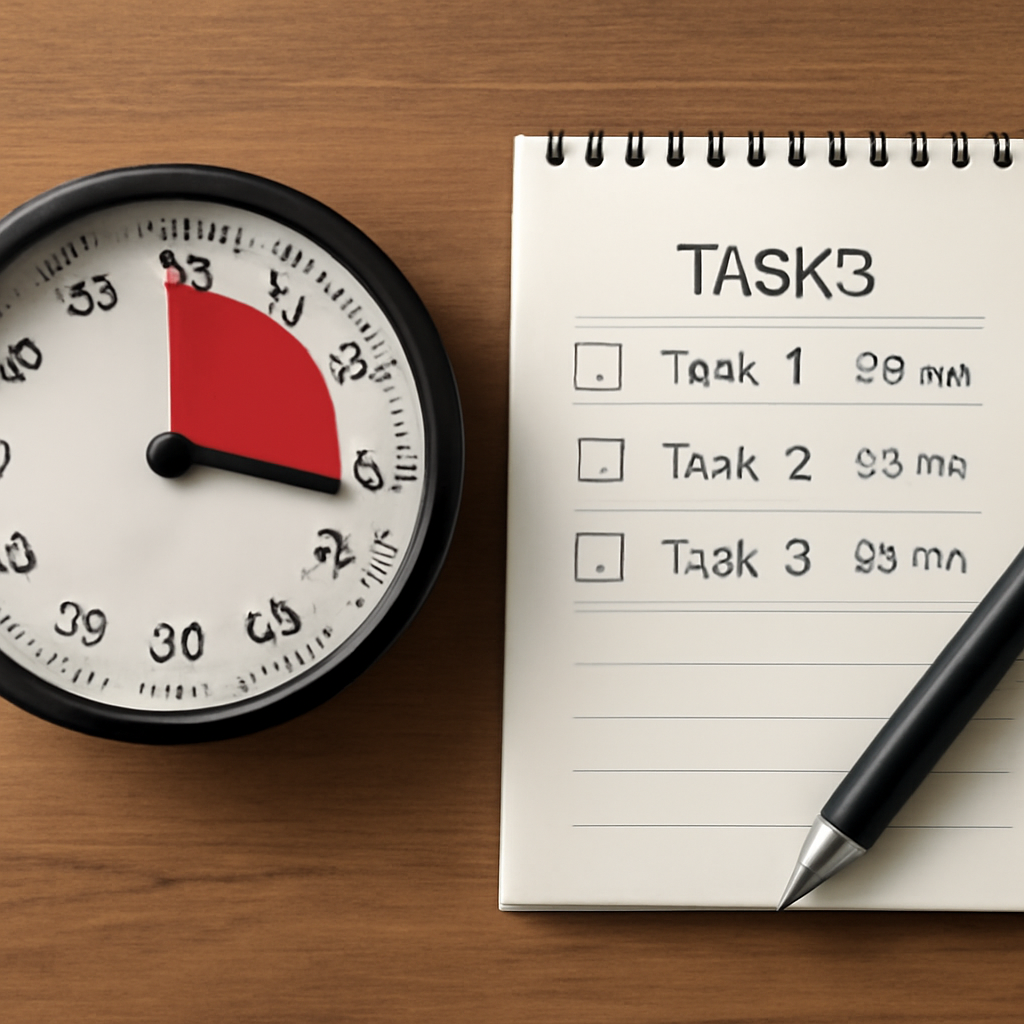
Ready to give it a try? Grab a piece of paper or open a digital planner. Write down a single task, set the timer for 25 minutes, and let the countdown guide you. When it rings, jot a quick note—did you finish? What distracted you? Then reset and keep the momentum. It’s that simple.
Choosing the Right 25‑Minute Timer Online: Features to Consider
When you’re juggling deadlines, the right timer can feel like a secret weapon. Below we break down the must‑have features that keep your 25‑minute bursts sharp, the break signals on point, and the whole experience friction‑free.
-
Instant Start, No Downloads
When you’re scrambling between meetings, a timer that pops up with a click is gold. The best online clock timer works right in your browser, no registration required. Students can hit start, hit snooze, and get back to their notes without hunting for a phone app.
-
Full‑Screen Mode & Wake Lock
In a noisy office, you want one signal that tells you the block’s over. Full‑screen mode keeps the countdown in sight and the Screen Wake Lock API stops your laptop from sleeping. That means you can focus on a 25‑minute sprint instead of scrolling for the clock.
-
Customizable Audio & Visual Alerts
Not every alarm feels the same. The best online clock gives you 27 sounds—from classic chimes to nature tones. Pick a gentle ring for a calm break or a sharp buzzer for a sprint. A visual pop‑up that fades in a bold color also lets you glance at your monitor without hearing a beep.
-
Shareable Links for Group Work
Remote teams love sync. When you share a timer link, everyone can see the same countdown live. This is handy for study groups or cross‑office huddles, and it removes the “who’s on what” confusion. The best free online timers list shows how you can generate a link in seconds.
-
Background Continuity
Switching tabs shouldn’t kill your rhythm. A reliable timer keeps counting even when you’re juggling a spreadsheet and a chat window. The best online clock stays accurate, sending an audio cue when the 25‑minute burst ends.
-
Custom Durations & Break Settings
Not every task is a 25‑minute sprint. Look for a timer that lets you tweak the work period and the break. Some allow you to set 20‑minute sprints with 5‑minute breaks, or even a 45‑minute “deep‑work” cycle followed by a longer pause.
-
Visual Customization
Color matters. A timer that lets you change the font, background, or even overlay an image keeps the tool from feeling like a generic widget. For a freelancer juggling brand assets, a matching color theme can boost mood without distracting from the task.
-
Integration with Your Workflow
Some timers let you plug them into your project tracker or calendar. For remote workers, a timer that posts the duration to a shared spreadsheet can help the team see how many Pomodoro cycles were logged each day.
Want a quick visual walk‑through? Below is a short demo that shows how to set up a 25‑minute timer and customize your alerts.
After you’ve tried it, keep an eye on how the timer feels in your own workflow. Does the sound cue cut through your noise? Does the full‑screen mode keep your focus locked? Tweak the settings until the timer becomes a silent partner rather than a distraction.
Remember, the right timer is more than a stopwatch; it’s a habit‑builder that syncs with your daily rhythm. Try experimenting with colors, sounds, and break lengths until you find the combo that makes your 25‑minute sprints feel like a breeze rather than a chore.
Step‑By‑Step Guide to Setting Up a 25‑Minute Timer Online
Hey there, busy mind. You’re already juggling tasks—let’s trim the chaos with a quick 25‑minute sprint. Think of the timer as a friendly coach that says, “Finish this, then take a breather.”
1️⃣ Pick Your Timer Tool
We’ve scoured the web for the simplest options. Two standouts are the free online 25‑minute timer tool and the handy 25‑minute countdown from TimeCalculatorX. Both run right in your browser, no downloads, no sign‑ups. That means you can set a timer while scrolling through a spreadsheet or sipping coffee.
2️⃣ Open the Page and Start
Once the page loads, you’ll see a large “Start” button in the center. No extra clicks—just one press to kick off a 25‑minute countdown.
Tip: Keep the tab visible.
On desktop, drag the browser window to the corner so you can keep an eye on the timer while you work. On mobile, lock the screen or use split‑screen mode if your OS supports it.
3️⃣ Set Your Work Interval
Both tools default to 25 minutes, but you can tweak that if your task needs a longer focus period. Click the “Set” or “Adjust” link near the timer, enter a number, and hit confirm. A quick 25‑minute burst works best for most people, but if you’re drafting a report that takes longer, try 30 minutes.
4️⃣ Add an Audio Cue
When the timer ends, you’ll hear a short beep or chime. If you’re working in a quiet office, pick a sound that’s noticeable but not jarring. Some timers let you choose from a list; pick the one that feels like a gentle reminder rather than a siren.
5️⃣ Hit “Start” and Dive In
Press the main button. The countdown begins, and you’re officially in a focused sprint. Let the timer’s rhythm set the pace—don’t let your mind wander. If you finish early, hit “Reset” and start again; the timer is forgiving.
6️⃣ When the Bell Rings, Take a 5‑Minute Break
That cue signals the end of a sprint. Step away from your desk, stretch, hydrate, or grab a quick snack. The 5‑minute pause is just enough to recharge without losing momentum.
7️⃣ Repeat Until You’re Done
After the break, hit “Start” again and repeat the cycle. Most productivity frameworks suggest four sprints followed by a longer 15‑minute rest. Feel free to adjust that cadence to fit your day.
8️⃣ Track Your Progress (Optional)
If you want to see how many cycles you completed, jot it down in a notebook or use a simple spreadsheet. Logging the number of 25‑minute blocks helps you spot patterns—like whether you’re burning out after the third sprint.
Different people tweak the timer a bit. Students might pair the 25‑minute burst with a 10‑minute review of flashcards. Remote workers could set a 25‑minute “client‑call prep” and let the bell remind them to follow up. Freelancers often use the 5‑minute pause to jot down next‑step emails. Professionals just need the same rhythm to stay on schedule without feeling rushed.
Setting up a 25‑minute timer online is almost instant, but the real power comes from sticking with it. Treat the timer as a silent teammate: it keeps you on track, gives you scheduled breaks, and turns long tasks into bite‑size wins. Ready to give it a try? Open your browser, click one of the links above, and start your first sprint today.
Integrating the 25-Minute Timer with the Pomodoro Technique
So you’ve already seen how a 25‑minute burst can turn a daunting task into a quick win. What if you could add the science behind the Pomodoro Technique to that simple timer? You can. It’s just a matter of aligning the rhythm with your daily grind.
First, think of the timer as a metronome. The Pomodoro rhythm—25 minutes of focused work followed by a 5‑minute break—matches the brain’s ultradian cycle, a natural 90‑minute wave of alertness. When you hit the bell, you’re nudged right at the moment your concentration is about to dip.
How do you make this feel less like a chore and more like a game? Set a visual cue on the timer’s background—a color that feels like a gentle push. For students, a bright blue can signal “study mode.” For remote teams, a calm teal might mean “coding sprint.” The visual cue anchors the mental cue, so the transition feels seamless.
Let’s break it down into a quick recipe you can copy right now.
Step 1: Pick the Right Timer Tool
You don’t need a fancy app. A clean online timer that lets you set 25‑minute work periods and 5‑minute breaks does the trick. For example, the TimerZen Pomodoro timer gives you a simple, distraction‑free interface that’s perfect for anyone on a tight schedule.
Step 2: Define Your Tasks Before You Start
Open a notebook or a quick note app. List the tasks you’ll tackle in this session. The Pomodoro Technique thrives on having a clear, singular focus. If you’re a freelancer juggling invoices and a blog post, write each as its own line. The timer then becomes a commitment button.
Step 3: Hit “Start” and Dive
Press start and let the countdown begin. Try not to look at the clock every second. The timer’s gentle chime at the end will signal the finish line. If you’re a student, that chime could cue a quick review of flashcards. If you’re a remote worker, it might signal time to ping a teammate for a quick check‑in.
Step 4: Use the Break Wisely
The 5‑minute pause is your buffer. Stretch, splash water, or walk to a window. The goal is to reset the brain. Avoid checking email—those habits can turn the break into a mini‑marathon. If you’re a busy professional, a quick “set your coffee cup” ritual can be surprisingly grounding.
Step 5: Repeat and Review
After the break, start another 25‑minute cycle. After four cycles, take a longer 15‑minute pause. At the end of the day, glance at what you ticked off. Did the Pomodoro rhythm help you avoid that “I’ll finish it later” trap?
Here’s a quick checklist to keep the flow steady:
- Set timer for 25 minutes.
- Choose a single task.
- Start and work until the bell.
- Take a 5‑minute break—no screens.
- Repeat.
- After four rounds, pause 15 minutes.
- Review completed tasks.
What if your task is creative and you find 25 minutes too short? That’s fine. The Pomodoro Technique is flexible. Extend the work interval to 30 minutes, keep the 5‑minute break, or try a 45‑minute focus session with a longer break. The key is that the timer signals a boundary, not a hard stop.
And remember, the timer is just a tool. The real magic happens when you pair it with intentional breaks and a clear task list. If you’re a freelancer, use the 5‑minute pause to draft a quick next‑step email. If you’re a student, jot down one insight after each sprint. These tiny habits compound into big wins.
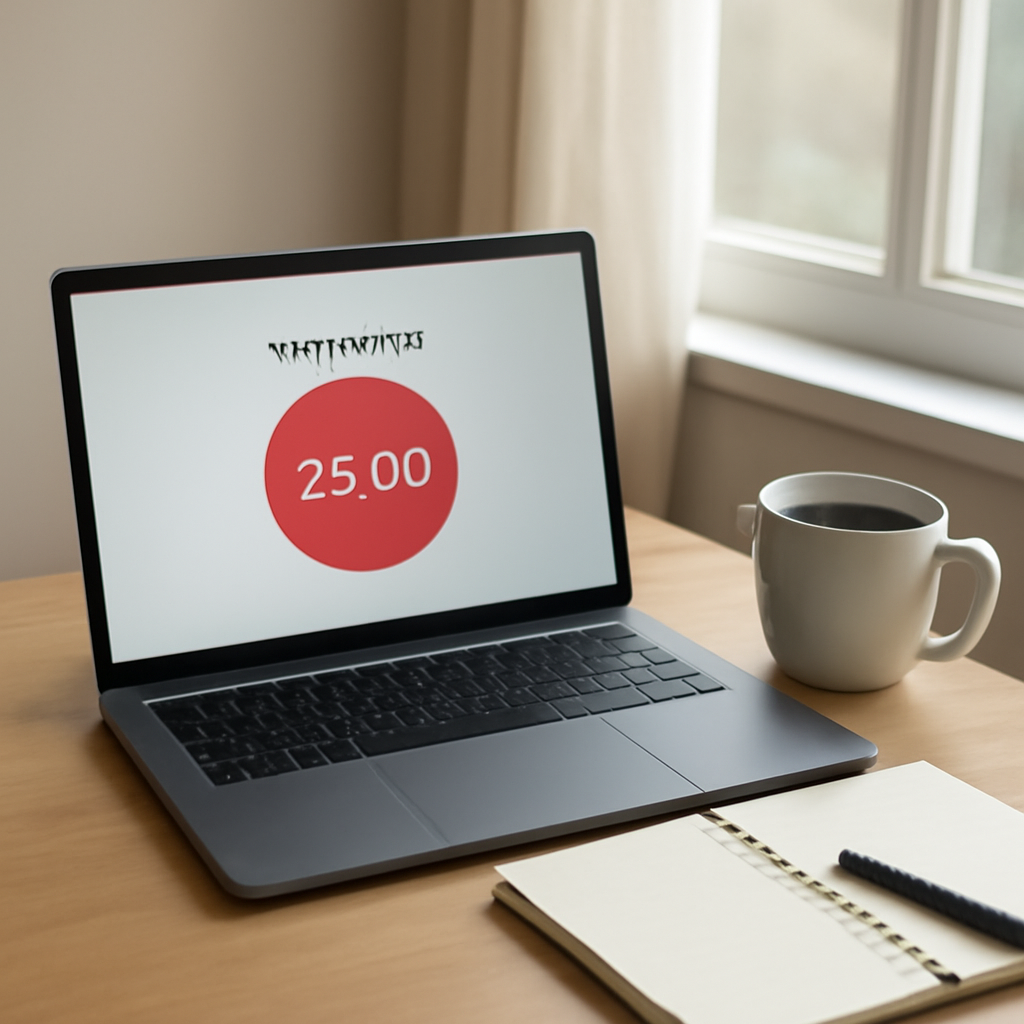
So, what’s your next move? Grab a timer, write down a task, and hit start. Let the rhythm of the Pomodoro Technique guide you to that sweet spot of flow, and watch your productivity climb without burning out.
Advanced Customization & Tracking Features
Ever wonder how the right tweaks can turn a simple 25‑minute timer into a powerhouse? Let’s unpack the features that let you shape the rhythm to fit your brain and your schedule.
1. Tailor Work & Break Lengths
Not everyone’s golden 25 minutes feel the same. Some tasks need 30 or 45 minutes, while quick admin chores fit into a 15‑minute burst. With a flexible timer you can set any interval that feels natural. The trick? Test the default 25‑minute cycle for a week, then adjust by a few minutes based on how focused you feel.
If you’re looking for a quick way to change your timer’s background or add a custom clock face, check out traditionalclock.com for a range of designs.
2. Sound and Visual Cues That Match Your Mood
One size doesn’t fit all when it comes to alerts. A subtle chime is great for quiet study rooms, but a bright pop‑up works better on a noisy office desk. Pick a tone that signals a finish without startling you, and pair it with a color shift that reminds you it’s break time.
3. Color‑Coding Your Workspace
Color isn’t just decoration—it’s a cue. Assign a hue to each type of work: blue for deep research, pink for creative brainstorming, green for administrative tasks. Seeing the same shade pop up each sprint cues your brain to transition smoothly.
4. Built‑in Time Logging
Ever wonder how many hours you actually spend on a project? A timer that logs every session gives you a clear picture. You can review your logs at the end of the week to spot trends—maybe you’re most productive in the morning, or perhaps you’re burning out after the third sprint.
5. Analytics Dashboard
Logs are great, but dashboards turn numbers into insights. Look for charts that show session completion rates, average focus time, and break efficiency. These visual metrics help you fine‑tune both your task list and your timer settings.
6. Exportable Reports
Need to share progress with a manager or a teammate? Exporting your timer data into CSV or PDF lets you showcase exactly how many sprints you’ve completed. It’s a handy way to prove that the Pomodoro rhythm is working, without pulling out a spreadsheet manually.
7. Shareable Session Links
Working with a partner can get tricky when one person’s timer stops while the other keeps going. A shareable link that shows a live countdown keeps everyone on the same page. It’s perfect for pair‑programming or group study sessions where you want to stay synchronized.
8. Mobile Sync & Offline Mode
Life doesn’t always happen on a desktop. A mobile‑friendly timer that syncs with your desktop keeps the same settings across devices. And if you’re on a plane or in a Wi‑Fi‑free zone, the offline mode ensures your sprints never miss a beat.
9. Smart Break Reminders
Sometimes the timer rings, but you’re still stuck in a task. A smart reminder can prompt you to actually step away—stretch, hydrate, or just look away from the screen for a minute. This subtle nudge keeps your brain refreshed and ready for the next sprint.
So, what should you tweak first? Start by experimenting with the duration of your work bursts. If you find yourself running out of steam, try extending one sprint by five minutes. Next, pick a sound that feels right for you and set a matching break color. Finally, make a habit of reviewing your logs at the end of each week—you’ll see patterns that can guide you toward even better focus.
In our experience, users who personalize these settings report higher completion rates and lower distraction spikes. Give your 25‑minute timer online the tools it needs to become your most trusted ally.
Free vs Paid 25‑Minute Timer Tools Comparison
When you’re juggling deadlines, picking the right timer feels like choosing the right pen for a big project. A free timer is tempting because it’s zero cost, but a paid one can offer the extra polish that keeps you humming.
What You Get for Free
Free timers let you start a 25‑minute burst with a single click. They usually run directly in the browser, no registration required. The downside? You’re stuck with the default sound, a simple visual, and no backup if the server hiccups.
Why Upgrade to Paid
Paid timers bring customization, analytics, and mobile sync that free versions often miss. If you’re a remote worker who needs to sync across devices, or a freelancer who tracks hours for invoices, those extras can shave hours off administrative work.
Key Differences at a Glance
| Feature | Free Tools | Paid Tools |
|---|---|---|
| Custom Sounds & Visuals | Limited preset tones; basic color change only | Wide selection of sounds, full color palettes, background images |
| Analytics & Logging | No session history; rely on manual notes | Automatic session logs, visual dashboards, export options |
| Mobile Sync & Offline Mode | None; must stay on the same device | Real‑time sync across phone and computer, work offline |
Real‑World Example: Student vs Remote Worker
A college student in the library uses a free timer to keep her study sessions tight. She’s fine with the basic chime, but when the library gets noisy, the sound doesn’t cut through. Switching to a paid option gives her a louder, clearer alert and a dark‑mode theme that reduces eye strain.
On the other side, a remote designer works from a café that’s always bustling. The free timer’s low‑volume beep gets drowned out, and he loses track of time. With a paid timer, he can set a vibration on his phone and a bold pop‑up, so he never misses a break and keeps his focus steady.
Tips for Choosing the Right Tool
Start by asking yourself which feature is non‑negotiable. If you only need a basic countdown, a free tool will do. But if you want to track progress, tweak sounds, or sync across devices, a paid plan is worth the investment.
Try each tool for a week. Notice whether the timer feels intrusive or supportive. Does the visual cue help you transition to a break without scrolling for the clock?
Look at pricing tiers. Many paid services offer a free trial, so you can test the advanced features before committing. Don’t feel pressured to upgrade if the free version already meets your needs.
Remember that a tool’s value is how well it fits your workflow, not how many bells it rings. A paid timer that lets you customize colors for different projects can become a subtle reminder that you’re in the right mindset.
Bottom Line
Free timers are great for quick, casual use and for people just getting started with the Pomodoro rhythm. Paid timers shine when you need deeper control, analytics, and cross‑device continuity. Evaluate the features that matter most to your workflow, test both options, and then decide which one keeps your 25‑minute sprints feeling smooth and purposeful.
FAQ
Got questions? We’ve compiled the most common ones.
Q: What is a 25‑minute timer online and why is it helpful?
A: A 25‑minute timer online is a digital stopwatch that counts down a full Pomodoro—25 minutes of focused work followed by a short break. The magic comes from giving you a clear boundary: you know exactly when to stop pushing and when to reset. This simple rhythm trains your brain to maintain concentration, reduces the urge to multitask, and turns long tasks into bite‑sized wins.
Q: How do I choose the right timer for my study or work routine?
A: Start by mapping the size of the task you want to tackle. If you’re a student cramming for a quiz, a crisp 25‑minute burst with a gentle chime works best. If you’re a remote freelancer juggling client calls, you might want a timer that lets you set a 30‑minute stretch and a 10‑minute recharge. Pick a tool that offers at least basic sound and visual cues—no need for fancy dashboards if you’re just getting started.
Q: Can I customize the timer sound or visual cue?
A: Absolutely. Most online timers let you swap out the default beep for a bell, chime, or even a soft music snippet. For the visual side, you can usually change the countdown’s background color, font, or add a pop‑up that flashes when the 25 minutes are up. A subtle color shift keeps you aware without pulling your eyes away from the screen.
Q: Is it safe to use the timer on my phone while sleeping?
A: The short answer is no—most timers are designed for short bursts of alertness, not overnight use. If you need a reminder to wake up or track study sessions, set the timer before you head to bed and use a gentle alarm instead. Let your phone’s native alarm handle bedtime routines, and keep the Pomodoro timer in your daily toolkit.
Q: How does the timer help with remote team collaboration?
A: When a team shares a live timer link, everyone’s on the same page—literally. The countdown becomes a shared visual cue that signals when a meeting segment ends, when a brainstorming burst finishes, or when a review starts. It eliminates the “who’s on what” confusion that comes from juggling chat, docs, and video calls, keeping the rhythm tight and the focus high.
Q: Can I integrate the timer with my calendar or task list?
A: Yes, many online timers let you export or log the time you spent on each session, which you can then paste into a Google Calendar event or a project tracker like Trello. Some tools even push a reminder to your phone after a set interval, so you can automatically schedule the next block without hunting for your calendar again.
Q: What if I need longer or shorter intervals?
A: Most timers let you tweak the work period from 15 to 45 minutes, and the break from 5 to 15 minutes. If you’re a designer who needs a 45‑minute deep‑work sprint, set the timer to that length and treat the 15‑minute pause as a mini‑vacation. For quick admin tasks, a 10‑minute burst keeps you moving without burning out.
Conclusion
Let’s wrap this up with a quick recap. The 25‑minute timer online is more than a countdown—it’s a steady pulse that keeps your focus from slipping into the abyss of endless scrolling.
What matters is the rhythm: 25 minutes of laser‑focus followed by a 5‑minute breath‑break. Repeat that cadence and you’ll find tasks shrink, deadlines feel lighter, and the urge to multitask evaporates.
In practice, just fire up a timer, jot the single goal, and let the chime cue your pause. If you’re a student, a freelancer, a remote worker, or a busy pro, the same pattern works—because it’s the same brain chemistry, not the job title.
So, what’s your next move? Grab a free online timer, set the first 25‑minute sprint, and treat the break as a mini‑reset. Keep a tiny log, review it weekly, and tweak as you go. That’s how you turn a simple click into sustained momentum.
Remember, the timer isn’t a magic wand—it’s a gentle reminder that you control the clock, not the other way around. When the bell rings, pause deliberately, stretch, or simply look away for a breath. That small act keeps your mind from over‑staying in one mode.
Finally, celebrate each sprint you finish. A quick shout to yourself—‘Nice work!’—reinforces the habit faster than any external reward. The more you reward progress, the more the timer feels like a teammate, not a taskmaster.




