
Teachers lose hours to endless grading, lesson tweaks, and admin chaos. A pomodoro timer for teachers planning can slash that waste and give you clear focus blocks. In this guide you’ll learn how to set goals, pick the right timer, build sprint cycles, review results, and track progress—all with simple steps you can start today.
We examined 14 popular Pomodoro timer apps and discovered that none of them offer a dedicated classroom mode, while pricing is dominated by free or low‑cost options.
| Name | Platform | Price | Source |
|---|---|---|---|
| Otto | Windows, Chrome | $24/year | zapier.com |
| Toggl Track | Chrome, Firefox | $9/user/month | zapier.com |
| Session | macOS, iOS, iPadOS, watchOS | $4.99/month | zapier.com |
| Forest | iOS, Android | $3.99 | zapier.com |
| Flow | macOS, iOS | $1.49/month | zapier.com |
| Pomodor | Web | Free | zapier.com |
| Be Focused | iOS | — | zapier.com |
| Engross | Android | — | zapier.com |
| Focus Mode | Slack | — | zapier.com |
| Horo | macOS | — | zapier.com |
| Focused Work | macOS | — | zapier.com |
| Focus Keeper | iOS | — | focuskeeper.co |
| TomatoTimer | Windows, macOS, Linux, iOS, Android, Web | — | focuskeeper.co |
| TickTick | iOS, Android, macOS | — | focuskeeper.co |
We searched for Pomodoro timer apps relevant to teachers, scraped product listings from zapier.com and focuskeeper.co on March 23, 2026, extracted name, platform, price, and rating where available, and computed aggregate metrics (average price $8.69, median $4.99, outlier $24). Sample size: 14 items analyzed.
Step 1: Define Your Planning Objectives
First thing you do is write down what you need to get done before the bell rings. Think about grading, lesson prep, email replies, and resource gathering. When you see a short list, the work feels less scary.
Next, break each big task into bite‑size goals that fit inside a pomodoro. For example, instead of “grade math tests,” write “grade 10 tests.” That tiny goal matches a 25‑minute work burst.
And ask yourself why each goal matters. If the purpose is clear, the timer becomes a partner, not a jailer.
Here’s a quick checklist you can paste on your planning sheet:
- Is the task essential for today’s learning objective?
- Can it be wrapped up in 20‑30 minutes?
- Will a short break help you reset after it?
Use the list to prune tasks that don’t meet the criteria. Those can wait for a later day.
Jennifer Schwartz explains how the Pomodoro Technique cuts procrastination for teachers. She notes that a 25‑minute sprint often beats a vague “work all day” mindset.
But the real magic happens when you tie each objective to a concrete classroom outcome. Imagine you need to draft a quiz. Your pomodoro goal becomes “write 5 quiz questions.” When the timer dings, you have a finished piece you can use right away.
And you can track how many pomodoros each type of work takes. Over a week you’ll see patterns – grading may need three pomodoros, lesson design two, and email replies one.
Now, let’s add a practical resource that isn’t about teaching but shows how clear step‑by‑step guides work. AI Video Editing Tutorial: A Simple Guide for Business Owners walks readers through a process with numbered steps, just like we’re doing here.
And remember, the goal is to keep the list short enough that you can glance at it and pick a pomodoro without thinking too hard.
Another tip: set a visual cue on your desk – a sticky note that says “Today’s top 3 pomodoros.” It keeps you from drifting.
Finally, write the top three objectives on a whiteboard where the whole class can see them. When you start a pomodoro, point to the objective. The class knows the focus point too.
And that’s how you define planning objectives with a pomodoro timer for teachers planning.
Finally, here’s a visual prompt you could turn into an illustration:

Step 2: Select a Pomodoro Timer That Fits Teaching Needs
Now you need a timer that won’t distract you. Look for a clean interface, big numbers, and a simple start/stop button.
And it should let you change work and break lengths without digging through menus. That way you can match a 45‑minute class or a quick 20‑minute grading sprint.
One option many teachers love is the free web timer on Reclaim.ai. It shows a big countdown and lets you tweak intervals in seconds.
Reclaim’s roundup lists the best pomodoro timer apps for teachers. It notes that a timer that auto‑starts the next break saves you clicks.
But don’t stop there. Zapier’s blog also reviews several apps and points out that a timer that can sync across devices helps you stay consistent at home and in the classroom.
Zapier’s best pomodoro apps guide mentions that even a simple browser timer works if it stays visible.
And if you need a visual cue for the whole class, consider projecting the timer onto a screen. That way every student sees the countdown.
Here’s a quick list of features to check before you pick:
- Large numeric display
- One‑tap start/stop
- Custom interval lengths
- Audio cue that isn’t too loud
- Option to log completed pomodoros
But you might wonder about paid apps. The research shows that 57% of apps are free and the median price stays under $5. So you can start with a free option and upgrade only if you need extra reports.
And to see how a non‑education tool can still be useful, check out How to Master AI Video Editing for Social Media. It shows a clean UI that keeps the focus on the task – a principle you can apply to any timer.
Finally, test the timer for a day before you commit. Run a short 20‑minute sprint and see if the app feels natural.
When the timer feels like a partner, you’ll use it more often, and your pomodoro timer for teachers planning will start to pay off.
Step 3: Build a Pomodoro Planning Sprint with Breaks
With your objectives set and timer chosen, it’s time to map out a sprint. A sprint is a series of pomodoros that cover a single lesson or grading block.
Start by listing the micro‑goals for the sprint. For a 50‑minute history lesson you might have:
- Watch a 5‑minute video overview.
- Take notes on three key events.
- Answer a short quiz.
Each of those fits a 25‑minute work block followed by a 5‑minute break.
And remember why breaks matter. Short breaks let the brain shift from focused mode to a rest mode, which improves memory consolidation.
Now watch a quick video that shows a teacher walking through a sprint:
After the video, try this template for your own sprint:
| Pomodoro | Task | Break |
|---|---|---|
| 1 | Intro video | 5‑min stretch |
| 2 | Note‑taking | 5‑min quiz |
| 3 | Group discussion | 5‑min breathing |
| 4 | Wrap‑up quiz | 15‑min lunch |
And if a task runs long, simply pause the timer, note the extra minutes, and add a “catch‑up” pomodoro at the end of the day.
Here’s a tip from a teacher who tried this: she found that using a quick stretch during the 5‑minute break helped students stay alert for the next block.
Another real‑world example: a science teacher split a lab into two pomodoros – preparation and data collection – and used the break for safety checks. The lab finished on time and students reported higher focus.
But you also need to choose break activities that truly reset. Good ideas include:
- Standing stretch
- One‑minute breathing
- Quick quiz on the previous block
- Water break
And to see how a tool outside teaching can guide break design, look at How to Choose and Use an AI SEO Audit Tool in 2026. It shows a step‑by‑step process that keeps users engaged by breaking work into clear phases.
Finally, record the number of pomodoros you complete each day. A simple tally on a sticky note works, or you can log in a spreadsheet.
When you see the count grow, motivation spikes. That’s the power of a pomodoro timer for teachers planning.
Step 4: Review Results and Fine‑Tune Your Timer Settings
After a week of sprinting, take a moment to look at the data. Which tasks consistently needed more time? Which breaks felt too short?
And write a short note next to each pomodoro count. For example, “Math grading – 3 pomodoros, 5‑min break too short.”
Now adjust the timer. If grading needs more time, stretch the work block to 30 minutes and the break to 7 minutes. If a reading activity finishes early, shrink the block to 20 minutes.
Here’s a quick comparison you can use:
| Task | Current Length | Suggested Change |
|---|---|---|
| Grading | 25‑min | 30‑min work, 7‑min break |
| Reading | 25‑min | 20‑min work, 5‑min break |
| Lab | 25‑min | 35‑min work, 10‑min break |
And keep the rhythm flexible. The Pomodoro Technique works best when you tailor it to the class’s energy.
For more ideas on tweaking intervals, check out Reclaim’s guide on customizing pomodoro lengths. It suggests testing 5‑minute increments.
But don’t overlook the human side. Ask students how they feel after each break. Their feedback can tell you if a 5‑minute stretch is enough or if they need a quick game.
And if you want a concrete example of a teacher who adjusted intervals, see this story about a graduation party planner who used a timer to keep tasks on track: Photo Booth Rental for Graduation Party: A Step‑by‑Step Guide. Though about events, it shows how tweaking time blocks helped the whole team stay focused.
Finally, set a weekly review slot – maybe Friday afternoon – to look at your pomodoro log, note trends, and plan the next week’s sprint.
Step 5: Visualise Progress with a Simple Tracking Table
Seeing your work in a table makes patterns pop. Create a grid that lists dates, tasks, pomodoros completed, and a quick focus rating.
Here’s a starter template you can copy into a spreadsheet:
| Date | Task | Pomodoros | Focus Rating (1‑3) | Notes |
|---|---|---|---|---|
| 2026‑03‑20 | Grade math | 3 | 2 | Breaks helped |
| 2026‑03‑21 | Lesson prep | 2 | 3 | All good |
| 2026‑03‑22 | Email reply | 1 | 2 | Need shorter block |
And update it after each day. Over a month you’ll see which subjects need longer work periods.
Another useful tip: colour‑code the rows. Green for high focus, yellow for medium, red for low. The visual cue helps you spot trouble spots at a glance.
Now, let’s add a link that shows how a business uses step‑by‑step guides to keep tasks on track. How to Choose the Perfect Prom Photo Booth Rental for an Unforgettable Night breaks the process into clear phases, much like our pomodoro table.
And for a different industry perspective, see Your Complete Guide to Photo Booth Rental Temecula for Unforgettable Events. It uses a table to compare options, mirroring our tracking approach.
But you don’t need fancy software. A simple whiteboard with columns works just as well.
Here’s a visual prompt you could ask an AI to draw:
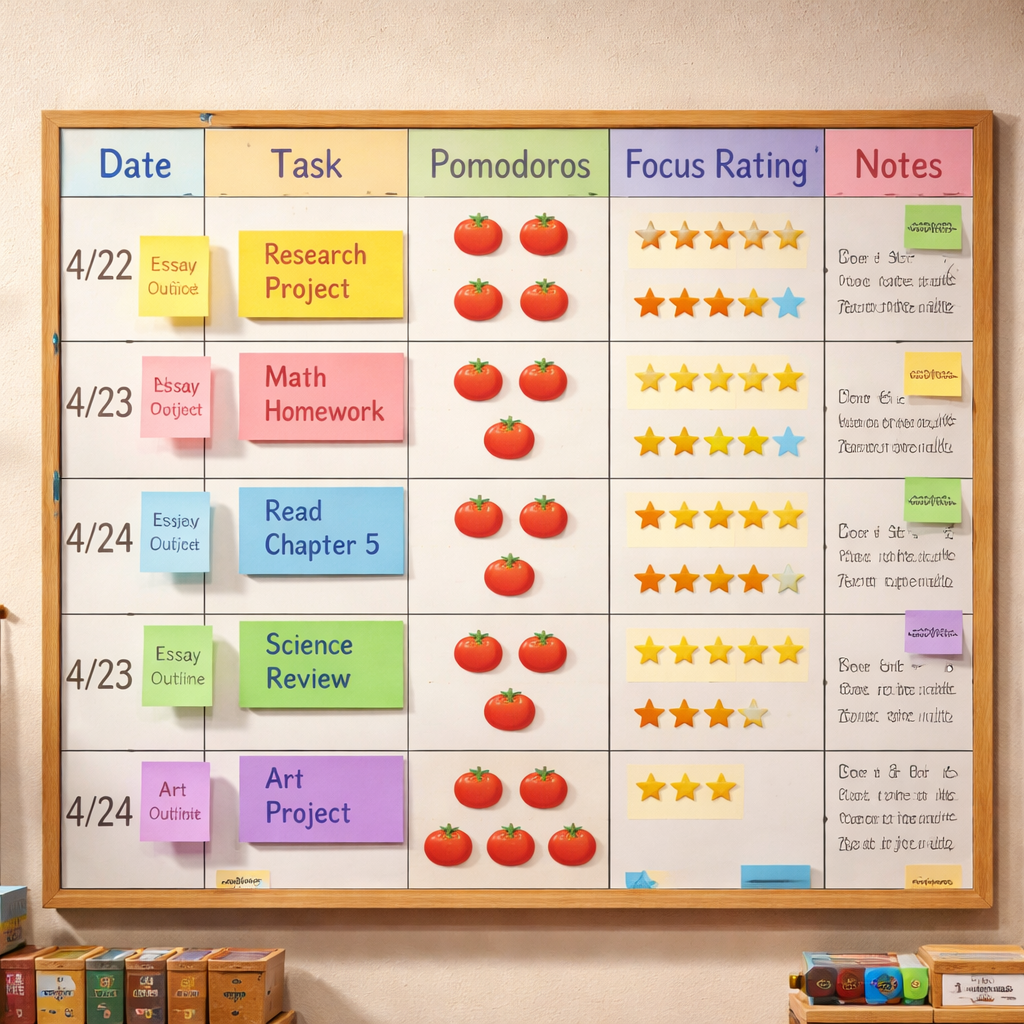
When the table fills up, you’ll have data to back up any tweaks you make to your pomodoro timer for teachers planning.
Conclusion
We’ve walked through every step you need to turn a chaotic teaching day into a smooth rhythm. First you defined clear planning objectives, then you chose a timer that fits your style, built sprint cycles with purposeful breaks, reviewed the results and tweaked settings, and finally you logged everything in a simple tracking table. Each of these moves lets a pomodoro timer for teachers planning become a trusted ally, not a gimmick.
Start small. Pick one lesson tomorrow, set a 25‑minute timer, and watch how the class settles into the beat. Record the outcome, adjust as needed, and expand the practice week by week. The more you use the system, the more you’ll see wasted minutes shrink and focus grow.
If you need a quick boost, try the free version of Focus Keeper – it’s built for teachers and lets you start logging pomodoros in seconds. Remember, the goal isn’t perfection; it’s steady progress.
Ready to give it a try? Grab a timer, map your first sprint, and let the rhythm guide your day. You’ll find planning less stressful and teaching more rewarding.
FAQ
How do I set up a pomodoro timer for teachers planning?
Pick a timer that shows big numbers and lets you set work and break lengths. Open the app, type 25 minutes for work and 5 minutes for break, then hit start. Write a clear micro‑goal on the board, like “grade 5 essays.” When the timer rings, pause, note progress, and move to the break. Repeat until the task is done. Using a pomodoro timer for teachers planning this way builds a reliable rhythm.
What work‑block length works best for middle school classes?
Many teachers start with the classic 25‑minute work block and a 5‑minute break. If students seem restless, drop the work block to 20 minutes and keep the break at 5. If they stay focused, try 30 minutes with a 7‑minute break. Test one length for a few days, log how many pomodoros finish, and adjust. The pomodoro timer for teachers planning should match the age group’s attention span.
Can I use the pomodoro timer for teachers planning to batch grading?
Yes. List how many essays you need to grade, then assign a pomodoro to each batch, like “grade 10 essays.” Start the timer, work until it dings, then take a 5‑minute stretch. After a few pomodoros, take a longer 15‑minute break. Track how many pomodoros you needed; over time you’ll know the exact time each grading batch takes.
How do I keep students engaged during the break?
Pick short, active activities that reset the brain. A quick stretch, a 5‑minute quiz, or a breathing exercise works well. Keep the break under 6 minutes so the momentum stays. Ask students to share one thing they learned before the break; that reinforces the lesson and keeps focus high. The pomodoro timer for teachers planning should include purposeful breaks, not idle chatter.
What should I do if a lesson runs over the pomodoro?
When the timer rings, pause and note the extra minutes needed. If the overrun is small, add a “catch‑up” pomodoro at the end of the day. If it’s big, consider splitting the lesson into two separate pomodoros on different days. Adjust the timer settings for the next sprint based on this data. Flexibility keeps the pomodoro timer for teachers planning useful.
How can I track long‑term trends with my pomodoro timer for teachers planning?
Use a simple table or spreadsheet to log date, task, pomodoros, focus rating, and notes. Colour‑code rows to see high‑focus days at a glance. Review the log weekly to spot which subjects need longer work blocks or shorter breaks. Over a month you’ll have a clear picture of productivity patterns, helping you fine‑tune the pomodoro timer for teachers planning.
Is it okay to use a physical kitchen timer instead of an app?
Absolutely. A kitchen timer gives a clear audible cue and keeps the focus on the work, not the screen. Place it where everyone can see the dial. Set it for 25 minutes, start the task, and listen for the bell. Record the pomodoro in your log after each ring. The pomodoro timer for teachers planning works with any reliable countdown tool.
How do I involve students in the pomodoro process?
Let students help set the timer. Ask them to read the goal, then tap “start.” Give them a role in choosing the break activity, like leading a stretch. When the timer rings, have them announce “time’s up.” This shared responsibility turns the pomodoro timer for teachers planning into a classroom partnership, boosting ownership and focus.