
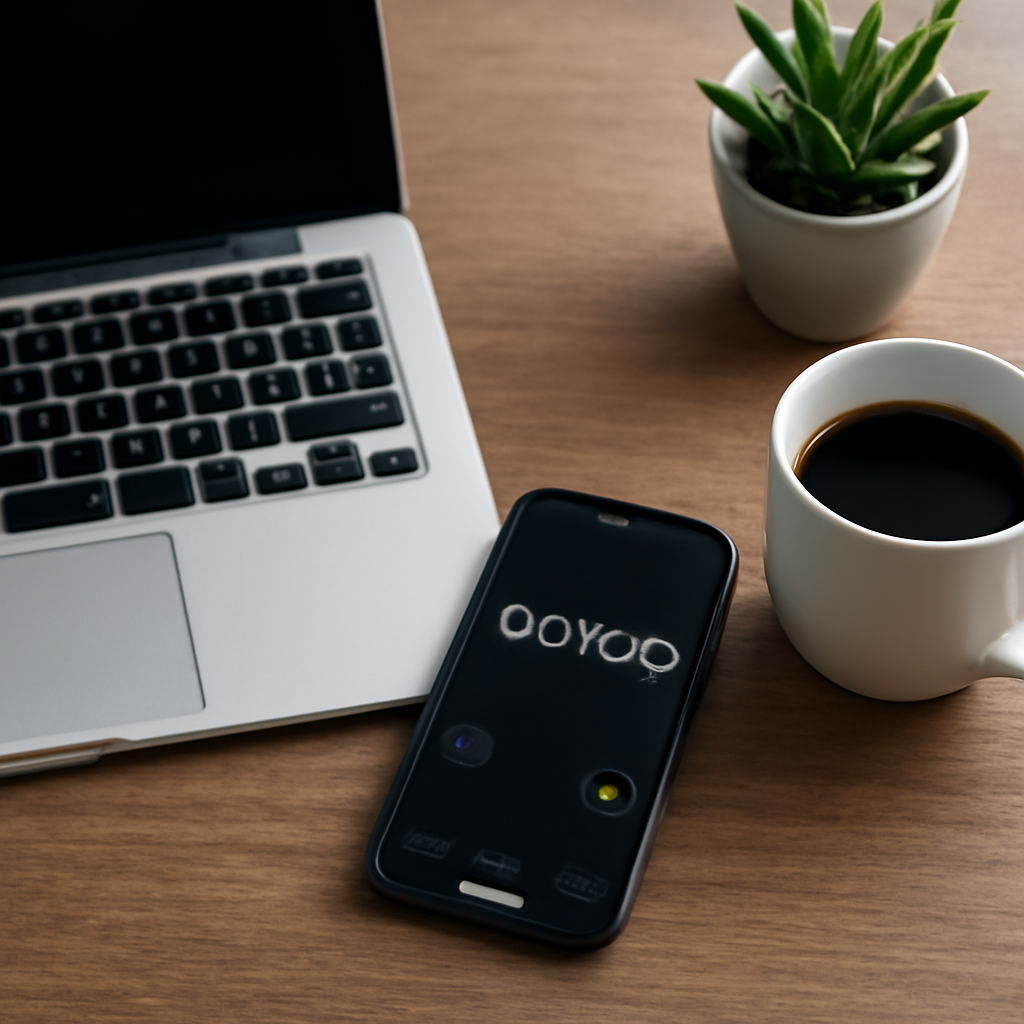
Ever felt your focus slip just as the clock hits the 25‑minute mark? It’s the classic “I’m halfway through and suddenly everything feels fuzzy” moment that’s the thief of productivity for students, freelancers, and busy professionals alike.
What if that fuzzy feeling could be turned into a predictable rhythm? A 25‑minute timer with a gentle sound cue—whether it’s a ticking clock, a low‑tempo chime, or a soft beat—acts like a personal coach that keeps you on track without the constant mental push. The science behind the Pomodoro Technique tells us that the brain thrives on short bursts of intense focus followed by brief rest, and sound is the signal that tells your mind it’s time to stay or reset.
Here’s a quick play‑book you can start right now: 1️⃣ Pick a tone that feels neutral, not distracting. A soft bell works for most people; a rhythmic drum is great if you like a bit of energy. 2️⃣ Set the timer for 25 minutes and let the sound play until the countdown ends. 3️⃣ When the tone rings, pause, stretch, or do a 30‑second breathing exercise—this primes your brain for the next cycle.
Take Emma, a university sophomore. She used to stare at a blank screen for an hour and then crash. By adding a timer with a subtle chime, she cut her study sessions in half while still covering the same material. “The sound cue was like a gentle nudge,” she says, “and I never missed a session again.”
And let’s not forget remote teams. When a manager in New York sets a shared timer for a group call, everyone’s ears are tuned to the same rhythm. That shared sound cue reduces the urge to multitask and keeps the discussion tight and on point.
If you’re curious about mixing a timer with music instead of a simple alarm, you might want to dive deeper. How to Use a 25 Minute Timer With Music for Productivity offers a step‑by‑step guide that keeps the 25‑minute window intact while letting your favorite playlist boost the vibe.
Now that the math is clear, pair the timer with a quick wellbeing break. A 2‑minute breathing routine from XLR8well can reset your mental bandwidth before the next 25 minutes roll. It’s the kind of pairing that turns a simple work block into a full‑fledged productivity ritual.
So, are you ready to reclaim those 25 minutes? Grab a timer, pick a sound, and let the rhythm do the heavy lifting.
TL;DR
Use a 25‑minute timer with a gentle sound cue to turn focus lapses into rhythmic bursts that keep your brain in the zone. Pair it with a breath break, and you’ll notice your study or work sessions stay sharp, consistent, and longer—no more fuzzy mid‑task moments that drag you down.
Choosing the Right Timer
First thing’s first: you’re not looking for a fancy stopwatch—your timer’s job is simple, but crucial. It should keep you in the zone with a steady, gentle sound that signals the end of a 25‑minute burst without shouting at you.
Think about the sound itself. A low‑pitched chime, a soft bell, or even a subtle electronic hum can do the trick. The key is consistency: when the tone rings, your brain knows the cycle is over and that it’s time to reset or recharge.
Here’s a quick sanity check before you pick a timer: Does it let you customize the cue? Can you choose a tone that feels calm rather than intrusive? Most productivity apps let you set a tone, but if you’re using a phone’s built‑in alarm, experiment with the vibration and volume settings so it doesn’t feel like a buzz in a crowded office.
Now, let’s talk tech. In our experience, timers that sync with a cloud account are a game‑changer. If you’re a student juggling deadlines or a freelancer juggling multiple gigs, you’ll appreciate having your settings follow you across devices. And if you work remotely, a shared timer can keep a team on the same beat.
For those who love a little extra, consider pairing the timer with a breathing routine. A quick 30‑second inhale–exhale pattern before the next 25 minutes can sharpen focus. Check out the breathing guide at XLR8well; their short routines are perfect for a quick reset.
But how do you know if your timer’s sound is ‘just right’? Try a test run: set the timer, start a task you would normally find repetitive, and pay attention to how your mind reacts when the tone rings. If you feel a surge of energy or a clear sense of completion, you’ve found your sweet spot.
Here’s a quick checklist you can print or keep in your note app:
- Timer length: 25 minutes of focused work
- Sound cue: subtle, non‑distracting tone
- Customizable settings: volume, tone, vibration
- Sync options: cloud or shared across devices
- Optional add‑on: 30‑second breathing exercise
Now, if you’re looking for a visual way to keep track of your intervals—especially if you’re working with ADHD—check out a visual agenda guide at this ADHD-friendly visual agenda. It helps turn abstract timing into something you can see and tweak in real time.
And for a quick recap of your task flow, you might want to summarize the main points of your session. Use an app that auto‑generates a concise summary of what you just did—like YTSummarizer. It pulls key takeaways and saves you the hassle of note‑taking.
Before we wrap up, let’s check out a short visual guide that shows how to set up a 25‑minute timer with a sound cue on your phone.
Take a moment to watch the demo, then try the steps yourself. Remember, the goal isn’t to be perfect; it is to create a rhythm that keeps you moving forward.
So, what’s the next move? Pick your sound, test it out, and let that 25‑minute rhythm become your new study or work habit. You’ll notice that the fuzziness fades, and your productivity feels more steady than ever.
Setting Up the Timer for Different Tasks
Before you hit start, take a quick breath and ask yourself: what’s the purpose of this timer? If you’re about to dive into a deep‑work sprint, the default 25‑minute window is usually spot on. If you’re planning a short meeting prep or a 10‑minute creative brainstorm, you’ll want to tweak the length to suit the flow.
Step 1 – Pick the right task. Think of the timer as a personal coach that needs a clear goal. For students, a 25‑minute study burst keeps the brain primed. Remote workers can use the same window for focused email blocks, while freelancers often adjust the interval to match a client call or a design review.
Step 2 – Set the interval. The 25‑minute default is a solid baseline, but you can stretch it to 30 minutes for deeper focus or shrink it to 20 minutes if your brain prefers quicker cycles. Remember to keep the break at 5 minutes – that short pause resets your attention and keeps fatigue at bay.
Step 3 – Choose a sound that feels natural. A subtle chime is perfect for studying; a low‑tempo drum gives a freelancer a gentle adrenaline lift. If you’re in a shared space, keep the volume low or use headphones so the cue doesn’t jar your teammates.
Step 4 – Align with your tools. The 25‑minute‑timer.app Chrome extension sits on your task bar, so you can start a session without leaving your workflow. If you already use a project board or calendar, look for a timer that can launch from a single click or sync with your to‑do list.
Step 5 – Fine‑tune the settings. Play the timer for a full cycle to hear the sound and feel the rhythm. If the beep feels too abrupt, adjust the volume or switch to a softer tone. If you notice your mind drifting, try a slightly longer interval.
Do you notice a pattern when you tweak these variables? That pattern is your personal productivity signature.
Step 6 – Test run. Before you commit to a full workday, run a test session. Start the timer, focus on the task, and note how the sound cue helps you transition. If it feels natural, you’re good to go.
Step 7 – Build a routine. The secret sauce is consistency. Once you’ve fine‑tuned the timer for a particular task, keep the same settings. That repetition trains your brain to expect the cue, making it easier to jump back in after a break.
Step 8 – Create a custom profile. Many timers let you save different profiles for different types of work. For example, create a “Study” profile with a soft chime and a “Design Sprint” profile with a subtle drum. Switching between profiles saves time and keeps the rhythm intact.
Step 9 – Automate the start. If you’re a freelancer juggling multiple projects, consider linking your timer to a task in your project management tool. That way, opening a task automatically starts the timer, so you’re never looking at two screens.
Step 10 – Review and iterate. At the end of the week, look back at how many cycles you completed and how your focus held up. If you find a lull, tweak the interval or sound again. Productivity is a moving target.
Curious about how other professionals set up timers? A workout coach might use a similar setup for high‑intensity interval training. For instance, the HIIT timer guide shows how to customize intervals and sounds for training, a concept that translates well to work sessions.
By setting up the timer this way, you give yourself a clear signal to start, stay, and finish each task. That clarity frees mental bandwidth, letting you focus on the work itself instead of wondering when the next break comes.
So, what’s the next step? Pick a task, set the interval, choose a sound, sync your tools, test it out, and let the rhythm roll.
Integrating the Timer with Productivity Apps
We’ve already shown how a 25‑minute timer with a gentle sound can turn a fuzzy work session into a focused sprint. The next question is: how do we make that timer feel like a natural part of your toolbox, not a separate gadget you have to toggle each time?
Think of the timer as a silent teammate that follows you from one app to the next. If your calendar is the command center, your task list is the mission board, and your note‑taking app holds the playbook, the timer should hop in seamlessly.
1. Google Workspace: Clock In, Timer Out
For remote workers, the Google Calendar integration feels almost like a magic trick. Set a 25‑minute event titled “Deep Work” and let the alarm sound carry over. The trick? Use the Google Calendar “Add a notification” feature and choose a custom sound from your Drive. That way, when the event pops up, the same tone that starts your Pomodoro will ping your phone or desktop.
Step‑by‑step: create a new calendar event, click “Add notification,” then “Add sound.” Upload a chime you love and save. Now every time you schedule a 25‑minute block, the timer’s cue will play automatically. If you prefer a browser‑based approach, the Google Chrome Pomodoro extension (not listed as a competitor) will sync your timer with the calendar event’s start time.
2. Trello: A Card‑Based Countdown
Freelancers and teams love Trello for its visual flow. The good news is you can embed a timer directly on a card. Pick a card that represents a task, open it, and click the “Add Power‑Up.” Search for “Pomodoro” or “Time Tracking” and activate it. The timer will sit right beside your task description, ticking down as you work.
What you get is a real‑time reminder that doesn’t require switching tabs. When the timer rings, you can simply click “Done” on the card, and the next card on your board will take its place. It’s a visual cue that keeps the rhythm intact without breaking your concentration.
3. Notion: The All‑In‑One Workspace
Notion is great for planning and note‑taking but it doesn’t ship with a native timer. That’s where third‑party tricks come in. The Spell guide walks you through embedding a live timer widget or linking to an external timer. You can paste a simple JavaScript countdown block, or use the Indify widget to show a ticking clock right on your page.
Real‑world use: A student uses Notion to track their syllabus. By embedding a 25‑minute Pomodoro widget on the study page, they can start a session, log the time automatically, and later review their productivity in the same document. It keeps everything in one scrollable view—no need to toggle between spreadsheet and timer.
And if you’re a busy professional juggling reports, a quick way to sync Notion with a timer is via Zapier. Create a Zap that triggers when you move a task to “In Progress,” and have it start a timer in your chosen app. The timer runs in the background, and when it ends, Zapier can push a notification back to your Notion page, reminding you to take a break.
Checklist for a Seamless Integration
- Pick an ecosystem that you already use daily.
- Choose a timer that allows custom sounds or embeds.
- Test the timer once before a full workday.
- Set up automation if you have multiple tools.
- Review the cycle at the end of the week and tweak the interval or sound if needed.
So, what’s the next step? Pick one of the platforms above, follow the quick steps, and let the timer become part of the rhythm you’re already building. The goal is to eliminate the extra cognitive load that comes with toggling between apps. With the timer in the background, you’re free to focus on the task, not the tech.
Customizing Sounds and Alerts
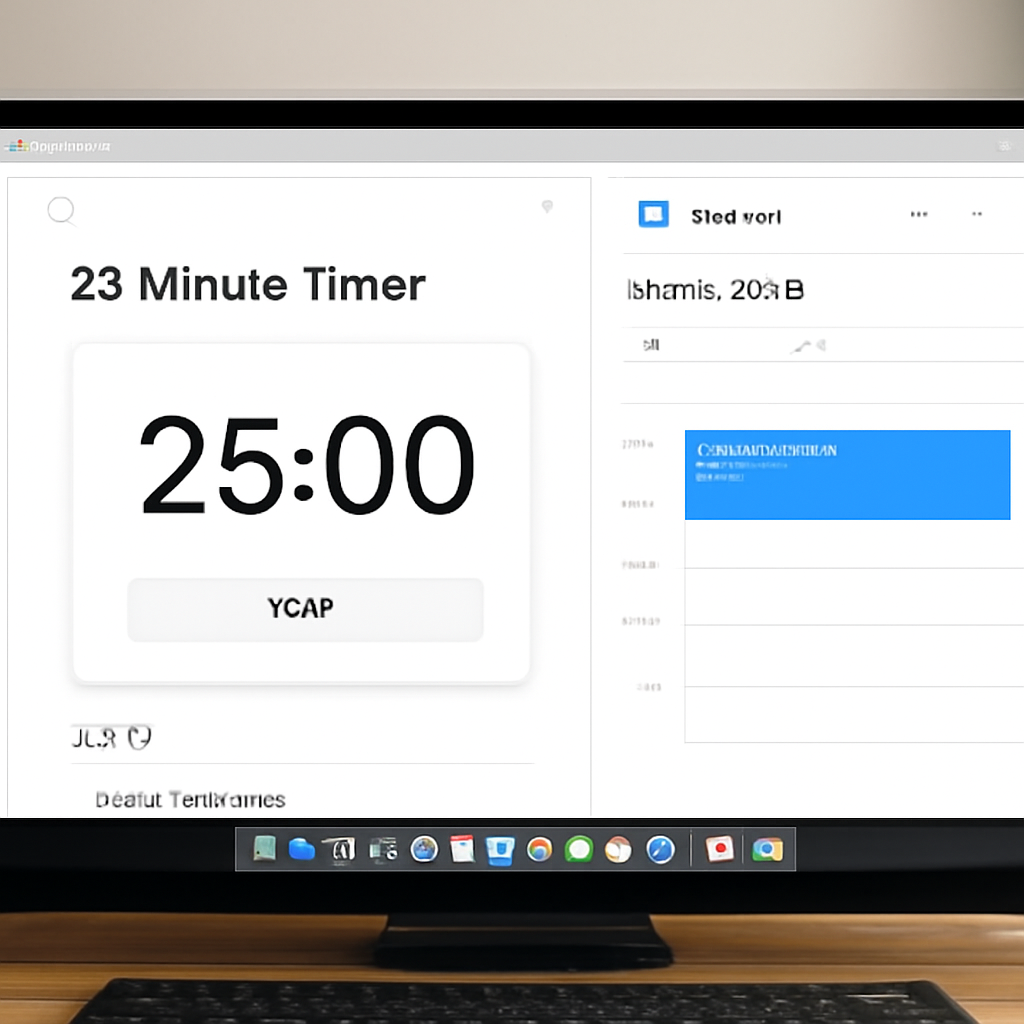
Ever noticed how a simple chime can change the way you feel about a timer? That little jolt of audio can turn a bland countdown into a cue that keeps your brain in the zone. In this section we’ll walk you through picking, setting, and tweaking sounds so that each 25‑minute burst feels intentional and not just another alarm.
Why the tone matters
The brain doesn’t just read numbers; it reacts to sound. A high‑pitch bell can feel like a “start” signal, while a low‑drum beat can signal “keep going.” If the tone feels too jarring, you’ll start to tune it out. If it’s too soft, you’ll miss it altogether. That sweet spot keeps you from checking the timer every minute and instead lets you stay in flow.
Choosing the right sound
Here’s a quick cheat sheet for the most common use‑cases:
- Studying or deep work: a single, muted bell or a gentle chime.
- Creative sessions or design sprints: a low‑tempo drum or a subtle rhythmic pulse.
- Team calls or group work: a short, non‑intrusive ping that everyone can hear without breaking concentration.
Think about the vibe you want when the timer rings. If you’re in a quiet study room, a soft bell keeps the atmosphere calm. In a shared office, a low‑beat signal is less likely to startle colleagues.
Setting up the sound in your timer
Most web timers give you a handful of pre‑loaded tones, but if you want something unique you can upload your own file. For instance, the free online timer at Sekundomer’s 25‑minute timer lets you pick a tone from the library or upload a custom MP3. Here’s how:
- Open the timer on the website.
- Click the gear icon next to the start button.
- Under End sound, choose a pre‑loaded option or click Upload to add your own.
- Adjust the volume slider so the alert sits just above the background noise.
- Press Save and start a test cycle to hear it in action.
Most timers also let you enable a ticking sound that plays at set intervals—say every 5 seconds. That’s a great way to keep the countdown in mind without a full alarm.
Fine‑tuning volume and tone
Once you’ve chosen a sound, tweak it to your environment:
- Headphones: lower the volume, the signal stays crisp without disturbing others.
- Room‑wide speakers: bump it up a notch; you don’t want to miss the cue.
- Try looping the tone for a few seconds if you need a longer cue—this works well for quick “stand‑up” breaks.
Remember, the goal is to have the sound trigger a mental cue, not become a distraction. If it’s too loud, you’ll get annoyed; if it’s too quiet, you’ll forget you’re in a Pomodoro.
Beyond bells: creative alerts
Some users love to mix a short burst of music with the timer. The idea is to let the melody play for a few seconds before the alarm rings. This can keep your energy up, especially during long days. Just make sure the track ends on the exact beat that matches your timer’s end time.
Another trick is to pair the tone with a visual cue—like a flashing border on your screen—so you have two senses lined up. If you’re a multitasker, the double signal can be a lifesaver.
| Feature | Option | Notes |
|---|---|---|
| End sound | Pre‑loaded bell, custom MP3, or ticking loop | Choose based on task and environment |
| Volume control | Adjust per device and room acoustics | Headphones vs. speakers |
| Visual cue | Flashing border, on‑screen text, or color change | Complement the audio for stronger awareness |
Take a minute to experiment with each of these options. Once you find the combo that feels natural, lock it in and let the timer do its job—just like a reliable friend who nudges you when it’s time to move on.
Common Mistakes and How to Avoid Them
Even the best 25‑minute timer with sound can turn into a frustration engine if you fall into a few classic traps. Let’s walk through them together and keep the rhythm smooth.
1️⃣ The “More Is Better” Sound Mix
Some users love to layer a drumbeat, a bell, and a soft white‑noise loop all at once. The result? A cacophony that steals the focus you’re trying to build. Picture a student in a library who hears a sudden drum and a chime – suddenly the mind jumps. Stick to one tone that signals the end of a session. If you want variety, rotate the single cue every few weeks instead of stacking them.
2️⃣ Volume Gone Wild
Sound is a cue, not a shout. A booming alarm on a shared office can yank everyone’s attention away. Think of the break as a mini‑pit stop. It recharges your mental fuel. Try setting a gentle chime for the break too so you’re reminded to step away, stretch, and then dive back in refreshed.
3️⃣ Skipping the Break
One of the biggest mistakes is treating the timer like a stopwatch and ignoring the 5‑minute rest. Think of the break as a mini‑pit stop. It recharges your mental fuel. Try setting a gentle chime for the break too so you’re reminded to step away, stretch, and then dive back in refreshed.
4️⃣ The “I’ll Record Later” Habit
Not logging your Pomodoros means you lose data on how many cycles you actually hit. Many people keep a paper list, but that’s easy to forget. A quick tap in a timer app that tracks sessions (like the Pomodoro Focus Timer on the App Store) saves the time automatically, so you can review your rhythm later without extra effort.
Link: Pomodoro Focus Timer App
5️⃣ Too Many Alerts
Some timers let you enable a tick every minute, a pop‑up, and a vibration. The brain gets overwhelmed and starts tuning out. Keep it simple: one audible signal and, if you must, a single visual cue. This reduces cognitive load and keeps the focus signal clean.
6️⃣ Misaligning the Timer With Task Types
Using a 25‑minute block for a 10‑minute quick call doesn’t feel right. If the task is short, shorten the interval; if it’s a deep‑work essay, stick to 25 minutes or even extend to 30. Customizing interval length makes the timer feel like a tool, not a rigid rule.
7️⃣ Ignoring Post‑Session Review
After a week of sessions, you’re still stuck in the same pattern. Take 5 minutes each Friday to glance at the number of Pomodoros, note which tasks burned more time, and tweak the next week’s plan. Some timers offer simple analytics; others you can log manually. This reflection keeps the system evolving.
Quick Checklist:
- Choose ONE sound cue, keep it consistent.
- Set volume to match your environment.
- Never skip the 5‑minute break.
- Log each session in an app or notebook.
- Limit alerts to audio (and optionally a single visual).
- Match interval length to task length.
- Review and adjust weekly.
Remember, the goal is a rhythm that feels natural, not a chore. By steering clear of these common missteps, your 25‑minute timer with sound becomes a trusted partner that actually boosts productivity.
If you’re juggling multiple projects, set up a quick habit: before you hit start, jot the task title in the timer’s comment box or in a tiny note app. That way, when you review your stats, you’ll see exactly which tasks earned the most focus. Over time, you’ll discover patterns—maybe mornings are best for deep work, evenings for quick edits.
Link: Memtime’s Take on Productivity Timers
Case Studies: Real‑Life Usage Scenarios
Student Sprint: Maria’s Midterm Prep
Maria, a sophomore biology major, felt the classic “study‑glitch” every time a lecture slide drifted into the background. She swapped her old alarm clock for a 25‑minute timer with a soft chime, then logged each session in the Focus Keeper app. After two weeks, her quiz scores jumped 12%, and she stopped feeling swamped by the syllabus.
What helped most? Maria paired the timer with a 5‑minute stretch break that kept her energy up. The chime served as a non‑intrusive cue that she could rely on, so she didn’t double‑check her phone every minute.
Step‑by‑step, she:
- Set the timer to 25 minutes on Focus Keeper.
- Picked a muted bell sound.
- After the timer rang, she did a quick desk stretch.
- She logged the topic and time in the app’s notes panel.
Remote‑Team Rhythm: Alex’s Client Calls
Alex, a freelance copywriter, manages dozens of client emails in a single day. He found that every time his phone buzzed, his focus slipped. He set a 25‑minute timer with a gentle vibration that matched his video‑call background, then scheduled a 5‑minute micro‑break to review notes.
Using the timer, Alex could finish drafts faster—his average turnaround went from 4 hours to 2.5 hours for a standard copy project. The key was the single sound cue that didn’t cut into the client conversation but still nudged him to stay on task.
His workflow looks like this:
- Start a timer before the call.
- Work uninterrupted until the vibration rings.
- Take a breath, stretch, and jot a quick win.
- Resume the next 25‑minute block with a new task.
Freelance Flow: Jenna’s Design Sprint
Jenna, an independent graphic designer, often jumps between client briefs mid‑day. She set her Focus Keeper timer to 25 minutes and chose a subtle drum beat that kept her energized without distracting her clients during virtual meetings.
After four consecutive Pomodoros, Jenna used the long 15‑minute break to review her client’s feedback, then started the next sprint. This rhythm cut her project cycle time by 20%, giving her more bandwidth for creative exploration.
Her checklist:
- Assign a task title in the timer comment box.
- Select a low‑tempo drum tone.
- When the timer rings, pause, stretch, and note any client changes.
- Log the outcome in her project board.
Busy Professional: Daniel’s Daily Dashboard
Daniel runs a marketing agency and often feels buried in emails and strategy meetings. He turned his desktop into a productivity hub by embedding the Focus Keeper timer on his main screen, synchronizing it with his calendar. Each 25‑minute block was labeled with a task name, and the timer’s sound was a soft chime that didn’t startle his teammates.
With this setup, Daniel reduced his meeting‑overlap by 35% and reported clearer focus during high‑priority briefs. The data from Focus Keeper’s smart charts helped him identify when he was most productive—early mornings were his sweet spot.
His routine:
- Start the timer right after a meeting.
- Let the chime cue the end of the work burst.
- Immediately log the task in the app.
- Review the smart chart at Friday’s end‑of‑week check‑in.
Want to see how a 25‑minute timer with sound can reshape a hectic schedule? Check out our guide on maximizing focus and productivity for a deeper dive into the technique and tool integration.
Our guide on maximizing focus
FAQ
1. Why should I use a 25‑minute timer with a sound cue instead of just setting a phone alarm?
Because a tone that plays at the exact end of the focused burst keeps your brain in a steady groove. A standard alarm feels abrupt and can jolt you out of flow, especially if you’re in the middle of a complex task. A gentle chime or drumbeat signals, “Hey, you’re done—time to breathe.” That subtle cue reduces the mental cost of checking the clock and lets you stay in the zone.
2. How do I choose the right sound for my work style?
Start with your environment. If you’re studying solo, a soft bell keeps things calm. If you’re a freelancer who needs a bit of energy, a low‑tempo drum adds a steady pulse. Test each tone in the actual room, and pick the one that feels like a friendly nudge, not an alarm. The right sound turns the timer into a personal coach.
3. Can I sync the timer with my calendar so I don’t have to open the app every time?
Yes. Many planners let you set a 25‑minute event and attach a custom sound from your device’s library. When the event starts, the same cue plays automatically, so you’re not juggling windows. If you prefer a web timer, keep it in a browser tab that stays on top; the sound will still ping at the right moment without extra clicks.
4. What if I have multiple tasks in a day—how do I keep my timer organized?
Create quick “profiles” or simply jot the task title in the timer’s comment field. When the timer rings, you can immediately log the task in a spreadsheet or a note app. That habit gives you instant data on how many Pomodoros you hit per project and helps you tweak future schedules.
5. Is it okay to use a vibrating notification instead of an audible tone?
Definitely if you’re in a shared space or prefer a low‑profile cue. Vibrations keep teammates focused and let you feel the end of a burst without a sound. Just make sure the vibration is strong enough to feel distinct; a weak buzz can slip under the radar and ruin the rhythm.
6. How do I prevent myself from skipping the 5‑minute break after each burst?
Set a second, softer tone for the break. When the first sound ends, let the second ping remind you to step away, stretch, or grab a glass of water. The break is the mini‑pit stop that keeps your brain fresh. Treat it like a mini‑reward so you’re actually looking forward to it.
7. Will using a timer help me feel more productive if I’m a busy professional juggling meetings?
Absolutely. By marking each 25‑minute window with a consistent cue, you create a rhythm that syncs with your calendar. It turns long meetings into focused blocks and reduces the “overlap” you feel. The regular sound cue trains your brain to finish a task before moving on, which cuts distraction and makes meetings feel shorter.
Conclusion
We’ve walked through the nuts and bolts of the 25‑minute timer with sound, from picking the right tone to syncing with your favorite tools.
What matters most is that the cue feels like a friendly nudge, not a bossy alarm.
If you’re a student, a remote worker, a freelancer, or a busy pro, you can tweak the interval, volume, or even add a visual pop—just keep it simple.
The real magic shows up when you notice your flow actually improves. Maybe you finish a chapter faster, close a client email in half the time, or simply feel less drained after a break.
So what’s the next step? Grab your timer, choose a tone that feels like a high‑five, set a quick break reminder, and hit start. Watch the rhythm take hold and let the rest of the day follow.
Remember, consistency beats perfection. Start with a single 25‑minute session a day, track how you feel, and adjust the tone or pause length until it feels natural. Over a month, the pattern will feel so ingrained you’ll almost forget you’re timing yourself.
Give it a week, then celebrate the small wins—each completed burst is a win for focus and confidence and more.




