
Apple’s Screen Time is okay, but sometimes you need something more, right? Especially if you’re not all in on Apple devices or just want more control. Finding the right screen time app alternative can feel like a chore, but it doesn’t have to be. We’ve looked at some of the top options out there for 2026 that can help you manage your kids’ digital lives without all the hassle. These tools can make a big difference in setting boundaries and keeping things peaceful at home.
Key Takeaways
- Google Family Link is a solid free choice for Android users, offering app management and location tracking.
- For Apple users, iOS Screen Time is built-in and provides good tracking and basic controls for free.
- Cross-platform apps like Qustodio offer more features for families with mixed devices, though some advanced options might cost money.
- Boomerang Parental Control is noted for its YouTube monitoring and bypass protection on Android devices.
- When choosing a screen time app alternative, consider your family’s specific devices, what features you really need, and your kids’ ages.
Google Family Link
Google Family Link is a pretty solid option, especially if your family is already deep into the Google ecosystem. It’s completely free, which is a huge plus, and it lets you manage an unlimited number of devices. Setting it up is fairly straightforward: your child needs their own Google account, and then you link it to your parent account using the Family Link app on your phone.
What can you actually do with it? Well, you can set daily screen time limits, which is handy for making sure they aren’t glued to their screens all day. You can also schedule downtime, like during school hours or at night, where the phone basically locks down until the scheduled time is up. It’s also great for approving or blocking app downloads and in-app purchases, so no surprise charges on your credit card. Plus, you can see where your kid is, which is reassuring for many parents.
Here’s a quick rundown of some key features:
- Screen Time Management: Set daily limits and schedules for device usage.
- App Control: Approve or block app downloads and manage in-app purchases.
- Content Filtering: Set age-appropriate restrictions for apps and content on Google Play.
- Location Tracking: See your child’s real-time location.
- Remote Lock: Lock your child’s device from your own phone.
However, it’s not perfect. For starters, if your child is 13 or older, they can opt out of Family Link, which limits its usefulness for monitoring older kids. Also, while it does have some web content filtering, it’s pretty basic and doesn’t always catch everything. It also doesn’t offer advanced features like geofencing, meaning you can’t set up specific safe zones and get alerts when your child enters or leaves them.
While Google Family Link is a good starting point, especially for younger kids and Android users, it might feel a bit light on features for parents who want more granular control or advanced monitoring capabilities. It’s a great free tool, but be aware of its limitations.
If you’re looking for a free way to get a handle on your child’s device usage and you’re comfortable with Google’s services, Google Family Link is definitely worth checking out. It’s a good way to start building healthy digital habits without breaking the bank.
Qustodio
Qustodio is a pretty solid option if you’re looking for a parental control app, and it even has a decent free version to get you started. It’s got a lot of features packed in, which can be a good thing, but sometimes it feels like a lot to manage. The app lets you set screen time limits, block certain websites, and even track your child’s location.
One thing that really stands out with Qustodio is how flexible it is with scheduling. You can set up different time blocks for when your child can and can’t use their device. Think bedtime, dinner time, or even during school hours. You can get pretty specific, like blocking games from 2 PM to 3 PM on Tuesdays. It’s a nice way to build routines without constant nagging.
Here’s a quick look at what it offers:
- Screen Time Limits: Set daily limits for overall device use or cap time on specific apps.
- Content Filtering: Block websites and categorize content (like weapons or adult material) with options to block, alert, or permit.
- App Blocking: Control which apps your child can access.
- Location Tracking: See where your child is in real-time and check their location history.
- Detailed Reports: Get daily or weekly email summaries of your child’s online activity, including searches and app usage.
While Qustodio offers a lot of control, some of its more advanced features, like reading text messages, might feel a bit intrusive to some parents. It’s worth thinking about how much monitoring feels right for your family before diving into those options. Plus, it’s good to know that some experts caution against this level of oversight.
It’s available on a bunch of platforms, including Windows, Mac, Android, iOS, and Chromebooks, which is handy. However, it’s worth noting that the iOS version can sometimes be a bit glitchy, and some features might not work as smoothly as they do on Android. Also, if your child is tech-savvy and knows about VPNs, they might be able to get around some of the restrictions. For parents looking for a robust way to manage their child’s digital life, Qustodio is definitely worth checking out, especially if you want a good parental control app with lots of options.
Boomerang Parental Control
Boomerang Parental Control is a solid option, especially if you’re primarily using Android devices. It really aims to take the daily hassle out of managing your kids’ screen time, cutting down on those constant arguments about when it’s time to put the phone away. The app focuses on automating a lot of the process, which is pretty neat.
One of the standout features is its ability to set up scheduled downtime and daily time limits. This means you can automatically enforce bedtime or homework hours without having to be the one constantly nagging. It also lets you set up exemptions for educational apps, so learning isn’t interrupted. This automated approach helps remove parents from the ‘screen time police’ role.
For Android users, Boomerang offers a really detailed YouTube monitoring feature. It tracks app history and search activity, giving parents a clearer picture of what their kids are watching. This can be a good starting point for conversations about online content. They also have an app approval system, so you get to decide which apps your kids can even download and use.
Managing screen time can feel like a constant battle, and tools like Boomerang try to make it less of a fight by setting clear, automated boundaries. It’s about finding a balance that works for your family without constant back-and-forth.
Here’s a quick look at some of its key features:
- Scheduled Downtime: Automatically locks down devices during specific hours (like bedtime or school time).
- Daily Time Limits: Sets a total amount of screen time allowed each day.
- App Management: Allows parents to approve or block specific applications.
- YouTube Monitoring (Android): Tracks viewing history and searches within the YouTube app.
- Web Filtering: Helps block access to inappropriate websites.
While it shines on Android, it’s worth checking out their parental control application for iOS compatibility if you have a mixed device household. It’s designed to be straightforward, aiming to provide peace of mind without being overly complicated.
Bark
Bark stands out as a parental control app that puts emphasis on communication rather than strict surveillance. Instead of locking things down to the point of frustration, Bark is more about giving parents a heads-up when there’s something concerning, and then letting them decide how to address it with their kids. Its alert system is pretty smart, scanning messages, apps, and emails for signs of bullying, mentions of drugs or self-harm, and even inappropriate photos. These alerts help parents catch problems before they grow—without hovering over their child’s every move.
Here’s what Bark can do:
- Monitors texts, email, and dozens of apps for risky content or questionable messages
- Notifies parents of possible cyberbullying, drug use, suicidal talk, or online predators
- Offers web and app filtering, as well as flexible screen time limits
- Location check-ins to know when kids arrive at important places
But it’s not perfect. Bark doesn’t have as many detailed tracking features as some of the more restrictive options. For example, on iOS it can’t monitor apps like TikTok, and Windows support is just Chrome and Edge. Setup can be tricky for some, especially if you’re not tech-savvy, and for full message scanning, the child’s device usually needs to be on the same Wi-Fi as your home.
| Feature | Supported Devices | Content Alerts | Location Tracking | Screen Time Controls | Filters Apps/Web |
|---|---|---|---|---|---|
| Bark | Android, iOS, Chromebooks | Yes | Yes | Yes | Yes |
Bark is best for parents who want real insights into their child’s digital world, but still want to keep the door open for honest conversations, not just strict controls.
Norton Family
Norton Family is a pretty solid choice, especially if you’ve got kids using Windows and Android devices. It’s from Norton, you know, the cybersecurity folks, so it comes with a bit of a reputation for being reliable.
One of the standout features is definitely ‘School Time.’ This lets you lock down internet access to just educational sites for a set period, which is super handy if you want to make sure homework actually gets done without distractions. It’s like a digital study buddy.
Location tracking is also a big plus here, with detailed history logs. You can see where your child has been, and it has geofencing, which means you get alerts if they wander outside a set area. Just a heads-up though, the location features aren’t available on iPhones, which is a bit of a bummer if your family is mostly on Apple devices.
Here’s a quick look at what it does:
- Website Filtering: Blocks inappropriate sites.
- Time Limits: Set schedules for internet use.
- Location Monitoring: Track your child’s whereabouts.
- Search History: See what your kids are looking up online (mostly on YouTube).
It supports an unlimited number of devices, which is great for larger families, and the pricing is usually pretty reasonable, especially if you already have other Norton security products. They also offer a 30-day free trial, so you can give it a spin before committing.
While Norton Family offers robust features for Windows and Android, its limitations on iOS are significant. Parents relying heavily on iPhones might find the app blocking and location services less useful compared to other platforms. It’s a good option if your ecosystem aligns with its strengths, but be aware of the platform-specific drawbacks.
FamilyKeeper
FamilyKeeper is a pretty straightforward option if you’re not looking for a ton of bells and whistles. It focuses mainly on screen time management, which is great if that’s your primary concern.
One of the neat things about FamilyKeeper is how it handles requests for more time or app access. Instead of just a hard ‘no,’ kids can actually message their parents through the app to ask for extensions. This can open up conversations about why they need more time, which is a nice touch for fostering a bit of responsibility.
- Screen Time Scheduling: Set daily limits and specific times for device usage.
- App Blocking: Prevent access to certain applications.
- Web Filtering: Basic content filtering to block inappropriate websites.
- Location Tracking: Keep an eye on your child’s whereabouts.
It’s often described as simpler than some of the other big names out there, and that can be a good thing. If you have an older teen who just needs a little nudge to manage their device use better, or if you’re just starting out with parental controls and want something easy to get the hang of, FamilyKeeper could be a solid choice. It gets the job done without being overly complicated.
While FamilyKeeper offers core features like location tracking and content filtering, it’s important to remember that no system is completely foolproof. Ongoing conversations with your children about online safety and responsible device use are just as important as the tools you use.
Kidslox
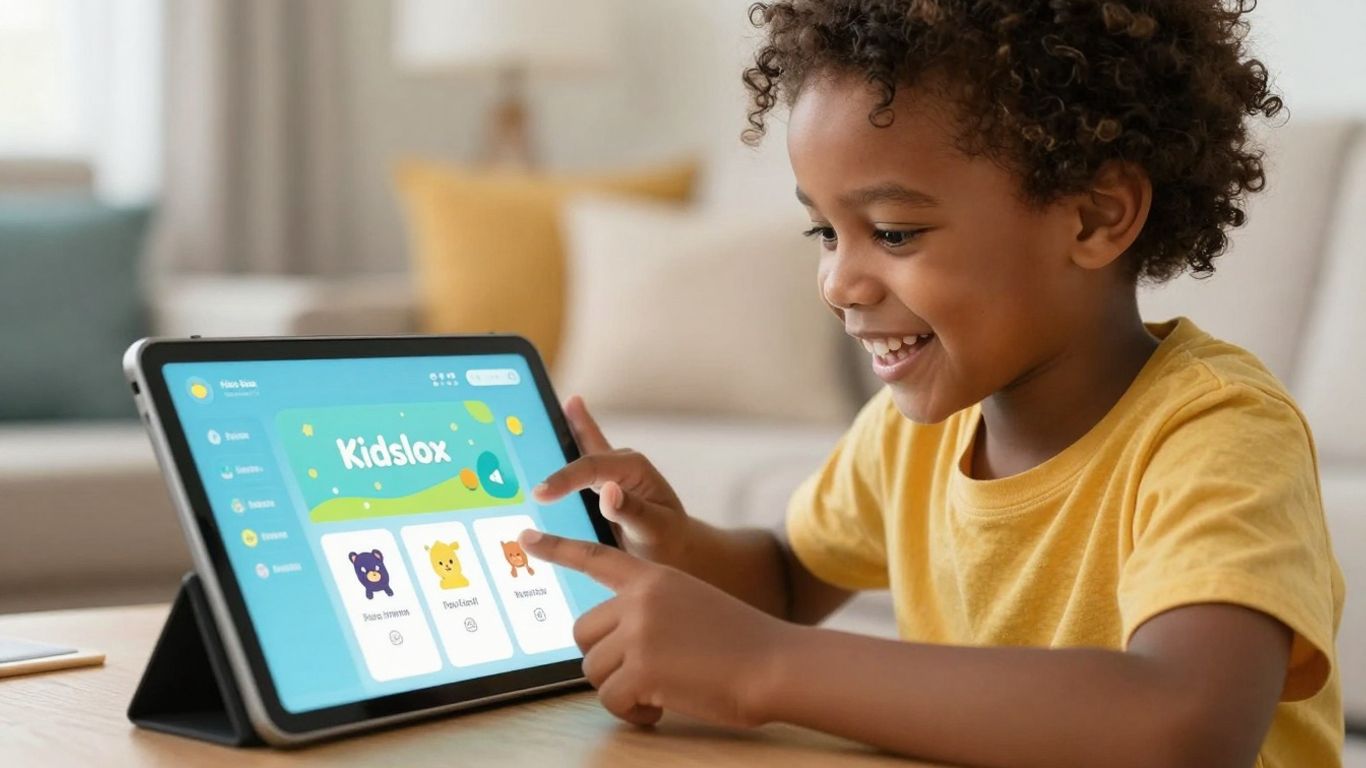
Kidslox used to be a pretty popular choice for parents looking to manage their kids’ screen time. It offered features like setting time limits, but it had some definite drawbacks. For instance, you could only set limits on broad app categories like ‘games’ or ‘entertainment,’ not on specific apps, which felt pretty limiting. Plus, getting it set up could be a bit of a headache, especially compared to some of the more streamlined options out there.
One of the things that really stood out, and not in a good way, was the screenshot feature. While it aimed to give parents a peek into how their kids were using their devices, it felt a bit intrusive and wasn’t always the most helpful way to understand digital habits. Customer service was also a sticking point for many users, often being automated and not very useful when you actually needed help.
While Kidslox had some basic features for managing screen time, its limitations in app-specific controls and a sometimes confusing user experience meant it often fell short for parents needing more detailed oversight.
If you’re looking for alternatives, there are many other parental control apps available that offer more granular control and better support. Many of these newer apps provide more advanced features for monitoring and managing device usage, making them a better fit for today’s digital landscape. You can find a range of paid and free options to explore, each with its own set of strengths. For example, some apps focus on content filtering, while others excel at detailed time management. It’s worth checking out other Kidslox alternatives to see what best suits your family’s needs.
Mobicip
Mobicip has made a name for itself as a flexible tool for families that need to manage multiple devices, whether it’s phones, tablets, or computers. One thing that really stands out is Mobicip’s real-time alert system, which keeps you in the know whenever your child tries to access something that’s been blocked. Setting it up isn’t a hassle—you can quickly create a profile for your kid, pick from different levels of monitoring, and you’re basically ready to go.
If you’re into seeing clear details, Mobicip does a good job showing you what apps your kid uses the most and what sites they’re visiting. The dashboard puts this info into simple charts and lists, making it easy to spot trends.
Here’s what you get with Mobicip:
- Real-time alerts for blocked site/app attempts
- Cross-platform support (Windows, Mac, iOS, Android, Chromebook, Kindle Fire)
- Content filtering, including custom keyword filters
- Daily and weekly reports, plus screen time limits
- Basic location tracking for mobile devices
But it’s not perfect. App blocking on Mobicip can be hit or miss—sometimes the apps on its list are outdated, and you can’t always control every single app’s time individually. Also, geofencing isn’t part of the package yet, so you can’t set up location-based limits. The restrictions it applies by default might also require some adjusting, since they don’t always match up with what most families want.
| Feature | Available on Mobicip? |
|---|---|
| Real-time alerts | Yes |
| Screen time limits | Yes (category-based) |
| Individual app limits | Limited |
| Location tracking | Yes (mobile only) |
| Geofencing | No |
While Mobicip covers a lot of ground for families with multiple devices, it’s wise to double-check its app controls and default restrictions to make sure they fit your family’s needs.
Net Nanny
Net Nanny is another solid choice if you’re looking for parental controls, especially if content filtering is your main concern. It really shines with its intelligent filtering, which actually analyzes what’s on a webpage in real-time, instead of just relying on a list of blocked sites. This means it can catch new stuff that might slip through the cracks with other apps.
It covers a lot of ground, letting you block websites and apps, set screen time limits, and keep an eye on what your kids are up to with reports. One really neat feature is the built-in YouTube monitoring. Given how much kids use YouTube, having that directly integrated is super handy. Plus, you get location tracking and history, so you can see where your child has been.
Here’s a quick look at what it offers:
- Platforms: Windows, Mac, iOS, Android, Kindle Fire
- Device Limit: Up to 20 devices
- Key Features: Content filtering, screen time limits, location tracking, YouTube monitoring
Now, it’s not perfect. During testing, the app sometimes crashed, which is obviously not ideal when you’re relying on it to keep things safe. Also, some features, like location tracking, don’t work on Windows or Mac, which is a bit of a bummer if you’re using those computers.
While Net Nanny’s real-time content analysis is impressive, and the YouTube monitoring is a big plus, the occasional app instability and platform limitations mean it might not be the best fit for everyone. It’s a strong contender, but definitely worth checking if those specific drawbacks are deal-breakers for your family.
If you want really specific content filtering and good YouTube oversight, Net Nanny is definitely worth a look. Just be aware of the occasional glitches and the platform differences.
OurPact
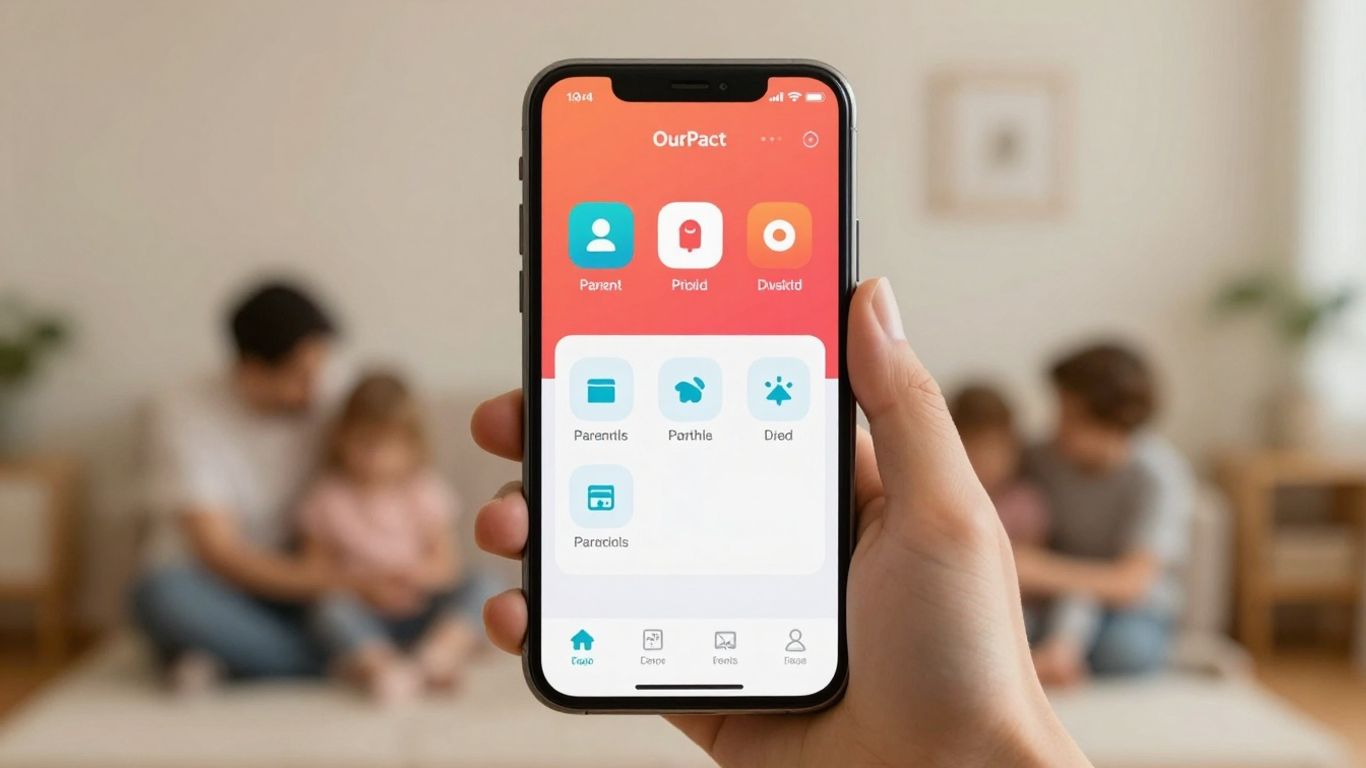
When it comes to managing your kids’ screen time, OurPact is another option parents consider. It aims to give you control over when and how your children use their devices. The setup process can be a bit of a chore, especially if you’re trying to get it running on iPhones, often requiring a computer or several steps on the phone itself. For Android, it’s a bit more straightforward, but still involves a few hoops to jump through.
One of the main things OurPact does is allow you to schedule device access. You can set specific times when your child can and cannot use their phone or tablet. This is handy for making sure homework gets done or that bedtime is respected without constant back-and-forth.
- Scheduled Downtime: Block access to devices during specific hours (e.g., school time, bedtime).
- App Blocking: Prevent access to certain applications.
- Location Tracking: See where your child is.
- Web Filtering: Block access to specific websites.
While it offers these features, it’s not always the most flexible when it comes to setting limits on individual apps. You might find yourself wanting more detailed control over specific apps rather than just broad categories. Also, the data and analytics it provides about your child’s screen time habits aren’t as detailed as some other apps out there, which can make it harder to get a full picture of their digital life.
The goal of parental control apps like OurPact is to create a safer online environment for kids. This involves not just limiting screen time but also guiding children toward healthier technology habits. It’s about finding a balance that protects them without making them feel overly restricted, fostering trust and open communication within the family about their digital experiences.
Wrapping It Up
So, while Apple’s built-in Screen Time is a decent starting point for iPhone users, it’s clear there are other options out there that might fit your family better. Whether you’re juggling different types of phones or just need more control, exploring apps like Google Family Link for Android or cross-platform choices means you can find a system that works for everyone. Remember, the goal isn’t just to limit screen time, but to help kids build good habits. Talking with your kids about why these limits are in place is just as important as the tech itself. Finding the right tool can make managing digital life a lot less of a headache.
Frequently Asked Questions
What’s the difference between built-in screen time tools and separate apps?
Built-in tools like Apple’s Screen Time and Google Family Link are already on your phone or tablet. They’re usually free and work well with the device’s system. Separate apps, like Qustodio or Bark, are downloaded and can sometimes offer more features, especially if you have different kinds of devices at home, but they might cost money.
Are free screen time apps as good as paid ones?
Free apps often give you the basic tools you need, like setting time limits and blocking apps. Paid apps usually have more advanced features, such as detailed reports on what your child is doing online, better ways to block bad content, or help if you have problems. For many families, free apps are enough to get started.
Can kids get around these screen time apps?
Some kids might try to find ways around the rules, but these apps have ways to stop that. The built-in ones work closely with the phone’s system, making them harder to trick. Other apps have extra protection. But the best way to keep kids safe online is still talking to them about why these rules are important.
Which app is best for my family?
It really depends on what devices you use and what you need. If you mostly use iPhones, Apple’s Screen Time is a great free choice. For Android phones, Google Family Link is a good free option. If you have a mix of devices or want more features, apps like Qustodio might be a better fit.
How can I make screen time rules work without causing big fights?
Talk to your kids about why you’re setting limits. Explain that it’s about staying safe and healthy, not just about punishment. Try to be consistent with the rules and involve them in setting up some of the limits, especially as they get older. This helps them feel more in control.
What features should I look for in a screen time app?
For younger kids, simple time limits and blocking certain apps are key. For older kids, you might want features like knowing where they are (location tracking), seeing who they’re talking to, or setting different rules for school days versus weekends. The most important thing is finding an app that fits your family’s specific needs.




